
| Where this fits: Workflow Universe › Start Here | For: Field, Admin | |
| Read first: The Workflow Universe: How the Guides Fit | Read next: The Field Guide · Trip Status and Pin Legend |
Applies to: Vendor office staff | Web
Download the printable guide (PDF)
Quick Reference · For the Vendor’s office
A service company you work for runs its work on UtilizeCore. Each job you are sent is a Trip. This page is the six things your office does once, and the three things it does every week. Your technicians have their own page.
Once.
| # | Do this | How | Done when |
|---|---|---|---|
| 1 | Accept the invite | The email from the company that invited you. If it never arrived, ask them to resend it. | You are on the Terms page. |
| 2 | Read the Terms to the bottom | The Accept button stays gray until you have scrolled the whole way. | The button turns blue. |
| 3 | Create your company | Name, address, the trades you perform. The trade list is broad; add the detail on your profile afterward. | Your company page exists. |
| 4 | Upload your documents | W-9, certificate of insurance, and whatever the company that invited you requires. Until they are approved, you may not be dispatched. | Each document reads Approved. |
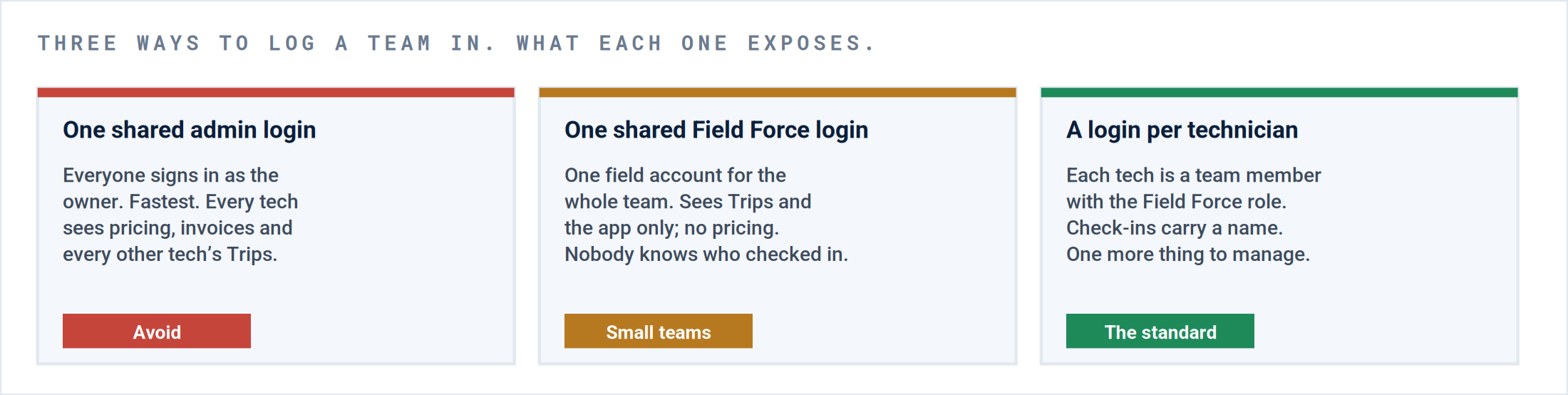
| 5 | Choose how your team logs in | See the three choices below. Pick one before you add anyone. | Written down. |
| 6 | Add your technicians | Team members with the Field Force role. Set the app language per person. Send them The Field Guide. | Each technician has opened the app once. |
Every week.
| Do this | Where | Done when |
|---|---|---|
| Accept or reject new Trips | The email, the Portal, or the app. All three are the same button. | Nothing waits on you overnight. Give a two-hour arrival window when you accept. |
| Invoice completed Trips | Portal › Generate Receivables. A Trip appears there once the company that sent it has verified the visit. The paper plane sends it. If the company generates it for you, confirm or deny it there instead. | Every verified Trip has an invoice sent or confirmed. |
| Answer proposal requests | Portal › Proposals. A Trip that needs a quote before the work waits here. Price it, attach the backup, send it. | No proposal request older than two days. |
| Answer a rejection | The email that arrives when a photo, a visit or an invoice is rejected. It carries the reason. | Fixed and resent the same day. |
If it is not working.
| A technician cannot see a Trip | Check the app filters first: Week or Month, never Day. Work Orders tab, location on. Then call the company; the Trip may have expired. |
| You cannot invoice a Trip | The company that sent the Trip has not verified the visit yet. Only they can. Ask them. |
| Photos did not arrive | The technician closed the app before the upload finished. Open it on wifi and leave it open until the red cloud clears. |
Questions? Call the company that sent you the Trip. App trouble: support@utilizecore.com.
Questions? Contact your Customer Success team or email support@utilizecore.com.