
| Where this fits: Workflow Universe › Layer 1 · Foundation | For: Dispatcher, Operations Lead | |
| Read first: Action Filters | Read next: Billing Methods Explained · Invoicing: From Verified Trip to Paid |
Applies to: Dispatchers, operations leads, verifiers | Web
Download the printable guide (PDF)
One status, four places you see it.
A Trip status is not something you set. The platform calculates it from what has happened: was it dispatched, did the technician check in, did the clock run past your thresholds, has anyone verified it. The same status then shows up in four places, and reading any one of them tells you what the Trip needs from you.
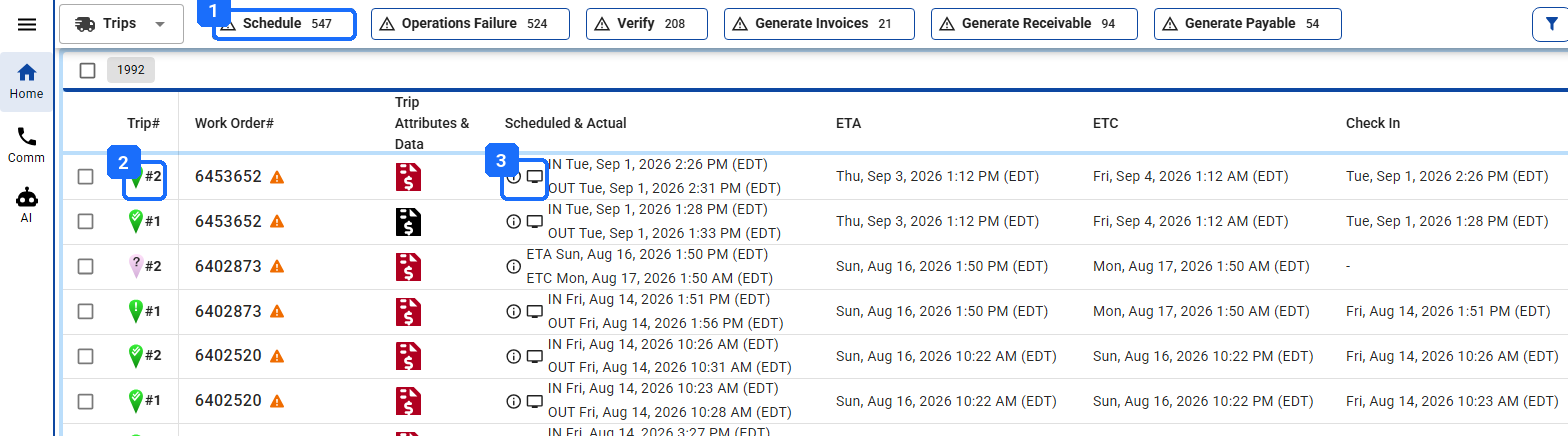
- The Action Filter. Its count is how many Trips need this kind of attention right now.
- The pin. Same colors and glyphs on the map, in the list, and on the Work Order.
- The origin icon. A phone means the technician checked in from the app; a computer means someone in the office entered or adjusted the time. The Actions column at the far right suggests the next step for the status: Verify, Edit Visit, Assign, Re-send Dispatch Email.
The Trips list, with the four signals in one row. Pins and Action Filters are the same vocabulary. When the pin says one thing and the Action Filter count says another, refresh the page; the counts refresh on load.
The path a Trip takes.
Five statuses make up the normal path: created, dispatched, checked in, checked out, verified. Everything else is a place where the Trip stepped off that path. The figure shows where each one branches from and what brings it back.
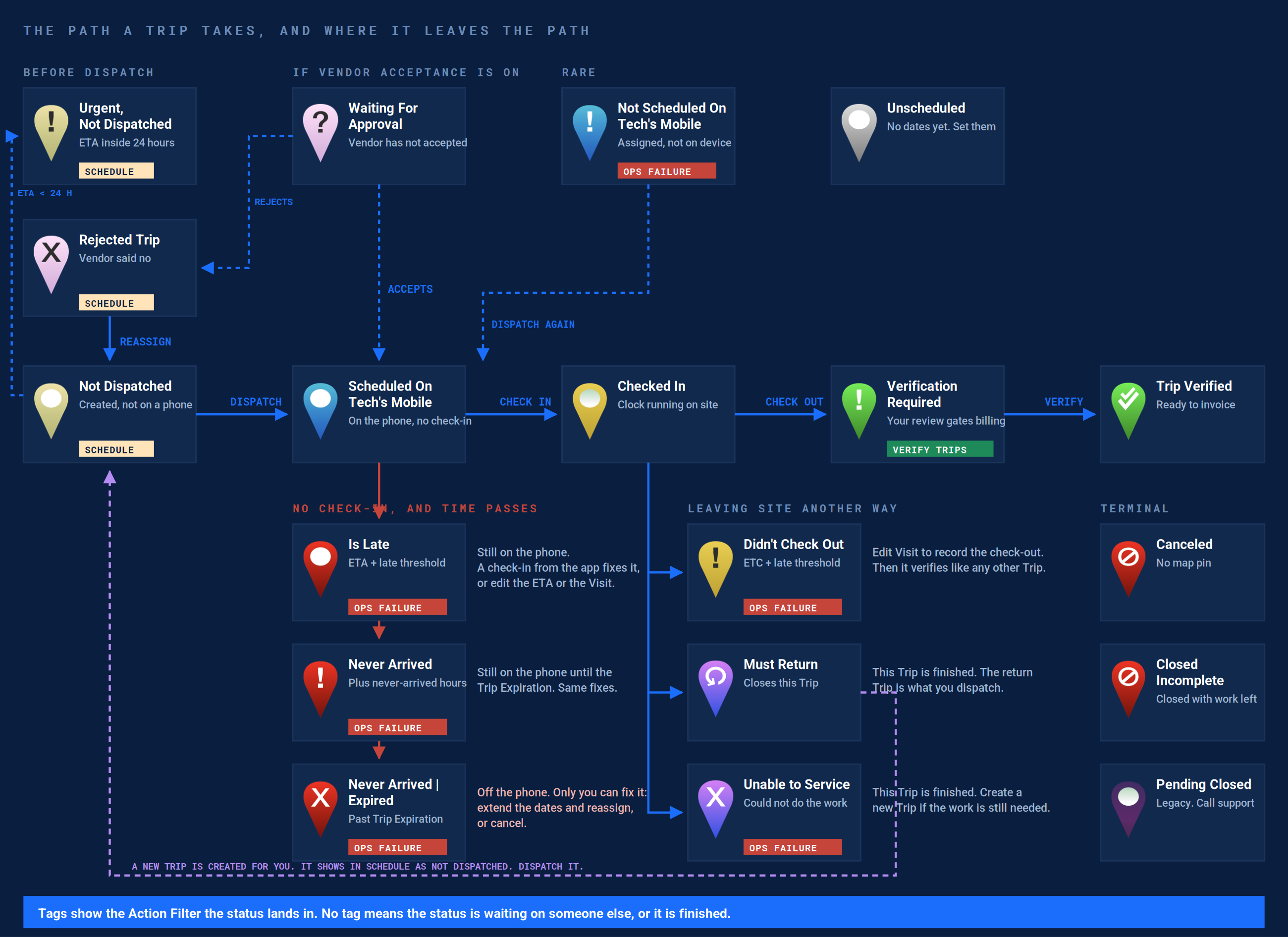
Left to right is a good day; the branches are a bad one. The three red statuses are one missed check-in at three ages. Must Return creates the next Trip, which appears as Not Dispatched.
The three Action Filters, exactly as the platform builds them.
The Action Filter row above the Work Orders list has nineteen Action Filters. Three of them are built from Trip status and drive the daily routine.

- Schedule. Trips at Urgent Not Dispatched, Not Dispatched, or Rejected Trip, plus Work Orders that have no Trip at all.
- Operations Failure. Is Late, Never Arrived, Never Arrived | Expired, Didn’t Check Out, Unable to Service, Not Scheduled On Tech’s Mobile.
- Verify Trips. Verification Required, and nothing else.
- The filter funnel. Pin your region or Client here first so the Action Filter counts become yours rather than the whole company’s.
The Action Filter row on the Work Orders page. One Action Filter applies at a time, on top of any pinned filters. Canceled and closed Work Orders never appear.
| Action Filter | Trip statuses inside it | What the count means |
|---|---|---|
| Schedule | Urgent Not Dispatched · Not Dispatched · Rejected Trip · and, on the Work Orders page, any Work Order with no Trip yet | Work nobody in the field can see. Every item is yours to move. |
| Operations Failure | Is Late · Never Arrived · Never Arrived | Expired · Didn’t Check Out · Unable to Service · Not Scheduled On Tech’s Mobile | The field did not do what the schedule said. Every item is a Client who is about to call. |
| Verify Trips | Verification Required | Finished work that cannot bill until you look at it. |
Statuses that wait on someone else, or are finished, sit in none of the three: Scheduled On Tech’s Mobile, Checked In, Waiting For Approval, Must Return, Trip Verified, Closed Incomplete, Canceled, Pending Closed. The Trips page adds the billing and weather Action Filters.
Status by status.
Before dispatch

Not Dispatched ACTION REQUIRED
The Trip exists but has not been sent to anyone’s phone. Nobody in the field can see it.
TriggerThe Trip was created and saved without dispatching (Save instead of Save & Dispatch), or the assignee was removed.
ActionAssign a Vendor or team member and dispatch. The pin turns blue when it lands on the phone.
Action FilterSchedule

Urgent Not Dispatched URGENT ACTION REQUIRED
Not Dispatched, and the ETA is inside the next 24 hours.
TriggerThe platform flags it automatically when the ETA is within 24 hours and nothing has been dispatched.
ActionDispatch now. Sort the Schedule Action Filter so these sit at the top.
Action FilterSchedule

Rejected Trip ACTION REQUIRED
The Vendor or technician rejected the Trip. Nothing will happen until it has a new assignee.
TriggerThe Vendor rejects from the email, the Vendor Portal, or the app. All three stay in sync.
ActionReassign the Trip to another Vendor or team member and dispatch again.
Action FilterSchedule

Waiting For Approval IN PROGRESS
Dispatched to a Vendor and waiting for the Vendor to accept. It only appears when vendor acceptance is required in Company Settings.
TriggerTrip dispatched to a Vendor while “require vendor acceptance” is on.
ActionWait, follow up by phone, or reassign if the ETA is close. It is in no Action Filter, so put a Follow Up Date on it.
Action FilterNone

Not Scheduled On Tech's Mobile RARE
The Trip is assigned but is not on the technician’s device.
TriggerAssigned without a completed dispatch to the device.
ActionOpen the Trip, confirm the assignee, and dispatch again.
Action FilterOperations Failure

Unscheduled RARE
A Trip record with no dates set yet. You will rarely see it; Not Dispatched is the normal starting point.
TriggerA Trip created without a schedule.
ActionSet the dates, assign, and dispatch.
Action FilterNone
On the phone

Scheduled On Tech's Mobile IN PROGRESS
Dispatched and visible on the technician’s phone. No check-in yet.
TriggerA successful dispatch.
ActionNothing. Watch the ETA. If the ETA passes without a check-in, the status moves to Is Late and then Never Arrived on your thresholds.
Action FilterNone

Is Late ACTION REQUIRED
The ETA has passed by more than your Late Check In Threshold and nobody has checked in. The Trip is still on the phone and still fully actionable.
TriggerETA + Late Check In Threshold, no check-in.
ActionCall the Vendor. If they are on site, have them check in from the app so the record comes from the field. If they are running late, edit the ETA. If they were there and forgot, Edit Visit.
Action FilterOperations Failure

Never Arrived ACTION REQUIRED
Late ran on past the number of hours in “Late ETA when Vendor/Tradesman’s Status is Late / Never arrived”. Still on the phone until the Trip Expiration.
TriggerIs Late + the never-arrived hours, still no check-in.
ActionSame three moves as Is Late: check in from the app, edit the ETA, or Edit Visit. Do it before the Trip Expiration.
Action FilterOperations Failure

Never Arrived | Expired ACTION REQUIRED
Never Arrived, and the Trip Expiration has passed. The Trip dropped off the phone. This is the status behind “the job disappeared from his phone”. It does not show on the map.
TriggerNever Arrived + Trip Expiration passed.
ActionEdit the Trip to extend the dates and reassign, or cancel it. Nothing the technician does in the app will bring it back.
Action FilterOperations Failure
On site

Checked In IN PROGRESS
The technician checked in and the clock is running. The origin icon tells you whether the check-in came from the app or was entered on the web.
TriggerCheck-in from the app inside the geofence, or a check-in entered by the office.
ActionNothing. Monitor to check-out.
Action FilterNone

Didn't Check Out ACTION REQUIRED
Checked in, and the ETC passed by more than your Late Check Out Threshold with no check-out. The Trip cannot verify until it has one.
TriggerETC + Late Check Out Threshold, no check-out.
ActionConfirm with the Vendor what time they left, then Edit Visit to record the check-out. The status moves to Verification Required.
Action FilterOperations Failure

Must Return ACTION REQUIRED
The technician checked out with work left, gave a reason, and the platform closed this Trip and created a new one on the same Work Order for the return. Each reason carries its own return window, set per Service under Advanced Settings.
TriggerCheck-out with Must Return chosen instead of Complete.
ActionDispatch the new Trip. It sits in Schedule as Not Dispatched. Must Return itself is in no Action Filter, which is why the return Trip is what you watch.
Action FilterNone (the return Trip is in Schedule)

Unable to Service ACTION REQUIRED
The technician was on site but could not perform the service. This Trip is done.
TriggerCheck-out with Unable to Service chosen.
ActionCreate a new Trip if the service is still needed. Read the technician’s note first; it usually says why.
Action FilterOperations Failure
After the visit

Verification Required ACTION REQUIRED
Check-in and check-out are complete. Billing on both sides waits for your review.
TriggerA completed check-out.
ActionReview times, photos, and tasks. Verify, or leave it here with a Vendor note that says what is missing. Withholding verification is the lever that changes field behavior.
Action FilterVerify Trips

Trip Verified COMPLETE
Work confirmed. The Trip can now generate the Client Receivable and the Vendor Payable. No map pin.
TriggerSomeone with permission clicked Verify, one Trip or in bulk.
ActionGenerate the invoices, or let auto-invoicing do it. Lock the Trip if nobody should adjust it again.
Action FilterGenerate Invoices, Receivable, Payable

Closed Incomplete TERMINAL
Closed before the service was fully completed. No further action is possible on this Trip.
TriggerClosed with work left.
ActionCreate a new Trip if more work is needed.
Action FilterNone

Canceled TERMINAL
Canceled before or during execution. No map pin.
TriggerCancel from the Trip menu. An undispatched Trip cancels in one step; a verified one has to be unverified first, and an invoiced one needs the invoice voided.
ActionCreate a new Trip if the service is still needed.
Action FilterNone

Pending Closed LEGACY
A legacy status that no longer appears in normal operation.
TriggerLegacy flows only.
ActionContact support if you see it on an active Trip.
Action FilterNone
The three lookalikes.
Is Late, Never Arrived, and Never Arrived | Expired are one missed check-in at three ages. The first two are recoverable from the field; the third is not. The clock that moves a Trip between them lives in Company Settings, and the labels below are the ones on the screen.
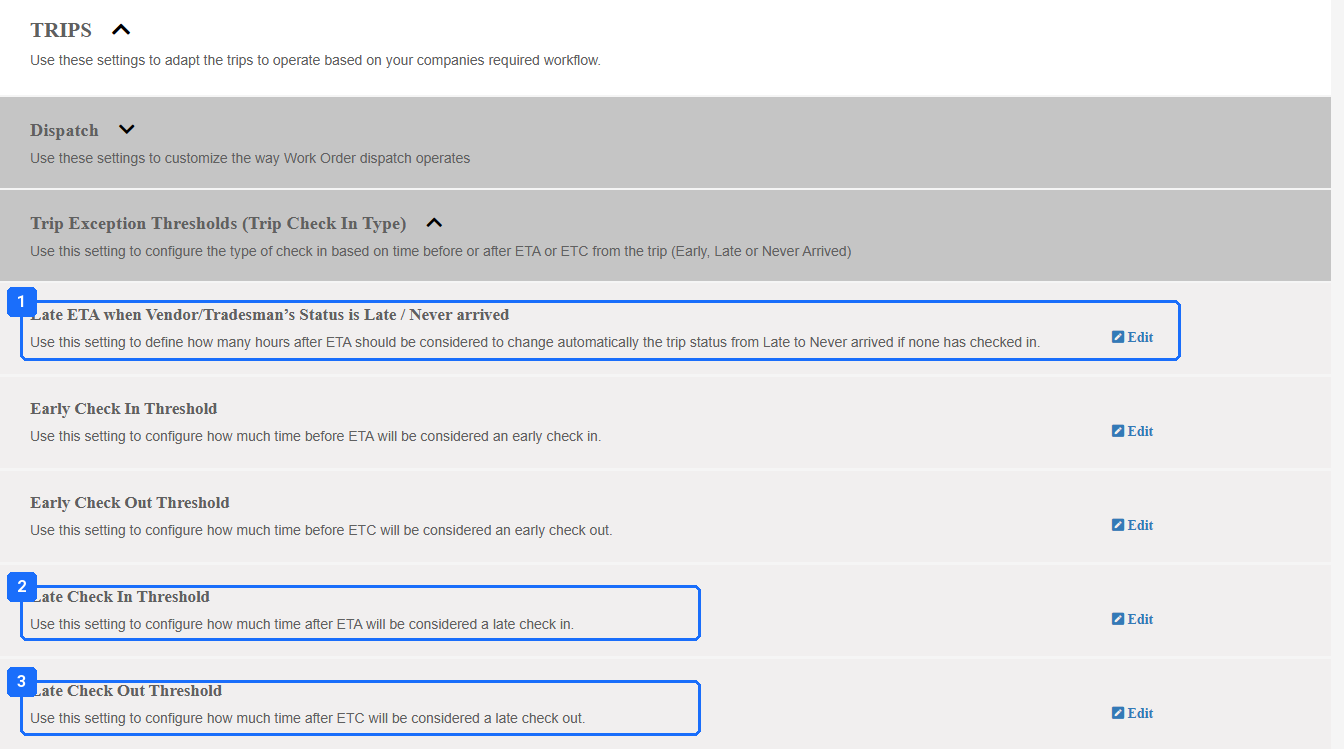
- “Late ETA when Vendor/Tradesman’s Status is Late / Never arrived”: how many hours after the ETA an Is Late Trip becomes Never Arrived.
- “Late Check In Threshold”: how long after the ETA a missing check-in counts as late. This is what makes a Trip Is Late.
- “Late Check Out Threshold”: how long after the ETC a missing check-out makes the Trip Didn’t Check Out.
Company Settings › Work Orders › Trips › Trip Exception Thresholds. Set these to how you operate, or Operations Failure fills with good Trips or misses bad ones.
| Status | What has happened | Still on the phone | Who can fix it |
|---|---|---|---|
| Is Late | ETA passed, plus the Late Check In Threshold | Yes | The technician, by checking in. Or you, by editing the ETA or the Visit. |
| Never Arrived | Is Late, plus the never-arrived hours | Yes, until the Trip Expiration | Same as above. The Trip Expiration is your deadline. |
| Never Arrived | Expired | Never Arrived, and the Trip Expiration passed | No | Only you: extend the dates and reassign, or cancel. |
Two dates, two meanings. Work Order Close is the date everything on the Work Order must be done by. Trip Expiration is when the Trip leaves the phone. Set them in the order Work Order Close, Trip Expiration, ETC, ETA.
On the map.
One pin per Site. The map shows the Trip that needs you most. Expired, verified and canceled Trips never appear on the map. Find expired Trips in Operations Failure.
| Which pin shows when a Site has several open Trips, highest first | |||
|---|---|---|---|
| 1 Urgent Not Dispatched | 5 Is Late | 9 Must Return | 13 Pending Closed |
| 2 Not Dispatched | 6 Didn’t Check Out | 10 Unable to Service | 14 Verification Required |
| 3 Rejected Trip | 7 Checked In | 11 Not Scheduled On Tech’s Mobile | 15 Closed Incomplete |
| 4 Never Arrived | 8 Scheduled On Tech’s Mobile | 12 Waiting For Approval | 16 Unscheduled |
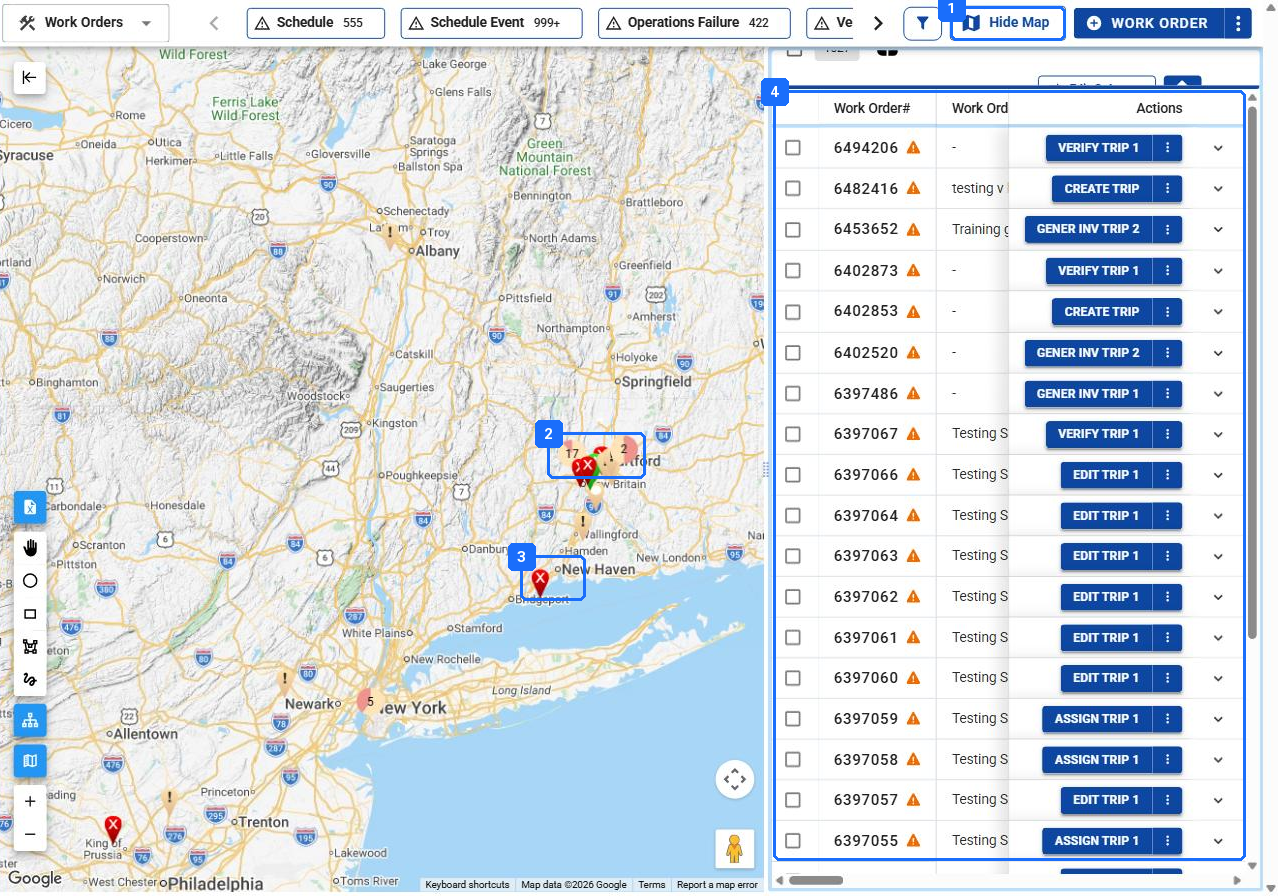
- Show Map turns the split view on. Drag the divider to give the map more room.
- A numbered circle is a cluster. Double-click it, or use +, and it opens into single pins.
- Pin colors are the table below. Read the glyph too: the same red carries a circle for Is Late, an ! for Never Arrived, an X for expired.
- The rows in the list are only the Work Orders inside the map frame.
Show Map on the Work Orders page, zoomed to one region. Every pin is the highest-priority open Trip at that Site. The list beside the map follows the map: pan or zoom and the rows change to what is in view.
| Pin | Status | Pin | Status |
|---|---|---|---|
 |
Not Dispatched |  |
Checked In |
 |
Urgent Not Dispatched |  |
Didn’t Check Out |
 |
Rejected Trip |  |
Must Return |
 |
Waiting For Approval |  |
Unable to Service |
 |
Scheduled On Tech’s Mobile |  |
Verification Required |
 |
Not Scheduled On Tech’s Mobile |  |
Trip Verified (list only) |
 |
Is Late |  |
Closed Incomplete |
 |
Never Arrived |  |
Canceled (list only) |
 |
Never Arrived | Expired (list only) |  |
Pending Closed |
Custom statuses are a different thing.
Two kinds of status. Trip statuses are calculated; custom statuses are yours. A custom status never moves a Trip or changes an Action Filter. Run the day from the Action Filters; use custom statuses to hand off.
Questions? Contact your Customer Success team or email support@utilizecore.com.