
| Where this fits: Workflow Universe › Layer 2 · Shared Mechanics | For: Biller | |
| Read first: Trip Status and Pin Legend · Billing Methods Explained | Read next: Biller Day |
Applies to: AP and AR clerks, controllers, operations managers | Web
Download the printable guide (PDF)
How to read this.
The split. The platform generates and approves. Your accounting system owns the money. Each status on the ladder locks something and sits in an Action Filter. Most failures at the end of this guide come from fighting that split.
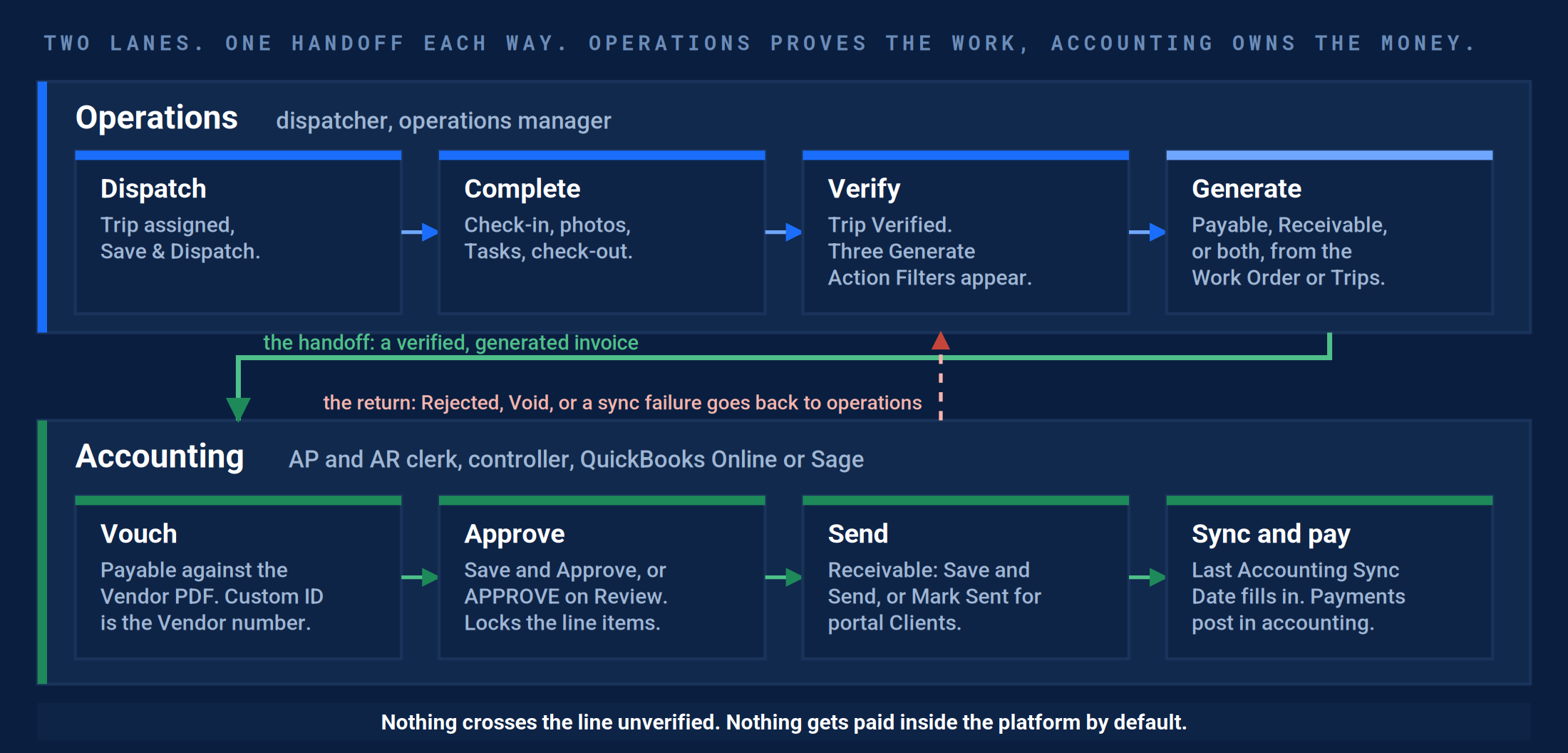
Two lanes, one handoff each way. Operations owns everything up to and including Generate. Accounting owns Vouch, Approve, Send and the sync. A rejection or a failed sync is the only thing that travels back.
| Word | What it means |
|---|---|
| Receivable | Your invoice to a Client. |
| Payable | A Vendor’s invoice to you. |
| Custom ID/Name | On a Payable, the Vendor’s own invoice number. Unique per Vendor. |
| Approved / Approved To Send | The locks. After them the lines are final. |
| Last Accounting Sync Date | The proof the invoice reached your accounting system. |
| Forward to Client | Turns a Payable into a Receivable with a markup. |
| Void / Delete | Void cancels and keeps the number. Delete exists only on a Draft Receivable. |
Six settings that decide whether the Action Filters can be trusted.
Part A · For the controller
Set once, before the first invoice. Each card names where the setting lives, how it fails, and the data point that proves it is right.
1. Verification is required before either invoice can exist.
Where: Products and Services › Services & Rates › the Service › Trip Level Default: Verification Required For Client Billing and Verification Required For Vendor Billing.
Exception: With both off, a Vendor invoice arrived for a Trip that never checked in, was approved by a clerk who trusted the PDF, and was paid. The Client invoice for the same Trip went out and was rejected.
Correction: Both toggles on for every billable Service. Generate Payable on an unverified Trip returns nothing.
2. Every Client and Vendor carries payment terms.
Where: Client › Edit › Billing; Vendor › Edit › Billing. The Terms field.
Exception: A Vendor with no terms produced Payables due the day they were issued. Every one showed Overdue in red, and the Follow Up Action Filter stopped meaning anything.
Correction: Pick a Vendor on the Create Vendor Payable form and the Terms and Due Date change with it. The same happens on a Receivable when you pick the Client.
3. A PDF template is the default for each side.
Where: Company Settings › Invoices. The Generate Receivable(s) and / or Payable(s) page shows the defaults per Client and Vendor.
Exception: Two clerks generated the same Client’s invoices with two templates in the same month. The Client’s AP asked which one was real.
Correction: On the generate page, PDF Template reads the same name for every Client row (Batch in the capture) and every Vendor row (New Five), without anyone changing it.
4. The accounting connection is live and the mappings are complete.
Where: Company Settings › Integrations › Accounting. QuickBooks Online, Sage, or NetSuite. Clients map to customers, Vendors to vendors, Sites to customer sub-records where the system uses them, Services and Tasks to items.
Exception: Ten Clients were added mid-season and never mapped. Their Receivables reached Sent and never synced, and nobody noticed until the month-end aging did not tie.
Correction: Every row on the Receivables list at Sent, and on the Payables list at Approved, shows a Last Accounting Sync Date within five minutes of the status change.
[Screen: Company Settings › Integrations › Accounting.]
5. The Custom ID convention is written down and told to every Vendor.
Where: Create Vendor Payable › Internal › Custom ID/Name. The Vendor’s own invoice number goes here, and nothing else.
Exception: One Vendor typed the Work Order number, another typed the date, a third left it blank. AP could not match remittances, and the platform started suffixing duplicates with -2.
Correction: Sort Payables by Custom ID for one Vendor: the numbers run in sequence with no suffixes and no blanks.
6. Each Action Filter has one owner and each invoice has a Department.
Where: The Payables Action Filters (Send, Review, Edit, Follow Up, Pay) belong to AP. The Receivables Action Filters (Send, Rejected, Follow Up, Receive Payment) belong to AR. Assign Department is on every row menu.
Exception: Two people cleared the Review Action Filter on alternate days and each assumed the other had called the Vendor about the rejected one. It sat for 158 days. The Payables capture below has one at 158 days.
Correction: Names written next to each Action Filter in the AP/AR Day sheet, and the Department column on both lists filled for every invoice issued this month.
Result: The generate page shows the right template on every row, a new Payable picks up terms the moment a Vendor is chosen, and the Last Accounting Sync Date column has no blanks past the lock status.
From the verified Trip to the sync date.
Part B · For AP, AR and operations
The three phases of the workflow the platform draws across the top of every guide. P5 is the handoff. P6 is the invoice work, Payable first. P7 is the money and the close.
P5 · Validation and Resolution. The handoff: a verified Trip grows three Action Filters.
Where this starts. Nothing here starts until a Trip is Verified. The proof on screen: the pin disappears, UNVERIFY replaces VERIFY, and three Generate Action Filters appear in the Work Order header.

- Generate Invoices. One unbilled, verified Trip is counted. This Action Filter is both sides at once.
- Generate Receivable. The Client side only. Generate Payable, the Vendor side, is the next Action Filter to the right.
- GENER INV TRIP 2. The button form of the same thing, for the Trip named on it.
- UNVERIFY. What VERIFY becomes once the Trip is verified. The only way back.
- Receivables tab on the Work Order. Every Client invoice linked to this job, with its status.
- Payables tab. Every Vendor invoice linked to it. An invoice that is not on one of these tabs is not linked to the job.
A Work Order with two verified Trips. The three Generate Action Filters are the handoff. They exist only while there is something unbilled.

- Generate Invoices: 21 Trips verified and not yet invoiced on either side.
- Generate Receivable: 94 Trips with no Client invoice.
- Generate Payable: 54 Trips with no Vendor invoice. The gap between the two numbers is Trips the Vendor has billed and you have not.
The same three Action Filters on the Trips page. Company-wide counts, or your territory’s with a filter template pinned. This is where a storm, a month, or one Client gets billed in one pass.
Who owns the Action Filter. Operations usually runs Generate Invoices at the end of the day or the storm, and AP and AR pick up the Drafts. Whoever generates, the rule holds: never from an unverified Trip.
Result: Every verified Trip is counted in Generate Invoices on the Trips page, and every Trip in the Verify Trips Action Filter has an owner. The two numbers add up to the day’s billable work.
P6 · Financial Processing. Generate: one page, both sides, per Client and per Vendor.
Every Generate Action Filter, and the GENER INV TRIP button, opens the same page: one row per Client and per Vendor on the selected Trips, generated in one pass. Read the row first. Template, grouping and attachment are decided here, and the Client sees them.
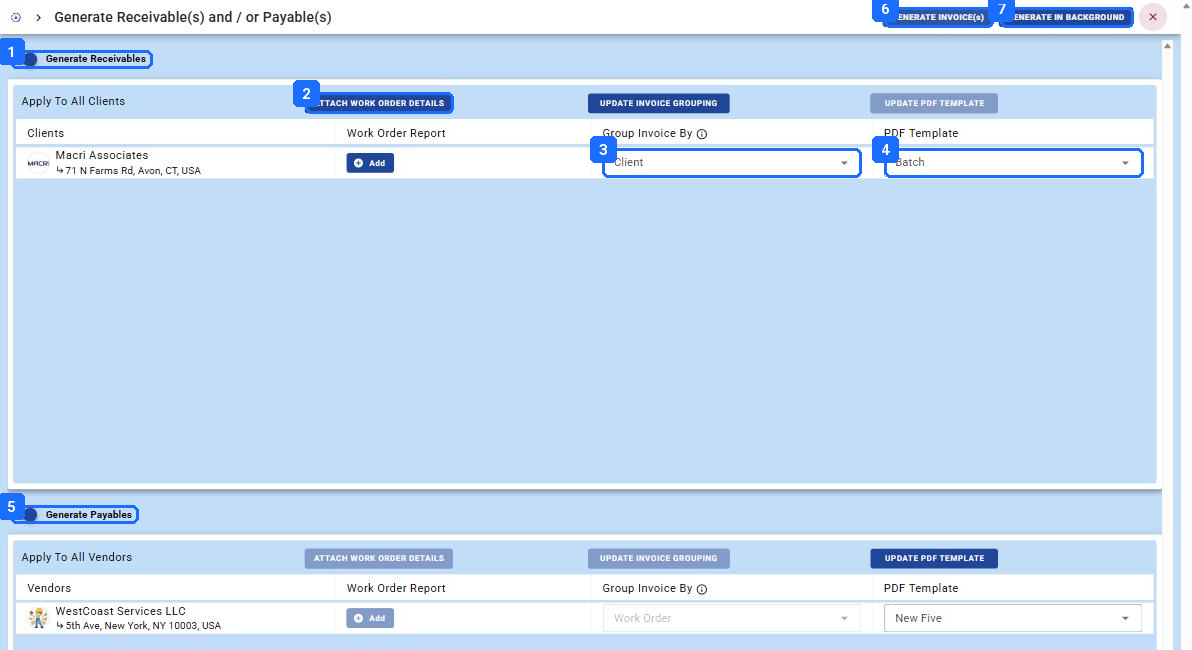
- Generate Receivables. Toggle the Client side on or off for this run.
- ATTACH WORK ORDER DETAILS applies a Work Order Report to every Client row; + Add on a row does it for one Client.
- Group Invoice By: Client, Site, Work Order, or Event. The default is Client, which puts every selected Trip for that Client on one invoice. Deposits and per-job Clients want Work Order.
- PDF Template per Client. The default comes from Part A, check 3. Change it here for one run only.
- Generate Payables. The Vendor side. Grouping is fixed at Work Order for Vendors.
- GENERATE INVOICE(s) runs it now and opens the result.
- GENERATE IN BACKGROUND queues it. Use it for a storm; the Background Tasks bell tells you when it is done.
Generate Receivable(s) and / or Payable(s). One Client row, one Vendor row, for a Work Order with two verified Trips.
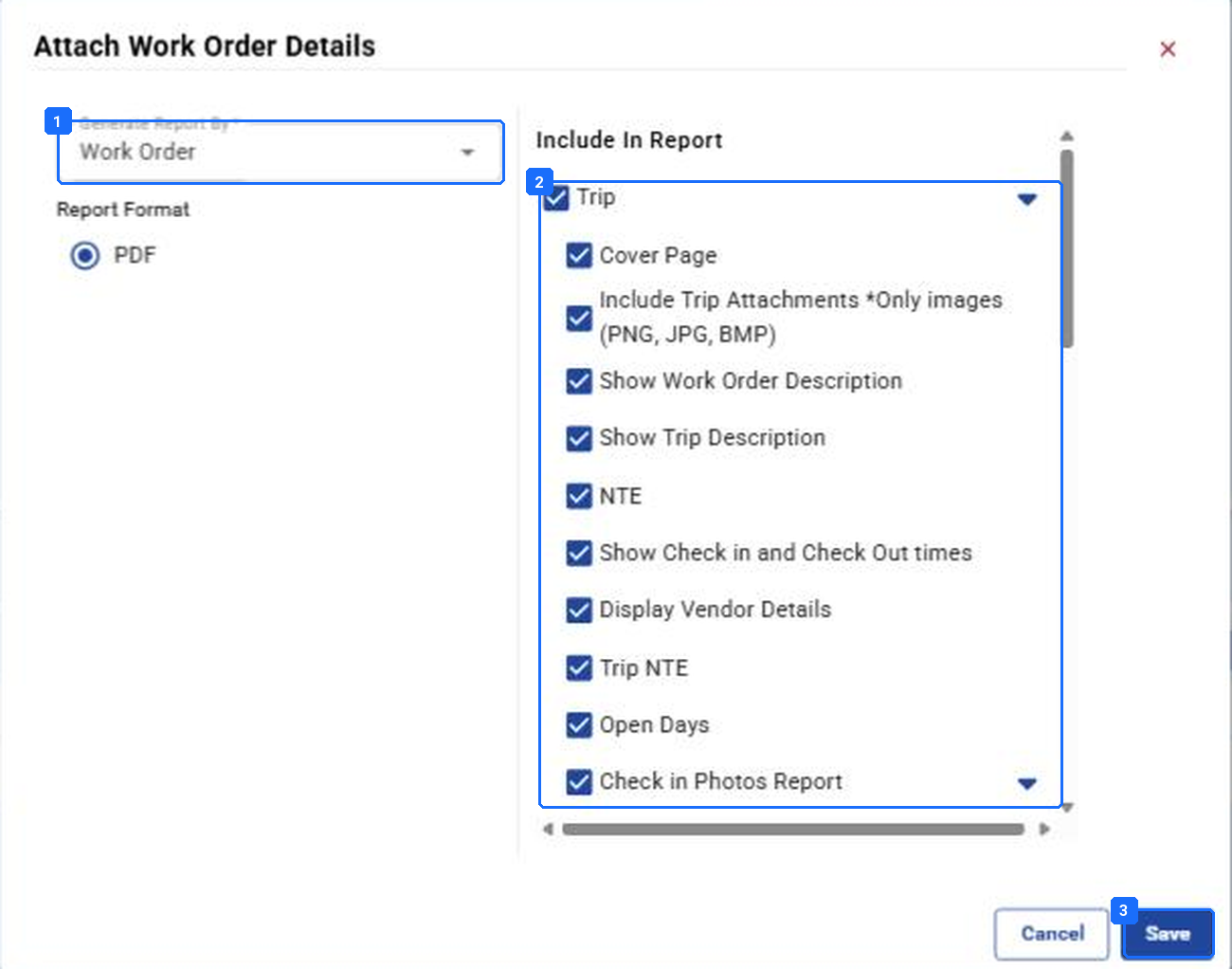
- Generate Report By: Work Order. Report Format: PDF.
- Include In Report. Thirty-five items. The ones most Clients ask for: Include Trip Attachments (photos), Show Check in and Check Out times, Field Signature, Weather Conditions. Untick Profit / Losses Report; it is yours, not theirs.
- Save. It applies to this run. Make the Client’s standard set a habit, or a saved filter template on the Trips page.
Attach Work Order Details. The report the Client gets with the invoice: photos, check-in and check-out times, Tasks, signatures, weather.
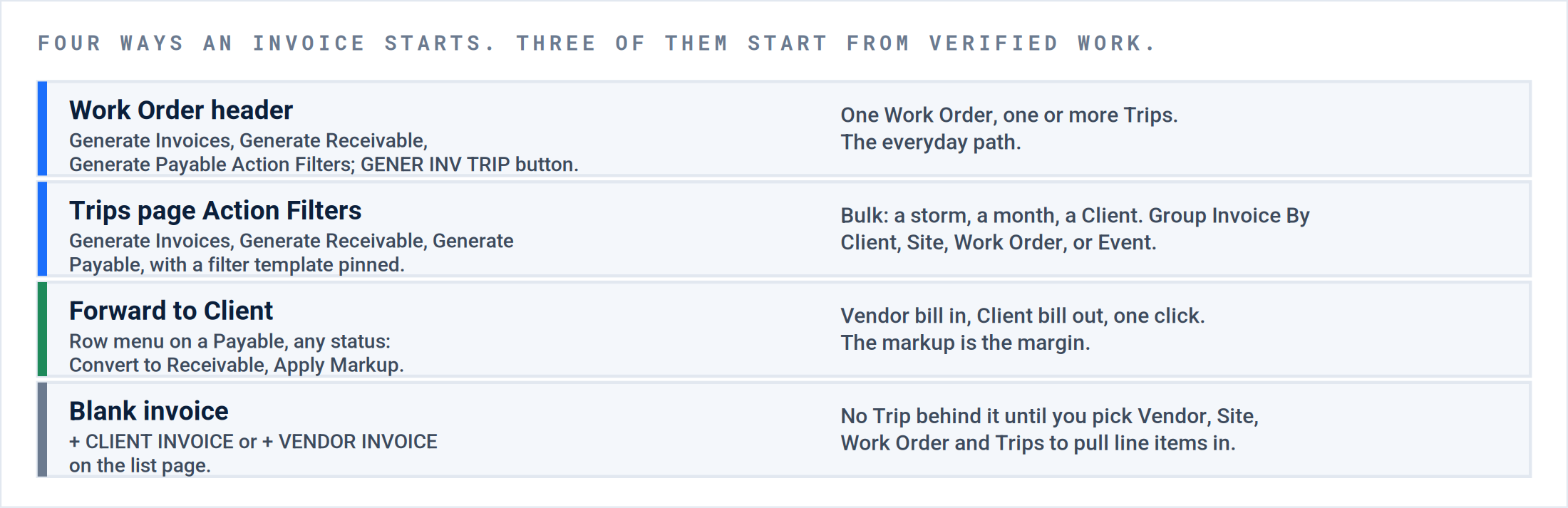
Four ways an invoice starts. The first three start from verified work. The blank invoice is for the case the Trip cannot cover, and it is the one that produces orphans.
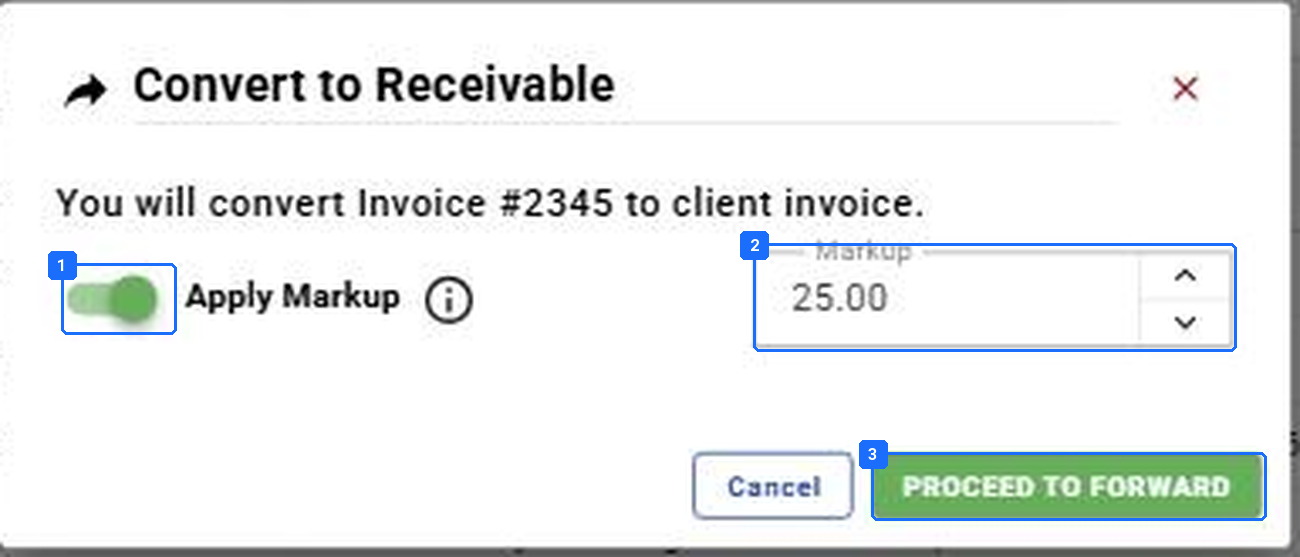
- Apply Markup. On by default.
- Markup, as a percentage of the Vendor’s cost. It is remembered for the next forward.
- PROCEED TO FORWARD. A Draft Receivable appears on the Work Order, linked to the same Trips.
Forward to Client. On any Payable’s row menu: Convert to Receivable. The Vendor’s bill becomes the Client’s bill with the markup applied.
Result: For each Trip that was in Generate Invoices, a Draft Payable and a Draft Receivable exist on the Work Order’s tabs, and the Action Filter count on the Trips page is down by the same number.
P6 · Financial Processing. Payable: vouch, receive, approve.
Accounts payable first. The Vendor’s bill proves the Client’s bill, and it is the one with a document to check against. The Payables list is a queue of five Action Filters. Read left to right and the Action Filters are the workflow.
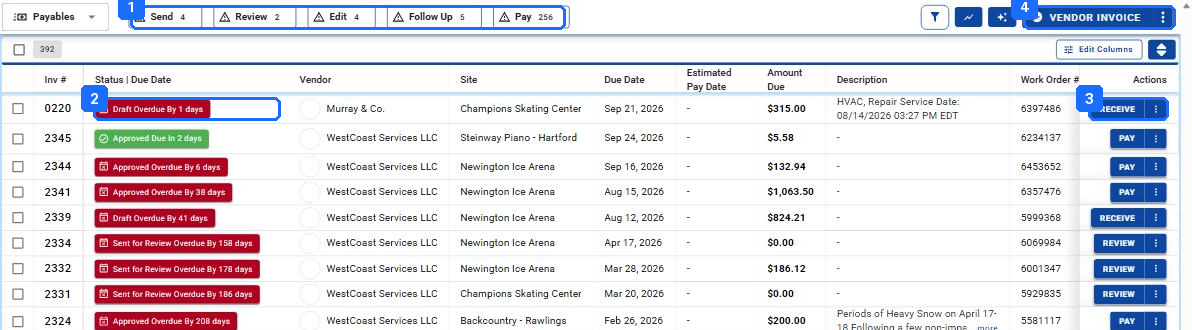
- Send, Review, Edit, Follow Up, Pay. The counts are the day.
- Status | Due Date. Red is overdue; green is due in the future. The number of days is computed from the Due Date, which comes from the Vendor’s terms.
- The primary button is the next move: RECEIVE on a Draft, REVIEW on a Received or Approval Requested, PAY on an Approved, EXPORT on a Void.
- + VENDOR INVOICE: a blank Payable, for a bill that does not come from a Trip. Use it last.
The Payables list. Five Action Filters, one status chip per row, and a primary button that changes with the status.
| Action Filter | Holds every invoice whose status is | Your move |
|---|---|---|
| Send | Draft | Open it, vouch it against the Vendor’s PDF, then Save and Approve, or RECEIVE it and approve from the Review pane. |
| Review | Received, Approval Requested, Approval Requested Overdue | REVIEW opens the pane: APPROVE, Reject, or Edit. This is where AP spends the morning. |
| Edit | Rejected | You pushed it back. Either the Vendor fixes it in the Vendor Portal or you Edit it yourself. Do not leave it here. |
| Follow Up | Sent for Review, Sent for Review Overdue | You sent it to the Vendor to confirm and they have not. A call, not a click. |
| Pay | Approved, Approved Overdue, Partially Paid, Partially Paid Overdue | The lock. It syncs to accounting from here and gets paid there. PAY on the row is for accounts with no accounting system connected. |

- The toast is the only confirmation you get.
- Status moves from Draft to Received, keeping its Due Date.
- REVIEW replaces RECEIVE. The invoice is now in the Review Action Filter.
RECEIVE is one click, with no confirmation. The Draft becomes Received, the button becomes REVIEW, and the Send count drops by one.
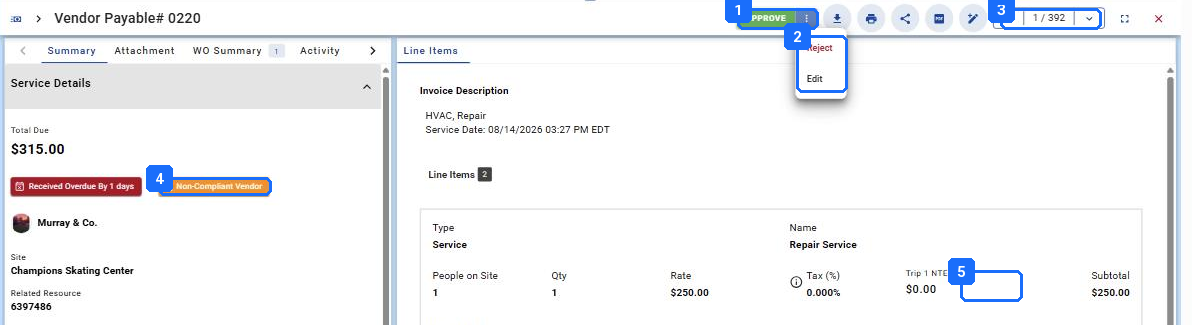
- APPROVE. The lock. The line items are final and the Payable syncs to accounting.
- Reject, or Edit. Reject sends it back to the Vendor with a reason; Edit opens the form so you fix it yourself.
- The pager. 1 of 392: press the arrow and the next invoice in the list loads in the same pane. This is how a morning’s vouching goes.
- Non-Compliant Vendor. Orange, and the only warning. Approve nothing while it shows.
- Trip 1 NTE. The Vendor NTE from the Trip, next to the line. A line above it is the thing to reject.
The Review pane. REVIEW opens the Payable in a split view under the list, read-only, with the three decisions in one button.
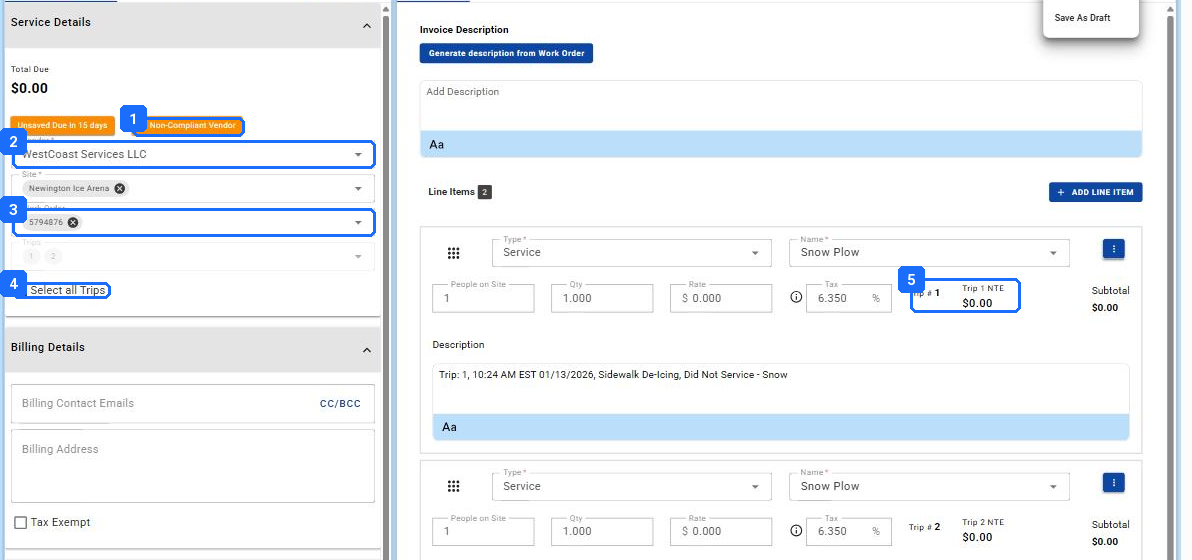
- Non-Compliant Vendor appears the moment a non-compliant Vendor is chosen, before anything is saved.
- Vendor. Choosing it sets the Terms and the Due Date from the Vendor record.
- Work Order. Choosing it lists the Trips and pulls one line per Trip. A Payable without a Work Order here is an orphan.
- Select all Trips. Or pick the ones this bill covers.
- Trip NTE per line. The ceiling the Vendor agreed to on that Trip. Further down the left column, under Internal, is Custom ID/Name: the Vendor’s own invoice number, unique per Vendor.
Create Vendor Payable. The same form the Vendor sees in the Vendor Portal. Most fields fill from the Work Order and Trips.
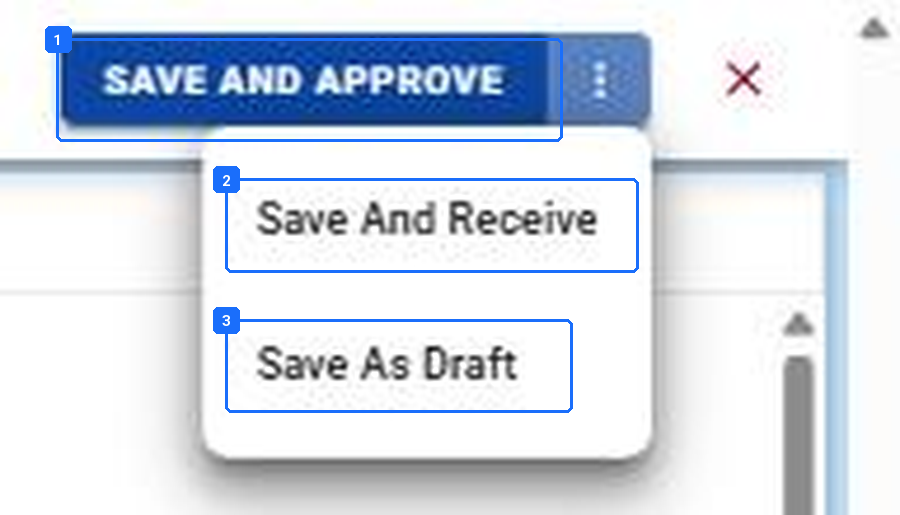
- SAVE AND APPROVE. Vouched and locked in one move. AP uses this when the PDF matches the lines.
- Save And Receive. Saved as Received, into the Review Action Filter, for someone else to approve.
- Save As Draft. Into the Send Action Filter. Nothing has happened yet.
The Payable save menu. The primary button approves. The menu holds the two softer saves.
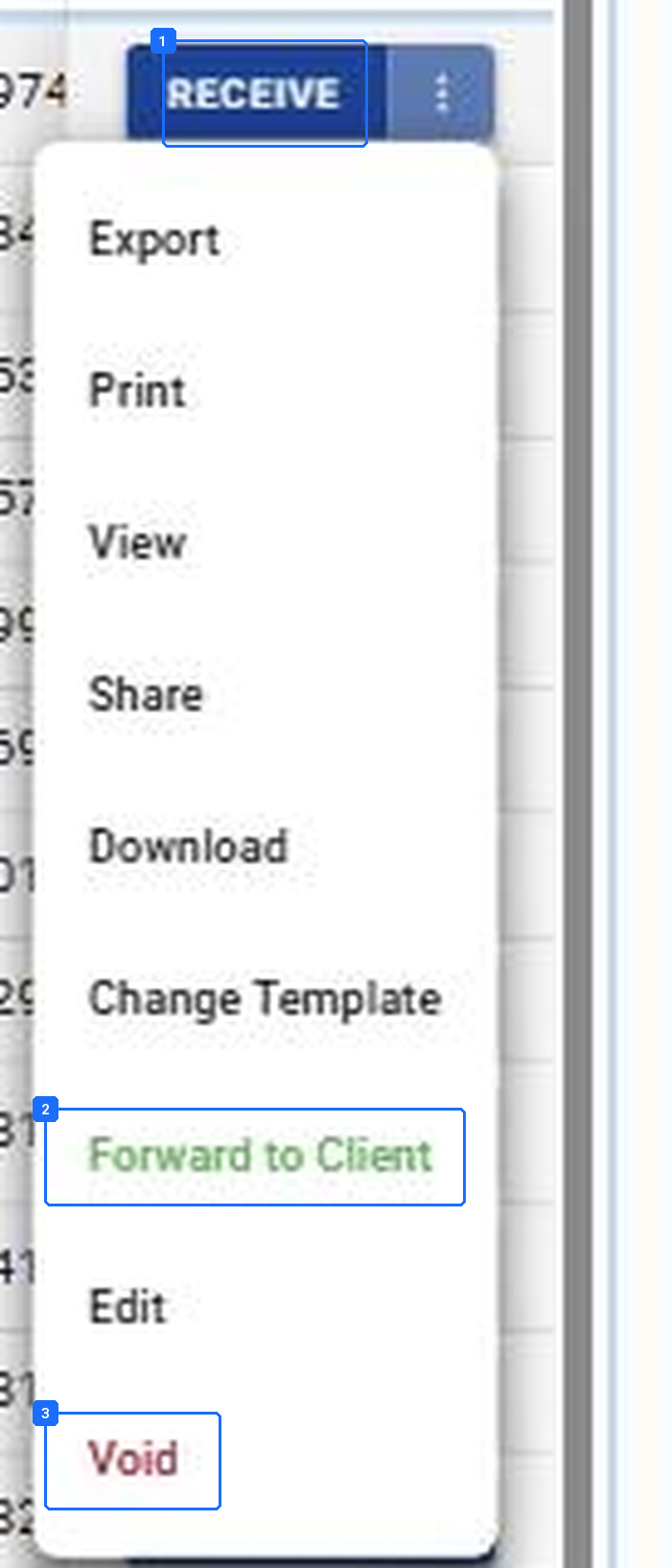
- RECEIVE, the primary button on a Draft.
- Forward to Client, in green. The one-click Receivable.
- Edit. Opens the form. Void is the last item, and the only way to cancel.
A Draft Payable’s row menu. Export, Print, View, Share, Download, Change Template, Forward to Client, Edit, Void. There is no Delete on a Payable at any status.
What to vouch, in order. Check the Vendor’s PDF on the Attachment tab: Custom ID, Site and dates, each line under its Trip NTE, and the total against Amount Due. Anything off is a Reject with a reason, never an Edit.
Result: The Send and Review Action Filters are empty, every Approved Payable of the day shows a Last Accounting Sync Date, and every Rejected one has a reason on its Activity tab.
P6 · Financial Processing. Receivable: check, approve, send.
Accounts receivable second, because by now the Vendor’s bill has confirmed the work. The Receivables list has four visible Action Filters, a fifth that appears only when it has something in it, and one lock: Approved To Send.
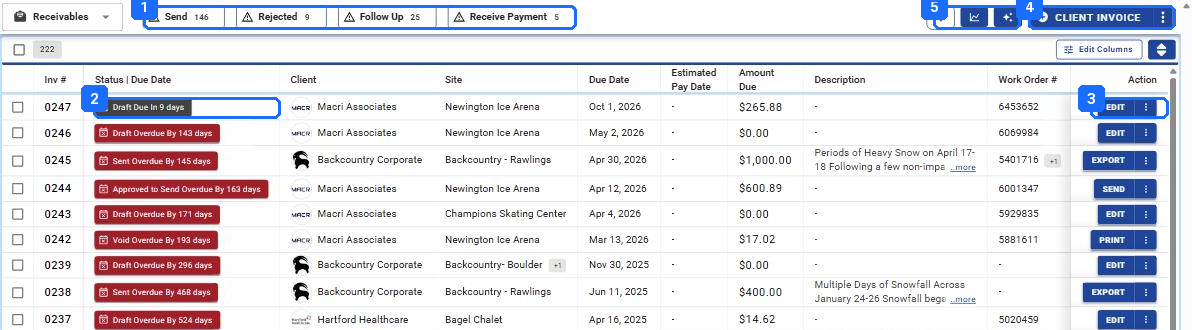
- Send, Rejected, Follow Up, Receive Payment. A fifth Action Filter, Review, appears only when a Sent invoice is not yet overdue.
- Status | Due Date. Draft Due In 9 days, Sent Overdue By 145 days, Approved To Send Overdue By 163 days. The overdue count on an Approved to Send is the count of days nobody clicked SEND.
- EDIT on a Draft, SEND on an Approved To Send, EXPORT on a Sent, PRINT on a Void or Paid.
- + CLIENT INVOICE: a blank Receivable. Same warning as the Vendor side.
- The filter funnel. Invoice Status, Invoice Due Date, Invoice Accounting Sync Date, Client Name, Site Name, Work Order Number are the standard chips.
The Receivables list. The status chip carries the Due Date math; the primary button carries the next move.
| Action Filter | Holds every invoice whose status is | Your move |
|---|---|---|
| Send | Draft | Open it, check the lines and the PDF template, then Save and Send, or Save and Approve to Send if someone else sends. |
| Review | Sent, Awaiting Confirmation, Awaiting Confirmation Overdue | Out with the Client and not yet overdue. The Action Filter hides itself when the count is zero, which is why you rarely see it. |
| Rejected | Rejected | The Client, usually through their portal, pushed it back. Read the reason on the Activity tab, fix the cause, send again. |
| Follow Up | Sent Overdue, Awaiting Confirmation, Awaiting Confirmation Overdue | Past the Due Date. The status is doing the chasing; you do the calling. |
| Receive Payment | Approved To Send, Approved To Send Overdue, Partially Paid, Partially Paid Overdue | Two different things share this Action Filter: invoices approved but not yet sent (SEND them), and invoices partly paid (finish them in accounting). |
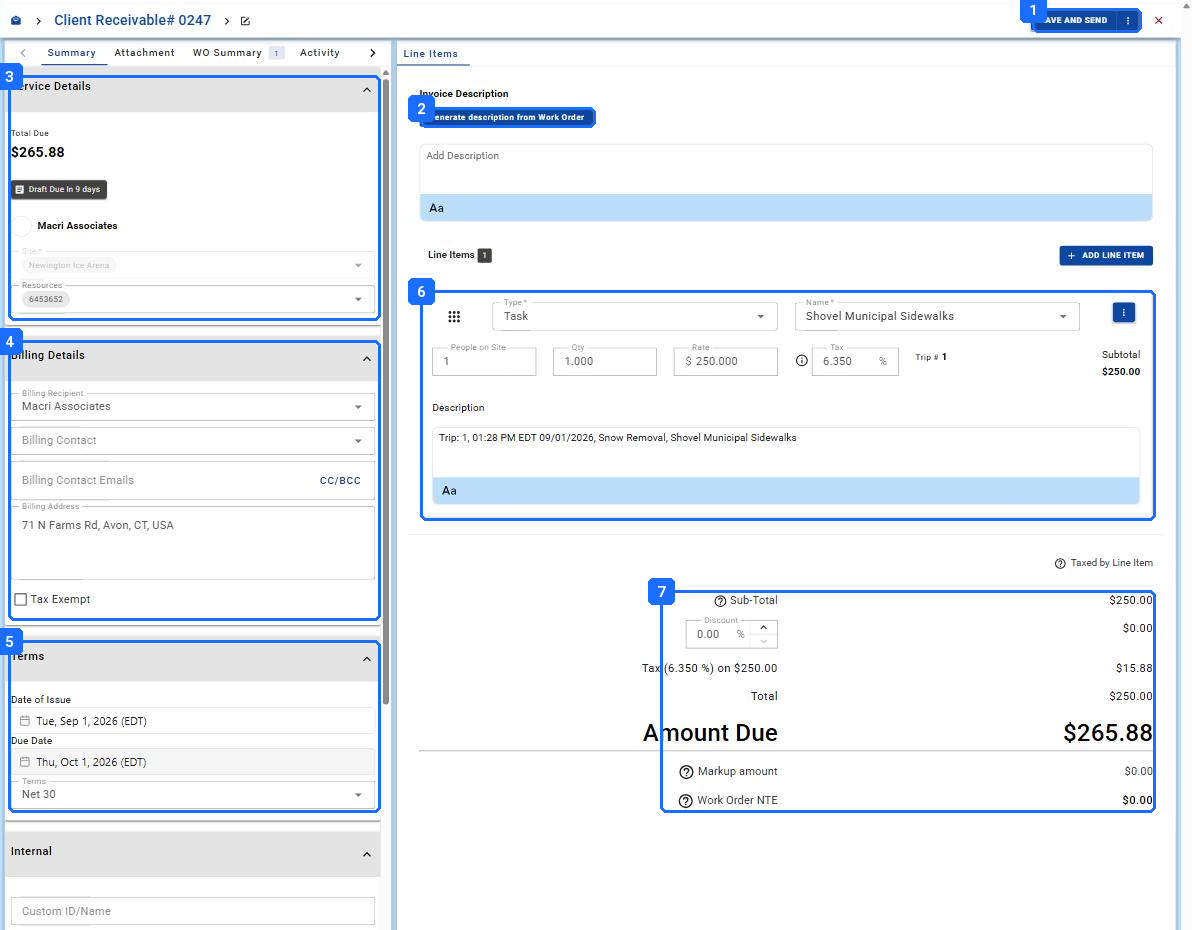
- SAVE AND SEND, with the menu beside it. The four saves are the whole AR workflow.
- Generate description from Work Order. Puts the Work Order’s description on the invoice so the Client’s AP knows what they are paying for.
- Service Details: Total Due, the status chip, the Client, the Site, and Resources, which is the Work Order number. Blank Resources means an orphan.
- Billing Details: Billing Recipient, Billing Contact and Emails (with CC/BCC), Billing Address, Tax Exempt. The email list is who Save and Send sends to.
- Terms: Date of Issue, Due Date, Terms. Net 30 came from the Client record.
- Line Items: Type, Name, People on Site, Qty, Rate, Tax, the Trip number, Subtotal, and a Description that carries the Visit’s date and Tasks.
- Sub-Total, Discount, Tax, Total, Amount Due, then Markup amount and Work Order NTE. Amount Due over the Work Order NTE is the thing the Client will reject.
A Draft Receivable, open. Everything the Client will see is on this page; the PDF is only a rendering of it.
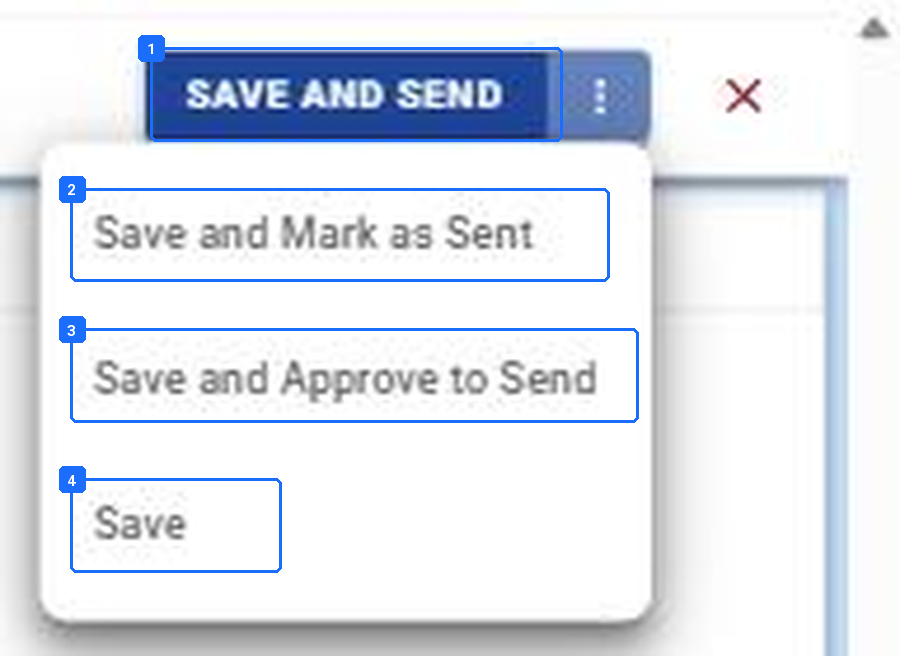
- SAVE AND SEND. Emails the PDF to the Billing Contact Emails and marks it Sent.
- Save and Mark as Sent. Sent, without the email. For Clients who read invoices in the Client Portal or through a CMMS connection.
- Save and Approve to Send. The lock without the send. For accounts where a second person sends.
- Save. Stays a Draft. This is the click behind “the Client never got it”.
The Receivable save menu. Which one you click decides which Action Filter it lands in.
The row menu changes with the status, and the change is the rule about what each status locks.
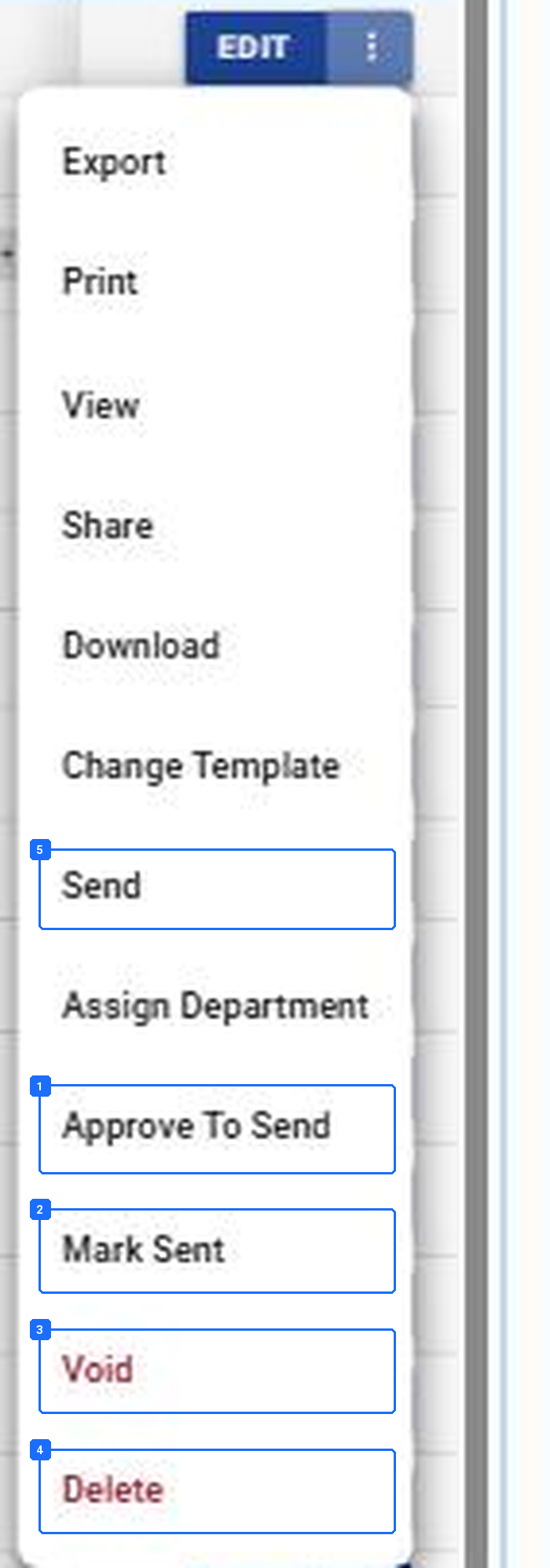
- Approve To Send. The lock, from the list.
- Mark Sent. Sent without an email.
- Void. Keeps the number.
- Delete. Only here, and only because nothing has left.
- Send. Same as SAVE AND SEND on the form.
Draft. Twelve items, including Send, Approve To Send, Mark Sent, Void and Delete. The only status with Delete.
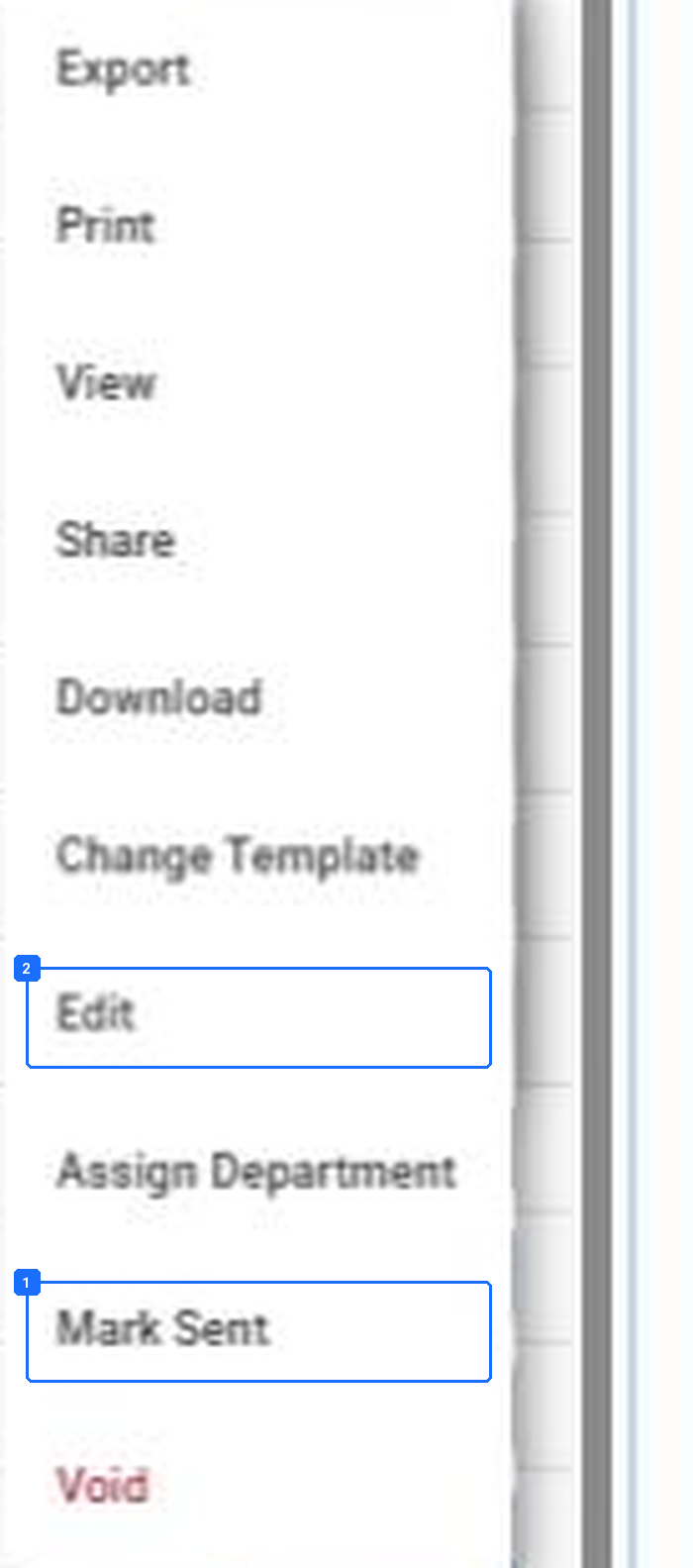
- Mark Sent, for portal Clients.
- Edit. Still possible, which is why Approved To Send is a soft lock: the hard one is Sent.
Approved To Send. Send and Approve To Send are gone; Edit, Mark Sent and Void remain, and SEND is the primary button.
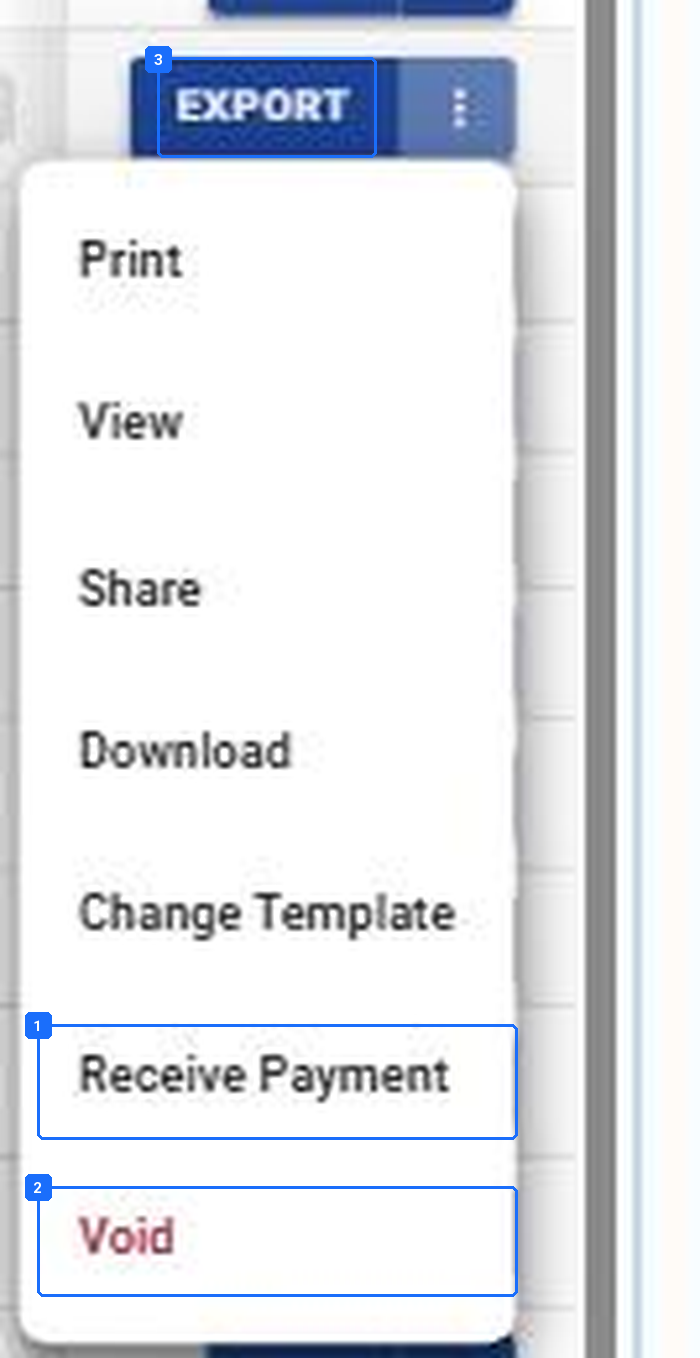
- Receive Payment. Records a payment in the platform. Use it only on accounts with no accounting system connected.
- Void. The only way to take a Sent invoice back. Then generate a fresh one.
- EXPORT, the primary button, for the Client’s AP.
Sent. Seven items. No Edit, no Delete, no Send.
Result: The Send Action Filter is empty, the Receive Payment Action Filter holds nothing at Approved To Send older than today, and every Sent invoice shows a Last Accounting Sync Date.
P7 · Reconciliation and Closure. Money and the close: the platform syncs, accounting pays.
After the lock. Approved or Sent, it goes to accounting within minutes, and accounting owns it from there. Payments come back as Partially Paid or Paid. Last Accounting Sync Date is the proof.
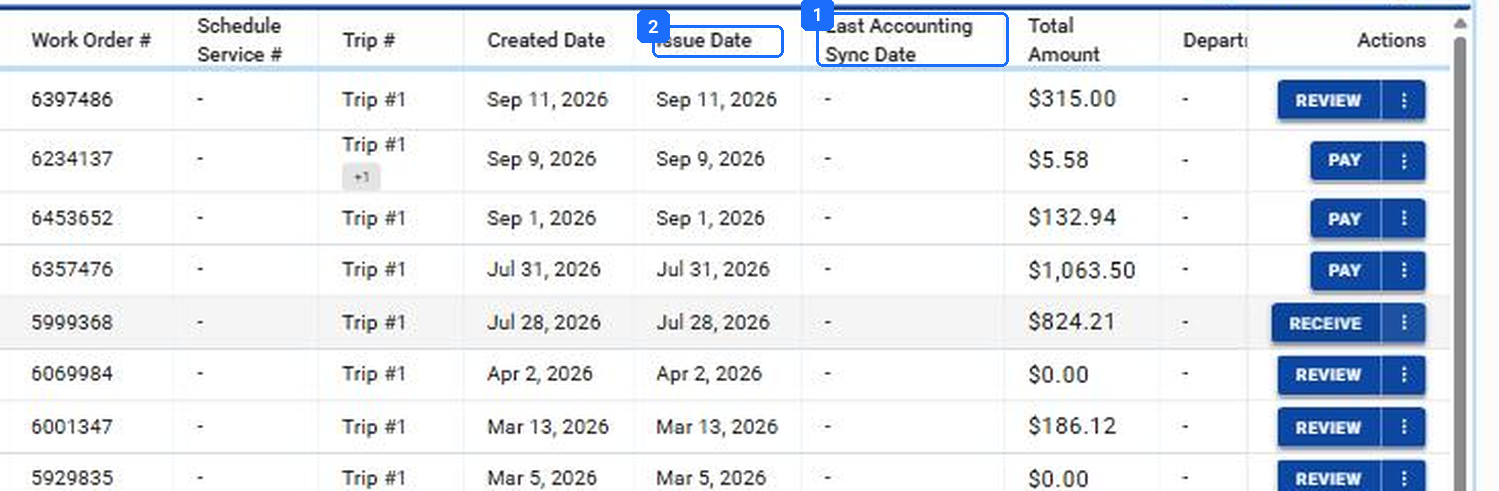
- Last Accounting Sync Date. Add it to your default columns with Edit Columns and sort by it.
- Issue Date, beside it. The gap between the two is how long an invoice waited.
Last Accounting Sync Date on the Payables list, scrolled right. On a connected account, a blank cell past the lock status is an exception.
When the sync fails.
| Cause | What it means | Fix |
|---|---|---|
| Unmapped party | No matching customer or vendor in accounting. | Create it, map it, re-approve. |
| Unmapped item | A Service or Task with no item. | Map it once; every later invoice carries it. |
| Duplicate number | The Custom ID or invoice number already exists there. | Void the duplicate here. |
| Closed period | The Issue Date falls in a closed period. | Change the Issue Date or reopen the period, then re-approve. |
Your exception list: filter by Invoice Accounting Sync Date empty, status Approved or Sent.
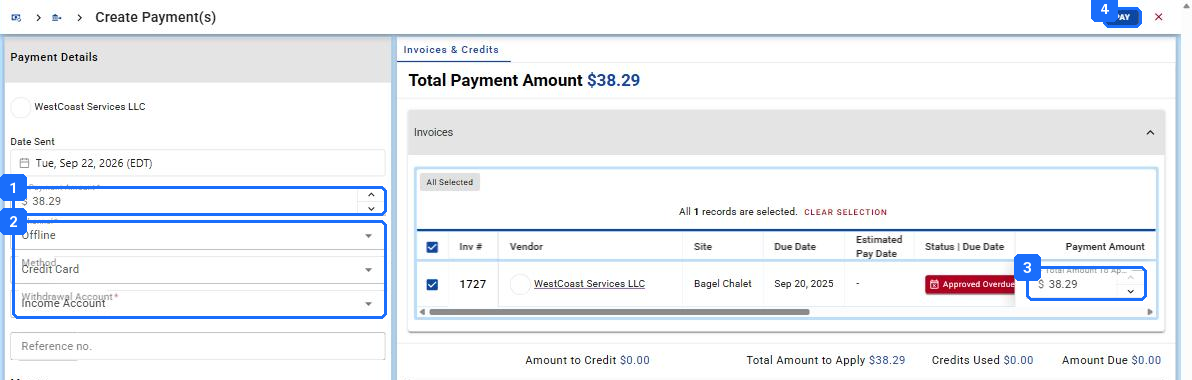
- Payment Amount, prefilled with the amount due.
- Channel (Offline), Method, Withdrawal Account, Reference no., Memo. These become the payment record.
- Payment Amount per invoice on the right. Several Approved Payables to one Vendor can be paid in one record.
- PAY. The Payable moves to Paid, or Partially Paid.
Create Payment(s). PAY on an Approved Payable opens it. It exists for accounts with no accounting system connected; on a connected account, pay in accounting and let the status sync back.
Closing the Work Order.
Close from the custom status when every Receivable is Sent, every Payable is Approved, and no Generate Action Filter is left on the header. A late Vendor bill: reopen, let the Payable link, close again.
Result: The Work Order’s header shows no Generate Action Filters, both invoice tabs show every invoice past its lock, and every one of them has a Last Accounting Sync Date.
The status ladder.
Every status the Invoice Status filter offers, on both lists, and what each one locks. The Action Filter column in the figure is where to look for it.
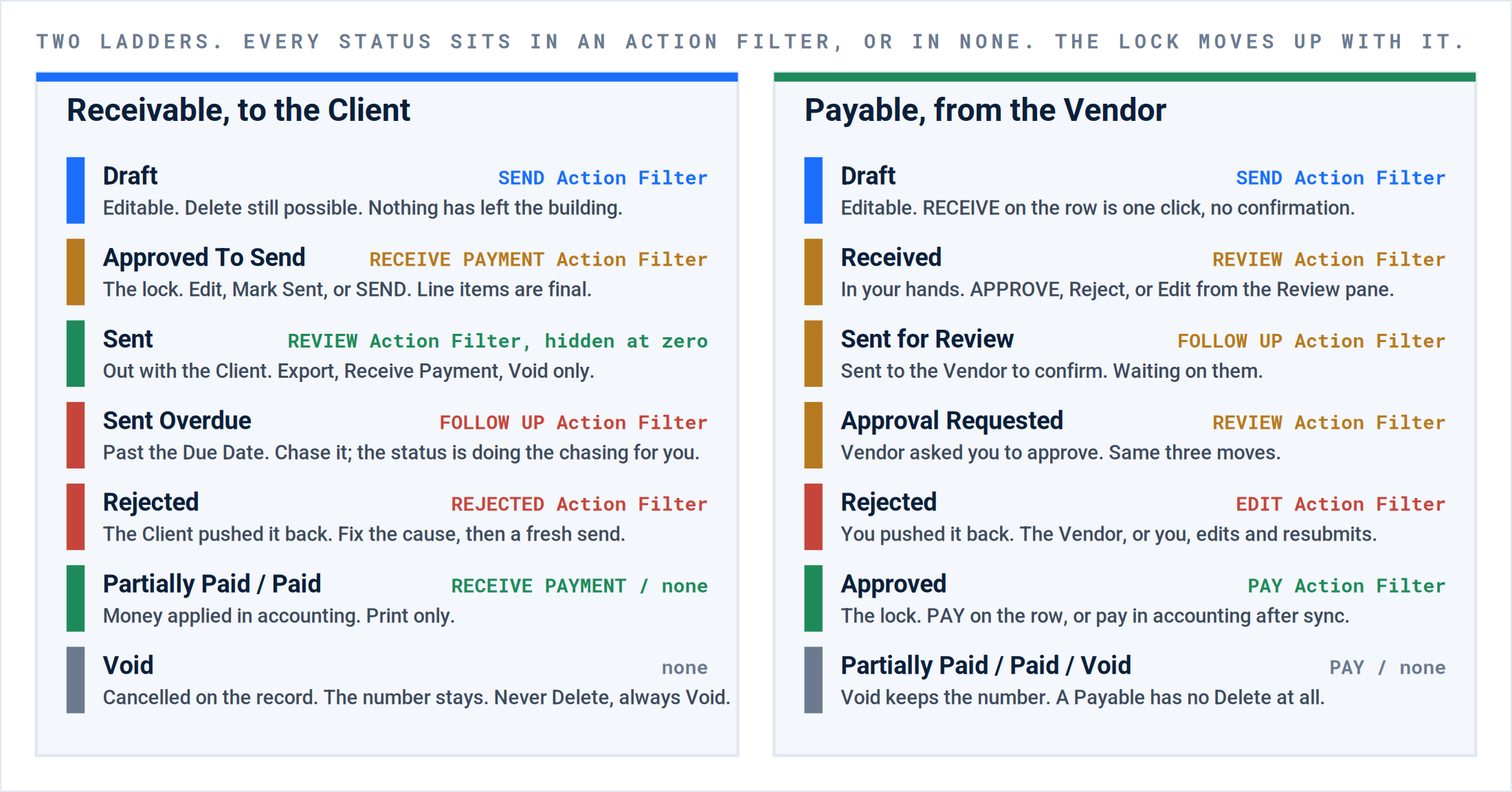
Two ladders. The lock is Approved on the Vendor side and Approved To Send on the Client side. Everything above the lock is accounting’s; everything below it is still yours.
| Status | Side | What it means, and what it locks |
|---|---|---|
| Draft | Both | Editable. On a Receivable, Delete still exists. Nothing has left the building. |
| Received | Payable | You have the Vendor’s bill in hand. One click on RECEIVE gets here, with no confirmation. |
| Sent for Review | Payable | Sent back to the Vendor to confirm the lines. Waiting on them. |
| Approval Requested | Payable | The Vendor submitted through the Vendor Portal and is asking you to approve. |
| Approved | Payable | The lock. Line items are final. Syncs to accounting; pay it there. |
| Approved To Send | Receivable | The lock. Line items are final. Someone with the SEND button sends it. |
| Sent | Receivable | Out with the Client. Export, Receive Payment, Void are the only moves left. |
| Sent Overdue | Receivable | Sent, and the Due Date has passed. Follow Up Action Filter. |
| Rejected | Both | Pushed back with a reason. Payables land in the Edit Action Filter, Receivables in Rejected. |
| Partially Paid | Both | A payment smaller than the amount due has been applied. |
| Paid | Both | Amount due is zero. Print only. |
| Void | Both | Cancelled on the record. The number stays so the sequence in accounting has no hole. Never Delete a sent invoice; Void it. |
| Disputed, On Hold, Payment Processing, Payment Pending | Receivable | Portal and payment-gateway states. You will see them only if your Clients pay through the platform. |
Each status also has an Overdue twin (Sent Overdue, Approved Overdue, Partially Paid Overdue, and so on). The twin is the same status with the Due Date passed, and it is what the Follow Up Action Filters are built from.
Where this goes wrong.
Ranked by how often the call comes in. The quote is what the caller says; the cause is what the screen shows.
| # | What you hear | What happened | What to do |
|---|---|---|---|
| 1 | “The Payable is not on the Work Order.” | The Vendor keyed a blank invoice from + VENDOR INVOICE and never picked the Work Order and Trips, or the Work Order was already closed when they billed. | Reject it with the reason “attach to Work Order #”. If the Work Order is closed, operations reopens it, the Vendor resubmits, then it closes again. Do not approve an orphan; it will never sync to the job. |
| 2 | “Two Trips, one invoice, and the deposit is on the wrong one.” | A deposit was billed on Trip 1 and the balance on Trip 2, then someone generated one Receivable for both. | Generate per Trip when a deposit is involved. Group Invoice By is a bulk convenience, not a rule; set it to Work Order or leave the Trips separate. |
| 3 | “The Custom ID has a -2 on the end.” | The Custom ID must be unique per Vendor. A Vendor reused an invoice number and the platform suffixed it. | Call the Vendor: which one is real? Void the duplicate. Never approve both; the suffix is the platform telling you it saw the number twice. |
| 4 | “There are forty zero-dollar drafts.” | Non Billable Trips, or Per Service Trips with no rate loaded at the Site, were run through Generate Invoices. | Void them, then add the Site rate or set the Trip to Non Billable so the generator skips it. Leftover zero-dollar drafts are the fastest way to make the Action Filter untrustworthy. |
| 5 | “Generate Payable came up blank.” | The Trip has no Vendor billing method, the Vendor is on your own team (no Payable exists for an employee), or the Trip is not Verified. | Read the Trip: Assignment shows the Vendor billing method; the pin shows whether it is Verified. Fix the Trip, not the invoice. |
| 6 | “I cannot generate; it says verification is required.” | Verification Required For Client Billing, or For Vendor Billing, is on for the Service, and the Trip is not Verified. | Good. That is the control working. Send it back to the Verify Action Filter. The setting lives on the Service under Trip Level Default. |
| 7 | “The Non-Compliant Vendor chip is on the Payable.” | The Vendor’s compliance documents are expired or missing. The platform still lets you approve. | Approve nothing until the compliance owner clears it. The chip is the only warning you get, and it is orange for a reason. |
| 8 | “The Last Accounting Sync Date is blank.” | It has not reached its lock status, or the sync failed on a mapping: an unmatched Client or Vendor, a missing Site sub-record, an unmapped item, or a duplicate Custom ID. | Sort the list by Last Accounting Sync Date. Blank rows past the lock status are your exception list. Fix the mapping in the accounting system first, then re-approve. |
| 9 | “Someone deleted it.” | A Draft Receivable was deleted instead of voided, and accounting had already seen the number. | Delete exists only on a Draft Receivable, and only because nothing has left. Anything sent or approved gets Void. Put it in the AR clerk’s sheet in bold. |
| 10 | “The Client says they never got it.” | Save was clicked, not Save and Send, so the status is Approved To Send and it sits in the Receive Payment Action Filter. Or the Client is a portal Client and it needed Mark Sent. | Receive Payment Action Filter, sorted by Issue Date. Anything Approved To Send older than a day gets SEND, or Mark Sent if the Client reads it in their portal. |
What good looks like.
| Object | Pass when |
|---|---|
| A Payable | Linked to a Work Order and its Trips, Custom ID equal to the number on the Vendor’s PDF, every line at or under its Trip NTE, no compliance chip, Approved, and a Last Accounting Sync Date. |
| A Receivable | Resources shows the Work Order number, the description names the job, Amount Due is at or under the Work Order NTE, the Work Order Report is attached where the Client wants one, Sent, and a Last Accounting Sync Date. |
| The Payables list at 5 pm | Send and Review empty. Edit and Follow Up rows each have a note dated today. Pay holds only what accounting has not yet run. |
| The Receivables list at 5 pm | Send empty. Rejected rows have a reason and an owner. Receive Payment holds nothing at Approved To Send from before today. |
| The month | No invoice with a blank Last Accounting Sync Date past its lock. The aging report in accounting ties to the Follow Up Action Filters here. |
Questions? Contact your Customer Success team or email support@utilizecore.com.