
| Where this fits: Workflow Universe › Layer 1 · Foundation | For: Dispatcher, Operations Lead | |
| Read first: The Workflow Universe: How the Guides Fit | Read next: Action Filters in One Page · Trip Status and Pin Legend |
Applies to: Everyone who opens a list | Web
Download the printable guide (PDF)
The idea: own a status, not a pile of work.
The idea in one line. Every status that needs a person rolls up to one Action Filter, and every Action Filter has one owner. Some statuses mean the work is moving on its own. The rest land in an Action Filter.
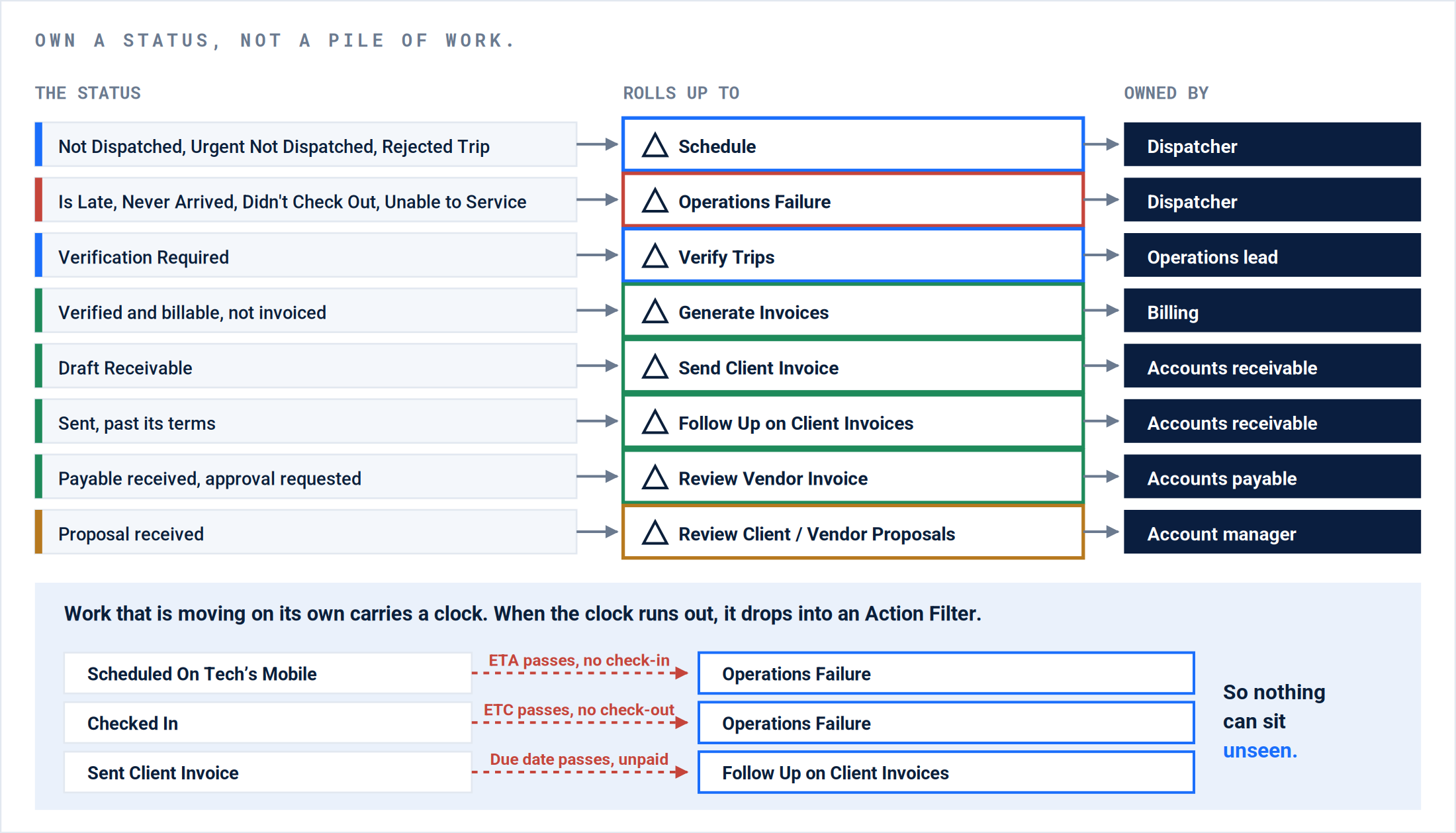
The rollup. Status on the left, the Action Filter it lands in, the role that owns it. Below, the clocks that push stalled work into an Action Filter.
| What follows | Why it matters |
|---|---|
| Nobody updates an Action Filter | A late Trip moves itself into Operations Failure. A verified Trip moves itself out of Verify Trips. |
| Nothing can sit unseen | No Trip: Schedule. Stalled in the field: Operations Failure. Stalled invoice: Follow Up. Each has an owner. |
| The standard is zero | Zero, or a dated note on what is left, means nothing is falling through the cracks. |
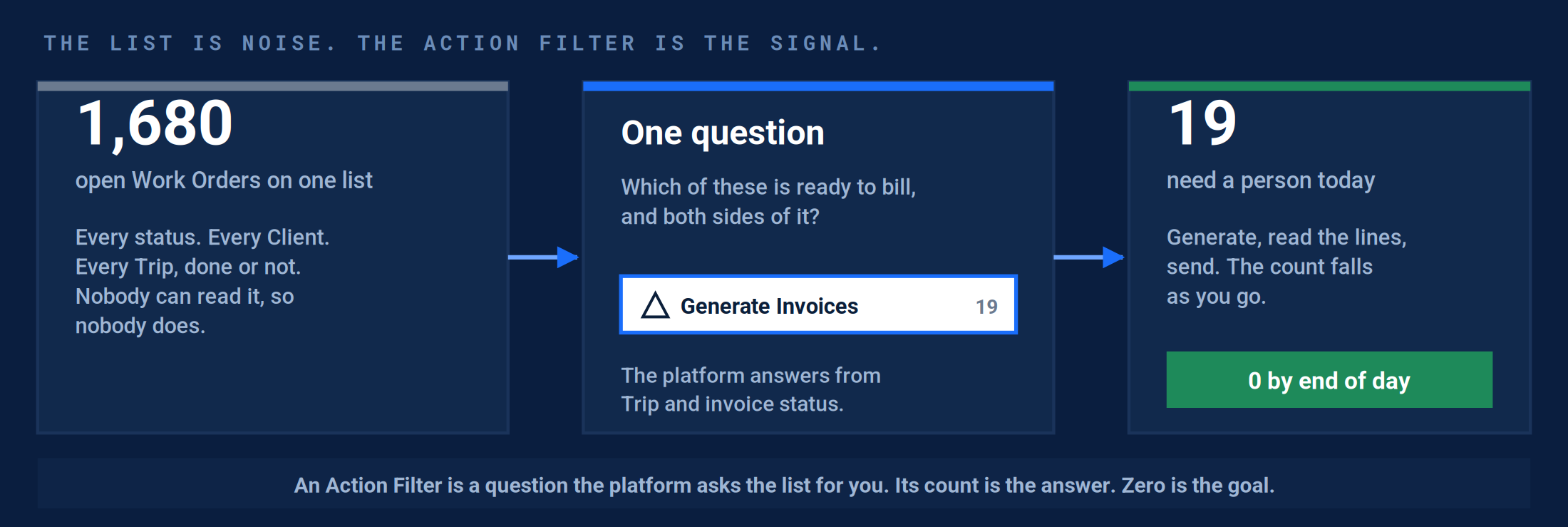
Why this is efficient. The owner never reads the whole list. The platform asks it a question and hands back only the rows that need a person.
The habit. Pick the Action Filter that is money, clear it to zero, pick the next. The Action Filters are that habit, built into the list.
What an Action Filter is made of.
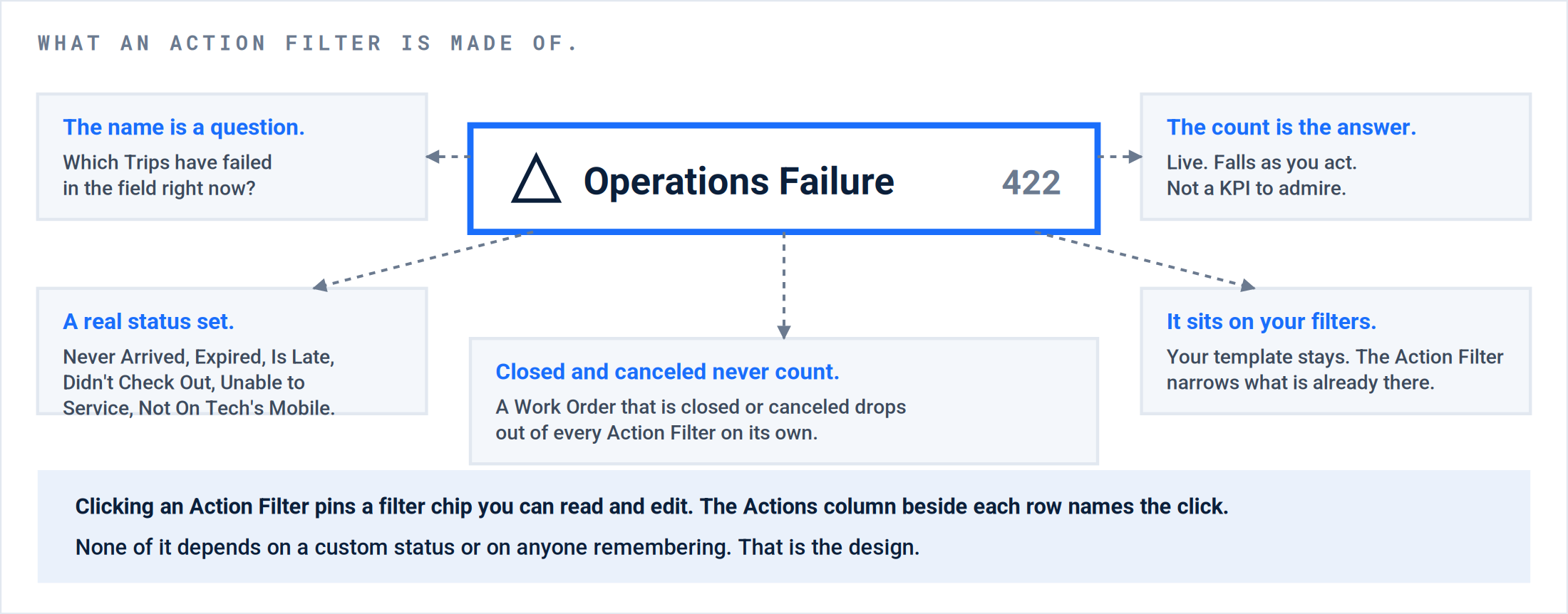
Operations Failure, taken apart. Every Action Filter has the same five parts. Only the question changes.
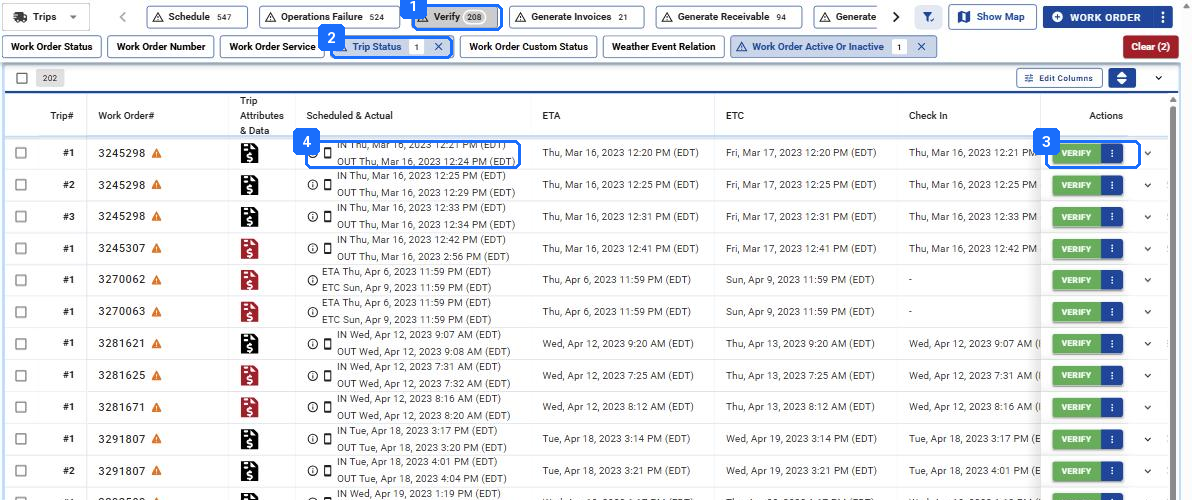
- Verify, highlighted, with its count. Click it again to release it.
- The chip the Action Filter pinned: Trip Status, one value. It is a normal filter; open it to see or change what the Action Filter chose.
- The Actions column. Every row in this Action Filter says VERIFY, because that is the only thing left to do to it.
- Trips from 2023, still waiting. A count that never falls is old data, not new work. See “Why an Action Filter lies” below.
The Trips page with Verify clicked. The Action Filter is highlighted, the filter chip it pinned is readable, and every row carries the click it is waiting for.
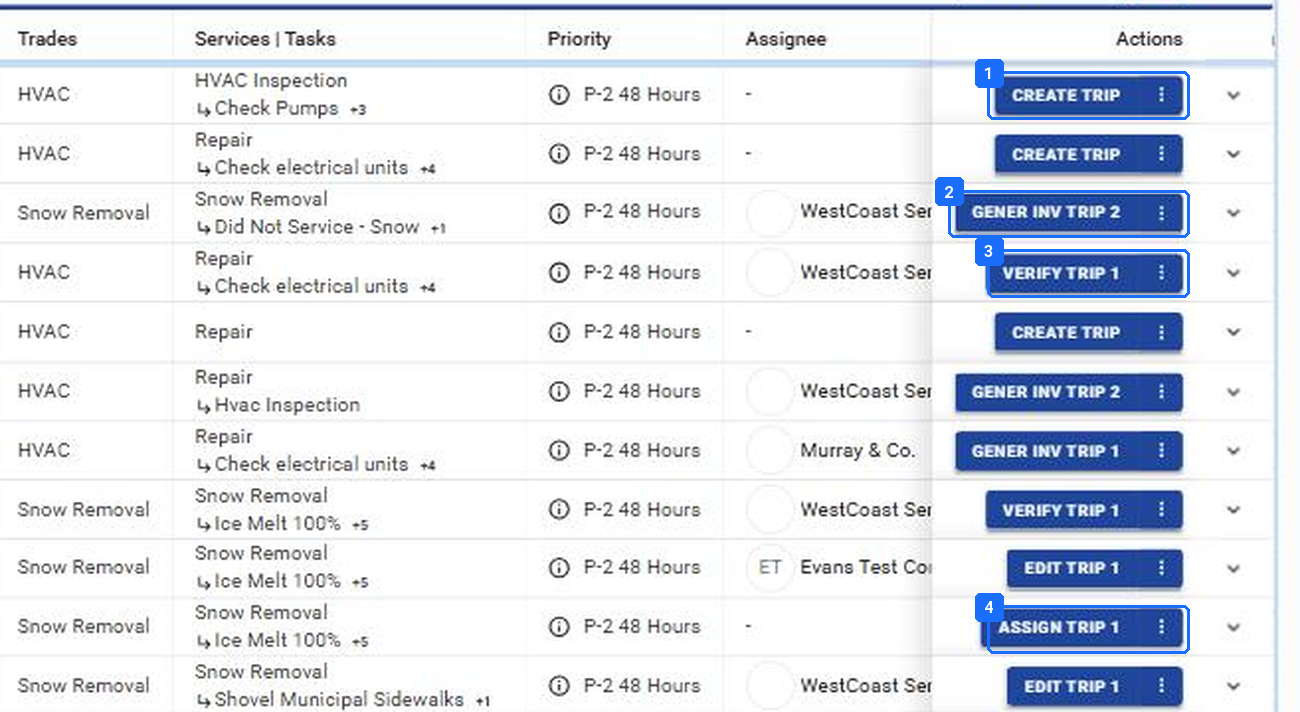
- CREATE TRIP: a Work Order with no Trip yet. It is in the Schedule Action Filter.
- GENER INV TRIP 2: the Trip is verified and billable. It is in Generate Invoices.
- VERIFY TRIP 1: the Trip is checked out. It is in Verify Trips.
- ASSIGN TRIP 1: a Trip with no Vendor. It is in Schedule.
The Work Orders page, no Action Filter clicked. The Actions column changes row by row with the state of the Work Order. The Site column is cropped out.
Result: You never have to know which Action Filter a row is in. The Actions column tells you what it is waiting for, and the Action Filter is where all the rows waiting for the same thing are gathered.
The row, all nineteen.
Nineteen Action Filters on the Work Orders page, scrolled with the arrows at either end. Left to right they are the business in order: schedule, run, verify, bill, collect, pay, and the quotes that start the next job. Each lane has an owner.
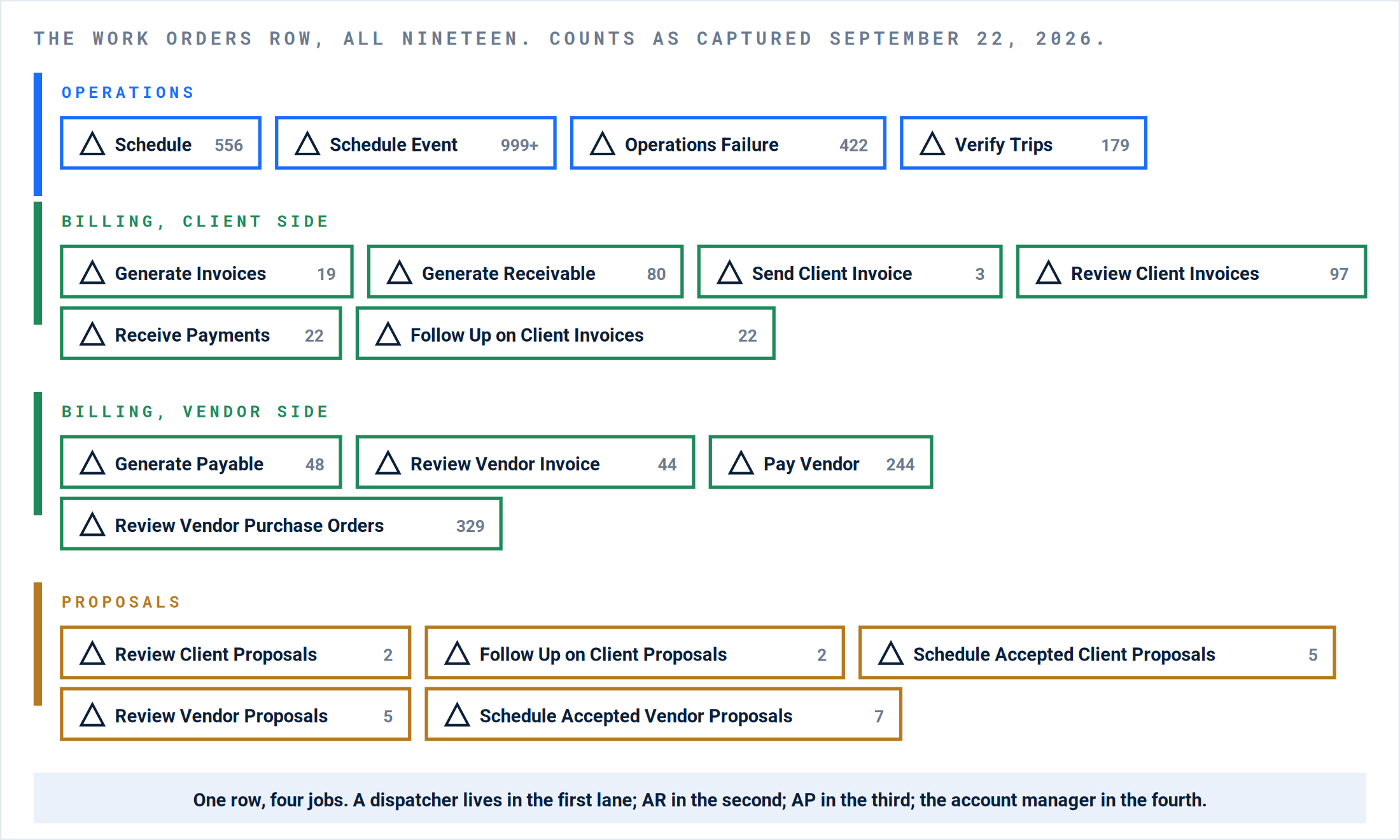
The Work Orders row, by job. The Trips and Sites pages carry the same operations Action Filters. Receivables and Payables have their own rows.
| Action Filter | The question it asks | What is inside | The click |
|---|---|---|---|
| Schedule | What has not gone out? | Trips at Urgent Not Dispatched, Not Dispatched, or Rejected Trip, plus Work Orders with no Trip yet. | Assign, dispatch. |
| Schedule Event | Which Sites are in the path of snow or ice? | Sites with a Snow Trade and forecast snow or ice above zero in any window from now to 60 hours. | Bulk Schedule the storm. |
| Operations Failure | What has failed in the field? | Never Arrived, Never Arrived | Expired, Is Late, Didn't Check Out, Unable to Service, Not Scheduled On Tech's Mobile. | Call, then Edit Visit, redispatch, add a Trip, or cancel. |
| Verify Trips | What is done and waiting for a checkmark? | Trips at Verification Required. | Open the photos, Verify. |
| Generate Invoices | What is ready to bill on both sides? | Work Orders with a verified, billable Trip and no invoice yet, Receivable and Payable. | Generate. |
| Generate Receivable | What is ready to bill the Client? | The Client side of the same question. | Generate Receivable. |
| Generate Payable | What is ready to pay the Vendor? | The Vendor side. | Generate Payable. |
| Send Client Invoice | What is generated and not yet sent? | Draft Receivables. | Read the lines, SAVE AND SEND. |
| Review Client Invoices | What is out and waiting on the Client? | Receivables sent or awaiting confirmation. | Read, chase, or nothing yet. |
| Receive Payments | What is approved and unpaid? | Receivables approved to send, or partly paid. | Record the payment, or let accounting. |
| Follow Up on Client Invoices | What is overdue? | Receivables past their terms. | The call, then a note. |
| Review Vendor Invoice | What did Vendors send that nobody has read? | Payables received or with approval requested. | Approve, Reject with a reason, or Edit. |
| Pay Vendor | What is approved and unpaid? | Approved Payables. | Pay in accounting; PAY here only with no accounting connection. |
| Review Vendor Purchase Orders | What POs are waiting on you? | Vendor Purchase Orders needing review. | Review. |
| Review Client Proposals | What quotes need a decision? | Client Proposals awaiting review. | Approve, revise, or reject. |
| Follow Up on Client Proposals | What quotes has the Client not answered? | Sent Client Proposals with no response. | The call. |
| Schedule Accepted Client Proposals | What did the Client approve that has no work scheduled? | Accepted Client Proposals with no Trip. | Create and dispatch the Trip. |
| Review Vendor Proposals | What did Vendors quote that nobody has read? | Vendor Proposals awaiting review. | Review, mark up, forward to the Client. |
| Schedule Accepted Vendor Proposals | What Vendor quote is approved with no work scheduled? | Accepted Vendor Proposals with no Trip. | Create and dispatch the Trip. |
Where the exact status lists are. Schedule, Schedule Event, Operations Failure and Verify Trips are listed status by status above. The invoice and proposal Action Filters are described by the question they answer; their status sets are in Invoicing: from verified Trip to paid.
Zero inbox: the day.
The Action Filters are only worth having if someone empties them. This is the day as it is taught on every onboarding, and it is the same day for a dispatcher with twenty-five Sites and one with fifteen hundred.
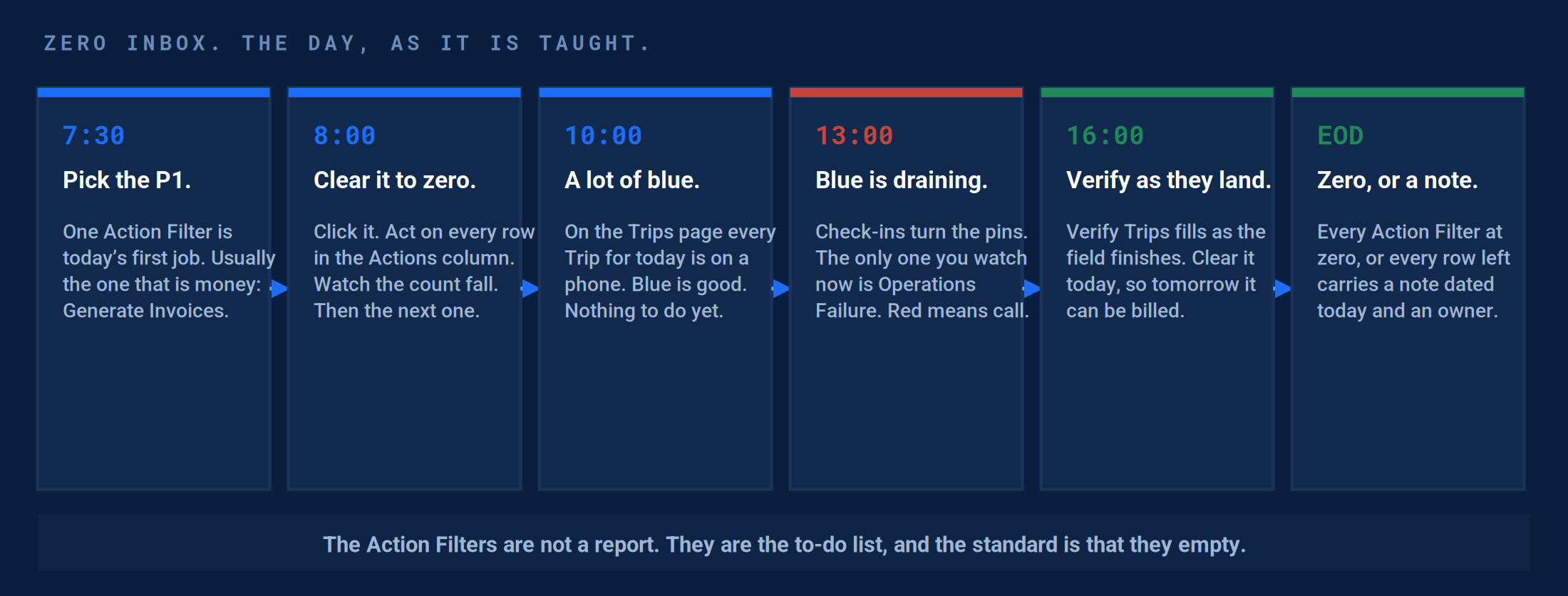
The day, in six moves. Pick the Action Filter that is money, clear it, then the next. Watch blue drain. Watch red. Verify before you leave.
| Role | Your Action Filters | Your end of day |
|---|---|---|
| Dispatcher | Schedule, Operations Failure, Verify Trips. Schedule Event in winter. | Schedule and Operations Failure at zero. Verify Trips cleared before you leave. |
| Operations lead | The same three, read as counts across the team, plus Schedule Accepted Client and Vendor Proposals. | No count that was there yesterday is there today. |
| Accounts receivable | Generate Receivable, Send Client Invoice, Receive Payments, Follow Up on Client Invoices. | Send at zero. Follow Up rows each carry a dated note. |
| Accounts payable | Generate Payable, Review Vendor Invoice, Pay Vendor. | Review at zero. Pay is accounting’s list, not yours. |
| Account manager | Review Client Proposals, Follow Up on Client Proposals, Review Vendor Proposals. | Nothing a Client sent sits unread past today. |
Zero, or a note. Some rows cannot clear today: the Vendor has not called back, the Client has not paid. The standard for those is a note dated today with an owner and a follow-up date. A count with no note is what falling through the cracks looks like.
Result: Every Action Filter you own is at zero at the end of the day, or every row left in it has a dated note. That sentence is the whole operating standard.
Action Filters, custom statuses, and templates.
The most common mistake. A custom status cannot do an Action Filter’s job. A status called Needs Dispatch is only a name. The Action Filter reads what actually happened.
| Thing | What it is | What moves it | When to use it |
|---|---|---|---|
| Action Filter | The platform’s question about real status. Same on every account. | Moves on its own when the status moves. | Every day. You never set or rename one. |
| Custom status | Your label for ownership and handoff: Ready For Trips, On Hold, Complete. | Moves when a person changes it. | For handoffs between people. Not as a substitute for an Action Filter. |
| Template | Your saved slice of the list: this Client, this region, since this date. | Static until you change it. | To narrow the Action Filter to your work. Action Filter first, then the template, then one or two chips. |

- The Action Filter, highlighted.
- The chips it pinned. Each one is a normal filter you can open and change.
- Site Forecast, the chip that makes this Action Filter different from the others.
An Action Filter is an overlay. Click Schedule Event and three chips appear on top of whatever filters were already set. Your template stays. Clear removes the Action Filter’s chips and leaves yours.
Action Filter first, then the template, then a chip. Everyone looks for the same four or five things every day; only the Client or region changes. Click the Action Filter, load the Client’s template, add one chip for today. Save the template once.
What the Action Filters replace.
The efficiency case is not that the Action Filters are fast. It is that they remove six jobs a person used to do from memory, and memory is where work falls through.
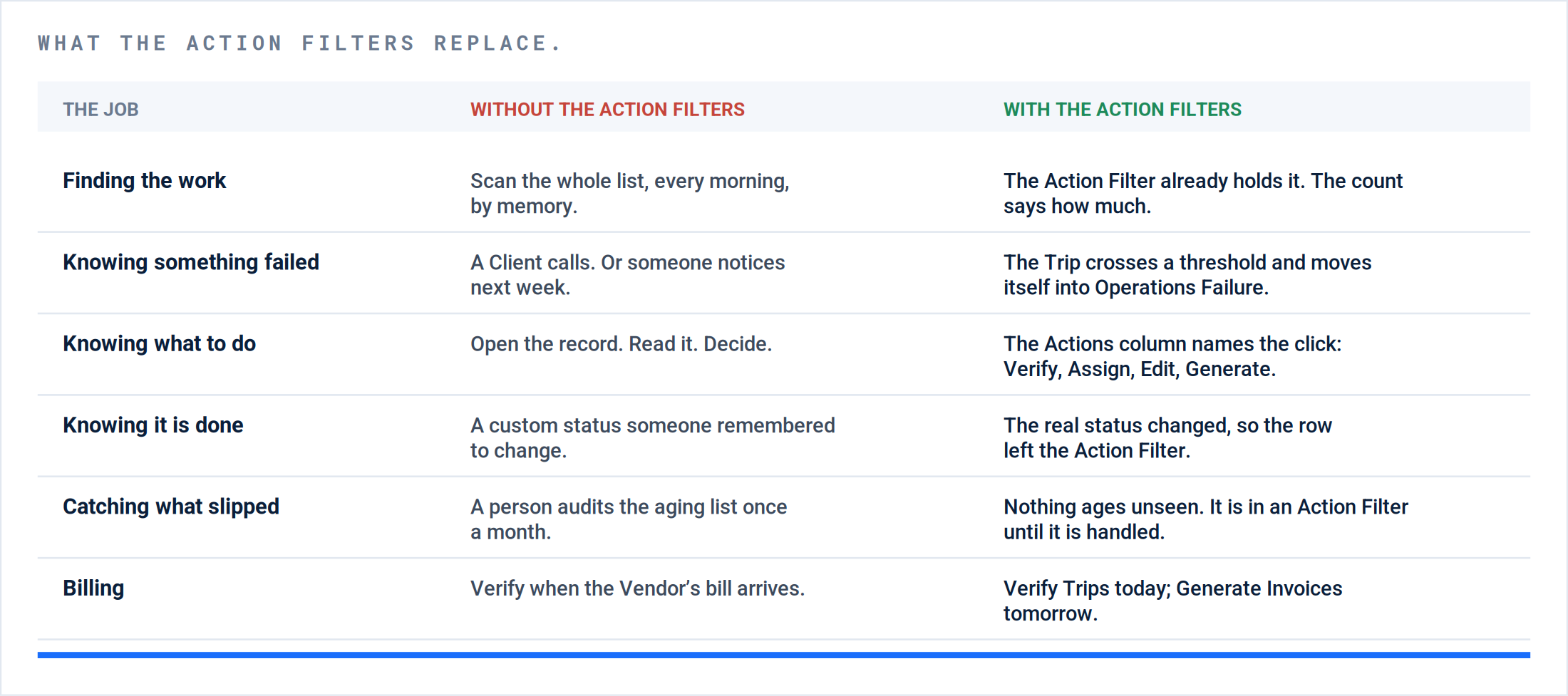
Six jobs, before and after. Every row on the left is a job someone used to do by hand.
Two effects beyond the clicks. Generate Invoices is money you earned and do not have yet. At zero, every report built on status is true. When statuses drift, every report built on them drifts too, from the Client’s SLA report to your margin by Trade.
What we do not claim. No account has measured hours saved from the Action Filters, and this guide does not invent a number. The claim is structural: fewer clicks, nothing held in memory, exceptions that surface themselves. Watch the counts at 5 p.m. for two weeks and measure your own.
Schedule Event: the Action Filter that reads the forecast.
Eighteen of the nineteen Action Filters read what has already happened. Schedule Event reads what is about to. It is the pre-storm report every snow contractor used to build by hand the night before, turned into a count.
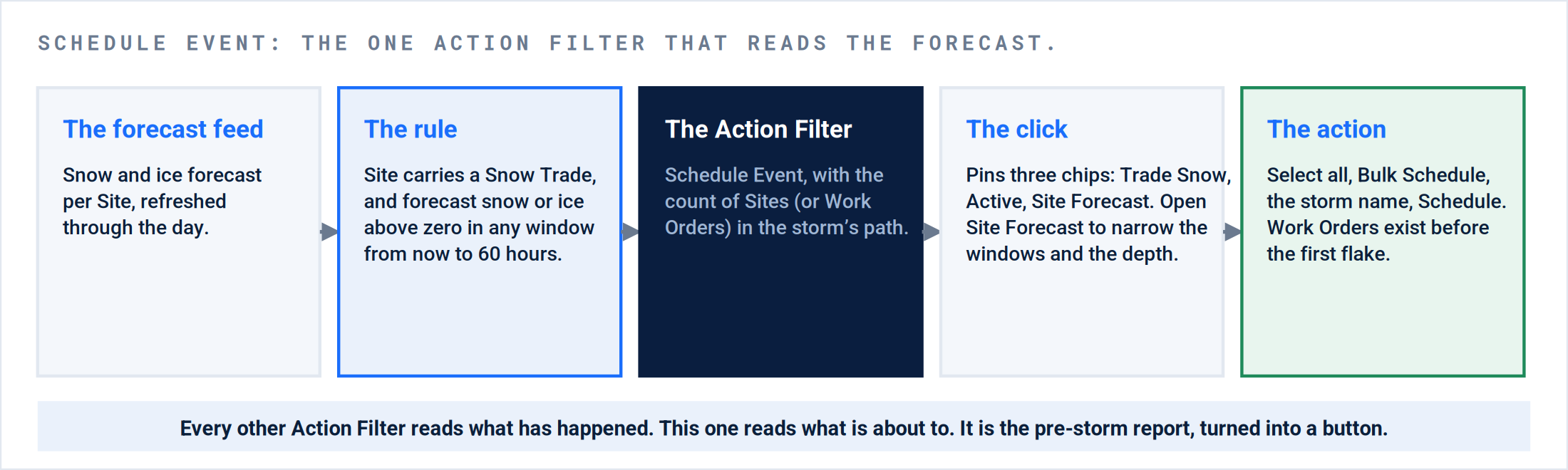
From forecast to Work Orders. The rule: a Site with a Snow Trade, and forecast snow or ice above zero in any window from now to 60 hours.
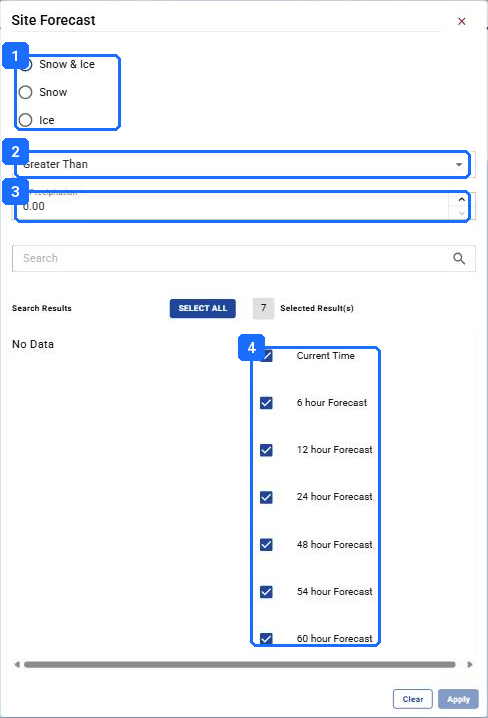
- Snow & Ice, Snow, or Ice.
- Greater Than, and the threshold in inches. Zero means any forecast at all.
- Raise the threshold to your lowest trigger to drop the Sites that will not need service.
- The windows: Current Time, 6, 12, 24, 48, 54, and 60 hour. Narrow them to the storm.
The Site Forecast chip, opened. The Action Filter sets it to snow and ice, above zero, every window. Narrow it to your trigger depth and the storm’s arrival.

- Schedule Event, with the count of Sites in the path.
- Select all.
- Bulk Schedule, which appears once Sites are selected.
The same Action Filter on the Sites page. Here it returns Sites, which is where bulk creation starts: select all, Bulk Schedule, the storm name, Schedule.
What it does not do. It does not create Work Orders: it finds the Sites, and you create the work in bulk from the Sites page. It does not use the certified snow total either; that arrives after the storm and prices the Trip. Forecast before, certified total after.
Result: Before a storm, Schedule Event on the Sites page holds every Site that will need service and nothing else. After Bulk Schedule, the Schedule Action Filter on the Trips page holds the same number of shells, ready to dispatch.
Why an Action Filter lies, and how to make it stop.
In each case the Action Filter was right about the data, and the data was wrong about the business.
| # | What you see | What is true | The fix |
|---|---|---|---|
| 1 | 999+ in every Action Filter. | Years of Work Orders that were never closed, verified without check-in data, or left open by a Must Return that never returned. | Archive everything before a date. Then hold the standard from that day. Ask your Customer Success Manager about the lookback setting. |
| 2 | A closed Work Order still in Operations Failure. | A Trip on it is still open: a third Trip nobody needed, at Never Arrived. | Cancel the Trip. Completing the Work Order does not close its Trips on purpose; sometimes the extra Trip is real. |
| 3 | Every recurring Trip shows Is Late on the second of the month. | The ETA on the recurring Work Order was set to the first, so on the second it is late. | Set the ETA to the day the work is actually done, or the last day of the window. |
| 4 | Generate Payable is empty and you know the work is done. | The check-in falls outside the verification threshold window, or the Trip is not verified. | Verify first. Then check the threshold settings under Company Settings › Work Orders › Trips. |
| 5 | You fixed it and the count did not move. | You are faster than the refresh. | Refresh the page. If it is still there, it is still true. |
| 6 | You opened a record and your filters are gone. | Chips do not survive a trip into a record and back on every screen. | Save the template. Action Filter, template, chip takes three clicks to rebuild. |
| 7 | Everyone sees everyone’s counts. | The Action Filters read the whole account. They do not know who you are yet. | Templates per person or per Client, loaded before the Action Filter. Assign a Work Order Manager at the Site so the filter exists. |
| 8 | The team knows the Action Filters are there and does not use them. | The counts are too big to be believed, so people went back to the raw list and a monthly audit. | Row 1 first. Then one Action Filter, one role, one week, to zero. The habit starts with one number that reaches zero and stays there. |
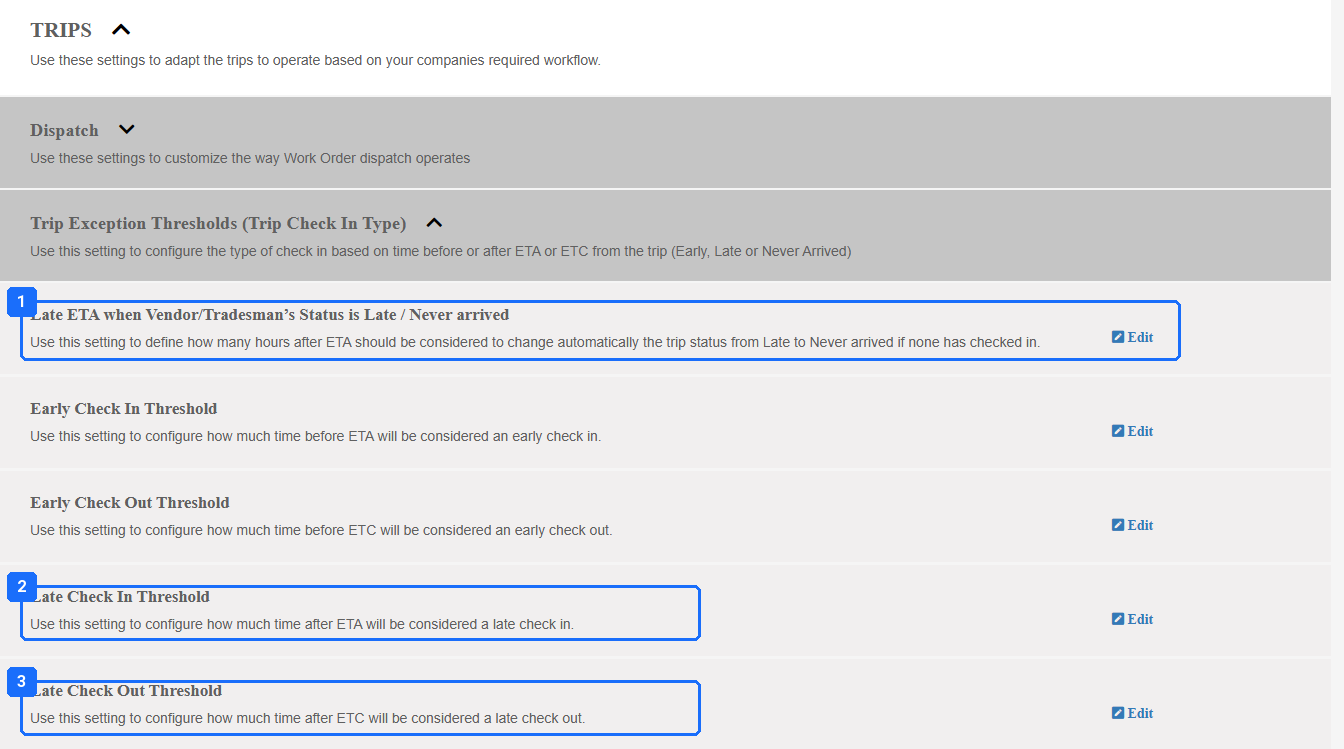
- “Late ETA when Vendor/Tradesman’s Status is Late / Never arrived”: hours after the ETA before Is Late becomes Never Arrived.
- “Late Check In Threshold”: how long after the ETA a missing check-in counts as Is Late.
- “Late Check Out Threshold”: how long after the ETC a missing check-out makes the Trip Didn’t Check Out.
Company Settings › Work Orders › Trips. Three clocks decide when a Trip enters Operations Failure. Scroll this screen with the scrollbar; the mouse wheel does not move it.
What good looks like.
| Checkpoint | Evidence |
|---|---|
| The counts are believable | No Action Filter reads 999+. The oldest row in any Action Filter is from this season. |
| Every Action Filter has an owner | Each role can name its Action Filters without looking, and nobody claims an Action Filter that is not theirs. |
| The day ends at zero | At 5 p.m., every owned Action Filter is at zero or every row left in it has a note dated today. |
| Custom statuses describe handoffs, not states | No custom status duplicates an Action Filter (no Needs Dispatch, no Needs Verification). |
| Templates exist | Every regular user has at least one saved template and starts from the Action Filter, not the raw list. |
| Operations Failure is watched, not read | A red pin gets a call within the hour, and the note says so. |
| Before a storm, Schedule Event is the list | The Sites page Action Filter holds every Site in the path, Bulk Schedule was run from it, and the Schedule Action Filter then holds the shells. |
Questions? Contact your Customer Success team or email support@utilizecore.com.