
| Where this fits: Workflow Universe › Layer 3 · Setup & Network | For: Field | |
| Read first: Your First Week on UtilizeCore · Trip Status and Pin Legend | Read next: Back to The Workflow Universe: How the Guides Fit |
Applies to: Technicians | Mobile
Download the printable guide (PDF)
Quick Reference · For the technician · Mobile build 3.0
Your Trips are on your phone. A Trip is one job at one Site on one day. This is how to find one, do it, and close it so you get paid without a call from the company that sent it. Six steps, then the four reasons a Trip is not there.
Before your first Trip.
| Install | Search UtilizeCore in the app store. The icon is the blue atom. |
| Location on | The app needs your location to sort Trips by distance and to let you check in at the site. |
| Log in | Your email and password. Forgot it? Use the one-time code button. |
| Set the filter | Week or Month, never Day. And the Work Orders tab, not Sites. |
Every Trip, six steps.
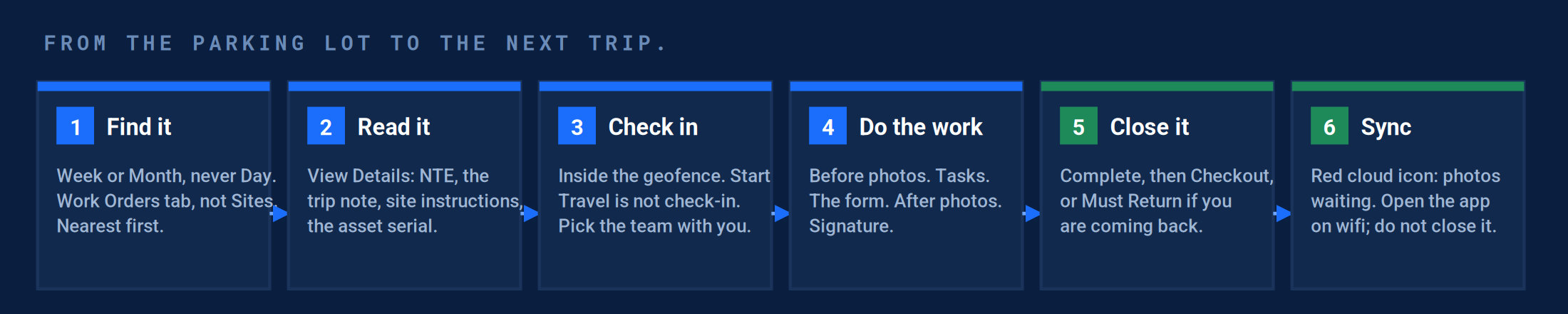
| # | Step | What to do | What to know |
|---|---|---|---|
| 1 | Find it | Open the app. The nearest Trip is at the top. | If it is not there, see the four checks below before you call. |
| 2 | Read it | Tap View Details. The NTE, the trip note, the site instructions, the equipment serial. | The NTE is the most you can bill. If the job is bigger, stop and call before you start. |
| 3 | Check in | At the site, tap Check In. Pick the team members with you. | Start Travel is not check-in. If you see Start Travel, you are outside the site’s radius. Drive there. |
| 4 | Do the work | Before photos. Tick the tasks you did. Fill the form. After photos. Signature if asked. | You cannot check out until every required item is done. The office sees your photos once they sync. |
| 5 | Close it | Complete, then Checkout. Coming back to finish? Must Return instead. | Complete means done. If you tap it and the job is not done, you cannot check in again. Must Return keeps the Trip open for you. |
| 6 | Sync | A red cloud icon means photos are waiting. Open the app on wifi and leave it open. | Closing the app mid-upload is the number one reason photos never arrive. |
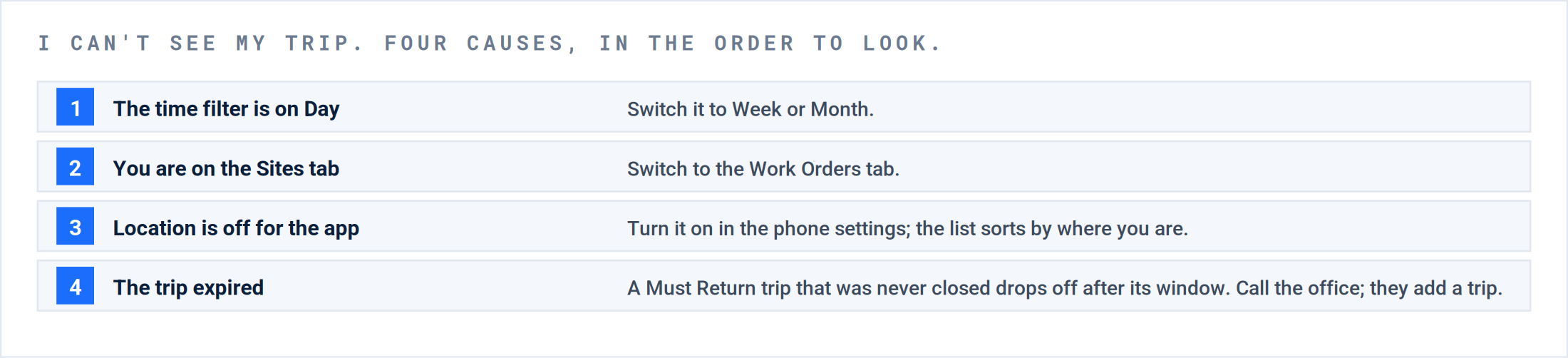
The Trip is not there.
Three things the company that sent the Trip needs from you.
| An arrival window | When you accept a Trip, tell the company a two-hour window. The app does not ask; the company needs it for the Client. |
| The right serial tag | If the unit has more than one tag, photograph the one the Trip names. A wrong tag means the visit is rejected and you do it again. |
| A note when something changes | Work Order Notes in the app email the company’s dispatcher. Pull down to refresh if they change the NTE while you are on site. |
Questions? Call the company that sent you the Trip. App trouble: support@utilizecore.com.
Questions? Contact your Customer Success team or email support@utilizecore.com.