
| Where this fits: Workflow Universe › Layer 3 · Setup & Network | For: Admin, Operations Lead | |
| Read first: Keys to Success: Your Operations Lead · Action Filters | Read next: Onboarding a New Client |
Applies to: Administrators, operations leads | Web
Download the printable guide (PDF)
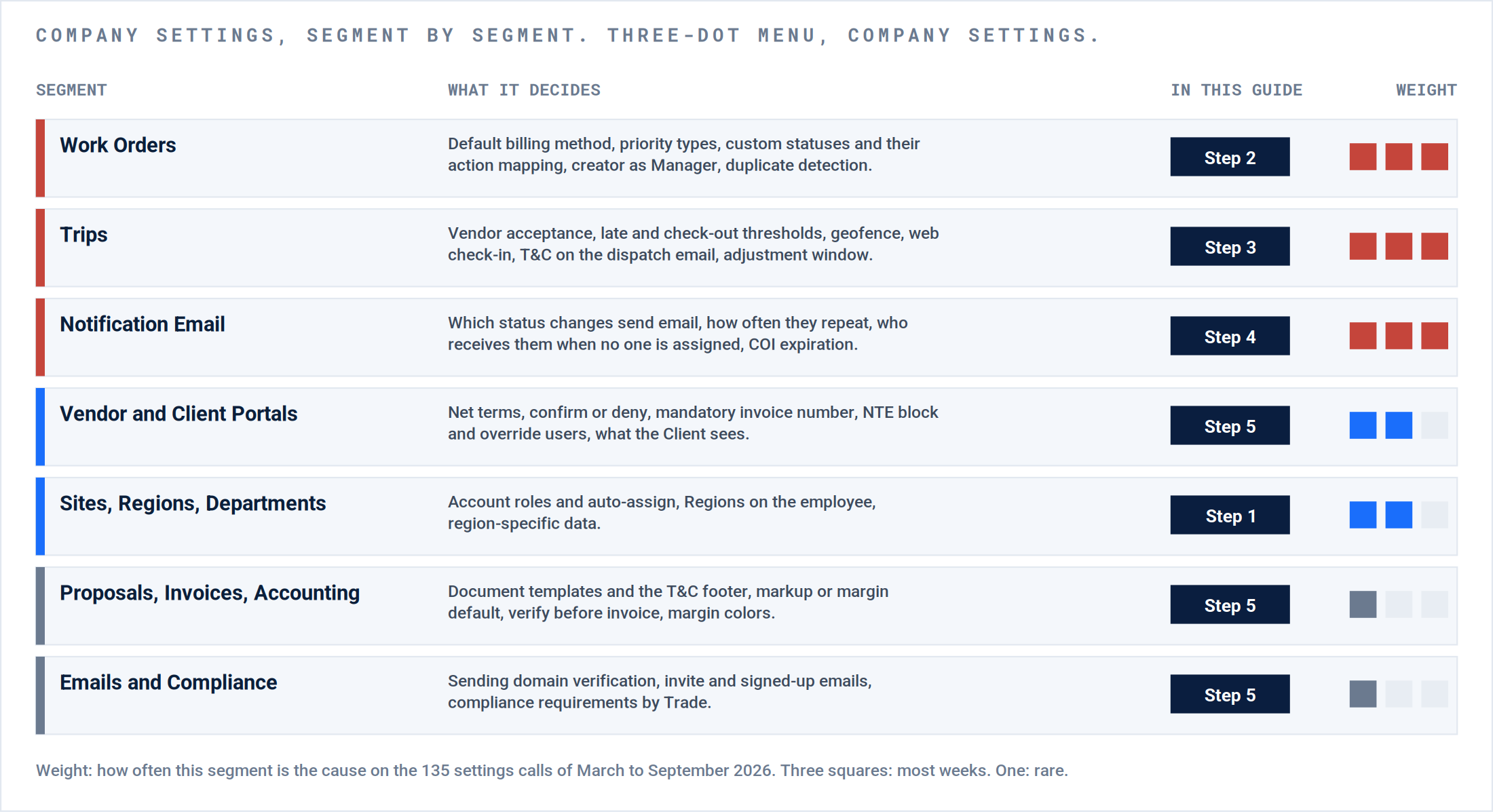
The segments. Three-dot menu, Company Settings. One row per segment: what it decides, the step in this guide that covers it, and how often it turns out to be the cause of a support call.
One idea runs through every segment: set each default as high as it is true, override as low as it needs to be. Company, Trade and Service, Client, Site, record. A setting with no effect is being overridden lower down.
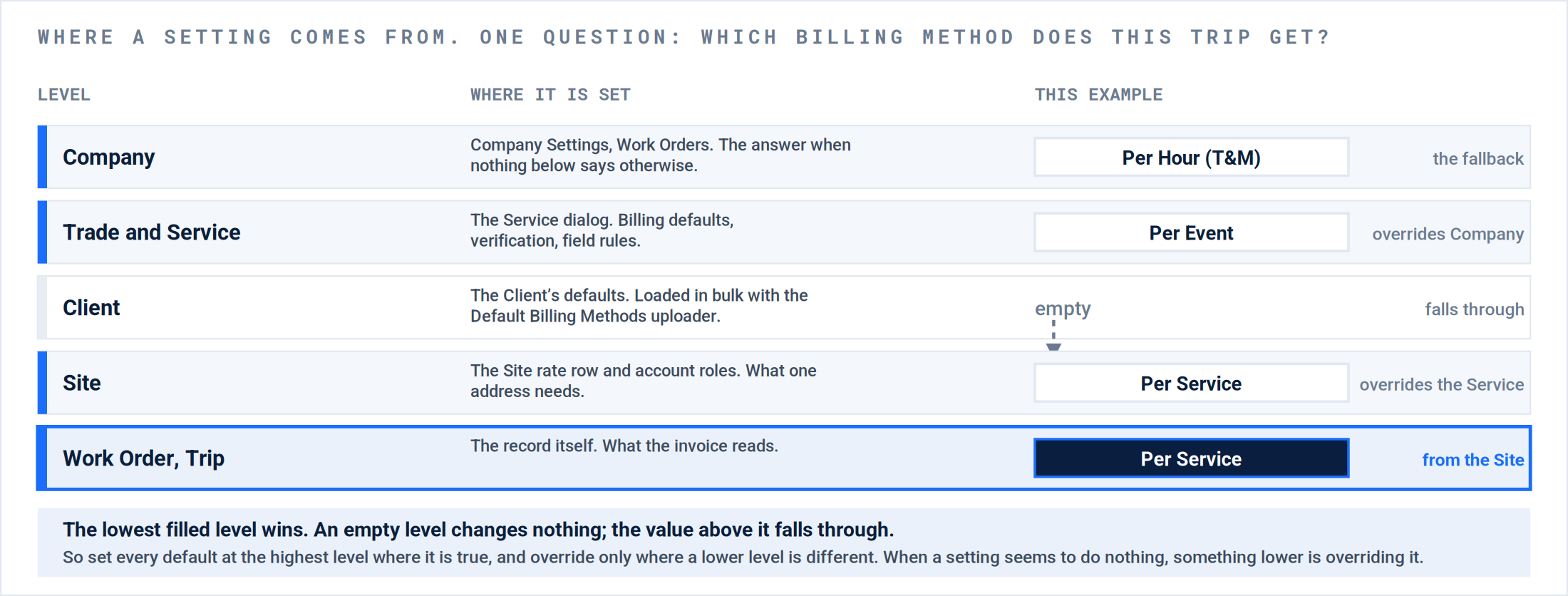
Where a setting comes from. One question, five levels. The Site row beats the Service default, which beats Company Settings; the empty Client level changes nothing. The Trip reads Per Service because the Site said so.
Decide on paper.
Step 0
Four questions, answered before Company Settings is opened. Every one of them changes a dozen settings.
| Question | If yes | If no |
|---|---|---|
| Do Vendors do the work? | Vendor acceptance on, compliance enforced or advisory, Vendor Portal controls, vendor track documents. | Team members, Field Force roles, Regions, time tracking. The Vendor sections stay default. |
| Are Clients integrated? | Inbound defaults per Client, custom statuses only where the mapping needs them, Client contact email removed so nothing leaves by email. | Client Portal on, sending domain verified, Work Order report template. |
| Do Vendors invoice themselves? | Enable it, confirm or deny, mandatory custom invoice number, NTE block with named override users. | You generate the Payable from rates; the Vendor confirms. |
| Who is allowed to see whom? | Regions on the employee, account roles on the Site, region-specific data off until every Site is assigned. | Everyone sees everything. Templates per person do the narrowing. |
People: users, roles, regions, account roles.
Step 1
Who can do what, and who sees whom. The two are different mechanisms and get confused on every account.
1. Every role has the permissions its job needs, written down first.
Where: Company Settings › Roles. Start from the shipped roles; a custom role is a copy with a written list.
Exception: A custom field role could not create Work Orders or open Time Tracker, and nobody found out until the day before go-live.
Correction: A user in each role has done each of that role’s daily actions on the test Client.
2. Regions live on the employee. Visibility comes from account roles on the Site.
Where: Employee › Region. Site › account roles (account manager, dispatcher) with auto-assign.
Exception: A manager was given a second region to QA another manager’s accounts; her calendar filled with every employee in that region. Region is a territory, not a permission.
Correction: Each manager’s Calendar filtered to their region is saved as a template, and the Manager filter returns their people from the Site account roles.
3. Nobody is “not joined”.
Where: Employees, filtered to not joined. Resend the invites.
Exception: A team of cleaners went live with a third of them never having accepted the invite.
Correction: The not-joined count is zero the day before go-live.
Result: Roles match the written list, regions are on employees, account roles are on Sites, and everyone has joined.
Work Order defaults: billing, priorities, statuses.
Step 2
What every new Work Order inherits. Wrong here is wrong on every record until someone notices. Statuses come last in this step and first in importance: lay the lifecycle out before you create one.
4. The default billing method is set at the level it is true, and the Client level is loaded in bulk.
Where: Company Settings › Work Orders for the + button default. The Service dialog per Service. The Default Billing Methods uploader for Clients.
Exception: The default was Per Hour (T&M) at the company level only. Every integrated Work Order came in as Per Hour (T&M) on a Per Task Client and was corrected by hand.
Correction: A new Work Order for each Client type shows the contract’s method on both sides without editing.
5. Priorities are few, all active, and each sets the four dates.
Where: Company Settings › Work Orders › Priority Types. Set start time, ETA, ETC and expiration, with a two to five day buffer after ETC. A default priority catches anything the API sends without one.
Exception: A dozen priorities, half unused, and an expiration equal to ETC so every late completion expired the Work Order.
Correction: Under eight priorities, every one used this quarter, and a test Work Order at each shows the four dates filled.
The lifecycle before the statuses.
Before you build a custom status. A custom status is a handoff: the moment work moves from one team to the next. Lay the lifecycle out first, then build only the statuses it needs.
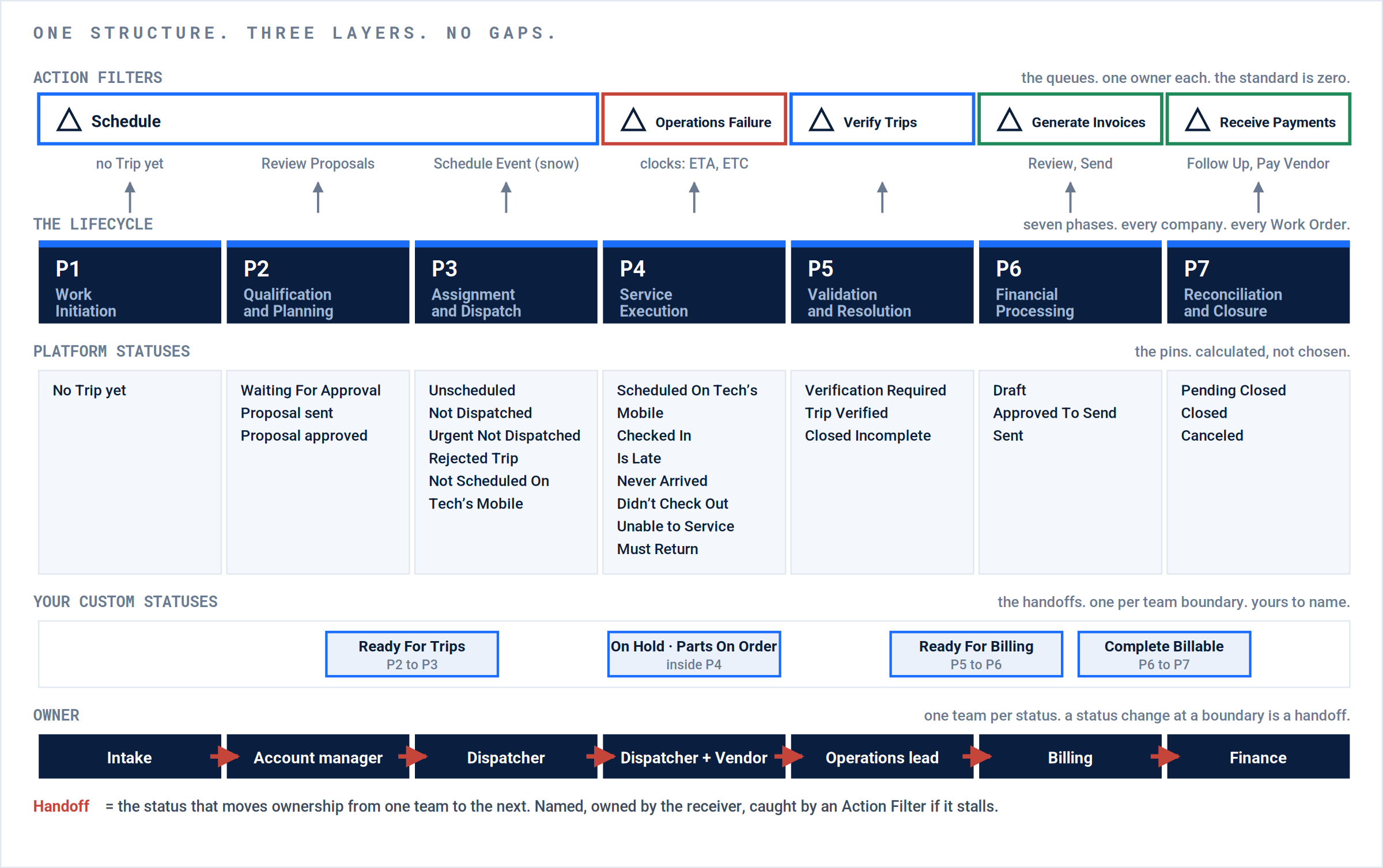
The lifecycle map. Action Filters on top, the seven phases in the middle, statuses and owners below. Your custom statuses sit where ownership changes hands.
A status is a handoff.
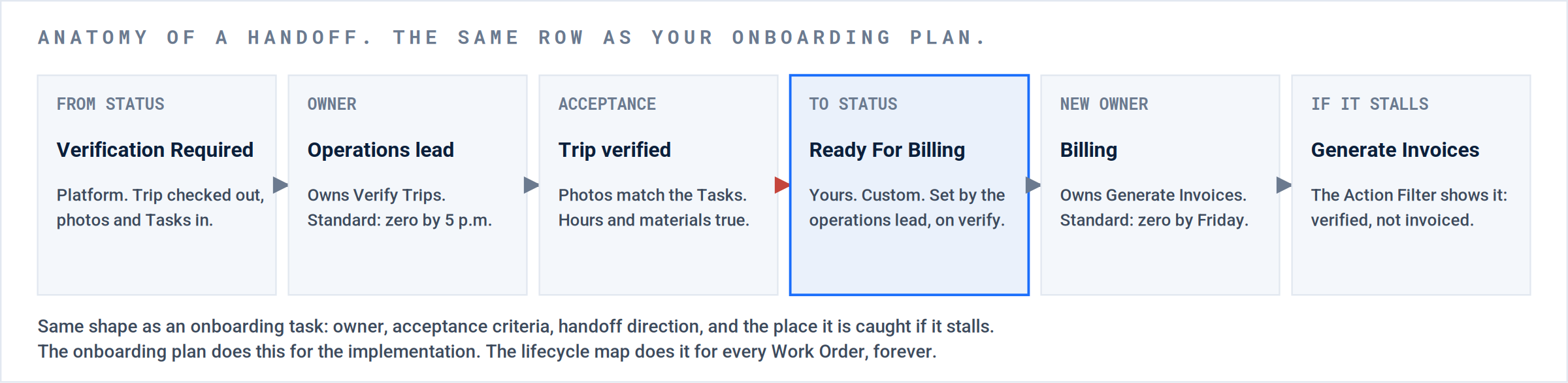
One handoff. Verified, the Trip becomes Ready For Billing and belongs to billing. If billing stalls, Generate Invoices shows it.
Every Trip status, and the Action Filter it lands in.
Two statuses have no Action Filter and no clock, and they are the only two places a Work Order can wait without being seen.
| Status | Phase | Caught by | Owner | Note |
|---|---|---|---|---|
| No Trip yet | P1 | Schedule | Dispatcher | |
| Unscheduled | P3 | Schedule | Dispatcher | A Trip with no dates. Gray pin. |
| Urgent Not Dispatched | P3 | Schedule | Dispatcher | |
| Not Dispatched | P3 | Schedule | Dispatcher | |
| Rejected Trip | P3 | Schedule | Dispatcher | The Vendor said no. Re-source. |
| Not Scheduled On Tech’s Mobile | P3 | Operations Failure | Dispatcher | Dispatched, not accepted on the phone. |
| Scheduled On Tech’s Mobile | P4 | Clock: ETA passes, no check-in › Operations Failure | Dispatcher + Vendor | Blue. Moving on its own. |
| Checked In | P4 | Clock: ETC passes, no check-out › Operations Failure | Dispatcher + Vendor | Yellow. Moving on its own. |
| Is Late | P4 | Operations Failure | Dispatcher | |
| Never Arrived | P4 | Operations Failure | Dispatcher | |
| Never Arrived | Expired | P4 | Operations Failure | Dispatcher | Past Trip Expiration. Not on the map. |
| Didn’t Check Out | P4 | Operations Failure | Dispatcher | |
| Unable to Service | P4 | Operations Failure | Dispatcher | |
| Must Return | P4 | None. Saved filter, named reader | Dispatcher | Add the return Trip; the Action Filter does not remind you. |
| Waiting For Approval | P2 | None. Saved filter, named reader | Account manager | Waiting on a person outside the platform. |
| Verification Required | P5 | Verify Trips | Operations lead | |
| Trip Verified | P5 | Generate Invoices (once billable) | Billing | The handoff to money. |
| Closed Incomplete | P5 | Verify Trips until verified | Operations lead | |
| Pending Closed | P7 | None needed. Closing. | Finance | Closes on its own when the money clears. |
| Canceled | P7 | None needed. Out of every Action Filter. | Whoever canceled |
The Schedule Action Filter on the Work Orders row also carries Work Orders with no Trip at all. The Trips row cannot, because there is no Trip to list. Start the morning on the Work Orders row.
The rule. A custom status belongs only where ownership changes hands and no Action Filter already marks the moment. It is owned by the team that receives it.
Your lifecycle map.
| Phase | Platform statuses | Caught by | Owning team | Handoff status out | True before it moves |
|---|---|---|---|---|---|
| P1 Work Initiation |
No Trip yet (Unscheduled) | Schedule | |||
| P2 Qualification and Planning |
Waiting For Approval, Proposal sent, Proposal approved | Review Proposals · Waiting For Approval has no Action Filter | |||
| P3 Assignment and Dispatch |
Unscheduled, Not Dispatched, Urgent Not Dispatched, Rejected Trip, Not Scheduled On Tech’s Mobile | Schedule (the first four) · Operations Failure (Not Scheduled On Tech’s Mobile) · Schedule Event | |||
| P4 Service Execution |
Scheduled On Tech’s Mobile, Checked In, Is Late, Never Arrived, Didn’t Check Out, Unable to Service, Must Return | Operations Failure, with the ETA and ETC clocks · Must Return has no Action Filter | |||
| P5 Validation and Resolution |
Verification Required, Trip Verified, Closed Incomplete | Verify Trips | |||
| P6 Financial Processing |
Draft, Approved To Send, Sent | Generate Invoices · Review Client Invoices · Review Vendor Invoice · Send Client Invoice | |||
| P7 Reconciliation and Closure |
Pending Closed, Closed, Canceled | Receive Payments · Follow Up on Client Invoices · Pay Vendor |
The gap test.
Six checks. The map passes when every one is true. The proof is a number you can read on the screen, not an opinion.
| # | No gap when | Proof |
|---|---|---|
| 1 | Every phase has an owning team, written down. Not a person’s name; a role that is staffed every day. | Seven owner cells, none blank, none “everyone”. |
| 2 | Every status has exactly one owner. Platform statuses inherit their phase’s owner. A custom status is owned by the team that receives it. | Custom Statuses list against the map: each one appears in one row. |
| 3 | Every status is caught somewhere. In an Action Filter, on a clock that leads to an Action Filter, or a custom handoff status with a saved filter the receiving team opens every morning. | Waiting For Approval, Must Return and every custom status have a saved filter and a named reader. Those two are in no Action Filter; everything else on the Trip is. |
| 4 | Every boundary where the owner changes has a named handoff. The status change, who sets it, and what has to be true first. | One custom status, or one Action Filter, per red arrow on the map. No boundary with neither. |
| 5 | No two statuses mean the same thing, and none duplicates an Action Filter. No Needs Dispatch, no Needs Verification, no Ready to Invoice next to Generate Invoices. | No custom status with zero Work Orders in 90 days. No name that restates an Action Filter. |
| 6 | Every custom status has an action mapping you chose. Open, Complete, Cancel or Close. A status mapped to Cancel cancels integrated Work Orders with incurred cost. | Action mapping column reviewed line by line. Every Cancel is one you meant. |
6. Custom statuses exist only for handoffs, and each one has an action mapping.
Where: Company Settings › Work Orders › Custom Statuses. Action mapping: complete, cancel, close. Notifications per status.
Exception: “Dispatched” as the status for new Work Orders, and a status mapped to Cancel that canceled integrated Work Orders carrying incurred cost. Custom statuses used as a to-do list that the Action Filters already were.
Correction: No custom status duplicates an Action Filter (no Needs Dispatch, no Needs Verification). None has zero Work Orders in 90 days. Every one mapped to Cancel is one you meant.
Result: New Work Orders arrive with the right method, the right dates, and a status that means a handoff.
Trips: acceptance, thresholds, geofence.
Step 3
The settings that decide when a Trip turns red, and what a Vendor has to do before it turns blue.
7. The two clocks are set to your SLA.
Where: Company Settings › Work Orders › Trips: Late Check In Threshold, the hours from Is Late to Never Arrived, Late Check Out Threshold.
Exception: Left at defaults, Operations Failure lit up on Trips that were twenty minutes behind and stayed dark on ones that were a day behind.
Correction: A Trip that misses its ETA by your tolerance turns Is Late. Past your cutoff it turns Never Arrived. A missed check-out turns Didn’t Check Out.
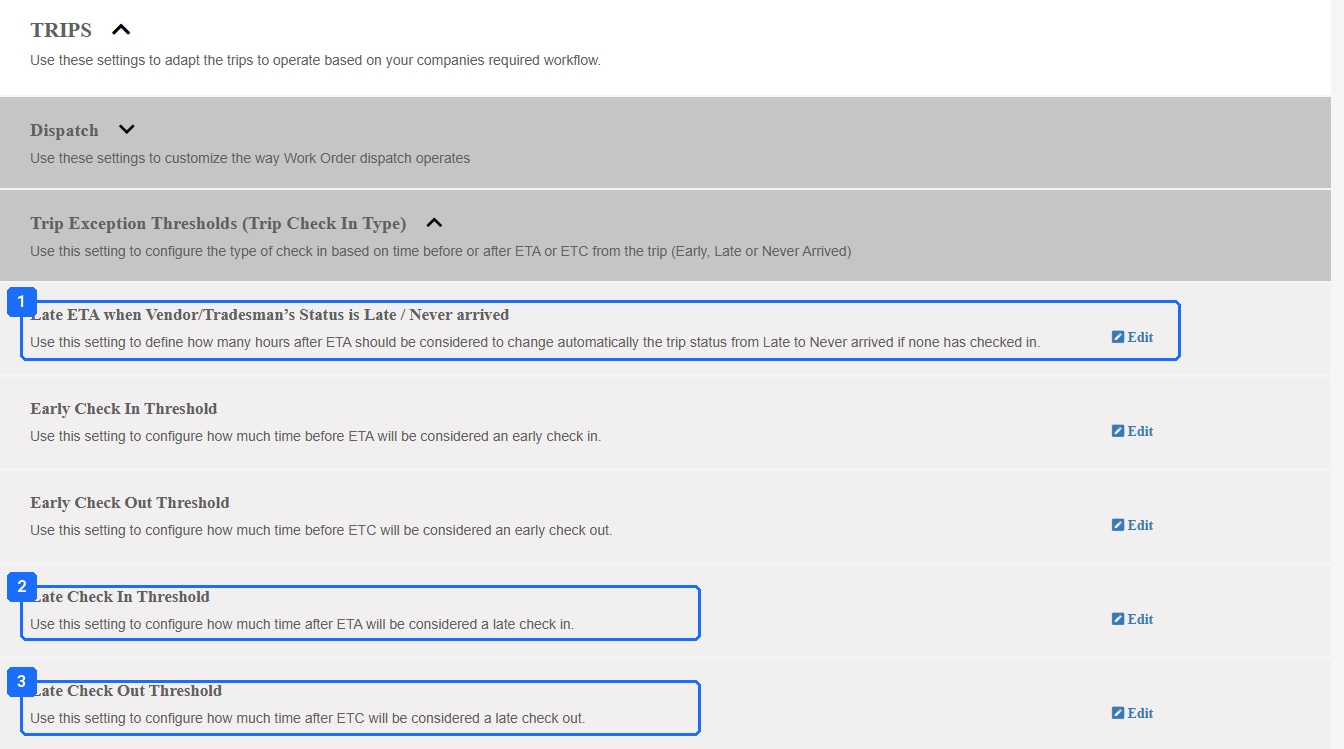
- “Late ETA when Vendor/Tradesman’s Status is Late / Never arrived”: hours after the ETA before Is Late becomes Never Arrived.
- “Late Check In Threshold”: how long after the ETA a missing check-in counts as late.
- “Late Check Out Threshold”: how long after the ETC a missing check-out makes the Trip Didn’t Check Out.
Company Settings › Work Orders › Trips. The three thresholds. Scroll with the scrollbar; the mouse wheel does not move it.
8. Vendor acceptance is on, the geofence is on for go-live, and Pause Trip is off.
Where: Trips: “Vendor has to accept or reject trip”. Mobile Check In / Check Out: Geofence Distance. The Service’s Advanced Settings: Enable Pause Trip.
Exception: Geofence was left off after testing, and a Client rejected check-ins from the road. Pause Trip on; Work Orders looked stalled for days.
Correction: A test dispatch to the test Vendor waits at pink until accepted. A check-in from outside the radius is refused, and the app offers Must Return and no Pause.
Result: Red means what your SLA says it means, and blue means the Vendor accepted.
Work Order Managers and notifications.
Step 4
The most common settings failure: notifications on, nobody assigned, nothing sent.

The chain. A notification goes to the Work Order Manager. If none, the Site’s account role. If none, the default mailbox. Break the chain and it goes nowhere.
9. Every Site has a Work Order Manager, loaded in bulk.
Where: Sites export, fill the account role column, re-import. A distribution list can be a second assignee. Company Settings › Work Orders: creator auto-assigned as Manager.
Exception: Status notifications were on and most Sites had no Manager. Nothing sent for a month.
Correction: Sites with a blank Manager: zero.
10. Only the real notifications are on, and they repeat the right number of times.
Where: Company Settings › Notification Email. Is Late, Never Arrived, Must Return, COI expiration to the compliance owner. Check-in emails off. Repeat interval and “stop after one”. Save in the pop-up and again on the page.
Exception: Every check-in emailed everyone, so everyone stopped reading. The default repeat was every three hours. The text was saved in the pop-up and lost on the page.
Correction: A late test Trip emails the Manager once. A check-in emails nobody.
11. The sending domain is verified.
Where: Company Settings › Emails › the DNS record, added by whoever owns your domain.
Exception: “Why are no emails going out?” The domain was never verified.
Correction: The domain reads Verified, and a test dispatch email arrives from your address.
Result: Every Site has an owner, the owner gets the three notifications that matter, and the emails arrive.
Portals, documents, branding.
Step 5
What Vendors and Clients see, and what your paperwork looks like.
12. The Vendor Portal enforces the invoice rules you want.
Where: Company Settings › Vendor Portal: net terms, confirm or deny, mandatory custom invoice number, NTE block with named override users, T&C acceptance.
Exception: Vendor self-invoicing was turned off because Vendor invoices sat in Pending Review unseen. The fix was to enable it with a mandatory invoice number and read the Action Filter.
Correction: A test Vendor invoice arrives with a number, is blocked over the NTE, and one named user can override it.
13. The logo is in both places and the templates are yours.
Where: Company Settings › Profile for the logo. Proposals and Invoices for the document templates, the T&C footer, and the markup or margin default.
Exception: The profile logo did not carry to Proposals; a Client received a quote with the wrong logo.
Correction: A test Proposal, a test invoice and a test Work Order report each carry your logo and your terms.

Three templates. When someone says template, ask which.
Result: A test Client and a test Vendor exist, and a full Work Order was run between them as a restricted user, from dispatch to invoice, with every document read.
Where this usually goes wrong.
| # | What you see | What happened | The fix |
|---|---|---|---|
| 1 | Nobody got the email. | Notifications on, no Work Order Manager on the Site, or the domain never verified. | Step 4. |
| 2 | A manager sees every employee in a region. | Region was used as a permission. | Region on the employee, account roles on the Site, a saved template per manager. |
| 3 | Every new Work Order is Per Hour (T&M). | The default was set at company level only. | The Default Billing Methods uploader, per Client. |
| 4 | A custom status canceled a live integrated Work Order. | The status was mapped to Cancel. | Audit action mappings. Cut statuses that duplicate an Action Filter. |
| 5 | The upload template columns do not match. | An old template. Settings change the columns. | Download fresh from the cloud icon every time. |
| 6 | The Vendor email has no PDF. | “Send attachments” on and the T&C not attached, or a defect. | Check the Trips setting; report it if it persists. |
| 7 | Call Type carries billing instructions. | A prior implementer used it as a field. | Call Type classifies. Billing lives on the method and the Responsible Billing Party. |
| 8 | Everyone sees zero. | “Show region-specific data” on before every Site had a region. | Off until every Site is assigned. |
What good looks like.
| Checkpoint | Evidence |
|---|---|
| Roles match the written list | One user per role has done the role’s daily actions. |
| Everyone has joined | Employees not joined: zero. |
| Every Site has a Manager | Sites with a blank Manager: zero. |
| The domain is verified | And a test email arrived. |
| Statuses mean handoffs | None duplicates an Action Filter; none unused in 90 days. |
| A test Work Order ran end to end | Test Client, test Vendor, restricted user, every document read. |
Questions? Contact your Customer Success team or email support@utilizecore.com.