
| Where this fits: Workflow Universe › Layer 3 · Setup & Network | For: Admin, Operations Lead | |
| Read first: From Intake to the Field · Pricing Setup | Read next: The Field Guide |
Applies to: Operations leads, Vendor managers | Web
Download the printable guide (PDF)
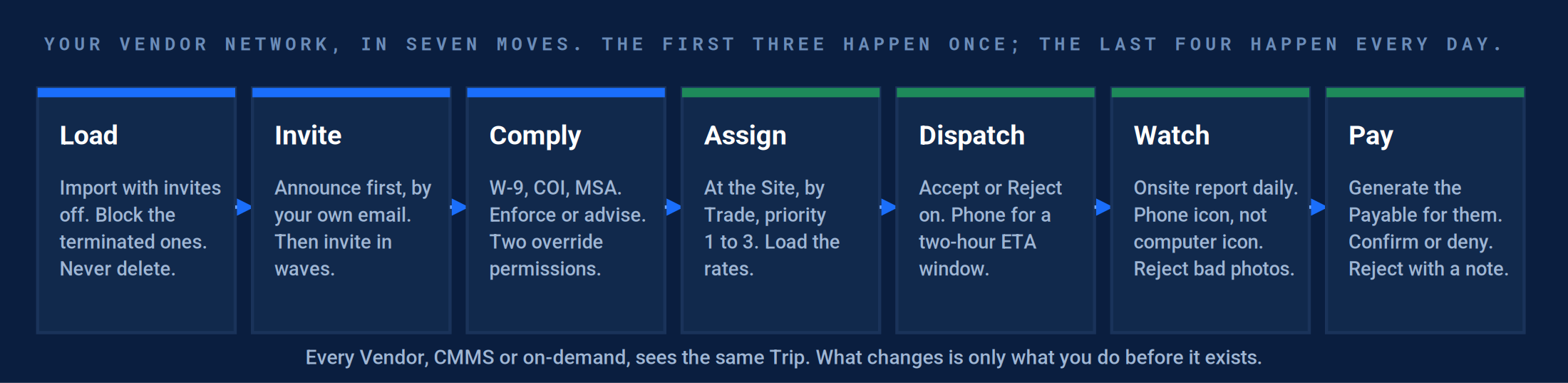
Seven moves. Four of them happen once per Vendor. Three of them are the daily work.
One rule before the rest. A Vendor is never handed a Work Order. A Vendor is assigned a Trip, and the Trip lives inside your Work Order. You keep the problem, the Client and the money. The Vendor gets the Site, the date, the Tasks and the NTE.

Load, invite, comply, assign.
Once per Vendor
Four setup moves. Two of them, done wrong, generated calls to your desk from people who had no idea why they were being invited.
1. Vendors are loaded with invites off, and the terminated ones are blocked.
Where: Network › Vendors › import. Search before adding. Name, email, physical address; phone cannot be mandatory.
Exception: An import fired the invite drip to the whole list, including terminated Vendors and Vendors outside the program. They called operations, who did not know what the email was.
Correction: The import is in, no invite has gone out, and every Vendor you will not use is blocked, not deleted.
2. The announcement went first, in your voice. Then the invites, in waves.
Where: Your own email to the Vendors, then Network › Vendors › select › Resend Invitation, a trade or a region at a time. Company Settings › Emails for the invite and the Signed Up email.
Exception: The platform’s invite arrived first and read as spam. A text arrived before the email. Nobody had told the Vendors it was coming.
Correction: Every invited Vendor got your email before the platform’s. The invite template carries your insurance language, a link to the two Vendor documents, and a support contact.
3. Compliance asks for what you will enforce and nothing else.
Where: Network › Vendors Compliance. Requirements globally and by Trade. The enforcement setting: dispatch blocked for non-compliant Vendors, or advisory. Two override permissions: mark compliant by hand, and approve a one-off dispatch.
Exception: The signup wizard demanded documents the broker never wanted and could not edit, so Vendors stalled at the wizard. Elsewhere, dispatch was blocked and nobody knew who could override it.
Correction: The list is W-9, COI and MSA unless a Trade needs more. The enforcement choice is written down, and the two people with override are named.
Fast launch. For a launch that cannot wait on documents, turn the compliance calculation off, collect the documents by email as step two, and turn it on when the list is in. The nightly job at 2 a.m. recalculates everyone.
4. Every Vendor is assigned at the Site, by Trade, with a priority.
Where: Site › View Service Rates › the Service › + Assignee Rates. Priority 1 to 3 in practice; ten slots exist. Then the rates, both sides. See Pricing Setup.
Exception: Vendors assigned on an agreement only. Bulk creation found no Vendor. A Vendor asked for one profile across 18 branches; dispatch routes to a branch, so the answer was no.
Correction: Dispatch on a test Work Order offers the priority 1 Vendor first with its number on the avatar.
- The priority number on the avatar. Set at the Site.
- The Vendor’s name and compliance state. Non-compliant shows here before you dispatch.
- The chip that names the Site assignment this came from.
The Vendor card at dispatch. The priority from the Site assignment, and the compliance state.
Result: Every Vendor is Active and Signed Up, documents Approved or the override named, and a priority badge on every Site they cover.
Dispatch, watch, pay, support.
Every day
The daily work with Vendors is four Action Filters and one report, and one habit: phone for the ETA, because the platform will not ask for it.
Dispatch and confirm.
| Do this | Where | Pass when |
|---|---|---|
| Dispatch with Accept or Reject on | The Trip › Save & Dispatch. “Vendor has to accept or reject trip” on the Trip or in bulk. | The pin is pink (Waiting For Approval) until the Vendor accepts from the email, the Portal or the app; then blue. |
| Get an ETA | The phone. Put “provide ETA on acceptance” in the Trip description. | A two-hour window in the Trip notes. The platform does not prompt the Vendor for one on integrated work. |
| Decide office-only or mobile | Per Vendor. | An office-only Vendor uses the Portal and you enter check-in and check-out on the web for them. A mobile Vendor checks in inside the geofence. Both get the same Trip. |
Watch the field.
| Do this | Where | Pass when |
|---|---|---|
| Read the Onsite report every morning | Analytics › Onsite | Every Trip due today has a check-in or a call logged. Late and missing check-ins are called before the Client notices. |
| Know where the check-in came from | The Trip: a phone icon or a computer icon beside the check-in | Phone means the app inside the geofence. Computer means someone typed it on the web. A Client that requires GPS will reject the second. |
| Reject, do not verify, wrong photos | Verify Trips Action Filter › the photos | A photo of the wrong serial tag is rejected with a note. The note emails the Vendor at once. |
| Watch the pins | The Trips page | Purple is Must Return: the return Trip is created and waits for you to dispatch. Red is Operations Failure: call first. |
Pay.
The target: the Vendor never types an invoice. With rates on both sides, Generate Payable builds it from the verified Trip and the Vendor confirms or denies it on the Portal. Five steps and every retyped number gone. The other two routes work; they cost more.
| Route | How it lands | Cost |
|---|---|---|
| You generate, they confirm | Generate Payable Action Filter › the Payable at Draft › Save And Receive. The Vendor sees it on the Portal and confirms or denies. | Lowest. Needs the Vendor rate loaded. |
| They generate | After verification the Trip appears under Generate Receivables on the Vendor Portal. The paper plane sends it to your Review Vendor Invoices Action Filter. | The Vendor types the lines. Blocked if the Trip is unverified, unless “Allow vendor invoices for unverified trips” is on. |
| They email a PDF | You create the Payable and put the Vendor’s invoice number in Custom ID. | Highest. You type everything. |
Result: Review Vendor Invoices at zero at the end of the day. Every rejection carries a note the Vendor received.
Support your Vendors.
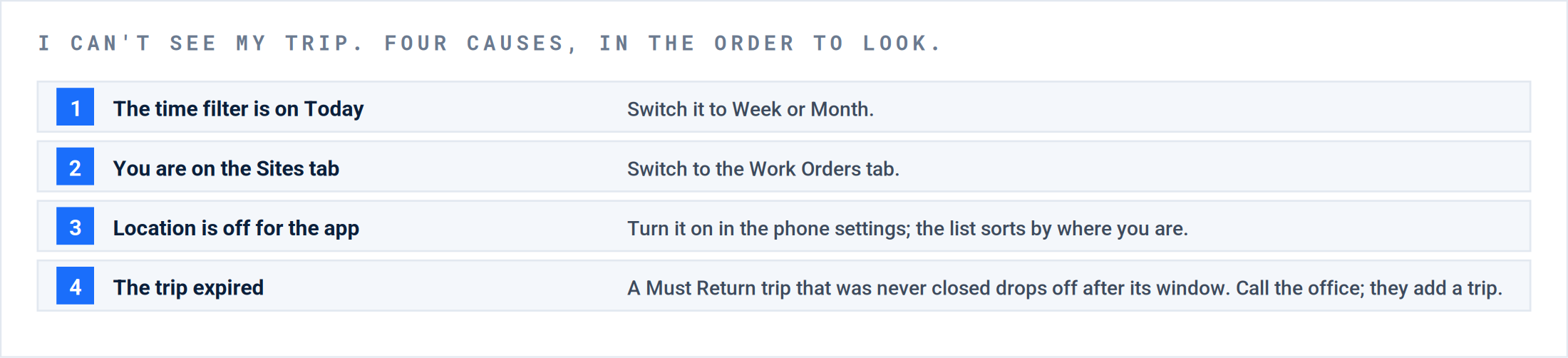
Ninety-five percent of Vendor calls are one sentence: “I can’t see my Trip.” Four causes, in order, and none of them is a bug.
The four checks. The Field Guide carries the same list for the technician.
| They say | You do |
|---|---|
| “I never got the invite.” | Network › Vendors › the row › Resend Invitation. In bulk: Select All, then the second icon. |
| “My photos are stuck.” | Open the app on wifi and leave it open. The red cloud icon is the sync waiting. Closing the app mid-upload is the cause. |
| “I can’t invoice.” | The Trip is not verified. Verify it, or generate the Payable for them. |
| “It let me in but I’m not checked in.” | They tapped Start Travel outside the geofence. Start Travel is not check-in. Drive to the Site and check in there. |
| “What does the Vendor see?” | A test Vendor of your own, opened through the company switcher in a private browser window. There is no Vendor masking. |
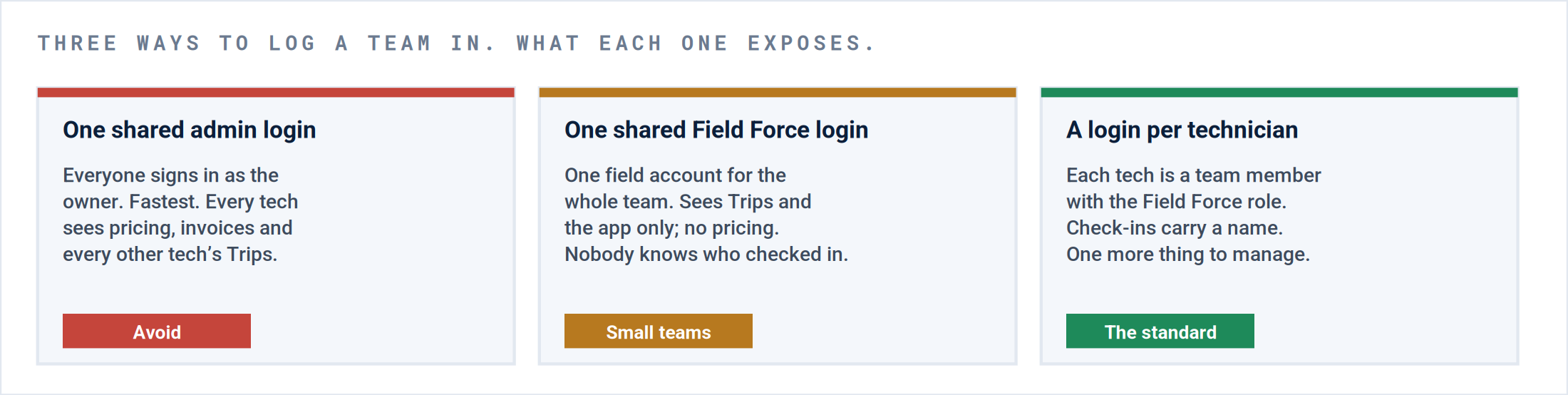
The login question, answered once. A Vendor who shares the admin login is showing every tech your pricing.
Where this usually goes wrong.
| # | What you see | What happened | The fix |
|---|---|---|---|
| 1 | Vendors calling to ask what the email is. | The invite drip fired to the whole import before anyone announced it. | Import with invites off. Announce. Invite in waves. Block terminated Vendors. |
| 2 | A Client rejected the Trip for an early check-in. | The Vendor checked in from the road, outside the radius the Client requires. | Company Settings › Trips › Mobile Check In / Check Out › Geofence. Two miles is common. Testing needs it off. |
| 3 | Work Orders that look stalled with nobody on site. | Pause Trip. | Off, under the Service’s Advanced Settings. Must Return is the right tool. |
| 4 | A Trip vanished from the Vendor’s phone mid-job. | A Must Return Trip expired after its window with no check-out. | Add a Trip. Tie Must Return to the Work Order Close on the Service so the window is the job, not 24 hours. |
| 5 | Vendors stalled in the signup wizard. | It asked for documents you never wanted. | Cut compliance to W-9, COI and MSA; mark compliant by hand where a document is not needed. |
| 6 | The Vendor cannot invoice from the app. | The Trip is unverified and the setting blocks it. | Verify first; or generate the Payable for them. |
| 7 | Wrong serial tag in the photos. | Multi-tag units and no scan. Forms have no conditional logic. | Permanent Site instructions, a bold line on the completion screen, and reject at verification. |
| 8 | Two forms on one Service; techs pick the wrong one. | Both were active. | One form per Service. |
What good looks like.
| Checkpoint | Evidence |
|---|---|
| The Vendor row reads Active and Signed Up | And its documents read Approved, or the override is named. |
| A priority badge on every Site they cover | Dispatch offers them first. |
| The first Trip has a phone-icon check-in inside the geofence | With the mandatory photos, and it was verified. |
| A Vendor invoice sits in Review Vendor Invoices | Generated by you, confirmed by them. |
| Mobile usage is above zero for that Vendor | On the Vendor Compliance and Coverage dashboard. |
Questions? Contact your Customer Success team or email support@utilizecore.com.