
| Where this fits: Workflow Universe › Layer 4 · Snow & Ice | For: Admin, Biller, Operations Lead | |
| Read first: Billing Methods Explained · Pricing Setup · Onboarding a New Client | Read next: Snow: October to March |
Applies to: Operations leads, administrators, finance | Web
Download the printable guide (PDF)
How to use this document.
Built for delegation. The season is set up only when all eight rows on the sign-off sheet carry a date. Hand step 2 to the administrator and step 5 to finance. Keep step 8 for yourself.
Build in the order shown. Per Service rates need a priority Vendor on the Site, so step 4 comes before step 5. Per Event needs an Events tab, so step 3 comes before steps 5 and 8.
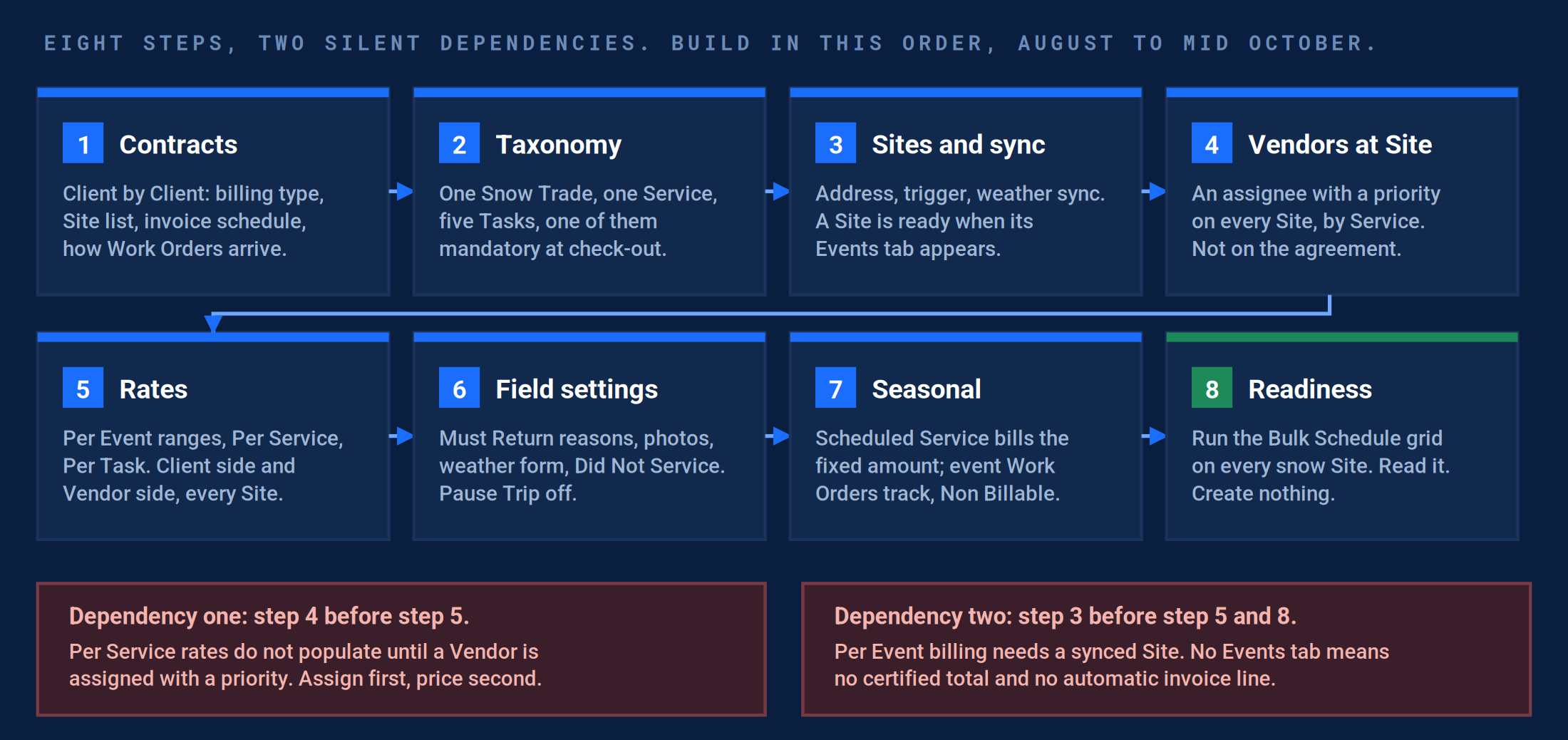
Eight steps, two silent dependencies. The same figure as Part A of the narrative. Everything below is one of these boxes, opened up.
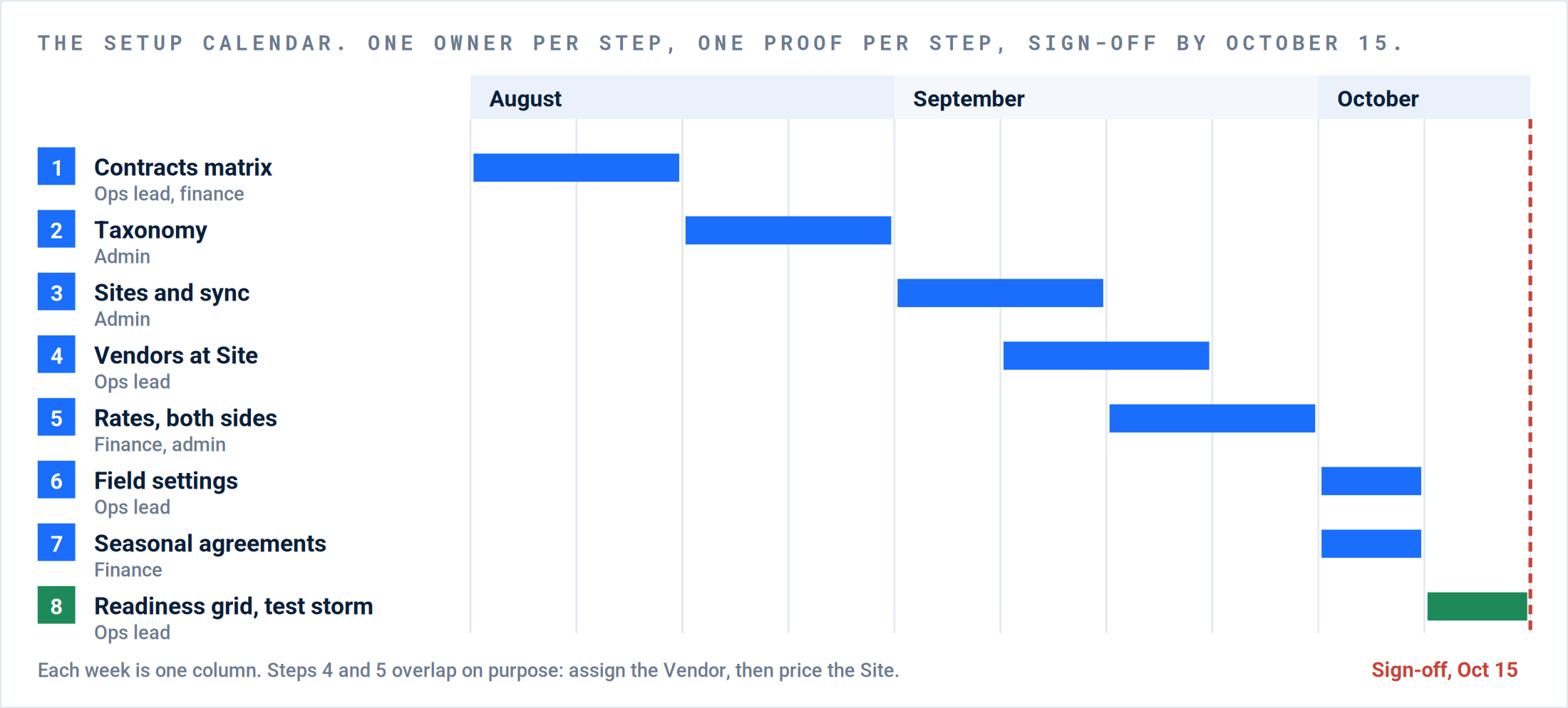
The calendar. Roles, not names; the names go on the sign-off sheet. Step 3 sits in early September because Sites synced in October may miss an early storm.
Step 1. Read the contracts into a matrix.
Owner Operations lead, with finance. Window August, weeks 1 and 2. Screens None. This step is a spreadsheet.
The matrix comes first. Translate every contract word once, in August, with the contract open. The costly version of this mistake is found in January, at invoicing, one Site at a time.
| Column | What goes in it |
|---|---|
| Client, Site | One row per Site. The Site name exactly as it reads in Network › Sites. |
| Contract wording | The billing words from the contract, verbatim. “Per push”, “seasonal plus over 6 in.”, “per application”. |
| Client billing method | One of the eight, from the table below. This is what the Site’s Service default will say. |
| Vendor billing method | How the Vendor is paid at this Site. It does not have to match the Client side. |
| Trigger | The accumulation depth that activates service, in inches. Blank means every event. |
| Ranges | Per Event only: the accumulation bands, the excess past the top band, and the price for each, Client and Vendor. |
| Task add-ons | Per Event only: how each Task prices with the range. Per Service Range, Per Task Flat, Per Task Range, or Non Billable. |
| Invoice schedule | Per storm, monthly, or from the agreement. Decides where the Receivable comes from. |
| How work arrives | Bulk from the Sites list, a monthly Work Order, from the field, or the Client’s system. |
| Vendor, priority | The Vendor that performs at this Site, and its priority slot. Step 4 is typed from this column. |
| Owner, proof date | Who confirmed the row against the contract, and when. |
The translation table.
The contract’s words on the left. The platform’s billing method on the right. There are eight methods and no others; a contract that does not fit one of them fits a combination.
| Your contract says | UtilizeCore calls it | What that means for setup |
|---|---|---|
| “Per push”, “each time we plow” | Per Task | Each push is a Task ticked at check-out, at that Task’s rate. The most common snow line. |
| “Per visit”, one flat amount each time the truck comes, whatever it does | Per Service | One flat line for the Service per Trip. Not per push: a Trip with three pushes still bills once. |
| “Snow range dependent”: a price tiered by inches (2 to 4 in., 4 to 8 in.) | Per Event | Range pricing against the official snow total. The only method that reads the weather report. Task add-ons sit on top; see the next table. |
| A set price every time the service is done, however much falls | Per Service | Not Per Event. The price is set, not read from the official snow totals. Loading a set price as Per Event blocks invoicing. |
| “Per inch” | Per Event, with one-inch ranges | There is no per-inch method. Depth pricing lives inside Per Event. |
| “Plus a rate per inch over 12 in.” | Per Event, with an excess rate | Every N inches past the top band adds the excess price. Client and Vendor set their own. |
| “Snow range dependent, plus a set price per salt application” | Per Event, salt Task on Per Task Flat | Plowing prices from the range; each application adds its set price on the same Work Order and invoice. |
| “Per application”, “salt app”, “per lot”, “per sidewalk” | Per Task | Each Task carries its own price. Tasks the Service Provider does not tick do not bill. |
| “Seasonal”, “fixed monthly”, “flat rate November to March” | Scheduled Service agreement | Not a billing method. The agreement bills the fixed amount; the event Work Orders carry Non Billable. |
| “Time and materials”, “hourly plus salt” | Per Hour (T&M), with a Client NTE | Hours and materials against a ceiling. Rare in snow; common in cleanup. |
| “Seasonal, plus per push over N inches” | Scheduled Service, plus Per Event on the event Work Orders | A hybrid. The Per Event ranges below the threshold carry a zero rate so the visit is on record and bills nothing. |
Inside Per Event: how each Task prices.
The ranges price the snow removal against the official snow total. Each Task on the Service then takes one Task Rate Type, set in Task Rates on the same event rate, Client side and Vendor side.
| Task rate type | What it bills | Typical snow Task |
|---|---|---|
| Per Service Range | Nothing of its own. The Task is inside the range price: one amount for the Service, set by the official snow total. | Plowing, the Task the Service is sold on. |
| Per Task Flat | A set amount every time the Task is done, on top of the range price. | Ice melt at $200 per application. |
| Per Task Range | Its own ranges against the official snow total, on top of the range price. | Sidewalk shoveling priced by depth. |
| Non Billable | Nothing. The Task is on the record and does not bill. | Did Not Service. |
Past the top band, the excess rule adds a price for every N inches over it, for example every 1 in. past 12 in. Client and Vendor set their own excess.
When the main line goes missing. The Per Service Range Task must be the Site’s mandatory default Task. Without the flag, Per Event invoices drop the snow removal line while the add-on Tasks still bill. Check the flag after every bulk upload.
When the contract mixes two of these. Build the base method first and put the exception in writing to your Customer Success Manager before loading rates. A hybrid built wrong is rebuilt mid-season, and rebuilding rates in January is how a whole month goes unbilled.
Result: One sheet, one row per Site, every row confirmed against its contract by a named person on a dated day. Steps 4, 5 and 7 are typed from this sheet.
Step 2. One Trade, one Service, five Tasks.
Owner Administrator. Window August, weeks 3 and 4. Screens Products and Services › Services & Rates › Services tab.
1. One Snow Trade, one Service, five Tasks, one of them mandatory.
Where: Services & Rates › Services tab. Expand the Trade to see its Services and their Tasks. The pencil opens the Service.
Exception: A Service per pricing variation, or a Task per contract line, produced twenty thousand rate rows and blocked invoicing for a season.
Correction: The Snow Trade shows one Service with Tasks like plow, shovel, lot salt, sidewalk salt, and Did Not Service, and “Require at least one task before checking out” is on.
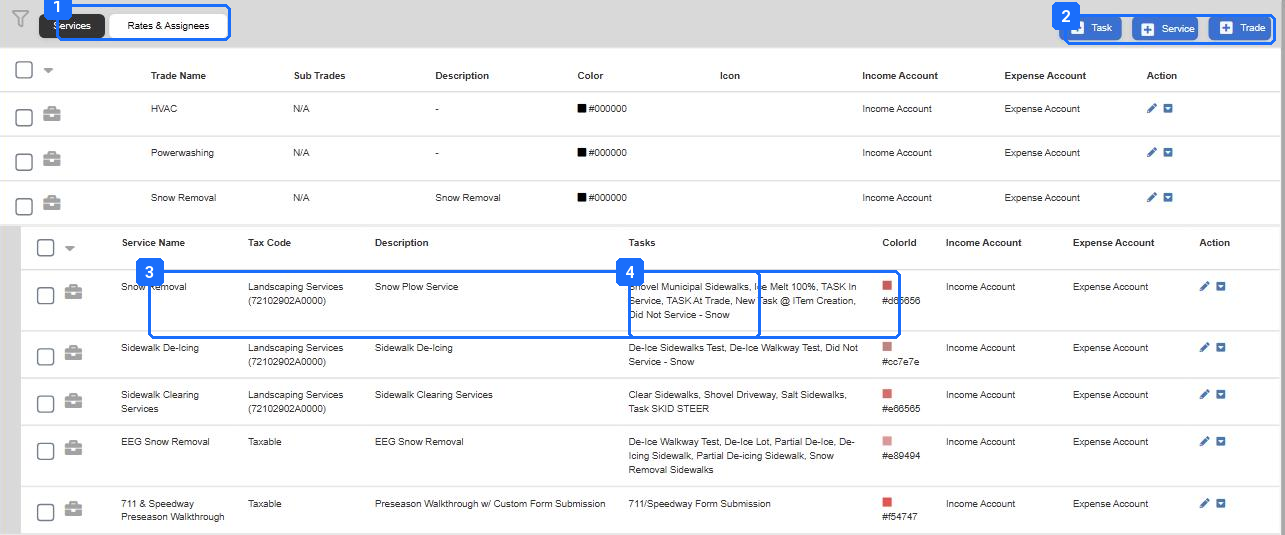
- Services and Rates & Assignees tabs. This step happens on the left one; steps 4 and 5 on the right.
- + Task, + Service, + Trade. Build the Trade first, then the Service under it, then the Tasks.
- The Tasks on the Service. Did Not Service - Snow is on the list on purpose: it is the record you hand a claims adjuster.
- The pencil opens the Service, which is where every field-side rule in step 6 lives.
Services & Rates, Snow Removal expanded. Tasks live on the Service, not on the Trade. Several test Services are visible here; a production account wants one.
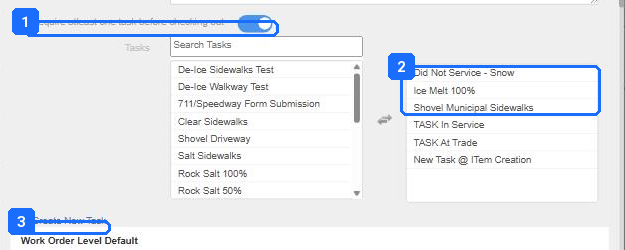
- “Require atleast one task before checking out”. On. The technician cannot check out without ticking something.
- The Tasks on this Service. Move the five in; leave the rest out. Every Task here is a Task the app will show the Service Provider during a storm.
- + Create New Task, for the one that is missing.
Edit Trade Service, the top. Taxonomy on the left, Tasks in the dual list.
2. The Service carries the billing defaults and the verification rule.
Where: The same Service dialog, scrolled to Work Order Level Default and Trip Level Default.
Exception: A Site set to Per Task on the Client side while the Vendor picked an accumulation range returned a $0 line. Both sides of every Site must agree with the matrix.
Correction: Default Client Billing Method and Default Vendor Billing Method match the matrix for this Service, and Verification Required is ticked on both sides.
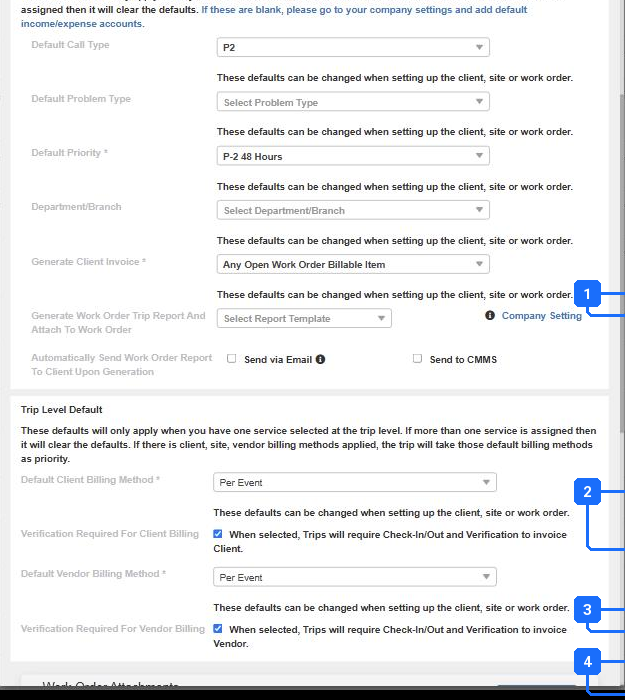
- Generate Client Invoice: “Any Open Work Order Billable Item”. Snow invoices per billable item, so one Work Order can carry several storms’ invoices.
- Automatically Send Work Order Report To Client Upon Generation. Leave off until the report template is set.
- Default Client Billing Method for Trips on this Service. This is where a seasonal contract’s event Service gets Non Billable (step 7).
- Verification Required For Client Billing and For Vendor Billing. Both on.
Service defaults. These populate every Work Order and Trip on this Service unless the Site or the Work Order overrides them.
Site Specific Tasks. A Site that never gets sidewalk salt should not offer it on the phone. Site Specific Tasks in the Bulk Schedule header (step 8) uses each Site’s own Task list. Set the Site’s Tasks now and the storm Trips inherit them.
Result: One Trade, one Service, five Tasks, the mandatory-task rule on, the defaults matching the matrix. Two people can read the Services tab and name the five Tasks without opening anything.
Step 3. Every snow Site is synced and carries a trigger.
Owner Administrator. Window September, weeks 1 and 2. Screens Network › Sites › the Site › Details › Site Management. Company Settings › Sites › Site Weather Integrations.
3. Every snow Site is synced to the weather service and carries a trigger.
Where: Site › Details › Site Management for the id and the trigger. Company Settings › Sites › Site Weather Integrations › Sync Location to sync.
Exception: A Site with no weather id gets no report, so a Per Event Trip on it can never price itself. It is found at invoicing, in January, one Site at a time.
Correction: Every snow Site shows a Weather Works id under Site Management and an Events tab in its tab strip. The sync can take half an hour to show.
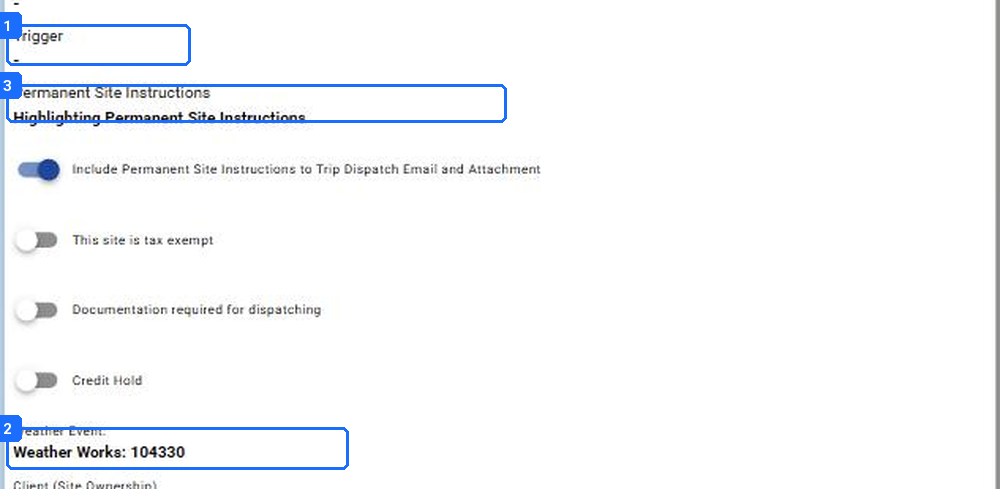
- Trigger. The accumulation depth that activates service at this Site. Blank means the Site services on every event. Type it from the matrix.
- “Weather Event: Weather Works: 104330”. The weather service’s id for this Site. No id, no reports.
- Permanent Site Instructions. Gate codes, stacking rules, where not to pile snow. They ride on every dispatch email.
Site › Details › Site Management on a synced Site. The weather id and the trigger are both here.
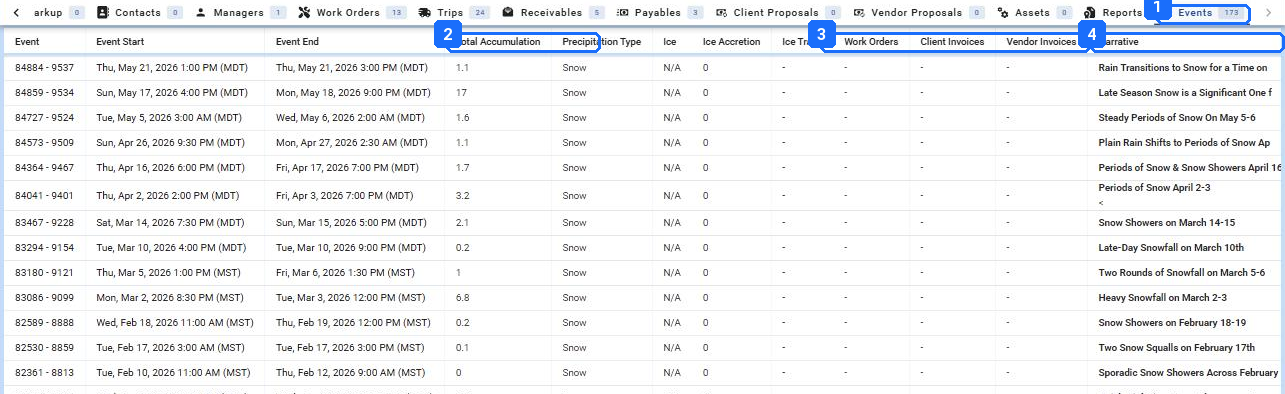
- Events, with the count. The tab only exists on a synced Site.
- Total Accumulation. The certified total for that event at this Site. This is the number Per Event prices against.
- Work Orders, Client Invoices, Vendor Invoices. Which records used this event.
- Narrative. The weather service’s description of the event. It attaches to the Per Event invoice.
The Events tab on a synced Site. One row per weather event with the certified total, the type, and the narrative. This tab is the readiness check for this step.
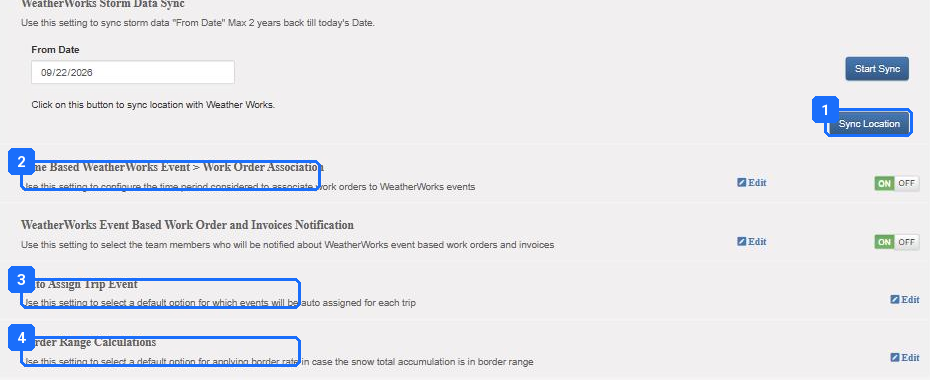
- Sync Location. Run it after adding Sites. Start Sync pulls storm data from a date, up to two years back.
- Time Based WeatherWorks Event > Work Order Association. On, with the window below.
- Auto Assign Trip Event. Which event wins when two qualify: the larger snow total, or the one whose start is closest.
- Border Range Calculations. Client High, Vendor Low: a total on a range boundary rounds up for the Client and down for the Vendor.
Company Settings › Sites › Site Weather Integrations › WeatherWorks Certified Snow Totals. The sync and the four rules that decide how events attach to Trips. This is a legacy settings frame: scroll with the scrollbar.
| Setting | Set it to | Why |
|---|---|---|
| Sync Location | Run once after the Site list is final; again after any Site is added. | A Site added in November without a sync is a Site with no report in December. |
| Time Based Event > Work Order Association | On. Hours before and after the event: ten either side is a common setting. | Too wide and two storms qualify for every Trip; too narrow and a pre-treat at dawn misses the event that starts at nine. |
| Auto Assign Trip Event | Closest start. Larger total underpays when storms overlap. | Decides which event attaches when two fall inside the window. |
| Border Range Calculations | Client High, Vendor Low, unless the contract says otherwise. | A certified 4.0 on a 2 to 4 and 4 to 6 boundary prices up for the Client and down for the Vendor. Set once; it applies to every Per Event Site. |
Result: Open ten snow Sites at random. Every one shows a weather id under Site Management, a trigger that matches the matrix, and an Events tab. The four settings read as the table says.
Step 4. A Vendor with a priority on every Site, by Service.
Owner Operations lead. Window September, weeks 2 and 3. Screens Network › Sites › the Site › View Service Rates › the Service’s billing row › + Assignee Rates. Or the Rates & Assignees upload.
4. Every awarded Site has a Vendor assigned with a priority, by Service.
Where: Site › View Service Rates › the Per Event, Per Service, or Per Task row › + Assignee Rates. In bulk: the Rate Type, Vendor Name and Assignee Priority columns of the upload template (step 5).
Exception: Vendors assigned on the agreement only. Bulk creation reads Site and Task assignments, not agreement assignments, so every storm Work Order came out with no Vendor. Vendor pins were invisible on the map for the same reason.
Correction: The Bulk Schedule grid (step 8) shows a Vendor name on every row. At dispatch, the priority Vendor appears first with its number on the avatar.
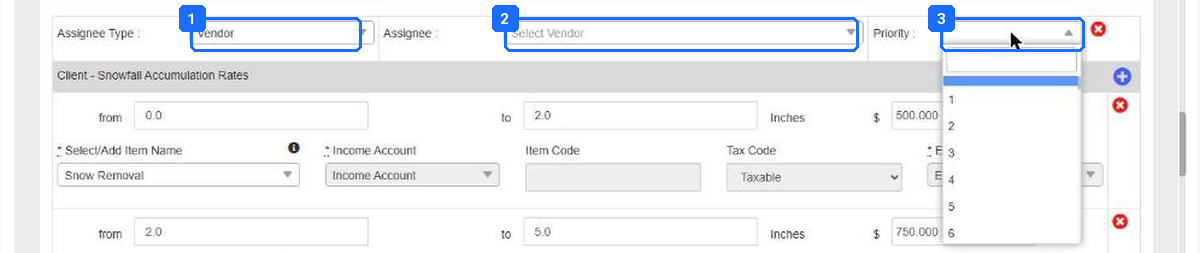
- Assignee Type: Vendor, or a team member for self-performed Sites.
- Assignee. Search the Vendor. The Vendor must already be active and compliant; check Network › Vendors Compliance first.
- Priority. 1 is first. Ten slots. At dispatch and in bulk creation the priority 1 Vendor is pulled without anyone searching.
+ Assignee Rates on a Site’s Per Event row. The assignee row that makes a Vendor the Site’s Vendor for this Service.
Do it before step 5, and do it here, not on the agreement. Per Service rates populate on a Site only once a Vendor is assigned to it with a priority. The agreement’s assignment does not count for bulk creation. A mid-season Vendor change is two edits: the Site first, then the agreement.
Result: Every snow Site on the matrix has a priority 1 assignee on the snow Service. The matrix column and the Site agree, row for row.
Step 5. Rates on both sides, every Site, in the method the matrix says.
Owner Finance, with the administrator. Window September, weeks 3 and 4. Screens Site › View Service Rates for one Site at a time. Products and Services › Services & Rates › Rates & Assignees › Per Event, Per Service, Per Task for the whole account and for upload.
5. Rates are loaded on both sides for every Site, in the method the matrix says.
Where: One Site: Site › View Service Rates › the row › Client rates and Vendor rates. Many Sites: Rates & Assignees › the tab › Download Sample Excel Template › fill › upload › Background Tasks.
Exception: The bands left a gap or stopped short of the storm total. Per Service rows never took because step 4 was skipped. An upload sat at 0 of 50 for a week while everyone assumed the rates were in.
Correction: A test Work Order on each Site type shows both billing methods populated without editing, and a test Payable has no $0 line. The upload job in Background Tasks reads N of N.
One Site at a time: the Site’s rate page.
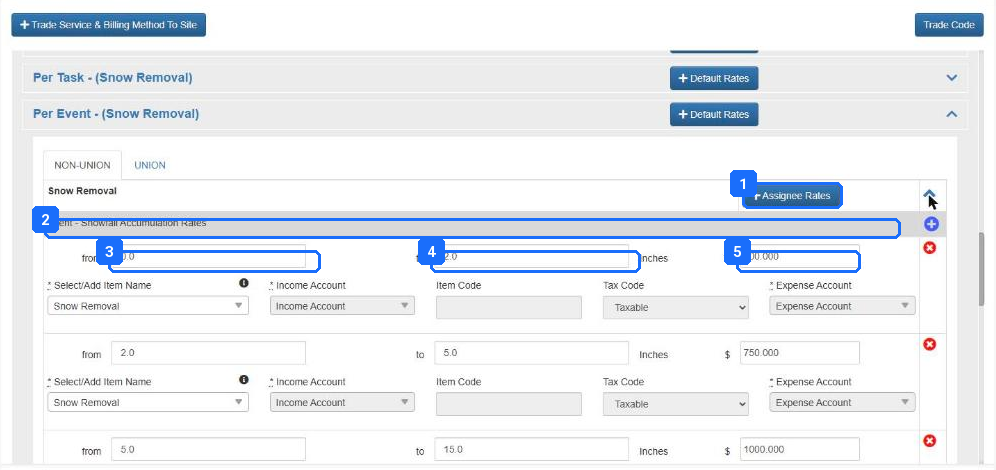
- + Assignee Rates adds the priority Vendor (step 4). NON-UNION and UNION tabs carry separate rate sets.
- Client - Snowfall Accumulation Rates. One row per range.
- from / to, in inches. Leave no gaps between bands. A boundary or gap total takes the higher band unless the border range setting (step 3) says otherwise.
- Item Name, Income Account, Tax Code, Expense Account. Snow taxability varies by state and by material; finance checks the code.
- The price for that range. The Vendor table below it is the cost.
Per Event on the Site, Client side. Accumulation ranges in inches and a price per range. The Vendor side is the same table further down.
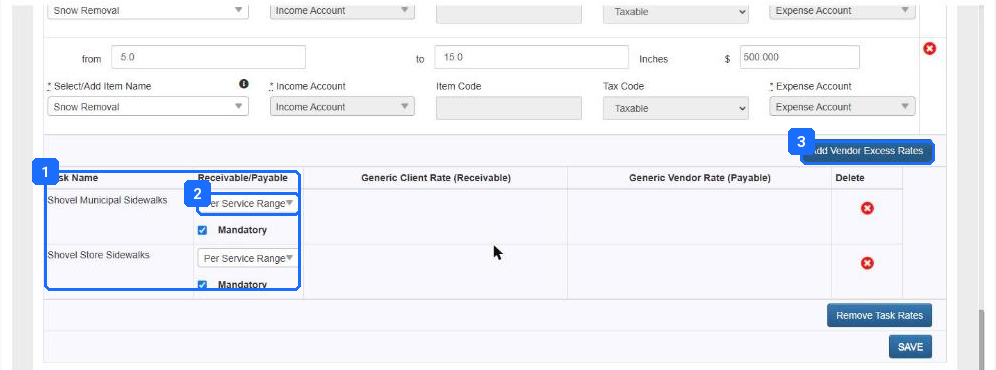
- The Task table. Each Task the Service Provider can tick, with its Receivable/Payable rule and whether it is mandatory.
- Per Service Range means the Task is inside the Per Event price. A Task billed on its own carries a Generic Client Rate here.
- Add Vendor Excess Rates. The over-the-top range for a storm beyond your last band.
Task rates on the same Site. Below the ranges, each Task on the Service and how it prices.
The whole account: Rates & Assignees.
The Per Event tab shows every event rate in one table, the fastest way to compare what is loaded with the matrix. For snow, each Site wants a Site Assignee row for its priority Vendor: the Site’s price and the Vendor’s cost together.
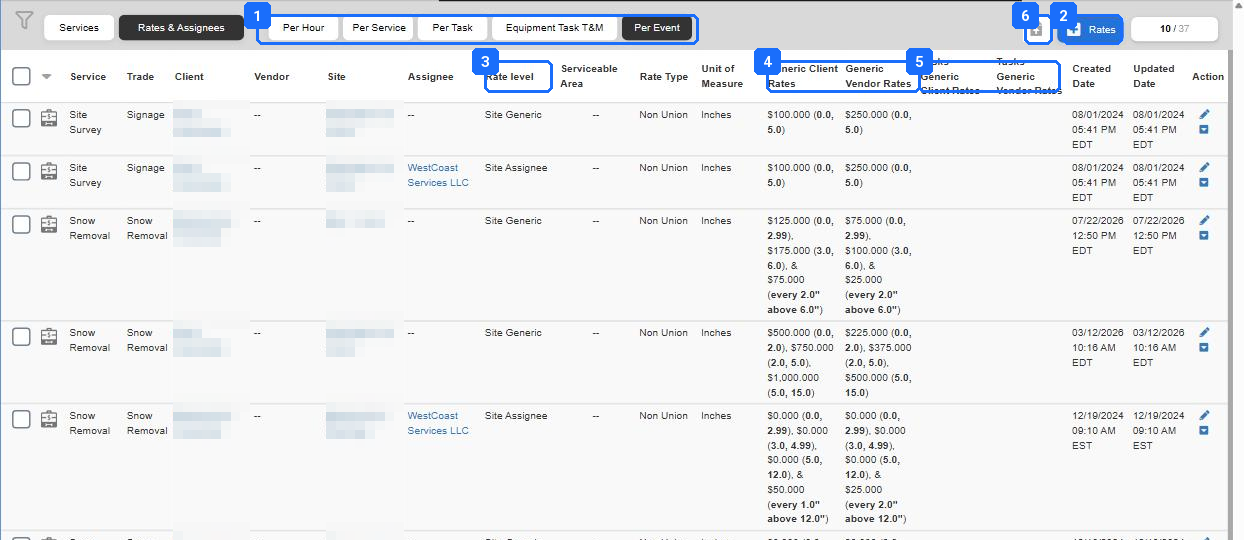
- The five rate tabs: Per Hour, Per Service, Per Task, Equipment Task T&M, Per Event. Each has its own table and its own upload template.
- + Rates opens the New Event Rate dialog below. The count beside it is rows shown of rows total.
- Rate level: Site Generic (no Vendor named) or Site Assignee (this Vendor at this Site). Client and Vendor levels exist too; the matrix decides.
- Generic Client Rates. The ranges and prices, read as price (from, to), plus the excess as “every N above the last band”.
- Generic Vendor Rates. The same bands, the cost. A Site with a Client column and an empty Vendor column is a $0 Payable in December.
- The download icon opens the download and upload panel.
Rates & Assignees › Per Event. Every event rate on the account. Client and Site names blurred.
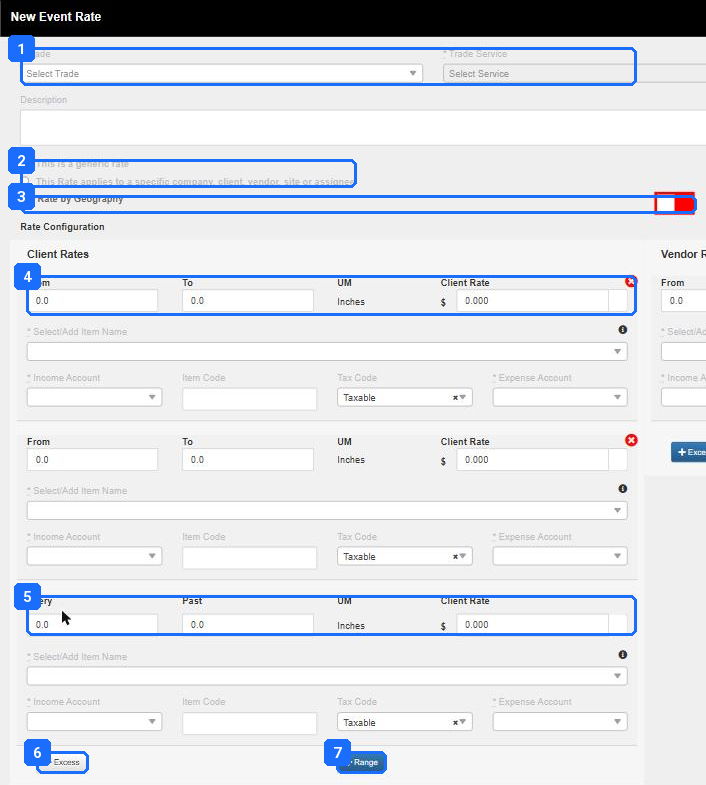
- Trade, Trade Service, Union Status. Snow Removal, the one snow Service, Non Union for most accounts.
- “This is a generic rate” or “This Rate applies to a specific company, client, vendor, site or assignee”. The second is the Site Assignee row.
- Set Rate by Geography. Off for Site-level snow rates.
- Client Rates: From, To in inches, the Client Rate, then the item, income account, tax code and expense account for the line.
- The excess row: Every N inches Past the last band, at this rate. This is what “every 2.0 in. above 6.0 in.” means on the list.
- − Excess removes the excess rule.
- + Range adds the next band. Start the next From where the last To ended, with no gap between.
New Event Rate, Client side. + Rates on the Per Event tab. The Vendor panel sits beside it, so one dialog sets both columns.
Many Sites at once: the template.
Past twenty Sites, upload. Download the blank sample from the panel above the table, fill one row per Site per Vendor, and drop it on the upload box. The rates are created as a background job.

- Download N Rates. Every loaded rate that matches the current filter, in the same column layout. Use it to audit what is in and to fix in bulk.
- Download Sample Excel Template. The blank file with every column the upload reads.
- Drag an excel file here or browse. One file, one tab’s layout. A Per Event file on the Per Service tab fails.
The download and upload panel on the Per Event tab. Opened from the download icon beside + Rates.
The Per Event template carries 72 columns. The ones that matter, in the order they appear:
| Template column | What to put in it |
|---|---|
| Rate Type | Generic, Site Default, Site Assignee, Client Default, Client Assignee, Vendor Default, Vendor Assignee. Snow wants Site Assignee for the priority Vendor. |
| Client Name, Site Name, Vendor Name (and the Core or Custom IDs) | Name the Site and the Vendor. The IDs are on the Site and Vendor records; a name that does not match exactly fails the row. |
| Team Members, Assignee Region Team Member, Assignee Priority | For self-performed Sites, the team member emails. Priority is the slot number, 1 first. |
| Trade, Service, Union (Yes/No) | All three mandatory. Snow Removal, the one snow Service, No for most accounts. |
| Service Name, Description | The Service again, and a note that shows on the rate row. |
| Client Event Rate Price (Minimum Accumulation - Max Accumulation) | One column per range. The price, then the band in inches. Ranges leave no gaps. |
| Vendor Event Rate Price (Minimum Accumulation - Max Accumulation) | The Vendor cost for the same bands. |
| Accumulation Excess Rate: Client Price (Accumulation Quantity), Vendor Price (Accumulation Quantity) | The over-the-top rate, per every N inches past the last band. |
| Item and account columns, Client and Vendor | Item Type Name, Item Name, Income Account, Tax Code, Item Code, Expense Account. Finance fills these; a blank account is a sync failure in December. |
| Task Name, Task Rate Type, Per Service Range Mandatory | One block per Task. Task Rate Type: Non Billable, Per Task Flat, Per Task Range, Per Service Range. Per Service Range means the Task is inside the event price. |
| Generic Client Rate, Generic Vendor Rate, and the Task range and excess columns | For a Task priced on its own. Leave blank for Tasks inside the event price. |
| Remove Event (yes/no) | Yes deletes that rate on upload. Leave blank. |
Blank Core Rate ID creates; a filled one updates. Leave Core Rate ID blank on a fresh load. On a re-upload of the downloaded file the IDs are filled and rows update in place. The Per Event template has no ID column; every row names a Site or a Vendor.
Watch the job land.
The upload does not finish when the browser says it did. It finishes when Background Tasks says N of N. The page is under the clock icon at the foot of the left navigation.
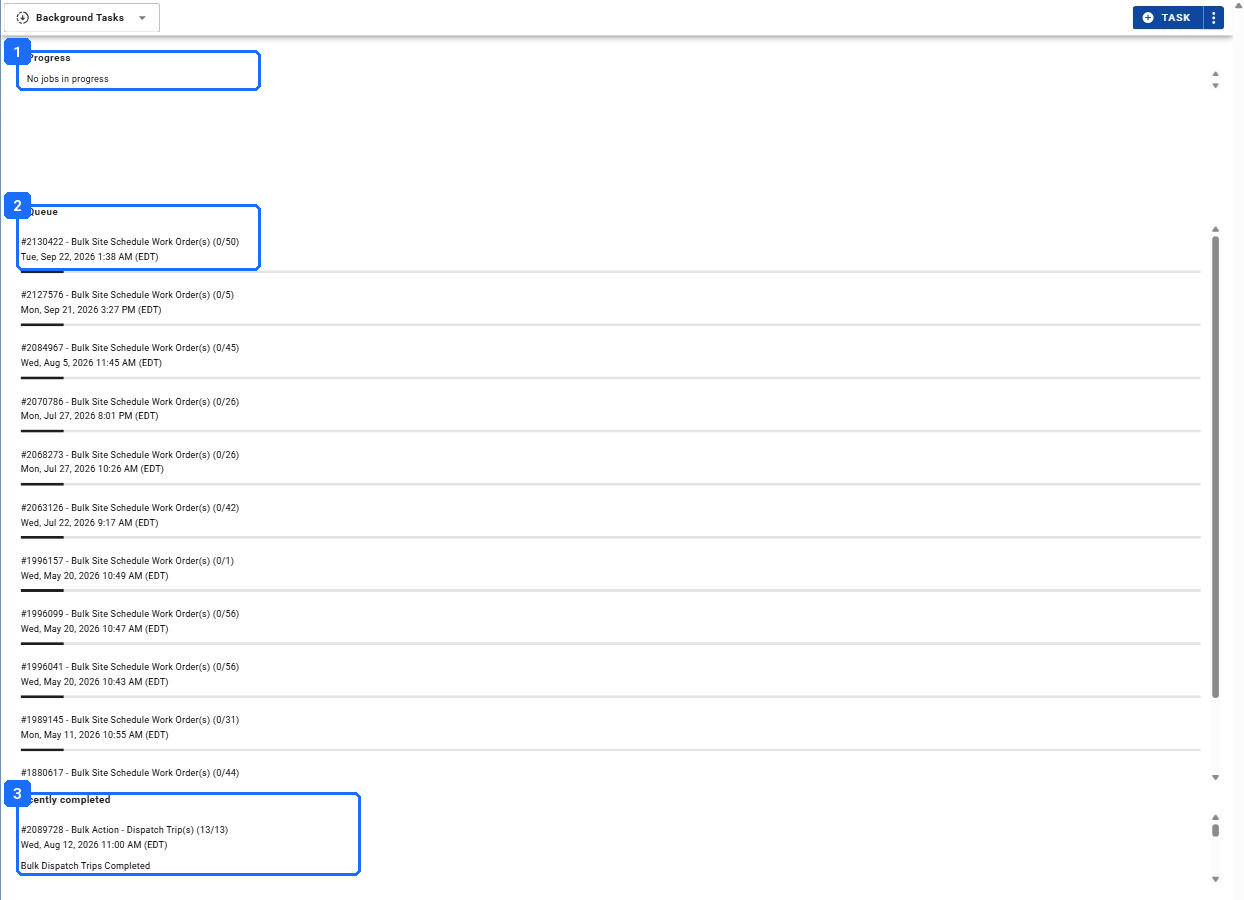
- In Progress. A running job with a moving counter. Empty is normal between jobs.
- In Queue. Jobs waiting. Every row here reads 0 of N and is dated May to September: eleven Bulk Site Schedule jobs that never ran. A job that has sat here more than an hour is not going to start on its own.
- Recently completed. The proof for this step is your rate upload here with N of N and no error file.
Background Tasks. In Progress, In Queue, and Recently completed. The counter on each row is rows done of rows submitted.
A job stuck at 0 of N is a support call, not a wait. In Queue past an hour: contact support with the job number from the row. Do not re-upload; a second job behind a stuck one is two stuck jobs.
Result: Every snow Site shows a Client column and a Vendor column on the Rates & Assignees tab that matches its billing method. No gaps between bands. The upload job reads N of N. A test Payable on the test Site has no $0 line.
Step 6. The field rules are on the Service.
Owner Operations lead. Window October, week 1. Screens Services & Rates › the Service › Edit, and Service Actions › Advanced Settings, Photos, Weather Conditions.
6. Must Return on with long windows, photos mandatory, weather form on, Pause Trip off.
Where: Services & Rates › the Service › Service Actions › Advanced Settings, Photos, Weather Conditions.
Exception: A Service Provider used Pause Trip instead of Must Return and the Work Order looked stalled for days. A 24-hour Must Return window expired before the return push and the Trips fell off phones.
Correction: At check-out the app offers Complete, Must Return with your reasons, or Unable to Service, and nothing else. Before and after photos are mandatory. The weather form asks for snowfall.
| Where | Setting | Value | What it buys you |
|---|---|---|---|
| Service › Edit | Require at least one task before checking out | On | A Site that needed nothing still gets a Did Not Service record. |
| Service › Service Actions › Advanced Settings | Must Return Check Out Setting | On | The Service Provider leaves with work remaining and the platform creates the return Trip. |
| Advanced Settings | Must Return reasons and windows | Your reasons, windows longer than your longest storm | The reason picked decides when the return Trip expires. |
| Advanced Settings | Include option to Must Return on the Work Order Close Date | On | The return Trip lives as long as the Work Order. |
| Advanced Settings | Enable Pause Trip | Off | Pause leaves a Trip checked in with nobody on site. |
| Service Actions › Photos | Before and After: Activate, Mandatory, Open at check in | On, On (After at least), On (Before) | The lot is photographed before the plow touches it and after it leaves. |
| Service Actions › Weather Conditions | Snow Fall: Activate, Mandatory | On, On | The Service Provider’s own reading sits beside the certified total. |
| Service › Trip Level Default | Verification Required for Client Billing and Vendor Billing | On, On | No check-in and verification, no invoice. |
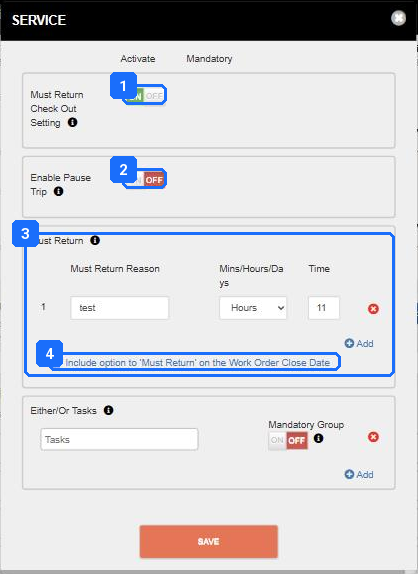
- Must Return Check Out Setting: ON.
- Enable Pause Trip: OFF. Pause leaves the Trip checked in with nobody on site. Must Return is the right tool.
- The Must Return reasons, each with a window in minutes, hours, or days. The reason the Service Provider picks decides when the return Trip expires. Make every window longer than your longest storm.
- “Include option to Must Return on the Work Order Close Date”. On. The return Trip then lives as long as the Work Order, which is what keeps a three-day storm on one Work Order.
Advanced Settings on the snow Service. Where Must Return and Pause Trip live.
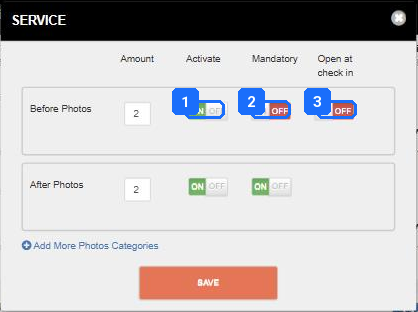
- Activate: ON for both. Off means the app never asks.
- Mandatory: ON for After at least. This is the evidence on the invoice and in a slip-and-fall claim.
- Open at check in: ON for Before, so the lot is photographed before the plow touches it.
Photos on the snow Service. Two before, two after.
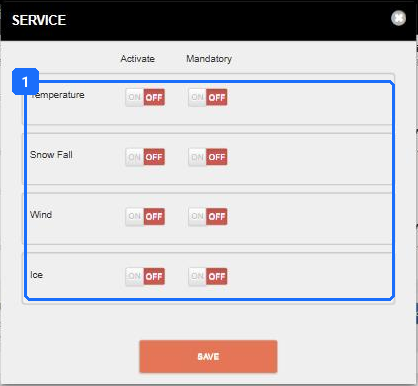
- Activate and Mandatory per field. Snow Fall mandatory gives you the Service Provider’s own reading beside the certified total; the two together settle most disputes.
Weather Conditions on the snow Service. Temperature, Snow Fall, Wind, Ice.
Complete cannot be removed from the app. Complete after the first push ends the Trip; no check-in again while the snow keeps falling. No setting prevents it. The pre-storm email does: Must Return while it is still snowing, every time.
Result: A test check-out on the app, on your test Site, offers Complete, Must Return with your reasons, and Unable to Service. It refuses to check out without a Task, an After photo, and a snowfall reading.
Step 7. Seasonal contracts are two objects.
Owner Finance. Window October, week 1. Screens Products and Services › Scheduled Services for the agreement. The snow Service’s Trip Level Default for the event side.
7. The agreement bills, the event Work Orders track.
Where: Products and Services › Scheduled Services › + Scheduled Service for the agreement. Services & Rates › the Service › Trip Level Default for the Non Billable side.
Exception: The seasonal invoice and the event Work Orders both reached accounting, and the Client was billed twice. Elsewhere a Vendor change on the Site never reached the agreement.
Correction: The agreement is Current with its Site list matching the contract. The event Service’s Default Client Billing Method reads Non Billable. A Vendor change is made in two places: the Site, then the agreement.
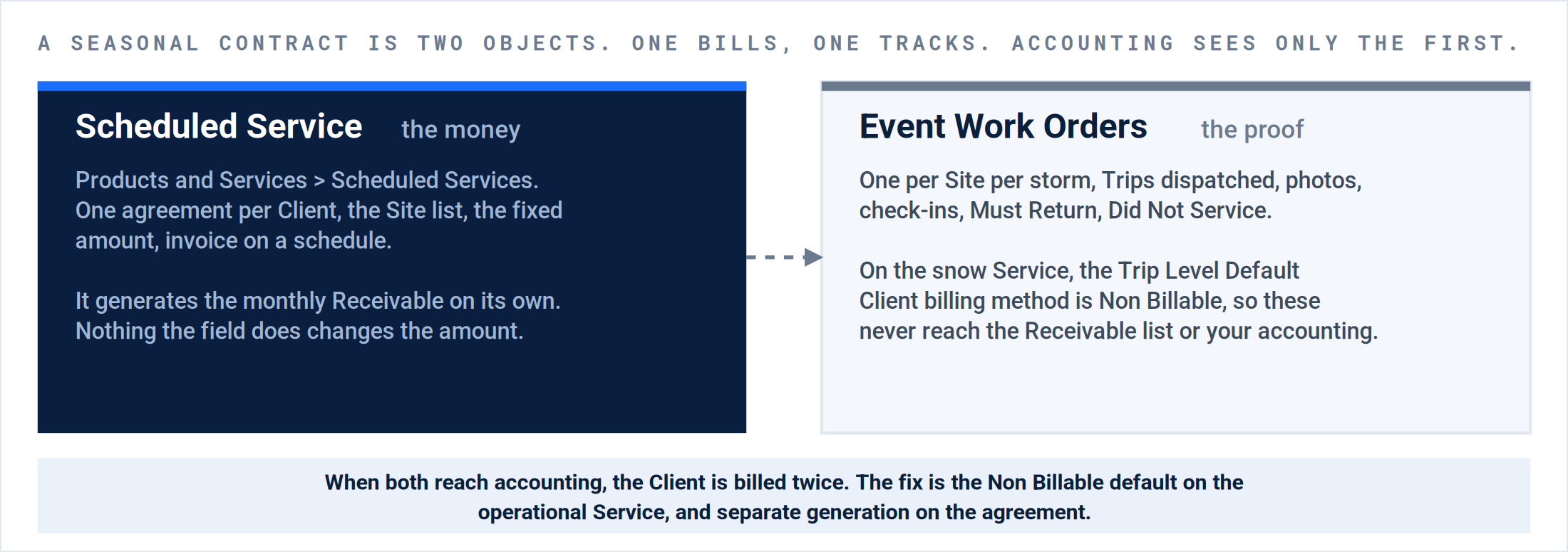
The seasonal dual setup. The agreement carries the money. The Work Orders carry the proof. Nothing on the right reaches an invoice.
The agreement, from the Scheduled Services page.

- The Action Filters. A seasonal agreement built now shows under Sent until it is activated, then under Current.
- Upload Scheduled Service. The bulk path, for a Client with many Sites.
- + Scheduled Service. Opens the wizard below.
Scheduled Services, the Action Filters. Received, Sent, Attention, Current, Archived. Current is where a live seasonal agreement sits; Attention is what needs a decision.
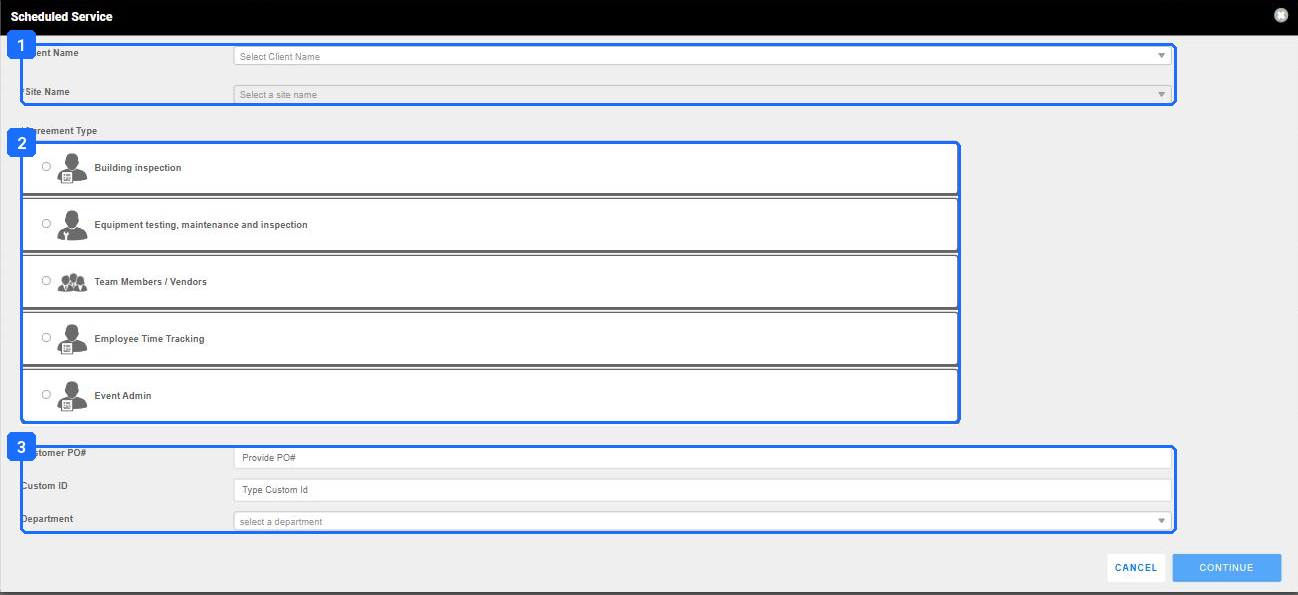
- Client Name and Site Name. The Site chosen here is the first on the agreement; more are added two pages on.
- Agreement Type. Building inspection; Equipment testing, maintenance and inspection; Team Members / Vendors; Employee Time Tracking; Event Admin. Confirm the type for a seasonal snow contract with your Customer Success Manager before building; the type decides which pages follow.
- Customer PO#, Custom ID, Department. The PO prints on the Receivable; the Custom ID is how finance finds it.
Scheduled Service, the first page. Client, Site, agreement type, then the Client’s PO, your Custom ID, and the Department.
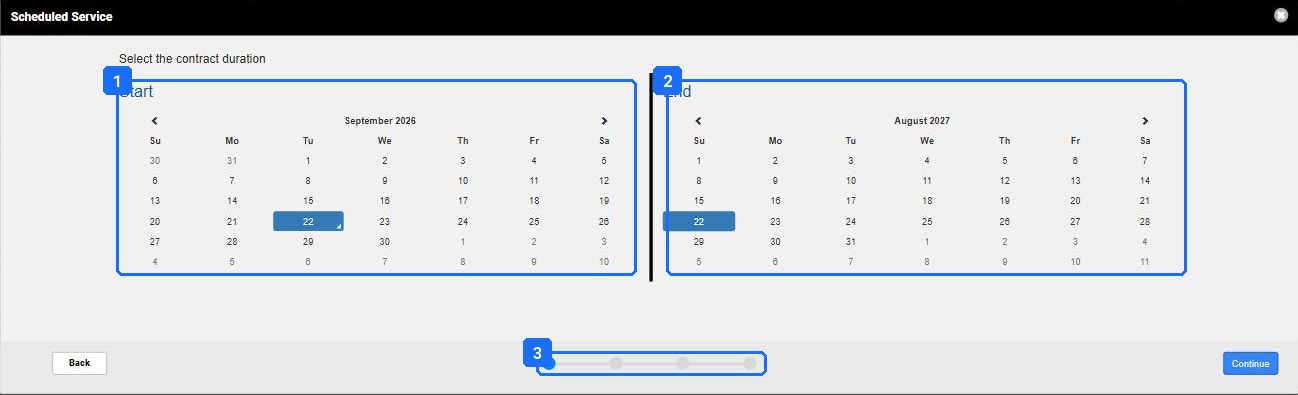
- Start. The first day the agreement can generate. For a season, the contract’s start date, not today.
- End. The last day. The wizard defaults to eleven months; set the contract’s own end.
- The step indicator. The number of pages changes with the agreement type.
Contract duration. Start and End, on two calendars.
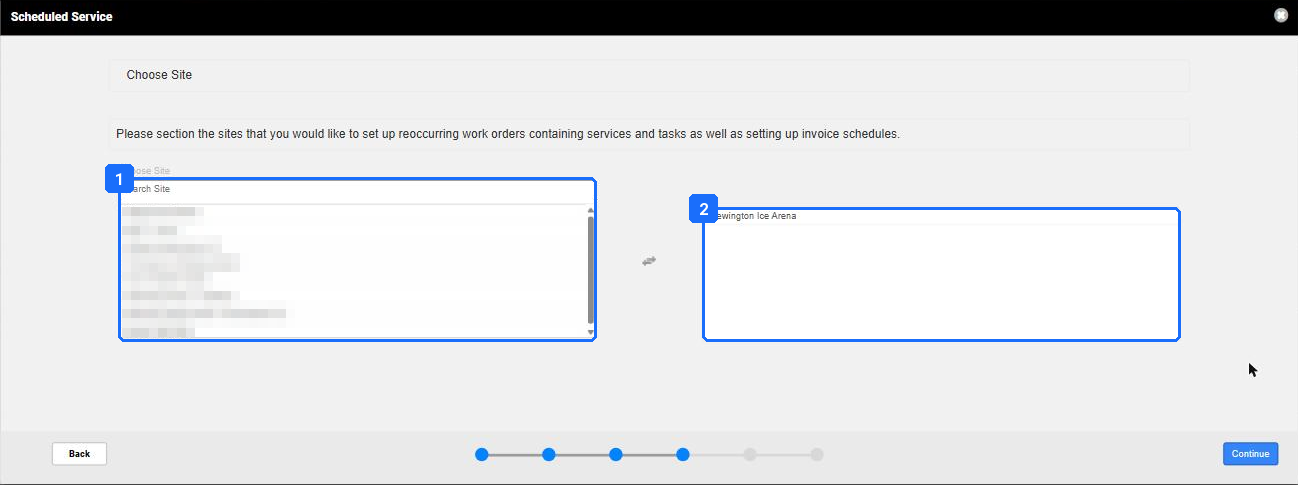
- The Client’s Sites. Search, then move. The list must match the contract’s Site schedule exactly; a Site left out bills nothing all season.
- The Sites on this agreement. The one chosen on the first page is already here.
Choose Site. The dual list. Left is every Site on the Client; right is the agreement. Site names on the left blurred.
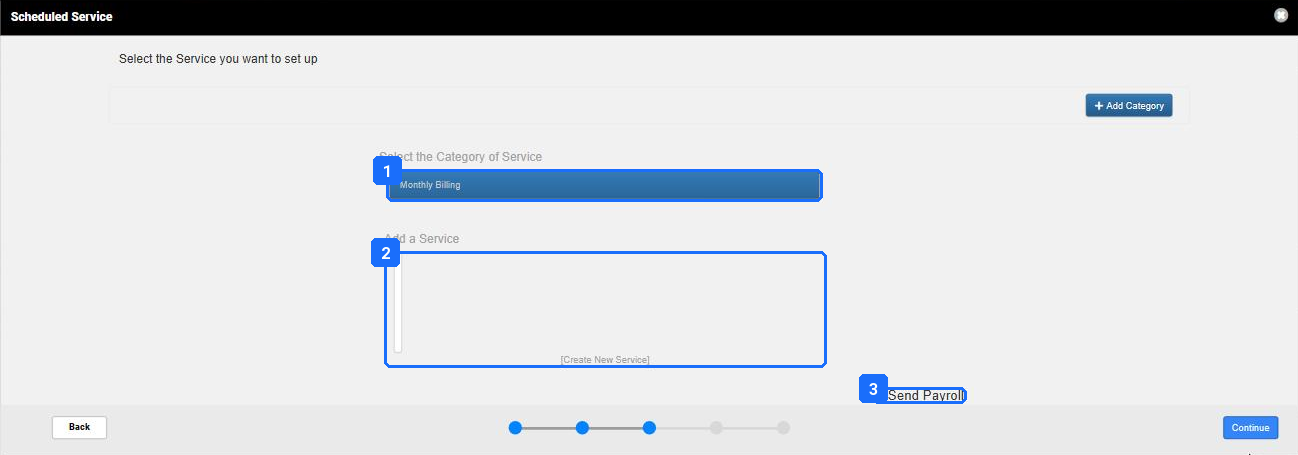
- Category of Service. + Add Category creates another.
- Add a Service. The Service the agreement bills has to exist first; [Create New Service] makes one here.
- Send Payroll. Off for a Client agreement.
Select the Service. A category, a Service under it, and the payroll flag.
[Screen: The schedule and invoice pages of the wizard, and the activation.]
The event side of the same contract. Once the agreement carries the money, the snow Service’s Client billing method is Non Billable. The Vendor side stays Per Task or Per Service. “Plus per push over N inches” is Per Event with a zero rate below N.
Result: Each seasonal Client has one agreement, Current, with the contract’s Site list, start and end. The snow Service’s Trip Level Default reads Non Billable on the Client side. A test storm Work Order on a seasonal Site produces a Payable and no Receivable.
Step 8. The readiness test, then a test storm.
Owner Operations lead. Window October, week 2. Screens Network › Sites › select every snow Site › Bulk Schedule. Then the Work Order, the mobile app, the Trips page, and both invoice lists.
8. Run the Bulk Schedule grid across every snow Site, creating nothing. Then run one storm end to end.
Where: Sites › select all snow Sites › the Bulk Schedule icon beside the count › fill the header › Apply › read the grid › close without scheduling.
Exception: Every setup gap from steps 1 to 7 shows up here as a blank Vendor, a wrong billing method or a missing Task. Found in October it is an afternoon; found in the first storm it is a lost invoice cycle.
Correction: Every row shows a Vendor, the matrix billing method on both sides, and the five Tasks. Then one storm Work Order on your test Site runs end to end and both invoices show real lines.
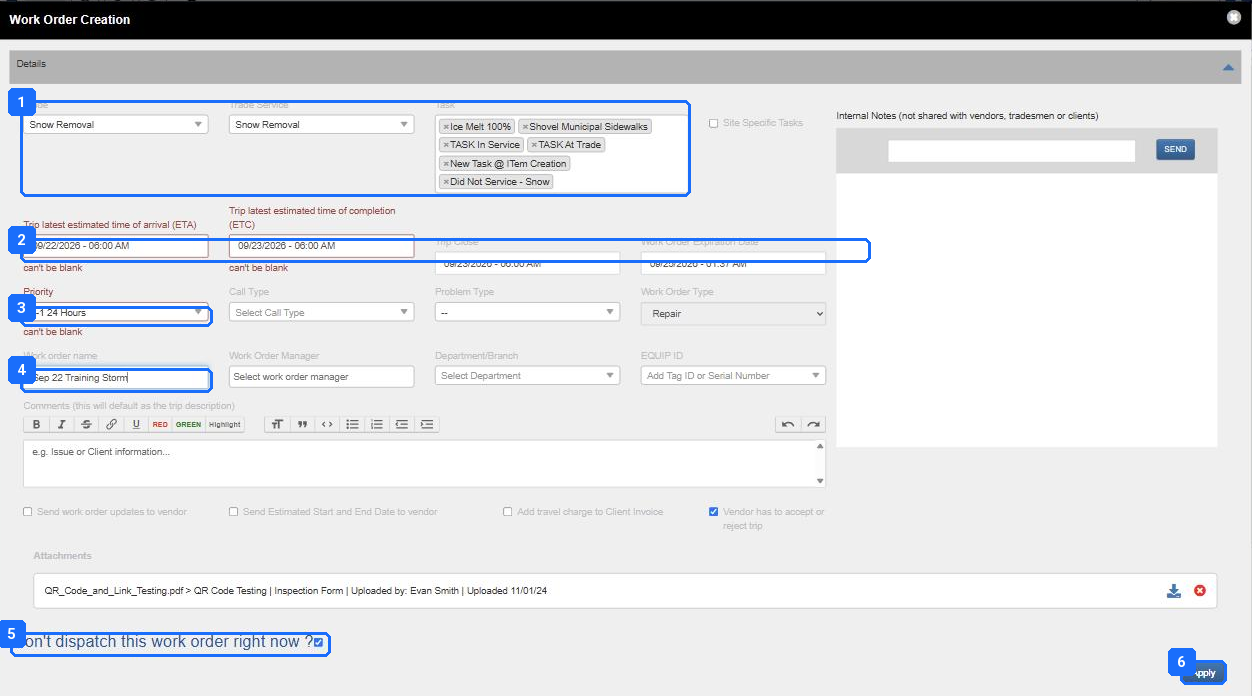
- Trade, Trade Service, Task. Snow Removal, Snow Removal, and the five Tasks, or Site Specific Tasks.
- ETA, ETC, Trip Expiration (labeled Trip Close in this dialog), Work Order Close (labeled Work Order Expiration Date here). Any dates will do for the test.
- Priority. Sets the four dates in one move.
- Work order name. Type a test name; you are not scheduling.
- “Vendor has to accept or reject trip”. Note the setting; decide it for real storms in the narrative, Part B.
- “Don’t dispatch this work order right now?” Leave ticked for the test.
Bulk Schedule, the header. For the readiness test, fill it as you would for a real storm. Nothing is created until Schedule.
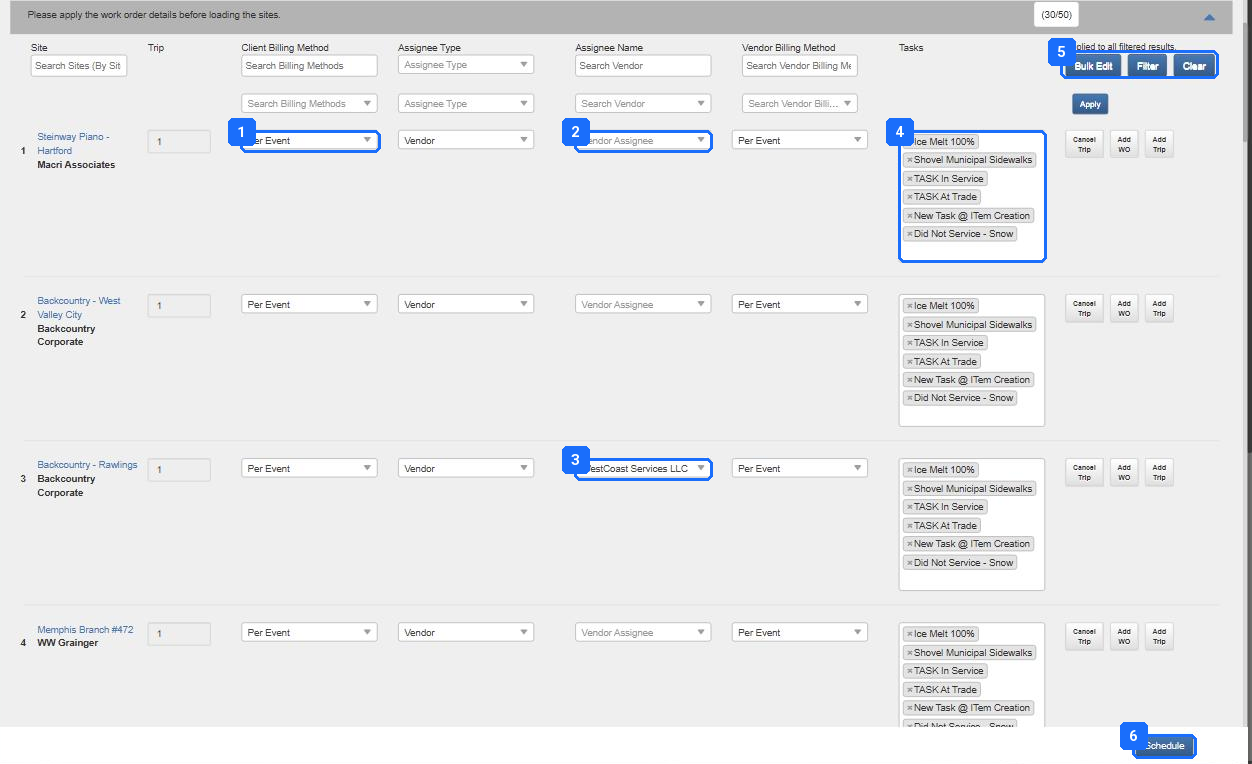
- Client Billing Method per Site, from the Site’s Service defaults. Every row should read what the matrix says. A row that does not is step 2 or step 5 undone for that Site.
- Assignee Name pulled from the Site’s priority Vendor. A blank here is step 4 undone for that Site.
- A row that is right: the priority Vendor came through on its own.
- The Tasks that will be on every Trip. A missing Task here is a Task the Service Provider can never tick and you can never bill.
- Bulk Edit, Filter, Clear, and Apply act on every filtered row at once; use them to fix a whole Client in one pass, then fix the Site record too.
- Schedule creates everything. For the readiness test, close the dialog instead.
The grid, read as a readiness test. Rows 1, 2, and 4 have no Vendor. Row 3 pulled its priority Vendor from the Site. Three of these four Sites would have produced unassigned Work Orders in the first storm.
Then one storm, end to end, on your test Site.
| # | Do this | Pass when |
|---|---|---|
| 1 | Create a Work Order on your test Site with a storm-style name, one Trip, the priority Vendor, and both billing methods as the matrix says. | The Trip carries a Vendor and the Work Order carries the name without anyone editing. |
| 2 | Dispatch it. | The Trip shows the blue Scheduled On Tech’s Mobile pin, and the Vendor’s phone shows it. |
| 3 | Check in and out on the app, ticking a Task, taking the photos, entering snowfall, and choosing Must Return. | The Trip goes purple, and a second Trip appears on the Work Order as Not Dispatched. |
| 4 | Verify the first Trip from the Trips page. | Trip Verified, and the Work Order shows it. |
| 5 | Associate an event, or type an override, if the Site is Per Event. | The snowflake on the Trip turns purple and the hover text shows the total. |
| 6 | Generate the Payable, then the Receivable. | Both exist, both carry non-zero lines, and the lines read the method the matrix says. On a seasonal Site there is a Payable and no Receivable. |
| 7 | Void both invoices and cancel the Work Order. | The test leaves nothing behind that accounting will sync. |
Result: The grid is clean across every snow Site and the test storm produced two invoices with the right lines. Initial row 8. The season is set up.
The sign-off sheet.
Print it, or keep it beside the matrix. A row without a date is a step that is not done, whoever says otherwise.
| # | Step | Proof | Owner | Date | Initials |
|---|---|---|---|---|---|
| 1 | Contracts matrix | One sheet, every snow Site, each row confirmed against its contract. | |||
| 2 | Taxonomy | One Snow Trade, one Service, five Tasks, Require at least one task on, and Did Not Service on the list. | |||
| 3 | Sites and sync | Every snow Site shows a weather id under Site Management and an Events tab. | |||
| 4 | Vendors at Site | Every snow Site has a priority 1 assignee on the snow Service. Bulk Schedule grid shows no blank Assignee Name. | |||
| 5 | Rates | Both sides loaded on every Site in the method the matrix says. Upload job shows N of N in Background Tasks. | |||
| 6 | Field settings | The eight settings in step 6 read as the table says. A test check-out on the app offers Complete, Must Return, Unable to Service. | |||
| 7 | Seasonal agreements | Each seasonal Client has a Current agreement with the contract’s Site list. The event Service defaults to Non Billable on the Client side. | |||
| 8 | Readiness | The Bulk Schedule grid across every snow Site is clean. A test storm ran end to end on your test Site with non-zero lines on both invoices. |
Where setup goes wrong.
Ranked by how often it happens. Every fix is one of the eight steps.
| # | What you see, in the storm | What was skipped in setup | The step |
|---|---|---|---|
| 1 | Invoicing blocked for weeks; lines at $0 or wildly wrong. | A set-price rate was loaded as Per Event, and everything else as Per Task. The contract word and the platform word did not match. | Step 1, the matrix. Then step 2 and step 5 rebuilt from it. |
| 2 | Bulk creation produced Work Orders with no Vendor. | Vendors were assigned on the agreement only. Bulk creation reads Site and Task assignments. | Step 4, on every Site. |
| 3 | The Vendor’s pins are invisible on the map. | The Site had no assignment and no prior check-in from that Vendor. | Step 4. |
| 4 | A Site cannot be billed Per Event; the snowflake never turns purple. | No weather id on the Site, so no report. | Step 3, Sync Location, then confirm the Events tab. |
| 5 | Every Trip asks for a manual event pick. | The association window is wide enough that two storms qualify for each check-in. | Step 3, the hours before and after. |
| 6 | Return Trips fell off phones mid-storm. | The Must Return window was 24 hours and the storm was longer. | Step 6, the windows and “Include option to Must Return on the Work Order Close Date”. |
| 7 | The seasonal Client was billed twice. | The agreement invoiced and the event Work Orders invoiced. | Step 7, Non Billable on the event Service. |
| 8 | The old Vendor keeps getting the generated Work Orders. | The Vendor was changed on the Site but not on the agreement. | Steps 4 and 7, in that order, every time. |
| 9 | The Payable has a $0 line the Vendor disputes. | The Client column was loaded and the Vendor column was not, or the Vendor picked a Task with no rate. | Step 5, both sides, and Site Specific Tasks in step 2. |
| 10 | “The rates are in”, but nothing prices. | The upload sat in Background Tasks at 0 of N. | Step 5, the job at N of N, or a support request with the job number. |
| 11 | Service Providers pick Tasks the Site does not have. | The phone showed the Service’s whole Task list instead of the Site’s. | Step 2, Site Specific Tasks, and step 8, the Tasks column of the grid. |
| 12 | “WeatherWorks should have created the Work Orders.” | Nothing. It does not, by design. The weather feed finds Sites and prices Trips; you create the work. | Not a setup gap. Part B of the narrative, Phase 1. |
What good looks like.
| Checkpoint | Evidence |
|---|---|
| The matrix exists and is signed | One row per Site, a billing method from the eight on each, an owner and a date on each. |
| Every snow Site is synced | Each shows an Events tab and a weather id under Site Management. |
| Every snow Site has its Vendor | A priority 1 assignee on the snow Service, and the grid shows it. |
| Both columns on every Site | The Per Event, Per Service or Per Task tab shows a Client rate and a Vendor rate on every snow Site, with no gaps between bands. |
| The grid is clean | The Bulk Schedule grid across every snow Site shows no blank Vendor and no billing method that disagrees with the matrix. |
| A test storm ran end to end | Dispatched, checked in and out with Must Return, verified, associated, two invoices with non-zero lines, then voided. |
| Eight initials, eight dates | The sign-off sheet is complete before October 15. |
Questions? Contact your Customer Success team or email support@utilizecore.com.