
| Where this fits: Workflow Universe › Layer 2 · Shared Mechanics | For: Admin, Biller | |
| Read first: Rate Hierarchy · Rate and Item Structure | Read next: Invoicing: From Verified Trip to Paid |
Applies to: Operations leads, finance, administrators | Web
Download the printable guide (PDF)
What a rate is.
What a rate is. A rate is a price the platform can find on its own. At check-out, on a Proposal line, on a Payable, it looks for the row matching the Trade, Service, Site, Client and Vendor. Setup makes sure it always finds the right one.
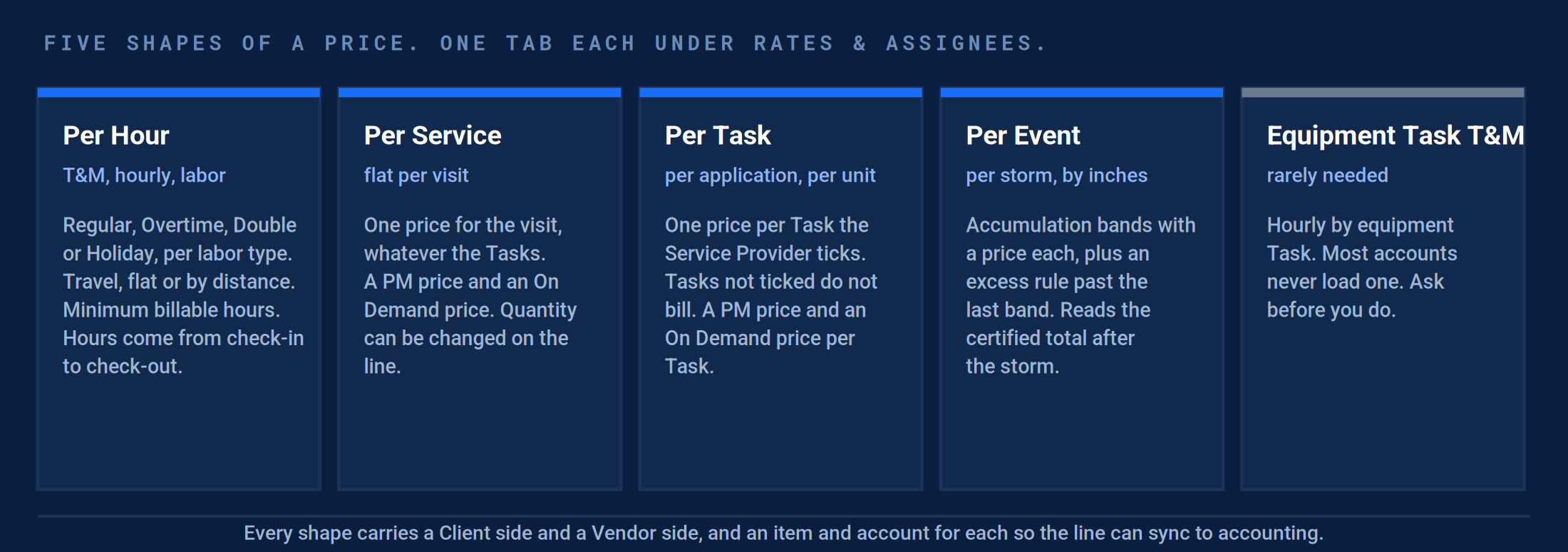
The five tabs under Products and Services › Services & Rates › Rates & Assignees. Per Hour, Per Service, Per Task, Per Event. Equipment Task T&M exists; ask before you load one.
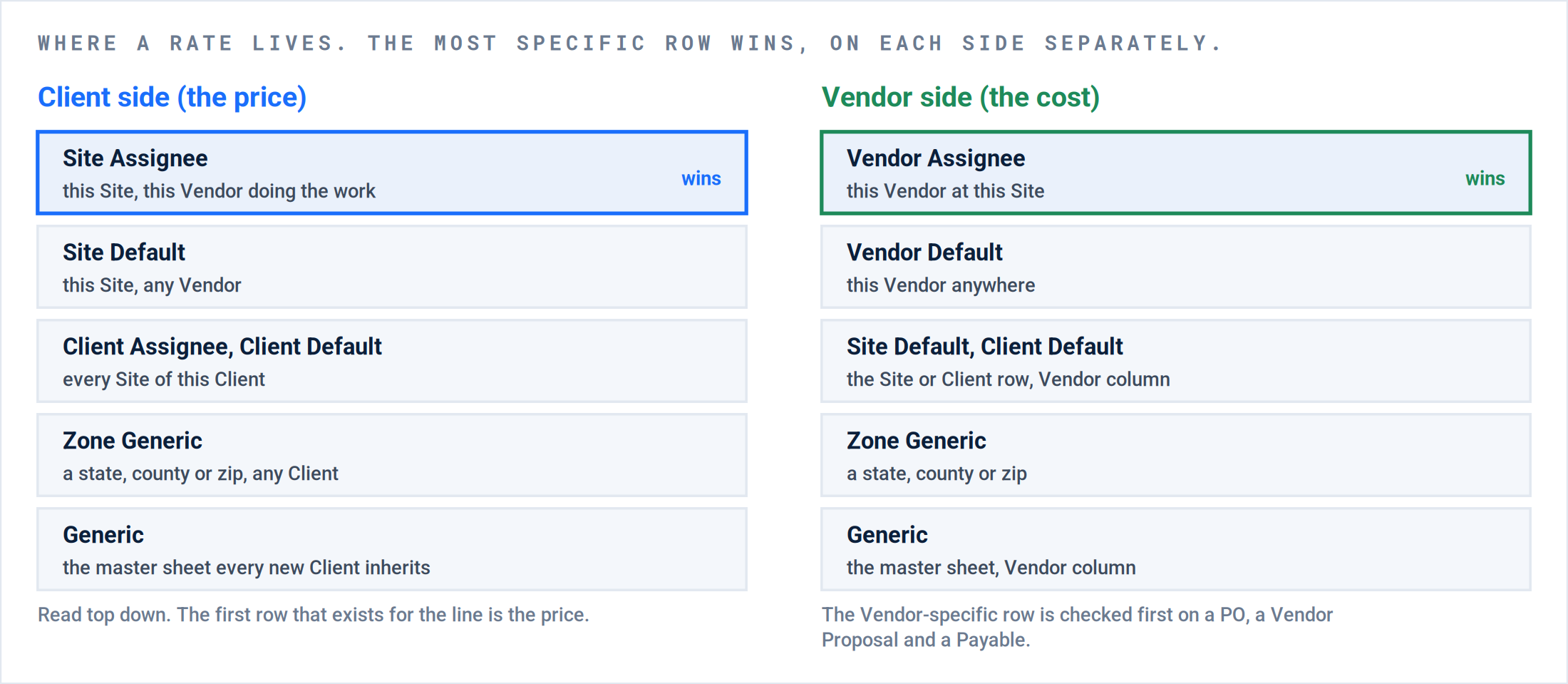
Where a row lives, and which one wins. Client and Vendor are looked up separately. A Site can take its Client price from the Site row and its Vendor cost from the Vendor’s row.
Zone against Client. A Zone row is a geography, not a Client. Site is read first, then Client, so a Client row beats a Zone row for that Client’s Sites and the Zone row prices everyone else there. Confirm with the step 7 test before relying on it.
Five decisions before anyone types a number.
Part A · For the department head
Every price-sheet failure traces to a decision that was never made, so each person loading rates made their own. Make these five once, in writing, and the build in Part B is mechanical.
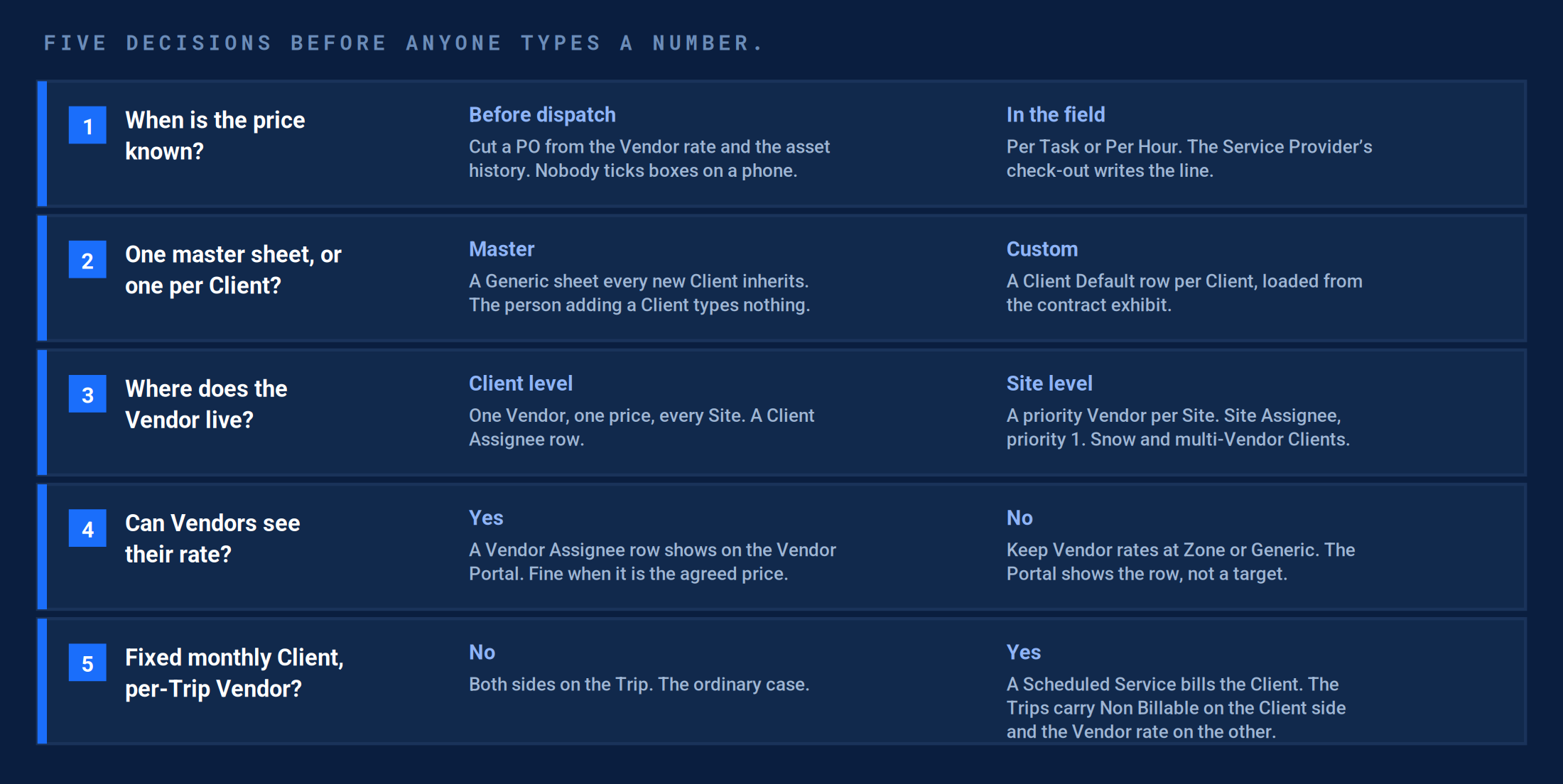
The decisions. Left or right, per Client. Most accounts land on the left for decisions 2 and 4 and on the right for 1, 3 and 5.
1. The price is known before dispatch, or captured in the field.
Where: Decision 1. A Purchase Order cut from the Vendor rate and asset history, or a Per Task or Per Hour line written by the check-out.
Exception: One account asked Vendors to tick Tasks on the phone for pricing it already knew. The Vendors did not tick, and the lines came back at zero.
Correction: The decision is written on the contracts matrix, per Client, and the Service defaults in step 6 match it.
2. One master sheet, or a sheet per Client.
Where: Decision 2. A Generic row set every new Client inherits, with Client Default rows only where a contract differs.
Exception: Rates loaded only as Vendor assignee rows, no Generic and no Site Default. When that Vendor backed out, every Proposal for the Client came up blank.
Correction: Rates & Assignees, filtered to Rate Level Generic, shows a Generic row for every Service you sell.
3. Vendors are assigned at the Client or at the Site.
Where: Decision 3. Client Assignee for one Vendor everywhere; Site Assignee with a priority for a Vendor per Site.
Exception: Vendors assigned on the agreement only, so bulk creation produced Work Orders with no Vendor.
Correction: Every awarded Site shows a priority 1 assignee on the Service, and the Bulk Schedule grid shows a Vendor on every row.
4. Vendors can see their rate on the Portal, or not.
Where: Decision 4. A Vendor Assignee row is visible to that Vendor on the Vendor Portal.
Exception: A target cost was loaded as the Vendor row and the Vendor read it as the agreed price. One account moved every Vendor rate to the state level to hide it.
Correction: The Vendor rows that exist are the agreed prices. Targets live in a spreadsheet, not in a Vendor Assignee row.
5. Fixed-monthly Clients bill from an agreement, not from the Trip.
Where: Decision 5. A Scheduled Service carries the fixed amount and generates the Receivable. The Trips carry Non Billable on the Client side and the Vendor rate on the other.
Exception: A $575 monthly Client rate was loaded on the Service and hit every completed Trip. The Client was billed per visit for a flat contract.
Correction: The Client’s Trips generate a Payable and no Receivable. The agreement generates the Receivable on its schedule.
Result: Five answers, per Client, on the contracts matrix. Part B is built from that sheet and nothing else.
The build, in seven steps.
Part B · For the person loading rates
Classify, build the master, layer the exceptions, assign the Vendors, upload, set the Service defaults, test. Each step ends with the proof that it is done.
Step 1. Classify every line on the price sheet.
Before a number is typed, every line on the contract exhibit gets one of the five shapes, or a note that it is not a rate at all. This is the translation step, and it is where the worst failures started.
| The price sheet says | Load it as | What that means |
|---|---|---|
| “Per trip”, “per visit”, “flat rate per call” | Per Service | One PM price and one On Demand price. Quantity on the line if the contract counts units. |
| “Per application”, “per unit”, “per filter”, a line per Task | Per Task | A price per Task the Service Provider ticks. Nothing ticked, nothing billed. |
| “Time and materials”, “hourly”, Reg / OT / DT, “two hour minimum” | Per Hour | Labor types with three rates each, travel, and Minimum Billable Hours. |
| “Snow range dependent”, inch bands | Per Event | Accumulation bands and an excess rule. The certified total picks the band. |
| “Truck charge”, “base rate”, “first hour” | Per Hour plus a material line | The flat part is a material item; the hours are the labor rate. |
| “Not to exceed”, “cap” | Not a rate | An NTE is a ceiling on the Trip, typed at dispatch. It sits over any of the five shapes. |
| “Fixed monthly”, “seasonal”, “retainer” | Not a rate | A Scheduled Service agreement bills it. The Trips carry Non Billable on the Client side. |
One Service, not one per price. Two prices for the same work is two rate rows, not two Services. A Service per price variation ends in twenty thousand rows and an unusable dropdown. Name the row for the Client or the state: “Alarm - CA” reads; “Alarm” three times does not.
Step 2. Build the master sheet: Generic rows, both sides.
The master is the Generic row set every new Client inherits: one row per Service per shape, Client price and Vendor cost together, each with its item and account. Dialog for a handful of Services; upload for more.
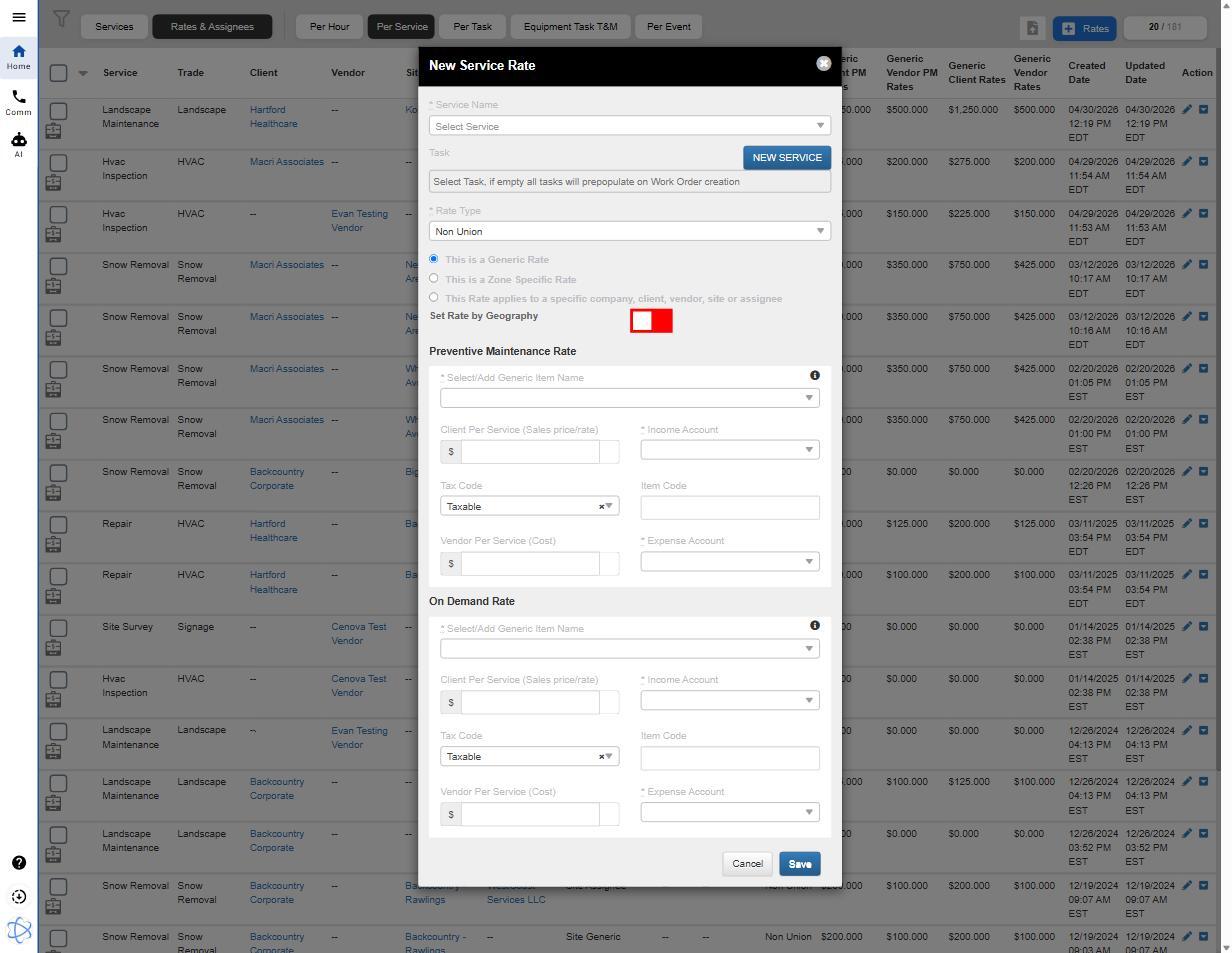
- Service Name, the Task (blank means every Task on the Service), Rate Type Non Union or Union.
- “This is a Generic Rate”. The master row. Zone Specific and “specific to a company, client, vendor, site or assignee” are steps 3 and 4.
- Preventive Maintenance Rate and On Demand Rate. Two prices for the same Service, one for scheduled work and one for reactive. Fill both, or the one you skip bills at zero.
- Client Per Service and Vendor Per Service, each with Item Name, Income or Expense Account, Tax Code and Item Code.
New Service Rate, generic. Rates & Assignees › Per Service › + Rates. The same dialog shape on every tab; the price fields change.
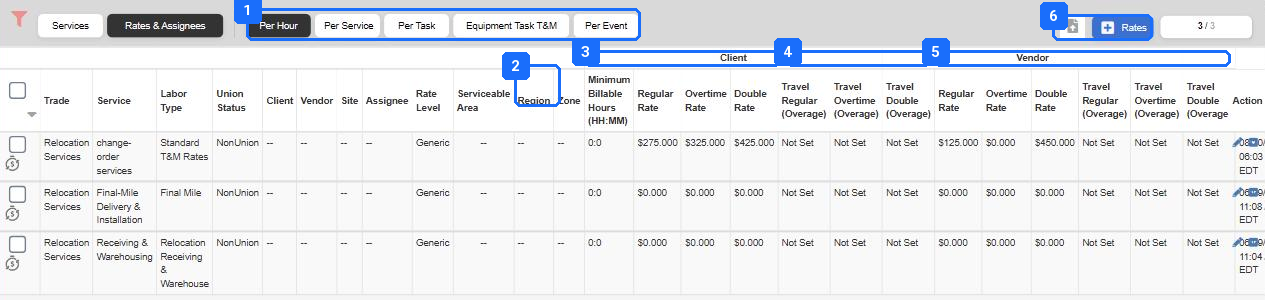
- The five tabs. Each tab is its own table and its own upload template.
- Rate Level. Generic here. The column to read when a line prices wrong.
- Client Minimum Billable Hours (HH:MM), then Regular, Overtime, Double rates.
- Travel Regular, Overtime, Double, each with an overage: flat, or by distance past a threshold.
- The Vendor side: the same six columns, the cost.
- + Rates opens the dialog for this tab.
The Per Hour tab. One row per Labor Type, with three Client rates, three Vendor rates, travel, and Minimum Billable Hours.
Result: Rates & Assignees filtered to Rate Level Generic shows a row for every Service you sell, on both sides, with an item and an account on each.
Step 3. Layer the exceptions: Zone, then Client, then Site.
Only where a contract differs from the master: a Zone row for a different labor market, a Client Default row for a Client with its own exhibit, a Site Default row for one Site with its own deal.
| Rate Type | Where the row applies | Columns that make it that type |
|---|---|---|
| Generic | Every Client, every Site, every Vendor. The master sheet. | Trade, Service, Union. No Client, Site or Vendor columns. |
| Zone Generic | A geography: State, County or Zip Code lists. | The zone columns filled; no Client or Site. Not on the Per Event template. |
| Client Default | Every Site of one Client. | Client Name or a Client ID. |
| Client Assignee | One Vendor, every Site of one Client. | Client, Vendor Name, Assignee Priority. |
| Site Default | One Site, any Vendor. | Site Name or a Site ID. |
| Site Assignee | One Vendor at one Site, with a priority. | Site, Vendor Name, Assignee Priority 1 to 10. Loading one creates the Site Default row for you. |
| Vendor Default | One Vendor, anywhere. | Vendor Name or a Vendor ID. |
| Vendor Assignee | One Vendor at one Site, Vendor side. | Site, Vendor, Assignee Priority. |
[Screen: New Service Rate with “This Rate applies to a specific company, client, vendor, site or assignee” selected.]
Step 4. Assign the Vendors, with a priority.
A Site Assignee row makes a Vendor the Site’s Vendor for that Service: dispatch offers them first and bulk creation pulls them without a search. Loading the row also creates the Site Default row, so the Site has a price the moment it has a Vendor.
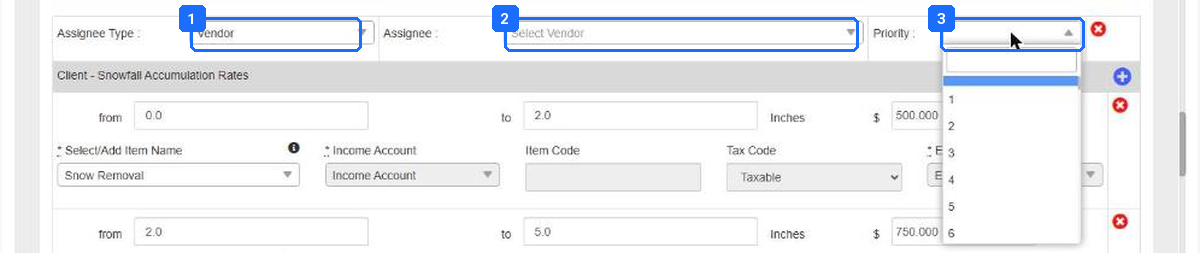
- Assignee Type: Vendor, or a team member for self-performed Sites.
- Assignee. The Vendor must already be active and compliant. Check Network › Vendors Compliance first.
- Priority. 1 is first. Ten slots.
+ Assignee Rates on a Site’s Service row. Site › View Service Rates › the Service › + Assignee Rates.
Do this before Per Service rates. Per Service rates do not populate on a Site until a Vendor is assigned to it with a priority. Assign first, price second. And do it on the Site, not on a Scheduled Service agreement, which bulk creation does not read.
Result: Every awarded Site has a priority 1 assignee on every Service it buys. The Bulk Schedule grid shows a Vendor on every row.
Step 5. Upload, and watch it land.
Past a few dozen rows, it is a spreadsheet. Each tab’s download panel has two files: the rows already loaded, and a blank template. Download fresh every time; the columns change. One file, one tab. Blank Core Rate ID creates; filled updates.

- Download N Rates. Everything loaded that matches the current filter, in upload layout. This is also the rollback: the upload template is the download template.
- Download Sample Excel Template. Blank, with every column the upload reads.
- Drag or browse to upload. The platform creates or updates the rows as a background job.
The download and upload panel. The download icon beside + Rates opens it on every tab.
| Column | What to put in it |
|---|---|
| Core Rate ID (keep blank to create new) | Blank on a fresh load. Filled on a re-upload of the downloaded file, which updates the row in place. Not on the Per Event template. |
| Rate Type | One of the eight above. This column decides which of the identity columns the upload reads. |
| Client Name, Core Client ID, Custom Client ID; the same for Site and Vendor | Name the party the row belongs to. A name that does not match the record exactly fails the row; the IDs never fail. |
| Team Members (email, comma separated), Assignee Region Team Member, Assignee Priority | For self-performed work. Priority 1 is first. |
| Trade (Mandatory), Service (Mandatory), Union (Yes/No) (Mandatory) | Every row. The upload is one file per tab; the Trade and Service inside it can vary. |
| State, County, Zip Code (comma separated) | Zone rows only. |
| The price columns, Client then Vendor | Different per tab: Regular / Overtime / Double per labor type; PM and On Demand; per Task; per band. |
| Item Type Name, Item Name, Income Account, Tax Code, Item Code, Expense Account, per price | What the line becomes in accounting. Finance fills these. A blank account is a sync failure later. |
| Remove Assignee (Yes/No), Remove Rate (Yes/No) | Yes deletes on upload. Leave blank. |
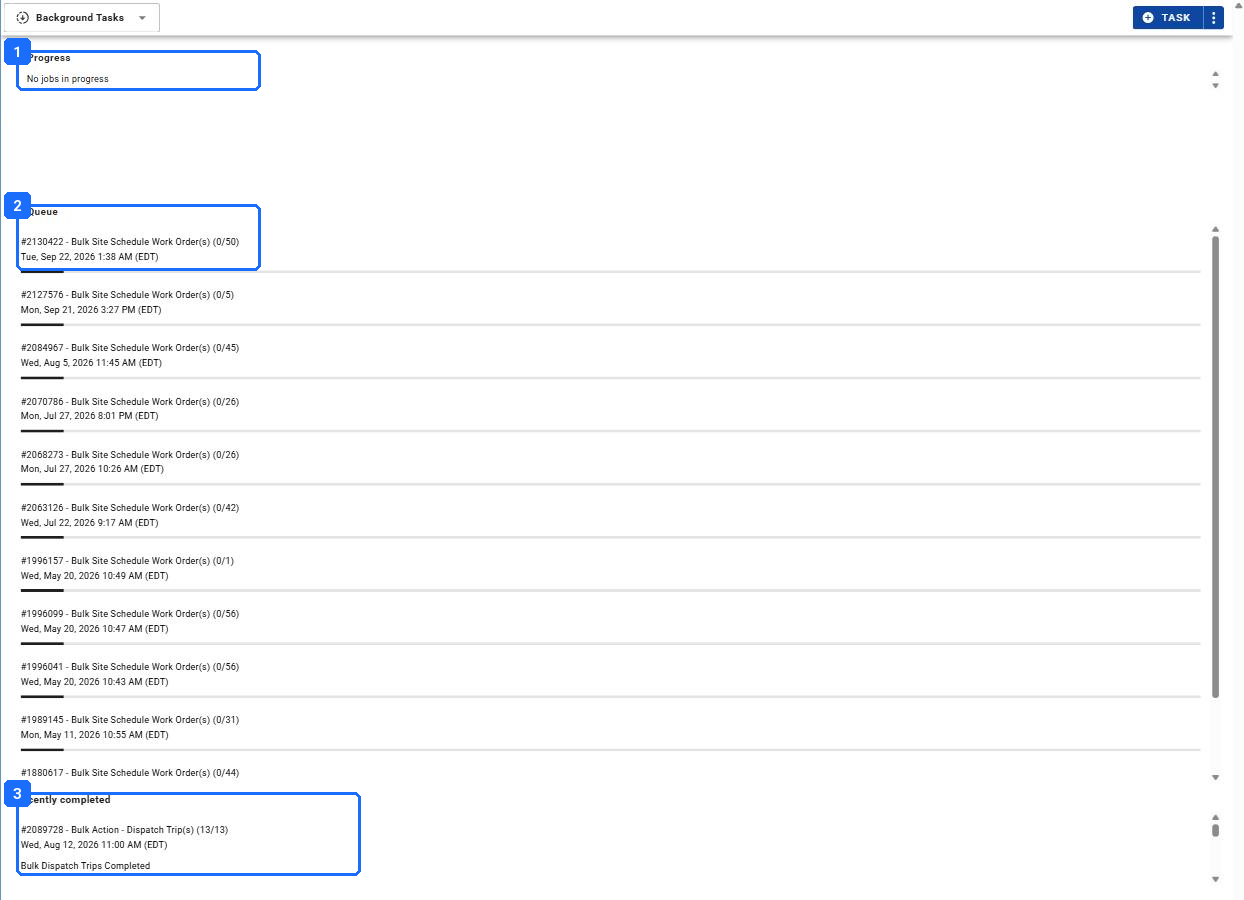
- In Progress: the running job.
- In Queue: jobs waiting. A job at 0 of N for more than an hour is not going to start on its own. Contact support with the job number; do not re-upload.
- Recently completed: your job at N of N, and the error file if any rows failed. Fix the rows it names and upload only those.
Background Tasks. The clock icon at the foot of the left navigation. The upload is done when it reads N of N here, not when the browser says so.
Result: Background Tasks shows the upload at N of N. The tab, filtered to the Client, shows every row the file carried, on both sides.
Step 6. Set the Service defaults.
Rates say how much. The Service defaults say how the line is generated. Each side of every Service carries three defaults: the billing method every Trip inherits, the verification rule that gates the Payable, and when the Client is invoiced.
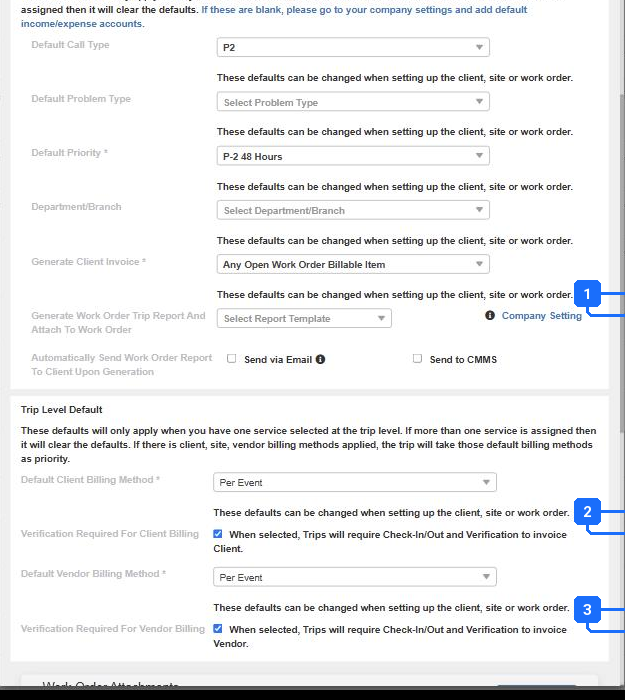
- Generate Client Invoice: On Work Order Completion, or Any Open Work Order Billable Item. Completion is right for one-visit reactive work. Per billable item is right for anything with several Trips, and for snow. Set wrong, a monthly Client rate hits every Trip.
- Default Client Billing Method for Trips on this Service, and the Vendor side below it. One of the eight. Non Billable on the Client side is how a fixed-monthly Client’s Trips stay off the Receivable.
- Verification Required for Client Billing and for Vendor Billing. On. Without them an unverified Trip can generate.
The Service dialog, Work Order Level Default and Trip Level Default. Products and Services › Services & Rates › the Service › edit.
Result: Every Service’s two defaults match the contracts matrix, and Verification Required is on for both sides.
Step 7. Test it on a line.
The test. A rate is proven when a line prices itself. Add a line to a Receivable, Proposal or PO on a Site of each Client type. The price you expect should be on top; if not, the Rate Level column shows which row won.
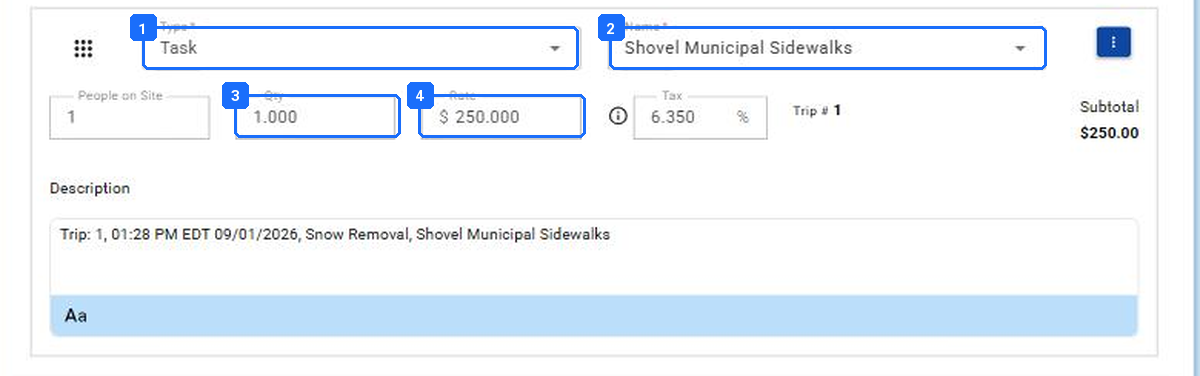
- Type: Task, Service, Labor, Material. Which tab the platform is reading.
- Name: the rate row it found. Best fit first; a state or Client label in the name tells you which.
- Qty. On a Per Service line, the count of units when the contract counts them.
- Rate. Filled from the row. Typed over, it is a one-off and nobody will know why. Markup amount and Work Order NTE sit at the foot of the invoice; the NTE check counts the markup.
A line on a Receivable. Type, Name, Qty, Rate. The rate came from the Site’s Per Task row without anyone typing it.
Result: A test line on a Generic Site, a Zone Site, a Client Site and a Site with its own row each returns the expected price on top without editing. A test Payable has no $0 line.
Where this usually goes wrong.
Ranked by cost on last year’s calls. The first one is the one to check on every account.
| # | What you see | What happened | The fix |
|---|---|---|---|
| 1 | Proposals and lines come up blank for a whole Client. | Every rate was a Vendor Assignee row for one Vendor and there was no Generic or Site Default behind it. The Vendor left; the price left with it. | Export the tab, sort by Assignee, copy the prices onto Site Default or Generic rows, re-upload. Decision 2. |
| 2 | A Site in one state only offers another state’s rates. | The Zone lookup read the Client’s headquarters state, not the Site’s. | A Site Default row for the affected Sites until the lookup is confirmed fixed. Report it. |
| 3 | A fixed-monthly Client is billed per visit. | The monthly amount was loaded as a Service rate and Generate Client Invoice was On Work Order Completion. | A Scheduled Service for the Client, Non Billable on the Client side of the Trips, and the Vendor paid per Trip. Decision 5. |
| 4 | The rate dropdown is unusable. | Rows with no descriptive name, a labor item per rate type, a renamed Trade leaving its old name behind. | Reset to zero and reload from one clean sheet. Name rows for the Client or the state. |
| 5 | A line at $0 on the Payable. | Only the PM price was filled and the work was On Demand, the Vendor column was empty, or the Vendor ticked a Task with no rate. | Fill both prices on every row. Load both sides. Site Specific Tasks so the phone only offers rated Tasks. |
| 6 | The NTE did not stop a Trip that went over. | Markup was added after the check, or the NTE was never typed at dispatch. The NTE does not fill itself. | Type the Vendor NTE on every Trip at dispatch and put the instruction in the Trip description. |
| 7 | Labor rates missing on a Proposal. | The Proposal was built on a Site with no Per Hour row at any level. | A Generic Per Hour row for the Service. Step 2. |
| 8 | The upload “worked” and nothing changed. | The job sat in Background Tasks at 0 of N, or the error file was never opened. | N of N, then the error file, then the rows it names. |
What good looks like.
| Checkpoint | Evidence |
|---|---|
| Five decisions written down | The contracts matrix carries an answer to each, per Client. |
| A master exists | Rate Level Generic shows a row for every Service sold, both sides, item and account on each. |
| Every awarded Site has its Vendor | A priority 1 Site Assignee on each Service; the Bulk Schedule grid shows no blank Assignee. |
| The upload landed | Background Tasks shows N of N and an empty error file. |
| Defaults match the matrix | Every Service’s Client and Vendor default and its invoice trigger read what the contract says. |
| A line prices itself | A test line on each Site type returns the expected rate on top, and a test Payable has no $0 line. |
Questions? Contact your Customer Success team or email support@utilizecore.com.