
| Where this fits: Workflow Universe › Layer 3 · Setup & Network | For: Admin, Operations Lead | |
| Read first: How a Work Order Moves · Invoicing: From Verified Trip to Paid | Read next: Integrated Client Day |
Applies to: Operations leads, dispatchers, account managers | Web
Download the printable guide (PDF)
What crosses the line.
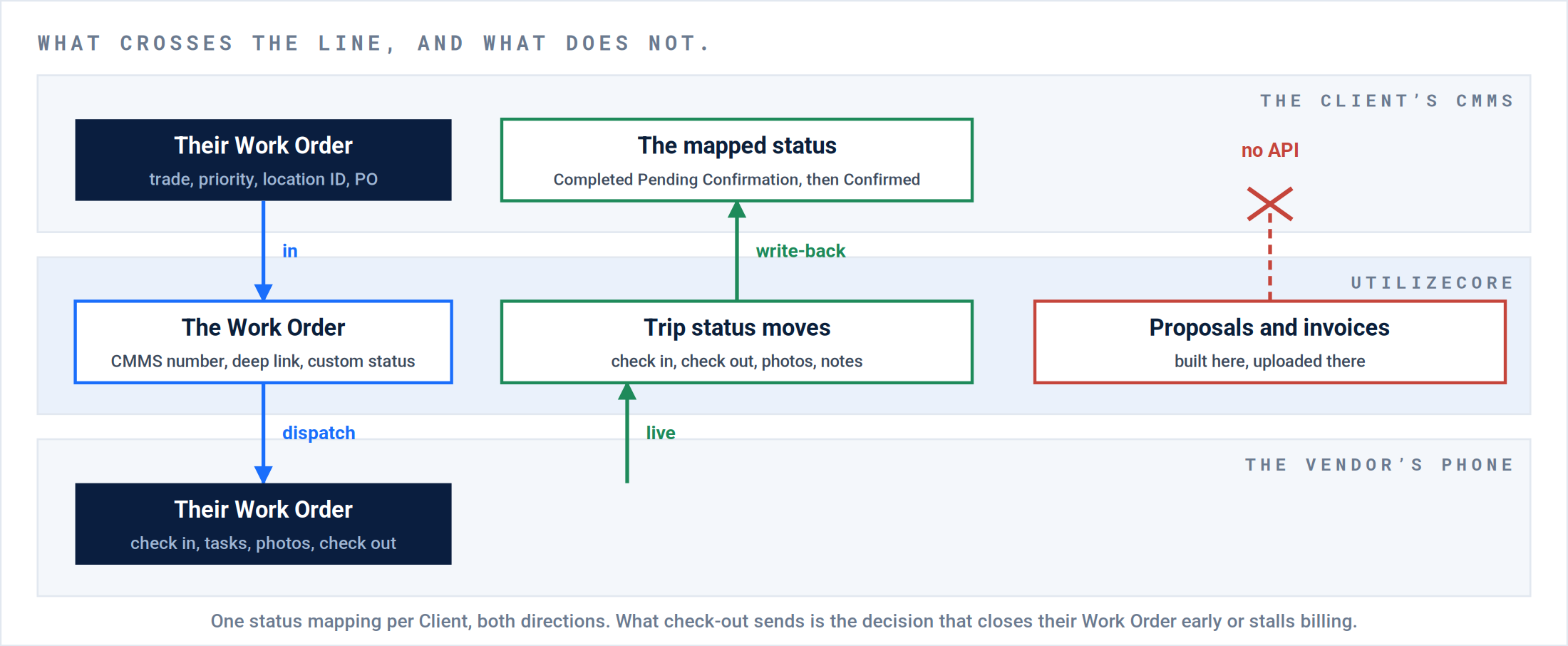
Three lanes. The Client’s Work Order comes down and the Trip status goes up. Proposals and invoices do not cross at all.
| What crosses | How |
|---|---|
| The Work Order, in | With the CMMS number under yours, again in the PO field, and a deep link to their record. |
| Check-in, check-out, photos, notes, out | As they happen, within the write-back policy you set. |
| Proposals and invoices | Never by API. Built here, then entered in the CMMS or uploaded from the AR Invoicing export. |
Setting up the integration.
Part A · For the operations lead
Six steps, four of them owned by the Client. Nothing flows until the Client has done theirs, and every duplicate Site and silent missing Work Order traces to a step here.
1. The Client has done their part.
Where: Per platform, below. Nothing you do in UtilizeCore substitutes for it.
Exception: Weeks of “nothing is coming over” on an account whose Client had never signed the authorization form or added the API user.
Correction: The Client confirms in writing which of the three items is done, and your Customer Success Manager confirms the module is enabled.
| Platform | What the Client has to do first | What to know |
|---|---|---|
| ServiceChannel | The Client signs the authorization form. The Client adds an API user under the naming convention you are given. ServiceChannel enables the module. One provider ID per UtilizeCore account. | Location IDs come from ServiceChannel support, on request. Nine digits, starting with 200. |
| Corrigo | The Client is on the tier that allows API access, and issues the keys. | Location IDs can be pulled through the API. Work Orders cannot be created from your side; the Client creates them. |
| Fexa | The contractor form, then a sandbox before production. | Creating a visit flips the assignment to Scheduled and locks the Vendor class. The visit is created only when you set the custom status Scheduled, or on first check-in. |
2. Every Site has its location ID, one to one.
Where: The Client’s location list against Network › Sites. ServiceChannel IDs from their support team; Corrigo by API.
Exception: Without an ID the integration creates a new Site for every Work Order. One account had the same Sites twice and three times.
Correction: Every Site the Client will send work to carries its CMMS location ID, and no Site was created by the integration in the last seven days.
3. The mapping sheet is complete, from the Client’s full list.
Where: A year of the Client’s history, then one sheet: Trades and Services, categories, priorities to ETA and ETC, statuses both ways. Every mapped Trade also gets a generic fail-safe Service. Name it so it cannot pass for real work, and filter for it every morning.
Exception: A Trade the Client added later was never mapped, and every Work Order on it was silently not pulled. Nobody knew until the Client asked why nothing was done.
Correction: Not Mapped returns zero. A test Work Order on every mapped Trade arrives with the right Service, priority and dates. A test with a made-up Service lands on the fail-safe, flagged.
4. The write-back policy is decided per Client, and written down.
Where: What check-out sends, whether raw clock times and photos push, and auto-accept and auto-dispatch by Site assignment.
Exception: Check-out mapped to Completed Pending Confirmation closed the Client’s Work Order before the quote could be submitted. Mapped to In Progress Incomplete it stalled billing for a month. Raw clock times pushed exposed hours the account had adjusted.
Correction: Four answers on the Client’s sheet, and the check-out answer was tested on a Must Return Trip before go-live.
5. Inbound defaults are set.
Where: The Client’s default billing method, Work Order Manager, and the custom statuses the mapping needs, and only those.
Exception: Inbound Work Orders left at Per Service on a Per Task Client broke margin on every Work Order. A team built more custom statuses to satisfy the mapping than they had in the old system.
Correction: The first live Work Order arrives with the right billing method on both sides, and every custom status exists because a CMMS status needs it.
6. The first live Work Order made a round trip.
Where: One real Work Order: arrives, dispatched, checked in and out on a phone, verified, Completed Pending Confirmation, and the Client’s confirmation comes back.
Exception: Integrations activated on faith. The first failure was found by the Client.
Correction: The activity log on one Work Order shows every status in the ladder below, in both systems, on the day of go-live.
| Data | ServiceChannel | Corrigo | Fexa | Note |
|---|---|---|---|---|
| Check in and check out | Yes | Yes | Yes, as a visit | Raw clock times can expose adjusted hours. A per-Client toggle controls it. |
| Photos | Yes, if the policy allows | Yes | Yes | Some accounts hold photos back on purpose. |
| Notes | Yes | Yes | Yes, arrives as Notify All | Adding a note is also how you force a sync. |
| Status | Mapped, both ways | Mapped, both ways | Mapped, both ways | One mapping per Client. All or nothing. |
| ETA and ETC | Limited | Limited | Limited | Editing dates on a synced Trip does not always push. |
| Proposals | No | No | No | Built here; entered or uploaded in the CMMS. |
| Invoices | No | No | No | The AR Invoicing export feeds the CMMS upload template. |
Result: Six checks signed, a mapping sheet the Client has seen, a write-back policy in writing, and one Work Order that went round the loop.
The Work Order that arrived on its own.
Part B · For the dispatcher and account manager
Nobody creates a CMMS-sourced Work Order. The daily work is the three Action Filters, plus three morning checks that exist only because the Work Order came from somewhere else.
P1 · Work Initiation. It arrives.
It lands in the Schedule Action Filter with the CMMS number, the PO, the deep link and its mapped status. On Fexa, vet it before Scheduled, because Scheduled locks it to you. One that arrives in Pending Confirmation only looks done.
[Screen: A synced Work Order header.]
Result: The Work Order is on the Schedule Action Filter with a CMMS number, a PO, a link, and a mapped status. Nothing was typed.
P3 · Assignment and Dispatch. Dispatch, and the field.
| Set up with | When it arrives | You | |
|---|---|---|---|
| Hands off | Site assignments plus auto-dispatch | Accepted and dispatched to the priority Service Provider. Blue pin. | Call for the ETA. |
| Hands on | Priority Vendors plus auto-accept | Accepted, waiting in the Schedule Action Filter. | Dispatch when you choose, then call for the ETA. |
Either way. One Work Order there, one here, for the life of the job. Check-in and check-out move the status in both systems. The CMMS never asks the Vendor for an ETA, so you do.
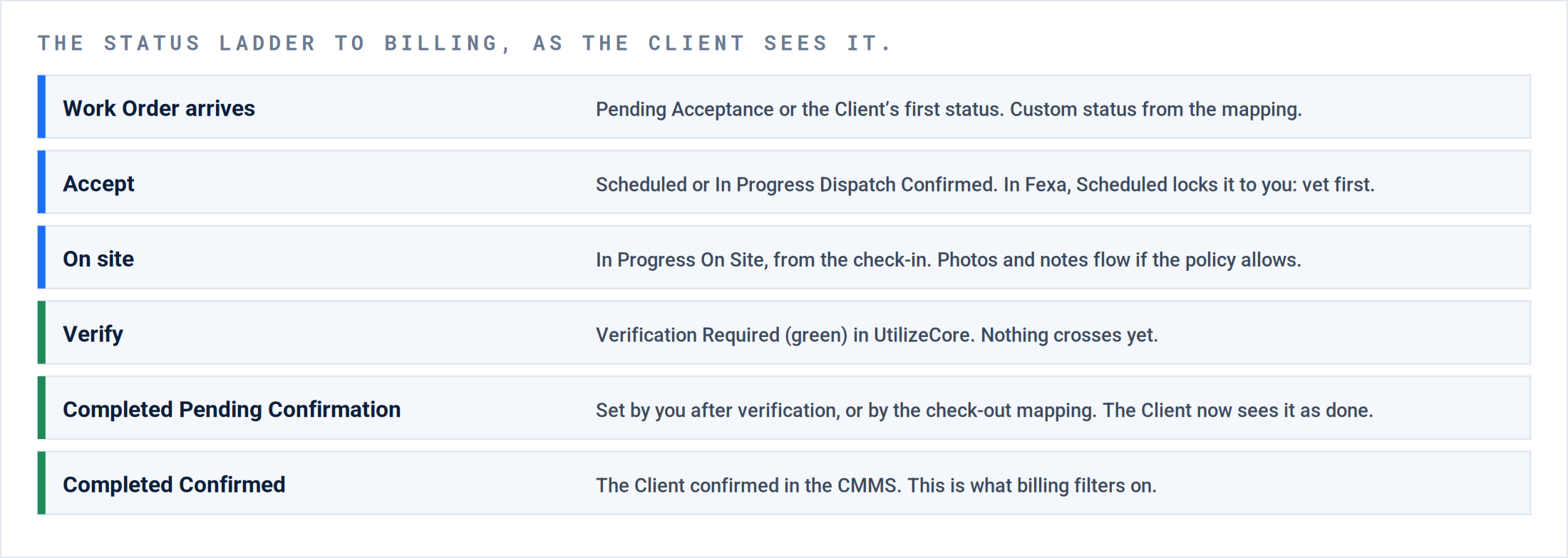
The status ladder. The names are ServiceChannel’s; Corrigo and Fexa have their own, mapped the same way.
Result: Blue, then check-in on the Trip and In Progress On Site in the CMMS, on the same afternoon.
P5 · Validation and Resolution. Verify, then tell the Client.
| Do this | Where | Pass when |
|---|---|---|
| Verify the Trip | Verify Trips Action Filter, photos open | Trip Verified. Nothing has reached the Client yet, unless the check-out mapping sent it. |
| Set Completed Pending Confirmation | The Work Order’s custom status, single or bulk | The Client sees the Work Order as done and confirms it in their system. |
| Must Return | The Service Provider chose it at check-out | A second Trip exists here and, in Fexa, a second visit. Their Work Order did not close. |
| Watch for the confirmation | Custom status Completed Confirmed, or the Client’s equivalent | Billing filters on this status and nothing earlier. |
Result: Every verified Work Order is at Completed Pending Confirmation by end of day, and yesterday’s are Confirmed.
P6 · Financial Processing. Bill it where the Client bills.
Build the Receivable here from the verified Trip, then enter it in the CMMS or upload the AR Invoicing export. Proposals work the same way. Remove the Client contact email from integrated Clients so nothing goes out by email that belongs in their system.
Result: Every Completed Confirmed Work Order has a Receivable here and a matching invoice in the CMMS, with the same number.
Three morning checks.
| Check | Where | Pass when |
|---|---|---|
| Nothing is unmapped, nothing flagged | The Not Mapped filter on Work Orders, then Work Orders filtered to the fail-safe Service | Both at zero. A Not Mapped row never became work. A fail-safe row did, on a Service you have not mapped: set the real Service, then map it. |
| Nothing sits undispatched | Schedule Action Filter, filtered to the Client | Zero, or a placeholder Vendor and a sourcing note on each. |
| Nothing aged in Pending Confirmation | Custom status Completed Pending Confirmation, sorted by date | Nothing older than the Client’s SLA. A Work Order stuck here is one the Client has not confirmed, and the invoice waits on it. |
When a Work Order did not come over. Three causes, in order: an unmapped Trade or status, a location ID that does not match, a Work Order the Client recalled before go-live. For the last, create it here with the CMMS number attached. No alert fires on a failed pull; the Not Mapped check is the alert.
Forcing a sync. A status that did not push usually pushes on the next event. Add a note to the Work Order; the note is an event, and it carries the pending status with it.
Where this usually goes wrong.
| # | What you see | What happened | The fix |
|---|---|---|---|
| 1 | The same Site two or three times. | No location ID, so the integration made a Site per Work Order. | Get the IDs, merge the duplicates. Part A, check 2. |
| 2 | Work Orders the Client sent never arrived. | An unmapped Trade or status, or a missing ID. No alert fires. | The Not Mapped filter every morning. Map from the Client’s full list. |
| 3 | Their Work Order closed in the CMMS before you were done. | Check-out is mapped to a completion status. | Decide the check-out mapping with billing and quoting in the room. Must Return where the work continues. |
| 4 | Billing stalled for a month. | Check-out mapped to In Progress Incomplete, so nothing reached Pending Confirmation. | The same decision, the other way. |
| 5 | The Client saw hours you had adjusted. | Raw clock times pushed. | The per-Client toggle. Part A, check 4. |
| 6 | Margin wrong on every Work Order. | Inbound default billing method never set. | Part A, check 5. |
| 7 | Techs checked in twice. | The Client’s integration user lacked rights, so the first check-in was rejected. | The Client’s API user needs every status your mapping uses. |
| 8 | A Work Order arrived on a mapped Trade, but with a Service you never mapped. | The Trade matched; the Service, category or priority did not. The fail-safe Service on that Trade caught it, so it became a Work Order flagged as an exception instead of being dropped. | Nothing is lost. Open the flagged Work Order, set the real Service (Tasks, rates and billing follow it), then map that Service so the next one lands clean. |
What good looks like.
| Checkpoint | Evidence |
|---|---|
| The Not Mapped filter is at zero | Every morning. |
| No Site was created by the integration this week | Sites, sorted by created date. |
| Completed Pending Confirmation was set on every verified Work Order | The activity log shows it, the same day. |
| Nothing is older than the SLA in Pending Confirmation | The status, sorted by date. |
| One Work Order makes the full round trip on every go-live | Both activity logs, both systems. |
Questions? Contact your Customer Success team or email support@utilizecore.com.