
| Where this fits: Workflow Universe › Layer 2 · Shared Mechanics | For: Biller | |
| Read first: Invoicing: From Verified Trip to Paid | Read next: Bulk Invoicing Quick Reference |
Applies to: AR and AP clerks, controllers, operations leads who bill by period | Web
Download the printable guide (PDF)
The one rule.
Before the filter. Bulk reads what is already on the verified Trip. It asks you nothing. Right Vendor, right rate, right Task on every Trip before you generate. One mistake in the set becomes a hundred drafts.
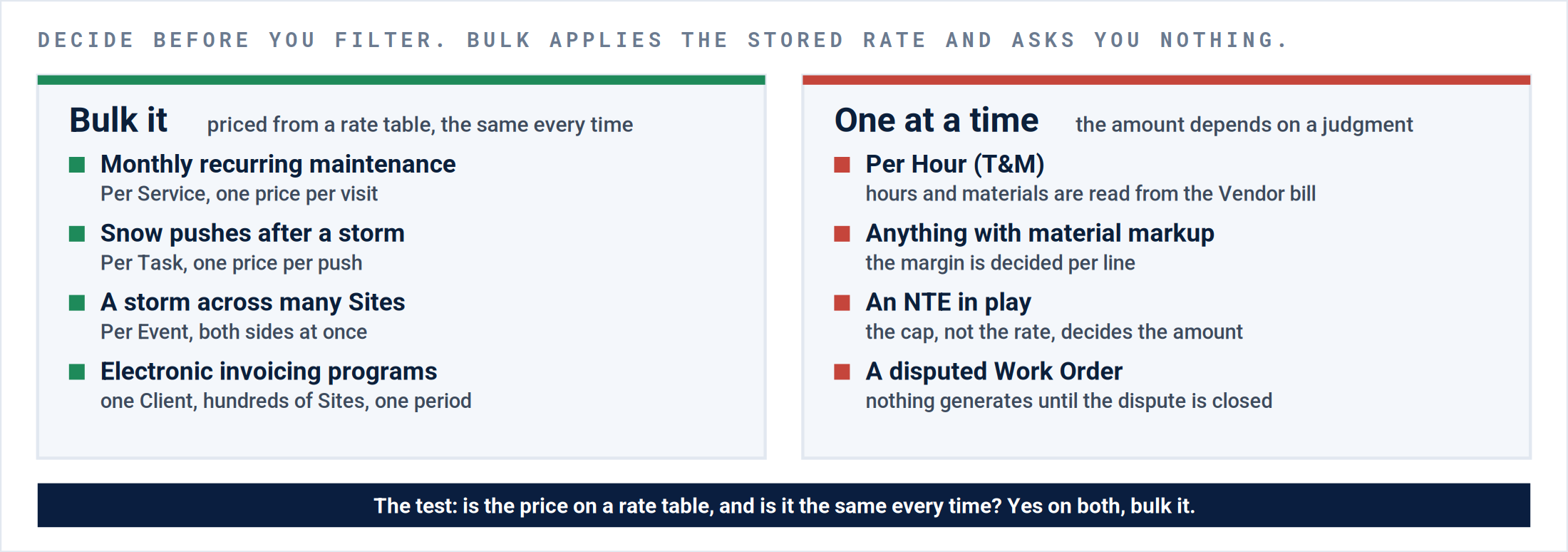
Bulk it, or one at a time. The amount on a bulk draft is the stored rate times the verified Task. If a person decides the amount, it does not belong in the set.
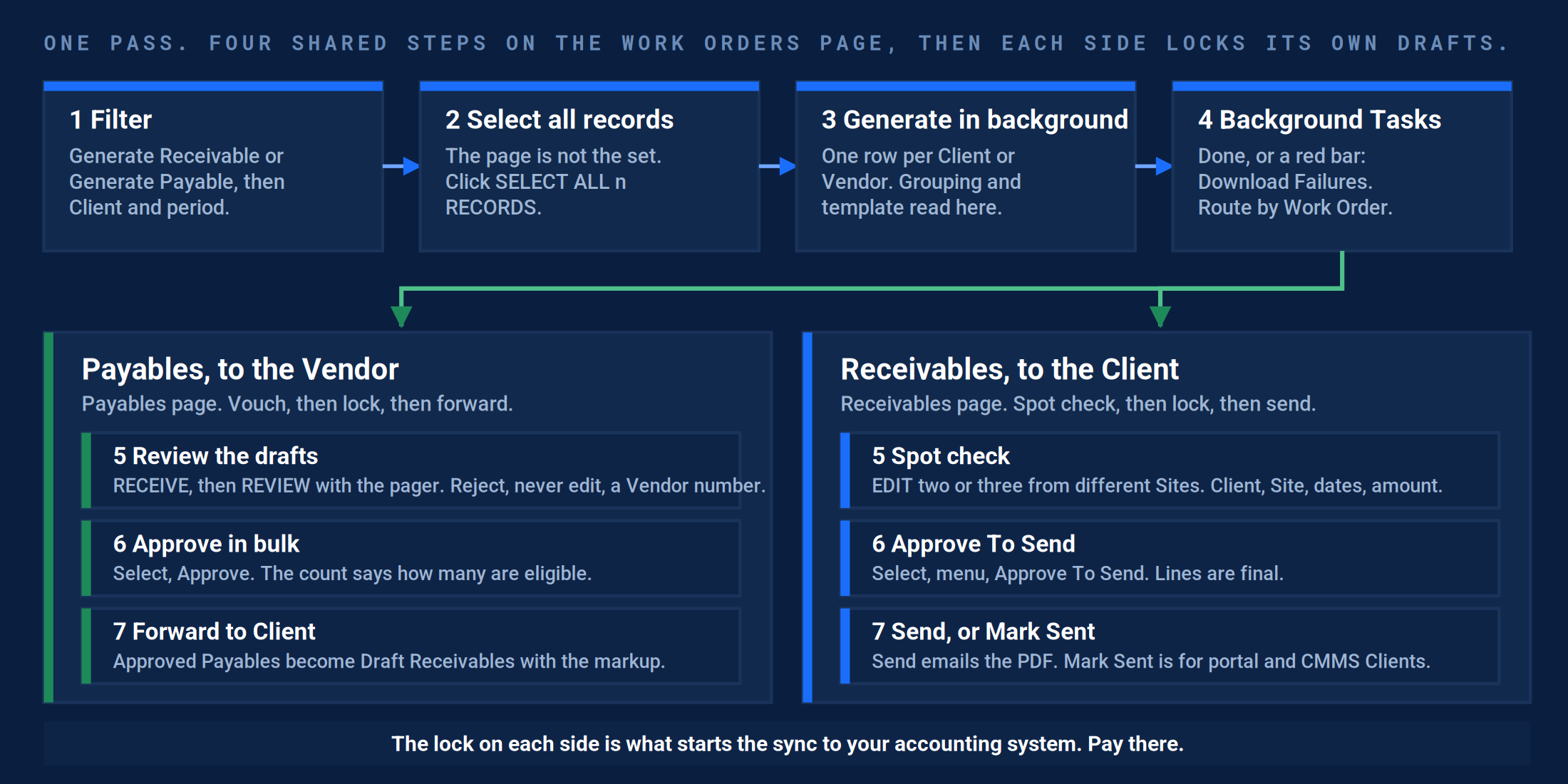
The pass. Four shared steps on the Work Orders page, then each side locks its own drafts.
| Word | What it means |
|---|---|
| Generate Receivable, Generate Payable | Action Filters on the Work Orders page. Each holds only Work Orders with a verified, unbilled Trip on that side. |
| SELECT ALL n RECORDS | The link that selects the whole set. The checkbox in the toolbar selects the page. |
| Generate in background | Queues the run. Background Tasks shows it done, or shows a red Download Failures bar. |
| Group Invoice By | Client, Site, Work Order, or Event. Decides how many Receivables the set produces. |
| Approve, Approve To Send | The locks. Approve on a Payable, Approve To Send on a Receivable. Lines are final after them. |
| Mark Sent | Sent without an email, for Clients who read invoices in a portal or a CMMS. Starts the sync the same way Send does. |
Four checks before the first batch.
Part A · For the controller
Each one names where it lives, how it fails, and the data point that proves it is right.
1. The rate table covers every Service and Task in the set.
Where: Site › Service Rates, Client side and Vendor side. Products and Services › Services & Rates for the defaults.
Exception: A Vendor was replaced at forty Sites. The Work Orders were created before the new rate landed, so forty drafts came out on the old Vendor at the old price.
Correction: Export the filtered set (the cloud icon in the toolbar) and read the Vendor and rate columns. No blanks, no placeholder Vendors, before you generate.
2. Verification stays on.
Where: Products and Services › Services & Rates › the Service › Verification Required For Client Billing and For Vendor Billing.
Exception: The setting that allows invoices on unverified Trips was turned on to clear a backlog. The next batch billed work nobody had proven.
Correction: The Generate Action Filters count only verified Trips. A Work Order missing from the set belongs in Verify Trips, not in the batch.
3. Each Client’s grouping is written down.
Where: The Generate Receivable(s) page, Group Invoice By, per Client row. Client, Site, Work Order, or Event.
Exception: A Client that pays per job was grouped by Client. Twelve jobs landed on one invoice and their AP rejected it.
Correction: One line per Client in your AR notes: the grouping, the PDF template, and whether a Work Order Report is attached.
4. The batch filter is a saved template.
Where: Work Orders › the filter funnel › Save Current Filters as Template. Load it with Apply Filter Template.
Exception: The Work Order Custom Status operator landed on not equals. The set was everything except Complete, and nobody read it until the drafts existed.
Correction: One template per batch shape, named for it. The record count matches the count you expected before you select.
Result: The export shows a Vendor and a rate on every row, the Generate Action Filter count matches the period, and the template loads the set in one click.
The pass, screen by screen.
Part B · For AR and AP
Receivables and Payables share the first four steps. Run the Client side and the Vendor side as two sets, so each one is checked against its own rate.
P6 · Financial Processing. Build the set.

- Generate Receivable. The Client side. Selecting it is the first filter.
- Generate Payable. The Vendor side. Run it as a second set.
- The filter funnel. Client, period and status go here.
- GENER INV TRIP on the row: the same generate, for one Work Order.
The Work Orders page with Generate Receivable selected. The count is every Work Order with a verified, unbilled Trip on the Client side.
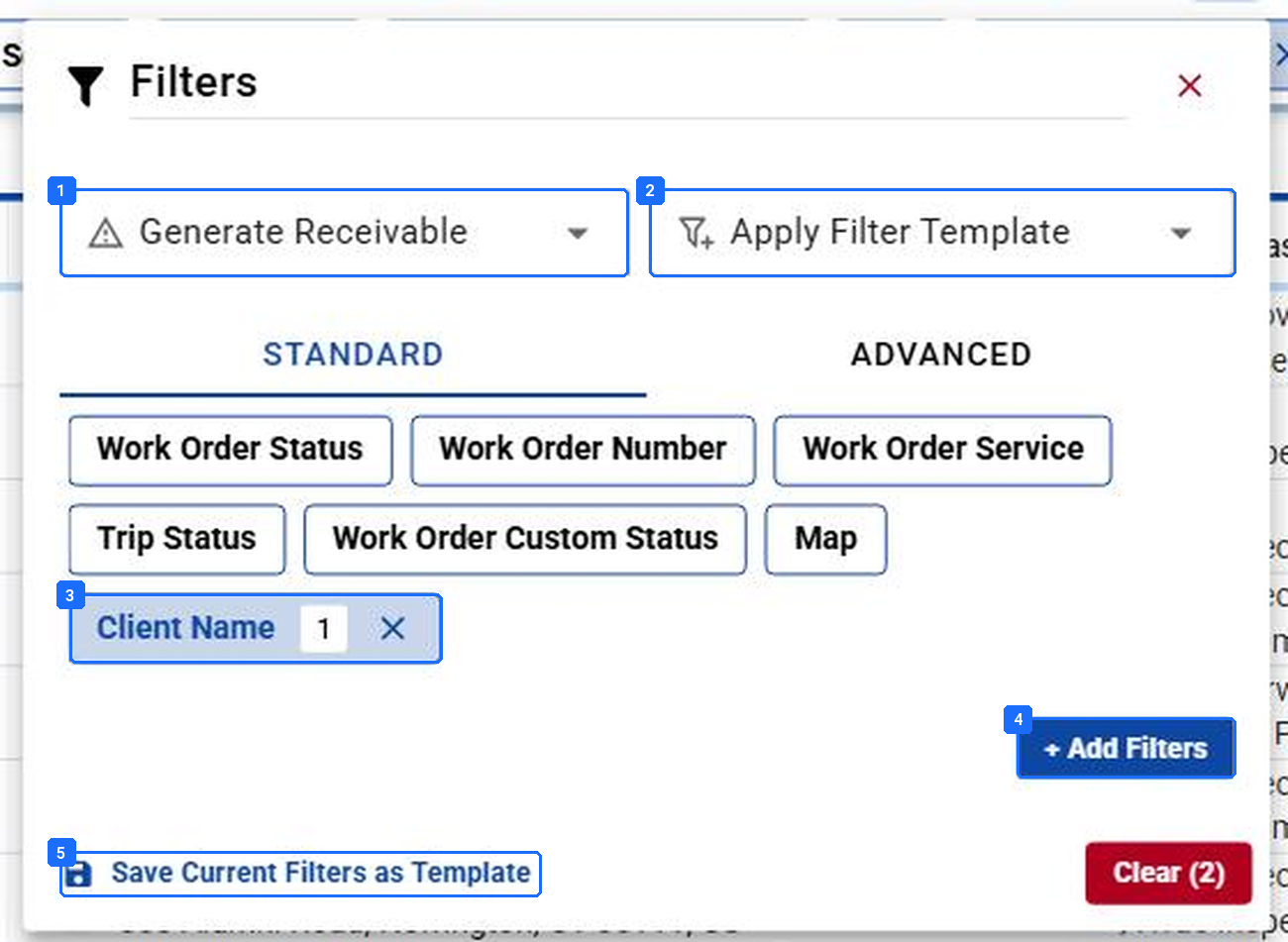
- The Action Filter in force.
- Apply Filter Template loads a saved set.
- Client Name, with the count of Clients picked.
- + Add Filters. Trip Service Check-In (greater than or equal, first day of the period) and Work Order Custom Status (equals Complete) are the two to add.
- Save Current Filters as Template, once the count is right.
The filter panel. Filters apply as you pick them; there is no Apply button to forget.
The operator. Read the operator, not only the value. Custom Status equals Complete and Custom Status not equals Complete are one click apart, and both return a list.

- The page checkbox. On its own it selects only the rows you can see.
- Generate Receivable. The bulk action for the selection. The tooltip names it.
- Export. The set to a spreadsheet, for the rate check in Part A.
- All n records are selected. Click SELECT ALL n RECORDS when the page is smaller than the set.
Select the set. The toolbar checkbox selects the page. The line under it selects everything the filter returned.
Result: The record count at the top of the grid equals the number of Work Orders you meant to bill, and the line under the toolbar says every one is selected.
P6 · Financial Processing. Generate in the background.
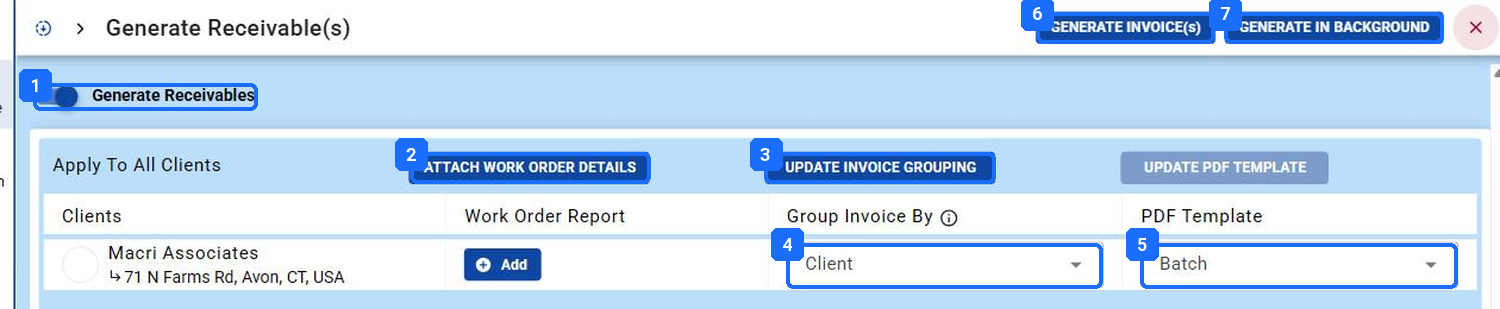
- Generate Receivables toggle. The Client side of this run.
- ATTACH WORK ORDER DETAILS. A Work Order Report on every invoice in the run. + Add on the row does it for one Client.
- UPDATE INVOICE GROUPING. Applies one grouping to every row.
- Group Invoice By: Client, Site, Work Order, or Event. This decides how many invoices come out.
- PDF Template. The Client’s default, or a different one for this run only.
- GENERATE INVOICE(s). Runs now and holds your screen.
- GENERATE IN BACKGROUND. Queues it. Anything over a screenful goes here.
Generate Receivable(s). One row per Client in the set. Read the row before you click.
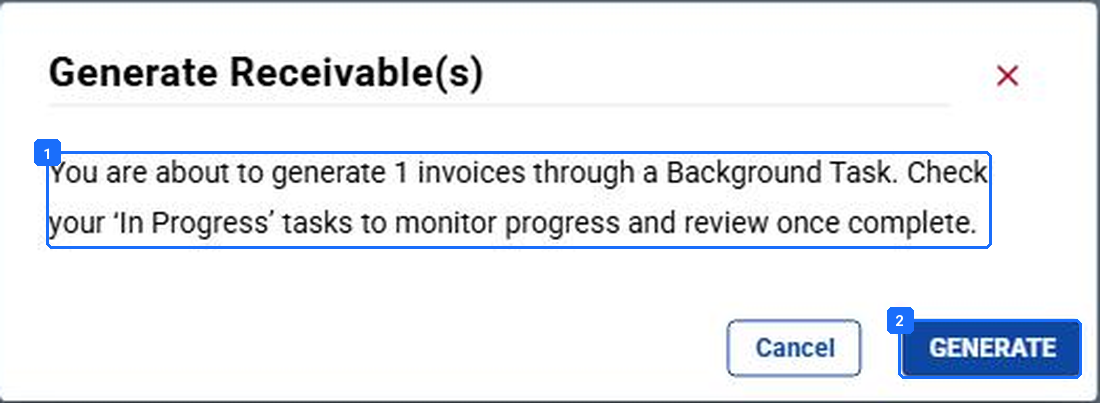
- Nineteen Work Orders grouped by Client became one invoice. If the number surprises you, Cancel and change the grouping.
- GENERATE. The run goes to Background Tasks.
The confirmation. It says how many invoices the grouping will produce.

- Bulk Invoice Generate, with the count done.
- Download Failures. Red means some Work Orders in the set could not invoice. Download the file and route each one by Work Order number.
Background Tasks. The run under Recently completed, and the bar that tells you whether every Work Order invoiced.
Failures. A red bar is not an error in the run. It is the list of Work Orders that were not ready. No rate, no Task, an unverified Trip, or an open quote. Fix the cause on the Work Order, never on an invoice, and run the set again.
The Vendor side. Select Generate Payable, filter the same way, select the set, and the same bulk action produces one row per Vendor. Payable drafts land on the Payables page.
Result: Background Tasks shows the run complete with no red bar, or a downloaded failures file with an owner for each Work Order on it.
P6 · Financial Processing. Payables: review, approve, forward.
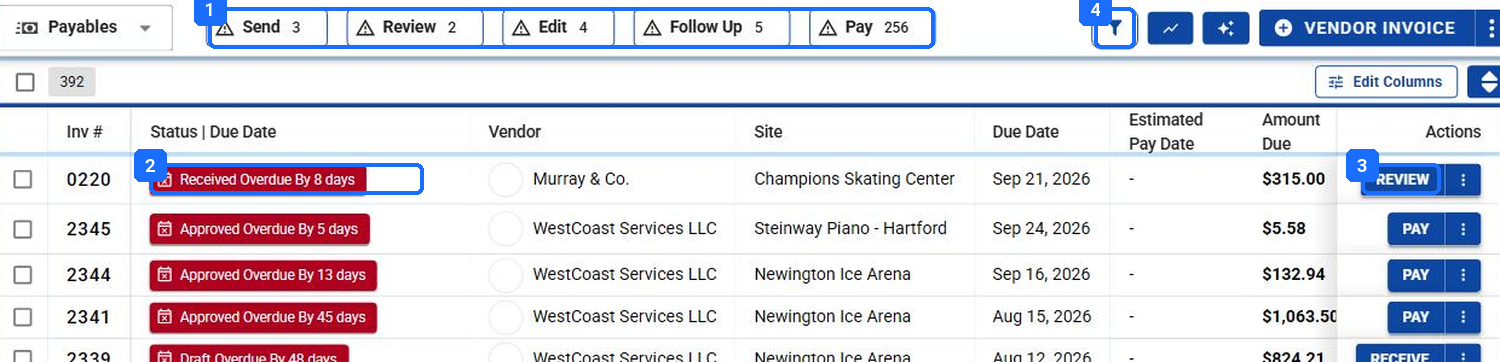
- Send, Review, Edit, Follow Up, Pay. Drafts from the run are in Send.
- Status and Due Date on each row.
- RECEIVE on a Draft, REVIEW on a Received, PAY on an Approved.
- The filter funnel. Vendor, Site, and Issue Date narrow the page to the run.
The Payables page after a run. Drafts arrive in the Send Action Filter; the primary button on each row is the next move.
Vouch first. Bulk generates. A person still reads each Vendor bill. RECEIVE, then REVIEW with the pager to walk the run without leaving the pane. Reject with a reason; never edit a Vendor’s numbers.
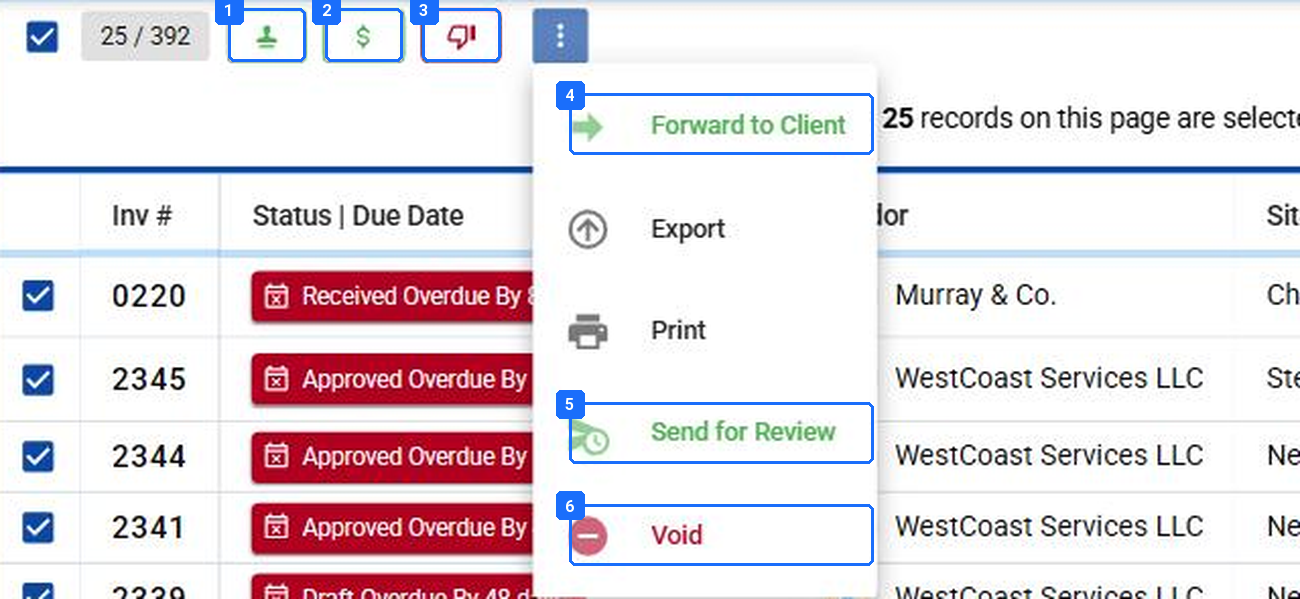
- Approve. The lock, for the whole selection.
- Pay. Opens Create Payment(s) for the eligible rows.
- Reject. Sends the selection back to the Vendor.
- Forward to Client. Approved Payables become Draft Receivables.
- Send for Review. The Vendor confirms the amount before you approve.
- Void. Cancels and keeps the numbers.
Bulk actions on Payables. Select the rows, then the toolbar or the menu.
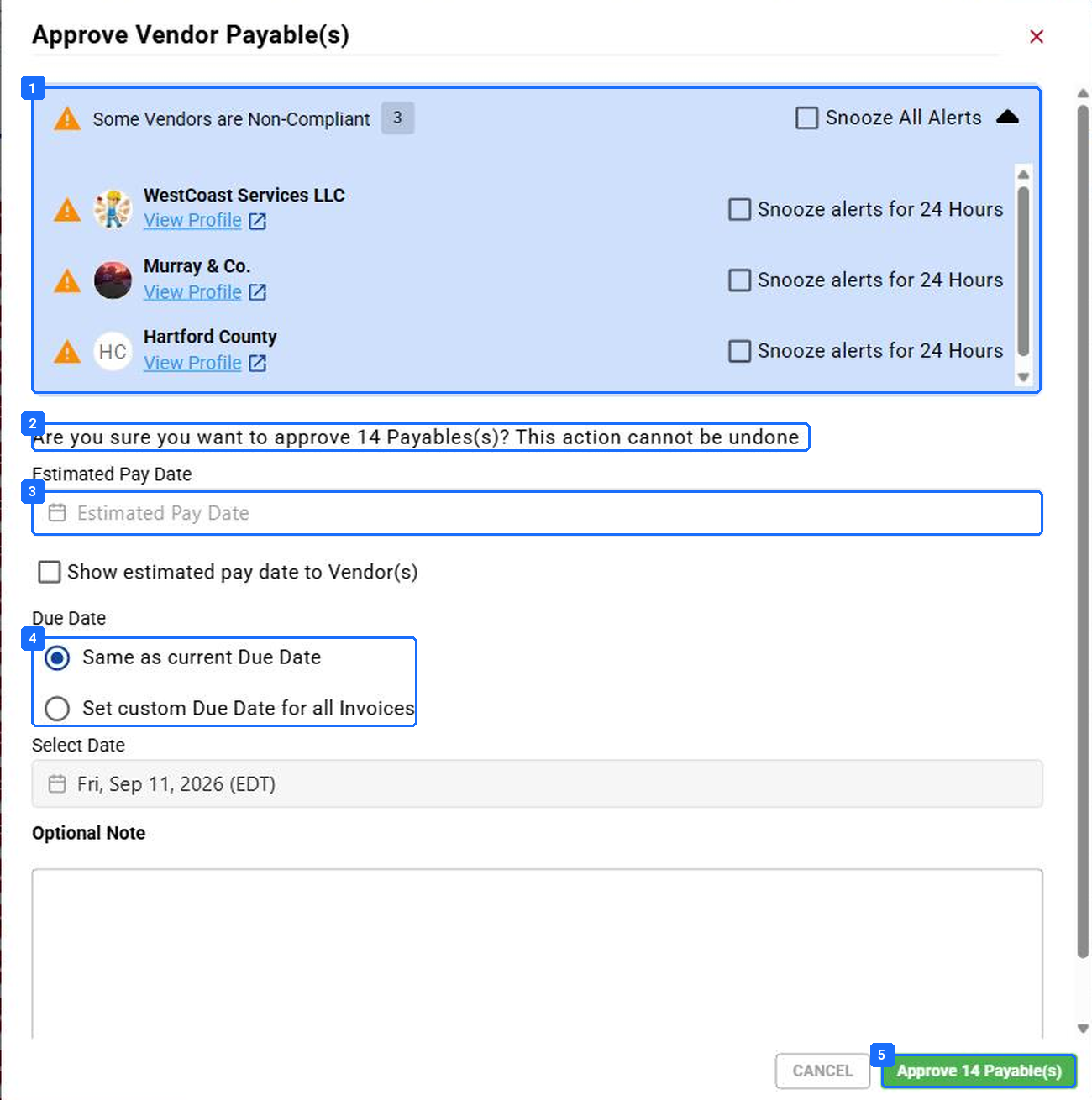
- Non-compliant Vendors in the selection, with a snooze per Vendor. Approve nothing while the compliance owner has not cleared them.
- How many of the selected rows are eligible. Twenty-five selected, fourteen approved.
- Estimated Pay Date, and whether the Vendor sees it.
- Due Date: keep each invoice’s own, or set one date for all.
- Approve. Cannot be undone.
Approve Vendor Payable(s). One dialog for the selection.
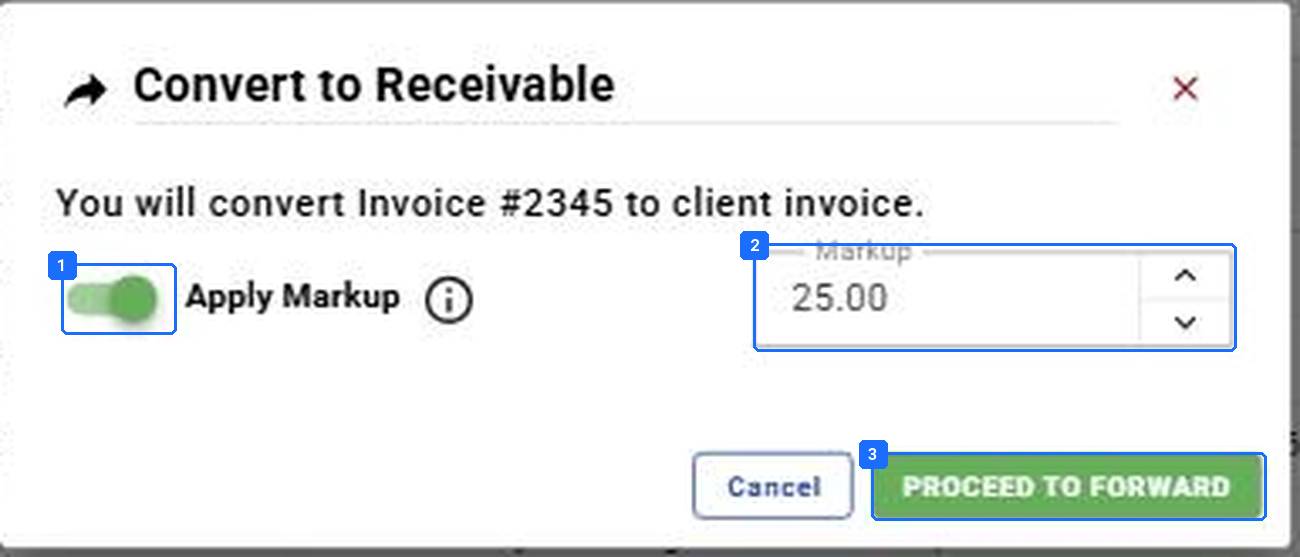
- Apply Markup. On by default.
- The markup, as a percentage of the Vendor’s cost. Remembered for the next forward.
- PROCEED TO FORWARD. A Draft Receivable per Payable, linked to the same Trips.
Forward to Client. Convert to Receivable, with the markup applied to every line.
Result: The Send and Review Action Filters are empty for the run, every Approved Payable shows a Last Accounting Sync Date, and the forwarded ones appear as Drafts on the Receivables page.
P6 · Financial Processing. Receivables: spot check, lock, send.
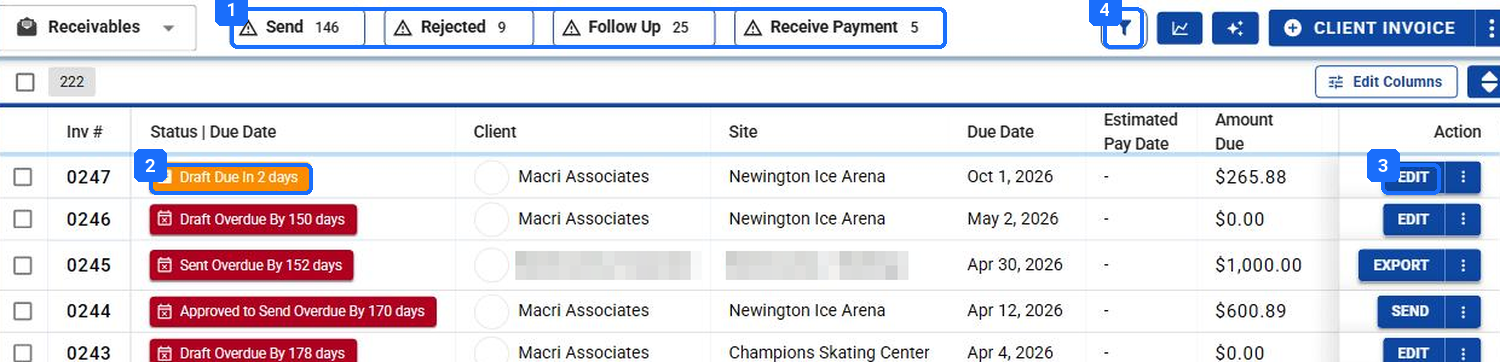
- Send, Rejected, Follow Up, Receive Payment. The run is in Send.
- Draft Due In 2 days. The terms came from the Client record.
- EDIT on a Draft. Open two or three from different Sites before you lock the run.
- The filter funnel. Client and Issue Date narrow the page to the run.
The Receivables page after a run. The draft from the run sits at the top with its Due Date already counting.
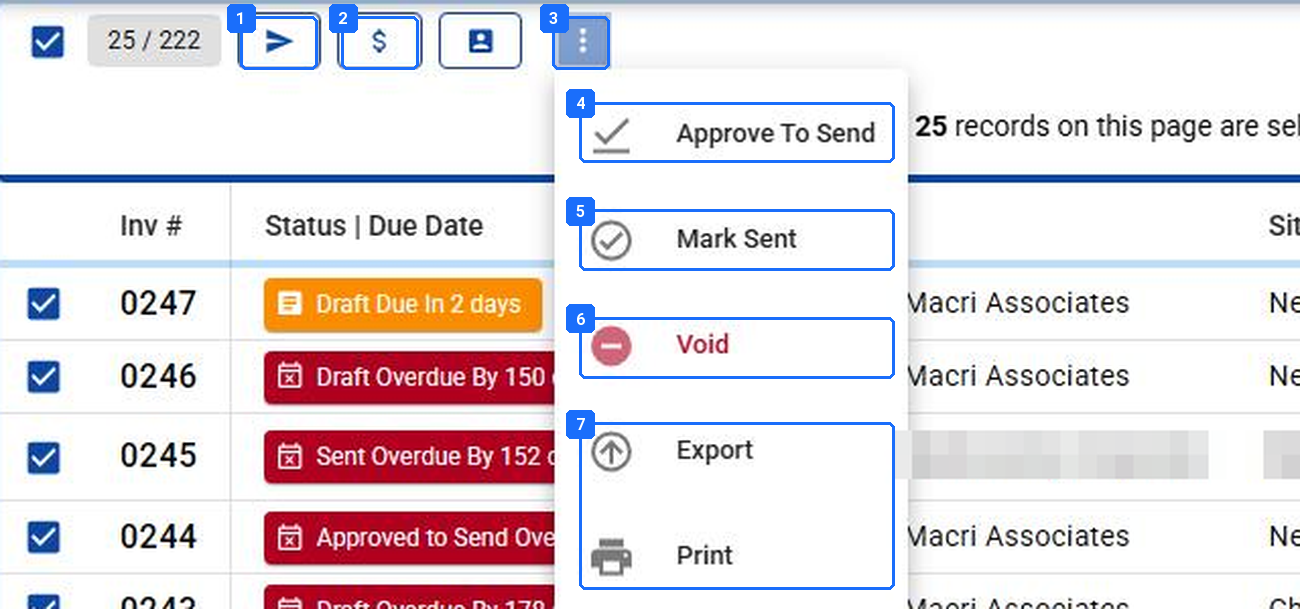
- Send. Emails the PDF to each Client’s Billing Contact Emails and marks the rows Sent.
- Receive Payment. Records payment in the platform, for accounts with no accounting system connected.
- The menu.
- Approve To Send. The lock. Lines are final; someone with the SEND button sends.
- Mark Sent. Sent without an email. For portal and CMMS Clients.
- Void. Cancels and keeps the numbers.
- Export and Print. The PDFs for the whole selection in one download.
Bulk actions on Receivables. Select the rows, then the toolbar or the menu.
Two locks. Approve To Send locks the lines. Send, or Mark Sent, starts the sync. Once a Receivable is Sent it cannot be edited. Void it and generate again.
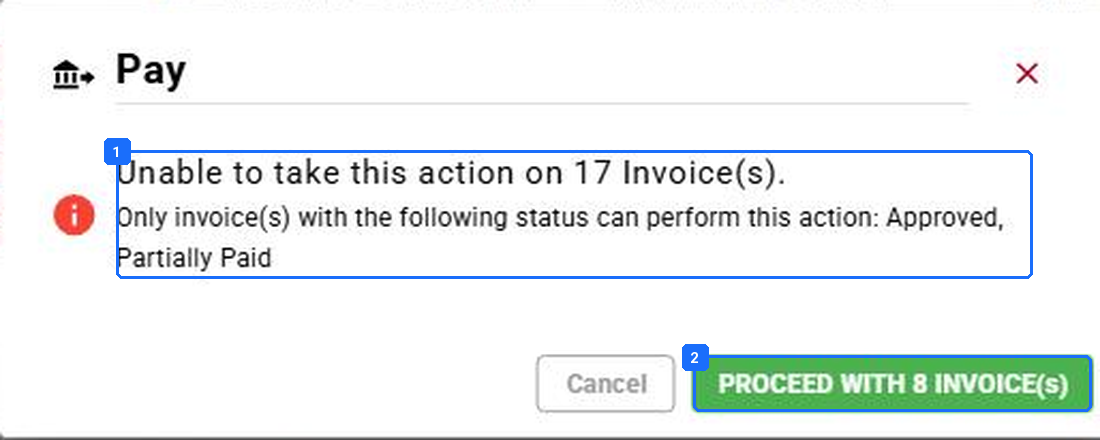
- Which statuses the action accepts, and how many rows it will skip.
- PROCEED WITH n. The rest stay where they are.
Eligibility. Every bulk action on both pages checks status first and tells you the count.
Result: The Send Action Filter is empty for the run, every Sent invoice shows a Last Accounting Sync Date, and nothing at Approved To Send is older than today.
P7 · Reconciliation and Closure. Pay in bulk.
Where money moves. On a connected account, pay in your accounting system. Create Payment(s) exists for accounts with no accounting system connected. One payment can cover every Approved Payable to one Vendor.
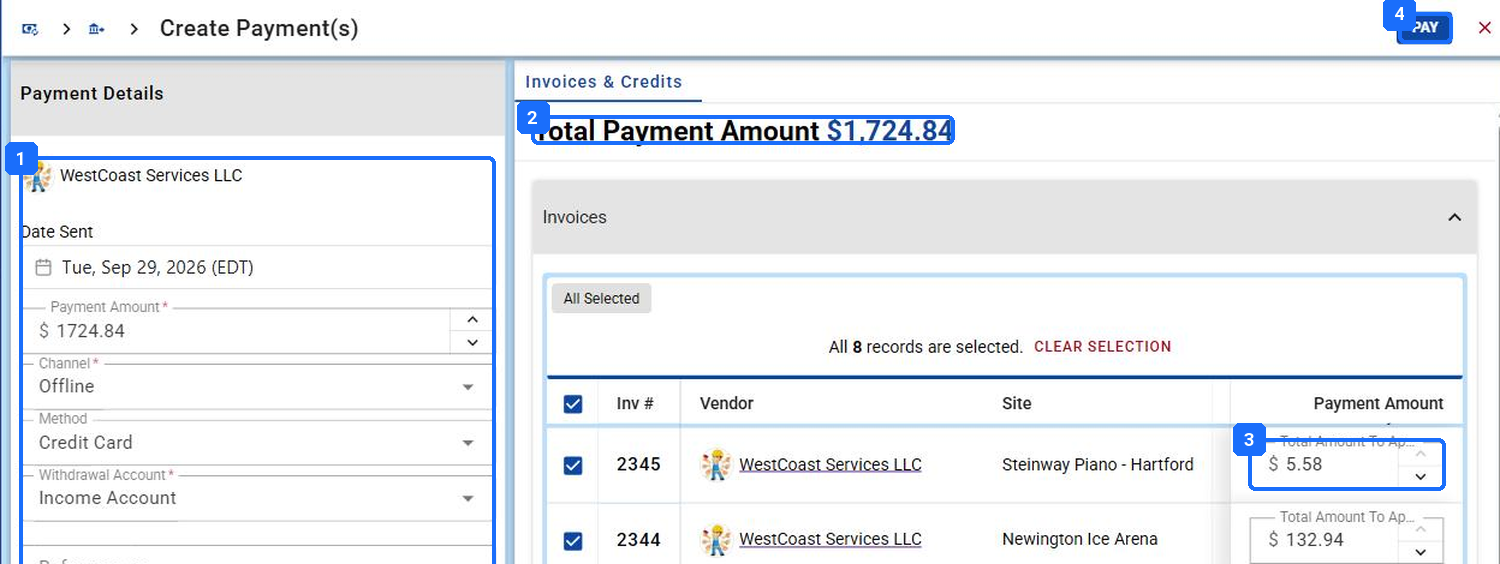
- Payment Details: Vendor, Date Sent, Payment Amount, Channel, Method, Withdrawal Account, Reference no., Memo.
- Total Payment Amount across the selection.
- Total Amount To Apply per invoice. Lower one for a partial payment.
- PAY. Each Payable moves to Paid, or Partially Paid.
Create Payment(s). Pay on a selection of Approved Payables opens it.
Recurring work. A Scheduled Service can generate its own invoices on its own schedule, one per Site or one for all Sites, with no batch at all. See Running Recurring Work.
Result: Every Payable you meant to pay shows Paid. Anything still Approved is an exception with an owner, routed by Work Order number, never adjusted to make the batch balance.
Where this goes wrong.
| # | What you hear | What happened | What to do |
|---|---|---|---|
| 1 | “The drafts are on the wrong Vendor, or the price is blank.” | The Vendor was replaced at the Site and the change had not reached the rate table when the Work Order was created. | Export the filtered set before you generate and read the Vendor and rate columns. Send the misses to operations by Work Order number. |
| 2 | “The filter returned the wrong Work Orders.” | The operator on Work Order Custom Status landed on not equals. | Read the operator on every filter. Save the good set as a template and load the template next time. |
| 3 | “Only 25 invoices generated.” | The page was selected, not the set. | Click SELECT ALL n RECORDS on the line under the toolbar before you generate. |
| 4 | “One invoice came out for the whole month.” | Group Invoice By was Client, and the Client wanted one per job. | Void it. Set Group Invoice By to Work Order, or Site, on that Client’s row and generate again. |
| 5 | “Background Tasks shows a red bar.” | Some Work Orders could not invoice: no rate, no Task, an unverified Trip, or a quote still open. | Download Failures. Fix each one on the Work Order, not on an invoice, then run the set again; the ones already invoiced are skipped. |
| 6 | “Approve said 14 of 25.” | Bulk actions act only on eligible statuses and skip the rest. | That is the control working. The skipped ones are still in Send or Review; clear them one at a time. |
What good looks like.
| Object | Pass when |
|---|---|
| The set | One Client or Vendor, one period, one status, a saved template, and a record count that matches the count you expected. |
| The run | Generated in the background. Background Tasks shows it complete, and the failures file, if any, has an owner per Work Order. |
| A Payable from the run | Vouched against the Vendor bill, approved in bulk with a Due Date and an Estimated Pay Date, and a Last Accounting Sync Date. |
| A Receivable from the run | Spot checked, Approved To Send, then Sent or Marked Sent, and a Last Accounting Sync Date. |
| The exception list | Short, written by Work Order number, and already with operations. Nothing was edited to make the totals agree. |
Questions? Contact your Customer Success team or email support@utilizecore.com.