
| Where this fits: Workflow Universe › Layer 2 · Shared Mechanics | For: Biller | |
| Read first: Bulk Invoicing | Read next: Biller Day |
Applies to: AP and AR | Web
Download the printable guide (PDF)
Quick Reference · AP and AR
Bulk reads what is already on the verified Trip and asks you nothing. Right Vendor, right rate, right Task before you generate; then four shared steps, and each side locks its own drafts.
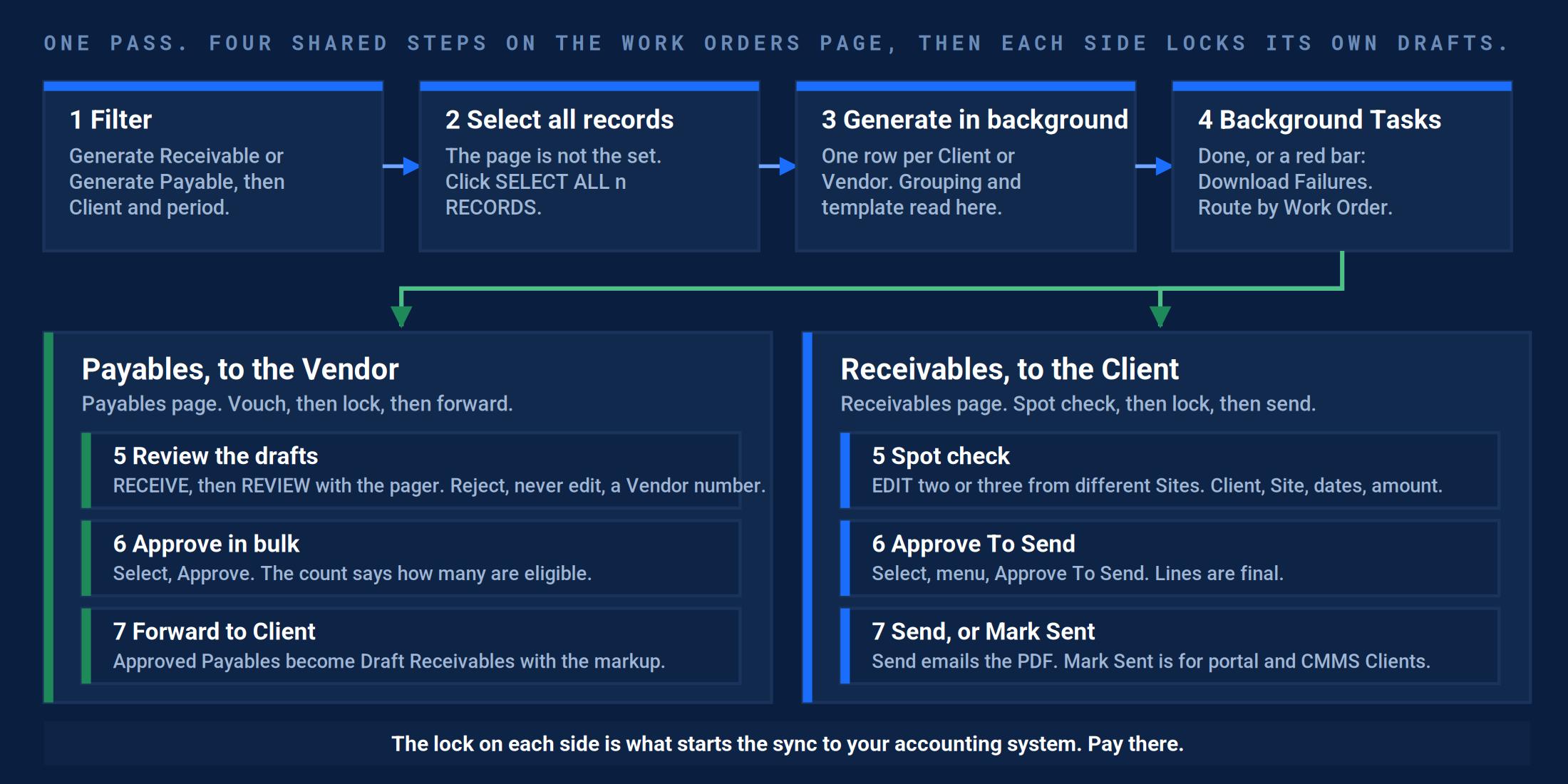
The pass.
| # | Do this | Where | The click | Proof it happened |
|---|---|---|---|---|
| 1 | Filter to the set | Work Orders | Generate Receivable, or Generate Payable. Funnel: Client Name, Trip Service Check-In greater than or equal to the first day, Work Order Custom Status equals Complete. Read the operator. Save as a template. | The record count equals the count you expected. |
| 2 | Check the rates | Work Orders › the cloud icon | Export the set. Read the Vendor and rate columns. Send blanks and placeholder Vendors to operations by Work Order number. | No blank rate, no placeholder Vendor, in the file. |
| 3 | Select the set | Work Orders | Toolbar checkbox, then SELECT ALL n RECORDS on the line under it. | All n records are selected. |
| 4 | Generate in background | Generate Receivable(s), or Payable(s) | One row per Client or Vendor. Set Group Invoice By, PDF Template, Work Order Report. GENERATE IN BACKGROUND, read the count, GENERATE. | Background Tasks: complete, no red bar. A red bar is the Download Failures list; route it by Work Order. |
| 5 | Vouch the Payables | Payables › Send, Review | RECEIVE, then REVIEW with the pager. Reject with a reason; never edit a Vendor’s numbers. Select the run, Approve. Forward to Client where the Client pays. | Send and Review empty for the run. Every Approved row has a Last Accounting Sync Date. |
| 6 | Spot check the Receivables | Receivables › Send | EDIT two or three from different Sites: Client, Site, dates, amount. Select the run, menu, Approve To Send. | Nothing in the run is still a Draft. |
| 7 | Send, or Mark Sent | Receivables | Send emails the PDF. Mark Sent for portal and CMMS Clients. Export or Print for the PDFs in one download. | Every Sent row has a Last Accounting Sync Date. Nothing at Approved To Send older than today. |
The rules that do not bend.
| Rule | Why |
|---|---|
| Bulk only what a rate table prices. | Per Hour (T&M), material markup, an NTE in play, a dispute: one at a time. The batch cannot use judgment. |
| The page is not the set. | The toolbar checkbox selects the rows you can see. SELECT ALL n RECORDS selects what the filter returned. |
| Read the count before you proceed. | Every bulk action checks status and tells you how many rows it will skip. The skipped ones are still yours. |
| Fix the Work Order, not the invoice. | A failure or a wrong draft comes from a Trip, a rate, or a Task. Fix it there, void the draft, run the set again. |
| Pay in accounting. | Approve and Send start the sync. Create Payment(s) is for accounts with no accounting system connected. |
Questions? Contact your Customer Success team or email support@utilizecore.com.