
1. A Brand-New Look for UtilizeCore
We’ve redesigned UtilizeCore to be cleaner, more consistent and easier to use. Every screen now shares one design.
- Easier to read: Less clutter and a clear structure on every page
- One typeface and text style: Headings and text look the same everywhere
- Consistent controls: Buttons and chips match in size, color and behavior
- Better accessibility: Colors meet contrast standards in every theme
- Calmer notifications: One message at a time, and errors stay on screen longer
More enhancements are coming soon!
2. Preview Any Record in the Layout You Choose
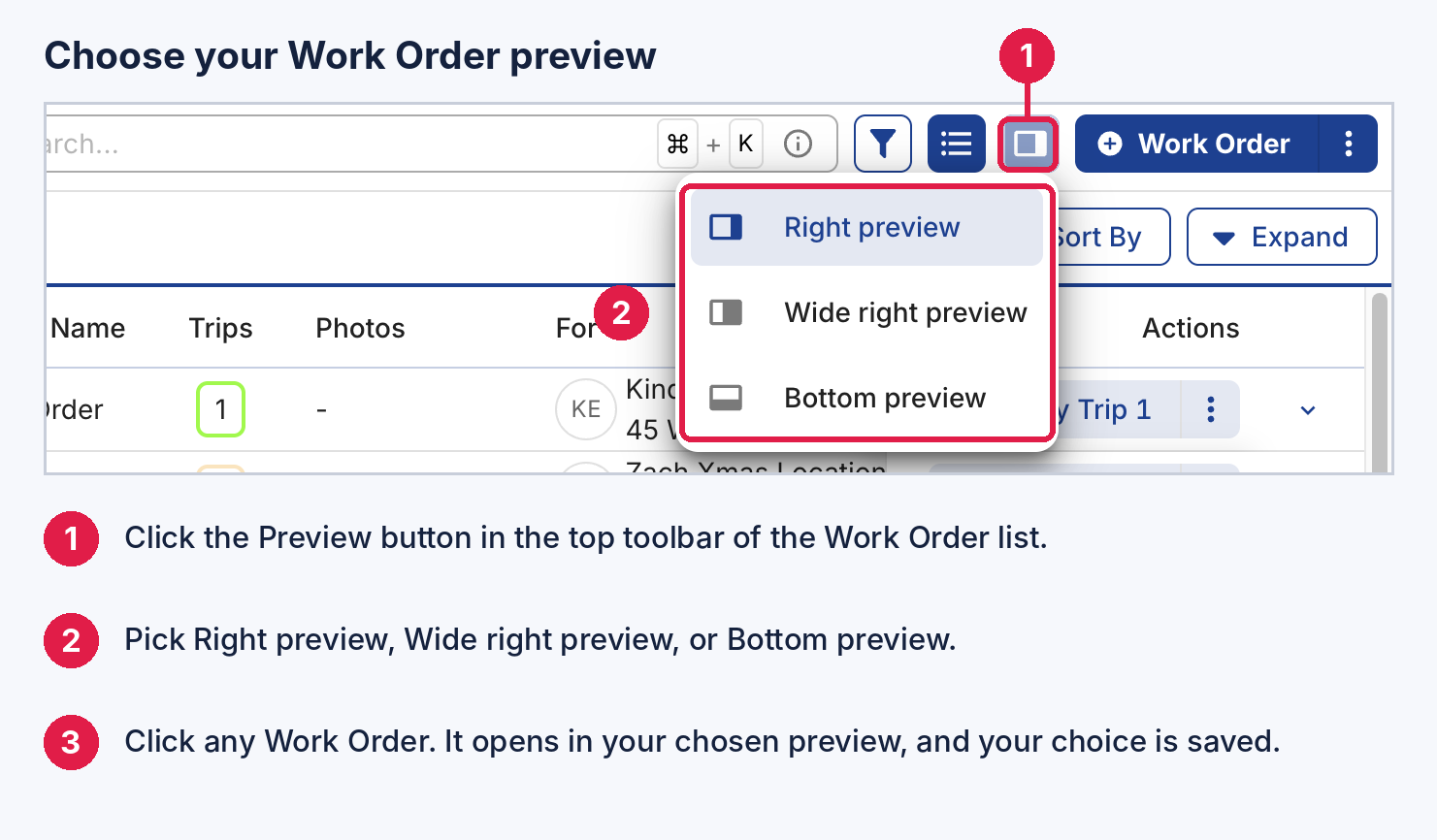
Preview any record without leaving your list. This works with Work Orders, Vendors, Clients, Sites, Invoices, Proposals and more. Pick a layout once, and it applies to every list:
- Right preview: A compact panel that keeps most of the list visible
- Wide right preview: The list stays on the left, the record’s details sit in the center, and the selected tab opens on the right
- Bottom preview: The record opens below the list, so the list keeps its full width
To choose a layout, click Preview in the list toolbar. Your filters, sort order and scroll position stay where you left them.
Learn more here.
3. Action Filters, Simplified
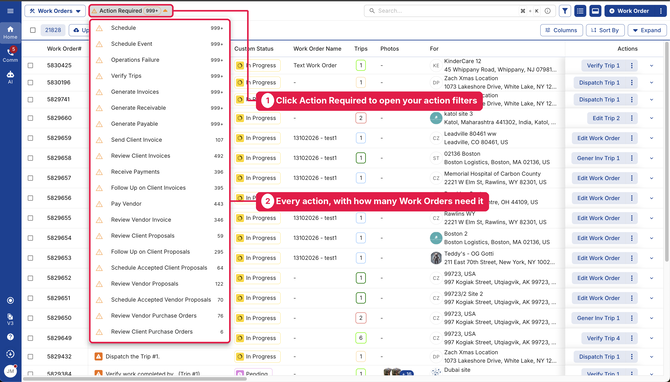
Action filters now sit in one Action Required dropdown instead of filling the top of the page.
- Every action in one place: Each action shows how many Work Orders need it
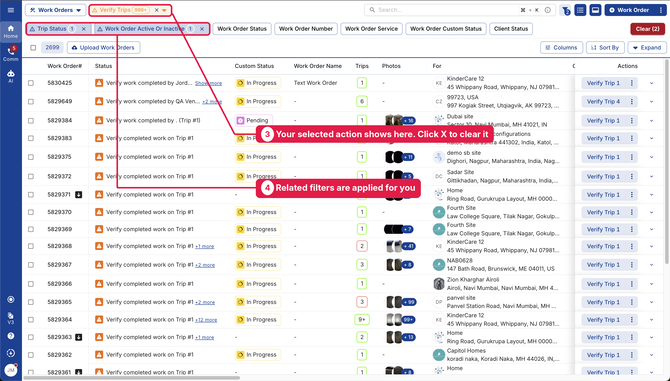
- Filter in one click: Pick an action, and its related filters are applied for you
- Clear in one click: Click X on the dropdown to return to the full list

4. Switch Between Map, List, or Both
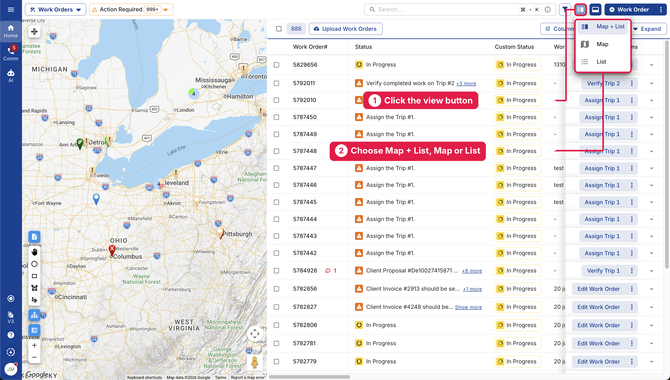
Work Orders, Trips, Sites, Vendors and Clients lists now offer three views from the toolbar:
- Map + List: The map and list side by side
- Map: A full-screen map
- List: A full-width list
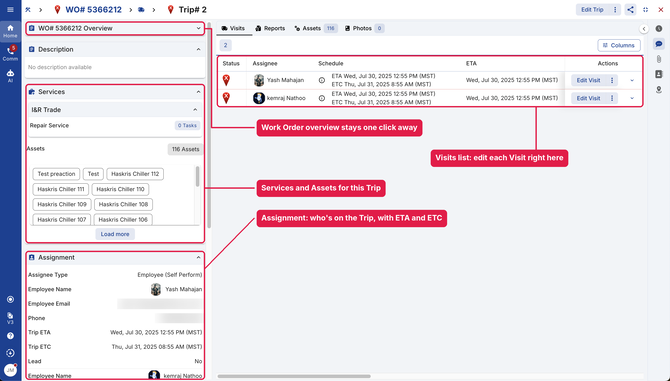
5. A Simpler Trip View
Everything for a Trip is now on one page:
- Work Order overview: A collapsible panel at the top keeps the Work Order’s details in view
- Services and Assets: The Trip’s services, tasks and assets
- Assignment: Who’s assigned, plus the Trip’s ETA and ETC
- Visits: Each Visit’s status, assignee, schedule and ETA, with editing right from the list
6. Details That Fit Any Screen
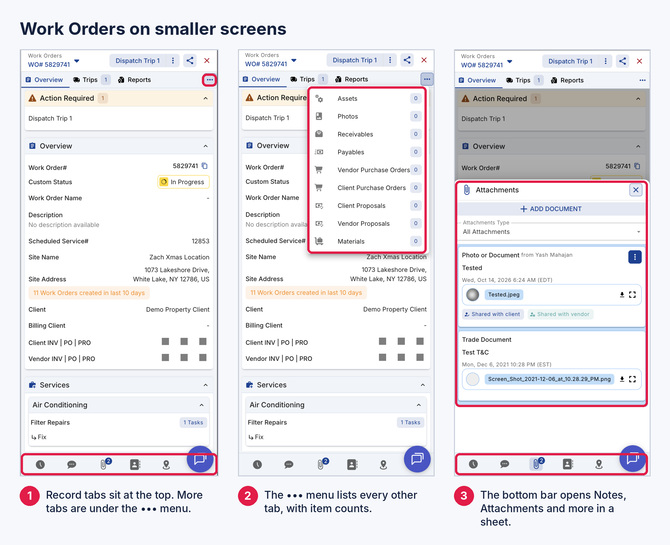
Work Order and Trip details now adapt to desktop, tablet and phone:
- Tabs at the top: Tabs that don’t fit move under the ••• menu, with their counts
- Bottom bar on smaller screens: Opens Activity, Notes, Attachments, Contacts and Site Details in a sheet
- Consistent header: Next action, share and close are always in the same place
7. Right Panel Shortcuts
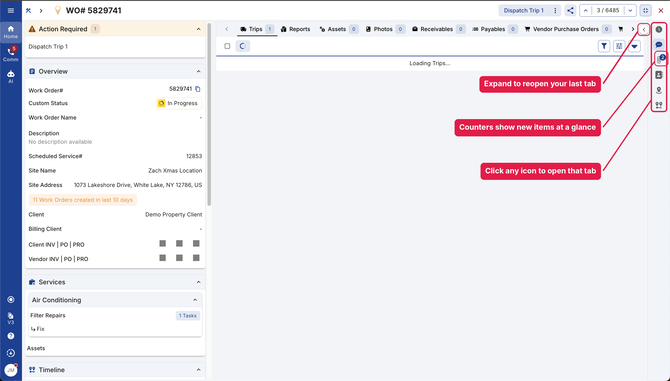
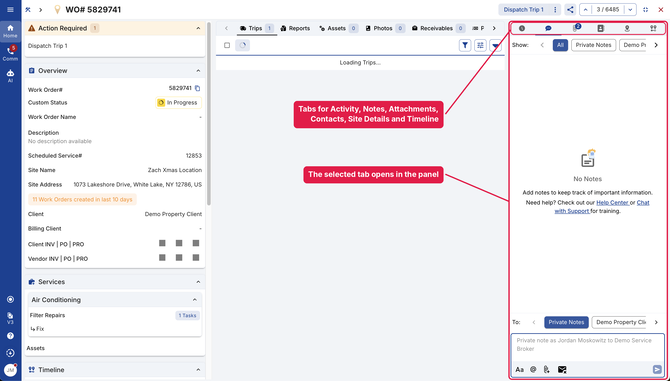
When the right panel is collapsed, it becomes a slim row of icons. Click an icon to open that tab, or click Expand to reopen the last tab you viewed.
- Counters on collapsed icons: See new Notes, Attachments and Contacts at a glance
- Shortcuts: Activity History, Notes, Attachments, Contacts, Site Details and Timeline
Learn more here.
8. Other Improvements
- Bulk actions on list pages are now under one Bulk Actions button
- Fixed an issue where opening a Trip while editing a Work Order could leave you without a Save button
Any questions? Contact your Account Manager, or email support@utilizecore.com.