
Overview
The right panel on a Work Order or Trip gives you one-click access to Activity History, Notes, Attachments, Contacts, Site Details and Timeline. You can collapse it to a slim column of icons or expand it to work in a tab.
Collapsed
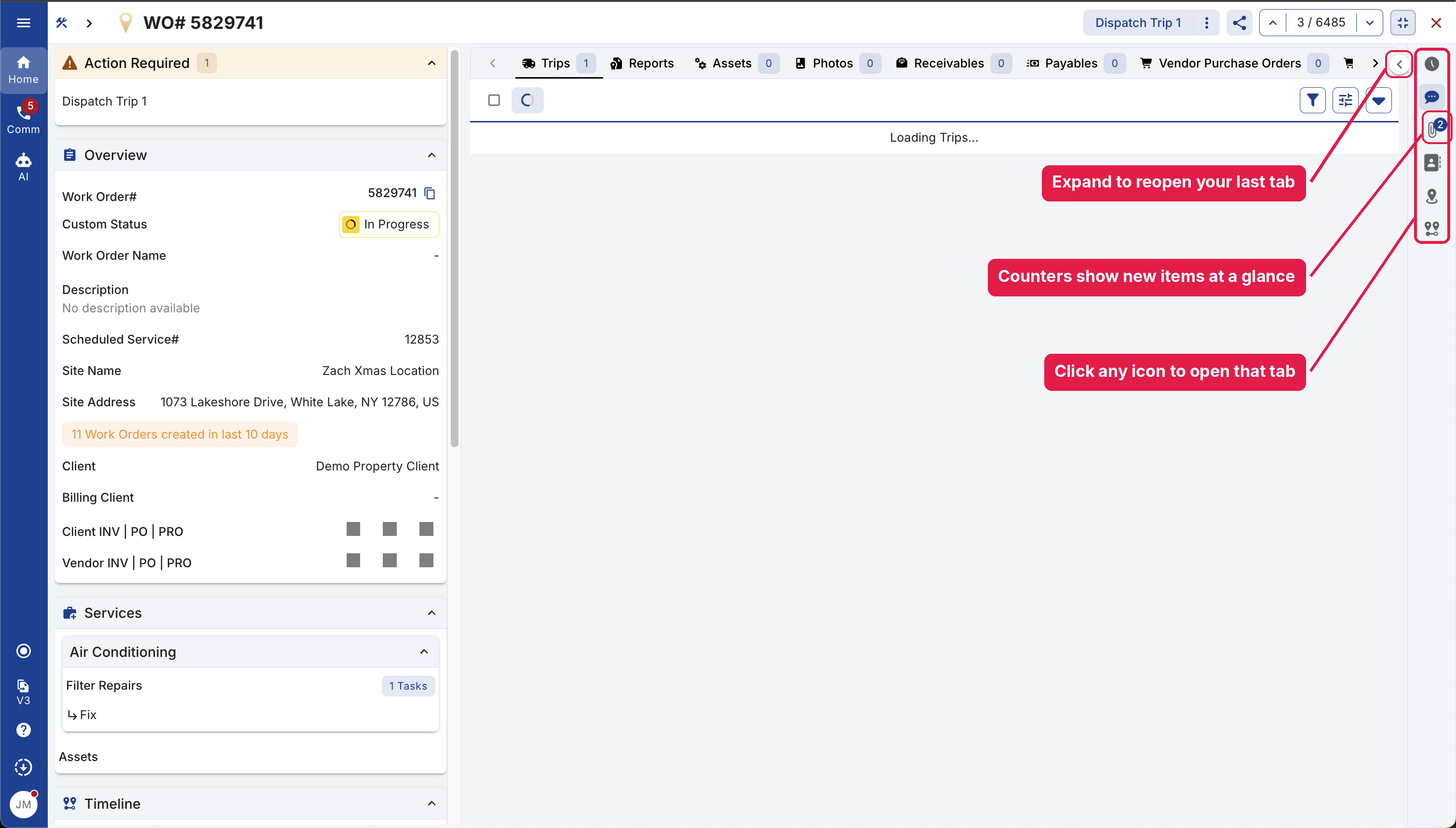
When collapsed, the panel shrinks to a slim column of icons along the right edge, so the Work Order has more room.
- Counters show on the collapsed icons, so you can see new Notes, Attachments and Contacts at a glance without opening the panel.
- Click any icon to open the panel to that tab.
- Click the expand arrow to reopen the tab you last viewed.
Expanded
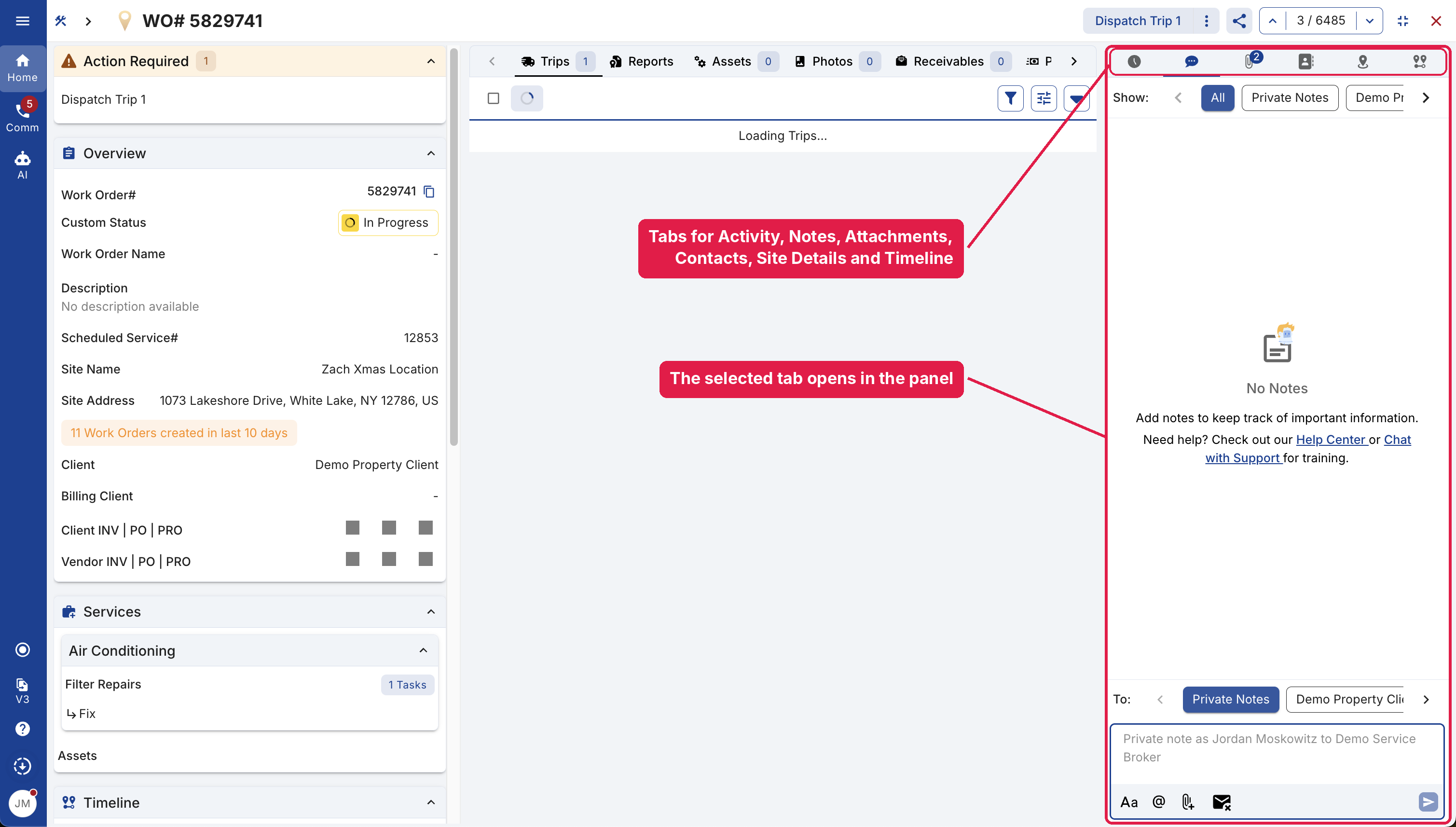
When expanded, the panel opens beside the Work Order with a tab for each resource across the top. The selected tab, such as Notes, opens below, where you can read and add items without leaving the page.
On smaller screens
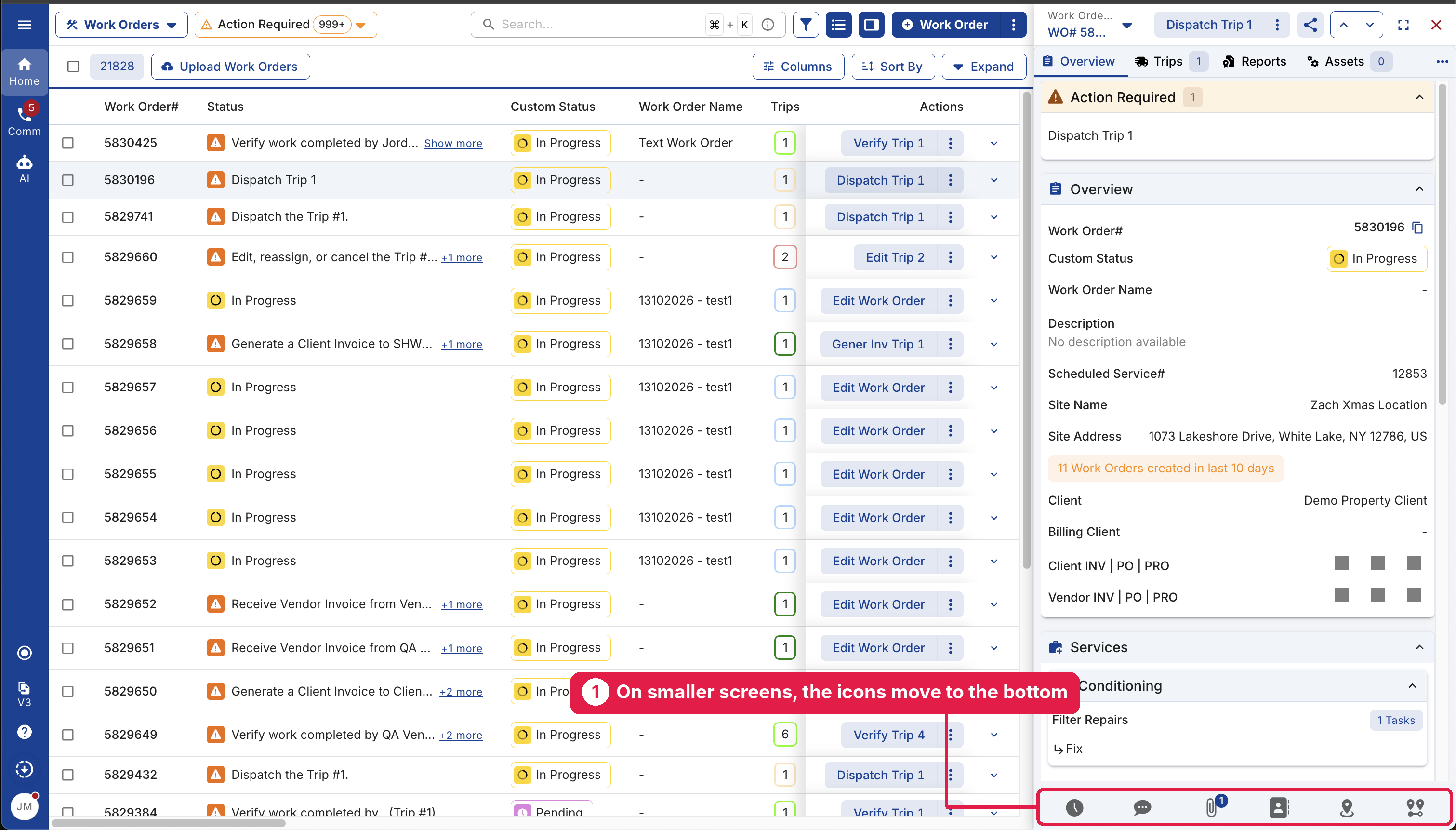
When there isn’t room for the side panel, such as in a narrow window or a Right preview, the icons move to a bar along the bottom of the page.
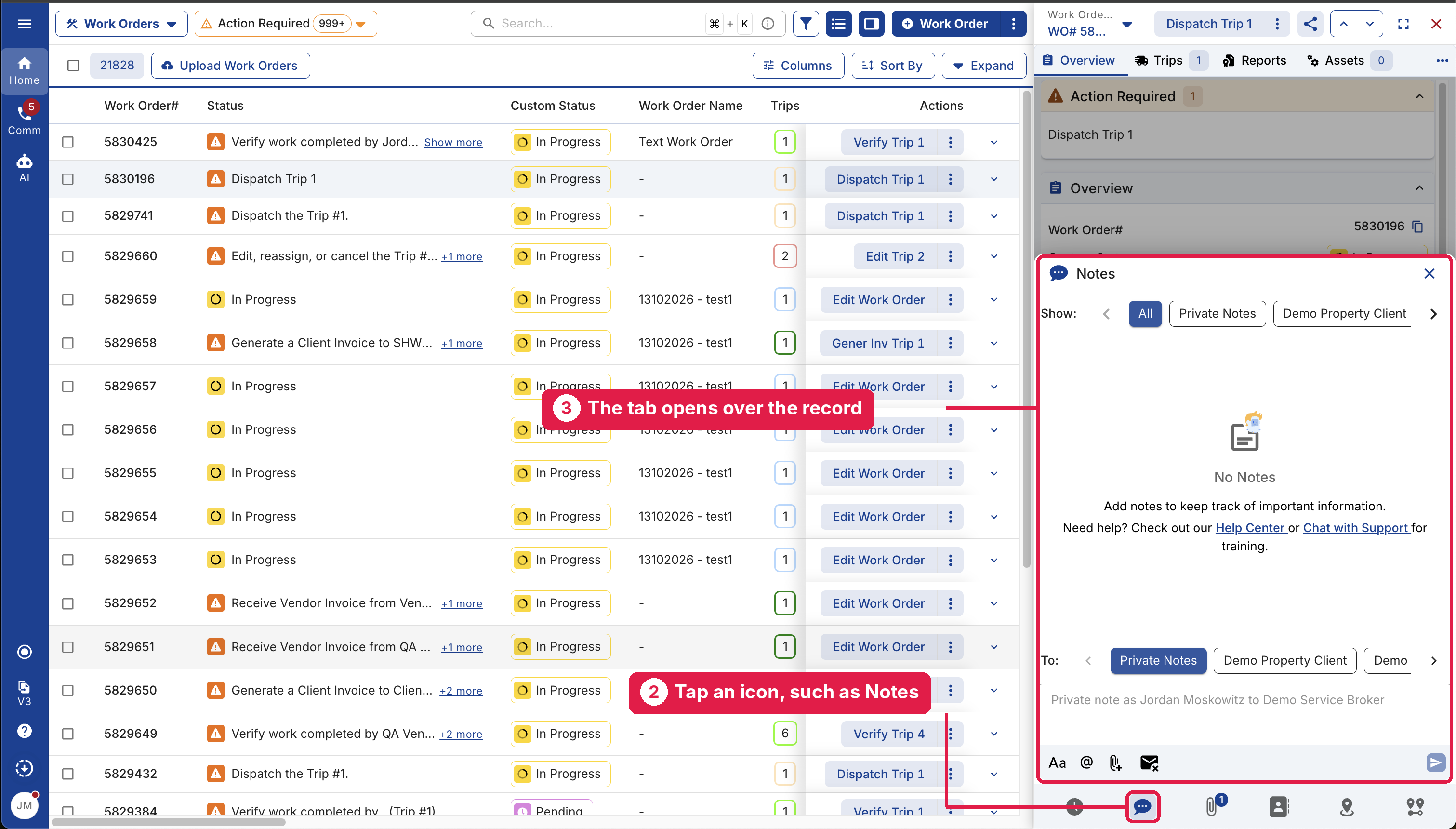
Click an icon to open that tab over the top of the record. Click X to close it and return to the record.
Frequently asked questions
Where is the right panel?
On any Work Order or Trip, along the right edge of the page.
What do the numbers on the icons mean?
They show how many items are in that tab, such as Attachments, so you can spot new activity without opening the panel.
What happens on a small screen?
On phones and narrow windows, the same icons appear in a bar along the bottom. Tapping one opens that tab in a sheet.
Any questions? Contact your Account Manager, or email support@utilizecore.com.