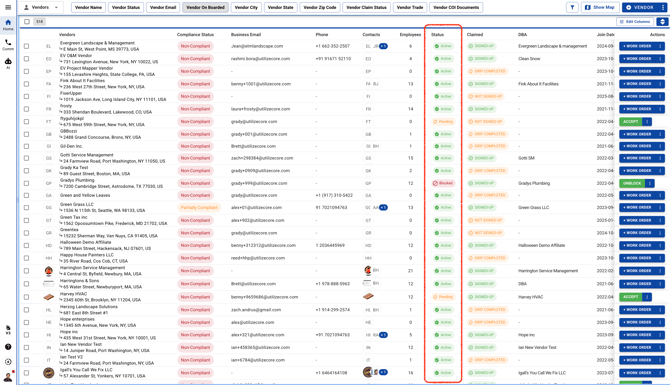
Vendor Status column can show the following statuses:
**Pending:** After you invite a Vendor to UtilizeCore, their status in the system will change to Pending.
**Active:** To move a Vendor to Active status, you’ll need to accept them.
Note: If you have a QBD or QBO integration set up with UtilizeCore, the Vendor Status must be Active for the Vendor Profile to sync to QBO or QBD.
**Blocked:** You can block a Vendor in UtilizeCore, which will change their status to Blocked. In this state, the Vendor cannot be dispatched to any new Work Orders or assigned to any Sites.
**Vendor Rejected:** If a Vendor rejects the email invitation to sign up, their status will automatically change to Vendor Rejected.
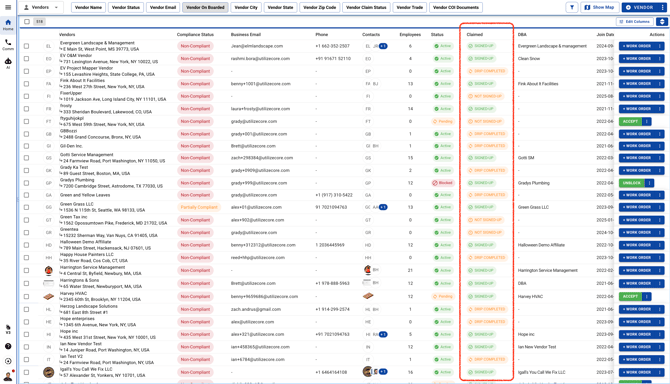
**Signed-Up:** As soon as a Vendor signs up, their status will update to Signed-Up.
**Not Signed-Up:** After a Vendor has been added to your Network, they’ll appear as Not Signed-Up until they complete registration.
**Drip Completed:** After the Vendor is invited to UtilizeCore, they’re added to a drip campaign—an automated series of email reminders encouraging them to sign up. To learn more about how this campaign works and the email frequency, please refer to the file linked here.
**Drip 1:** If the Vendor hasn’t signed up by the time the initial drip campaign is complete, you can resend the invitation and start the Drip 1 campaign.
**Drip 2:** If the Vendor still hasn’t signed up after Drip 1 is complete, you can resend the invitation and start the Drip 2 campaign.
**Drip 3:** If the Vendor hasn’t signed up after Drip 2 is complete, you can resend the invitation and start the Drip 3 campaign.