Vendor Portal: Custom Status Visibility Controls
Control which vendors can see and update custom work order statuses
Applies to: Brokers
Module: Vendor Portal Settings
Release: April 2026
Overview
You now have full control over whether vendors can see custom statuses on their portal. This
feature gives brokers two layers of control: which vendors can view custom statuses, and which of
those vendors can also update them.
Previously, custom statuses were visible to all vendors by default. With this update, you can restrict
visibility on a vendor-by-vendor basis and limit which statuses each vendor is allowed to change.
ℹ If the custom status visibility setting is turned off, no vendors will see any custom statuses on their
portal. This is the default state.
How It Works
Once enabled, the feature branches into two layers of permissions:
| Setting | What Happens |
| Visibility OFF | No vendors see any custom statuses on their portal |
| Visibility ON | Only vendors you select can see custom statuses on their portal |
| Update Enabled | Selected vendors can also update specific statuses you choose |
Setup Walkthrough
Follow these steps to configure custom status visibility for your vendor portal.
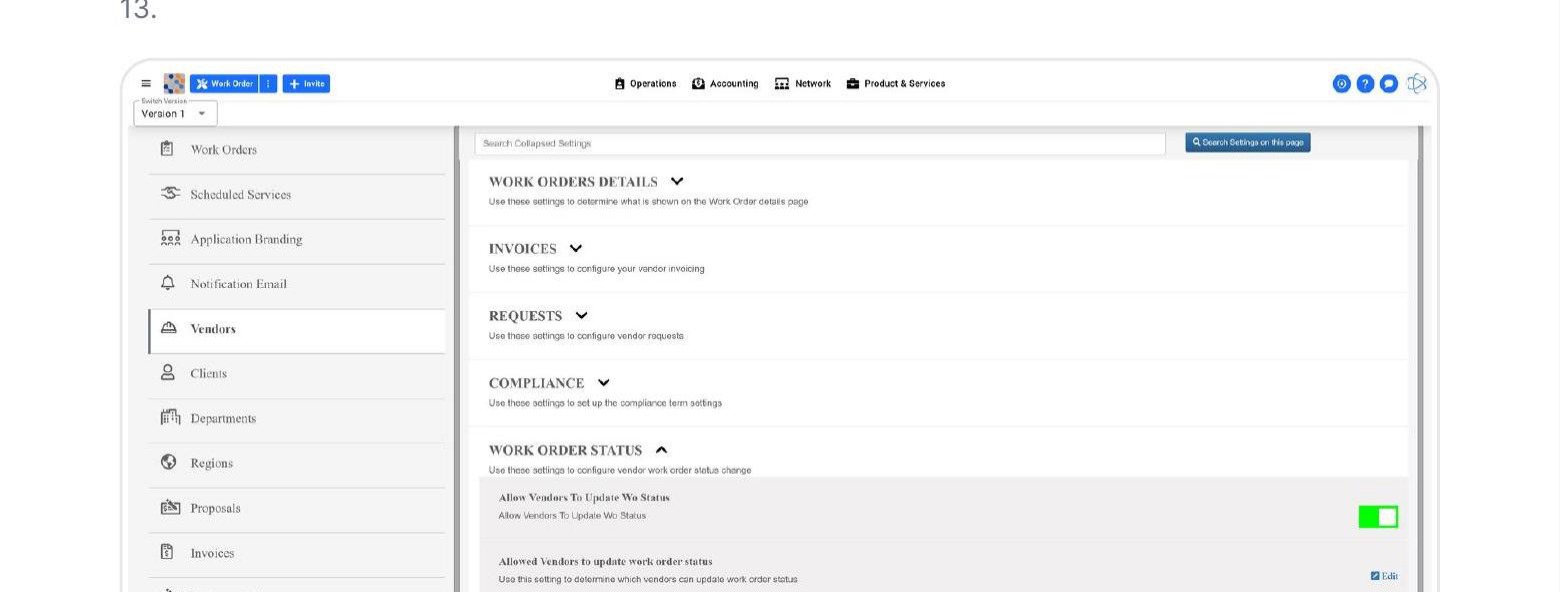
Navigate to: Main Menu > Settings > Vendors > Work Order Status
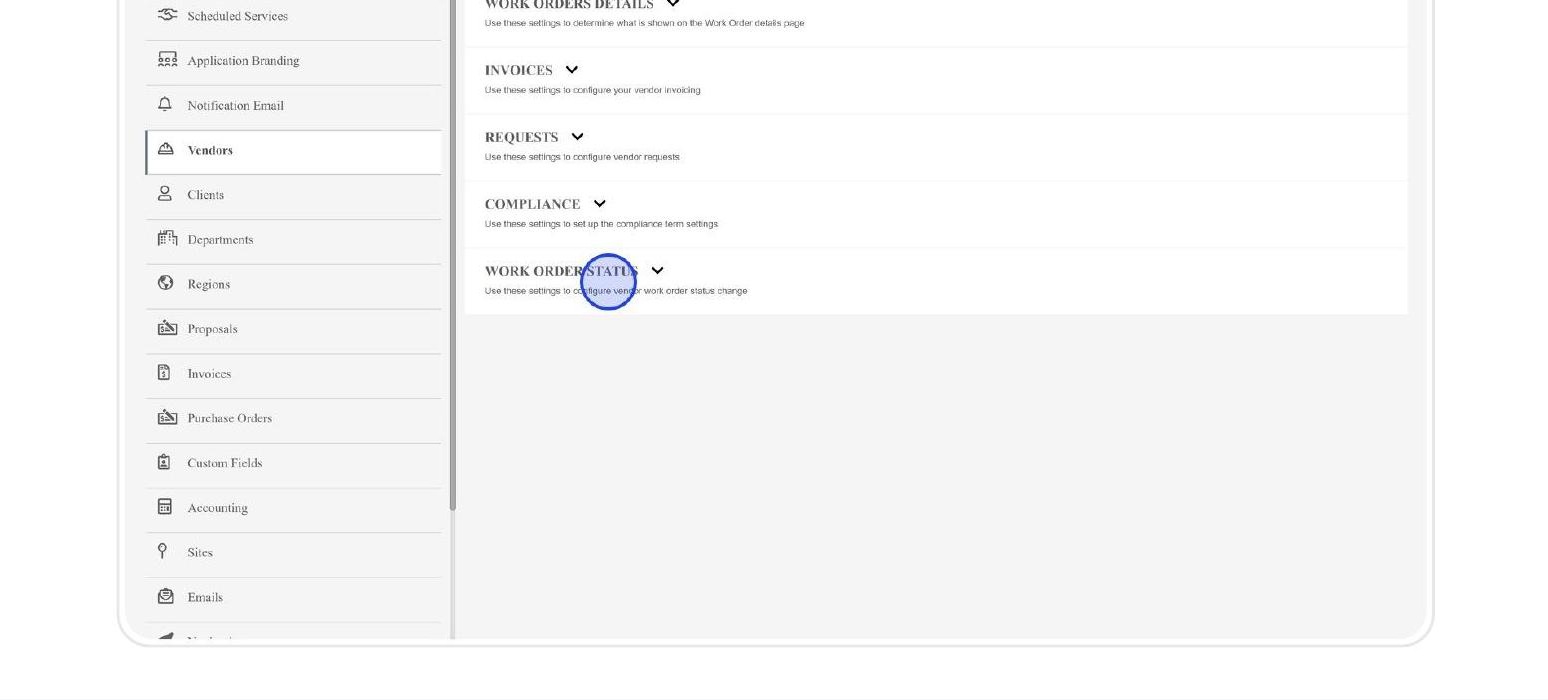
1 - Enable the Master Toggle
Turn on "Allow Vendors To Update Wo Status" to activate the feature. This is the master switch. When this
is off, no vendors see any custom statuses on their portal.
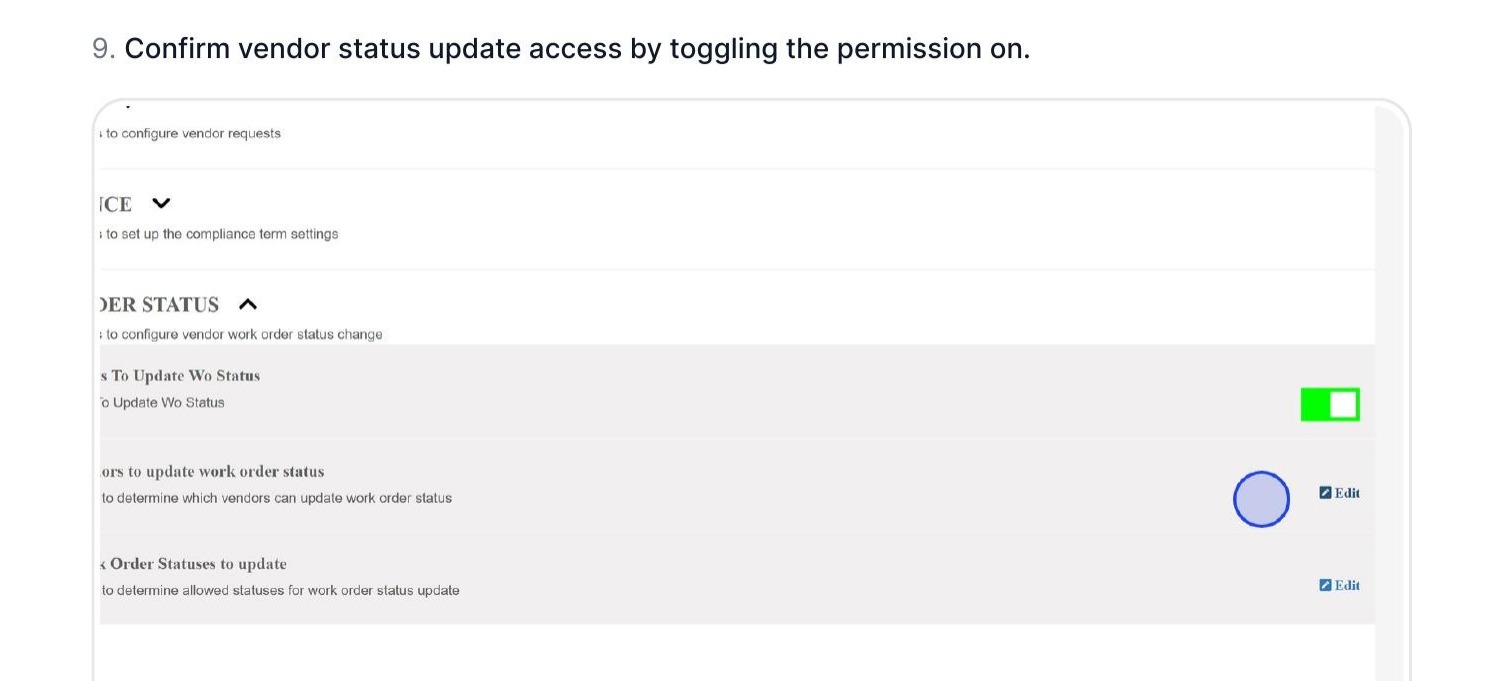
2 - Select Which Vendors Get Access
Click Edit next to "Allowed Vendors to update work order status." Select vendors from the left-hand list and move them to the right-hand side, then click Save. Only these vendors will see custom statuses on theirportal.
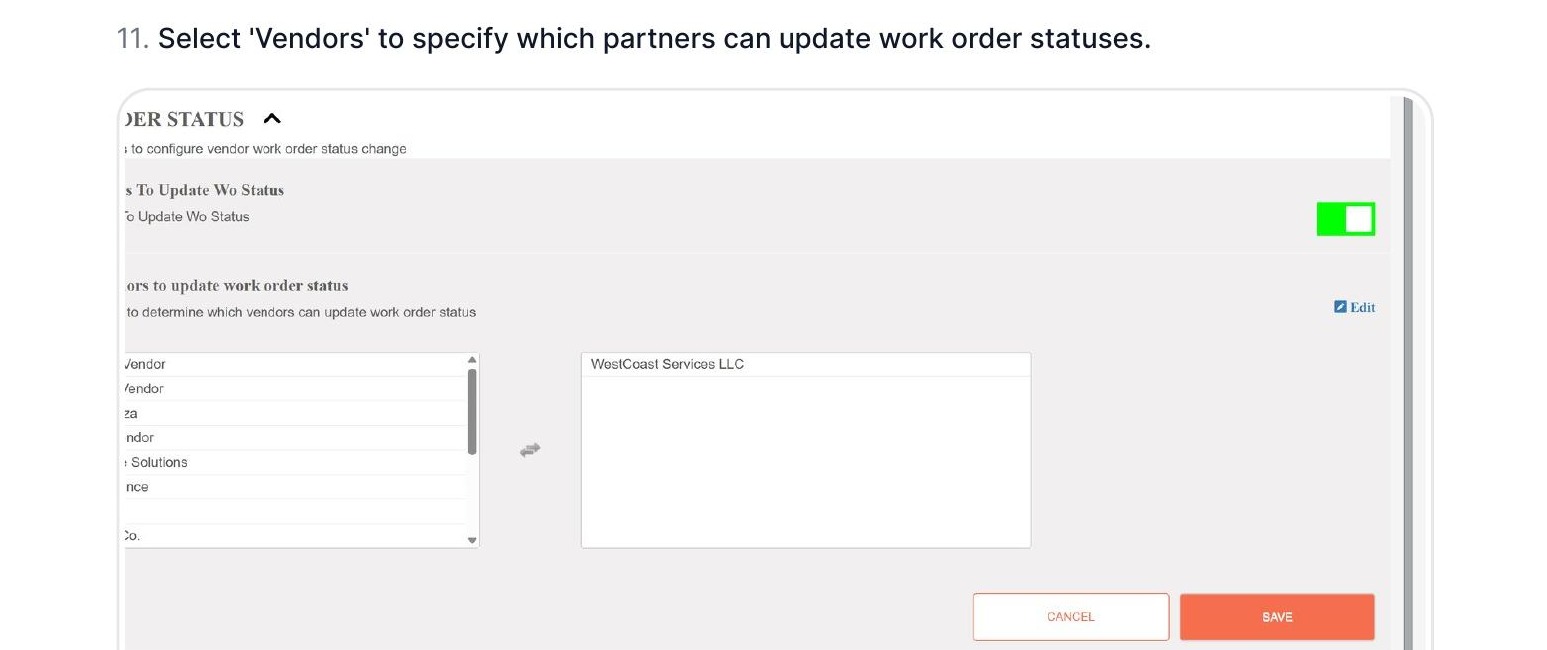
3 - Choose Allowed Statuses
Click Edit next to "Order Statuses to update" to pick which specific statuses the selected vendors can change. Move the desired statuses to the right and click Save.
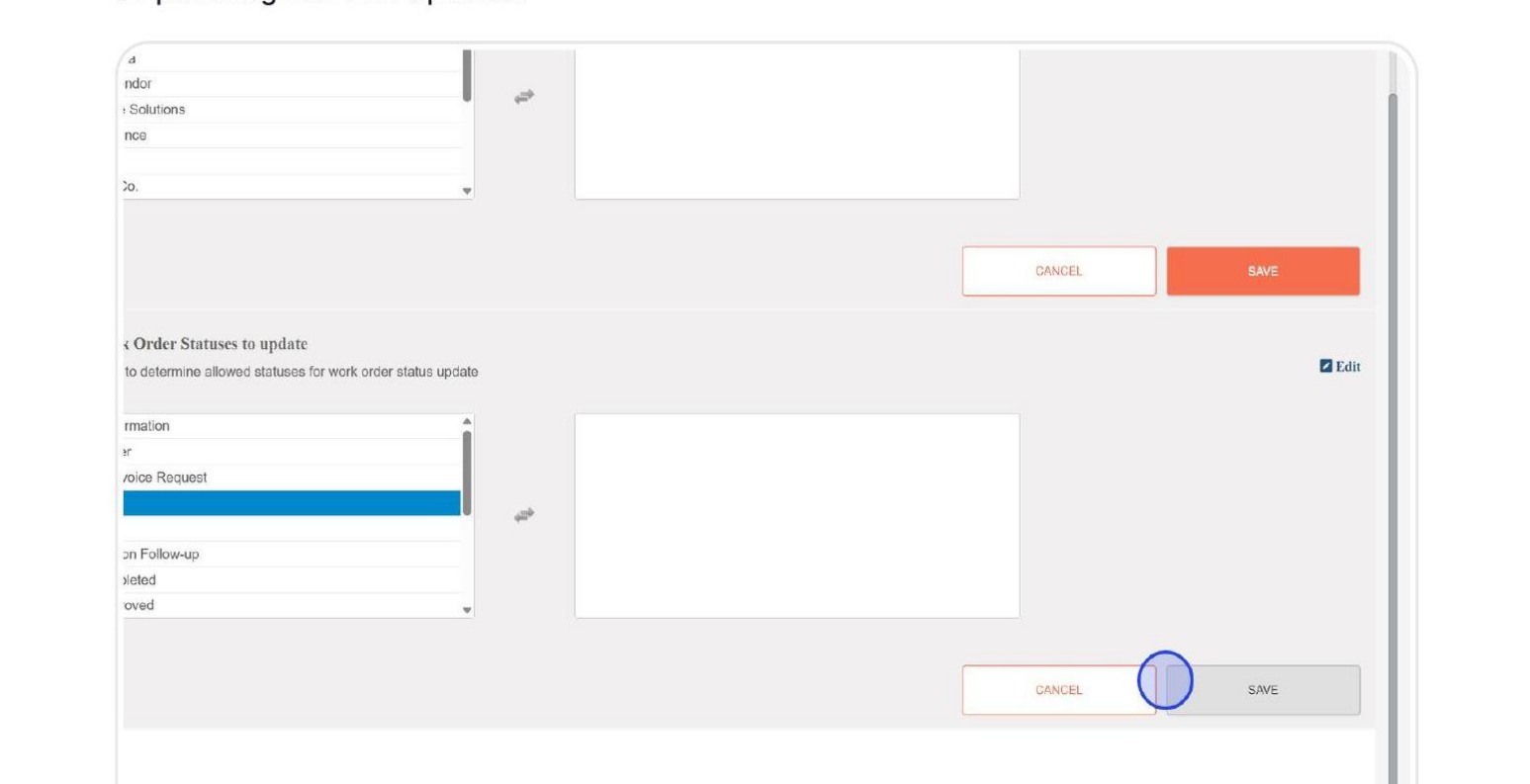
4 - The status permissions in Step 3 apply to all vendors selected in Step 2. If you need different
permissions per vendor, configure at the individual vendor level.
Completed Configuration
When fully configured, your Work Order Status settings will look like this:
What Vendors See
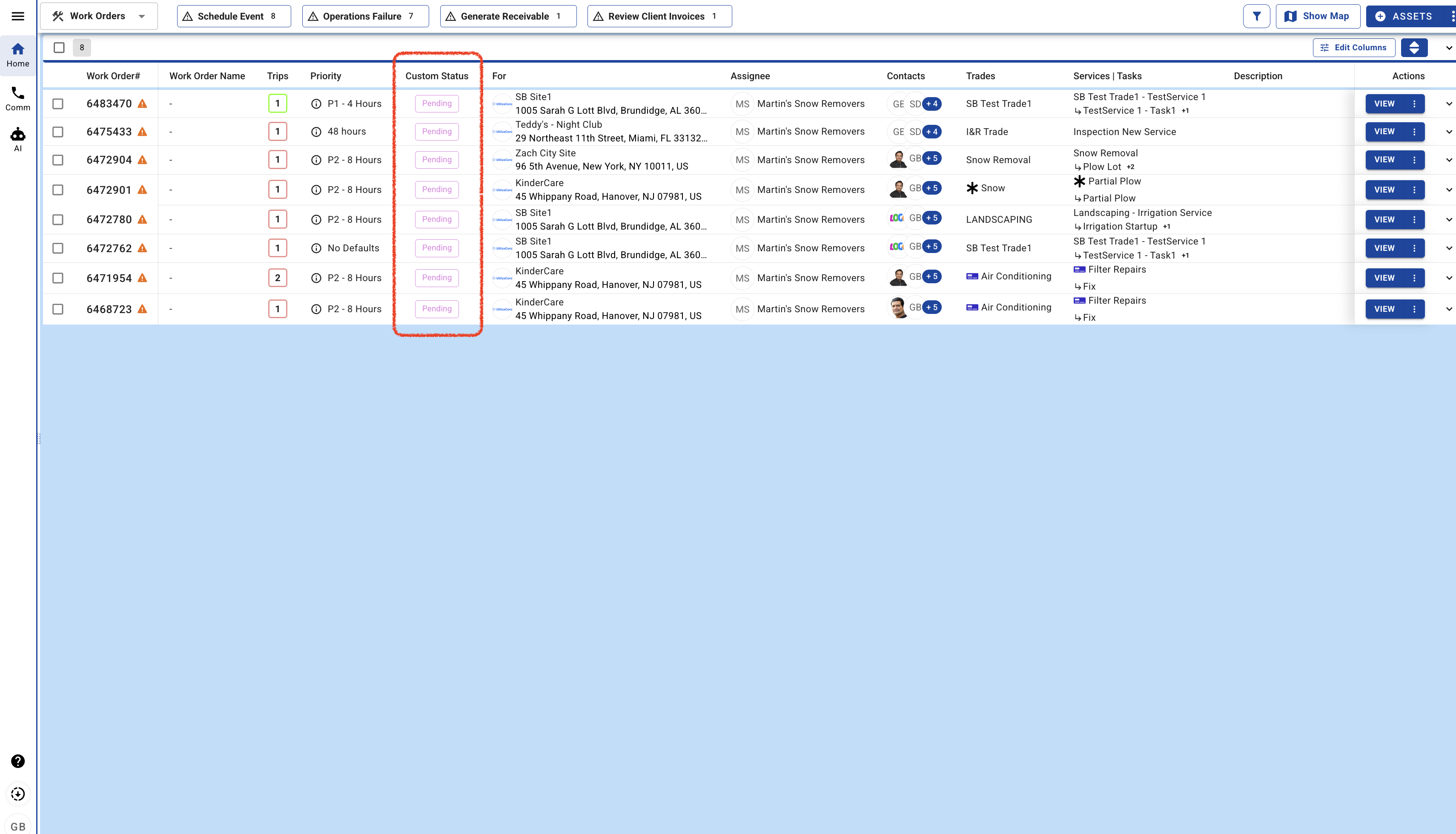
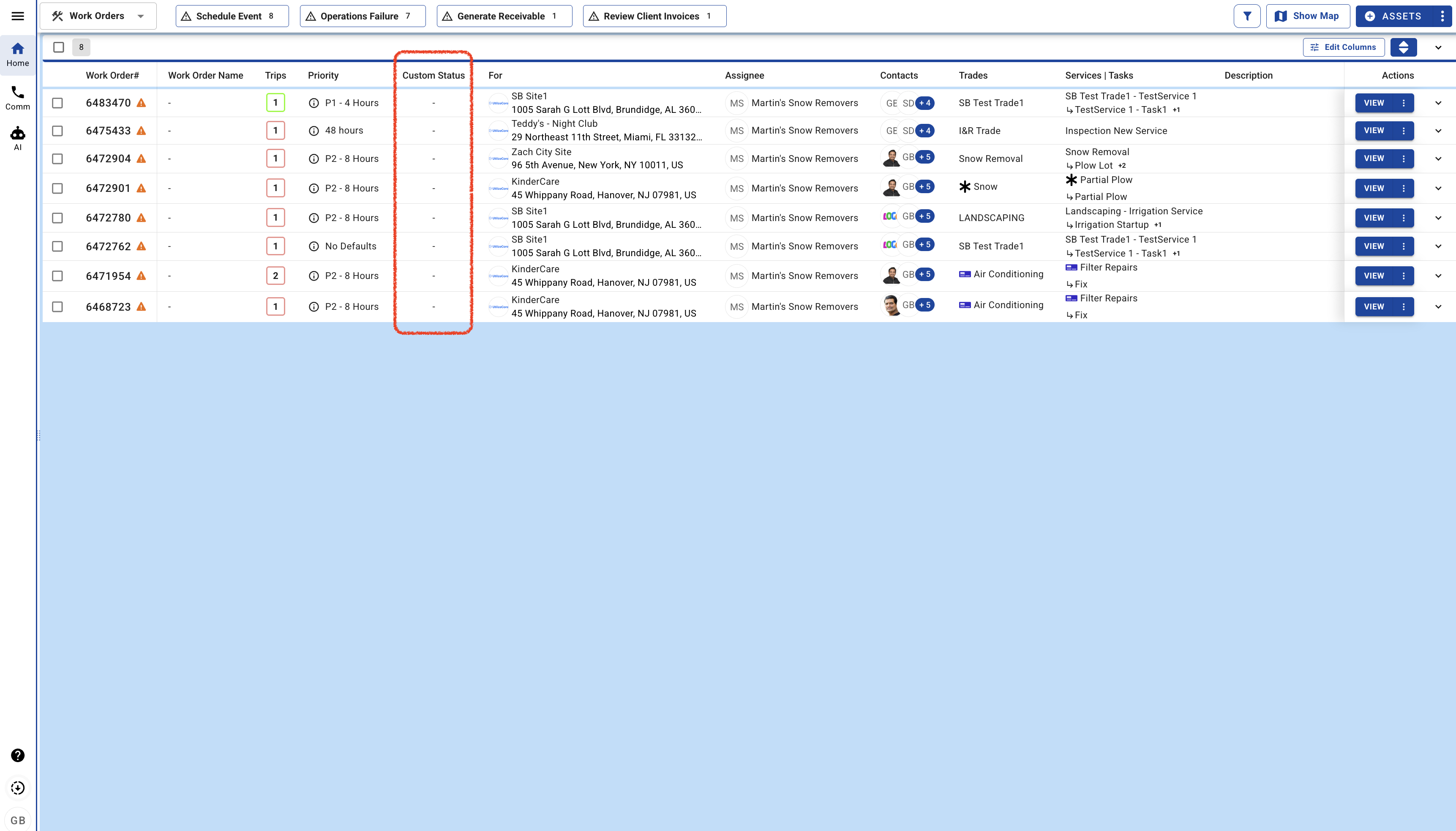
Here is how the vendor portal looks with custom statuses visible versus hidden.
Custom statuses visible | Vendor can see and update work order statuses
Custom statuses hidden | Vendor cannot see custom status column
Need help?
Reach out to your Customer Success Manager or contact support@utilizecore.com.