
Overview
This guide covers the one-time settings to configure when you first log in. Set them once under your profile.
Logging in- Use your own account. Log in with a one-time code the app emails you, or your password. Do not use a shared login: your check-ins and time are recorded to your account.
- Can't get in? Reset your password from the login screen, or ask whoever set you up to re-send your invite.
Your settingsTurn on location services. Location sorts your Trips by proximity and confirms you are on site at check-in. Allow location for UtilizeCore, set to "While Using the App". The app only uses your location while it is open.
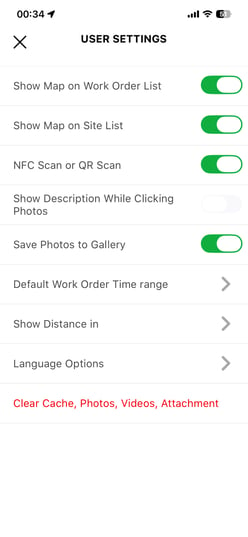
Go to Profile > User Settings.
- Default Time Range for your Trip list. Most people pick Week or Month.
- Distance in Miles or KM.
- Language Options, English or Spanish.
- Show Map on the work order or site list.
- Save Photos to Gallery on your phone.
- Show Description while taking photos.
- NFC or QR Scan, if your work uses tags or codes.
- Clear Cache, check your version, or reset your password if the app acts up.
- Find Your Trips on the My Work Orders Screen
- Check In to a Trip (Solo or with a Crew)
Reach out to your Technical Account Manager or contact support@utilizecore.com.