
Overview
Two things you do from a Trip beyond the work itself: send notes to the office, and price additional work with a Proposal. Both live on the Trip.
Send a Work Order Note- Work Order Notes. From your Trip, open Work Order Notes, type your message, attach a photo or file, and send it.
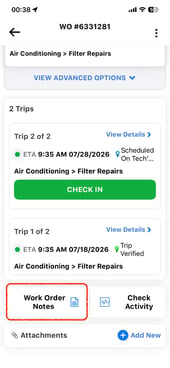
- It reaches the office. Your note and attachment post to the Trip, where the team that sent you the work can see them.
- Turn on email to notify. A note does not alert anyone on its own. Switch on the email option when someone needs to act on it.
Create a ProposalPut it in the app, not a text. Your notes, photos, and check-in and check-out times are what the broker who sent the work sees.
Two ways in: the main menu (three lines, top left) > Proposals, or the Proposal shortcut on your Trip screen. Creating Proposals from mobile requires an Operations or Admin role.
- Tap the green plus to start a Proposal.
- Pick the Client. Optionally link an existing Work Order to auto-fill its details.
- Continue, add details, and a message that both you and the Client will see.
- Add Line Items. Each needs Item Type, Item Name, Price, and Quantity.
- Save & Exit to finish later, or Send. Review the overview and press Send.
- Check In to a Trip (Solo or with a Crew)
- Check Out, Pause a Trip, or Mark It Must Return
Reach out to your Technical Account Manager or contact support@utilizecore.com.