
Overview
Reduce the scope of a live agreement by deleting the invoice line items for specific sites. The Total Contract Value adjusts automatically, without canceling the entire service.
Before you beginYou need an active Scheduled Service with multiple sites. You will use the Site filter to isolate the sites you want to remove, then delete their invoice line items individually. Navigate to Product & Services > Scheduled Services > Current > Edit Agreement.
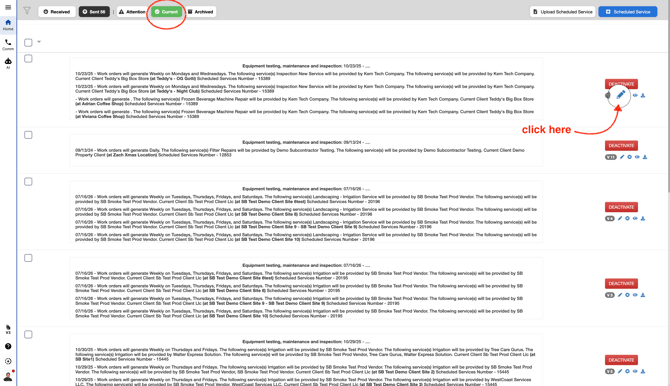
Steps- Open the agreement. Go to Product & Services > Scheduled Services > Current. Locate the agreement and click the edit icon (pencil) on the right side to open the Scheduled Service wizard.
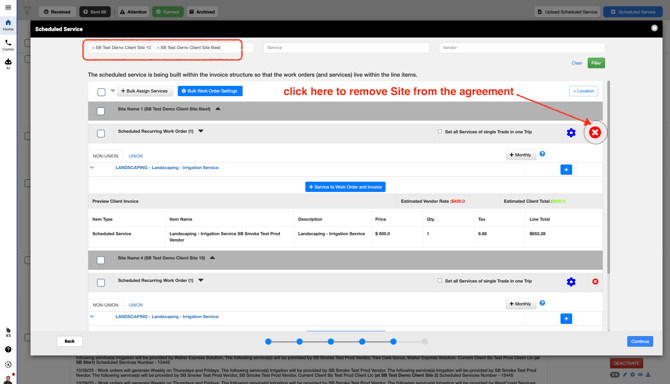
- Filter by site. Use the Site filter at the top of the wizard. Type the name of the site you want to remove and select it from the dropdown. You can add multiple sites as filter chips to target them all at once.
- Delete invoice line items. The filtered view shows only the invoice schedulers for your selected sites. Click the red X (delete) button on each Invoice Line Item row to remove it from the agreement.
- Review and save. After deleting all targeted line items, click Continue through the wizard steps. The review page shows the remaining site count and updated Total Contract Value. Click Finish to save.
- Verify changes. On the Scheduled Service detail page, confirm the Total Contract Value has decreased and the removed sites no longer appear in the work order description list.
Good to knowFilter first, delete second. Always use the Site filter before deleting line items. On agreements with many sites, the unfiltered view shows every scheduler at once, making it easy to remove the wrong one.
- Removing a site deletes its invoice schedulers and work order assignments from the agreement.
- The Total Contract Value decreases automatically when sites are removed.
- The wizard displays the remaining site count and updated total on the review step before you save.
- Changes are saved only after you click Continue and Finish. You can exit the wizard at any time to cancel.
- Add Sites to an Existing Scheduled Service Agreement
Reach out to your Customer Success Manager or contact support@utilizecore.com.