
Overview
A rate is the price attached to a Service. Every rate has two sides. The Vendor Rate is what you pay the Vendor who performs the work. The Client Rate is what you bill the Client. The gap between them is your margin, and the platform calculates it on every transaction without anyone touching a spreadsheet.
Rates live on the Rate Table, and the Rate Table can be set at five different levels: Generic, Region, Client, Site, and Vendor. Because a single Service can carry a rate at more than one level, the platform needs a rule to decide which one to use. That rule is the rate hierarchy, and it is simple: the most specific rate always wins.
This matters more than it sounds. Rates pull into Proposals, Work Orders, Purchase Orders, AP invoices, AR invoices, and every profit calculation downstream. Set them correctly once and pricing runs itself. Set them wrong and every number after that point is wrong too, usually without anyone noticing until an invoice gets disputed.
Good to know. If no rate exists at any level for a Service, the platform has nothing to price against and the line item comes through blank or at zero. Setting a Generic Rate gives you a floor so nothing falls through.
How Rates Connect to Services
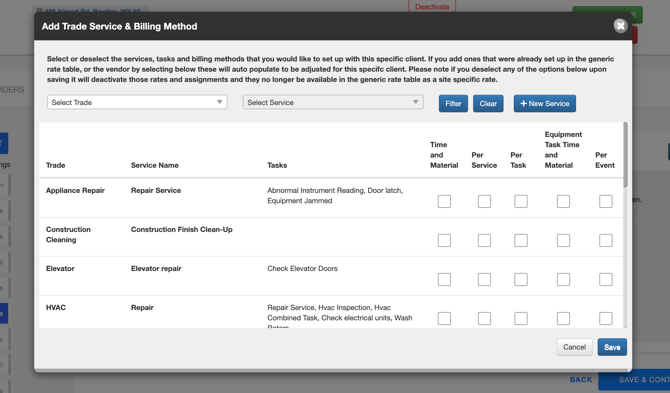
A Service is any activity you provide or subcontract: landscape maintenance, snow removal, irrigation repair, HVAC repair. Each Service supports one or more rate types.
The Rate Hierarchy
The wider the level, the more of your business it covers. The narrower the level, the more dominant it is. The most specific rate always wins.
Rates pull into every transaction: Work Orders, Proposals, Purchase Orders, and AP/AR invoices.
How It Works
| Level | Where you set it | What it covers | Overridden by |
|---|---|---|---|
| 1. Generic | Service record | Every Client, every Site | Levels 2 through 5 |
| 2. Region | Region record | Every Site in that Region | Levels 3 through 5 |
| 3. Client | Client record | All Sites under that Client | Levels 4 and 5 |
| 4. Site | Site record | One specific Site | Level 5 |
| 5. Vendor / Team Member | Site record, per assigned Vendor | One Vendor at one Site | Nothing. Always wins. |

Worked Example: Per Service Rate, HVAC Repair
Five rates exist for the same Service. Here is what the platform does with them.
One Work Order, HVAC Repair at Veterans Ice Arena, assigned to WestCoast Services: the platform pulls $115, the most specific rate on file.
Keep in mind. The hierarchy resolves per Service, not per Rate Table. A Site Rate on HVAC Repair does not affect what the same Vendor is paid for Snow Removal at that Site. Each Service resolves on its own.
Where To Set Rates
Generic Rates are set on the Service itself. Region, Client, Site, and Vendor Rates are set on the corresponding record.
Main Menu > Clients or Sites > [Service Rates] > Rates
Why Accuracy Matters