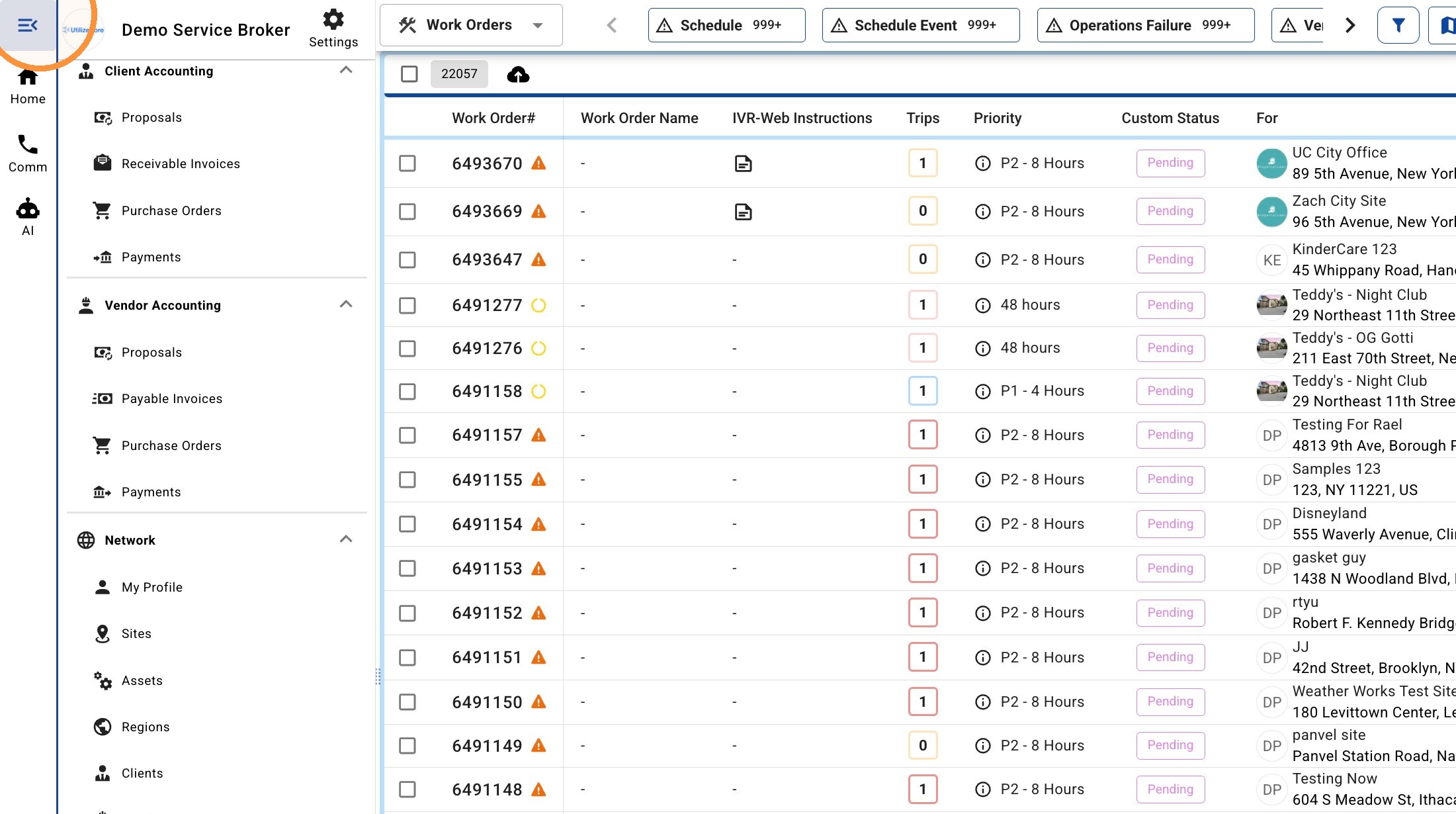
1. Click this icon.
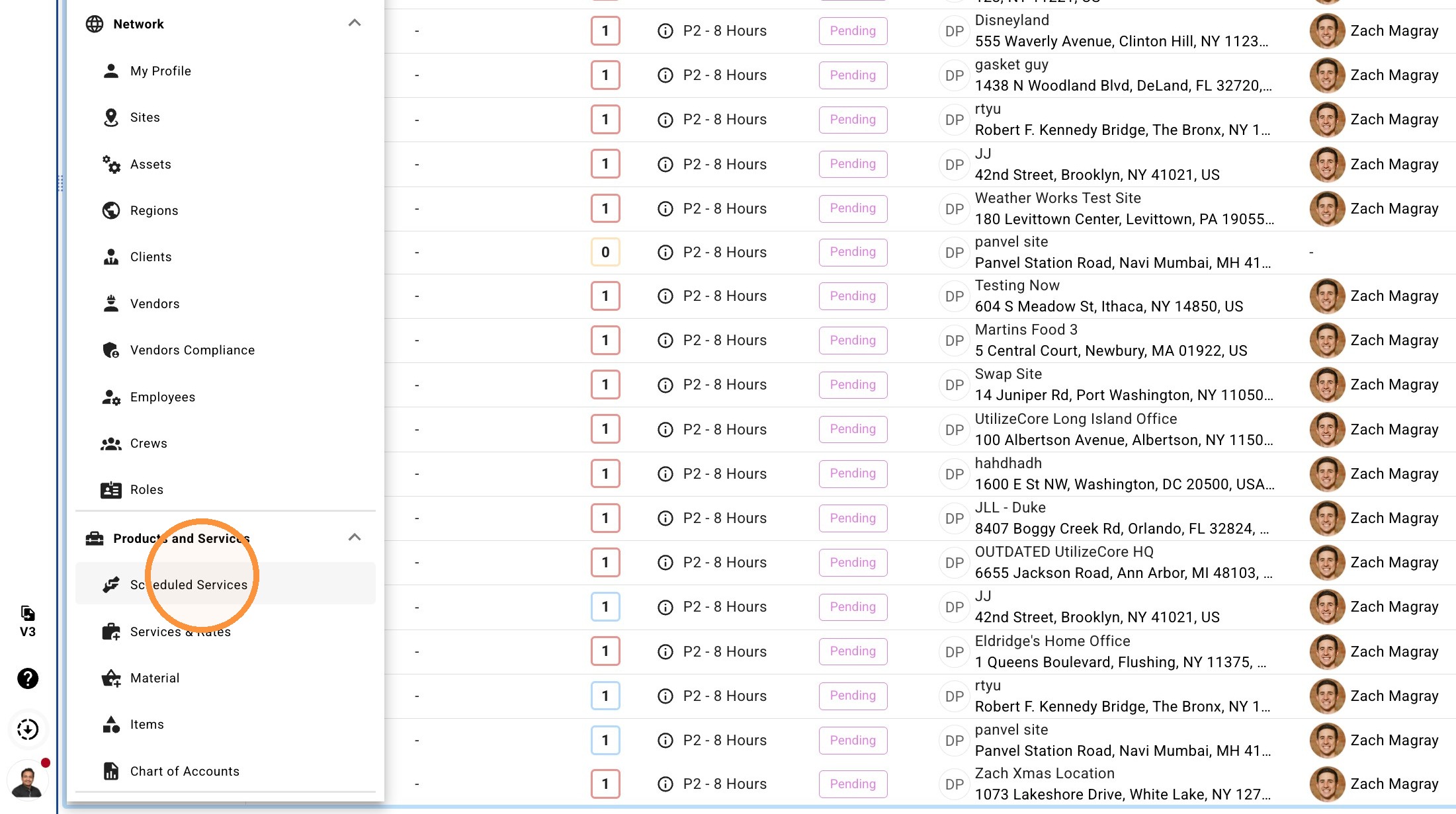
2. Click "Scheduled Services"
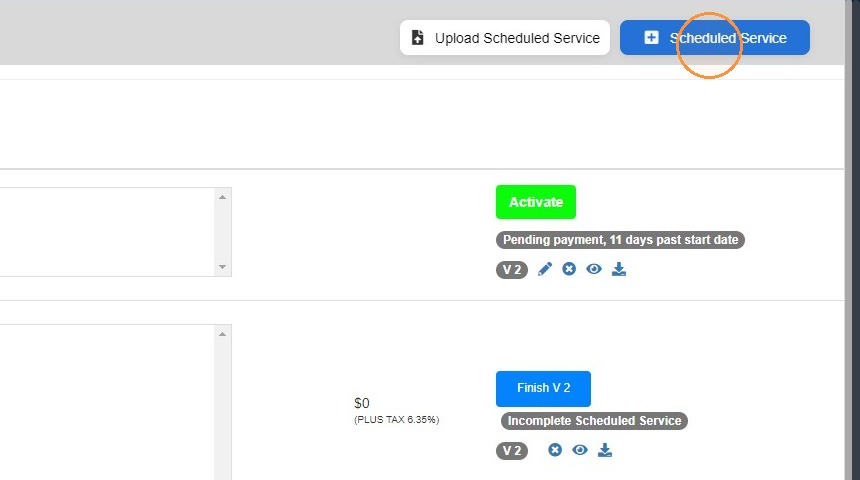
3. Click "Scheduled Service"
4. Click "Select Client"
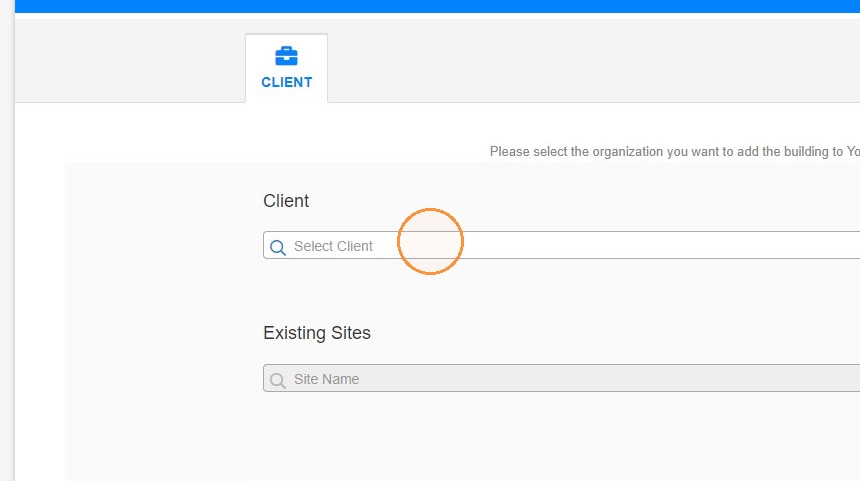
5. Select the client you wish to use
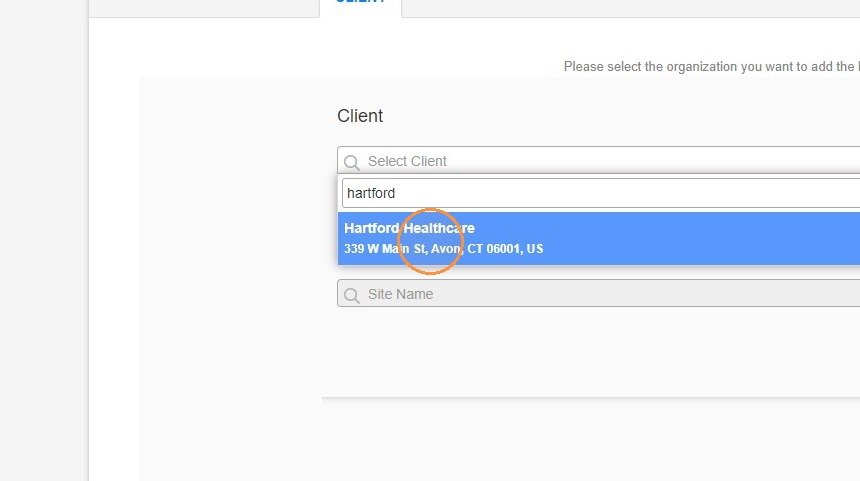
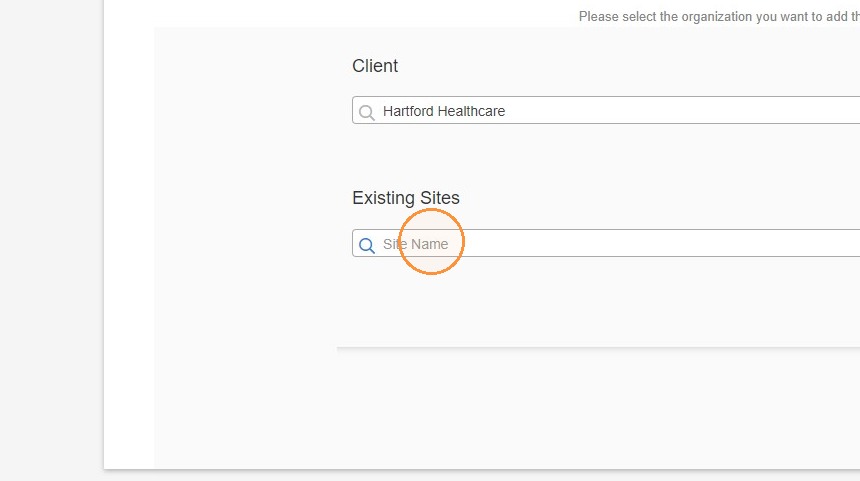
6. Select any site from the client
7. You can hit the "X" and remove multiplier
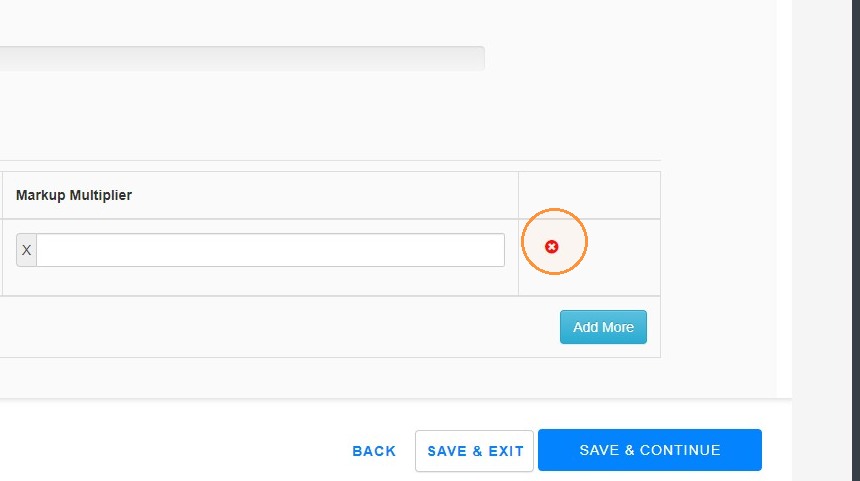
8. Click "save & continue"
9. Click "+ ADD SCHEDULED SERVICE"
10. Select "Equipment testing, maintenance & inspection" and hit continue
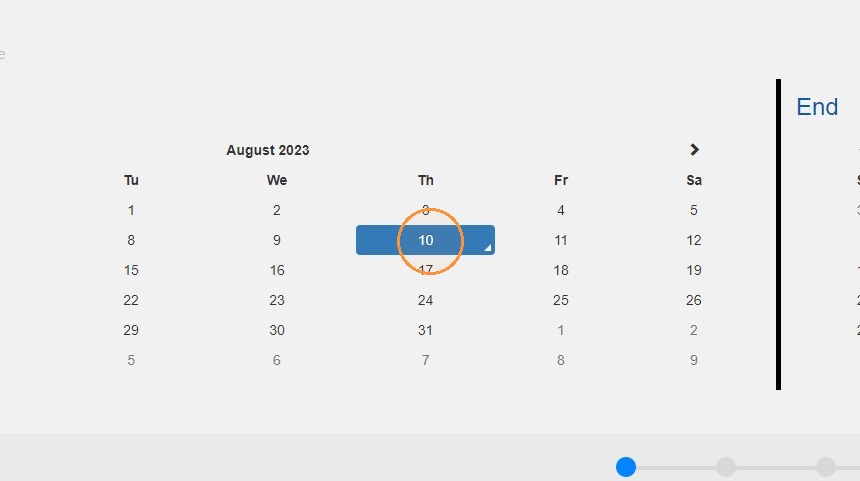
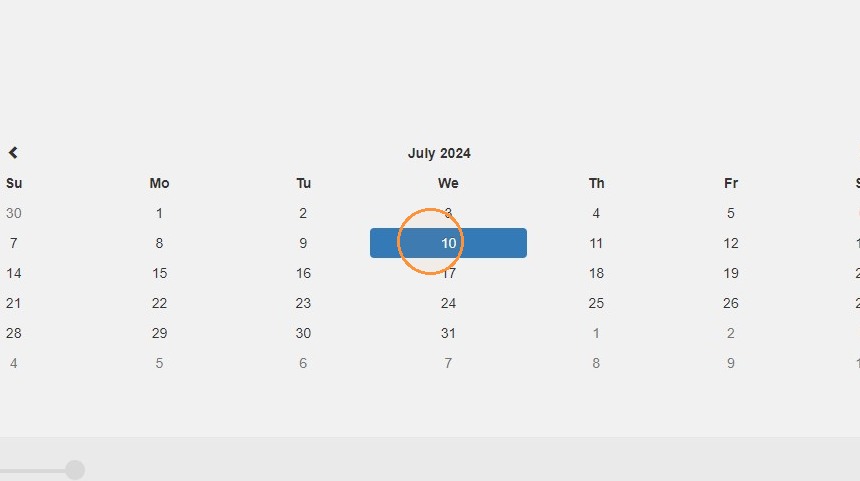
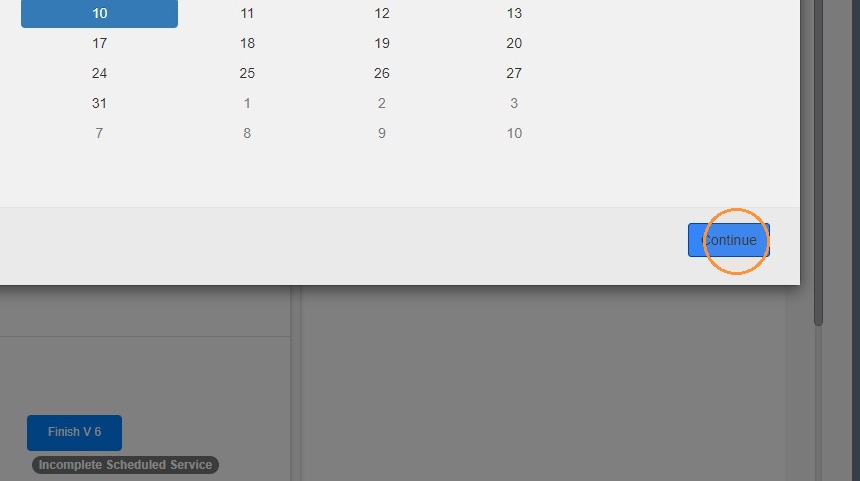
11. Choose your date range and click continue
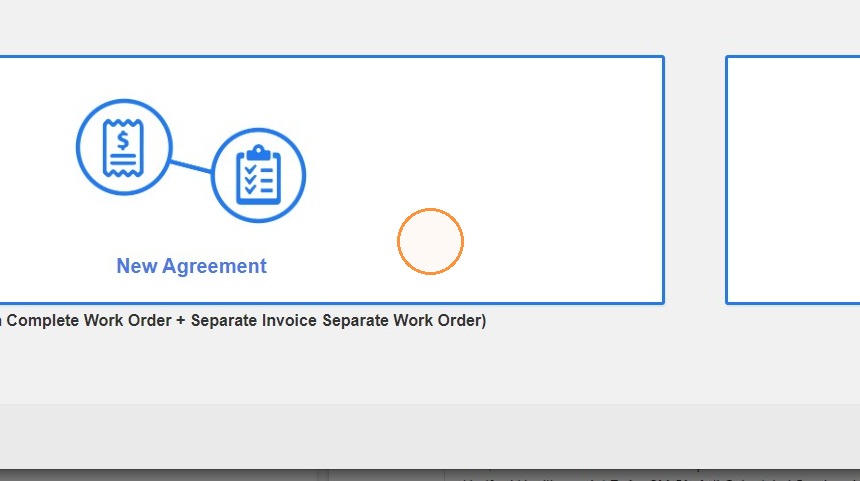
12. Click "New Agreement" then continue
13. Choose "Equipment testing, Maintenance & inspection.
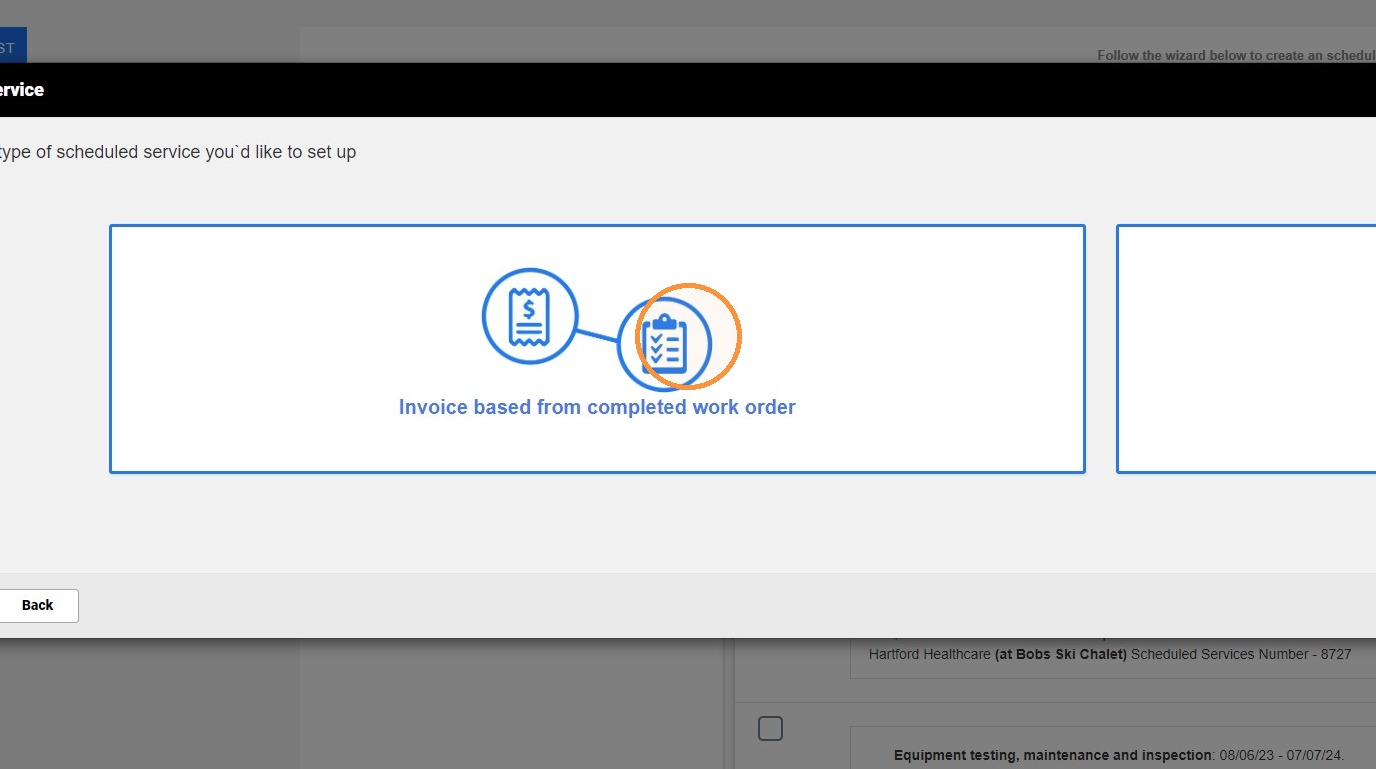
14. Choose "invoice based from completed work order" and hit continue
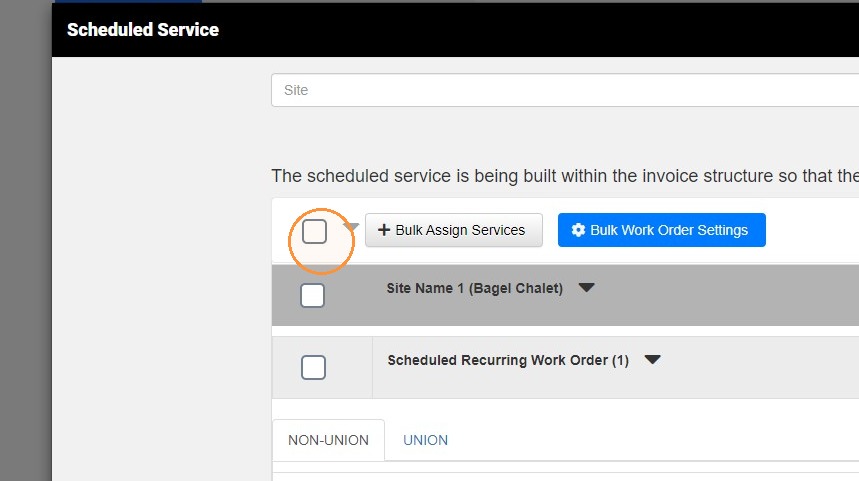
15. Click the check box next to "bulk assign services" then hit "press + bulk assign services"
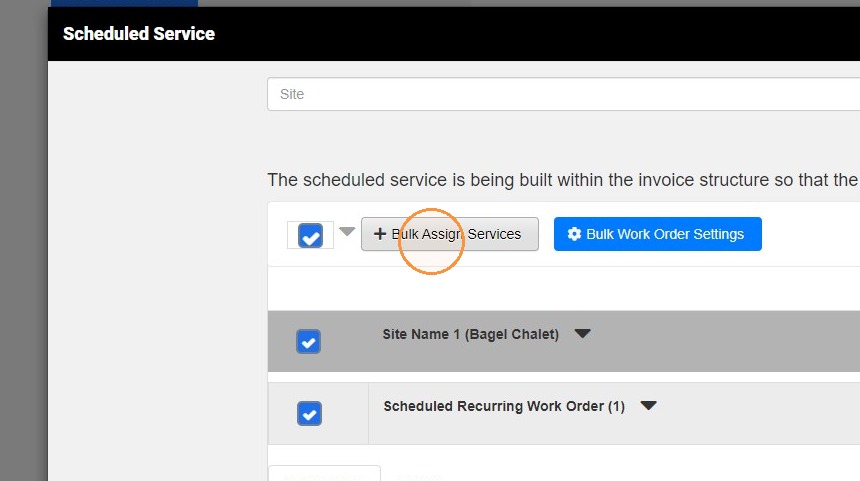
16. Click "Bulk Assign Services"
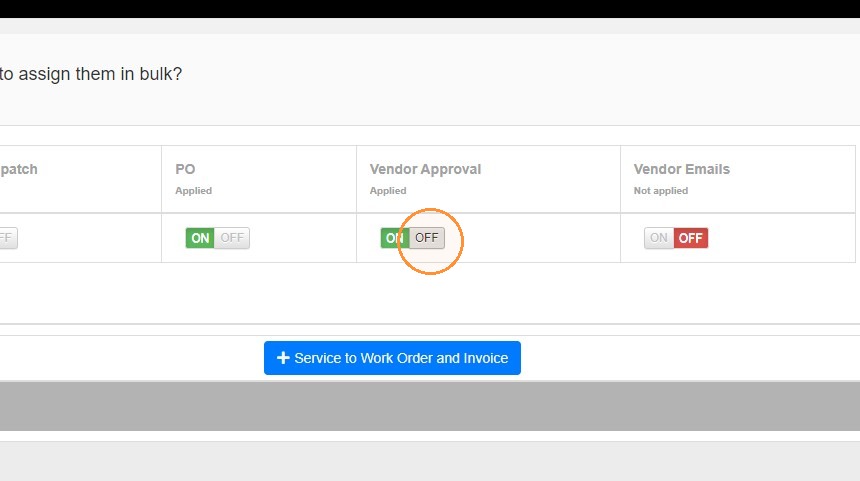
17. You have a few options for vendor preferences. I am going to highlight by turning vendor approval's off
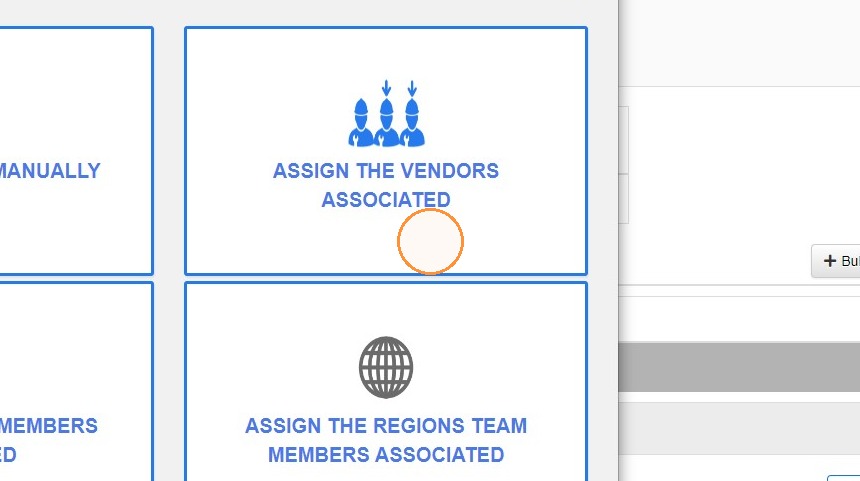
18. Click "ASSIGN THE VENDORS ASSOCIATED or Manually ( In this case I will be using vendors associated)
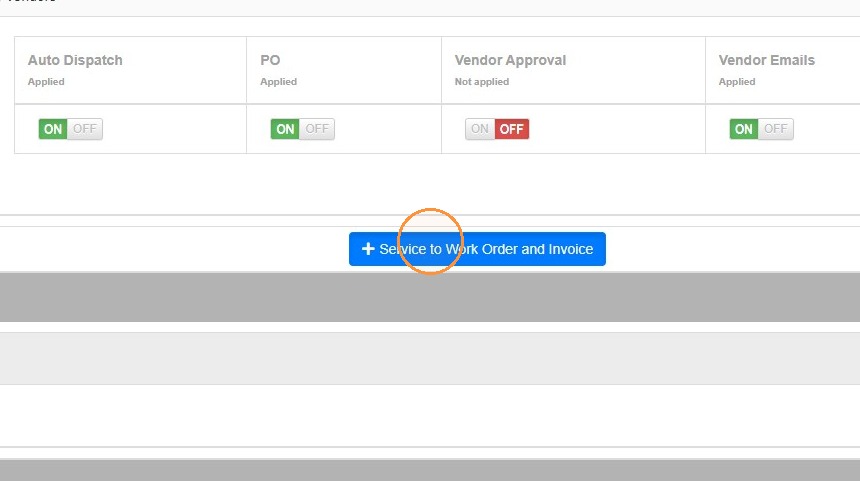
19. Click "Service to Work Order and Invoice"
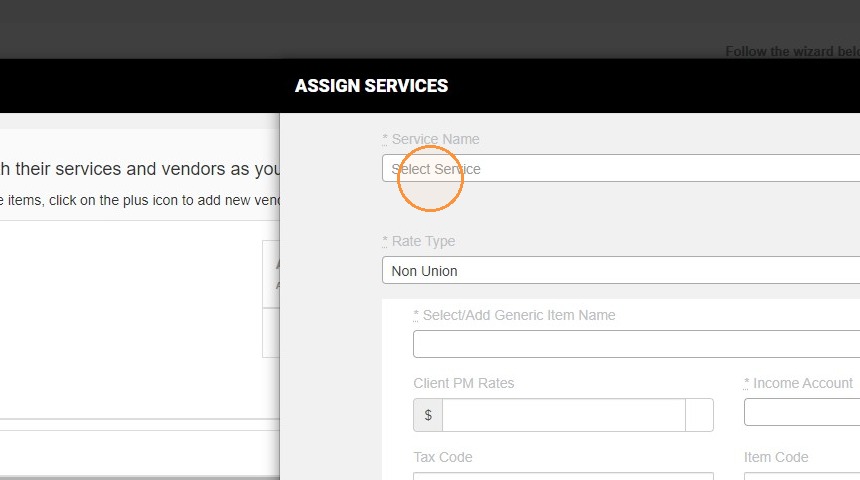
20. Click "Select Service"
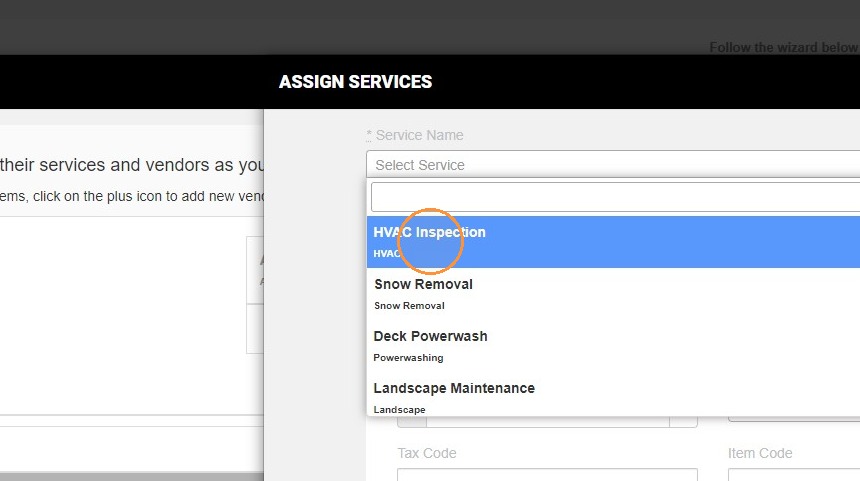
21. Choose your service from drop down menu
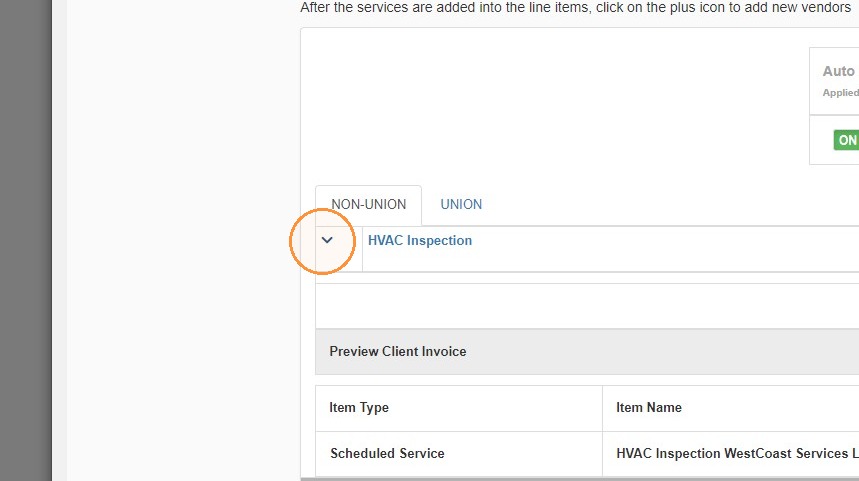
22. Click the downward facing arrow next to a service to see rates/vendor/more information
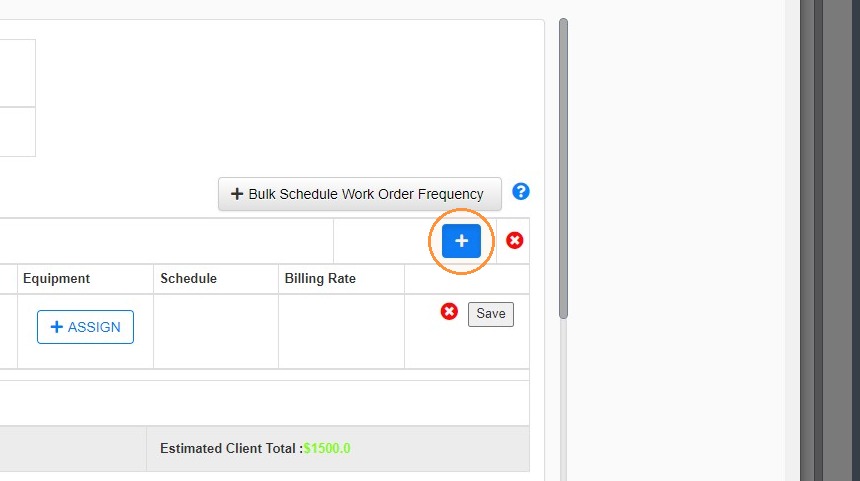
23. Click the blue box with a "+" if we want to change a site vendor to a new vendor or team member
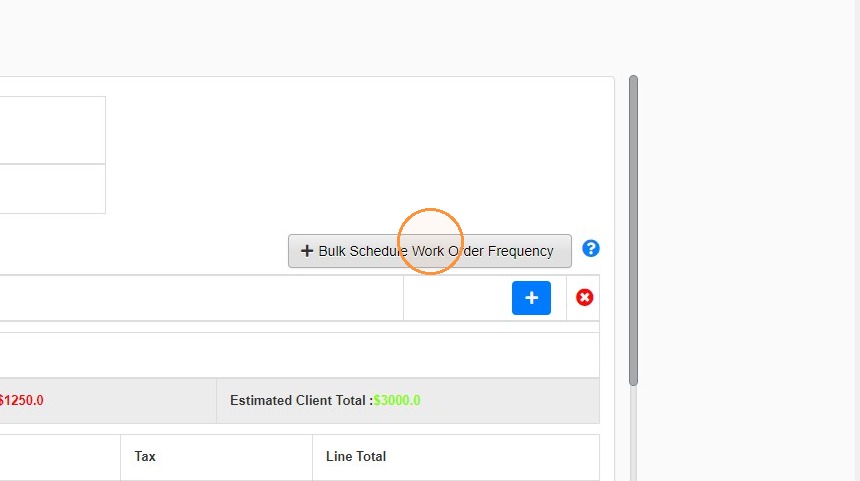
24. Click "Bulk Schedule Work Order Frequency"
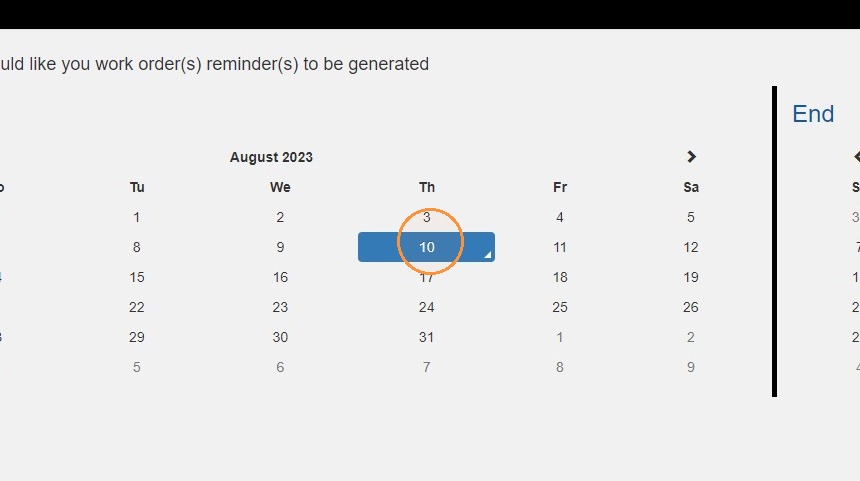
25. Define your range for work order range frequency
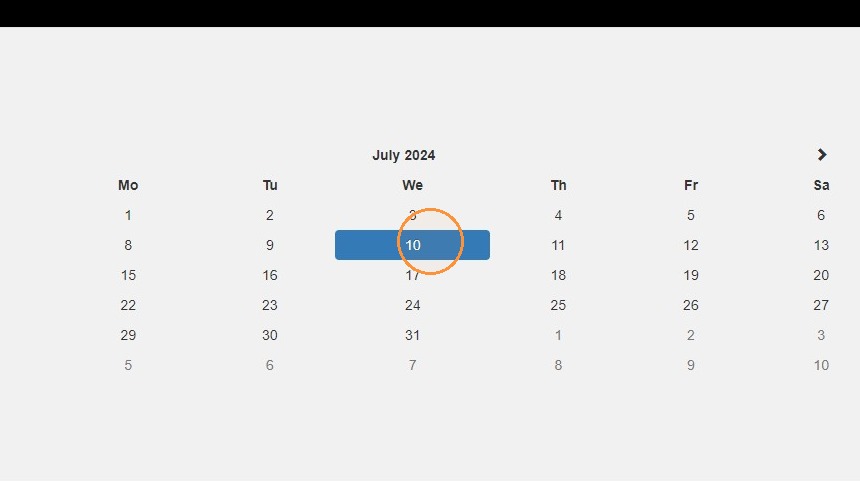
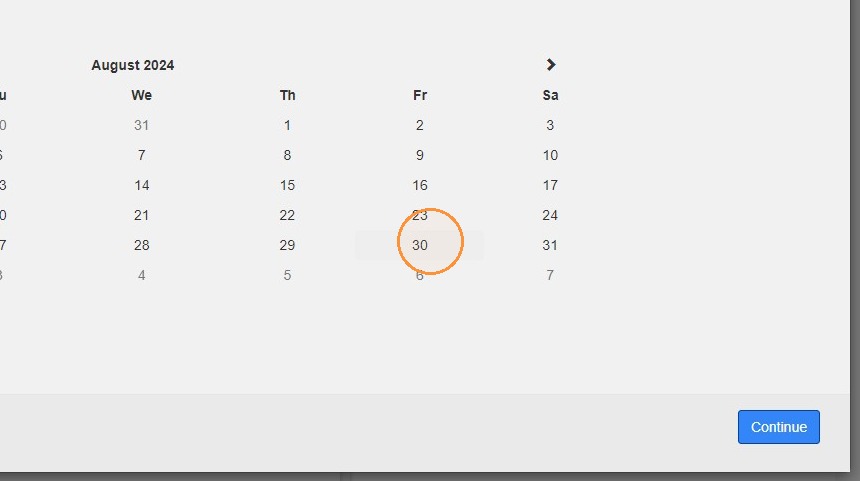
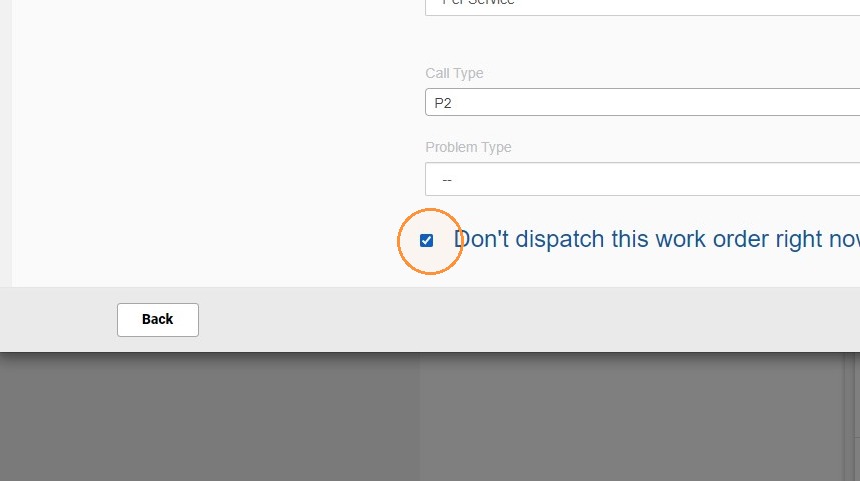
26. Select the WO specifics you prefer.. WO Description, call type, problem type and uncheck the dispatch work order button.
27. Now you can define the WO frequency from the selections on the left hand side
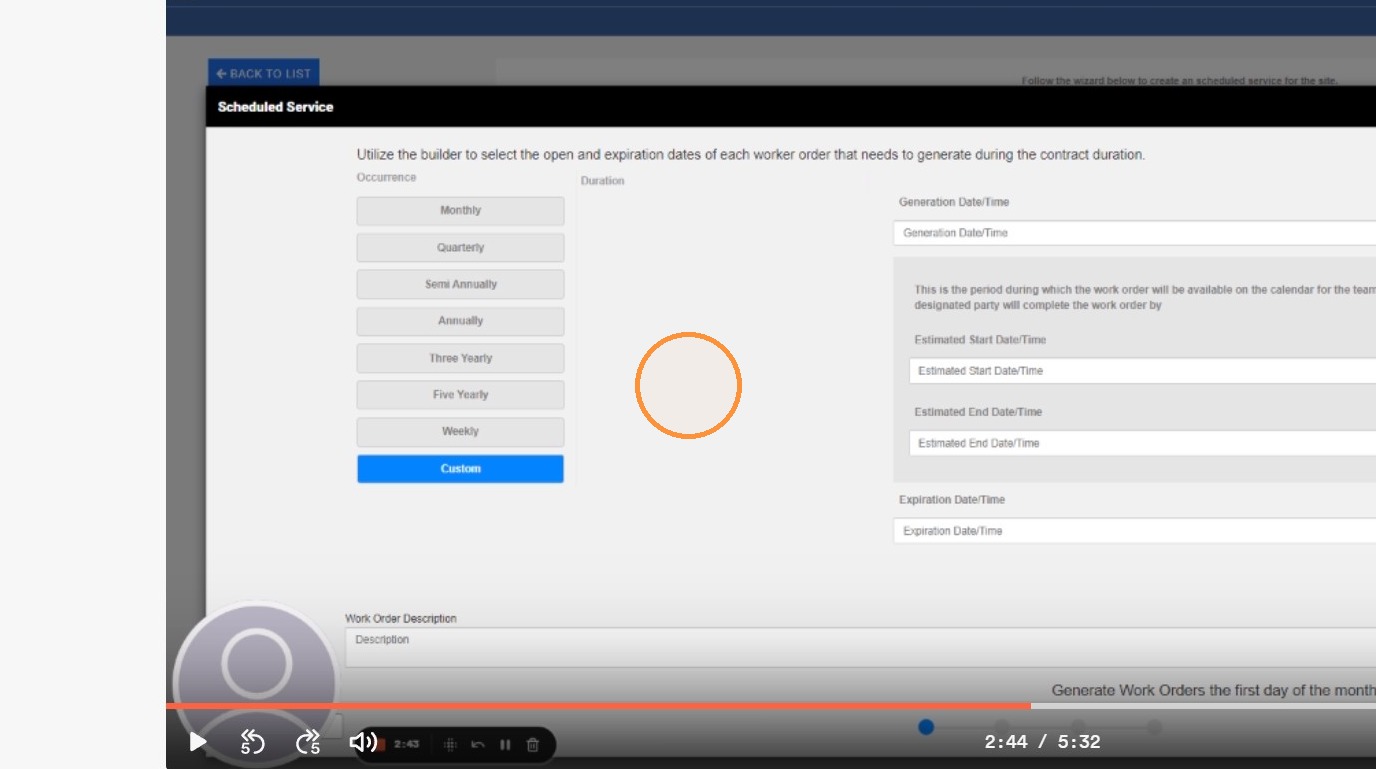
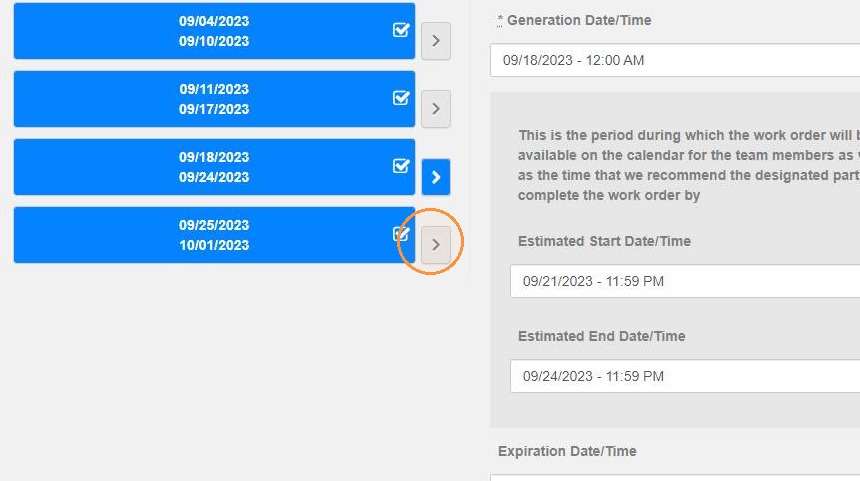
28. When you make a selection (In this case weekly) you can click on each arrow to change the defaulted times for generation/ETA/ETC if you would like to adjust.
If you uncheck the box that work order will NOT be created
Reminder - If we select use priority these will default with the pre defined time frames**
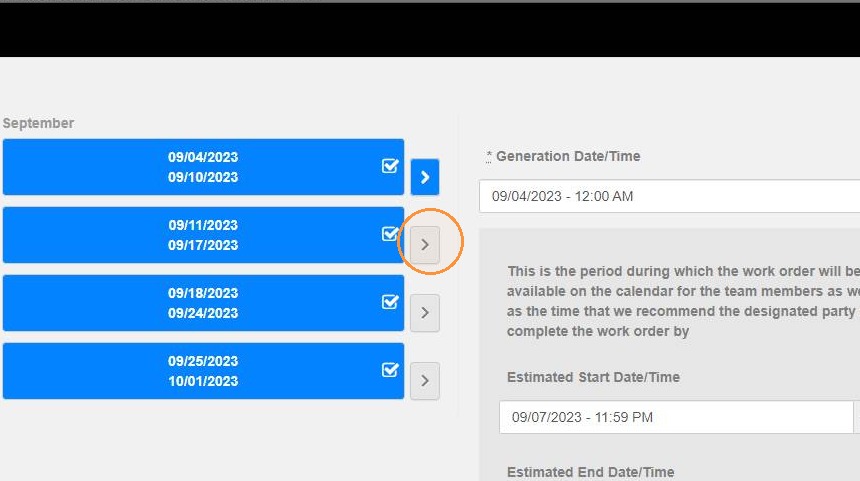
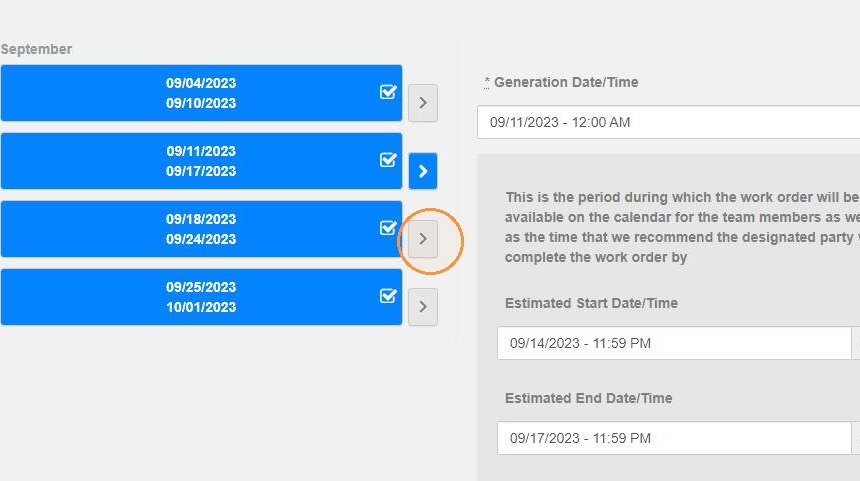
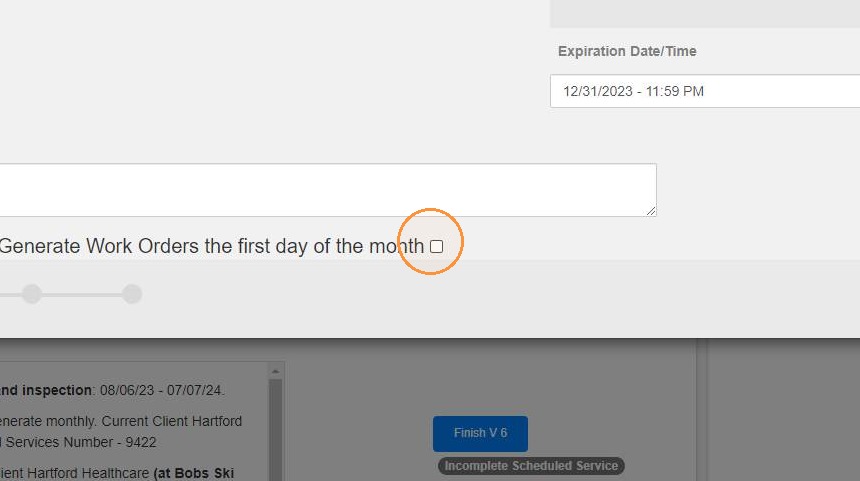
29. If you want WO's to start being generated from the 1st of the month, please use the check box highlighted
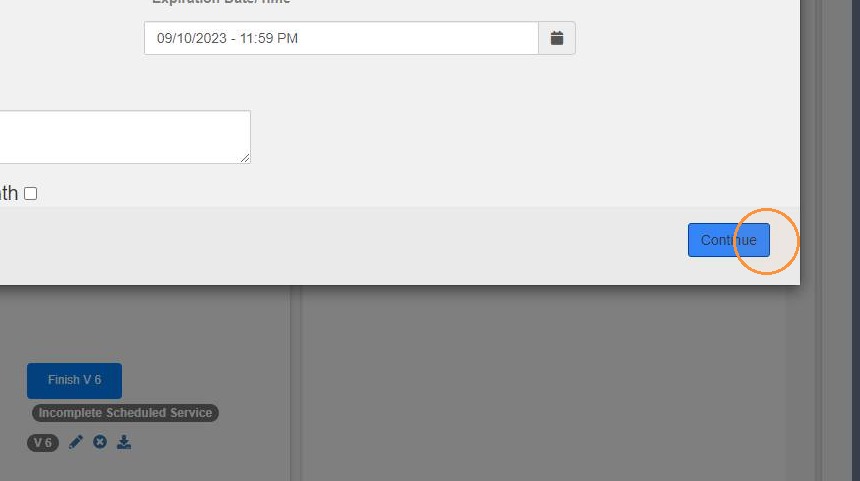
30. Click "Continue"
31. Here is the screen to review all invoices that will be generated based on the agreement specifications
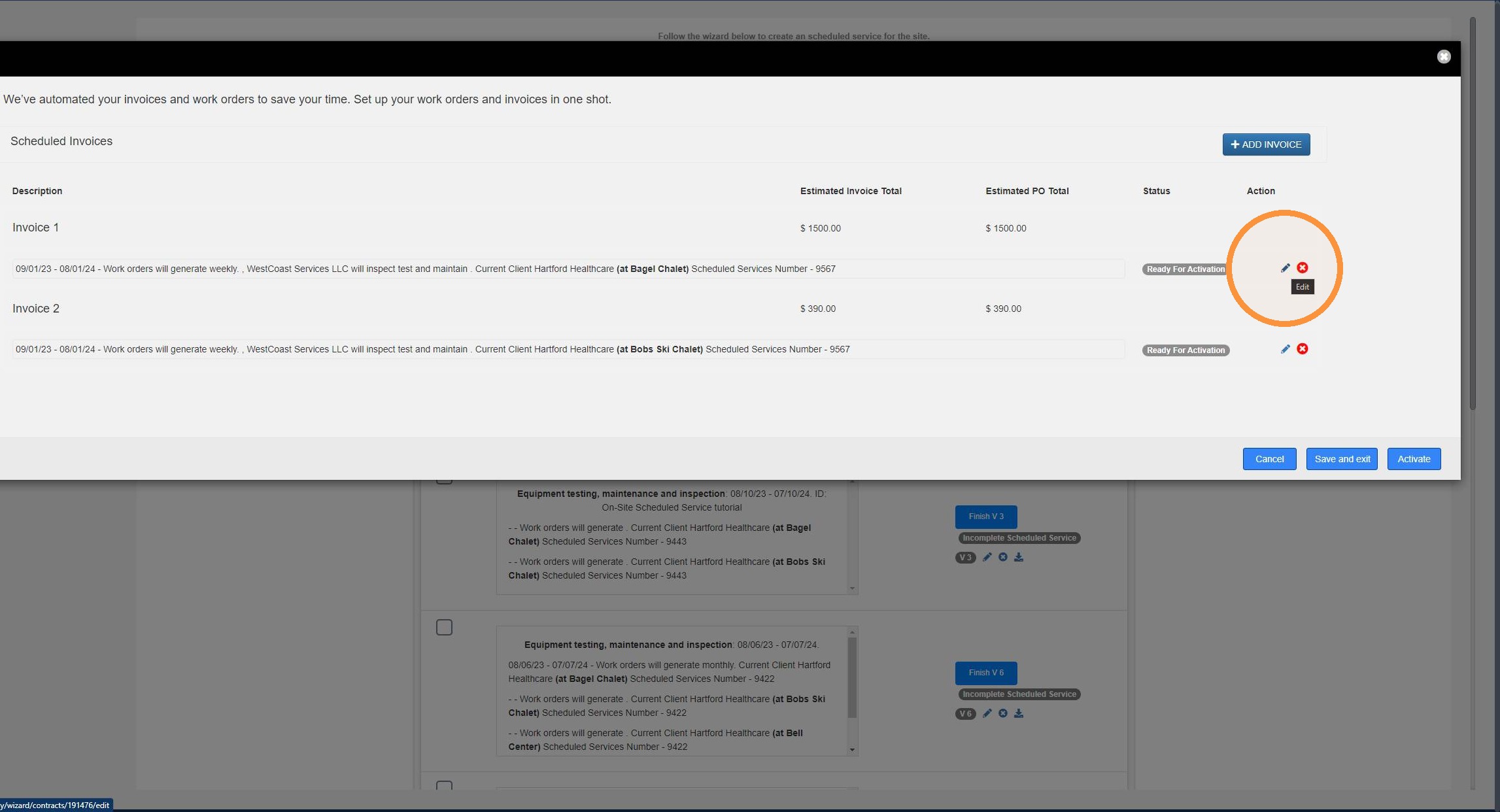
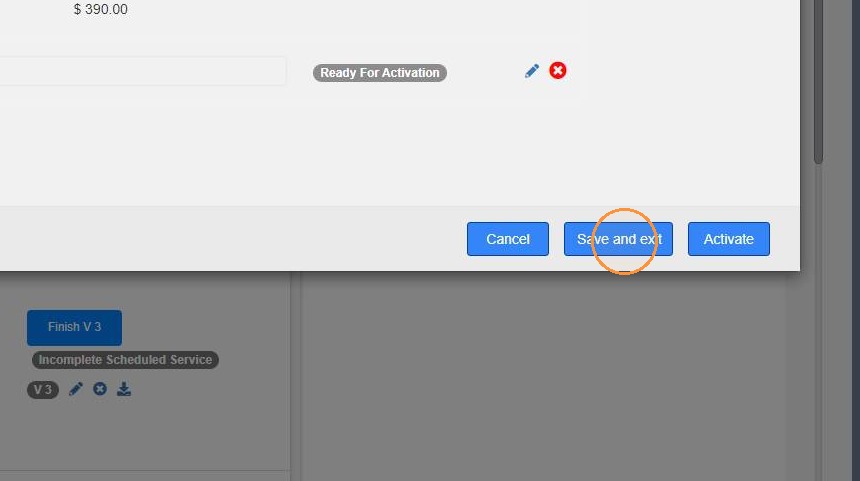
32. Click "Save and exit" or "Activate" and you're all set