Are you capturing a Must Return Reason (learn more) when your field teams are performing service in the field, and will need to come back to the Site at a later date? If so, you now have another option to simplify the experience for your field team.
You have the ability to enable a 'Must Return' option to set the Must Return Trip's ETA/ETC as the Close Date of the Work Order.
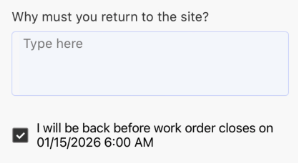
This will provide your field team with a simple checkbox to create the Trip with the same expiration date as the Work Order. The app will also communicate the Work Order's Close Date to your field team at time of selection.
Trip ETA/ETC Logic
When the 'Must Return on Work Order Close Date' is selected, the following dates will be applied to the newly created Trip...
-
Trip ETA will be 1 hour before the Work Order's Close Date/Time
- Trip ETC will be exactly on Work Order's Close Date/Time
Mobile Experience
The experience for your technicians will be relatively consistent. See the following screens based on the Must Return settings scenario.
1. Only Work Order Close Date Checked
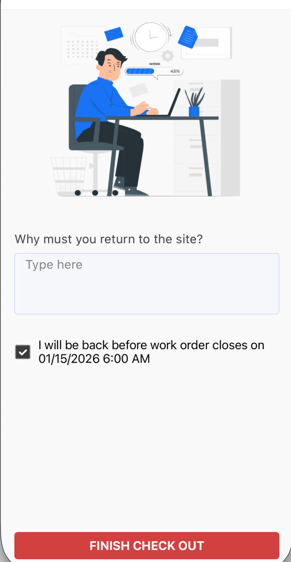
When only the 'Close Date of the Work Order' is selected, the User will be presented with a pre-selected checkbox and an optional text field to collect a must return reason from your field team.
2. Both Reason Options Available AND Work Order Close Date Option is Checked
When both options are checked, the User will be presented with a Reason dropdown and the checkbox to set the Trip expiration on the Close Date of Work Order.
NOTE: A User will be unable to select both options as once.
.png?width=311&height=1197&name=image%20(60).png)
.png?width=312&height=593&name=image%20(61).png)
3. Only Reason Options Available
When only Reason Options are available, and the checkbox to set as Close Date of Work Order is unchecked, your Users will be presented with a dropdown to select a provided Reason.
NOTE: Users will not be able to select a Reason that will extend the Trip past the Close Date of the Work Order.
.png?width=316&height=606&name=image%20(63).png)
4. Must Return Setting is ON, but No Reason Option Have Been Provided
If no Must Return reason is made available from the Service setting, but the Must Return reason is ON, your Users will be presented with a calendar date picker and optional text field to provide Must Return details.
NOTE: Users will not be able to select a Reason that will extend the Trip past the Close Date of the Work Order.
.png?width=324&height=620&name=image%20(62).png)
.png?width=5&height=10&name=image%20(62).png)
Turning On 'Must Return as Close Date of Work Order' Option
The following is a step-by-step guide to turn on the collection of a Must Return at the Close Date of the Work Order.
1. Navigate to the 'Services and Rates' Page
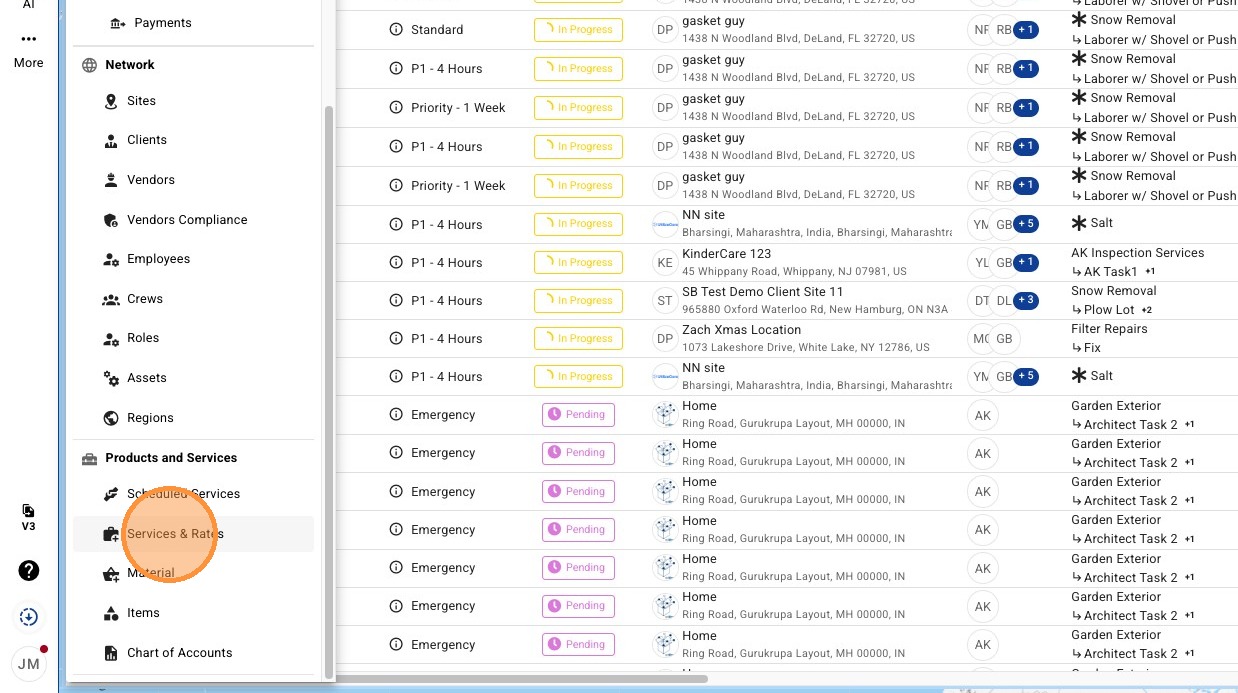
2. Expand your Trade list to find the Service you'd like to update. Must Return is configured from the Service.
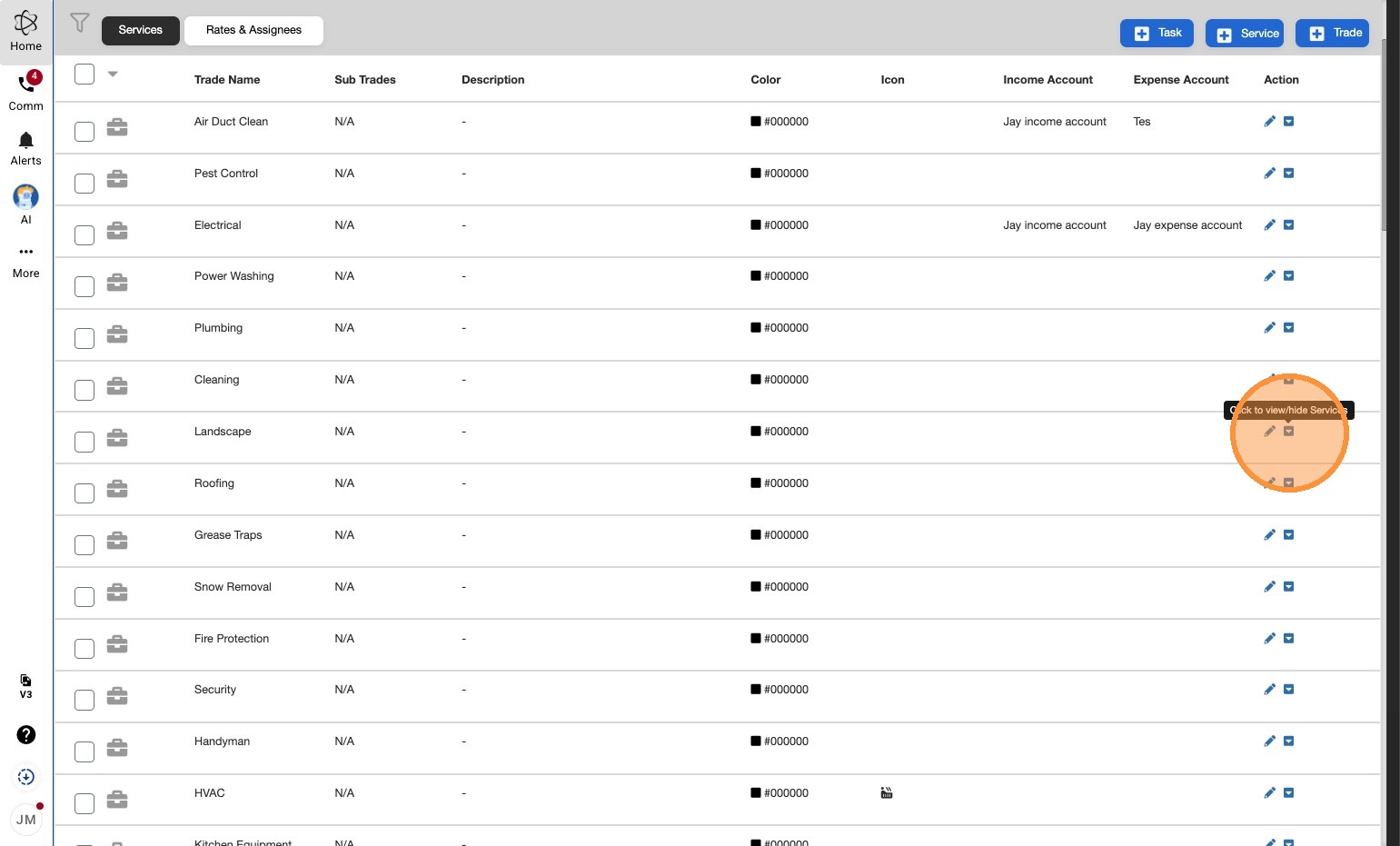
3. Select 'Edit' on the Service
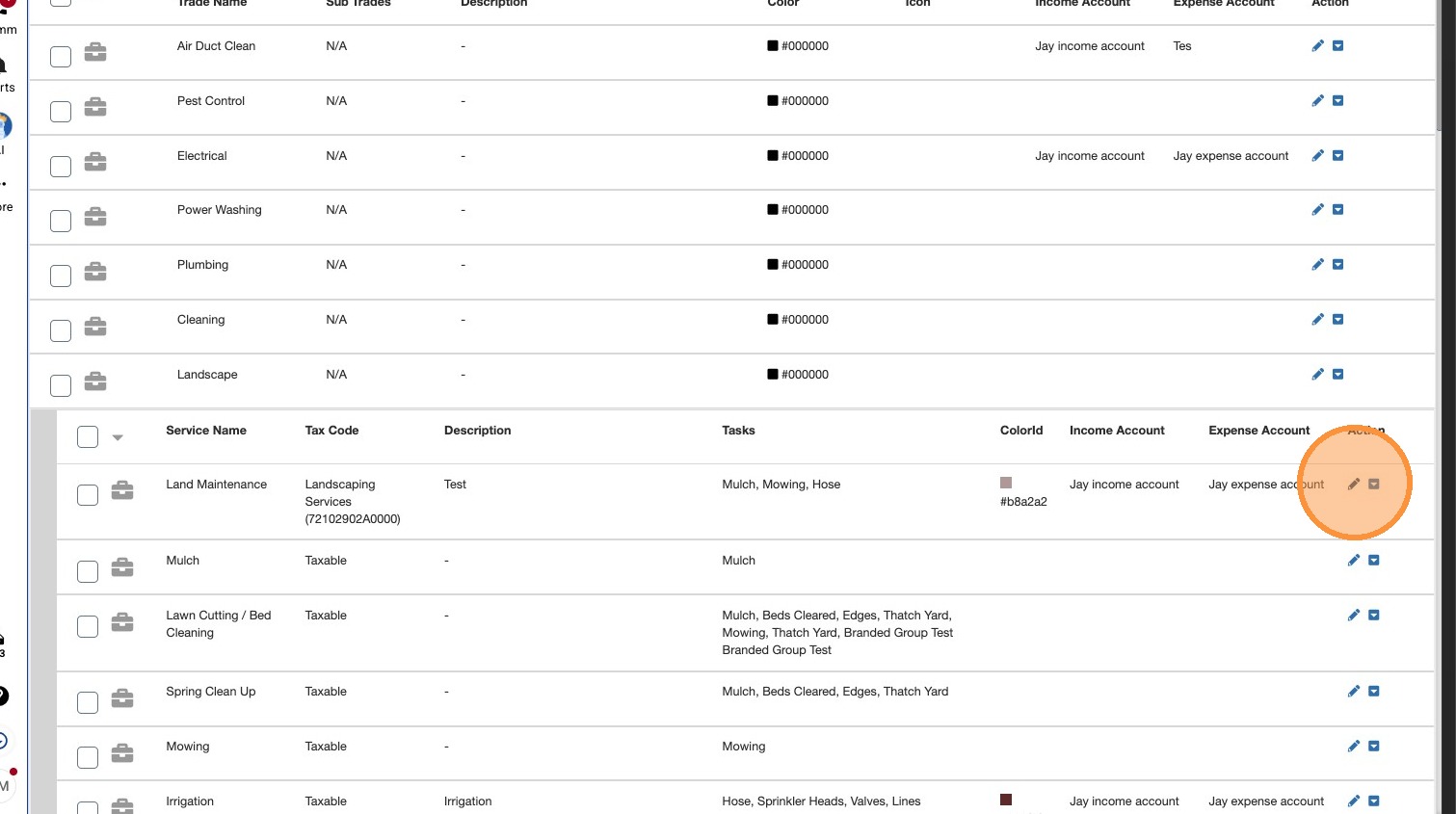
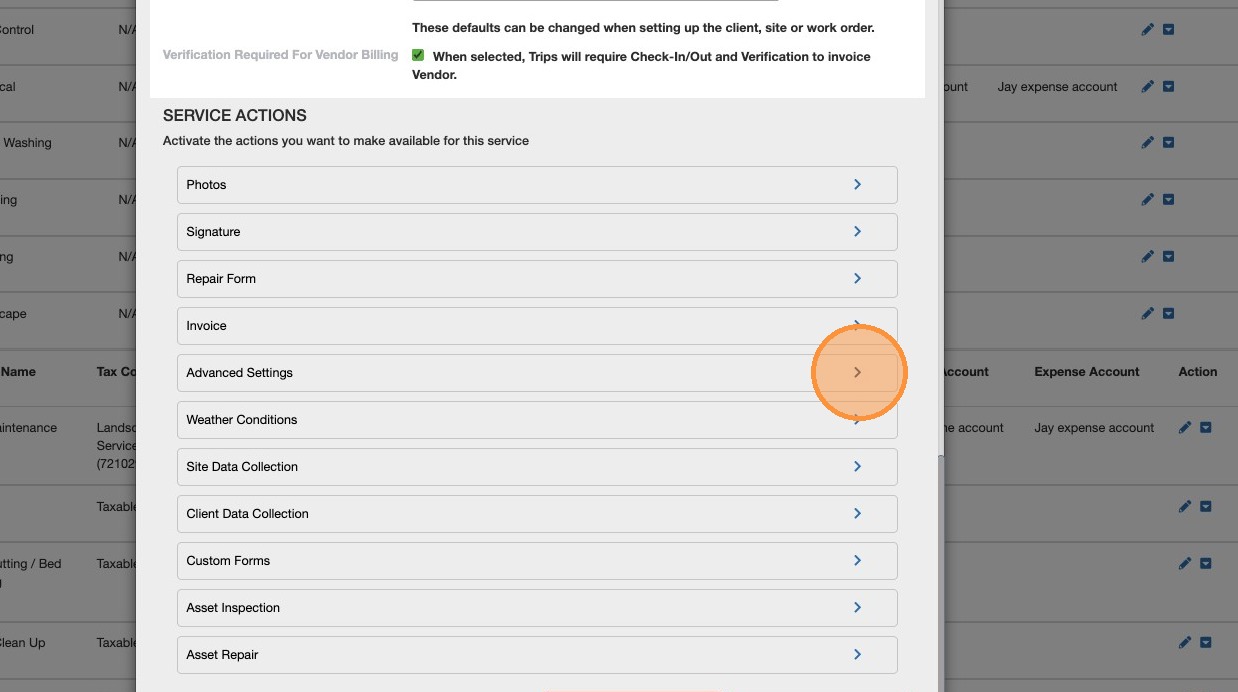
4. Scroll down to select the Service's 'Advanced Settings'
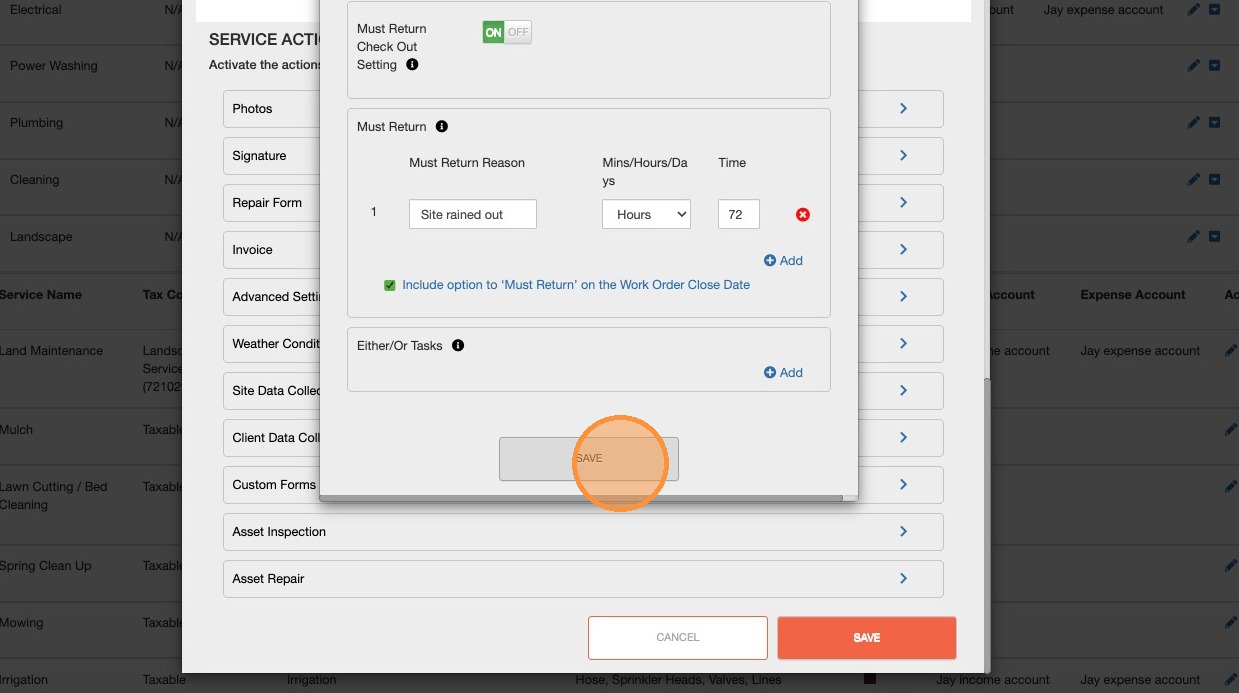
5. Within the 'Must Return' section, you can select the checkbox stating "Include option to 'Must Return' on the Work Order Close Date"
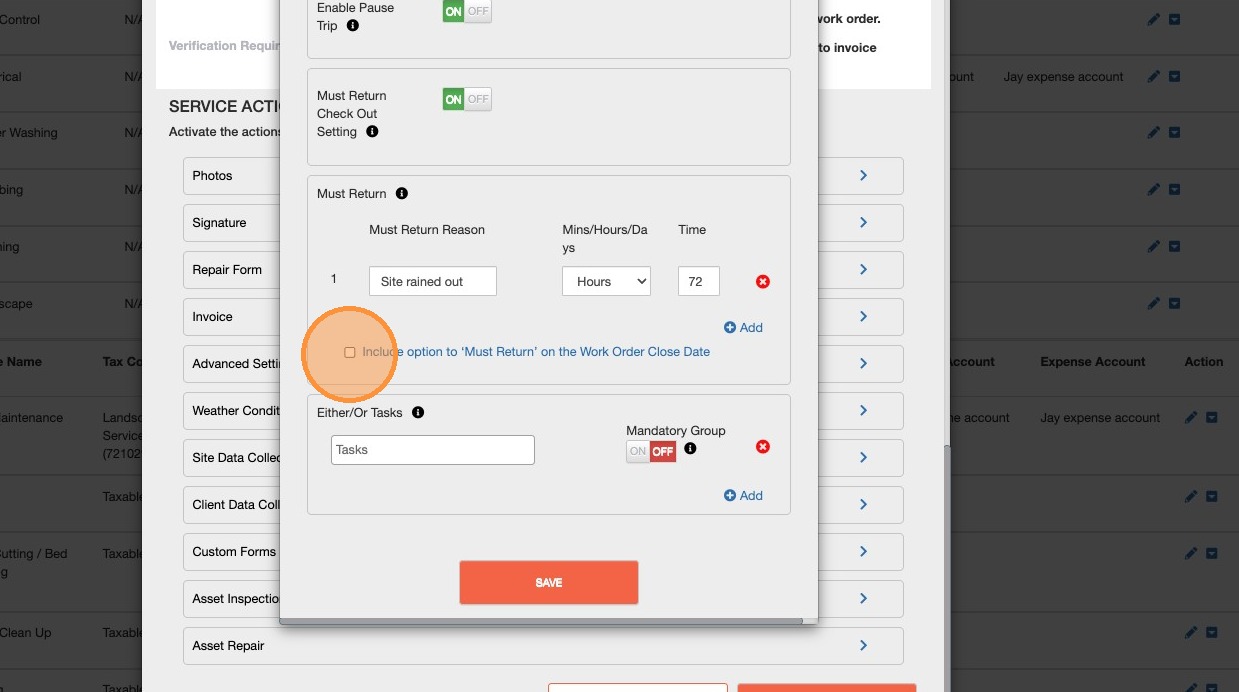
6. Click "Save"
Note: You may need to remove an option for your 'Either/Or Tasks' to continue.
7. Click to "Save" the Service
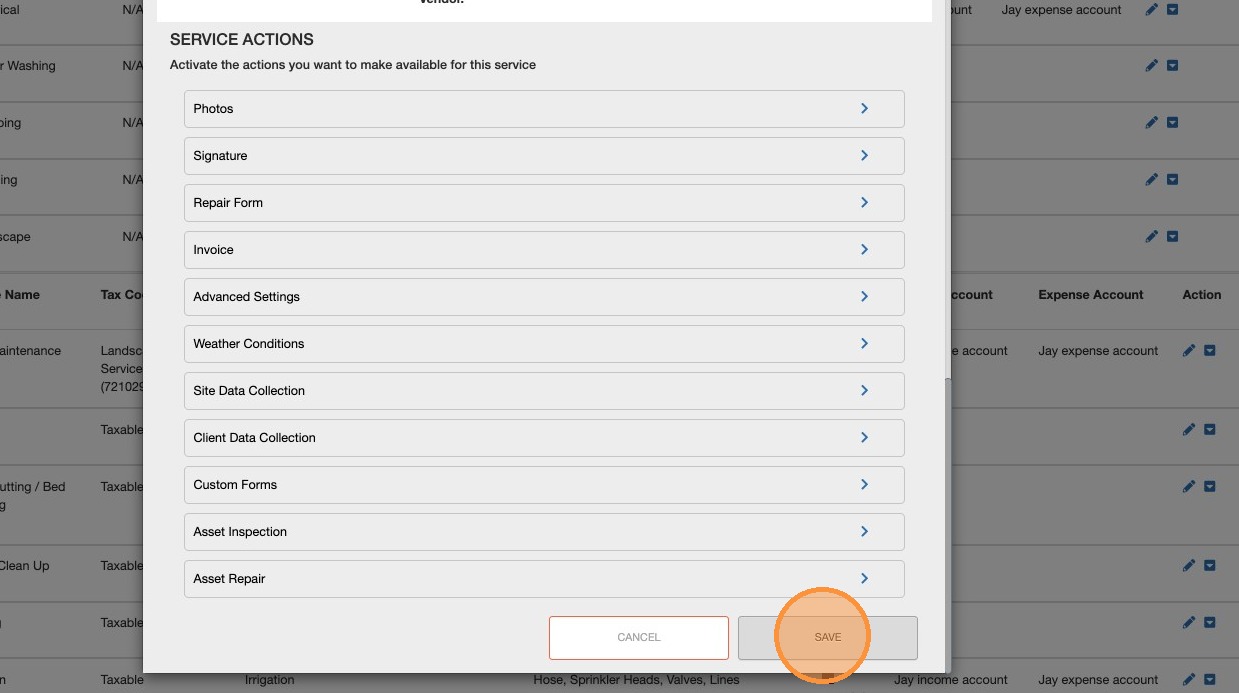
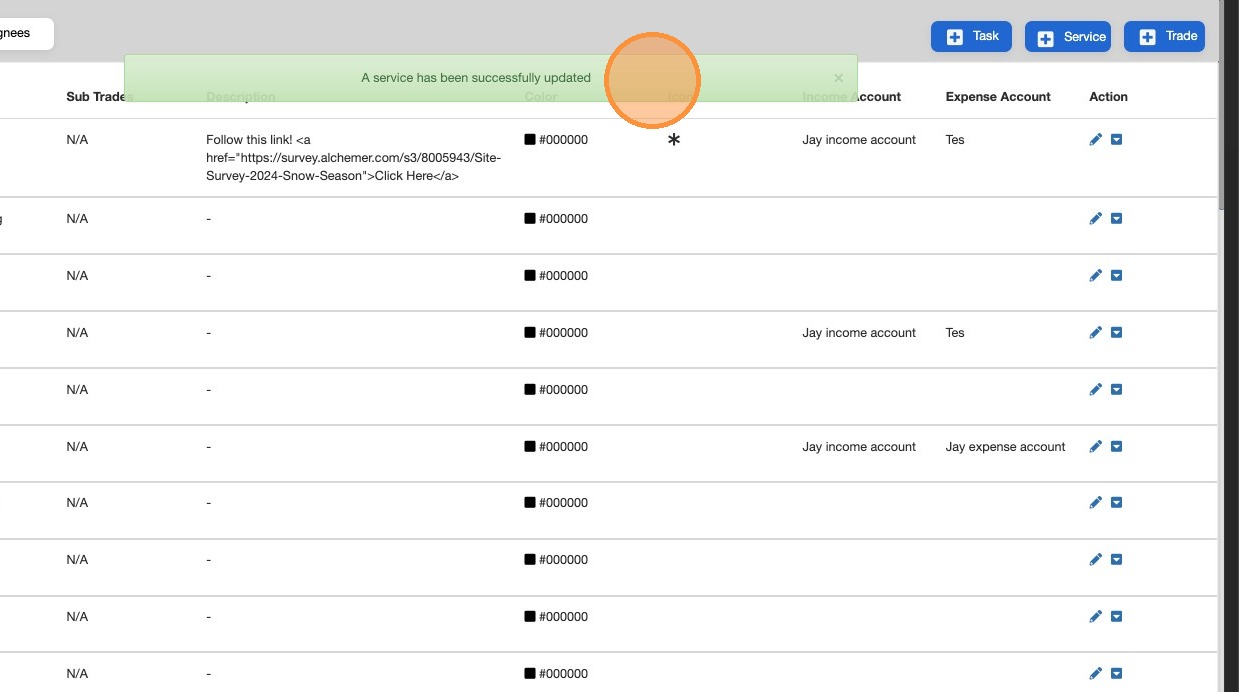
8. You'll receive a success notification once complete.