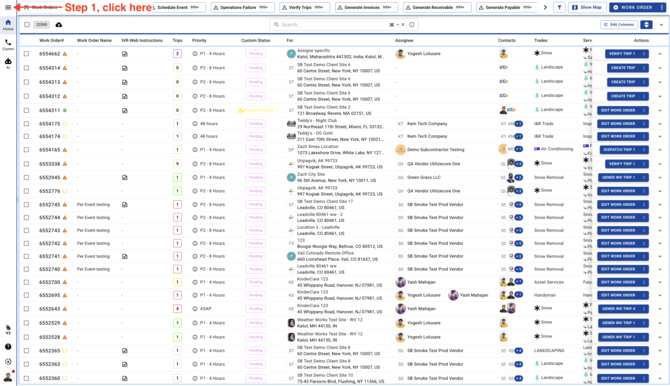
- Click on the menu icon on the top left corner.
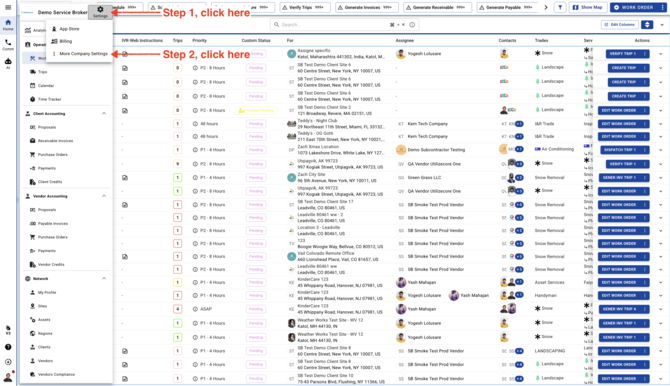
- Click on Company Settings.
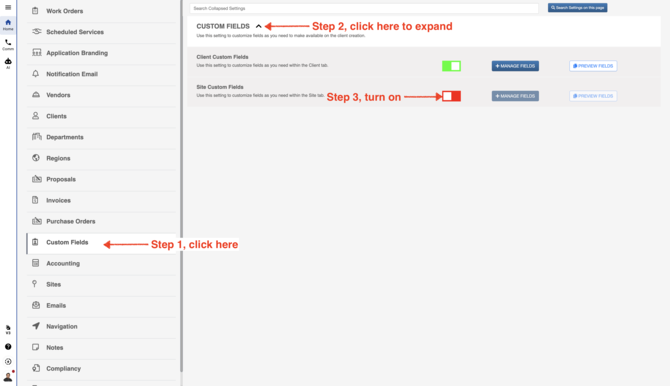
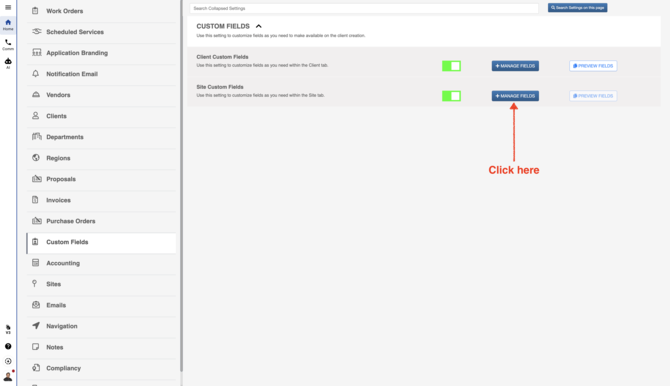
- Select Custom Fields from the left menu and turn on Site Custom Fields. The blue button "Manage Fields" will be greyed out until the switch is on.
- Click on the blue button "Manage Fields".
- Add a new Field, select Field Type, enter a Field Label and Save the field.
Note: You can make the field mandatory and you can choose between "Text" or "Dropdown" in Field Types.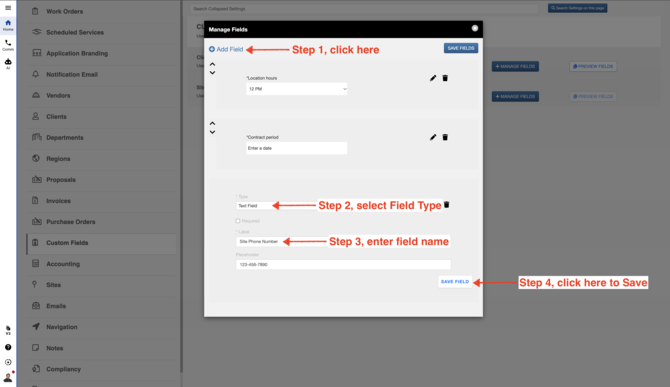
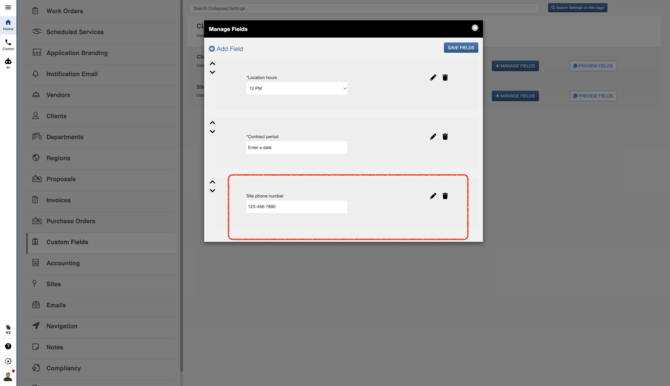
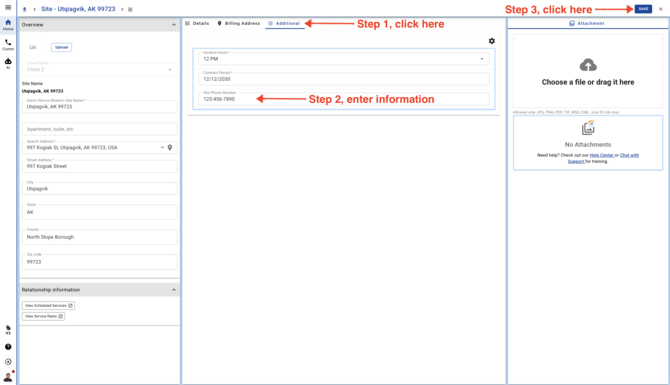
- Edit any Site and click on the "Additional" tab in the center panel. You'll be able to see the new Custom Field.