
Overview
Preview opens a record’s details right next to its list. It works across UtilizeCore, including Work Orders, Vendors, Clients, Sites, Invoices, Proposals and more. This article uses Work Orders as the example. You can choose from three preview layouts: Right preview, Wide right preview and Bottom preview. Whichever you pick becomes your default.
Your list keeps its filters, sort order and scroll position while the preview is open. You can review one record after another without starting your search over.
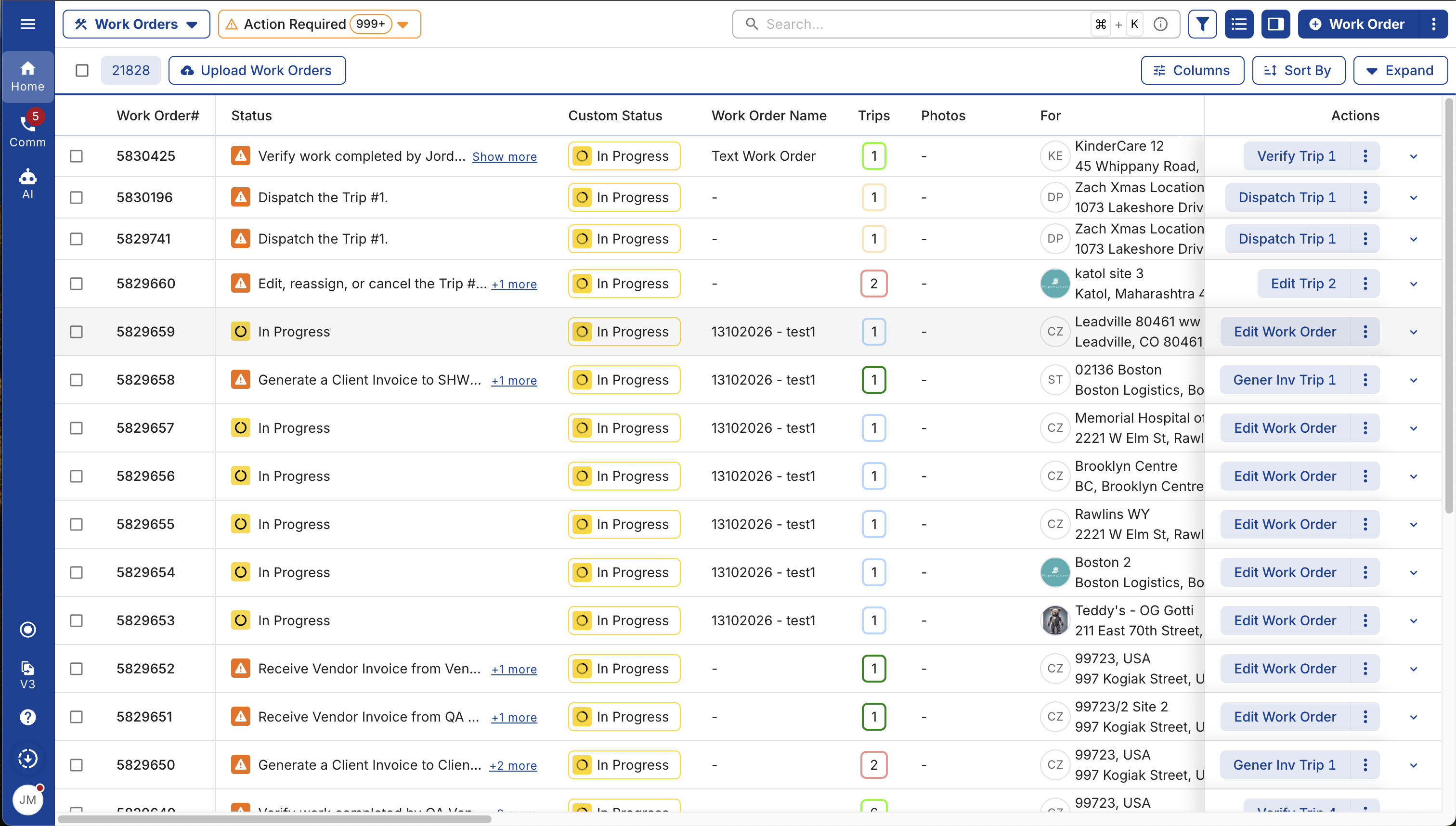
This is the Work Order list before you open a preview. Other lists work the same way:
How to choose your preview layout
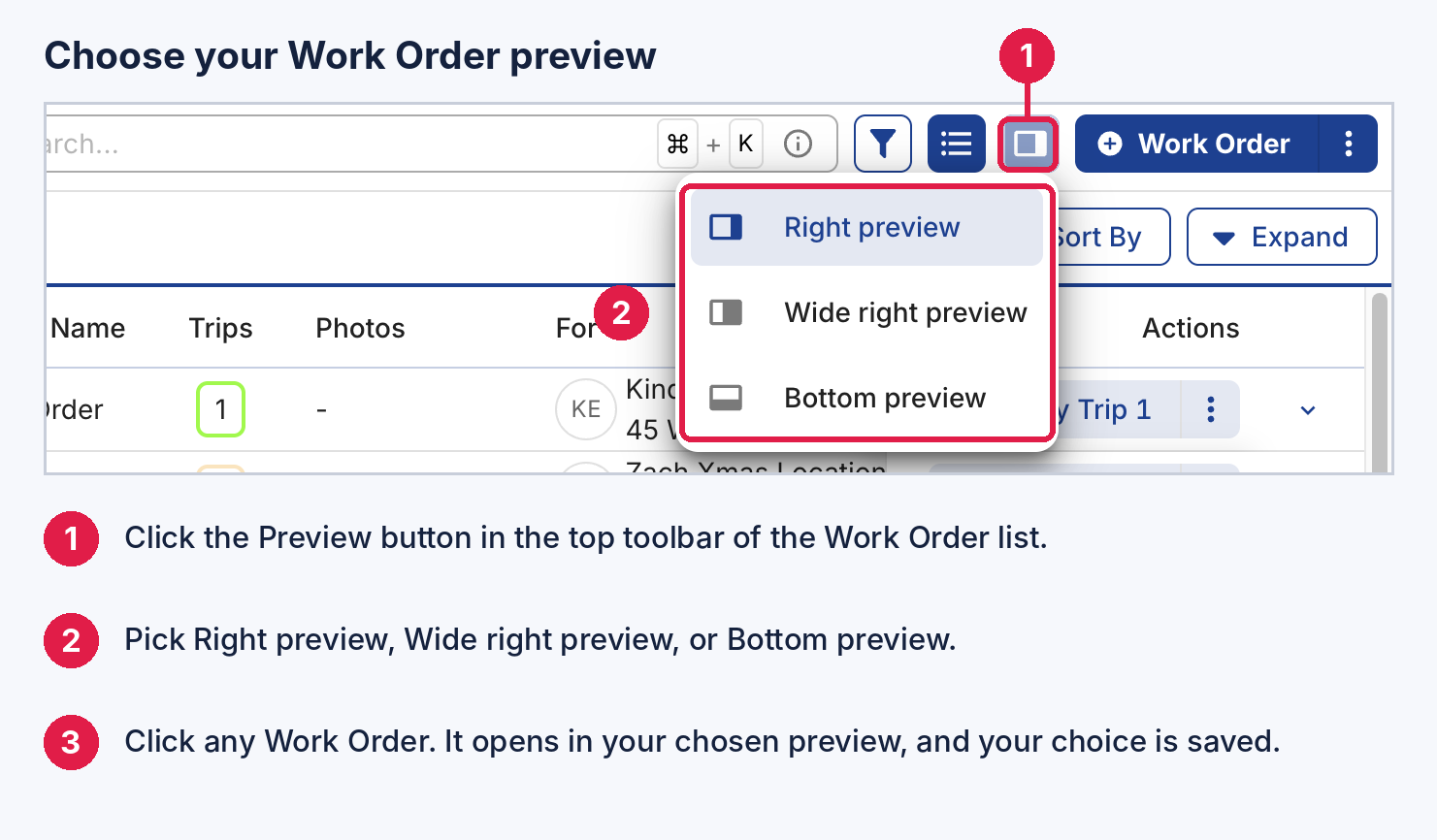
- Go to any list, such as Work Orders, Vendors, Clients or Invoices.
- Click the Preview button in the top toolbar. On the Work Orders list, it’s to the left of the + Work Order button.
- Choose Right preview, Wide right preview or Bottom preview.
- Click any record in the list. It opens in the layout you chose.
Your choice is saved once and applies to every list, so previews keep opening in that layout until you change it.
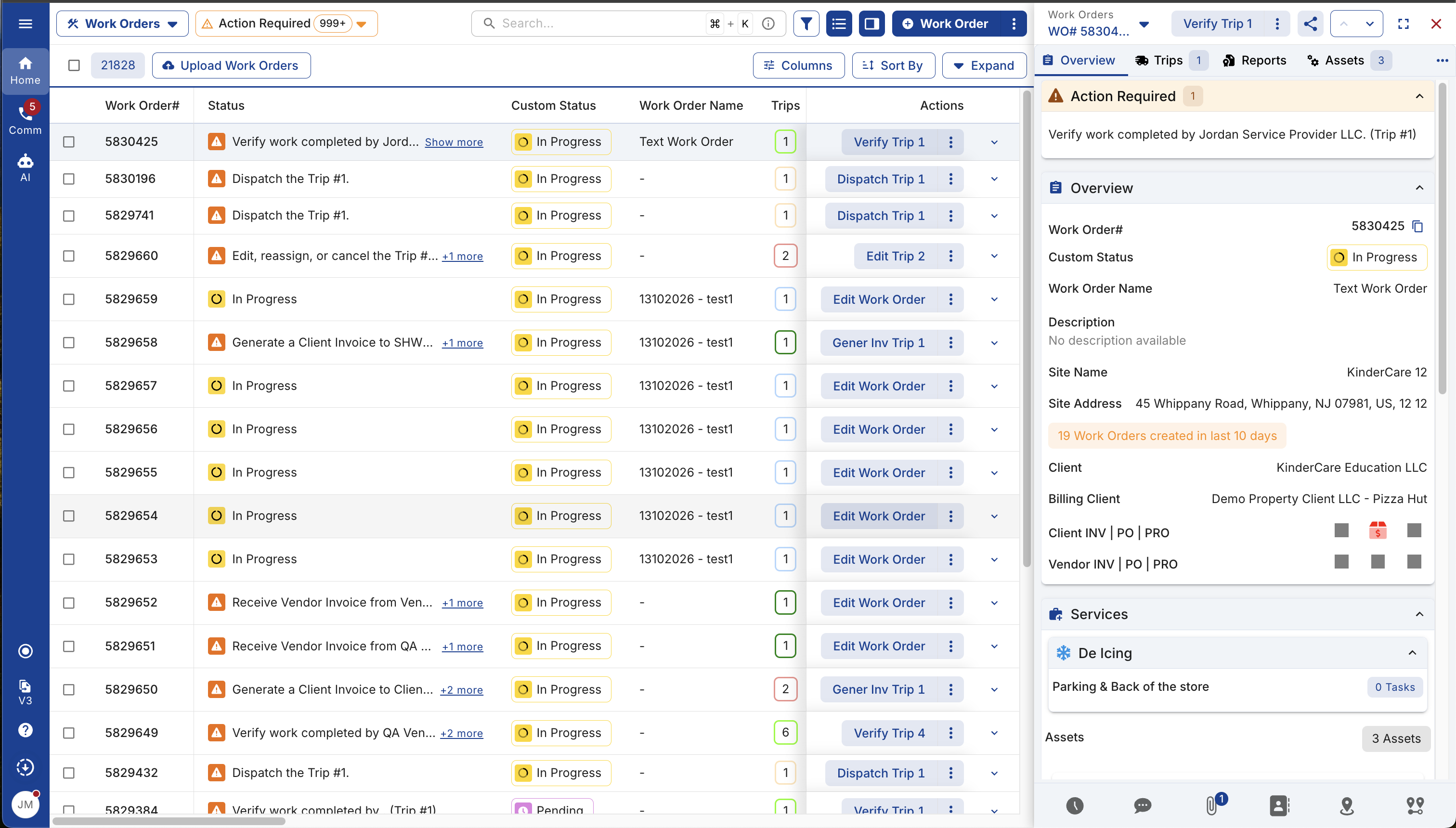
Right preview
Right preview puts a compact panel on the right side of the screen. Most of your list stays visible, so it works well for quickly checking several Work Orders, Vendors or Invoices in a row.
The panel includes the record’s tabs. For a Work Order, that means Overview, Trips, Reports, Assets and more. Tabs that don’t fit are under the ⋯ menu.
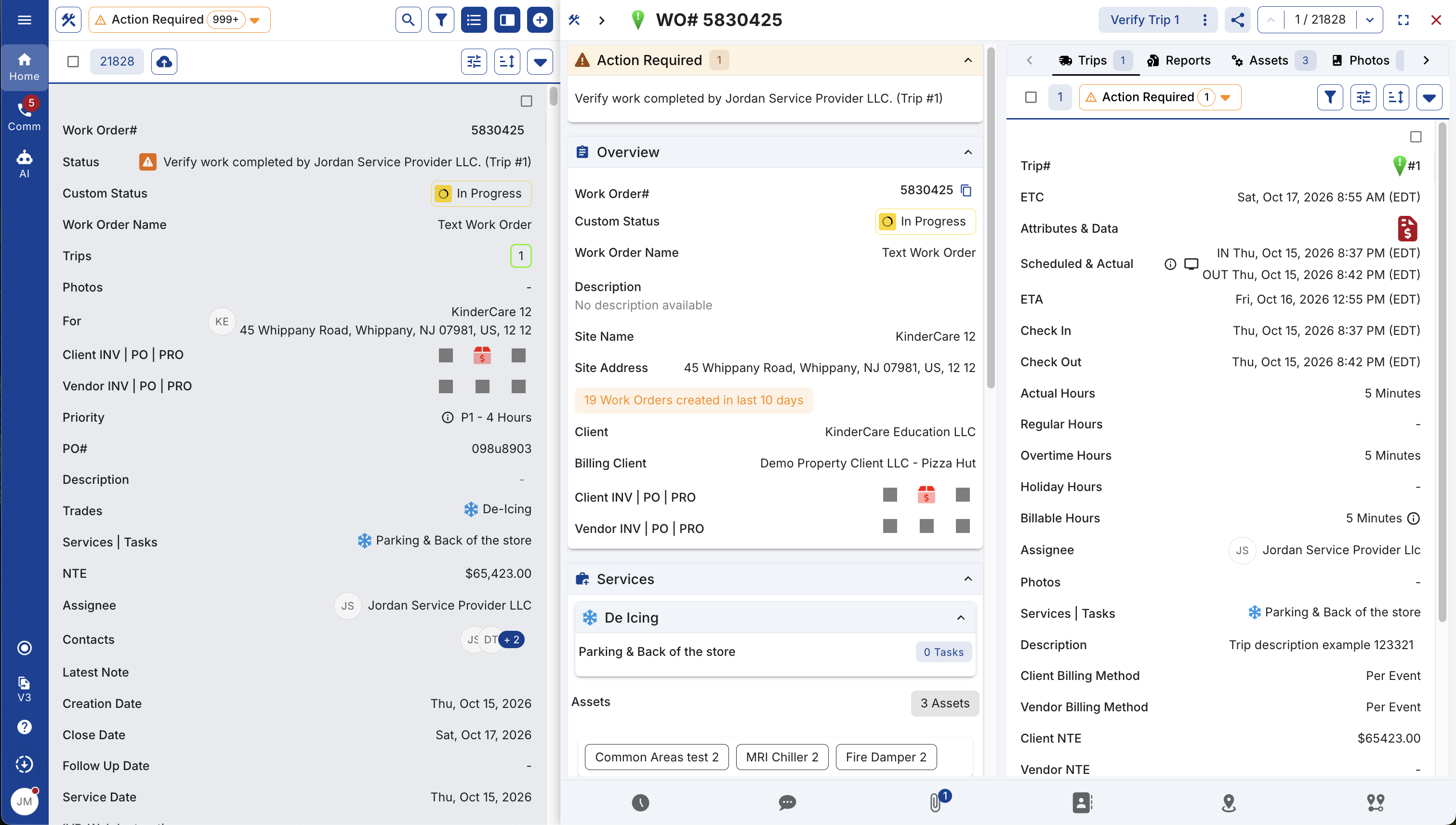
Wide right preview
Wide right preview shows three columns side by side: the list on the left, the record’s details in the center, and the selected tab on the right. For a Work Order, that might be the Overview in the center and Trip details on the right.
Use this layout when you need the full picture of one record, such as reviewing a Trip before verifying it or checking a Vendor’s details.
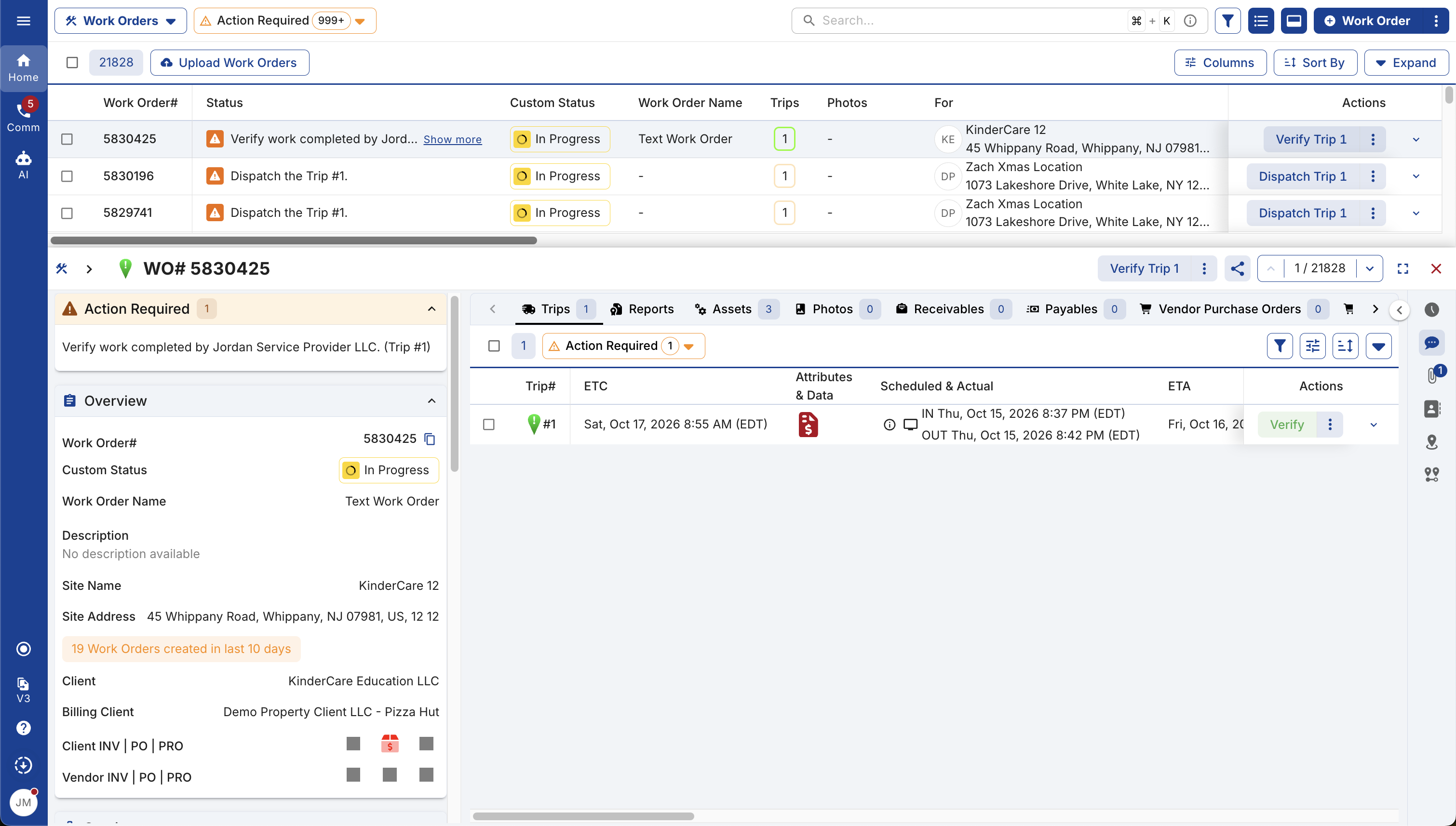
Bottom preview
Bottom preview opens the record across the lower part of the screen, and the list stays across the top. Because the list keeps its full width, you can still see every column.
For a Work Order, the preview shows the Overview on the left and the Work Order’s tabs (Trips, Reports, Assets, Photos, Receivables, Payables and more) on the right.
Frequently asked questions
Which pages support Preview?
Preview is available on lists across UtilizeCore, including Work Orders, Vendors, Clients, Sites, Invoices and Proposals.
Will I lose my filters when I open a preview?
No. Your filters, sort order and scroll position stay the same while the preview is open and after you close it.
Can I change my preview layout later?
Yes. Click the Preview button and choose a different option at any time. Your new choice becomes your default on every list.
What happens on a small screen?
On narrow screens, such as phones, the preview opens full screen. The layout options are hidden, but Close and the record’s actions are still available.
Can I still open the full record page?
Yes. Use Full screen in the preview header, or open the record the way you do today.
Any questions? Contact your Account Manager, or email support@utilizecore.com.