
How To Pin & Use Filters
- Start by logging in to your company’s UtilizeCore account. UtilizeCore automatically sets up your account URL when you sign up. For example, if your company is called Martin’s Snow Removers, your URL would be martinssnowremovers.utilizecore.com, unless you chose a different URL name during signup.
Select a page to start using filters.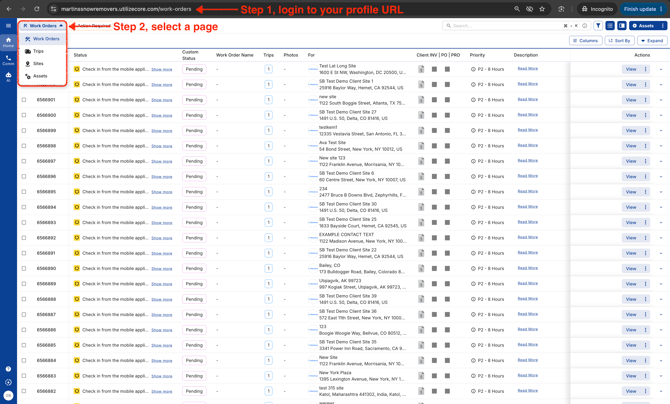
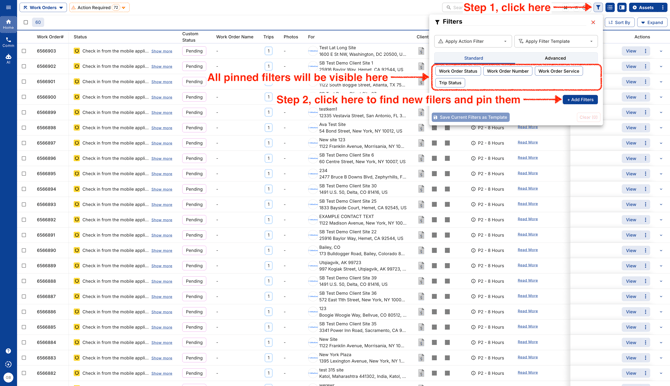
- Click on the filter icon and pin new filters to start using them.
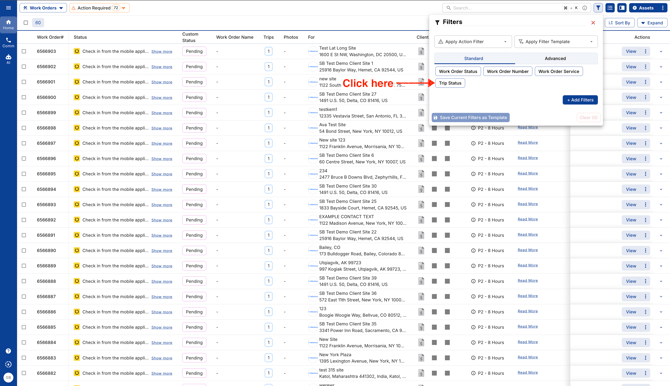
- Click on the filter name.
Select one or multiple filters.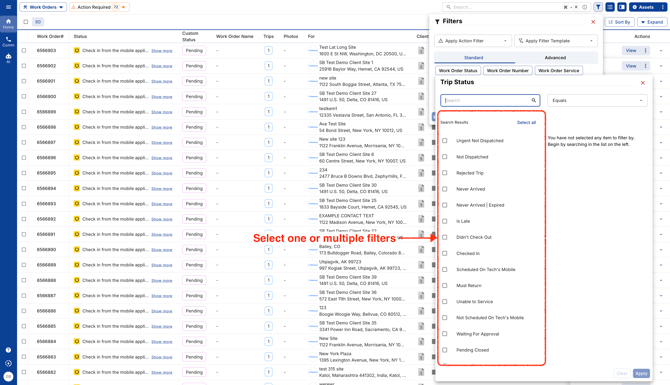
You’ll see your selected filters on the right, as shown in the screenshot and click Apply.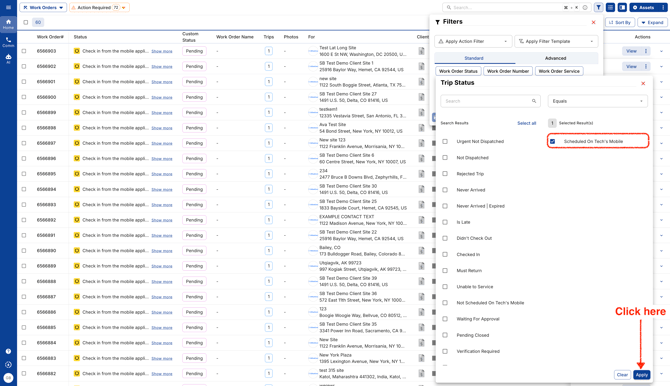
How To Create A Filter Template
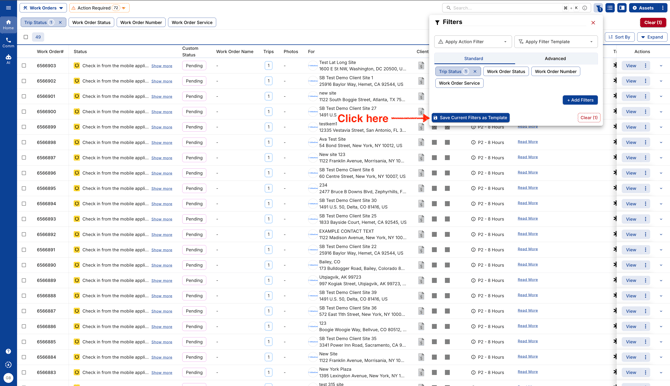
- Be sure to apply your filters first, then click the button to save them as a template.
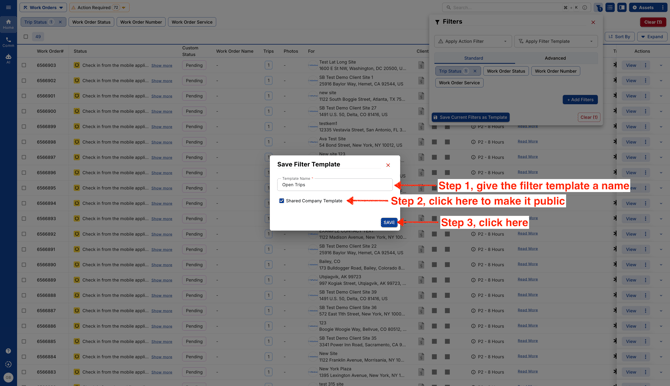
- Give your filter template a name so you can easily find and reuse it later. To keep it just for you, leave the "Shared Company Template" checkbox unchecked. Want everyone in your company to use it? Select the checkbox to share it with them.
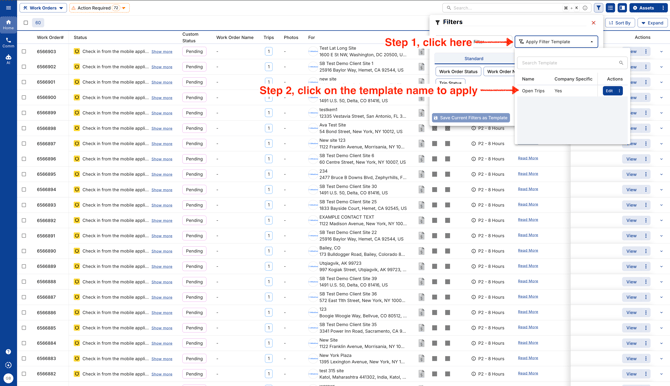
- To reuse a saved filter template, open the "Apply Filter Template" dropdown and choose the one you’d like to use.
Video