Step 1
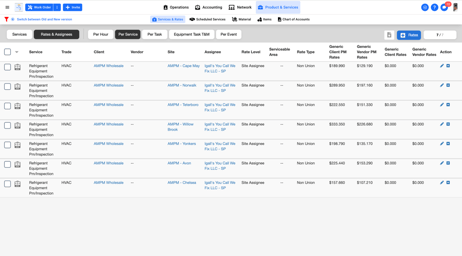
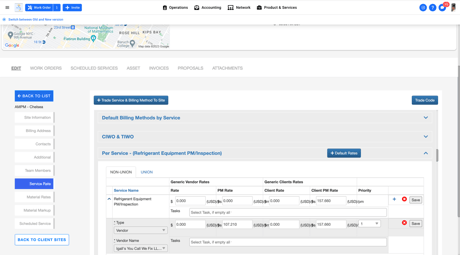
- Update Vendor and Vendor Rates based on Trade, Services, Site(s), and Priority (1) for Rate Level of Site Assignee.
- Bulk update through Per Service Template and upload through Rates & Assignee -> Per Service
- Update single site through Site Profile Service Rate
Step 2
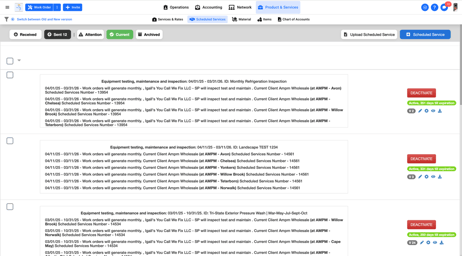
- Navigate to Scheduled Service
- To find the Scheduled Service to update, filter by either:
- Scheduled Service Number
- Trade & Service
- Service
- Select the ‘pencil’
Step 3
- Select ‘Back’
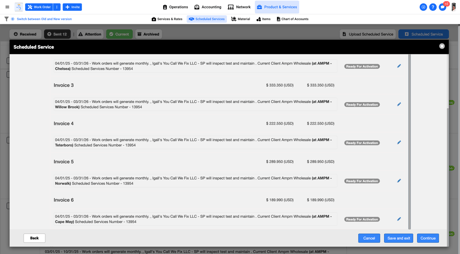
Step 4
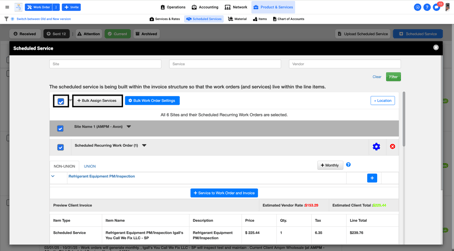
- Check box to select all locations
- Or include sites, via ‘Sites’ filed, where Vendor(s) and/or Rate Change(s) needs to be updated
- Select ‘+ Bulk Assign Services’
- Note – If more than 10 sites first select

- Note – If more than 10 sites first select
Step 5
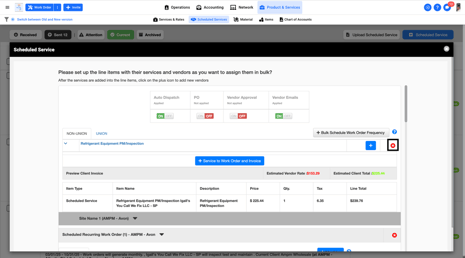
- Select ‘x’ to clear all Vendor Assignments and Vendor Rates
- Wait a moment until all Vendor Assignments and Vendor Rates are removed
- Select ‘+ Service to Work Order and Invoice’
Step 6
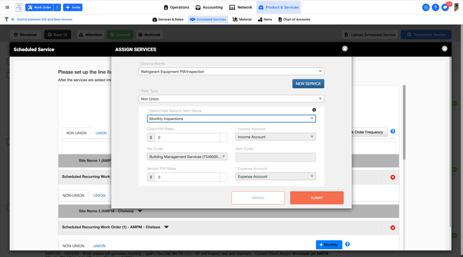
- Select the Service w/in the ‘* Service Name’ drop down
- Select the Item Name w/in the ‘*Select/Add Generic Item Name’
- Ensure both a. and b. selection are the same selection when originally creation of the Scheduled Service
- Select ‘Submit’
Step 7
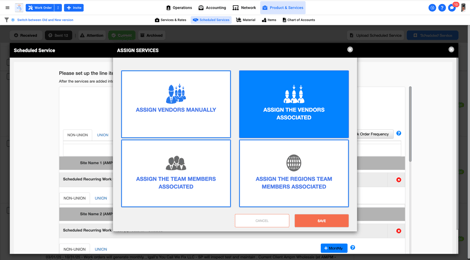
- Select ‘Assign The Vendors Associated’
- Select ’Save’
Step 8
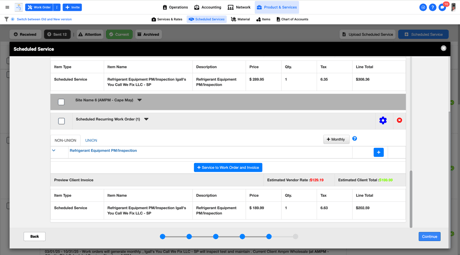
- Select ‘Continue’
Step 9
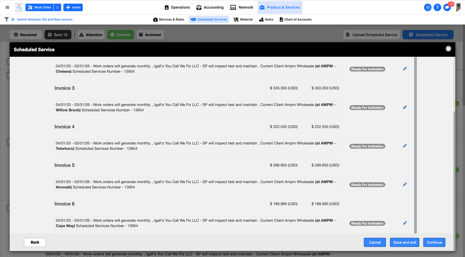
- Select ‘Continue’
Step 10
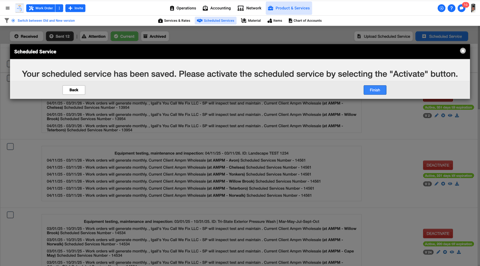
- Select ‘Finish’
Question(s) or Need Assistance?
Chat with us