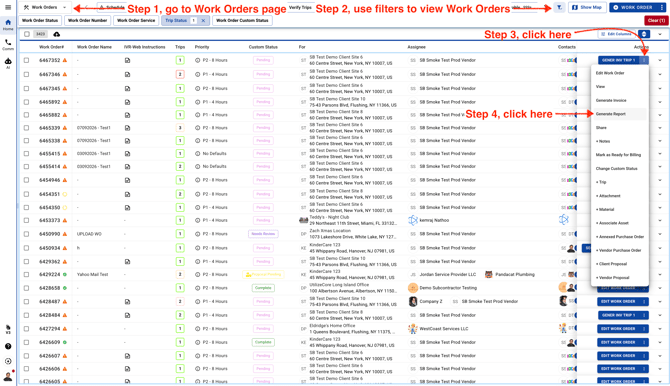
- Once you’ve filtered your Work Orders in list view, click the three dots on the Work Order and choose "Generate Report."
From the Work Order partial view, click the three dots on the Trip and choose "Generate Report."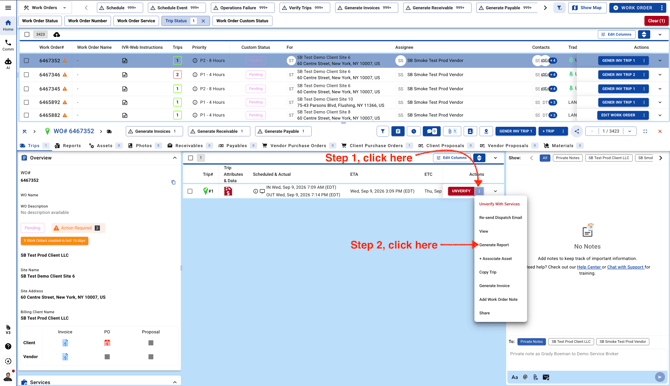
- Enter a template name, then choose the checkboxes you’d like to include in the Trip report. The next time you use the same template, the checkboxes will reset based on that template’s settings.
Note: If you choose "User Specific Template," the Trip Report Template will only be visible to you.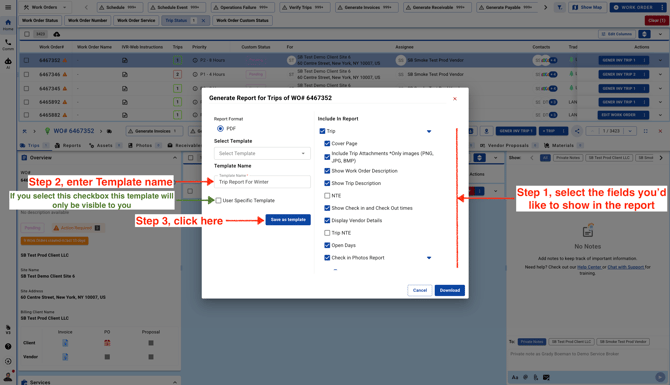
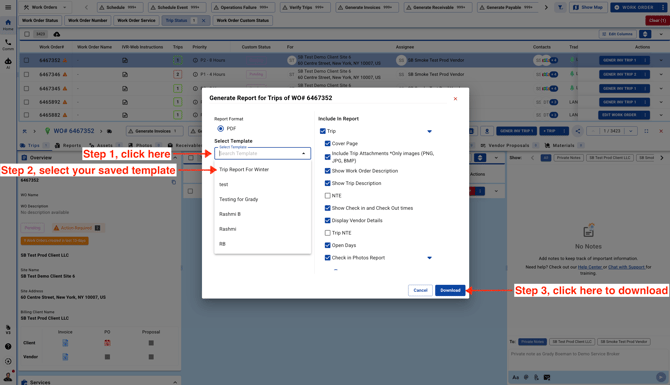
- Choose your saved template, then download the Trip report.
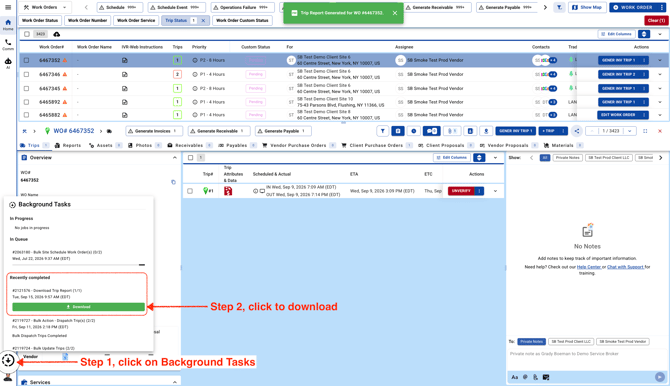
- To download the Trip report, go to Background Tasks and download it from there.