Navigation and Entry
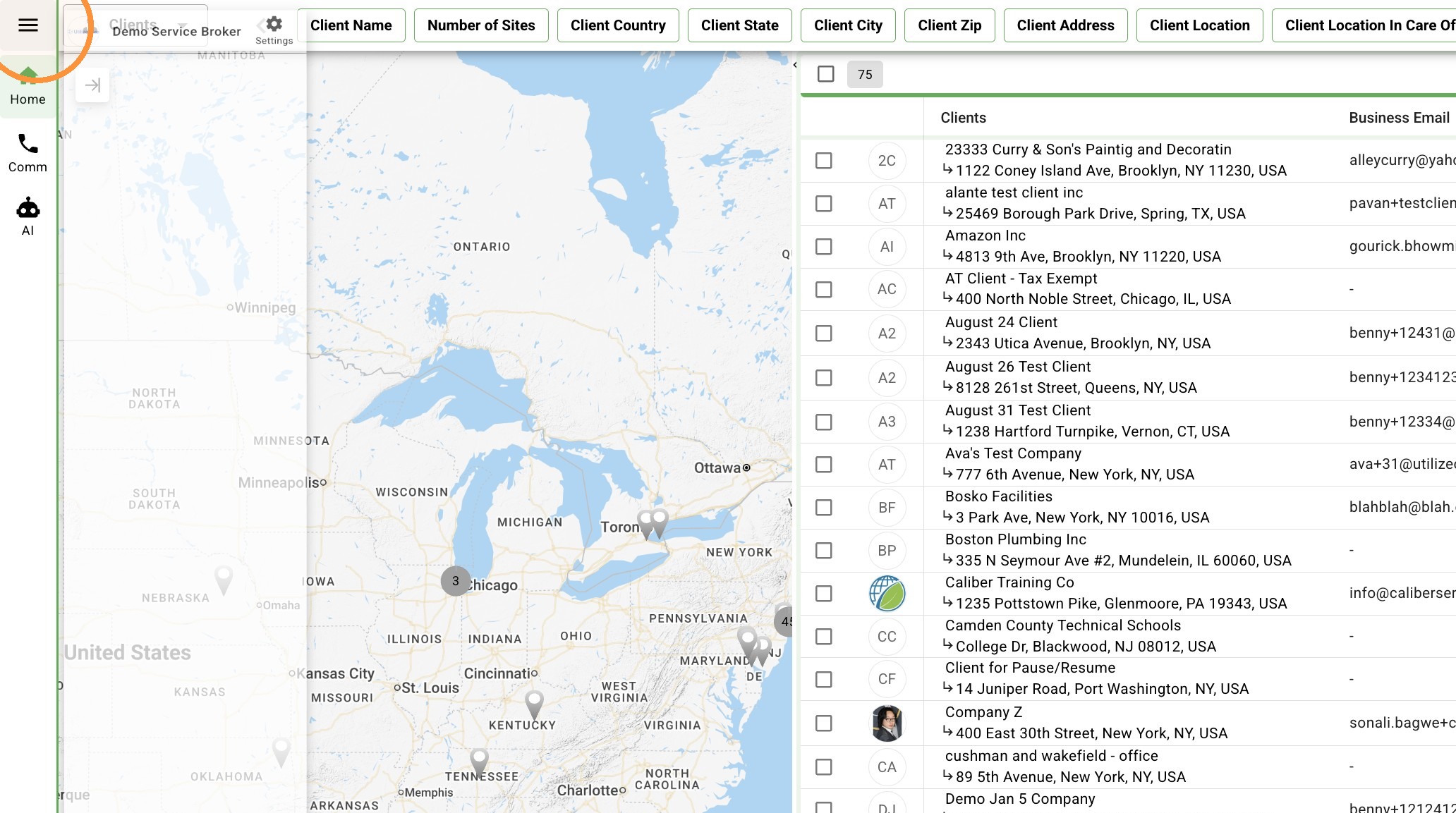
1. Click sidebar menu icon to expand navigation.
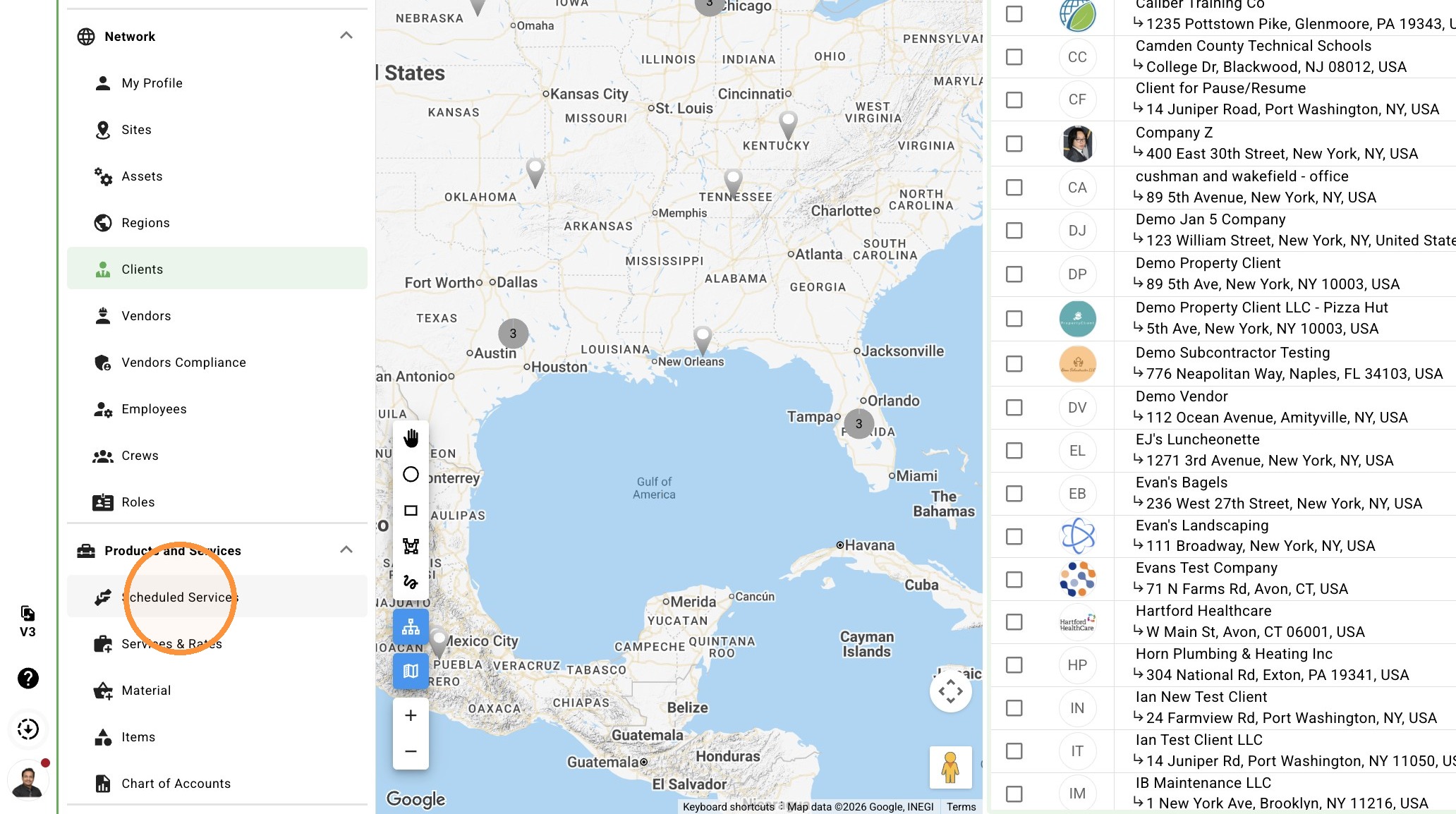
2. Click "Scheduled Services"
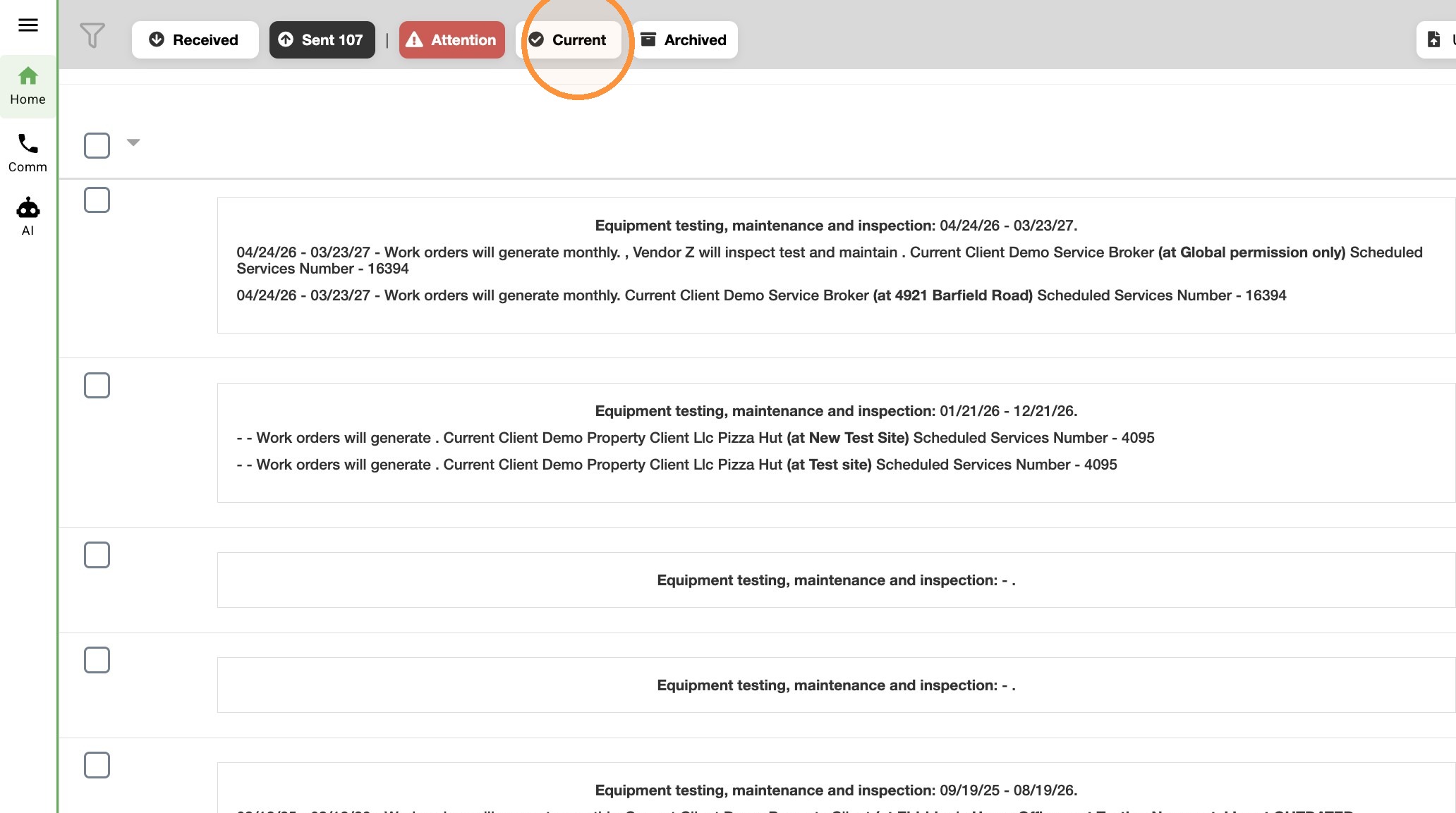
3. Click "Current"
Scheduled Service Creation
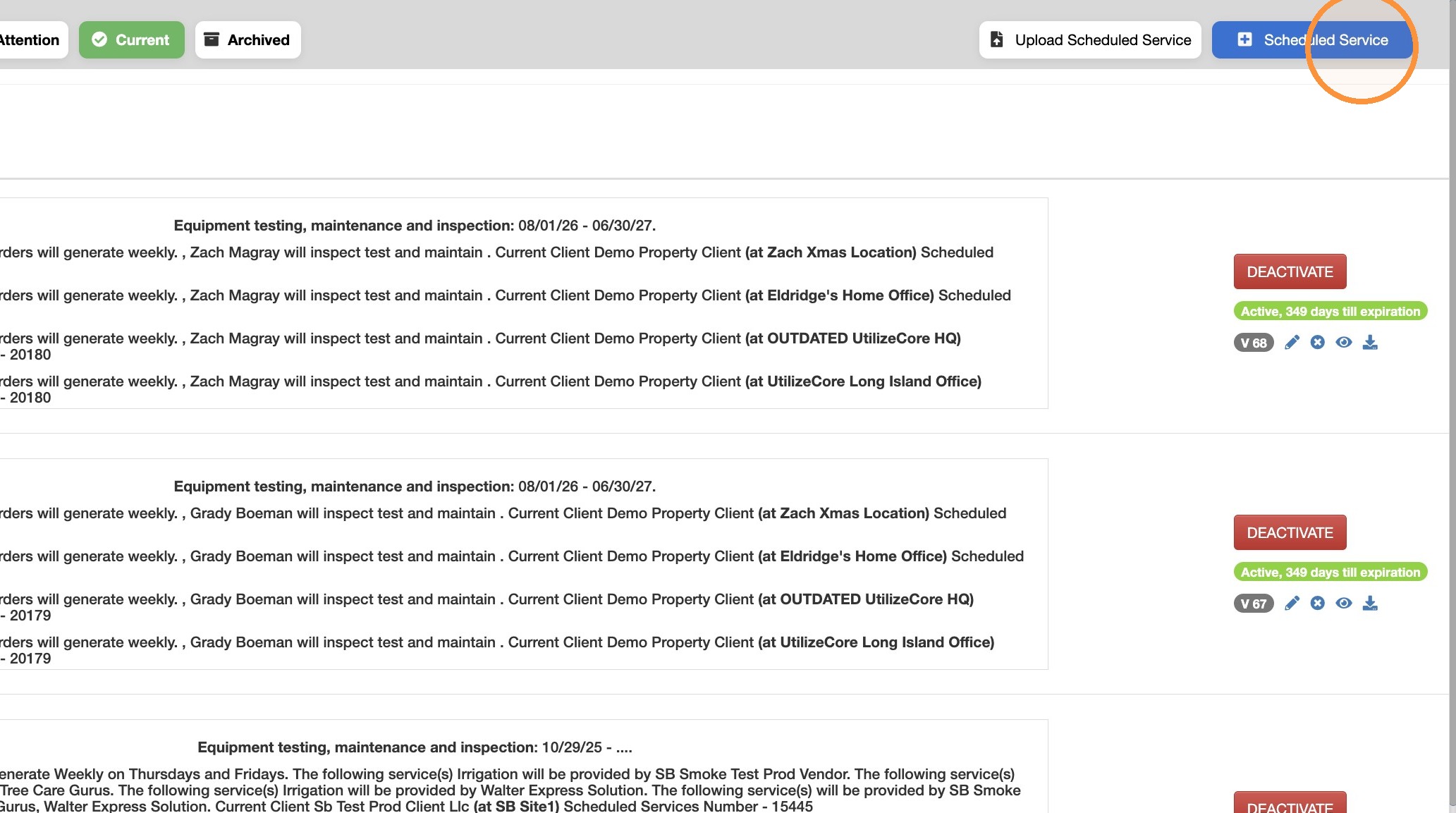
4. Click + Scheduled Service button.
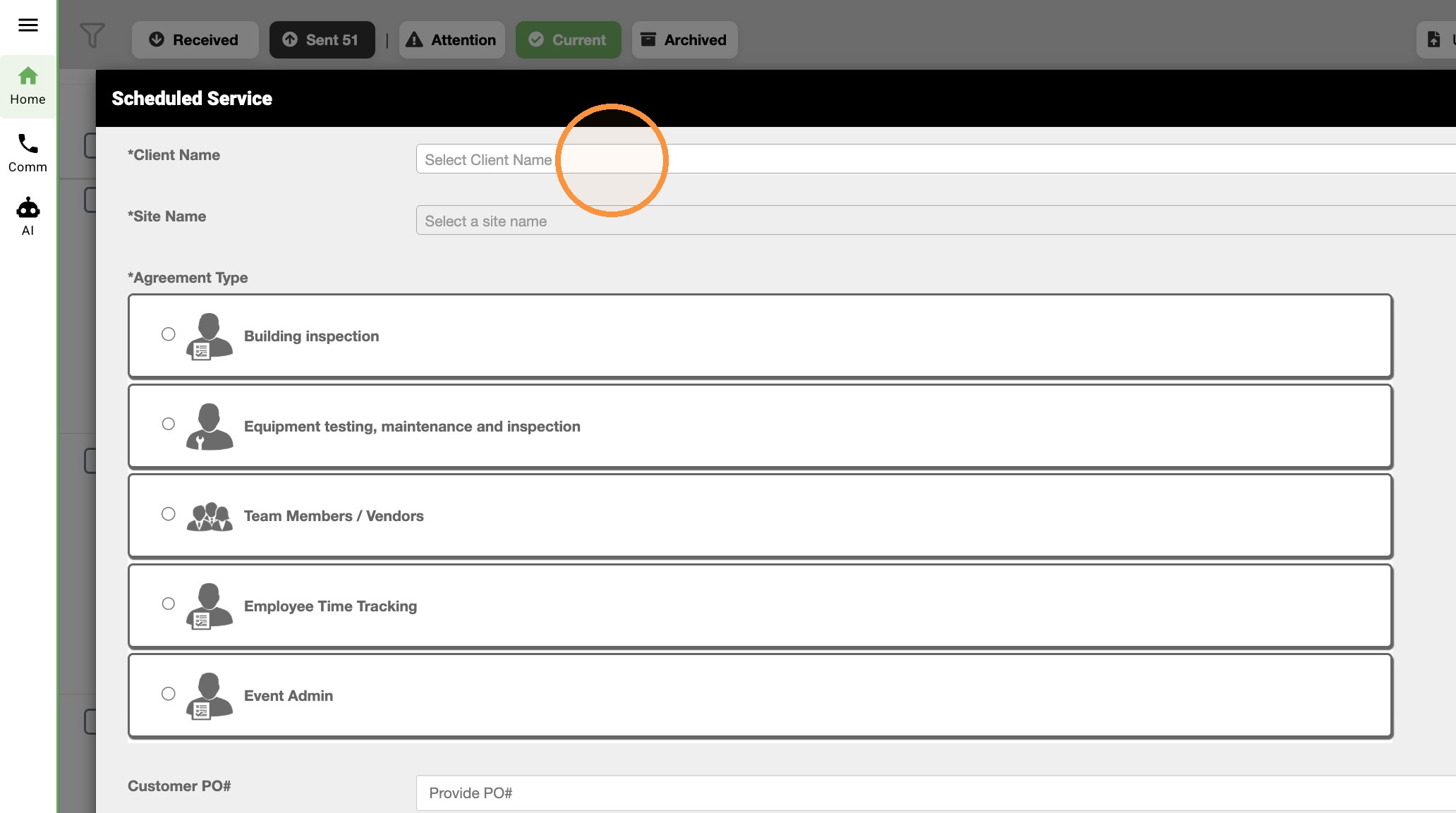
5. Select Demo Property Client from dropdown menu.
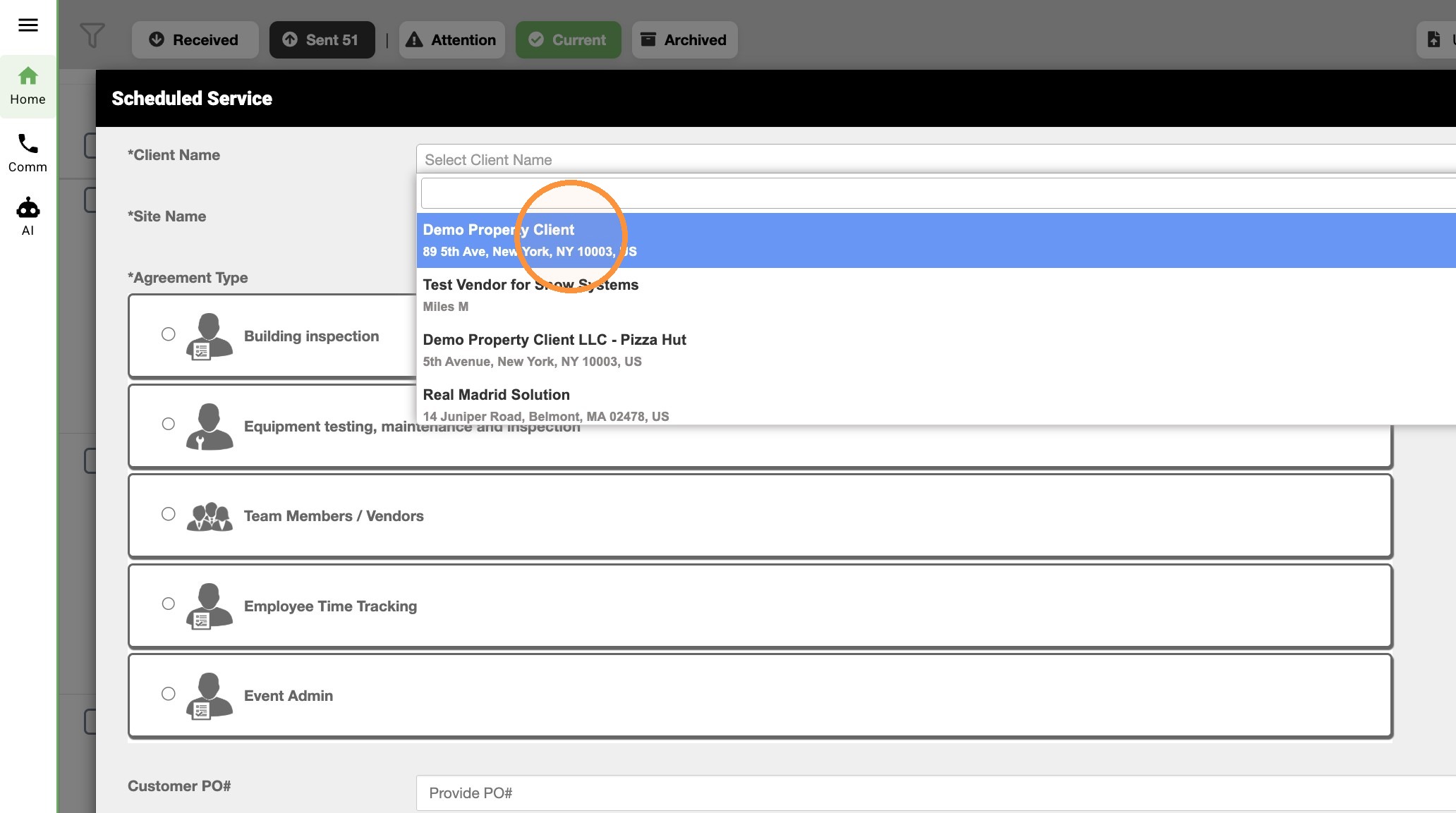
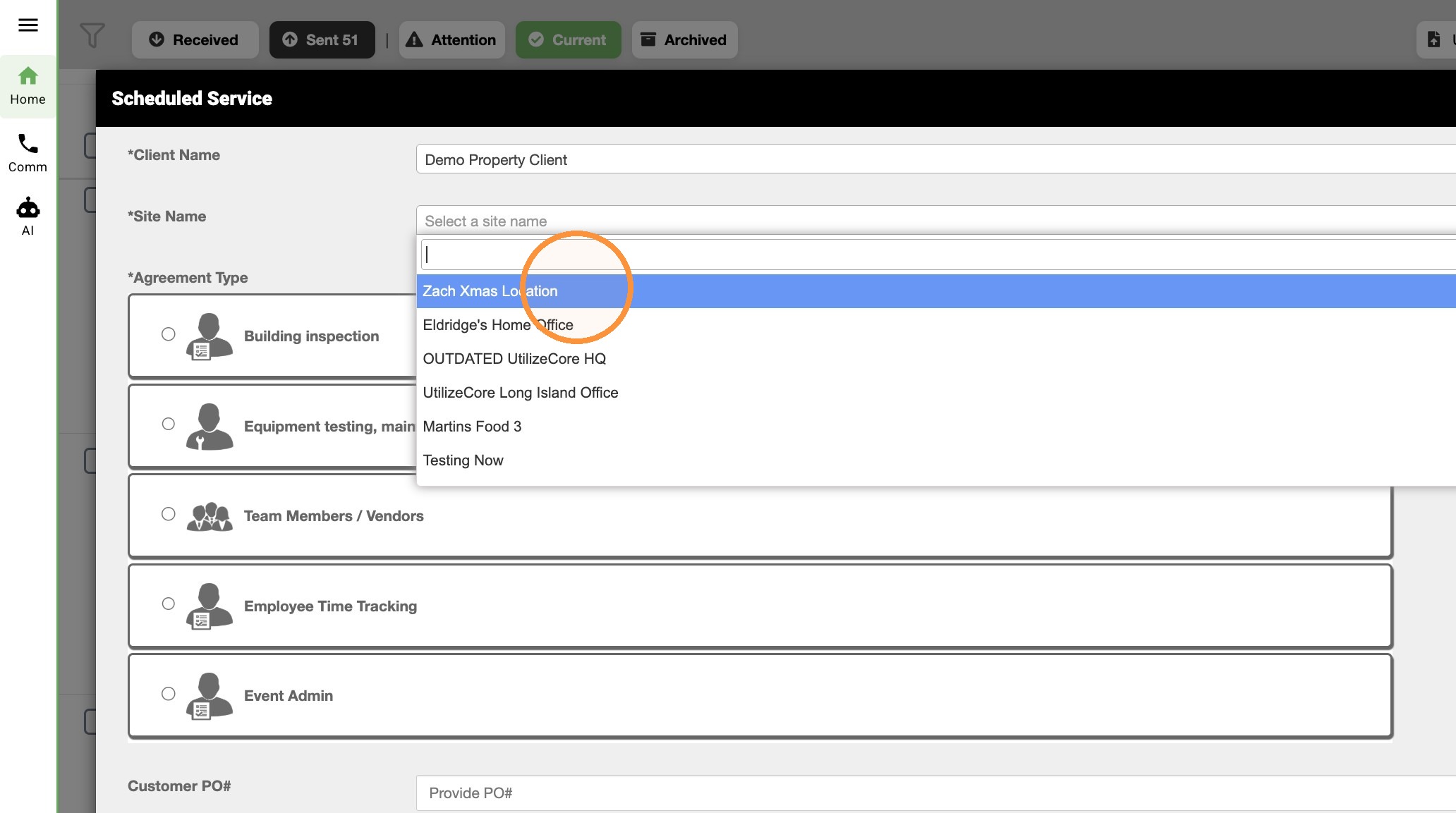
6. Select Zach Xmas Location site name.
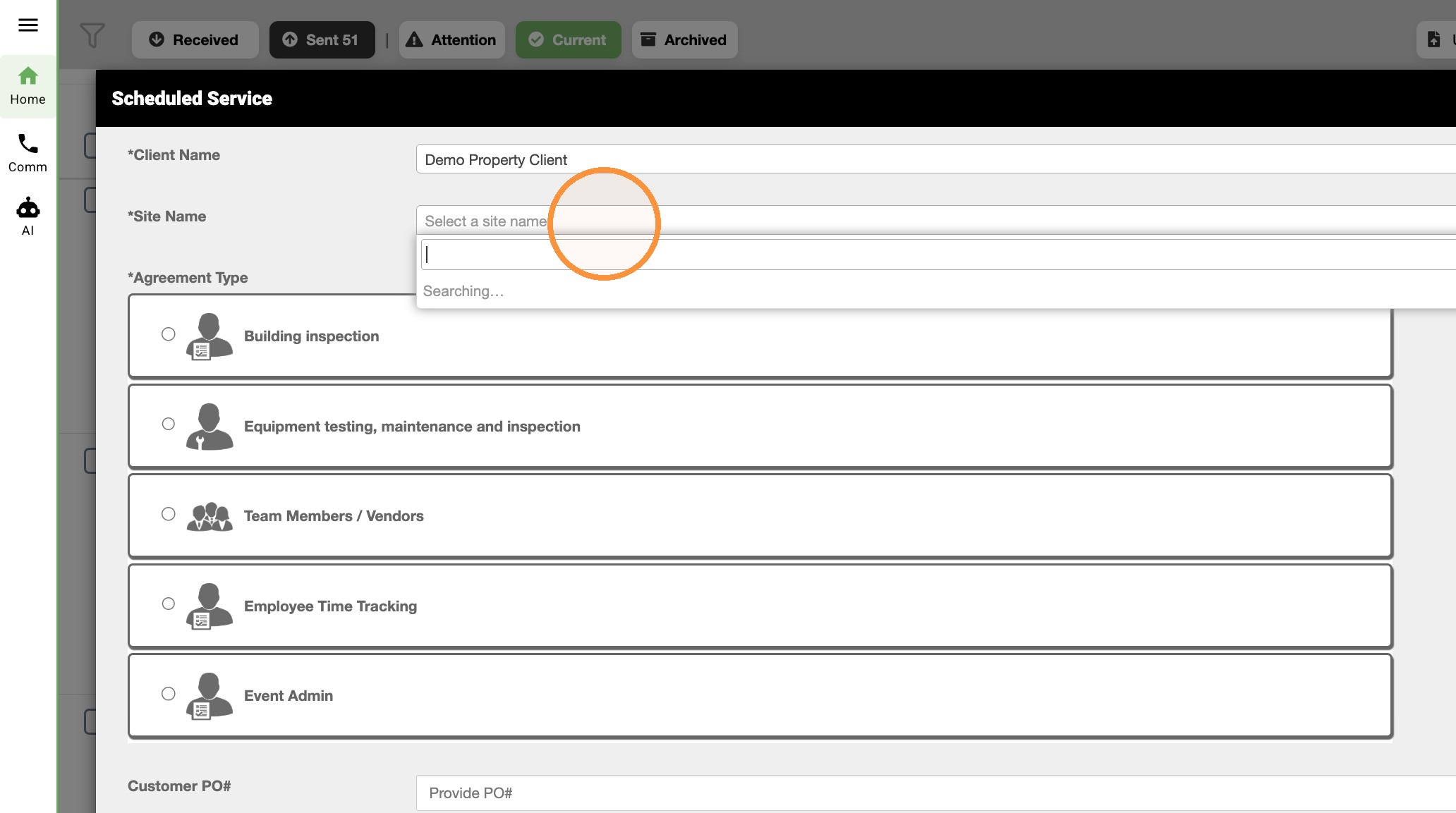
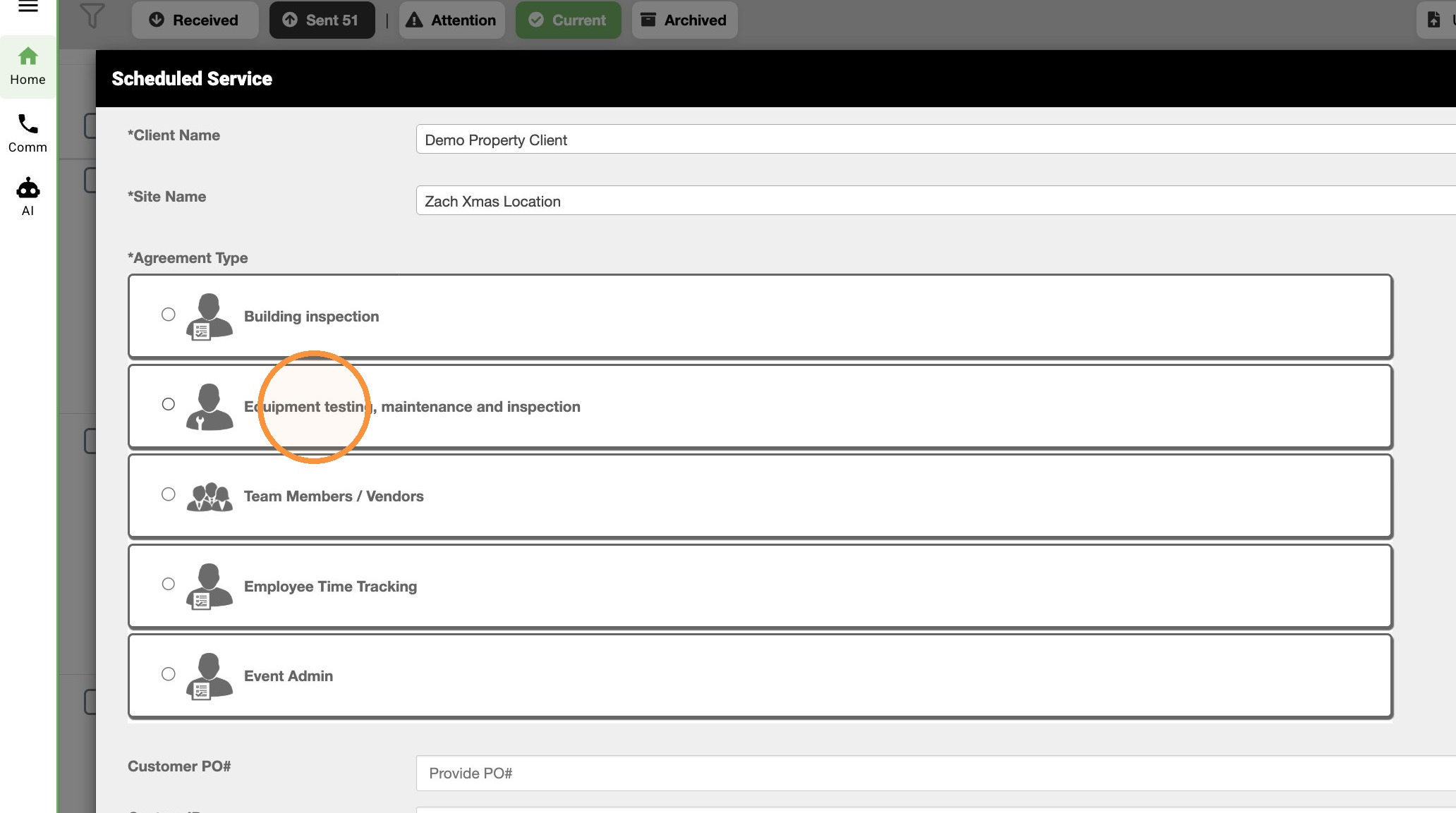
7. Select 'Equipment testing, maintenance and inspection' agreement type.
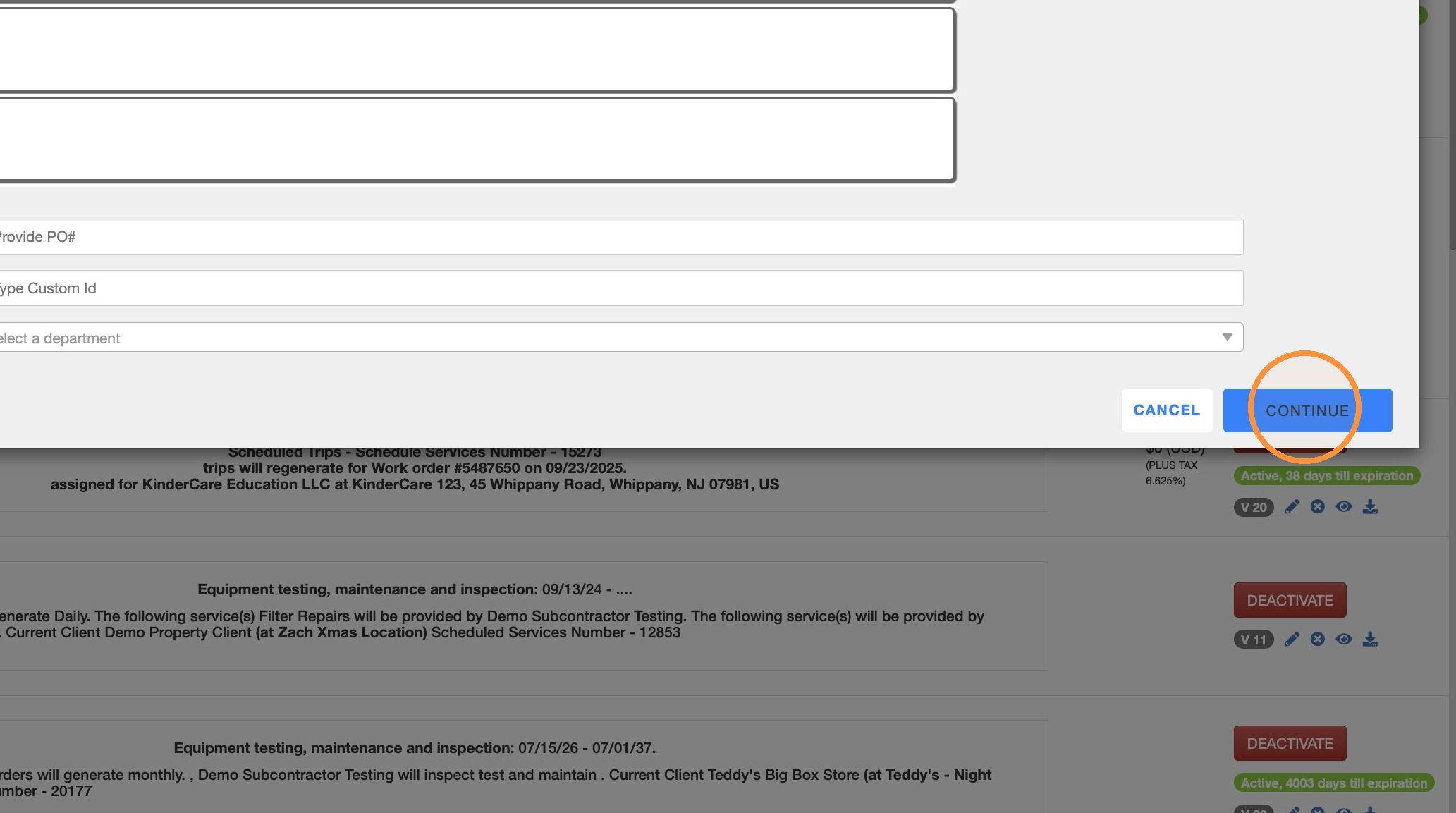
8. Click Continue.
Agreement Configuration
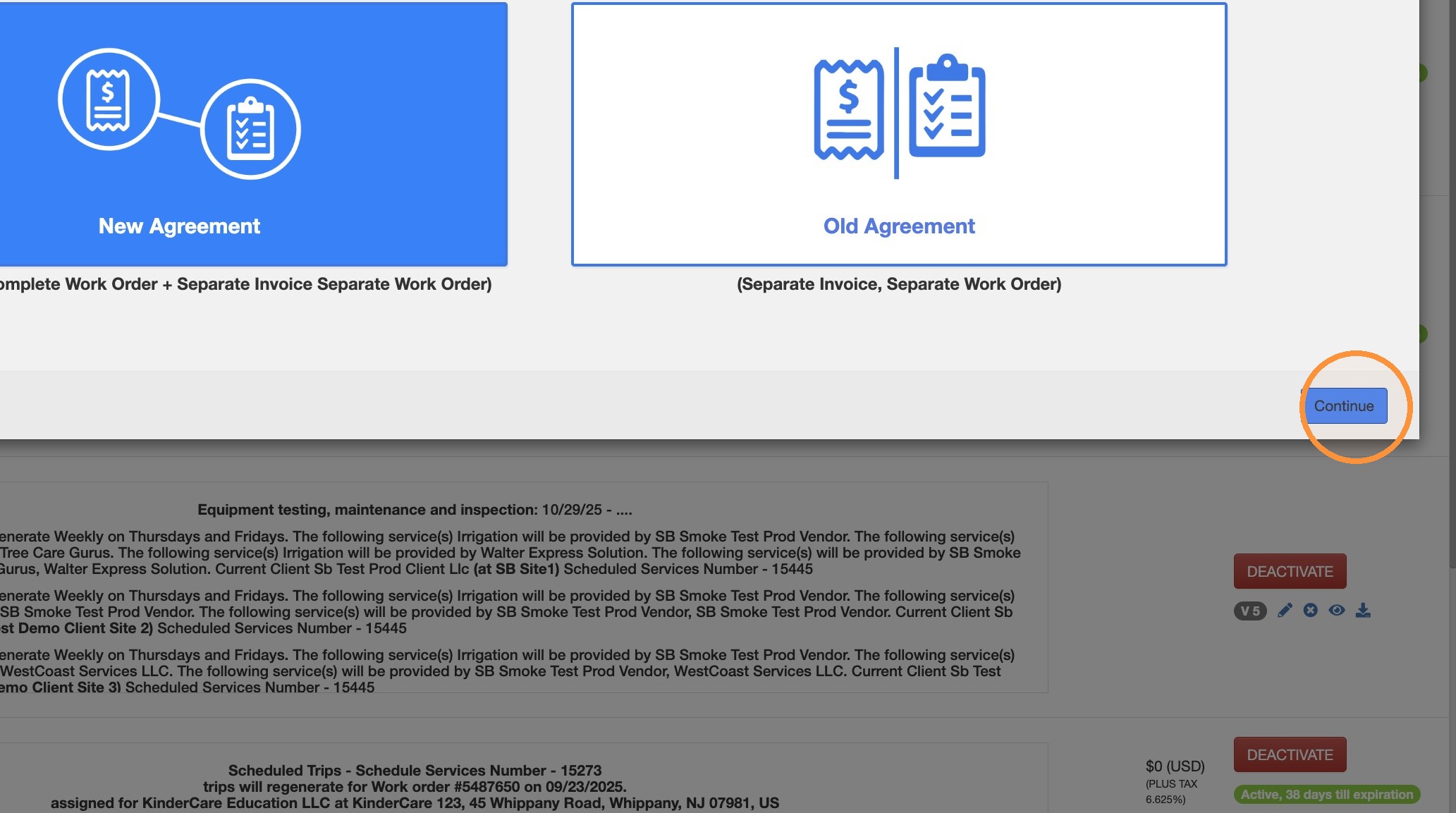
9. Select 'New Agreement'.
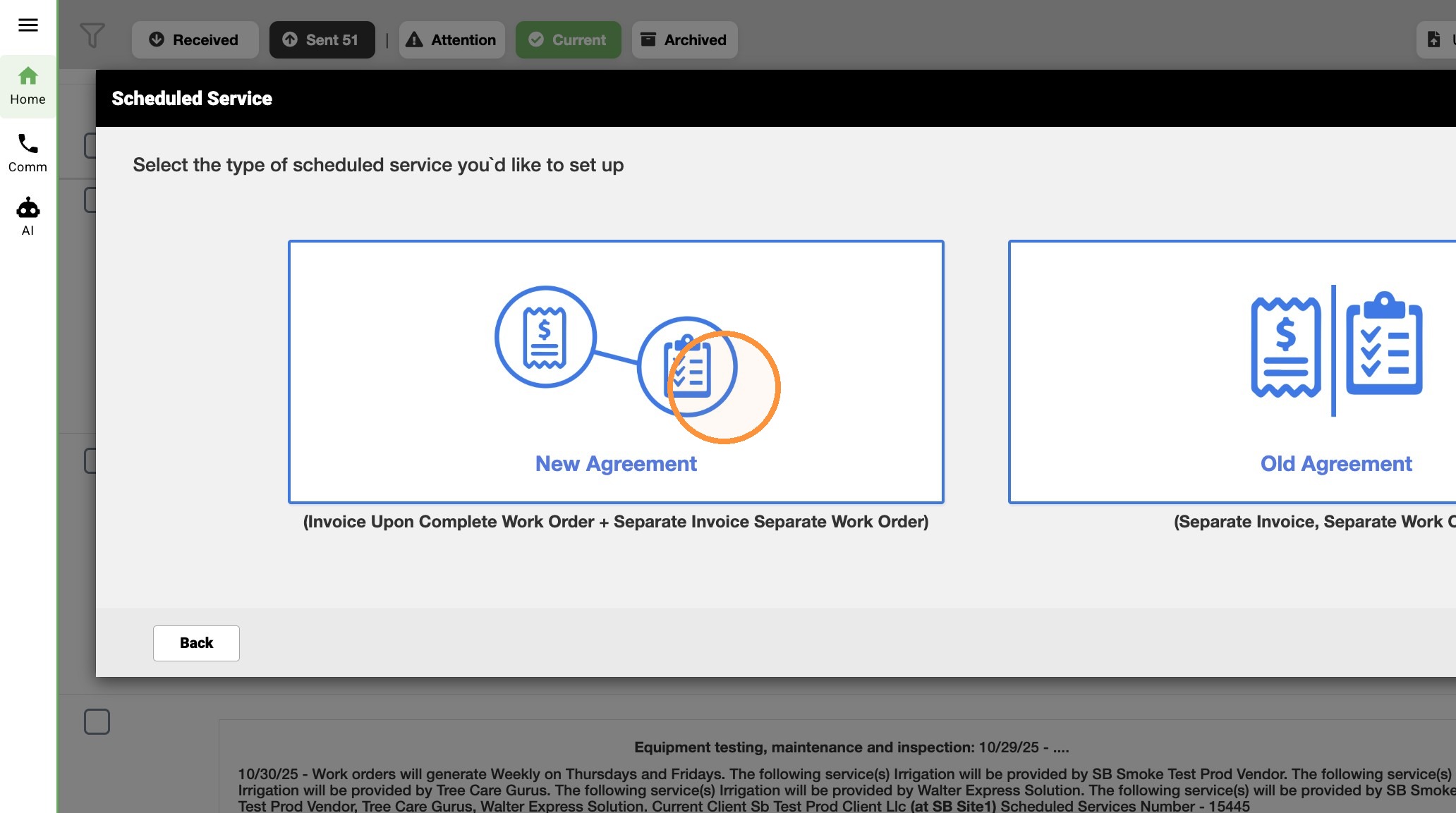
10. Click Continue.
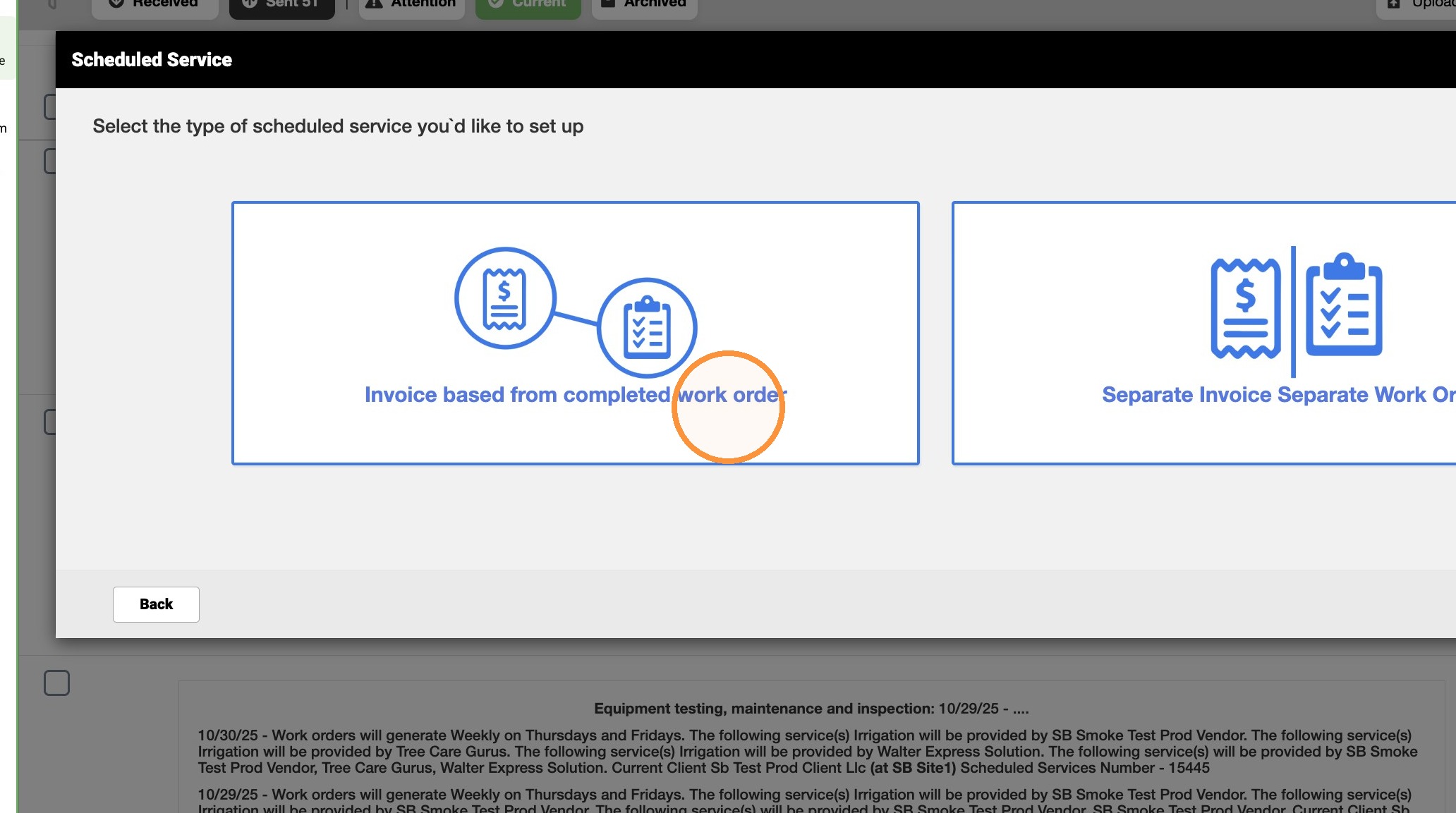
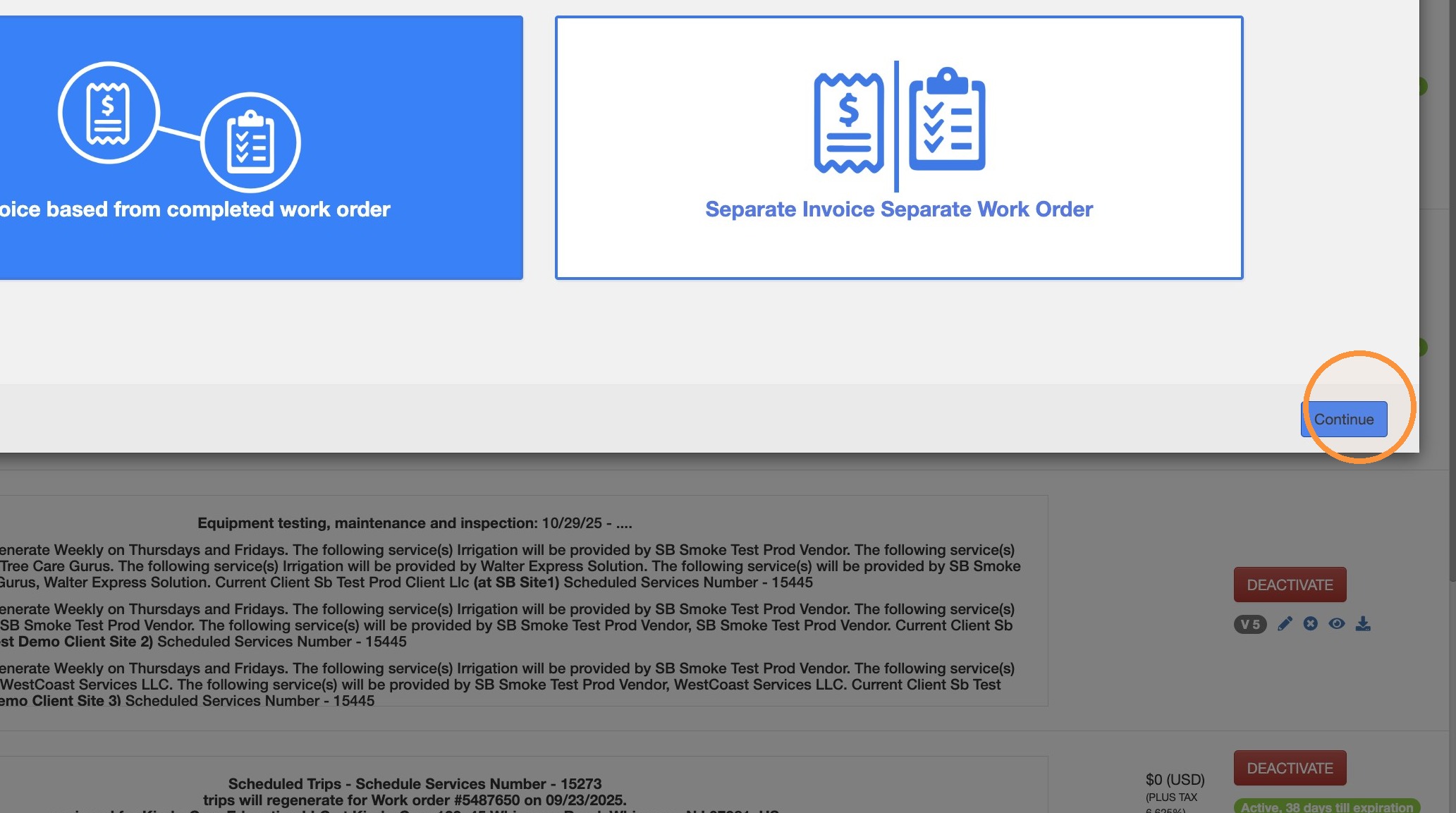
11. Select 'Invoice based from completed work order' and click Continue.
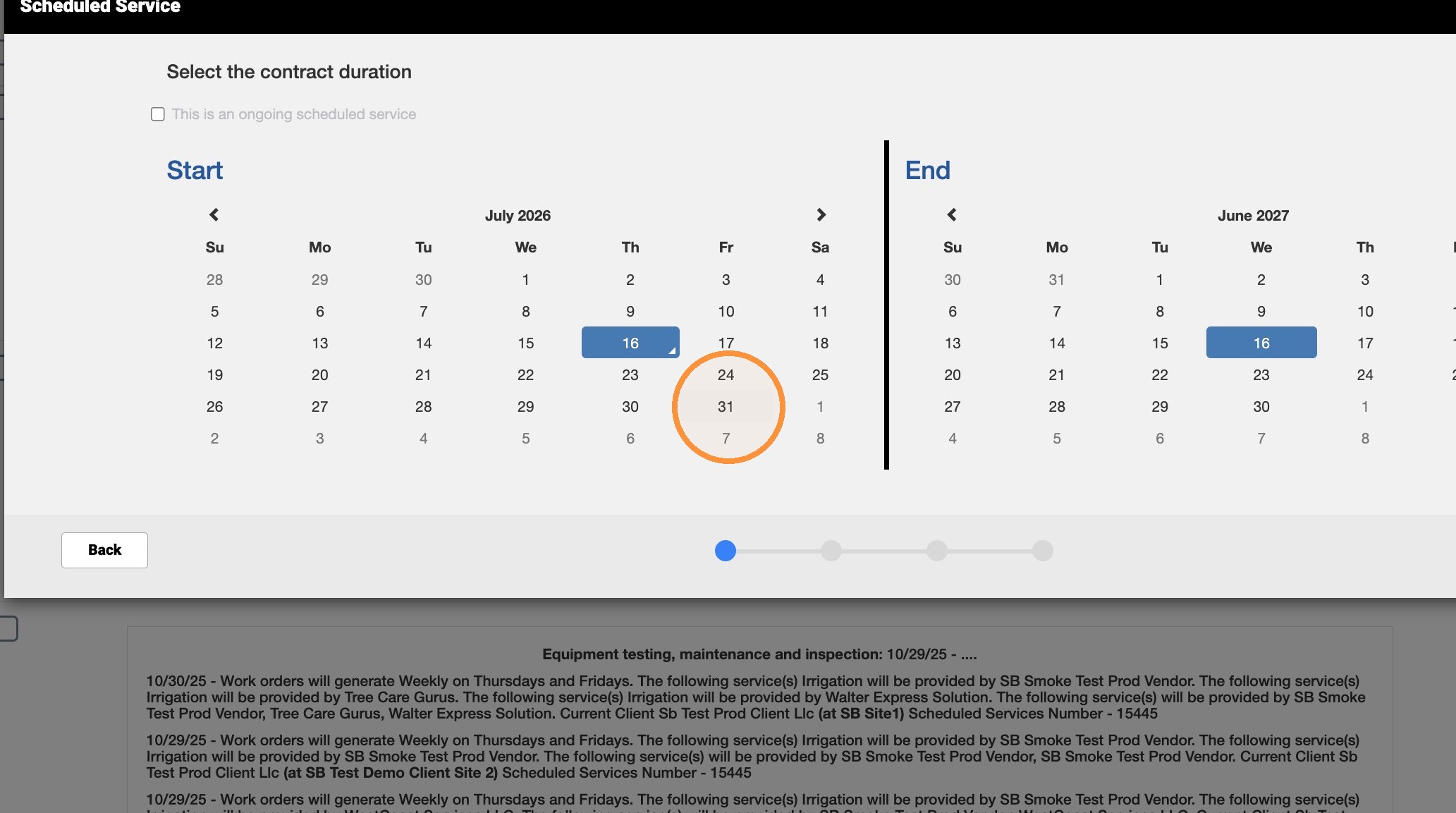
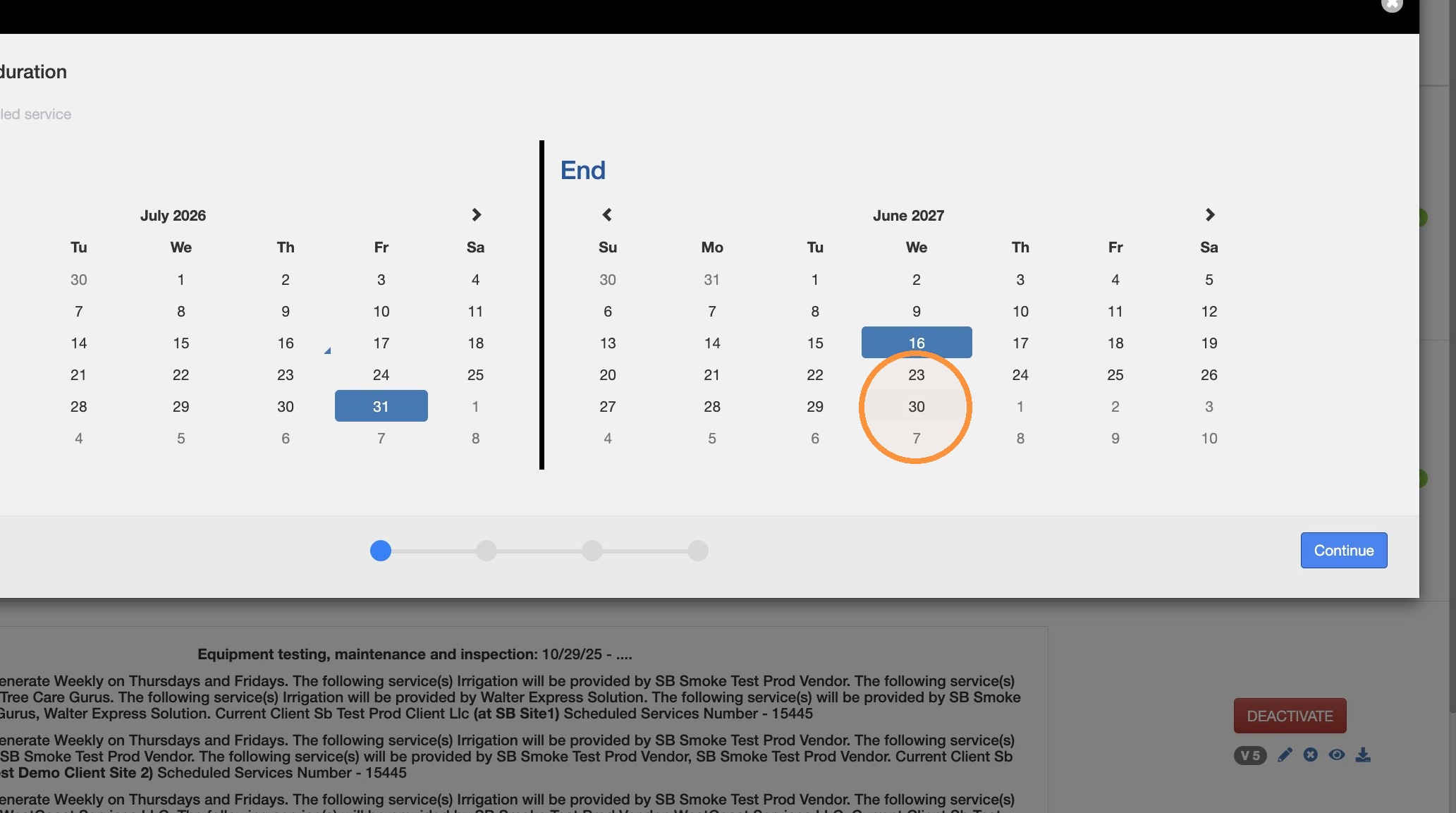
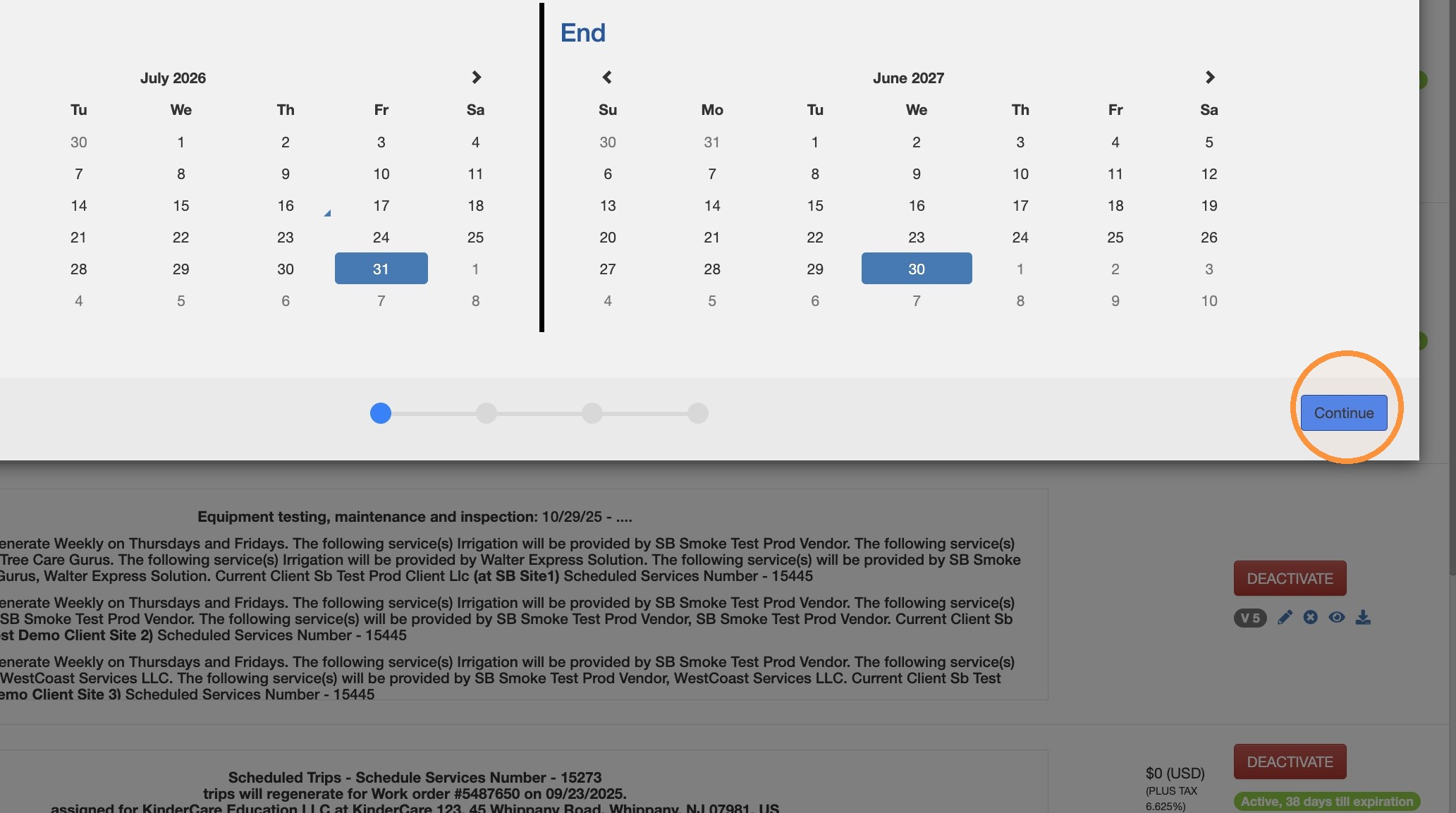
12. Select contract Start and End dates and click Continue.
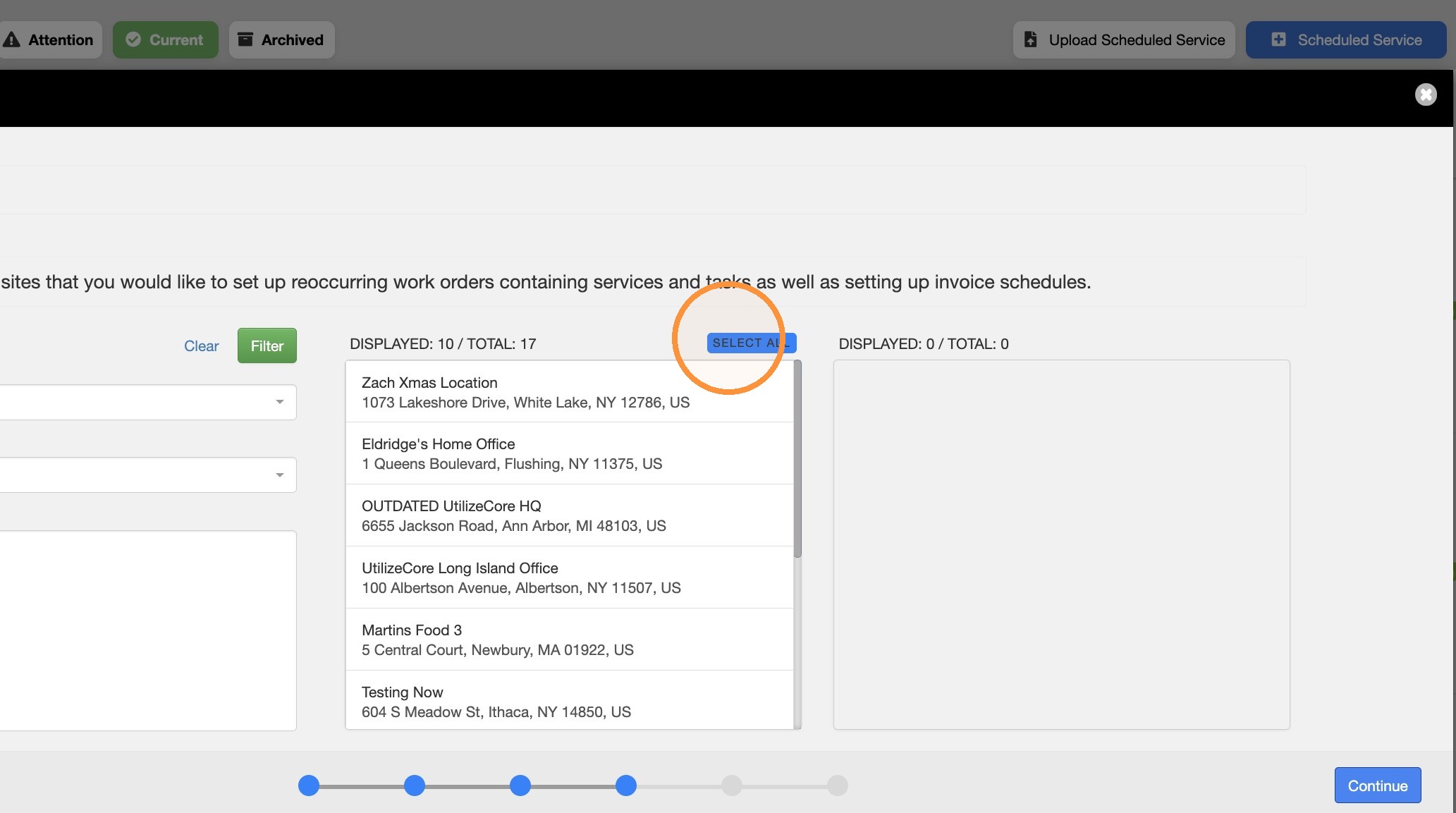
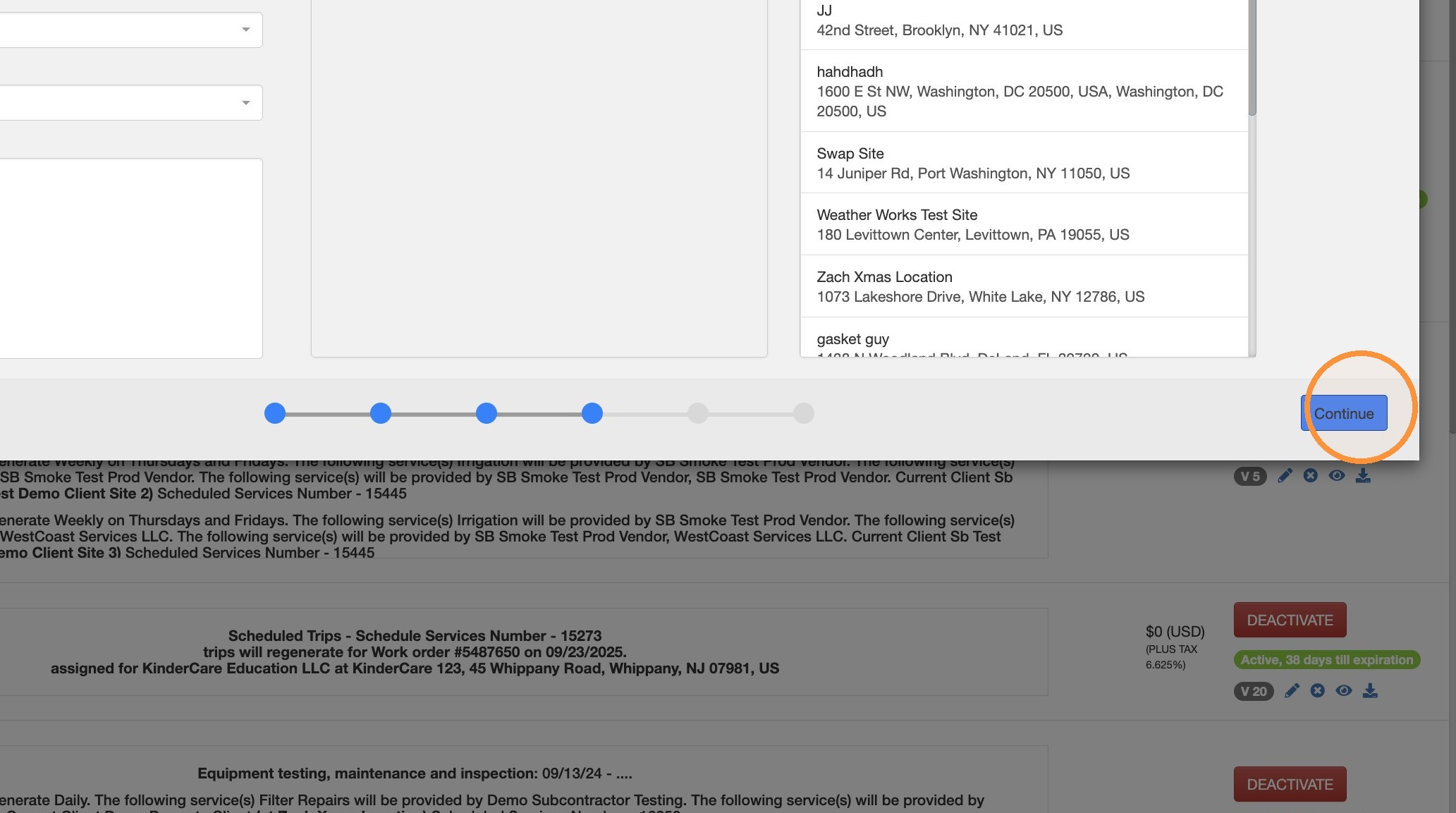
13. Select all sites and click Continue.
Service Assignment
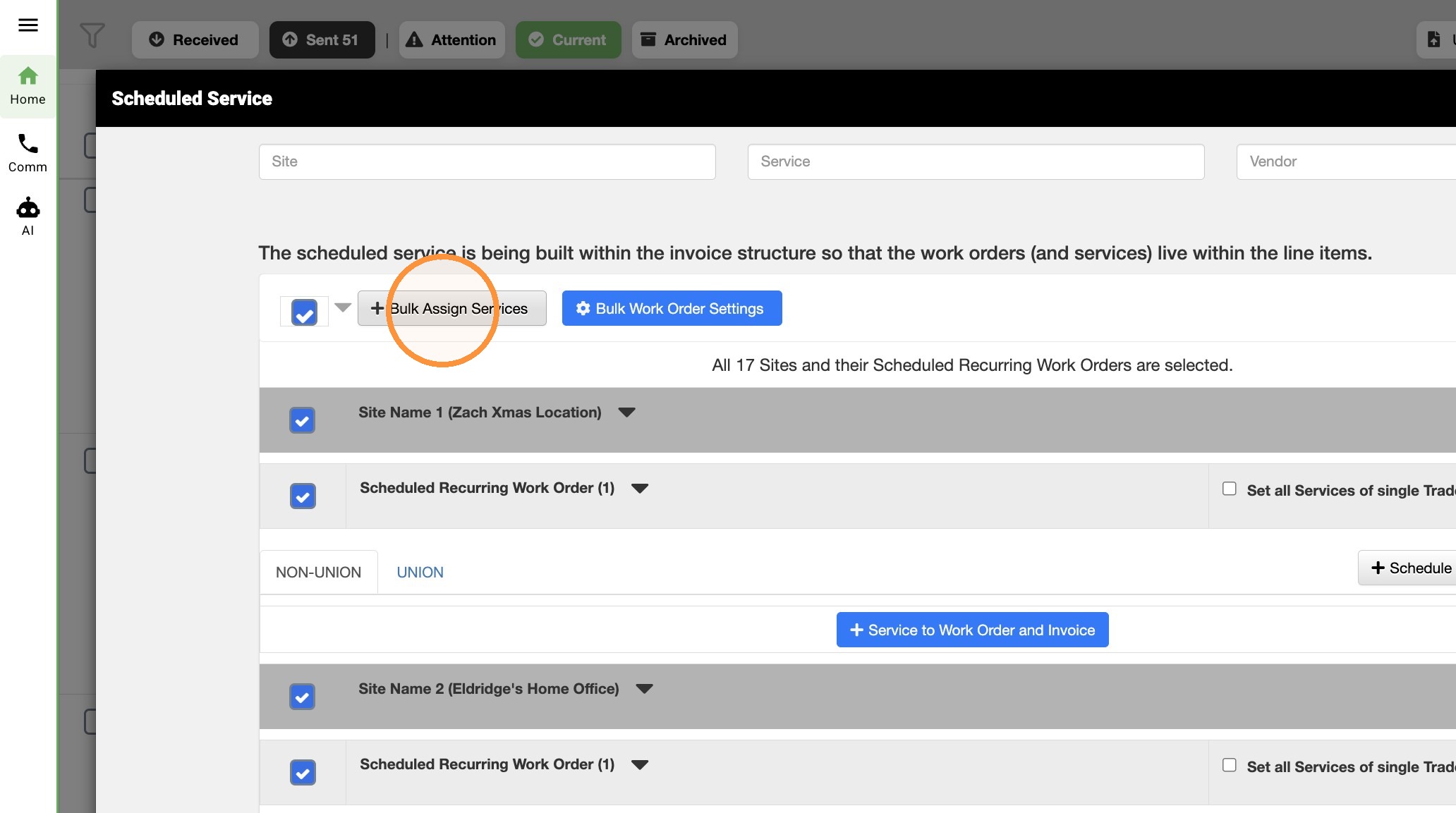
14. Click "Bulk Assign Services"
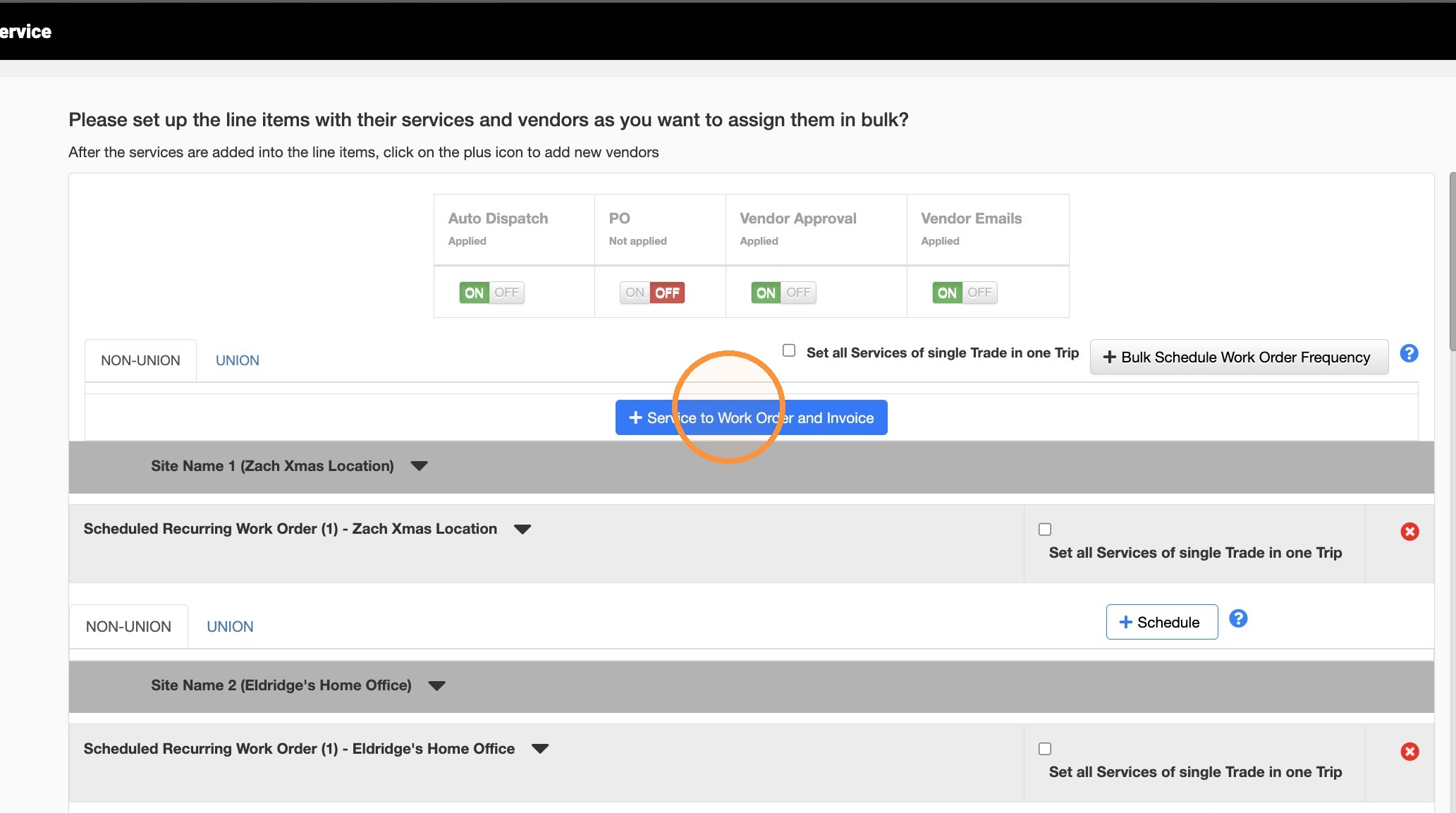
15. Click "Service to Work Order and Invoice"
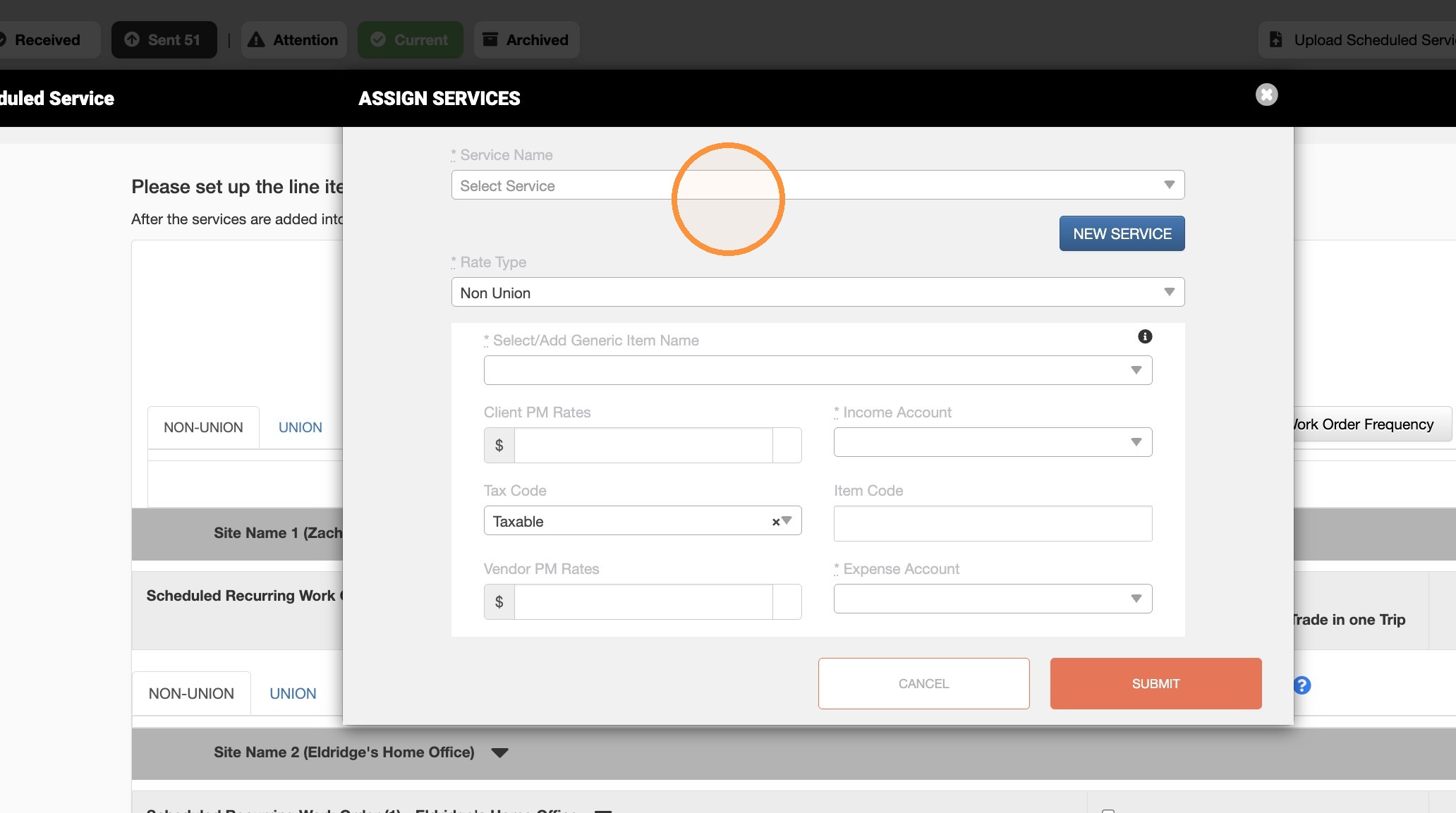
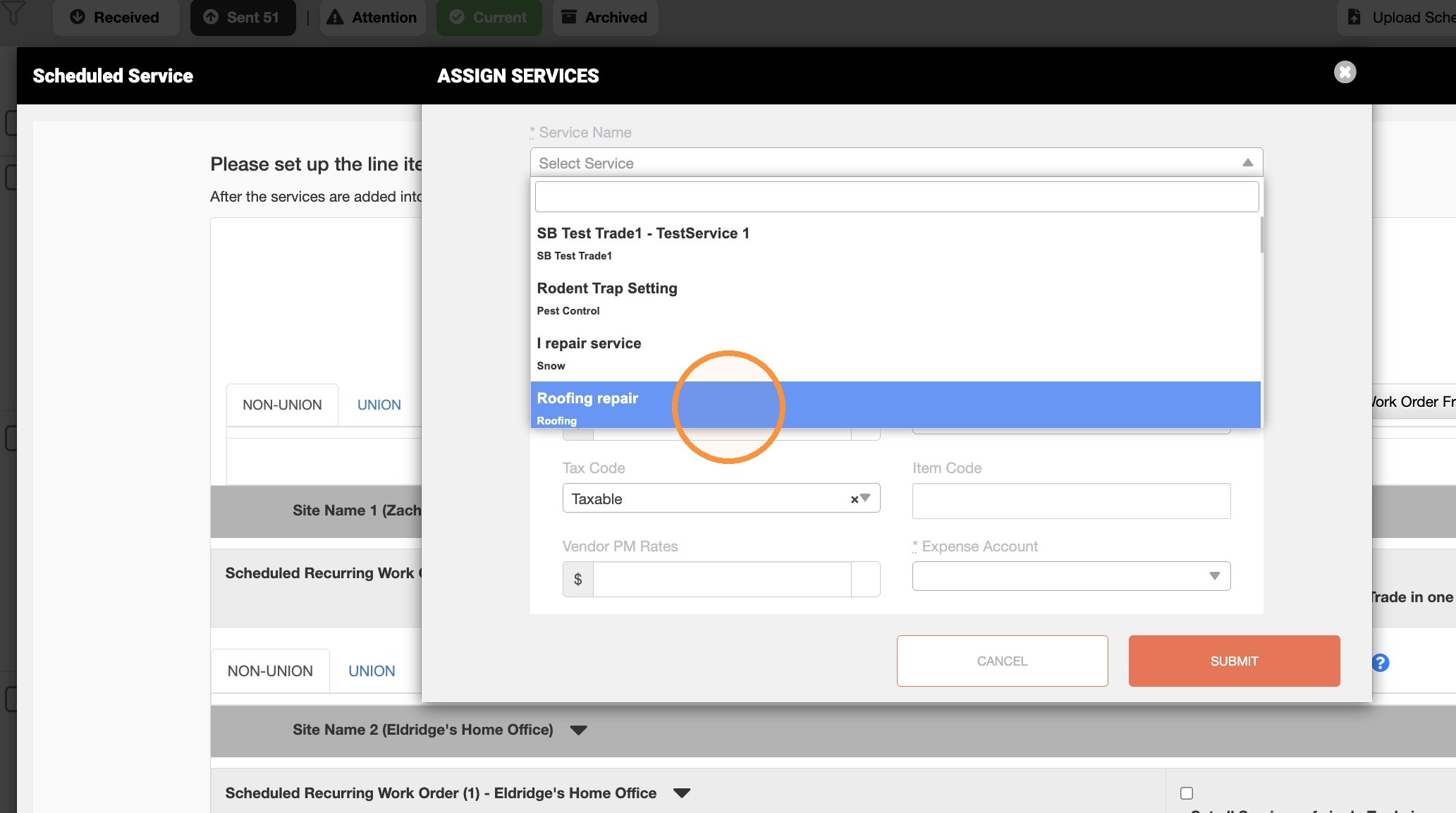
16. Select Roofing repair service.
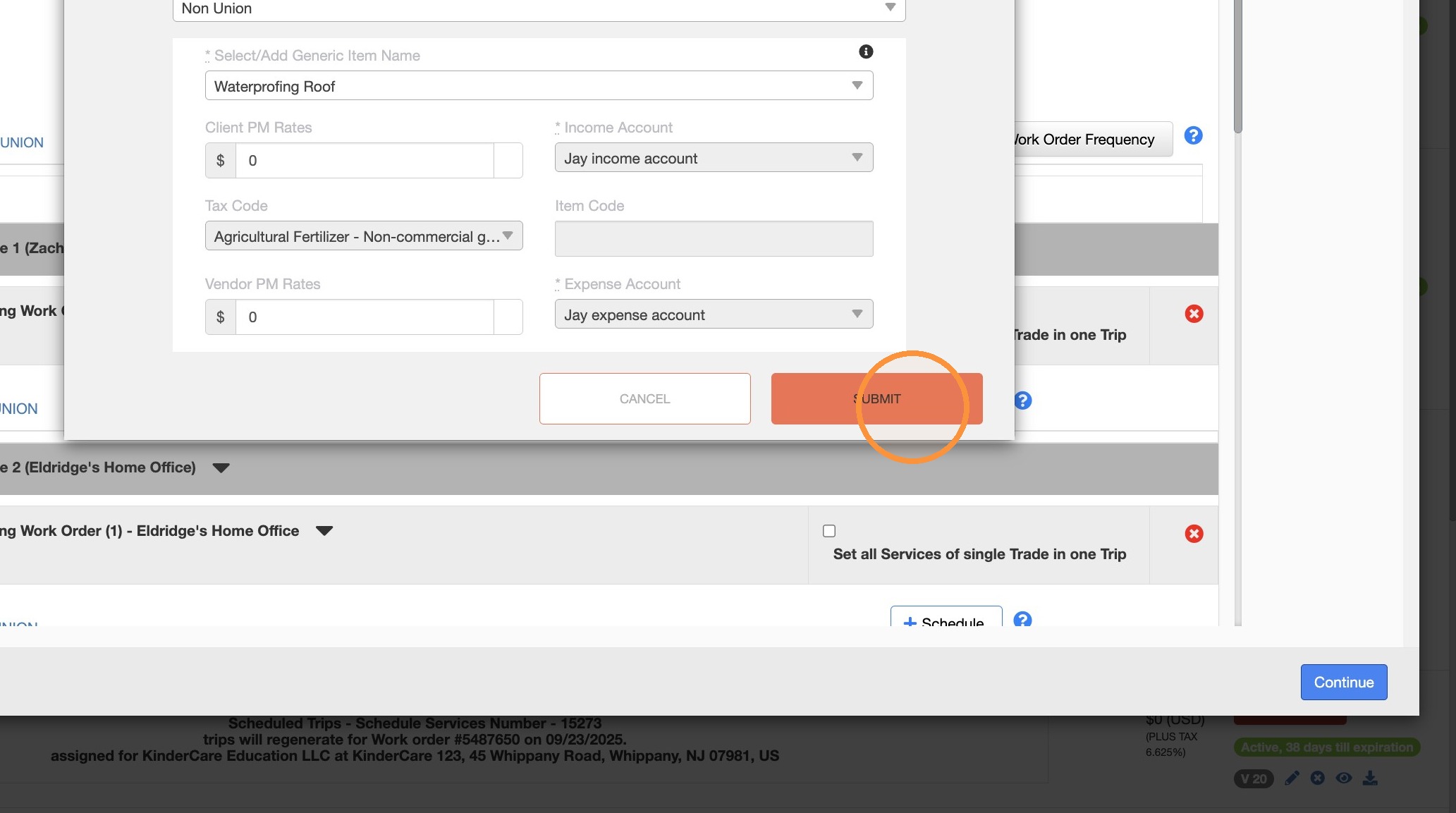
17. Select Waterproofing Roof as the generic item.
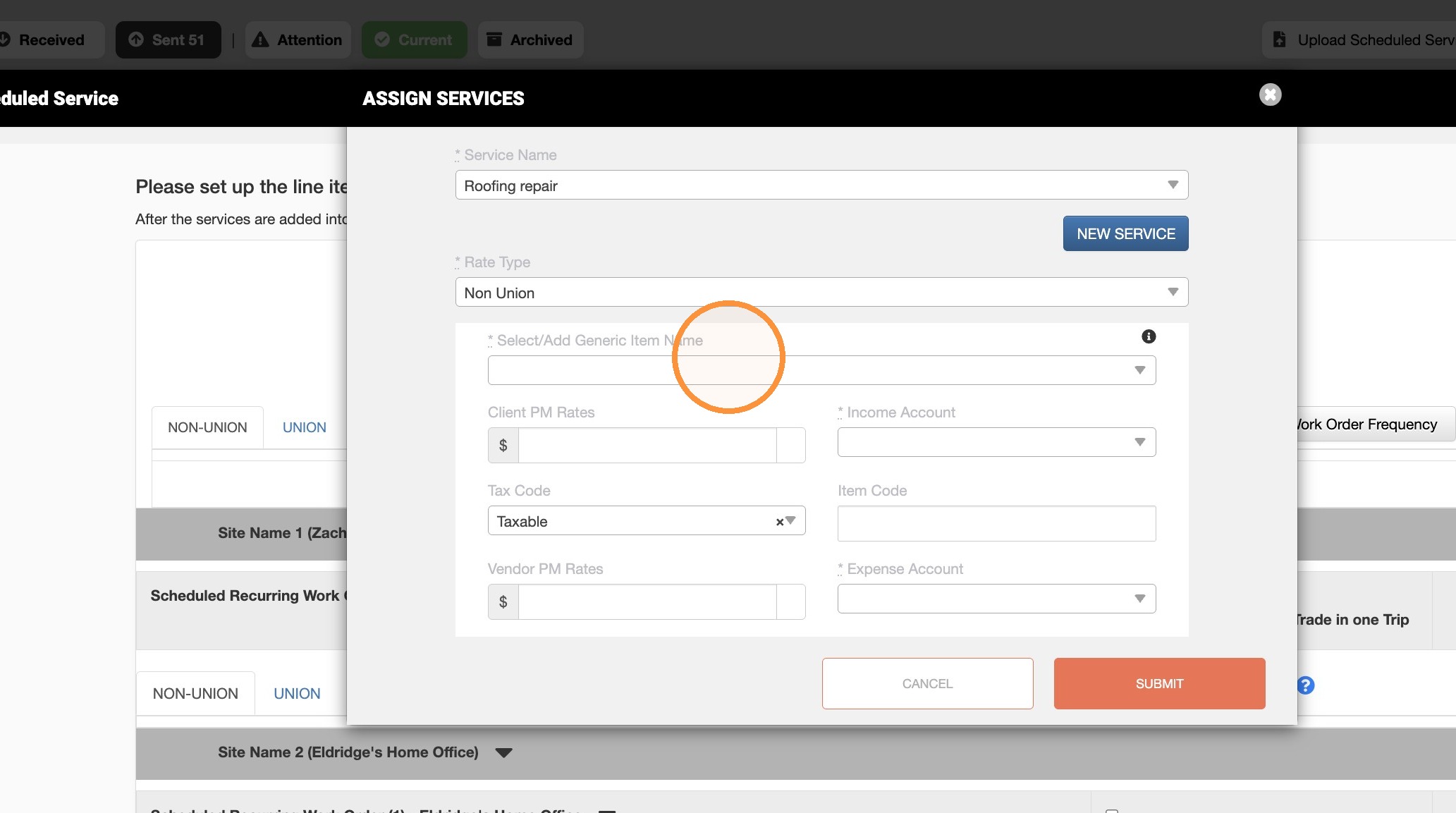
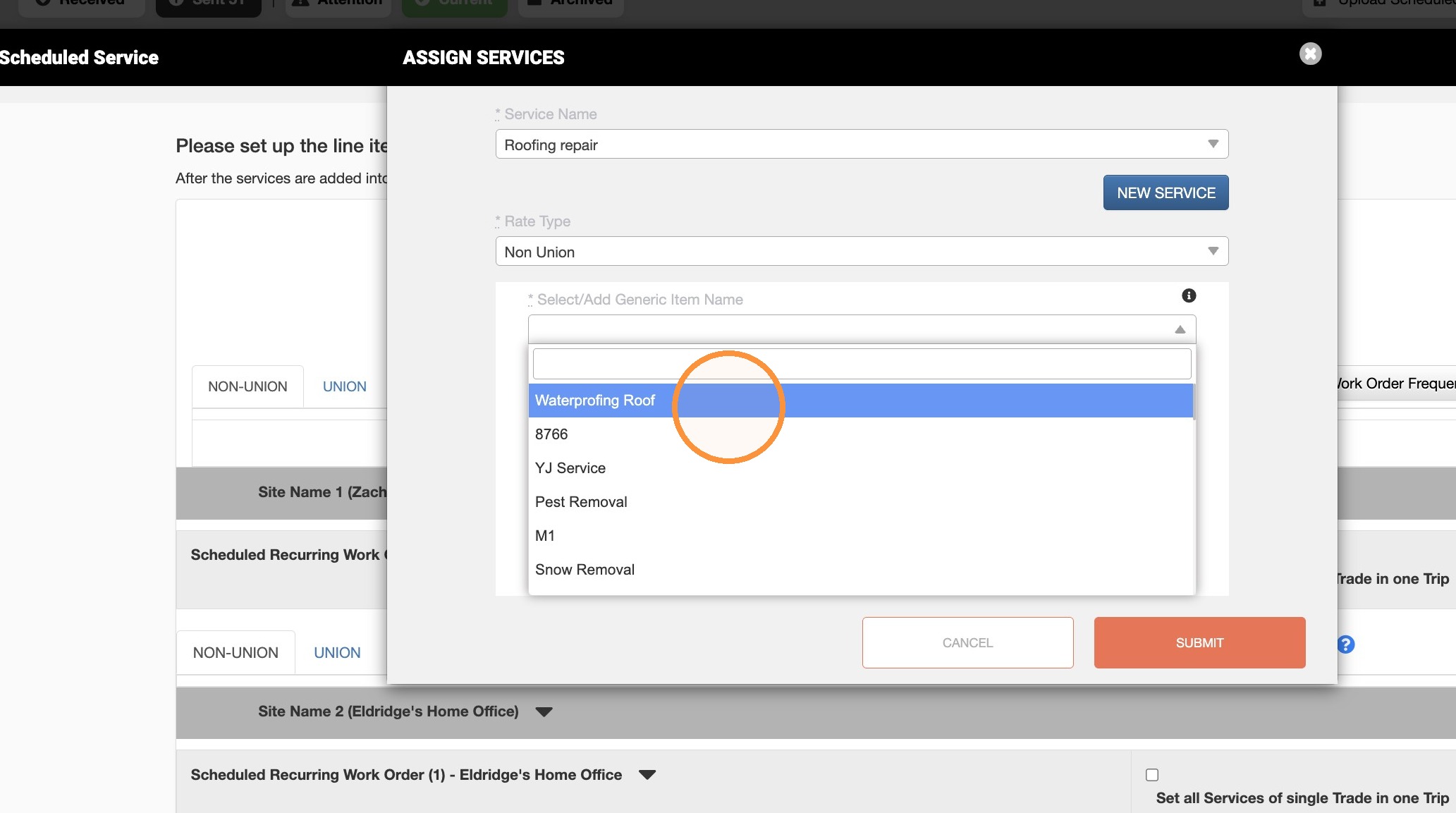
18. Click "Submit"
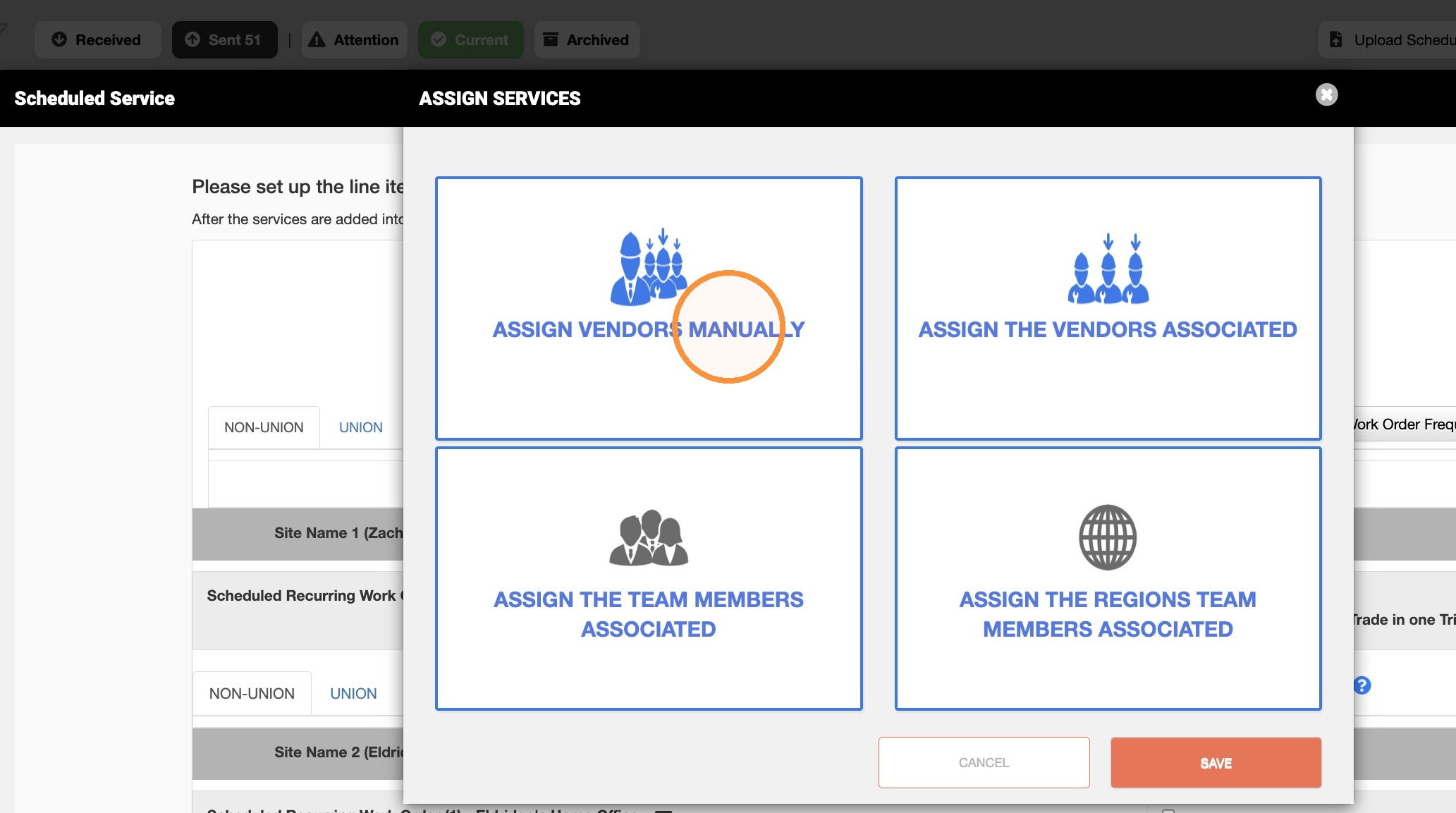
19. Select ASSIGN VENDORS MANUALLY and click Save.
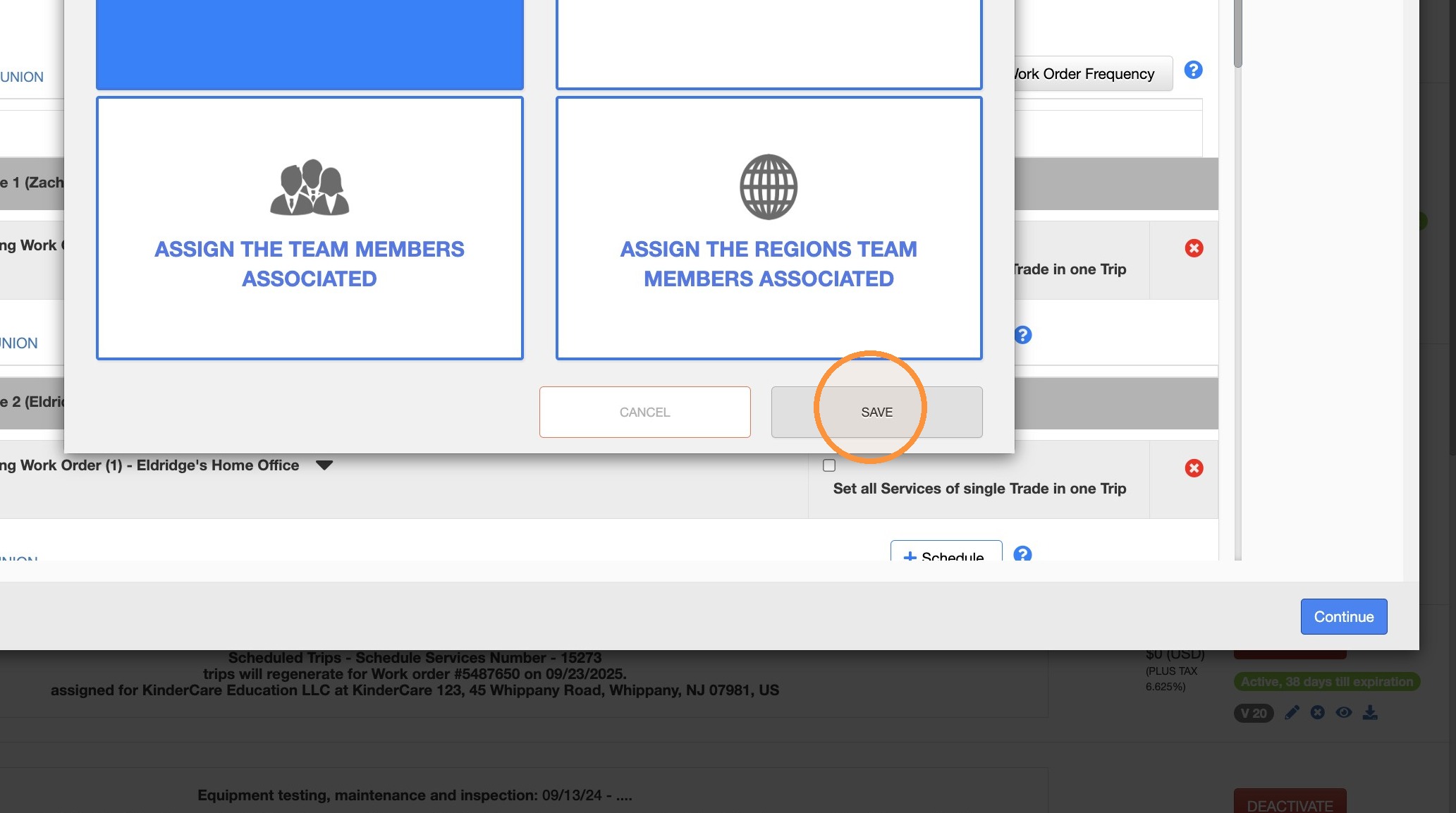
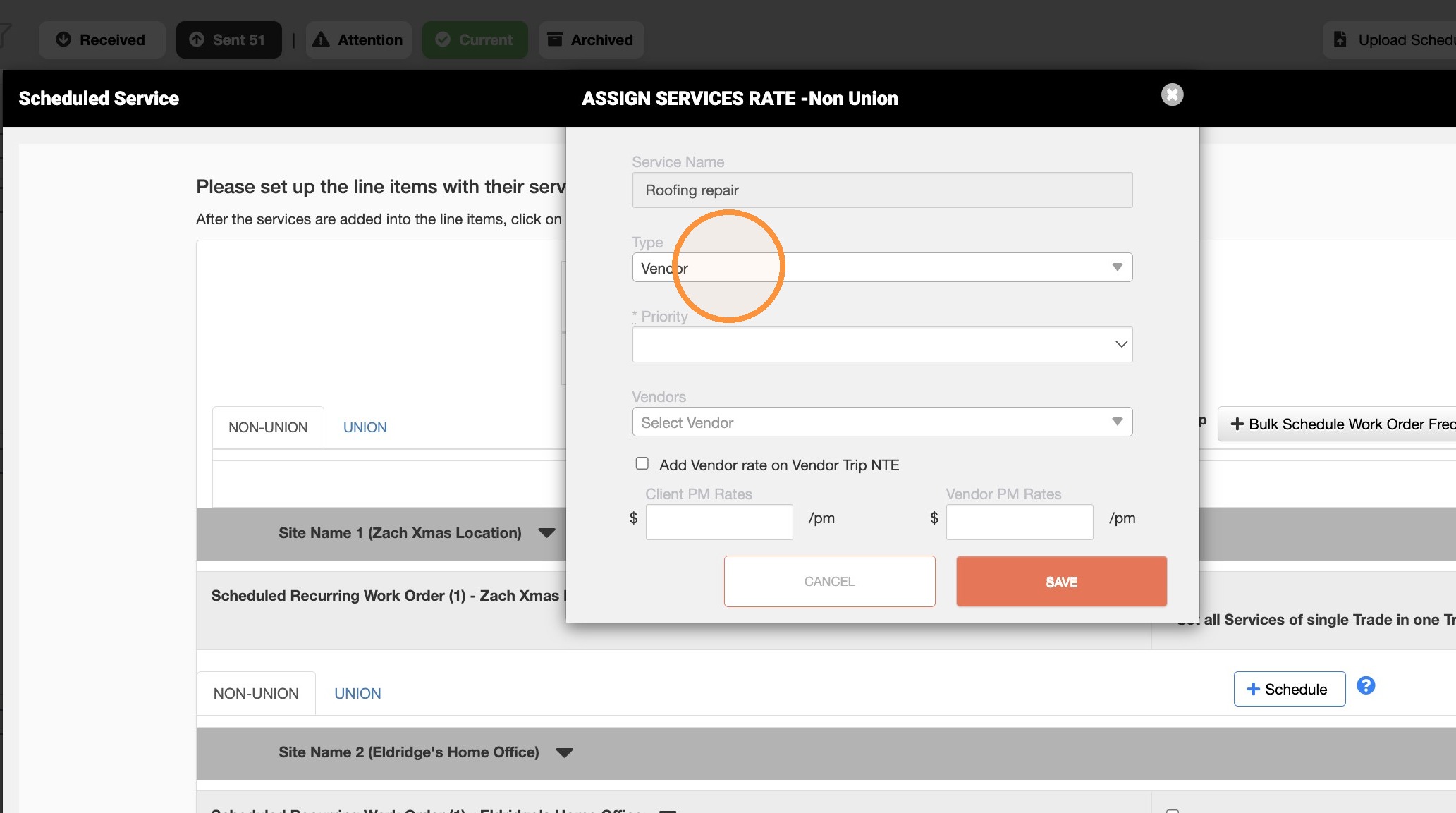
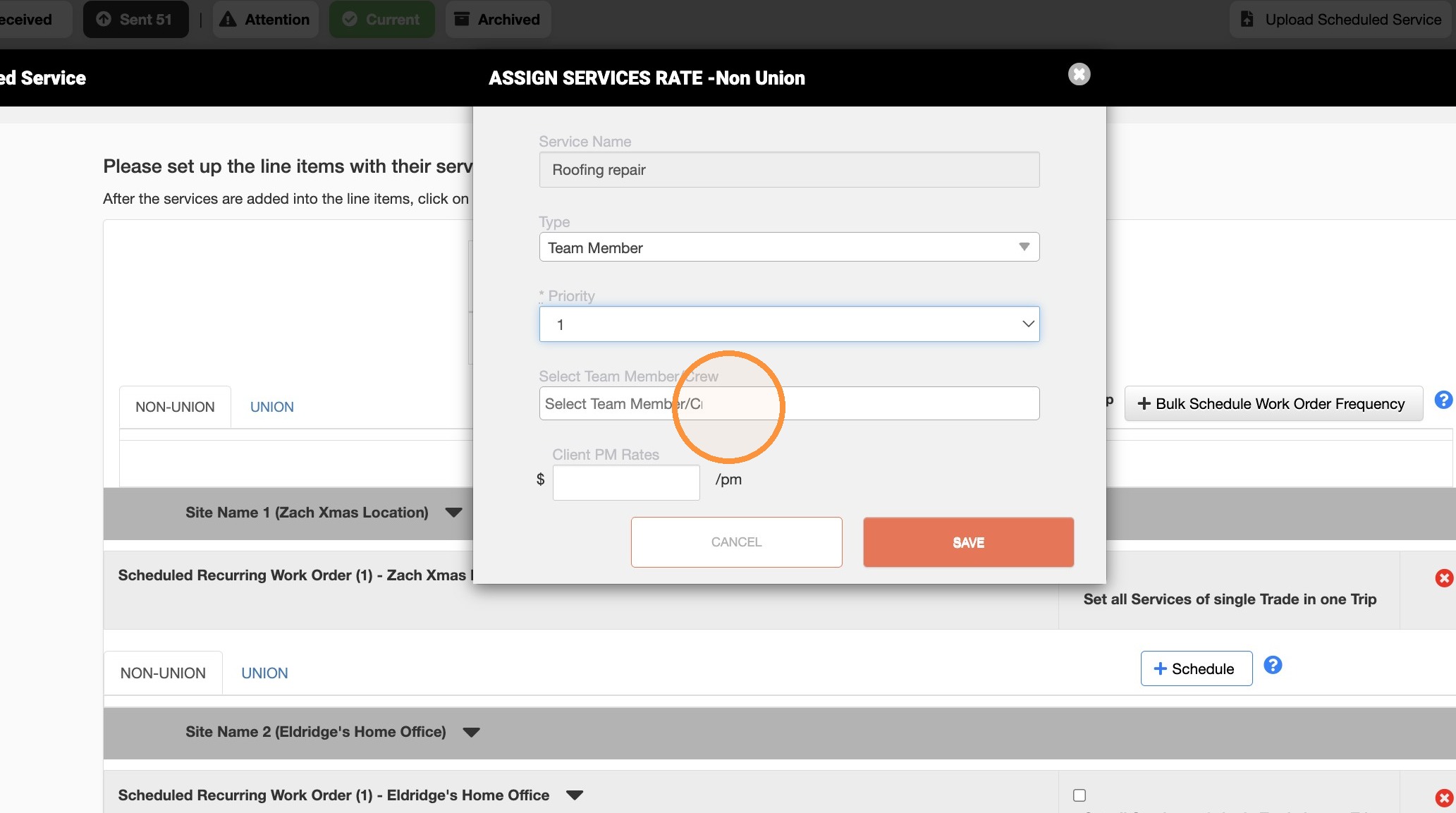
20. Change assignment type to Team Member.
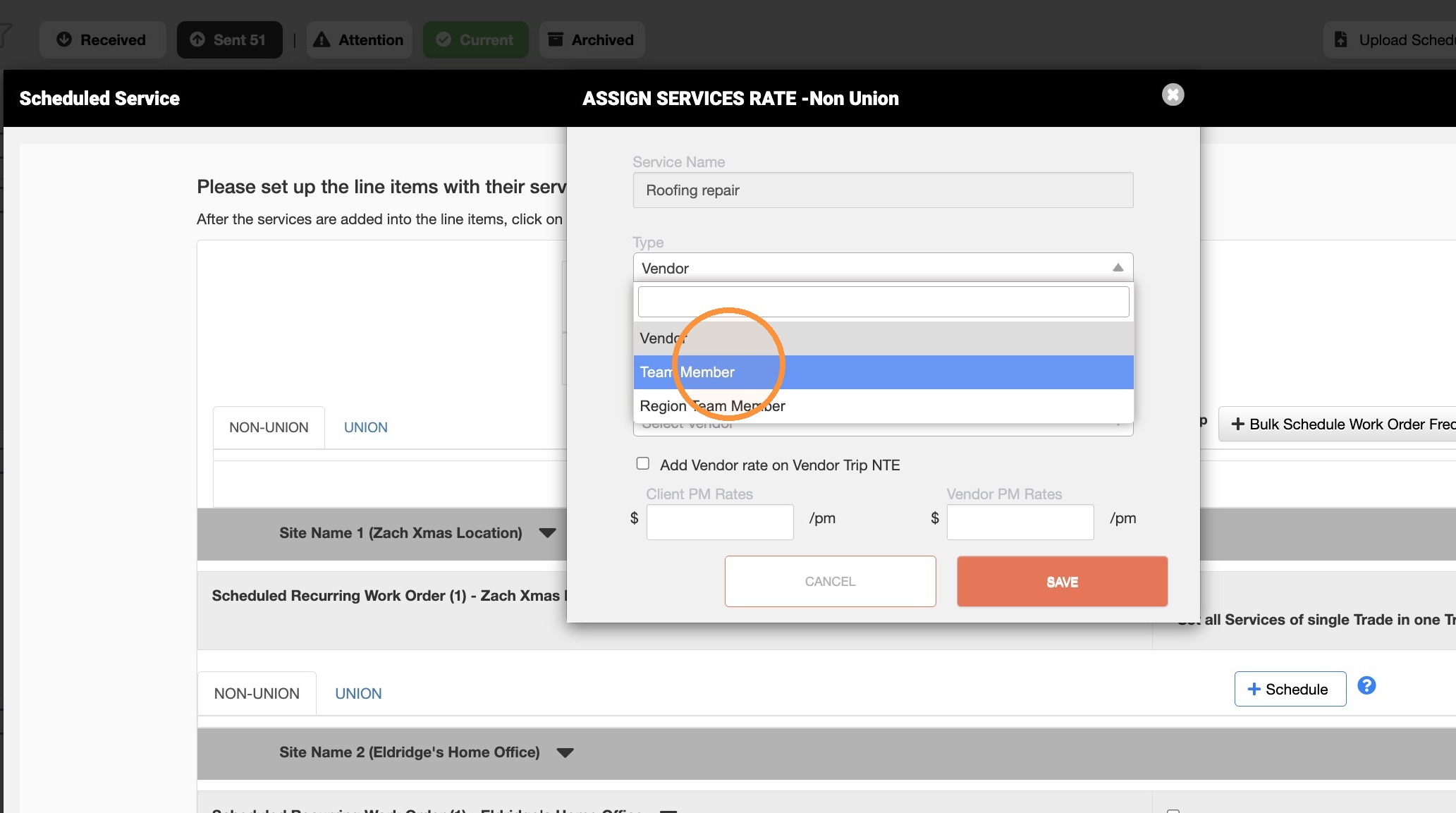
21. Select '1' for Priority level.
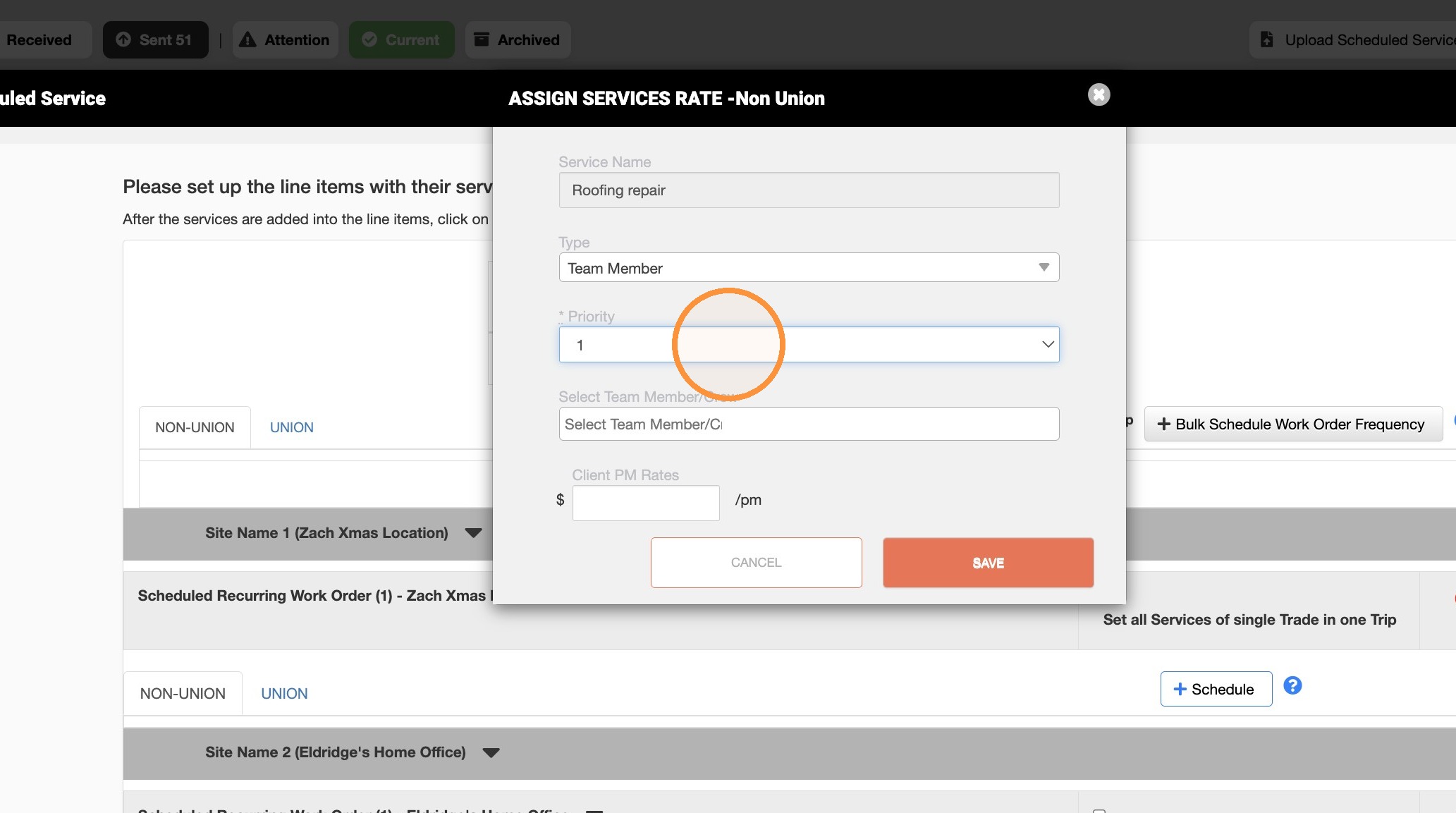
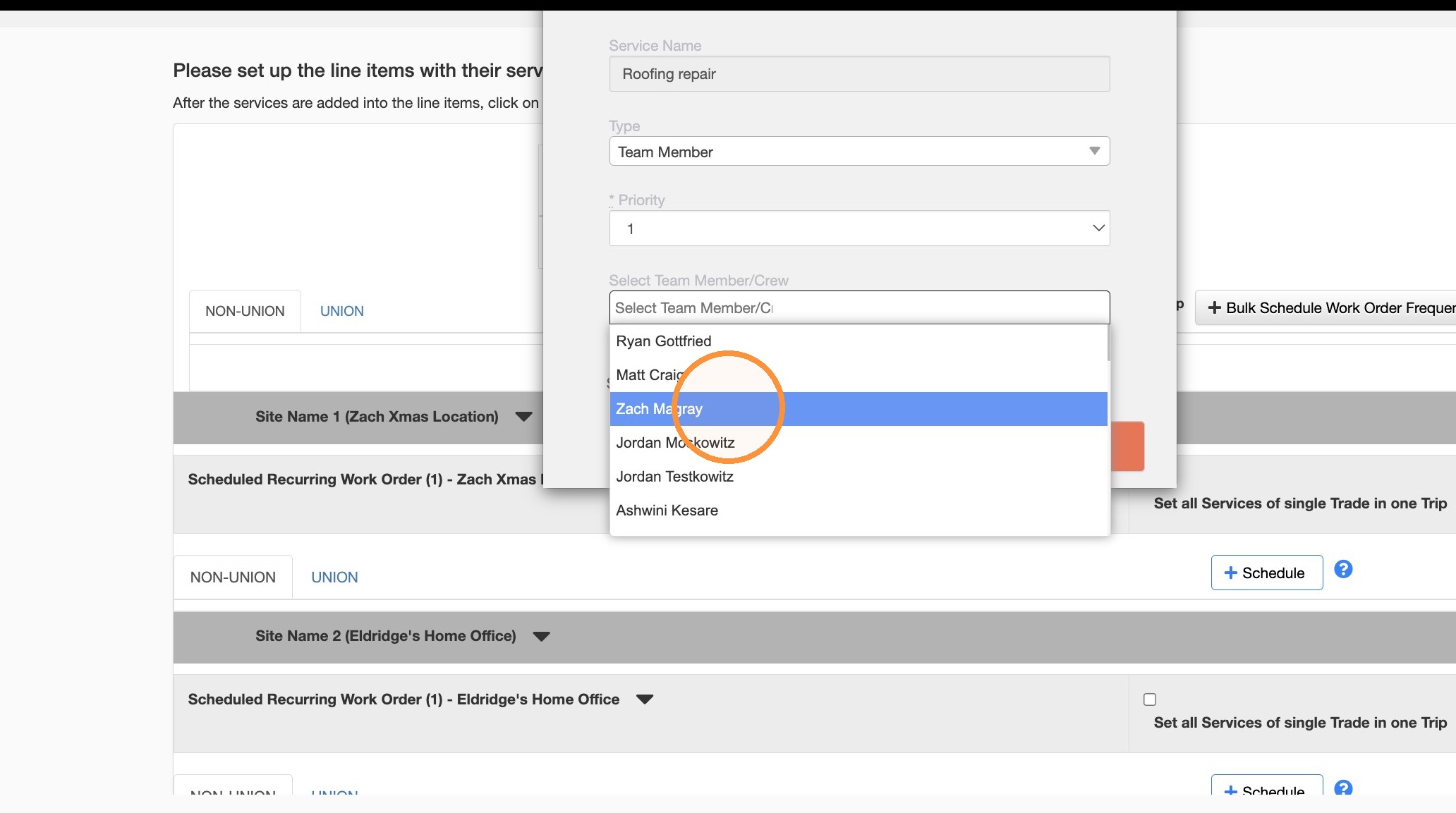
22. Select Zach Magray as the assigned team member.
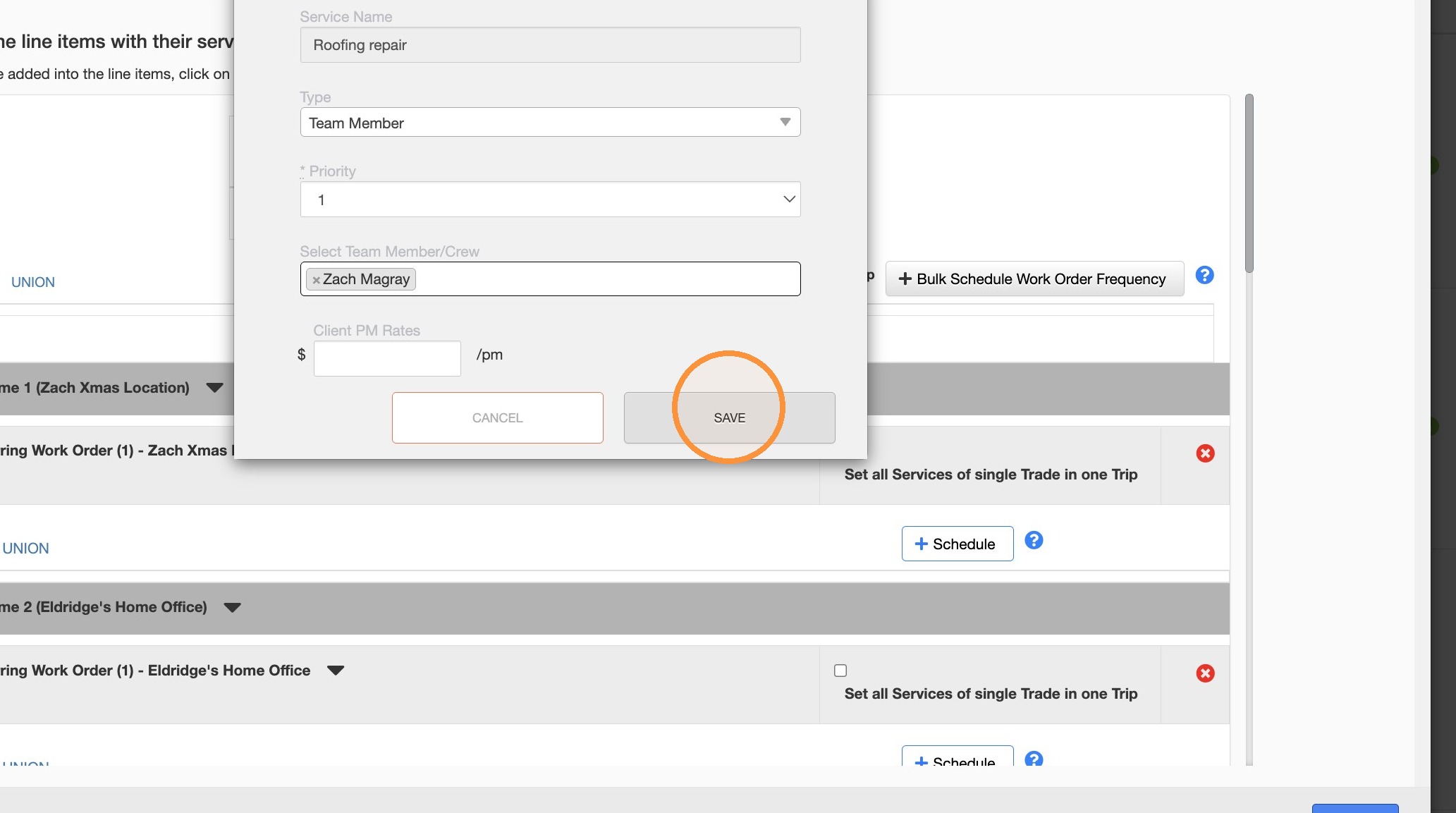
23. Click Save.
Scheduling Details
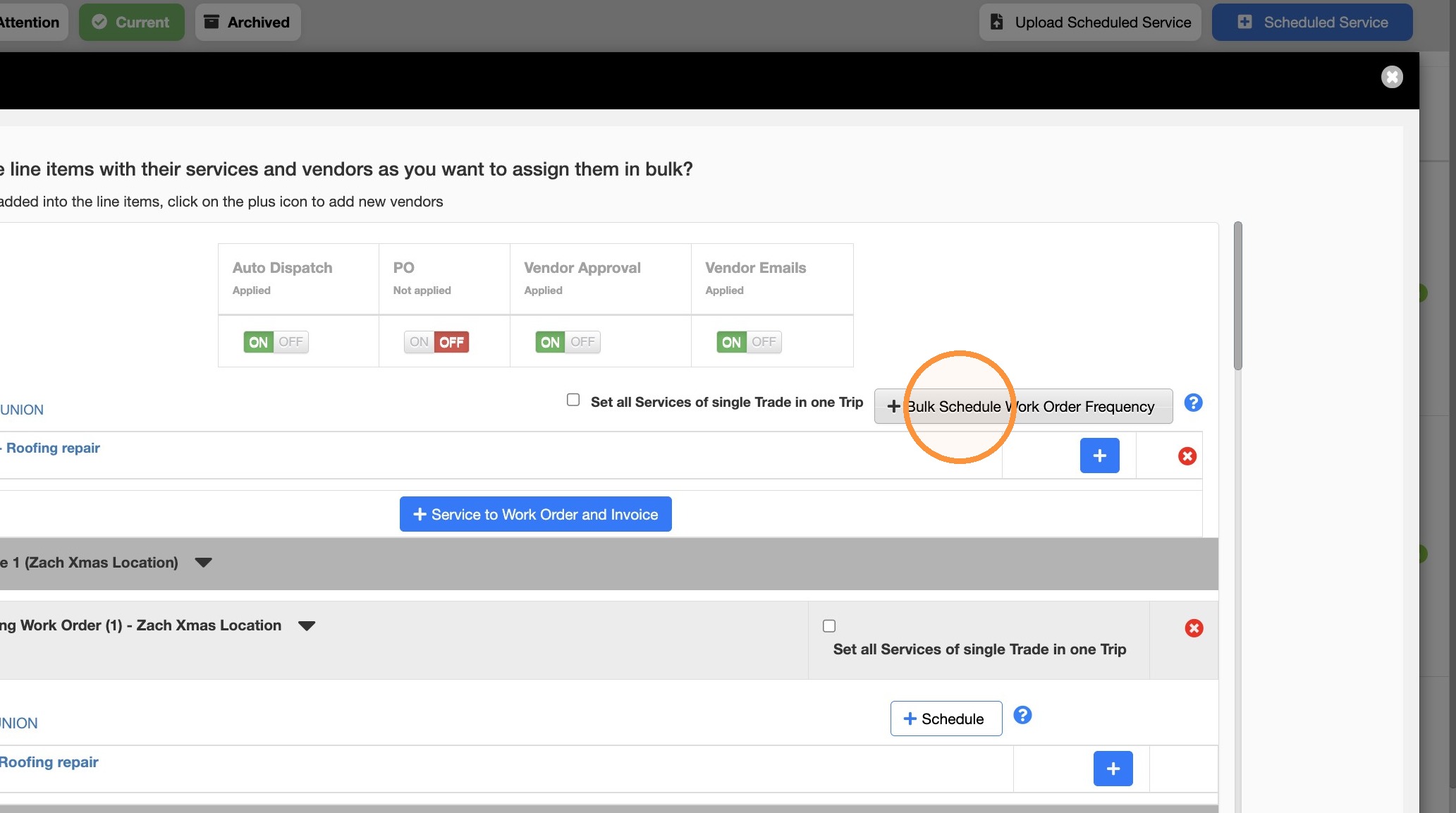
24. Click "Bulk Schedule Work Order Frequency"
25. Click "Submit"
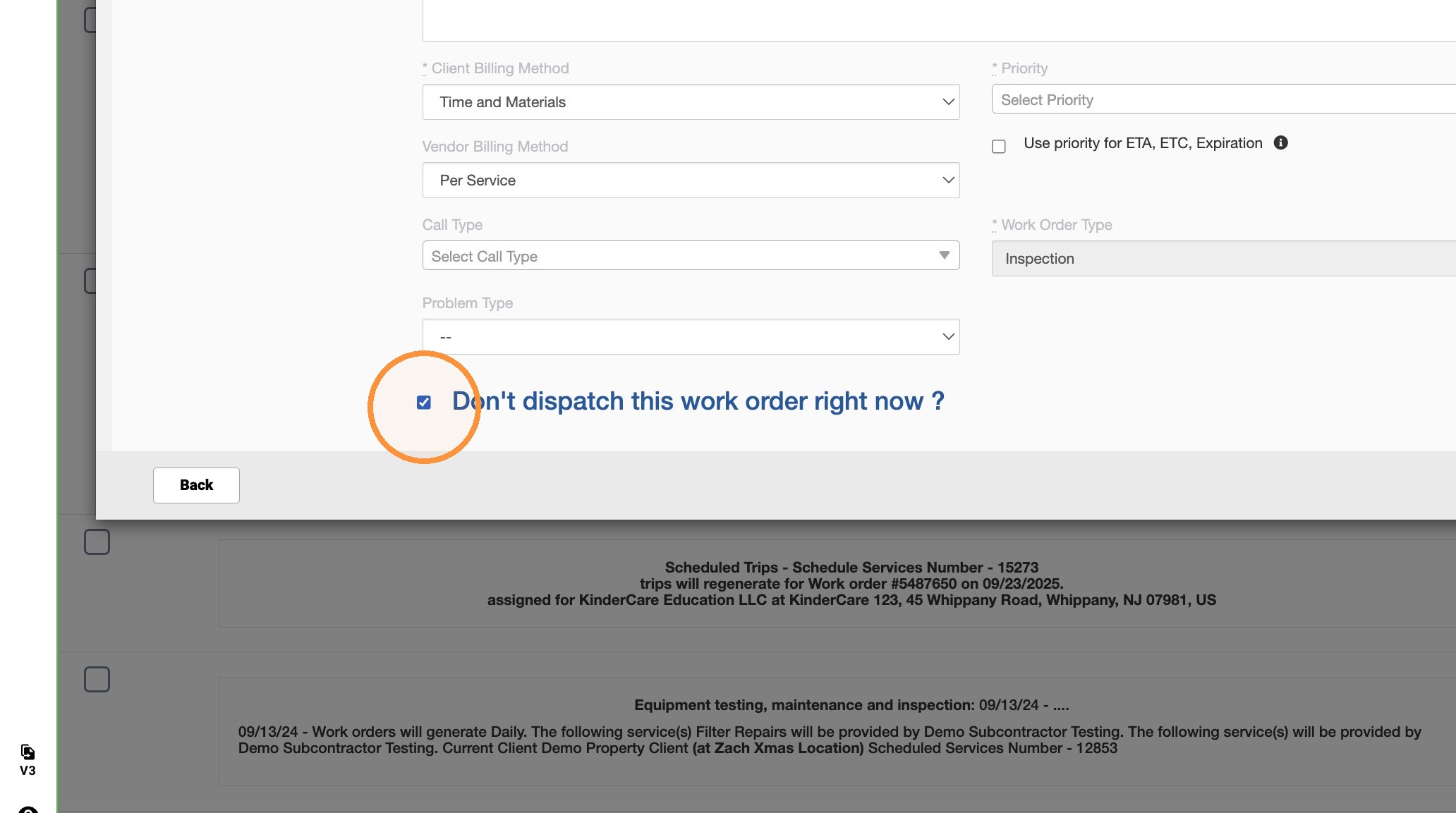
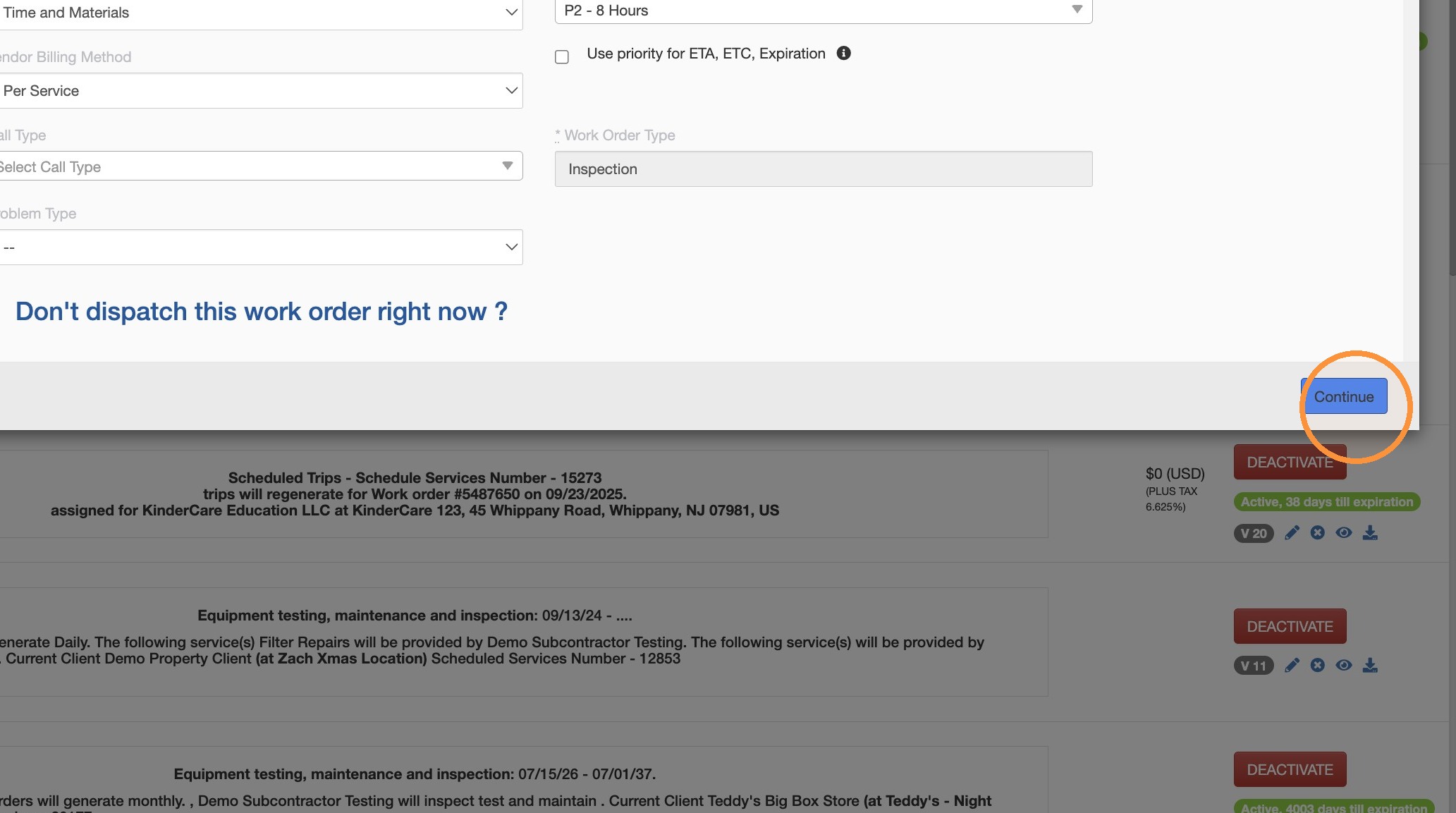
26. Select 'Don't dispatch this work order right now?' checkbox.
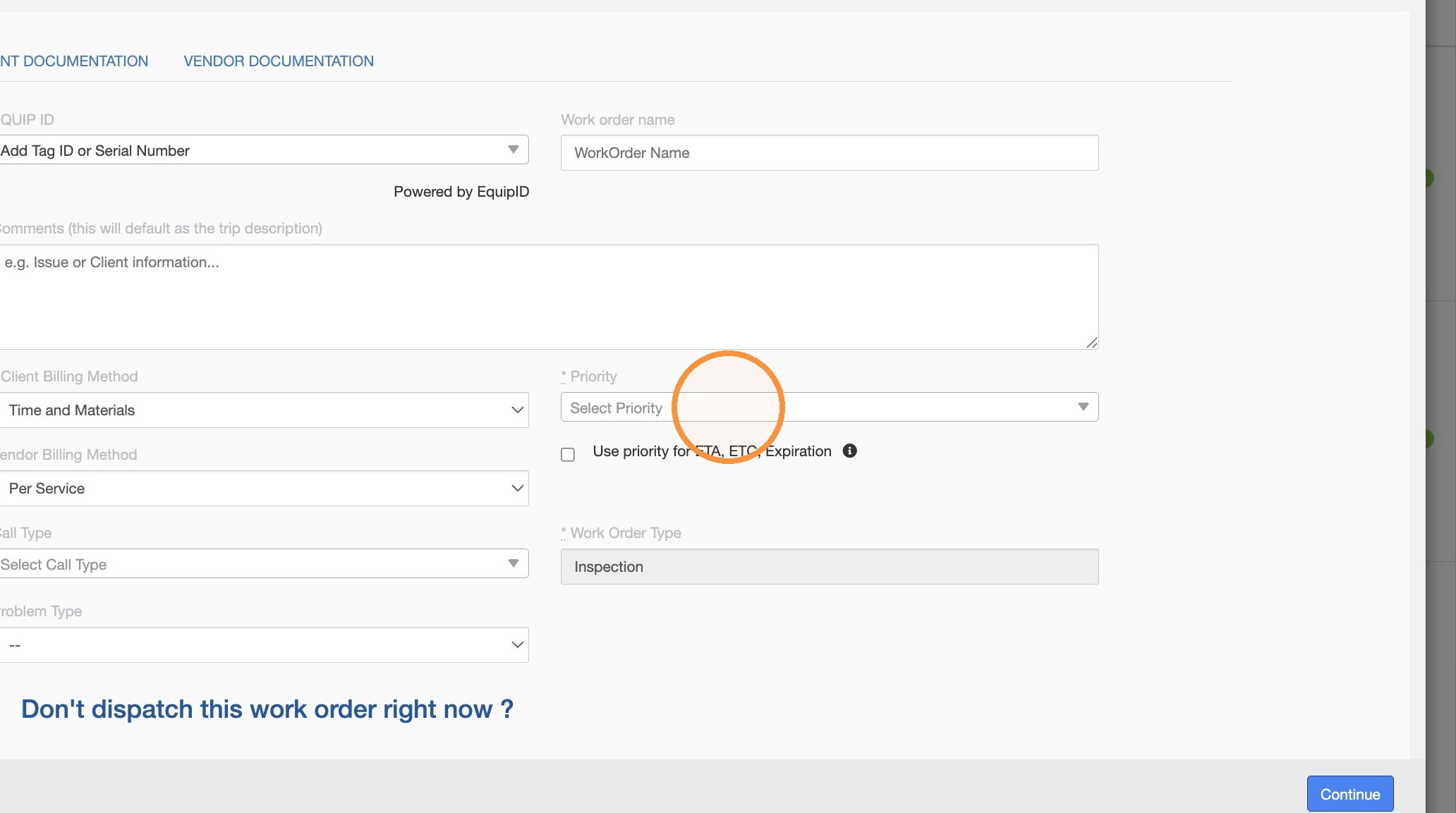
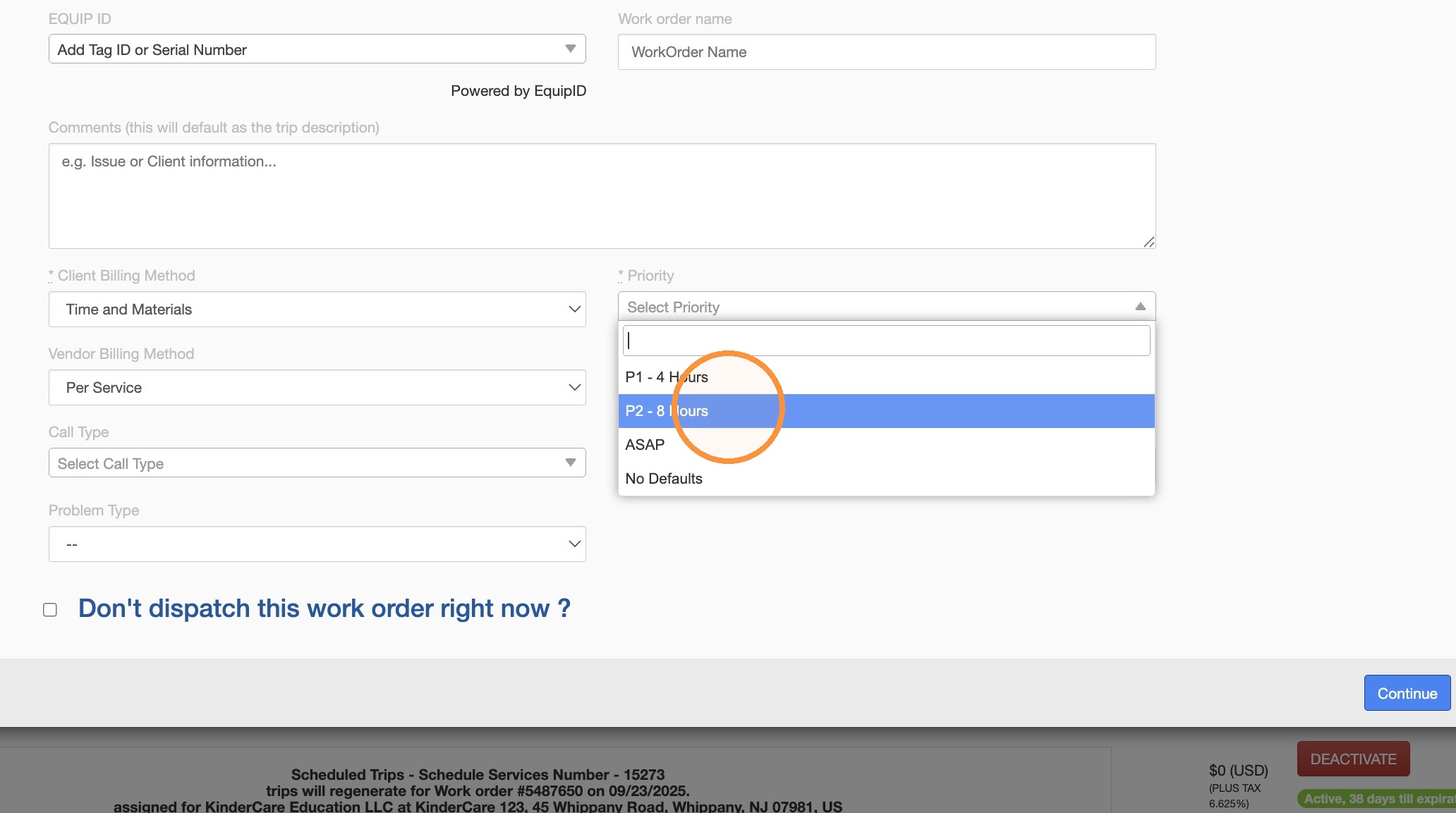
27. Set work order priority to P2 - 8 Hours.
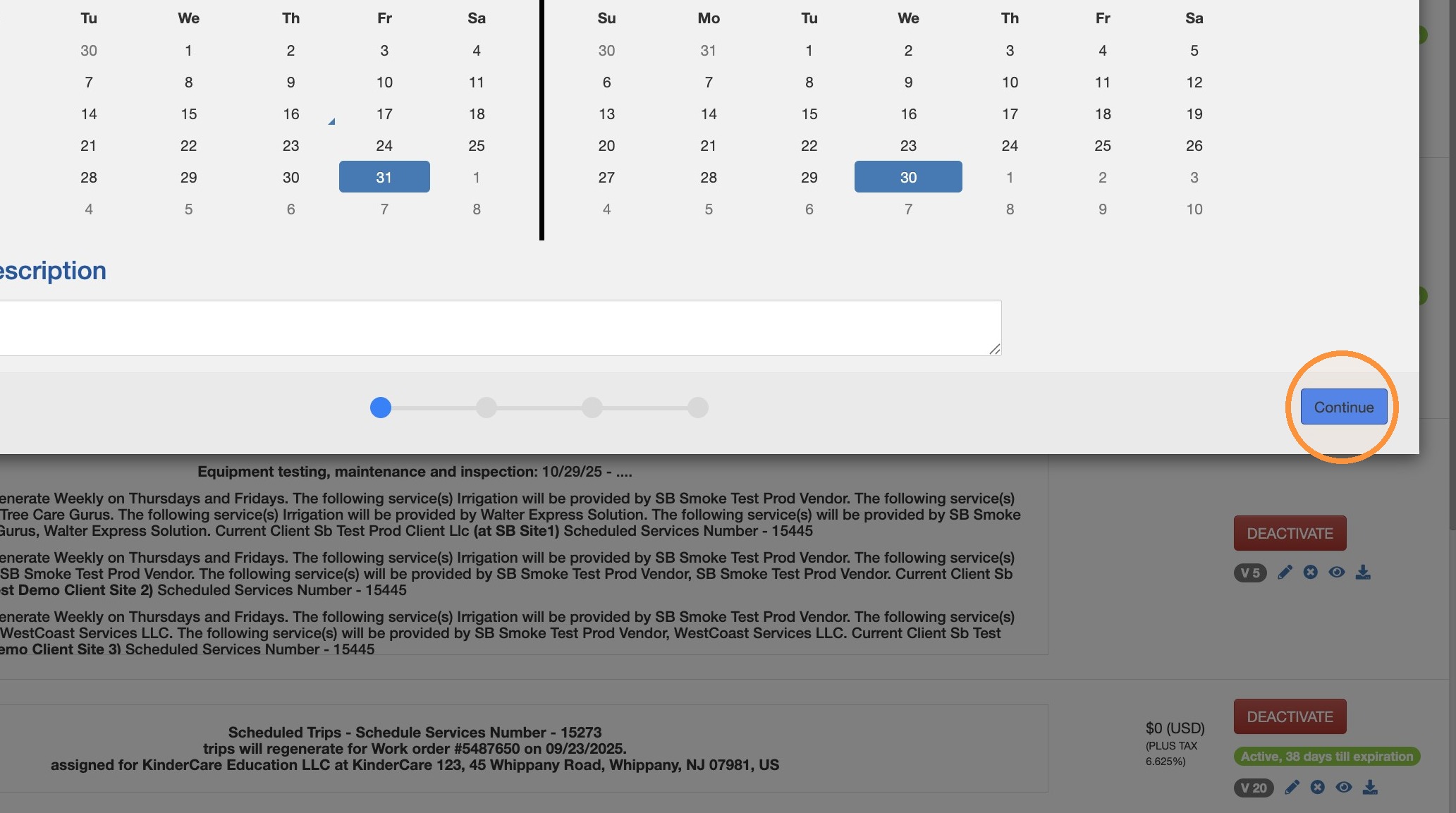
28. Click Continue.
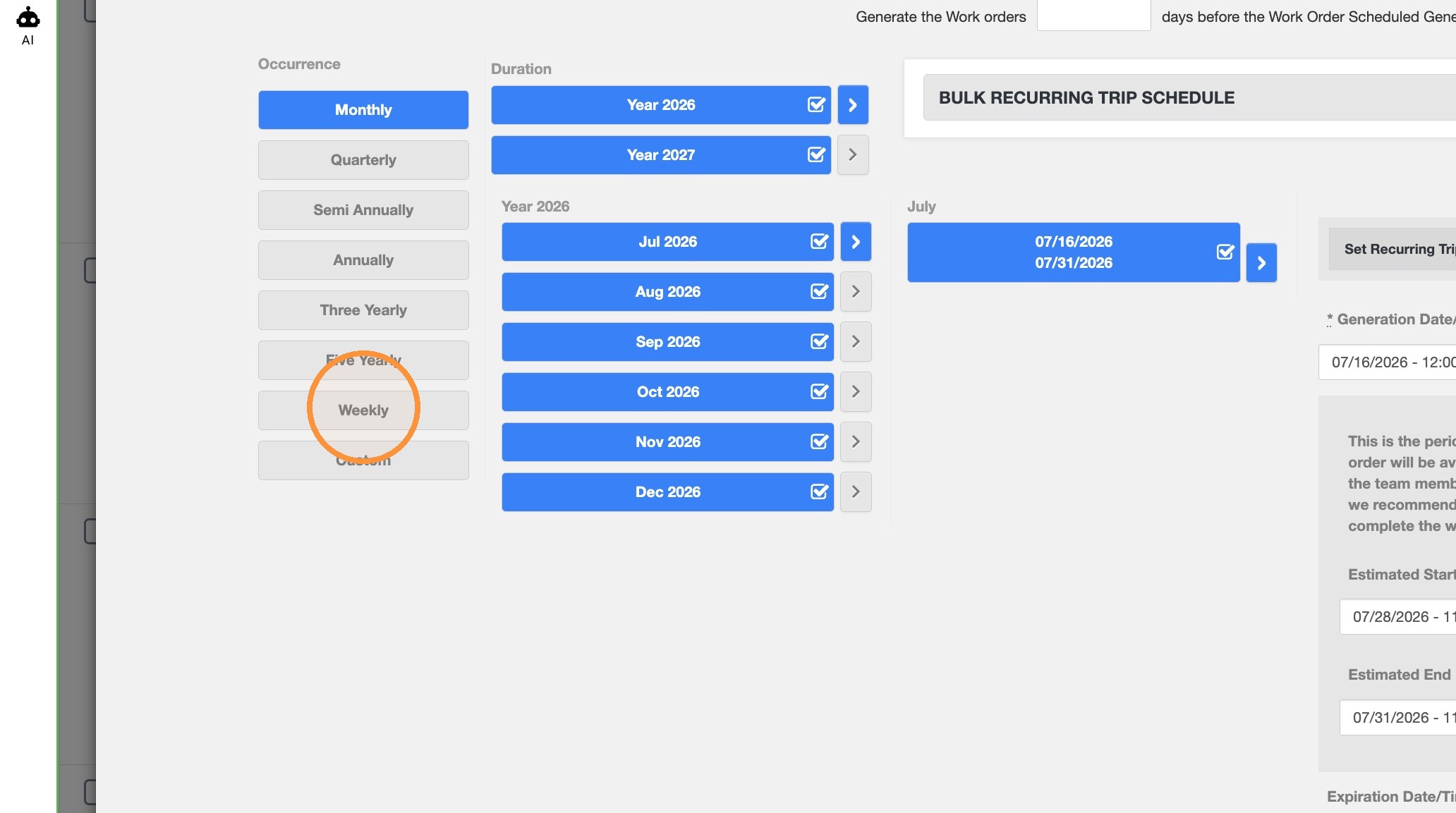
29. Click "Weekly"
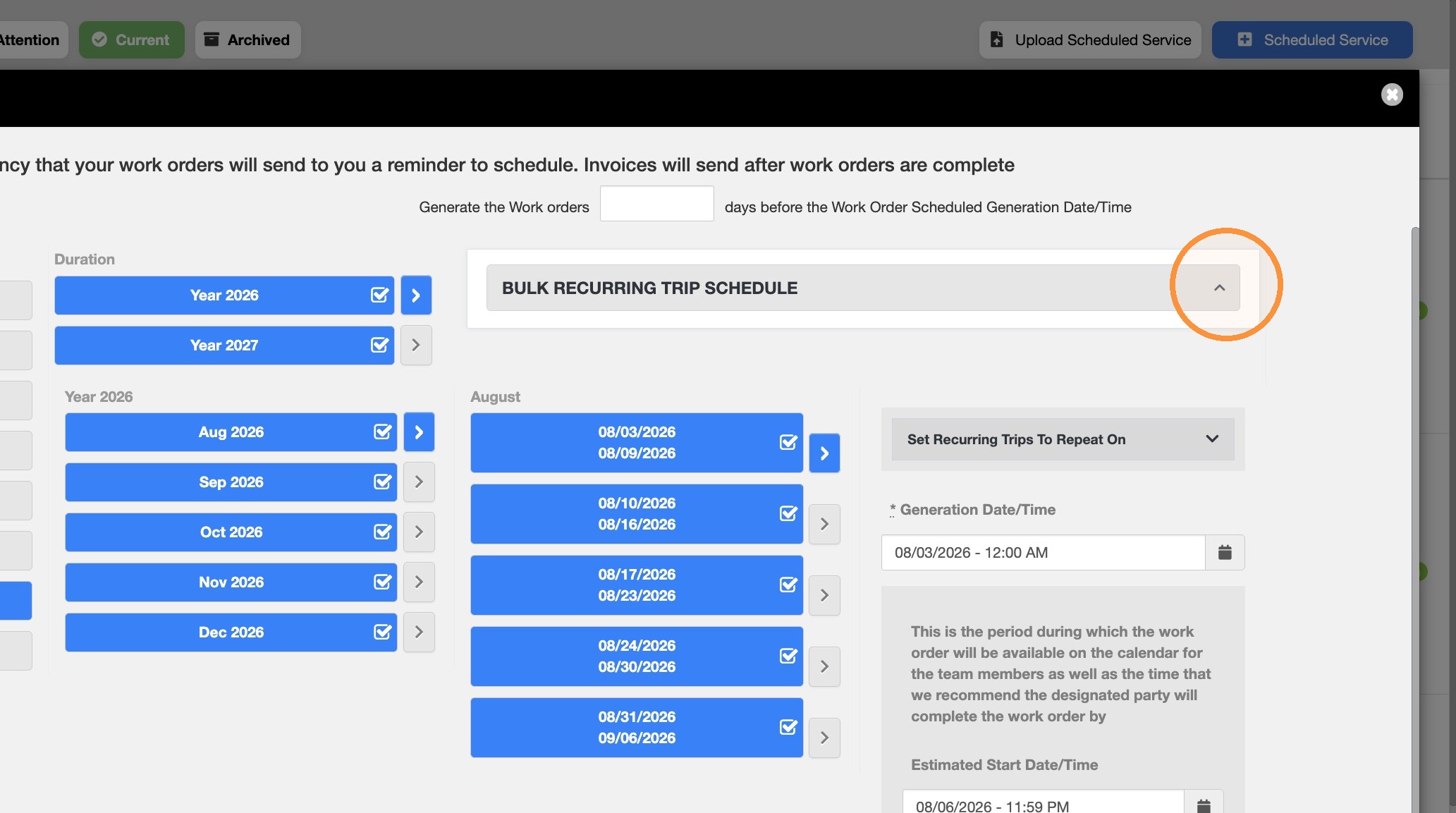
30. Click "Bulk Recurring Trip Schedule"
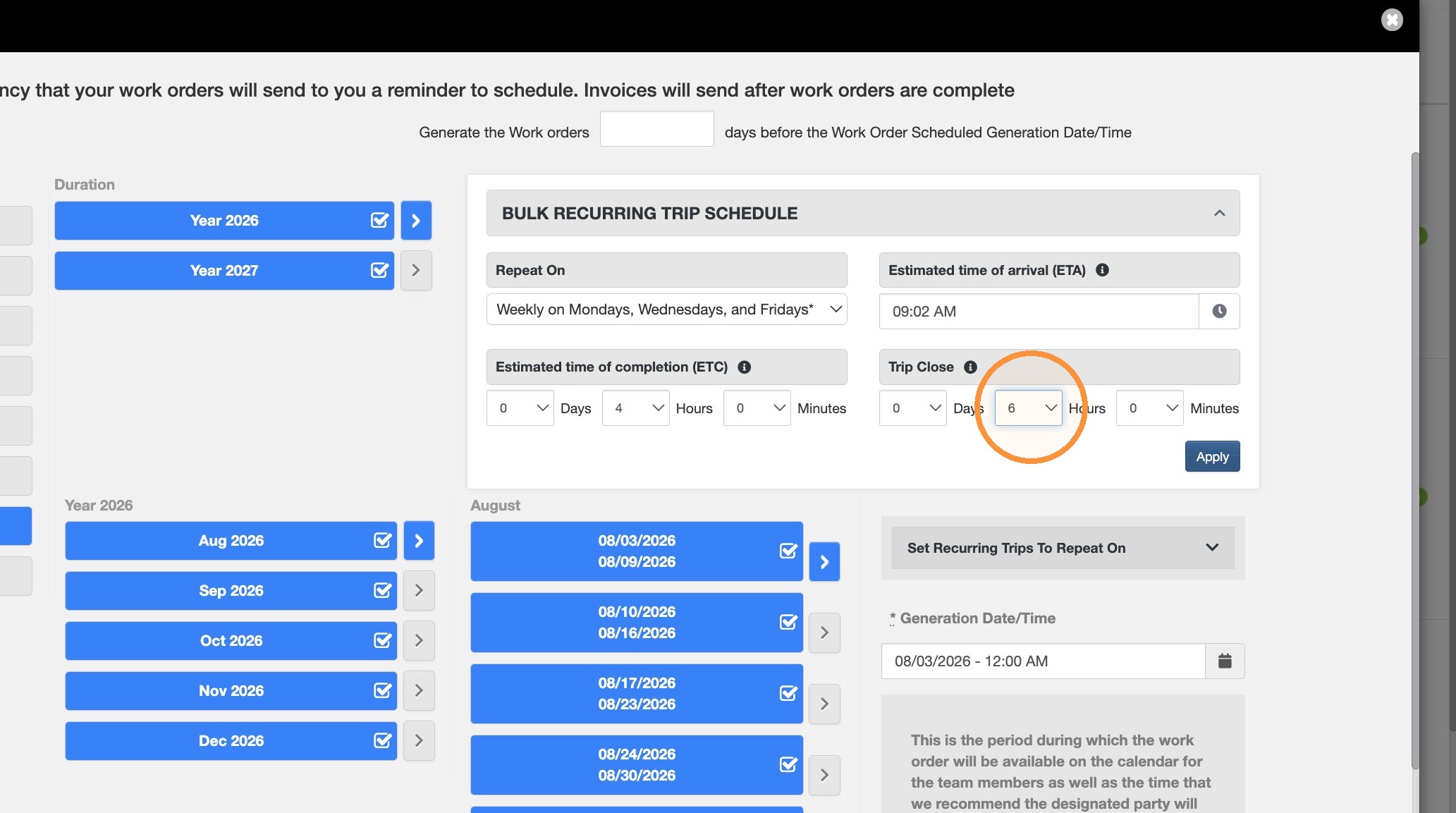
31. Configure frequency for your type
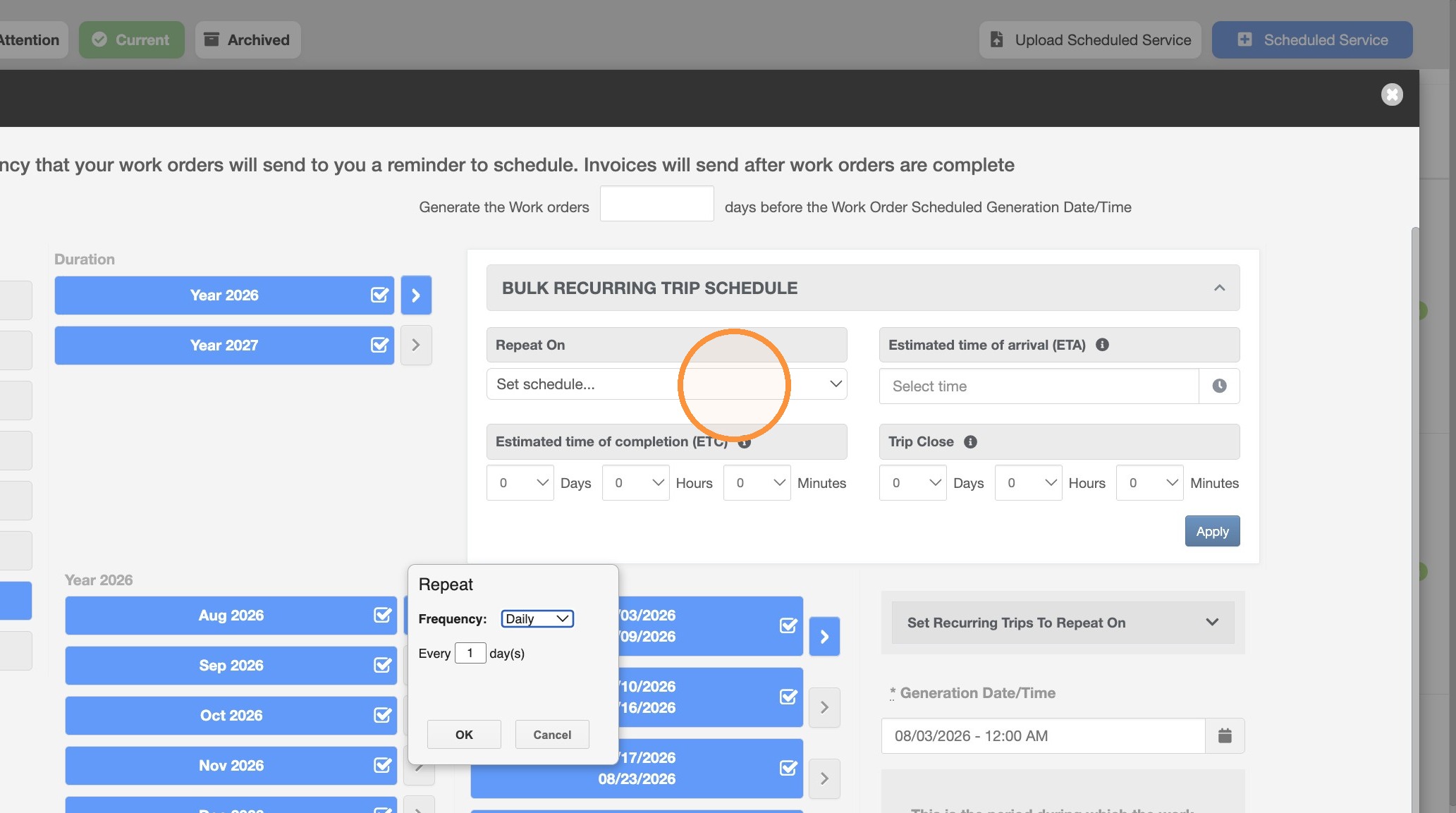
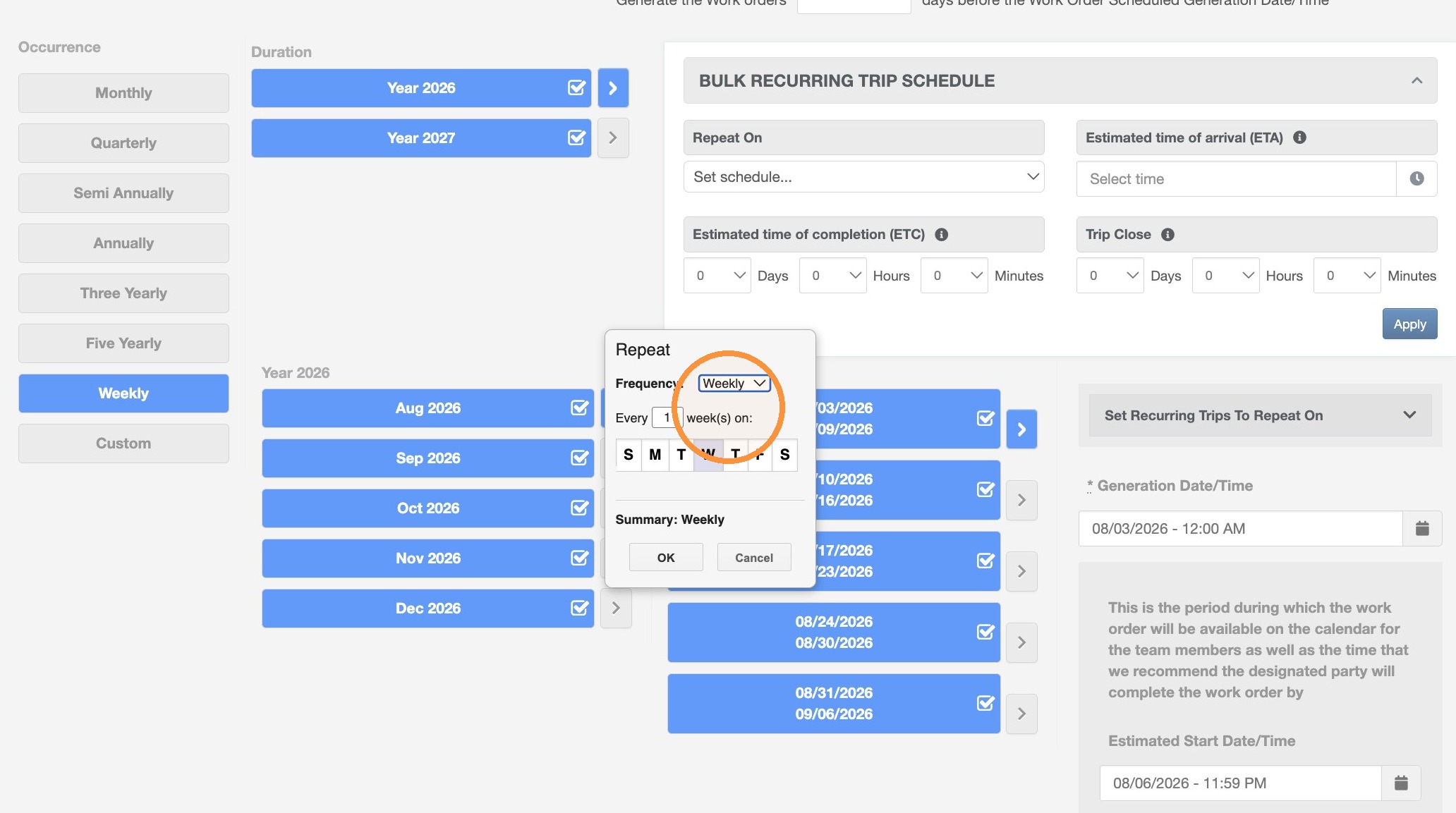
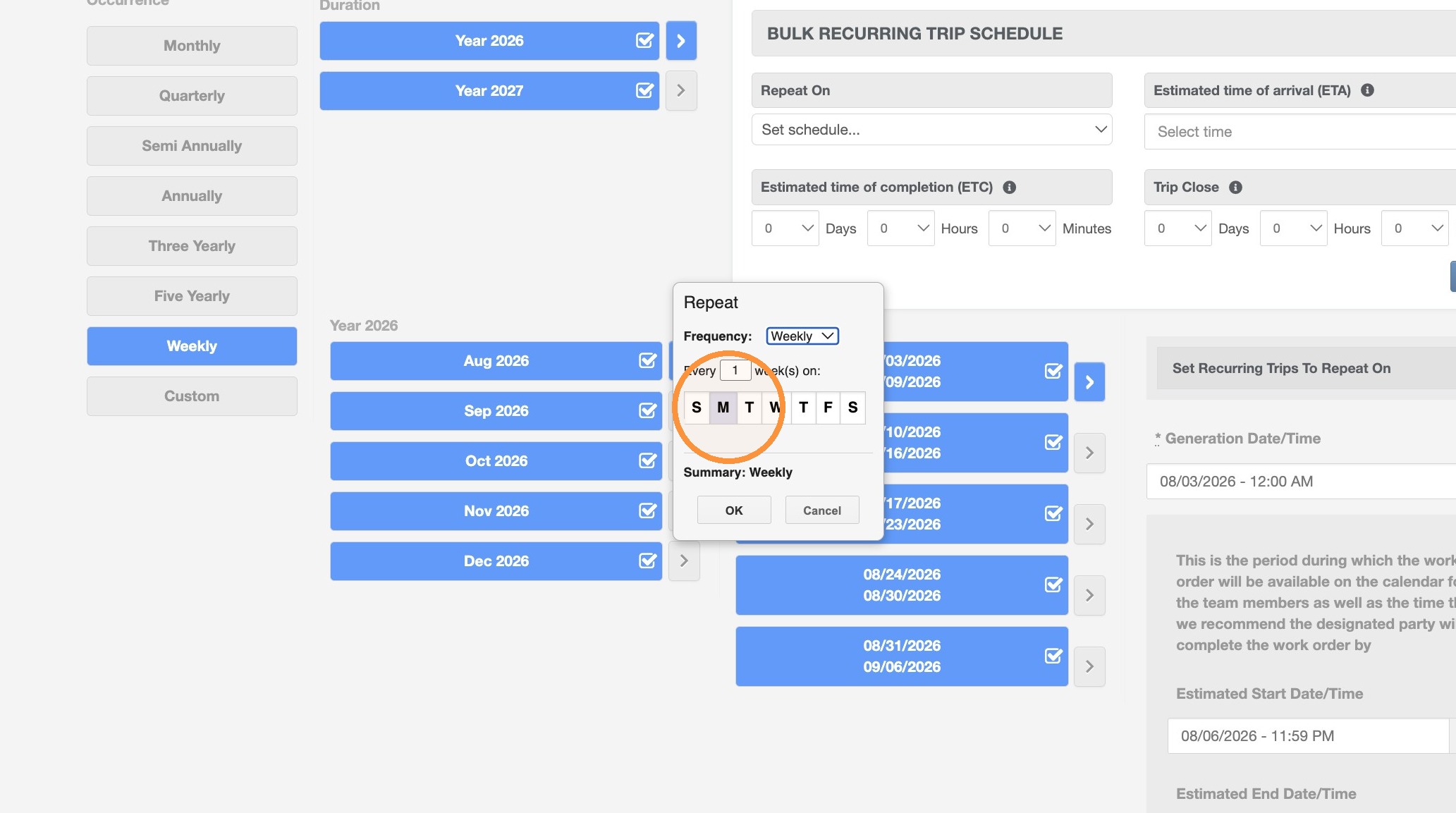
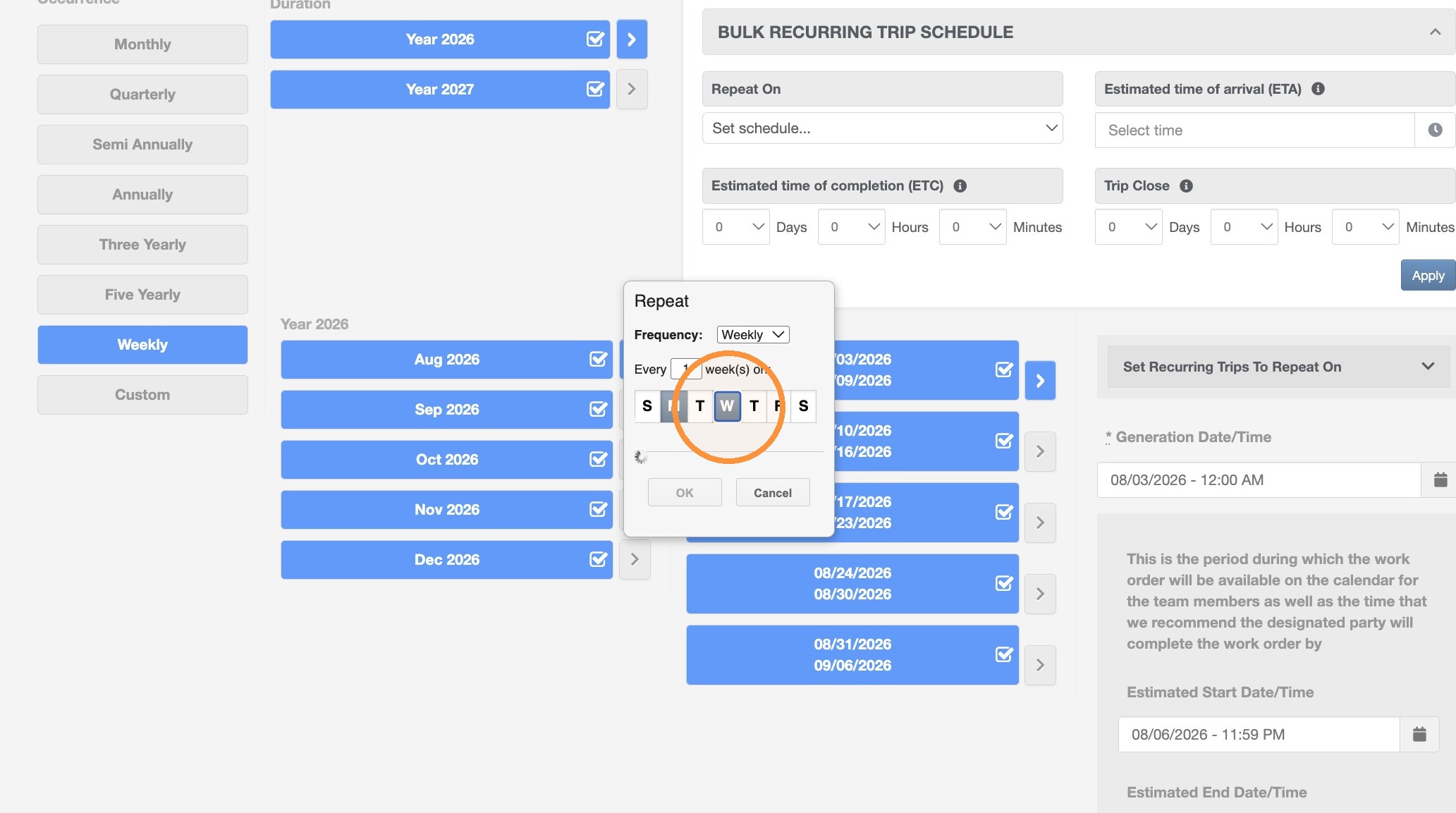
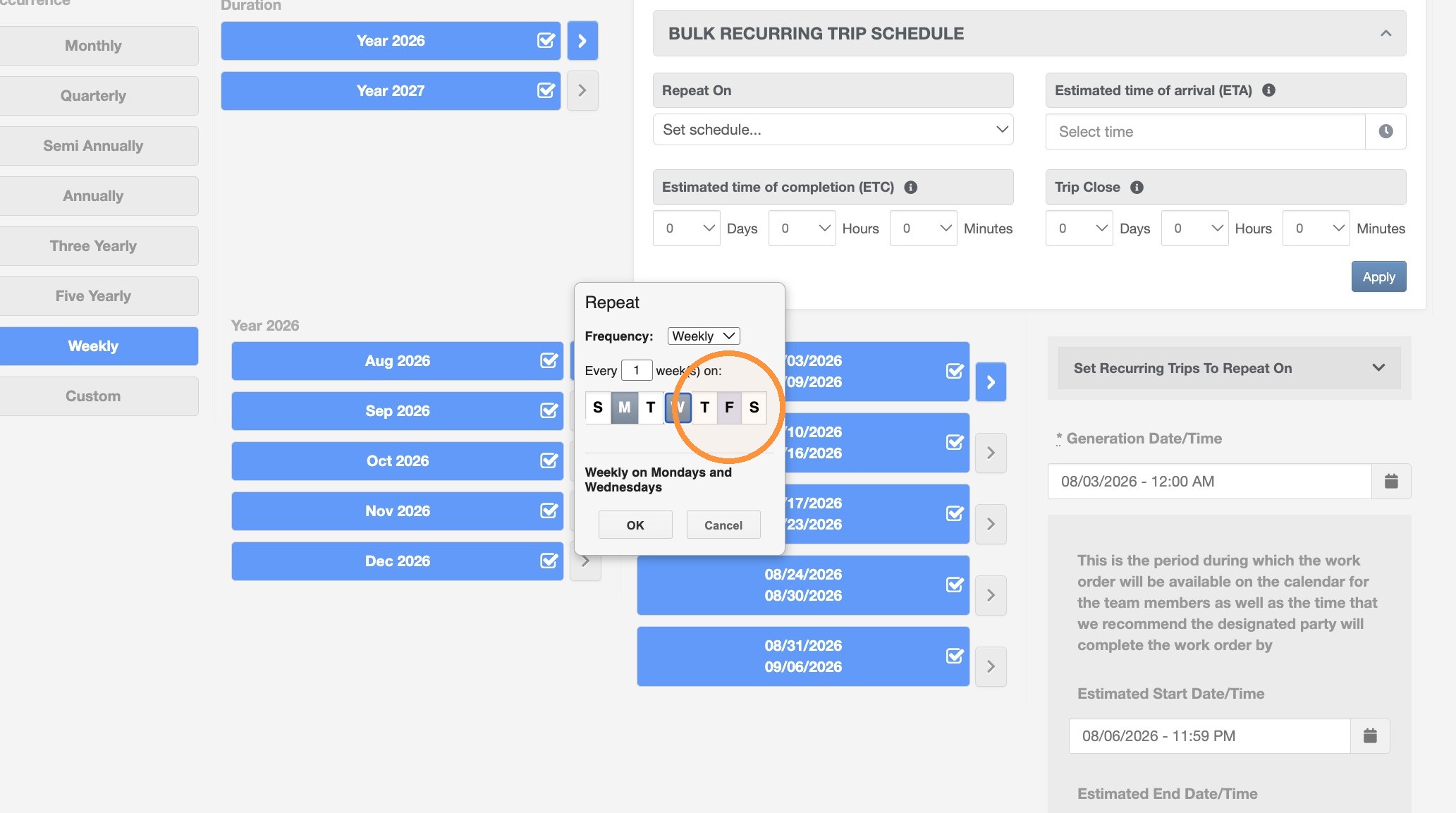
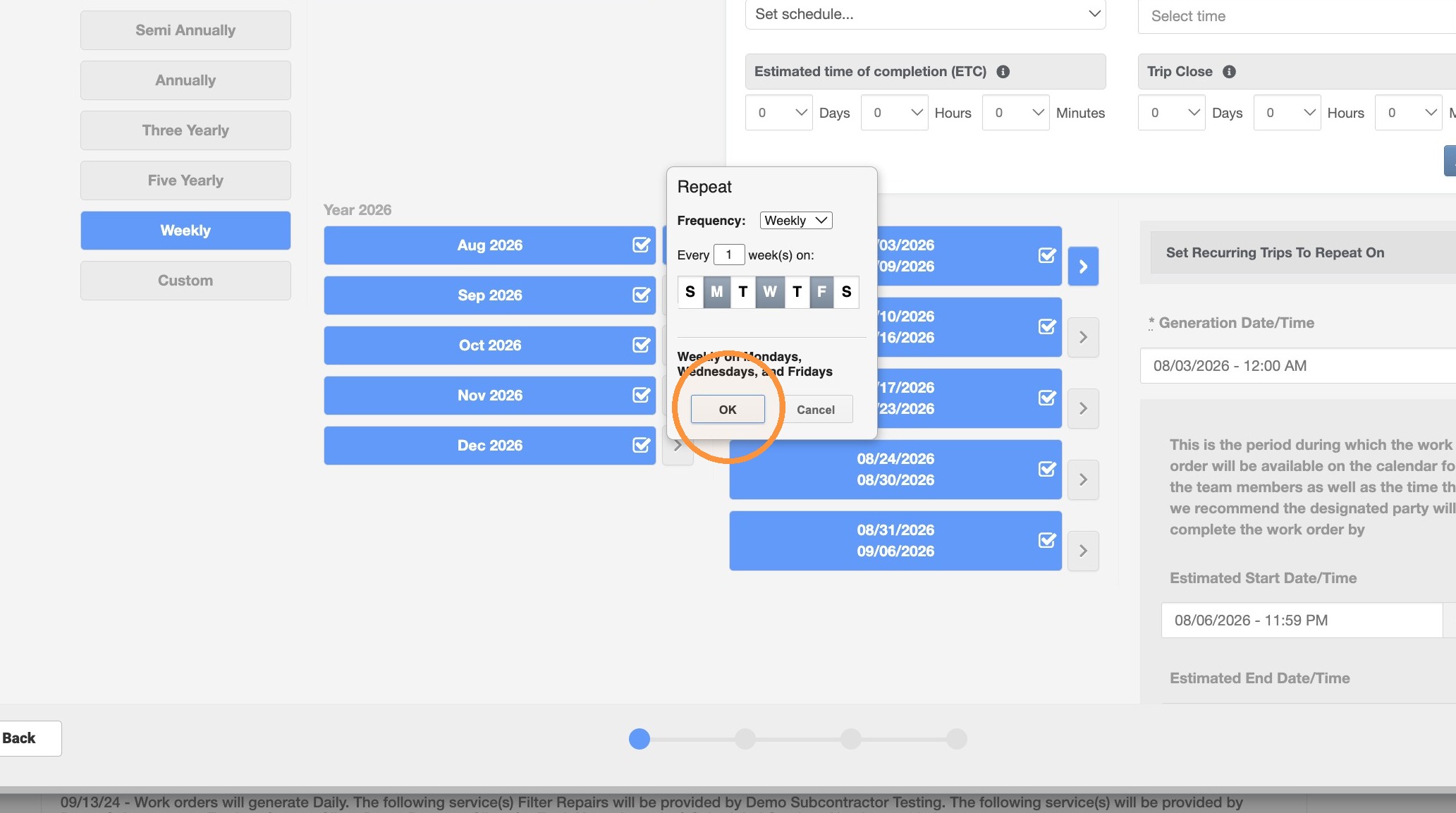
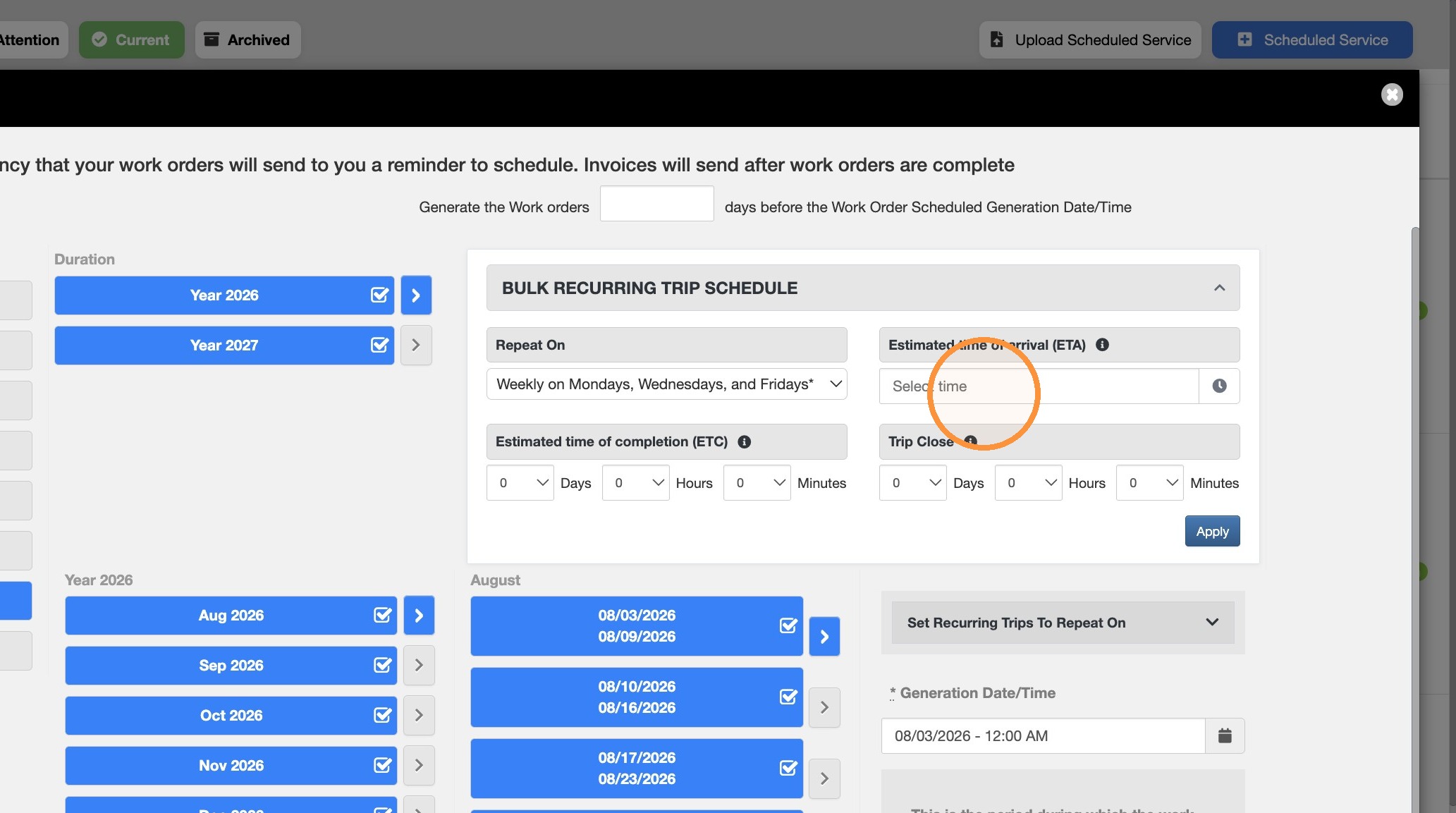
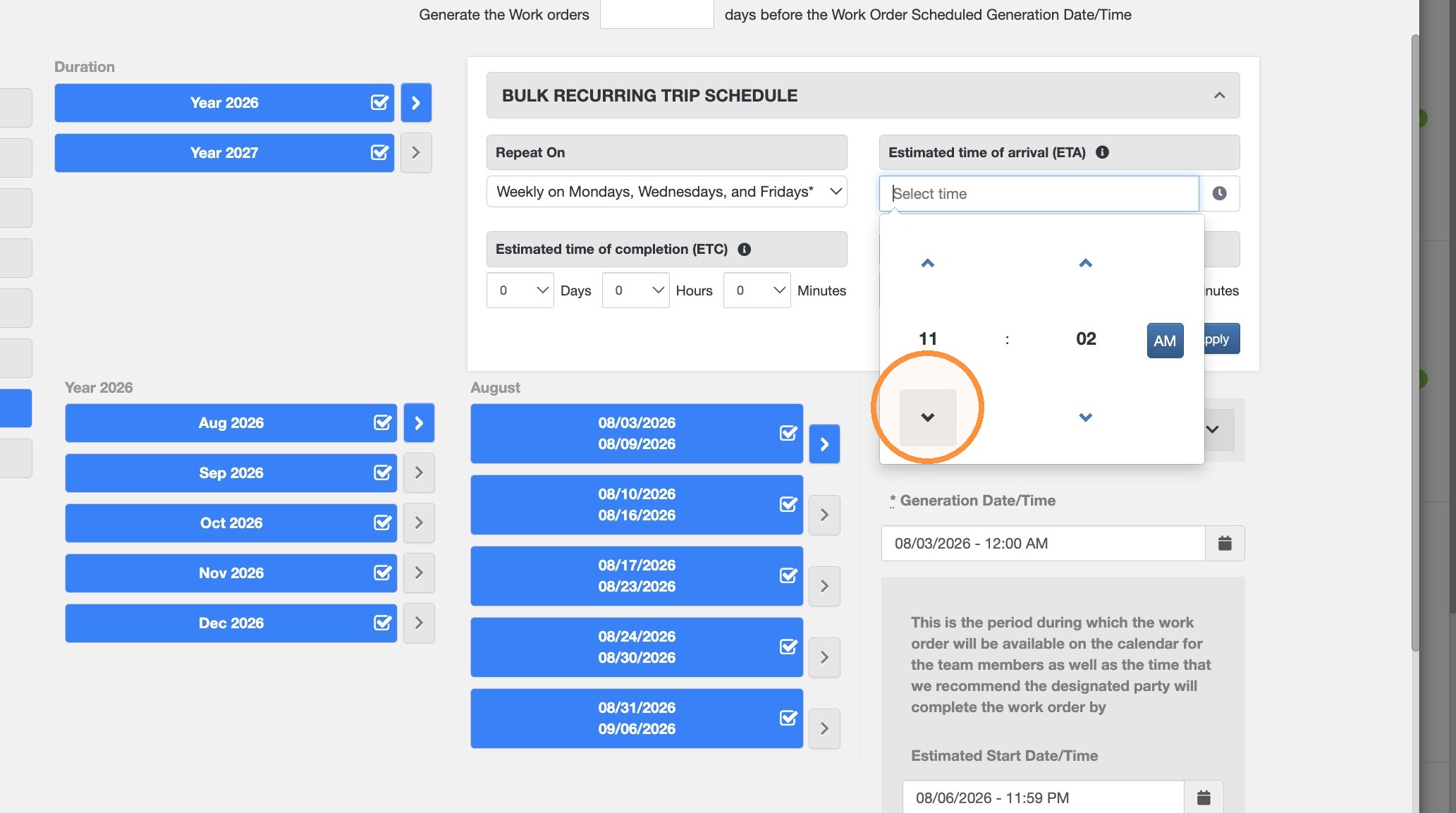
32. Set estimated time of arrival and click Apply.
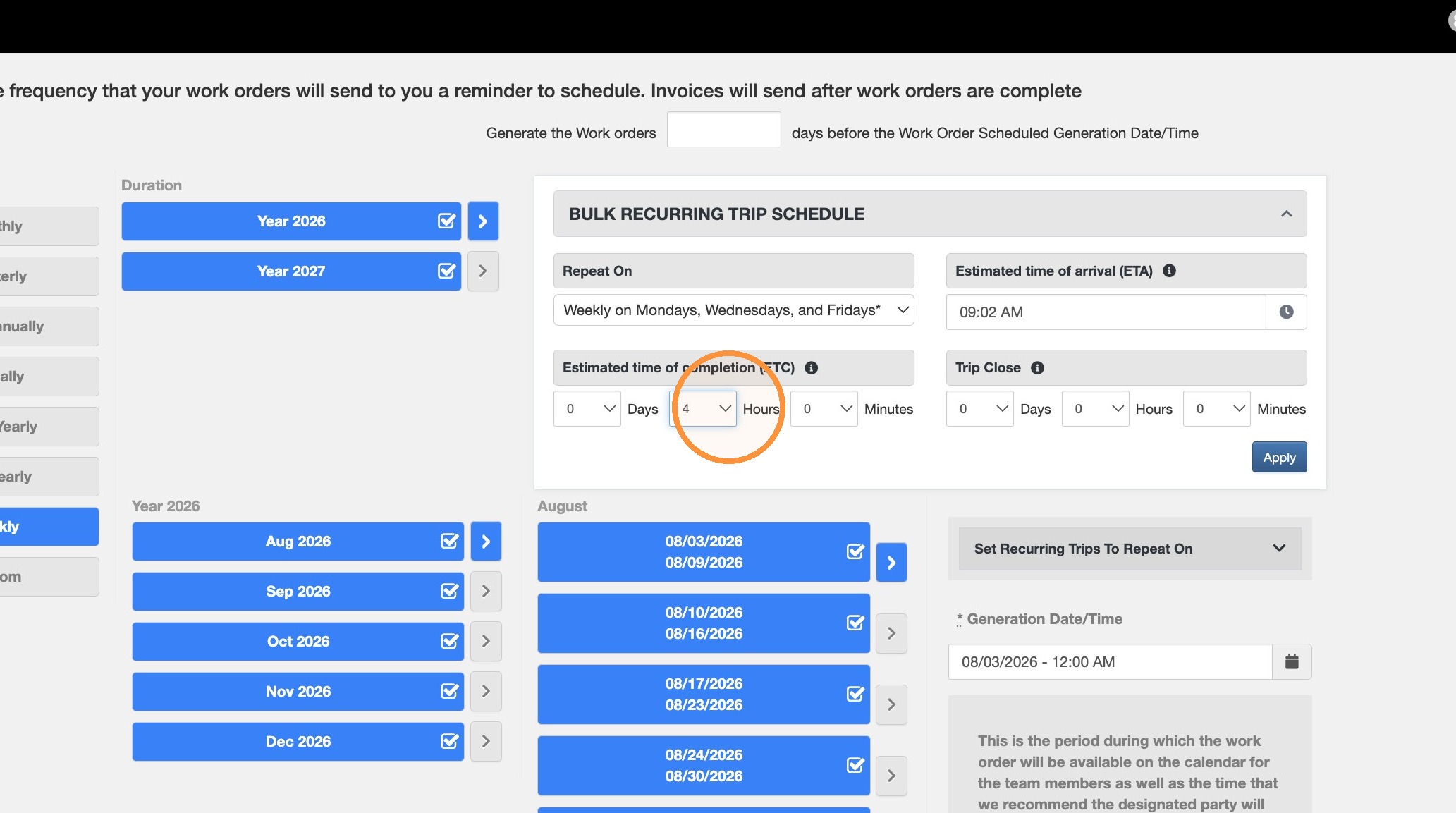
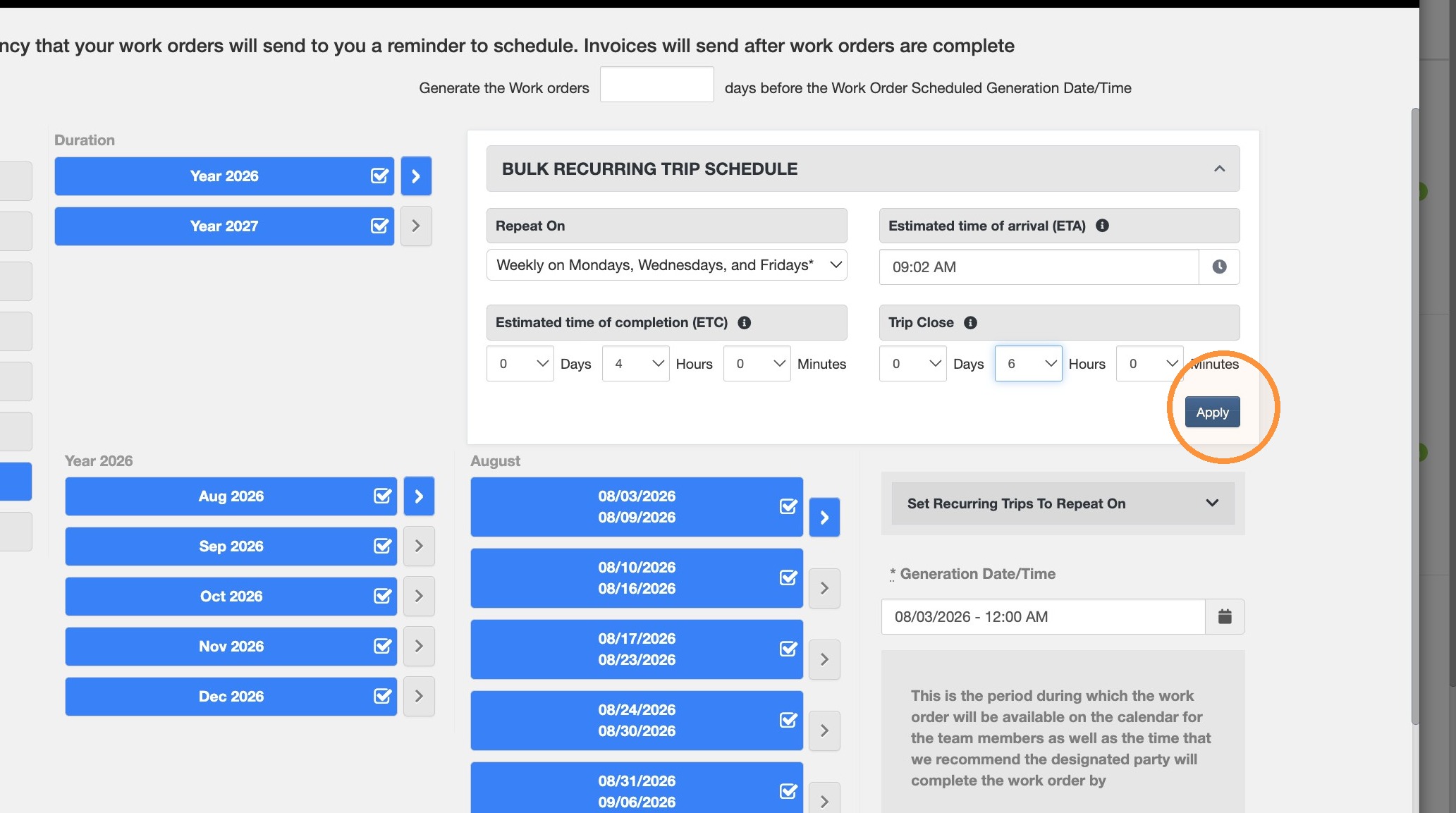
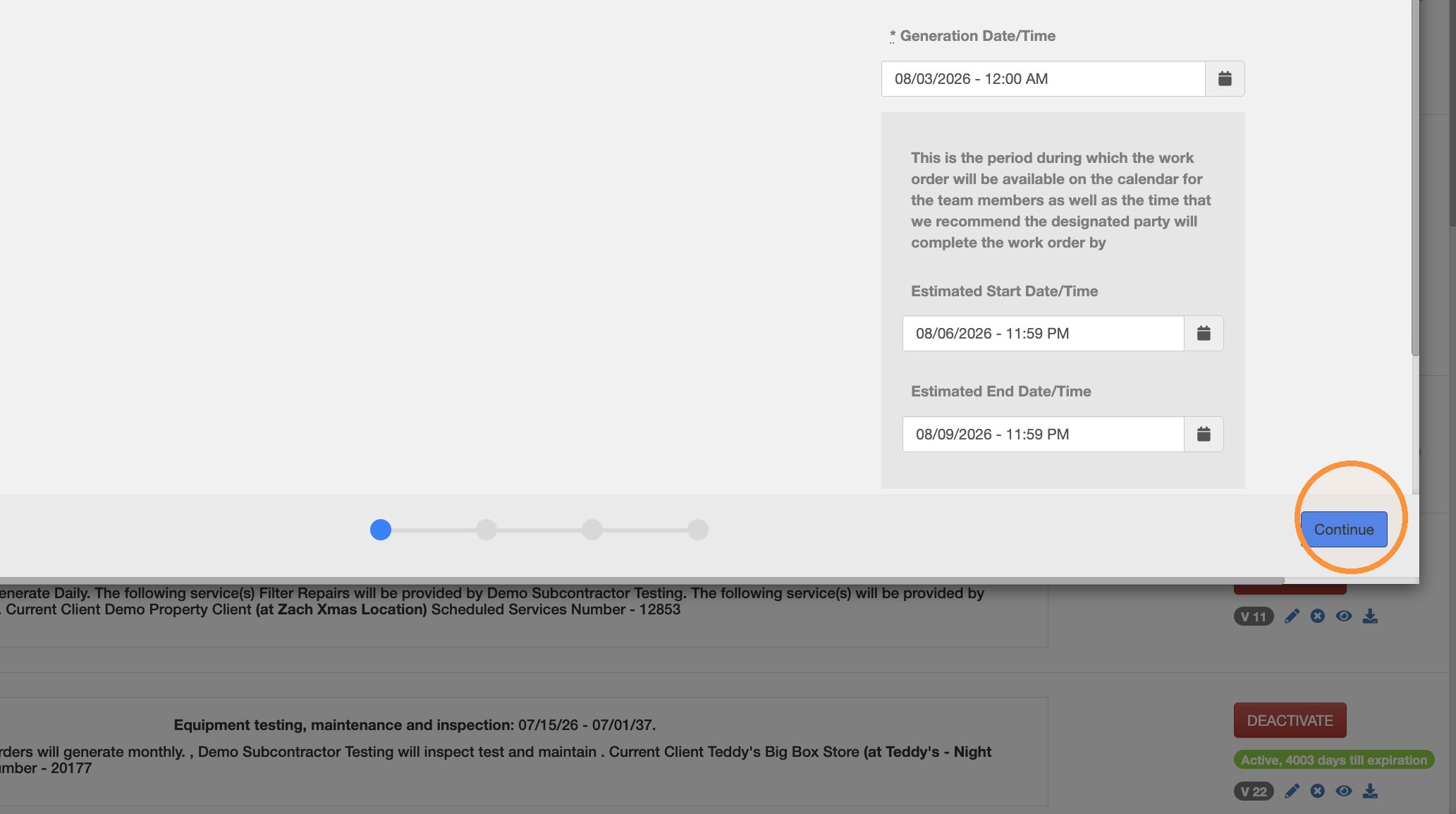
33. Click Continue.
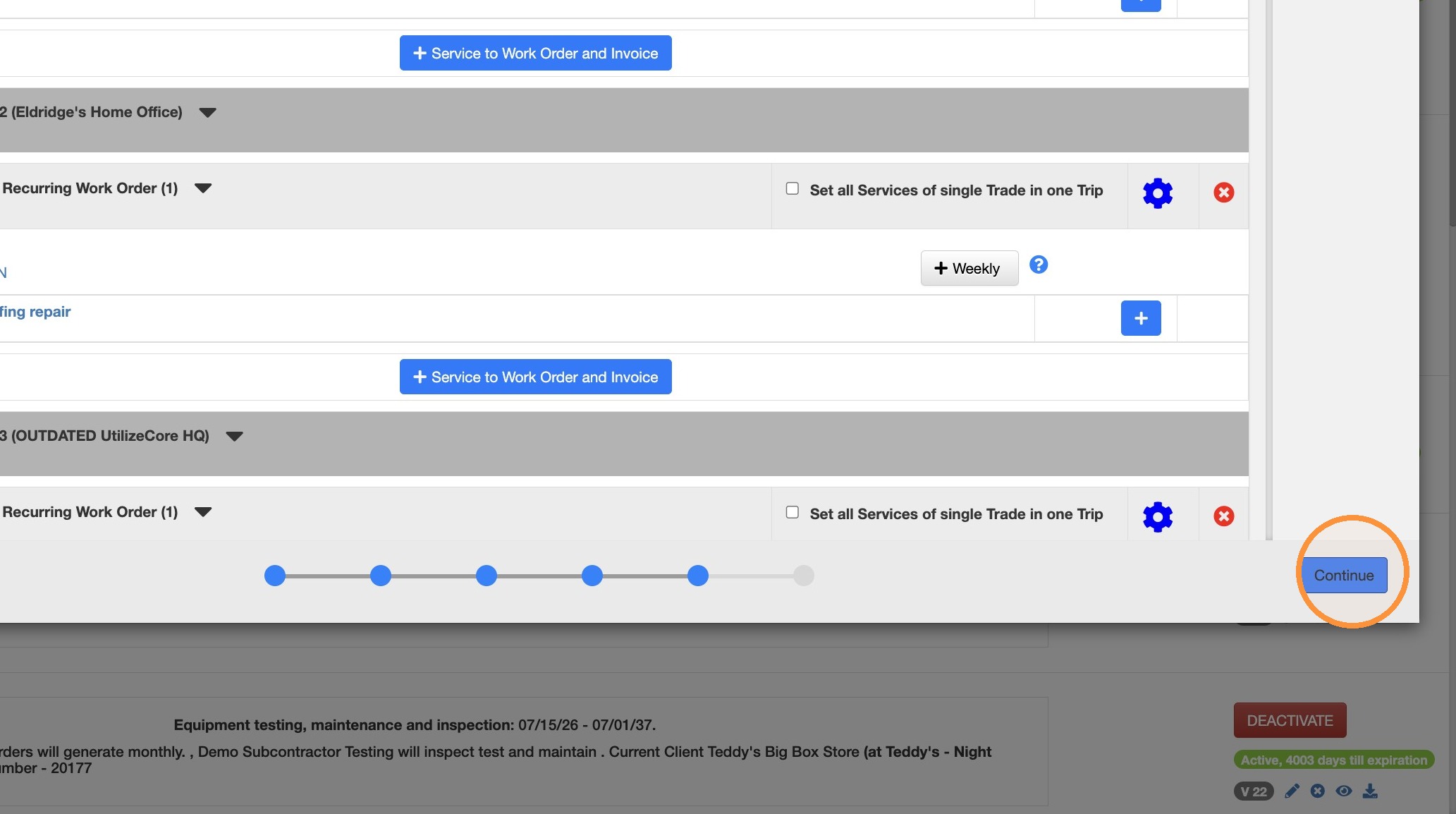
34. Click Continue.
Final Activation
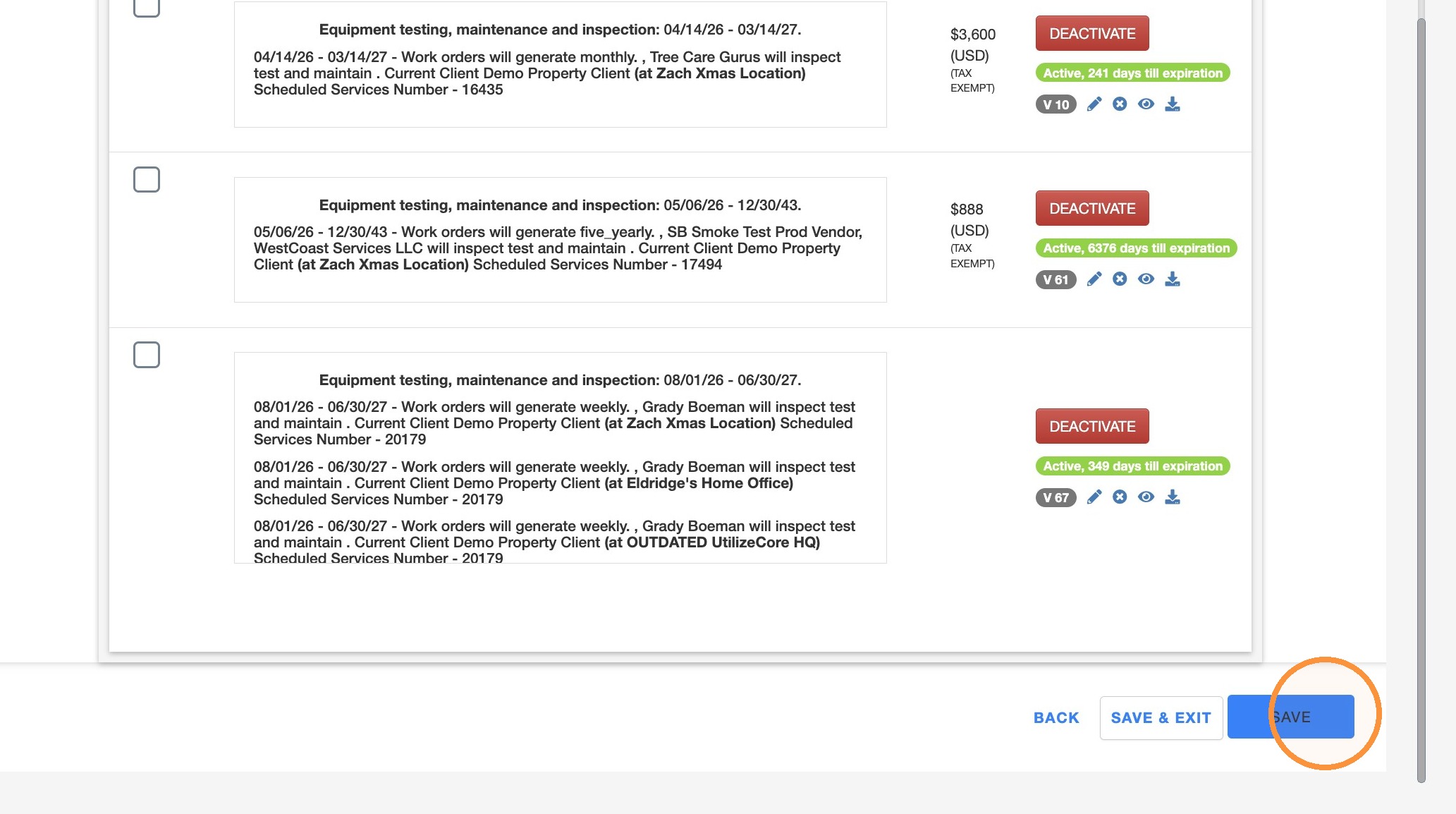
35. Click "Activate"
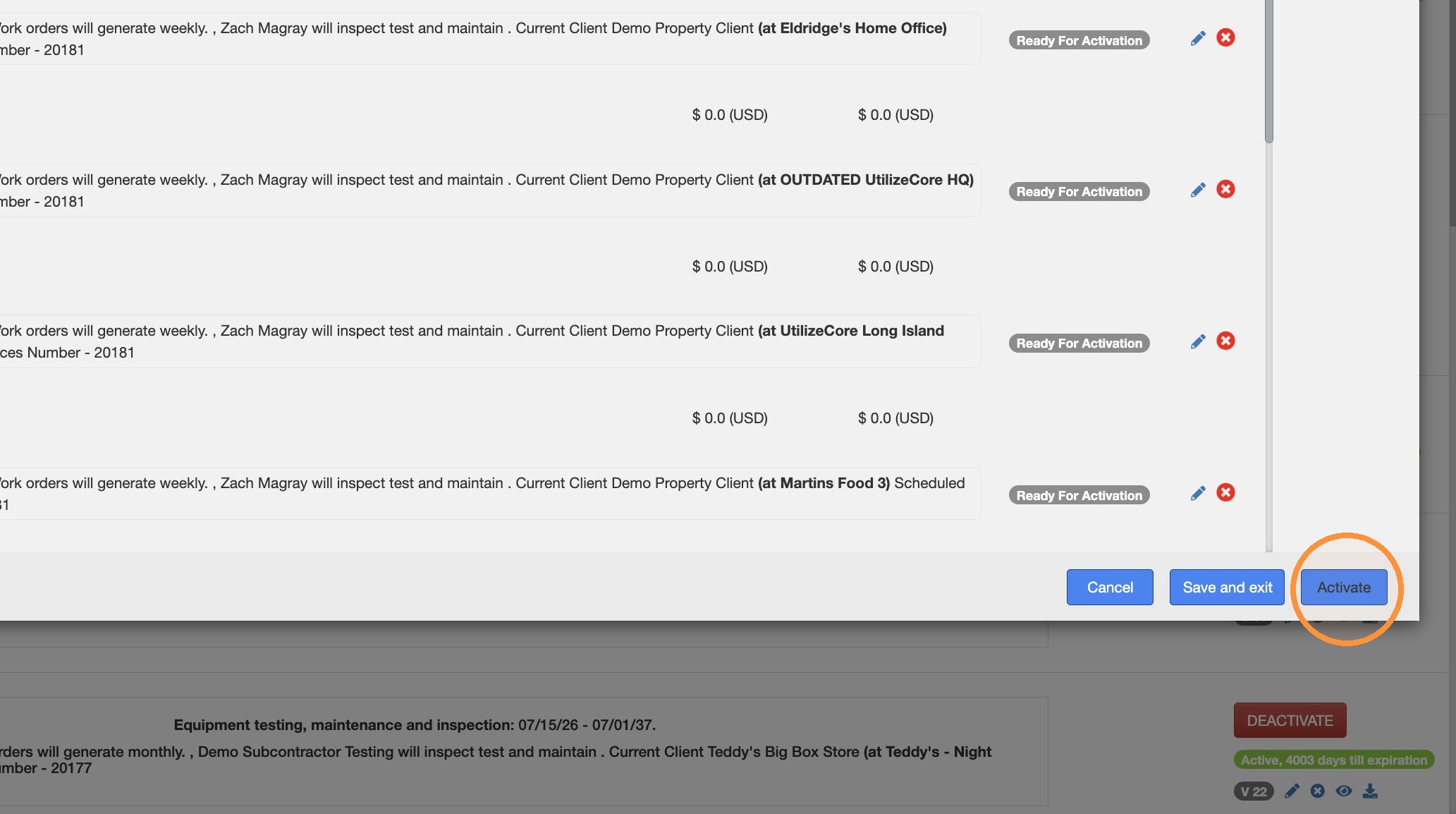
36. Click "Save"