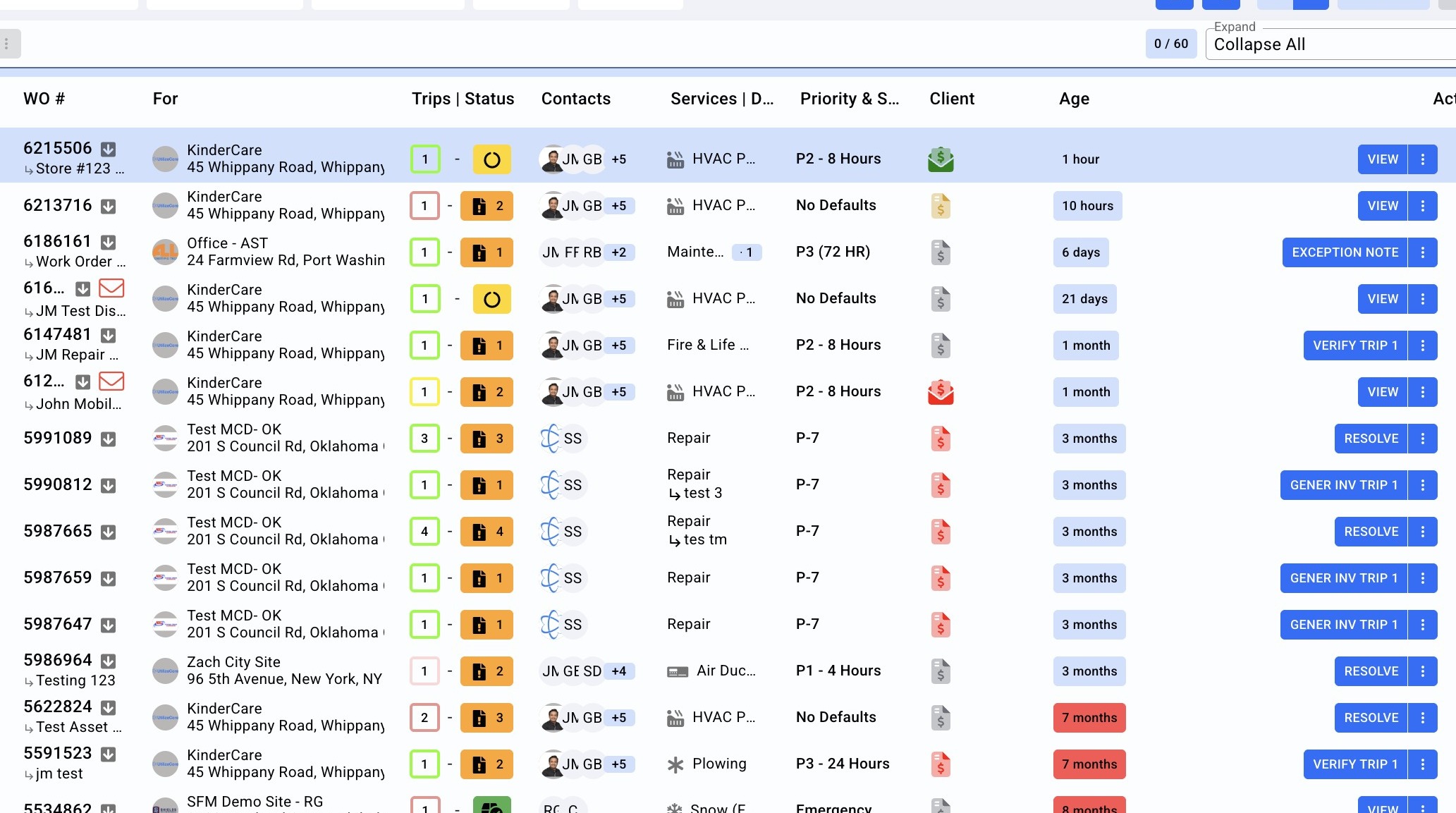
1. Navigate to the Work Order list
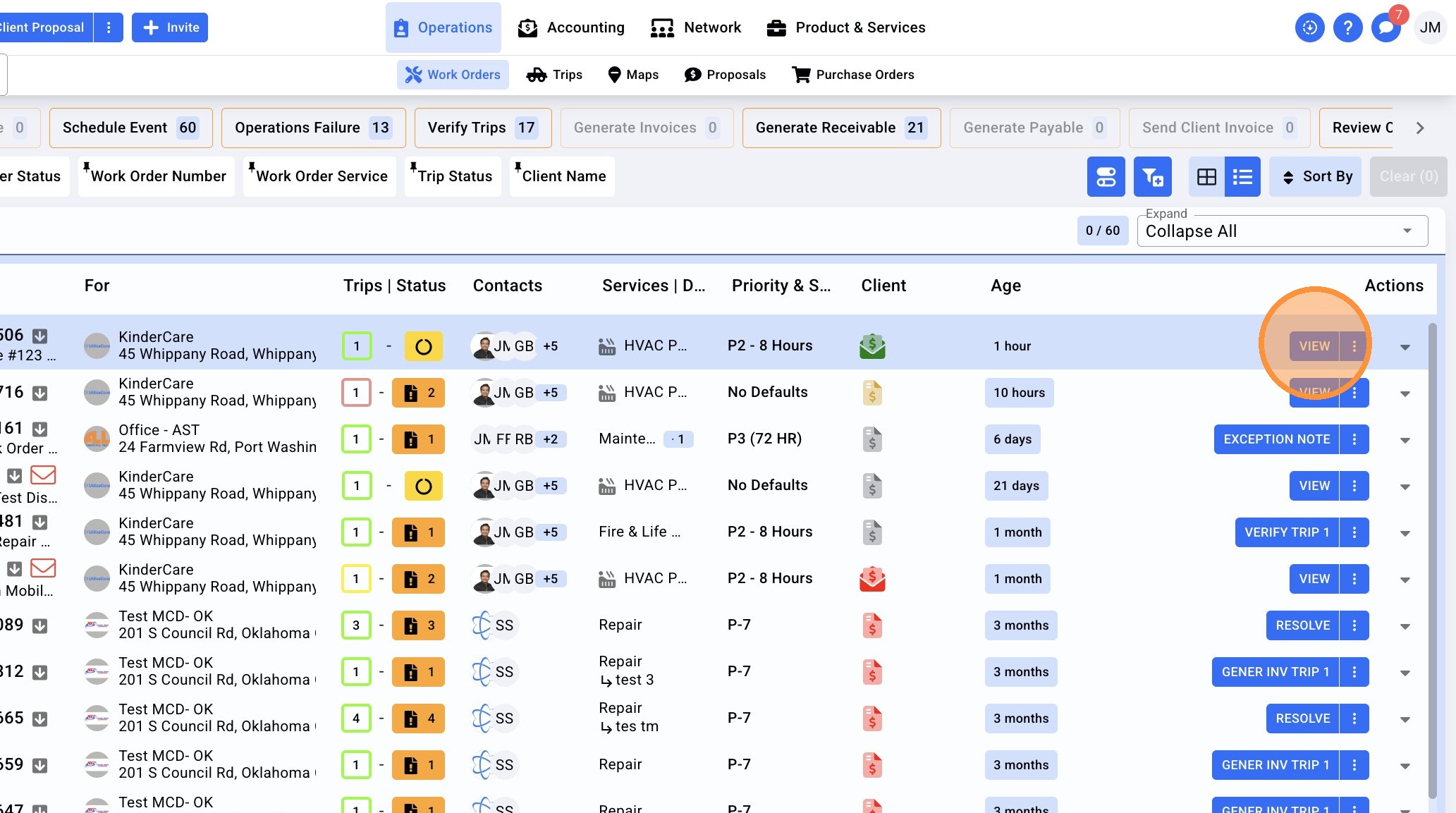
2. Click "VIEW" to open the work order details
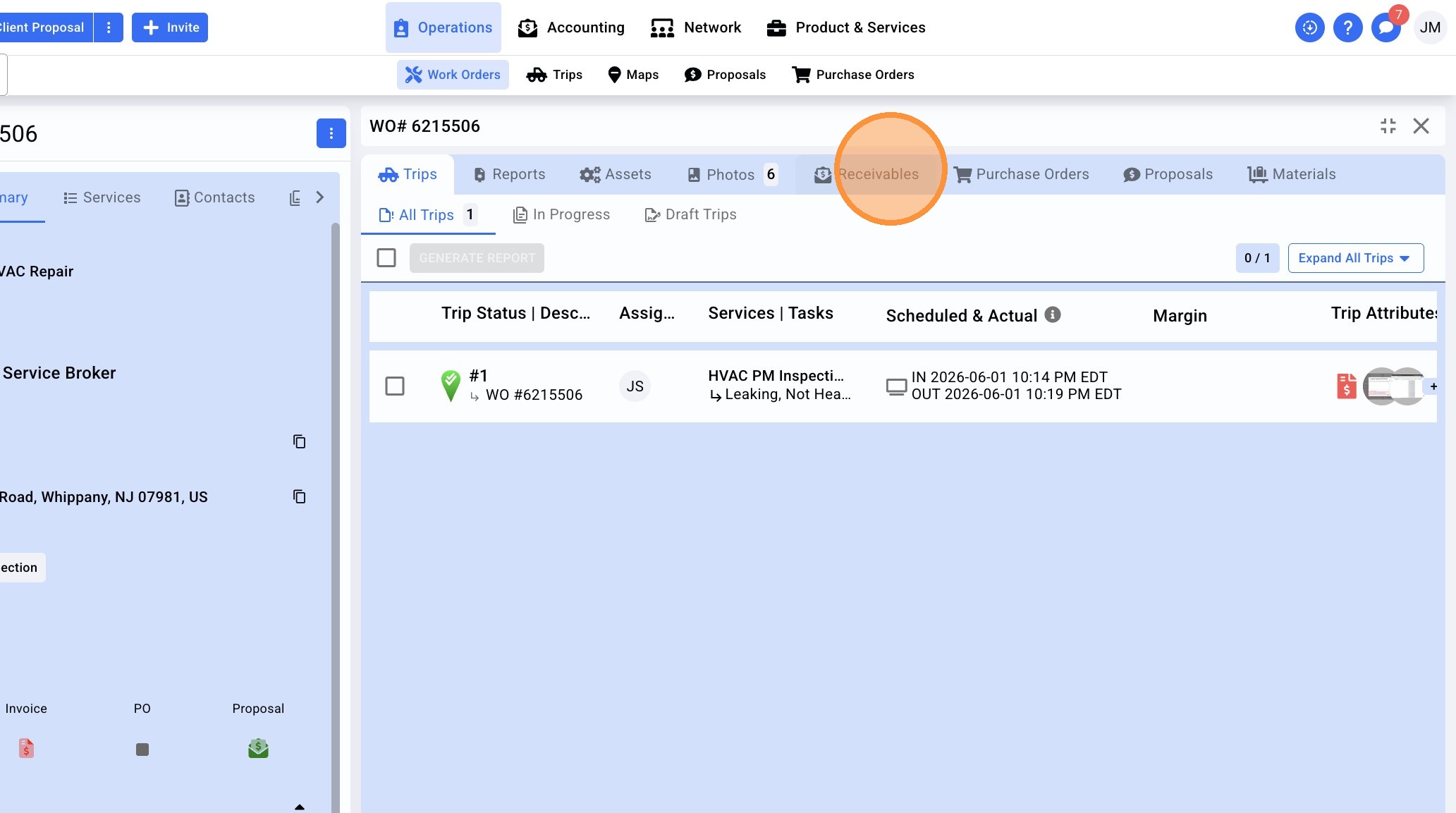
3. Click "Receivables"
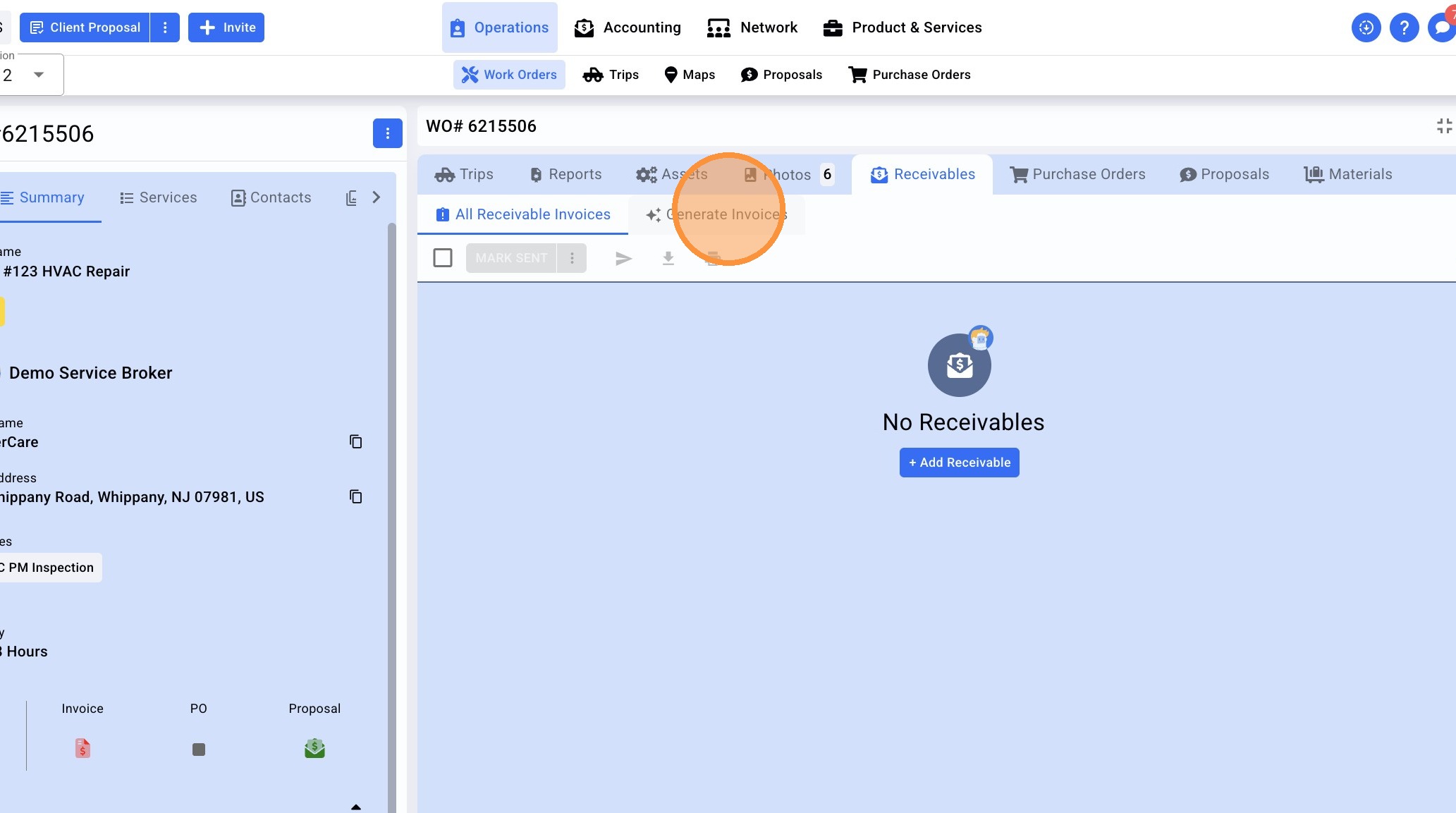
4. Click "Generate Invoices"
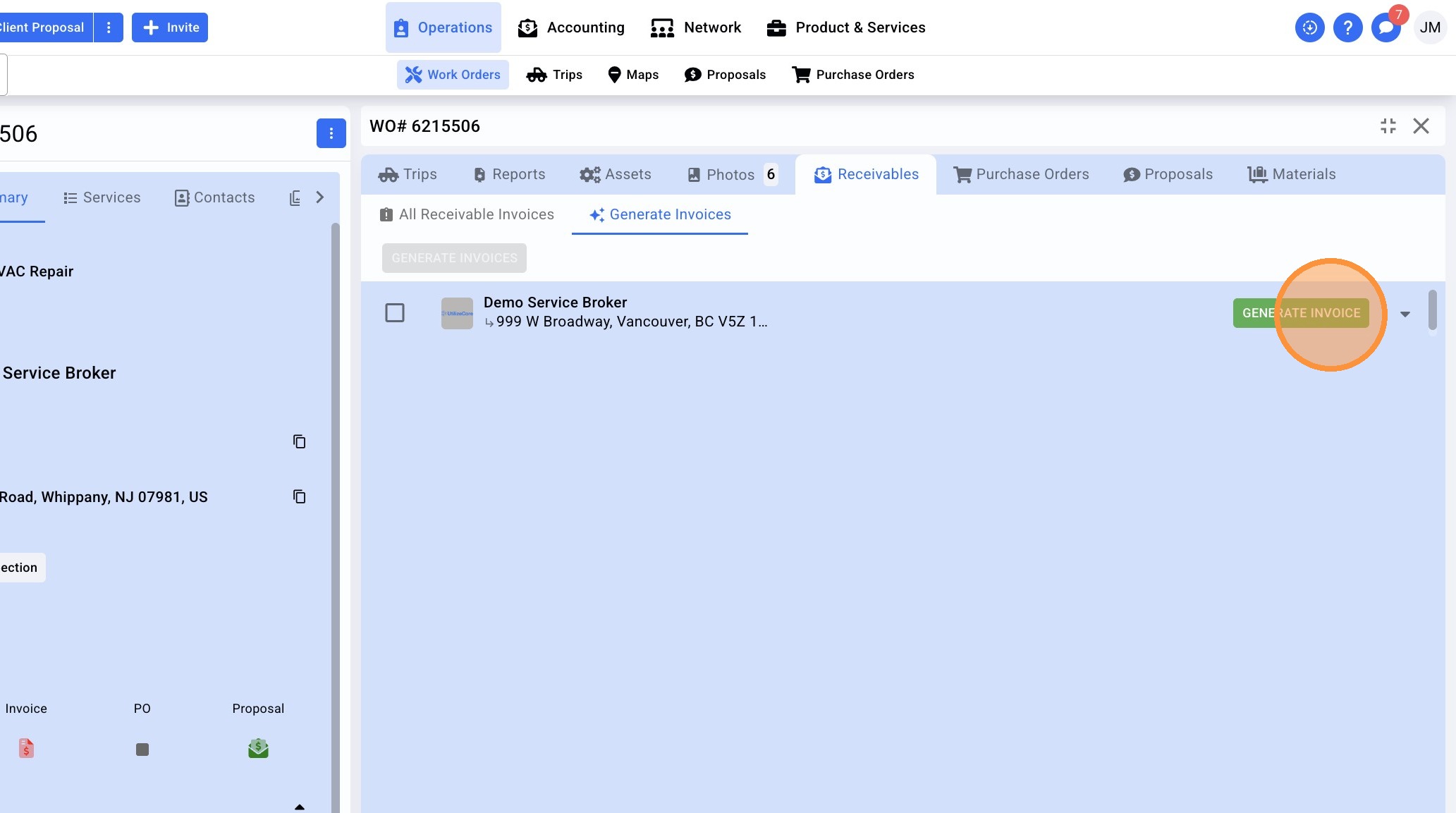
5. Click "GENERATE INVOICE"
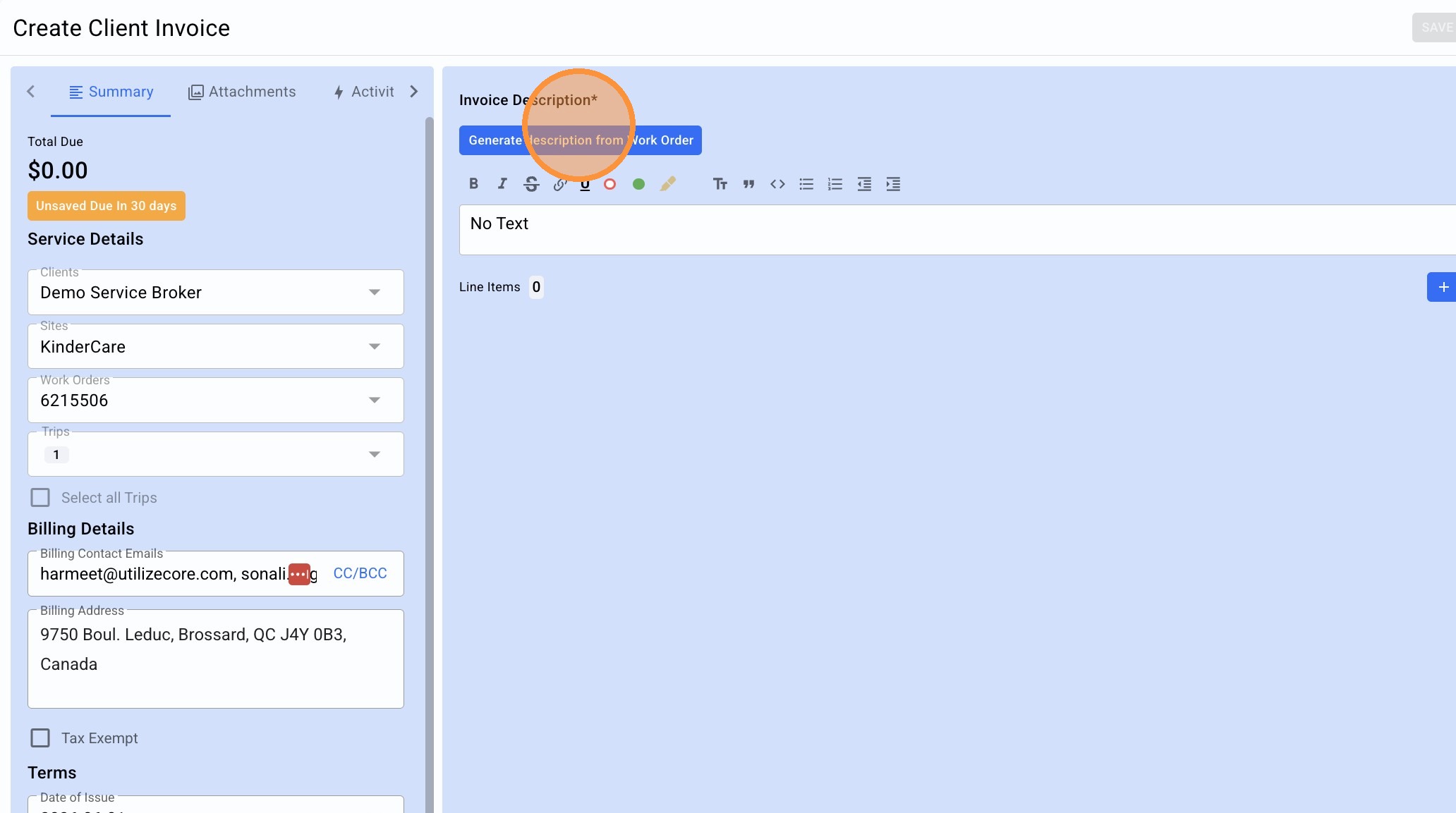
6. Click "Generate description from Work Order". Add additional invoice details as necessary.
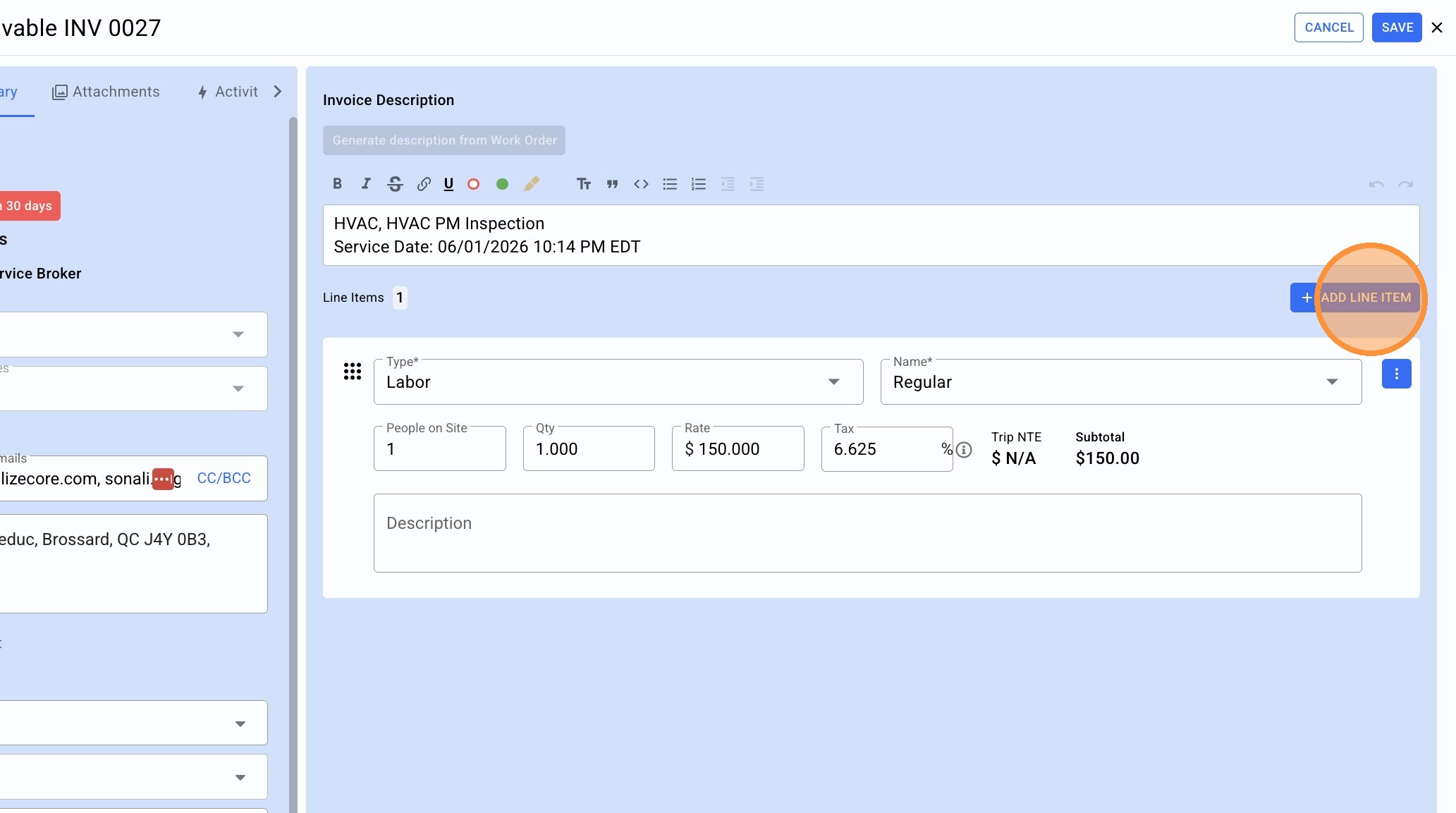
7. The Invoice will automatically include line items based on service details and configuration from your Service Partner. Click "ADD LINE ITEM" to add additional line items as needed.
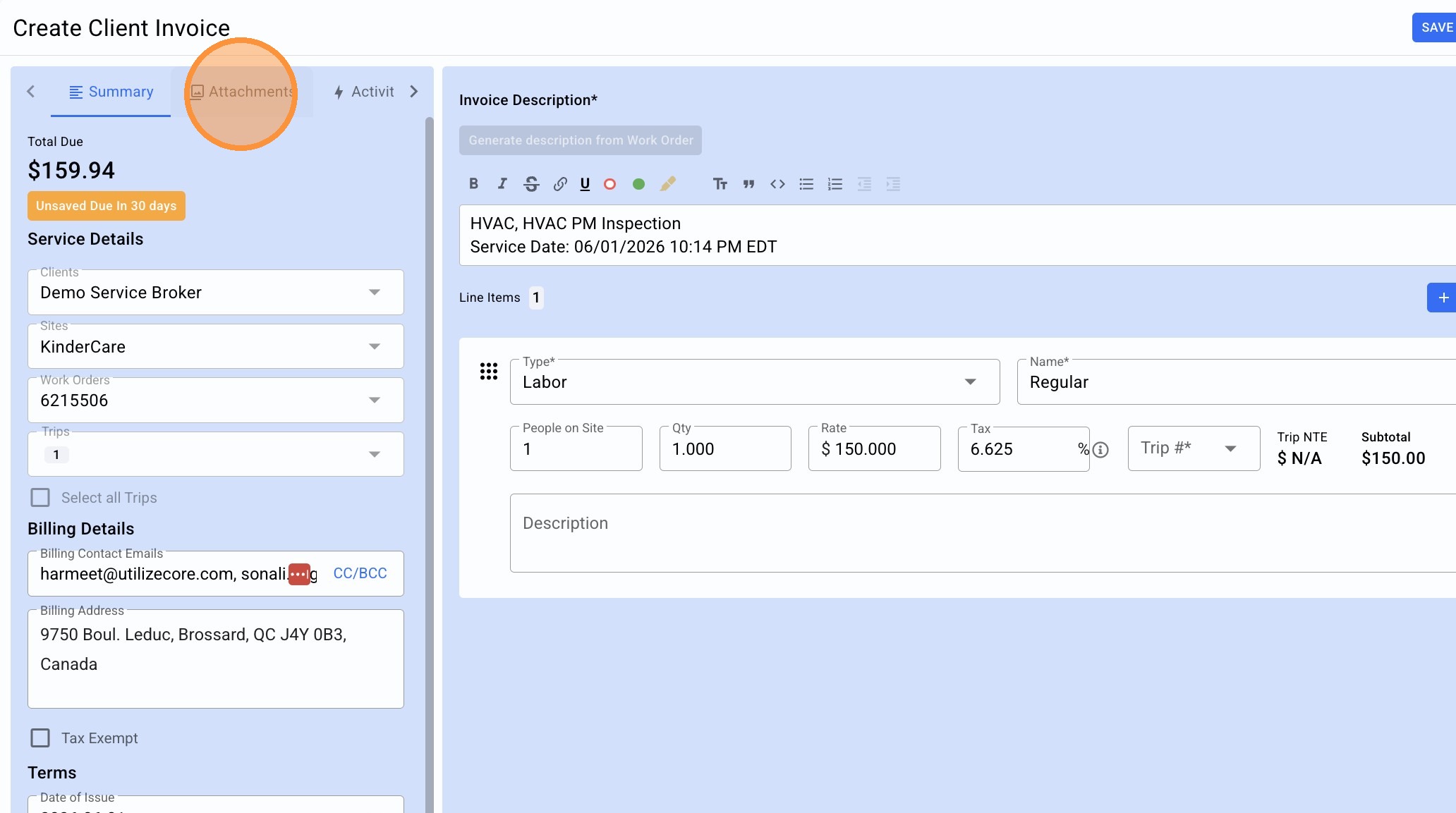
8. Click "Attachments" to add any required service verification details.
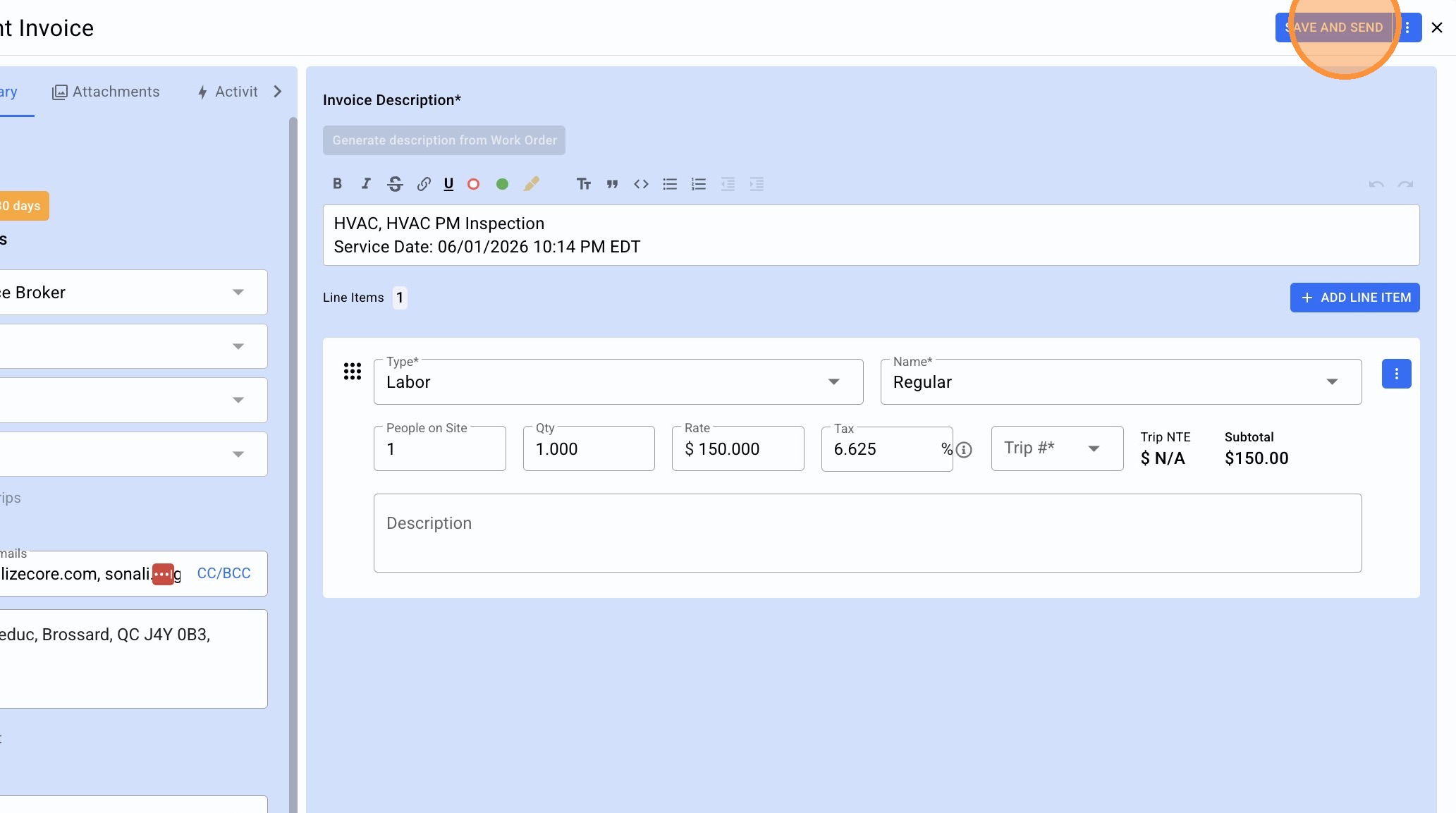
9. Click "SAVE AND SEND"
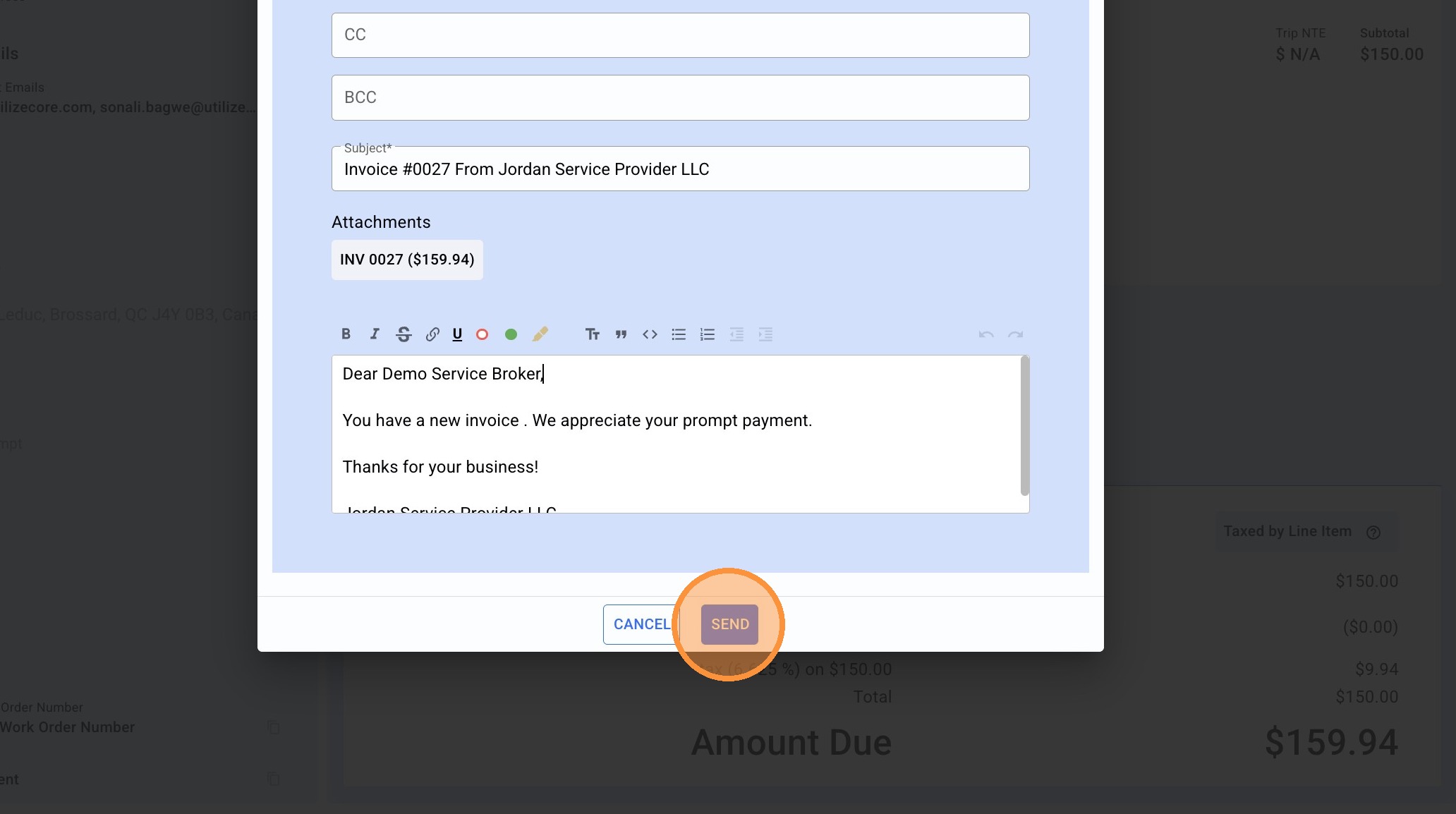
10. CC and BCC your team members, update the email body copy if necessary, and click "SEND"