
Applies to: Sites | Web | Main Menu > Network > Sites
Download the printable guide (PDF)
Step 1: Open Sites
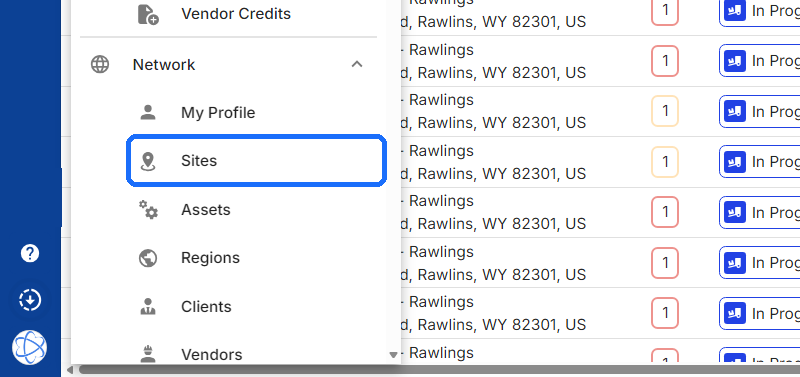
Open the Main Menu (top left) and click Sites under Network.
Step 2: Select the Sites
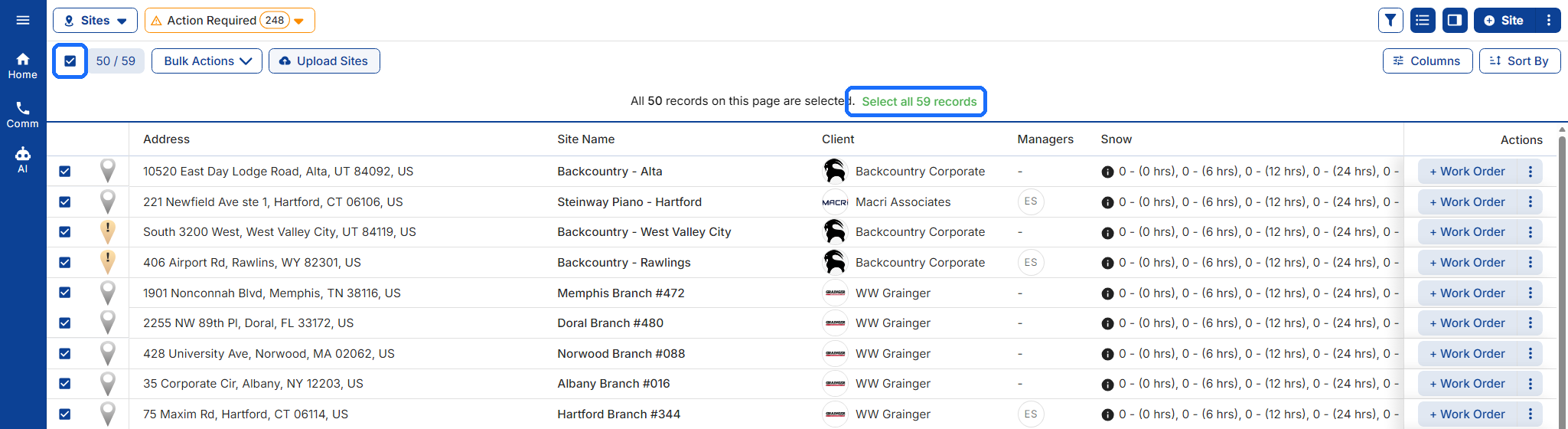
Check the box at the top of the list to select every Site on the page. To include Sites on the other pages, click Select all [n] records in the banner. Filter the list first if you only want some Sites, for example one Client.
Step 3: Open Bulk Actions
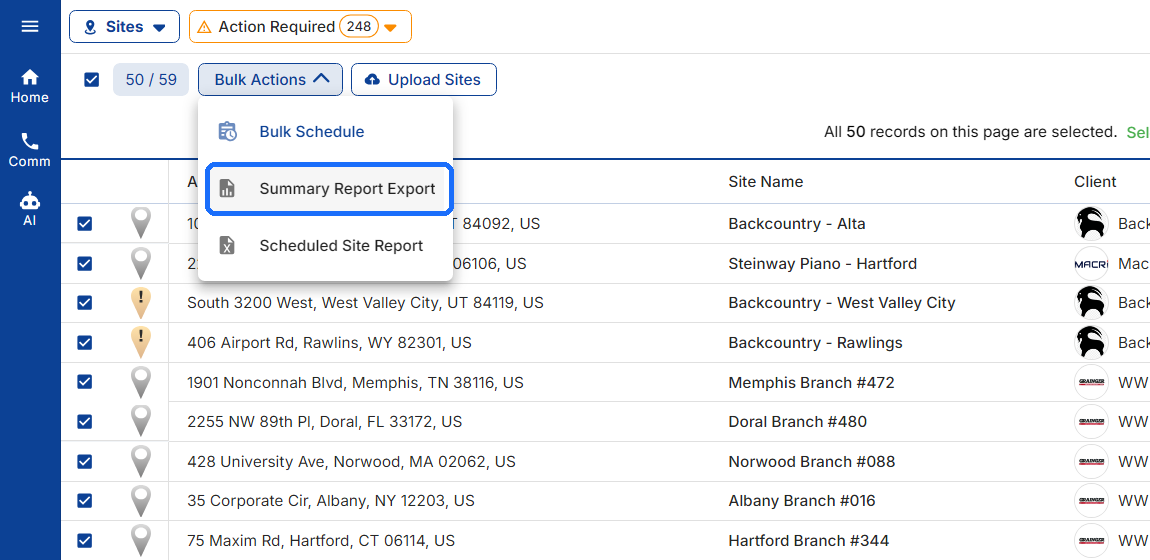
Click Bulk Actions, then Summary Report Export.
Step 4: Choose the export type
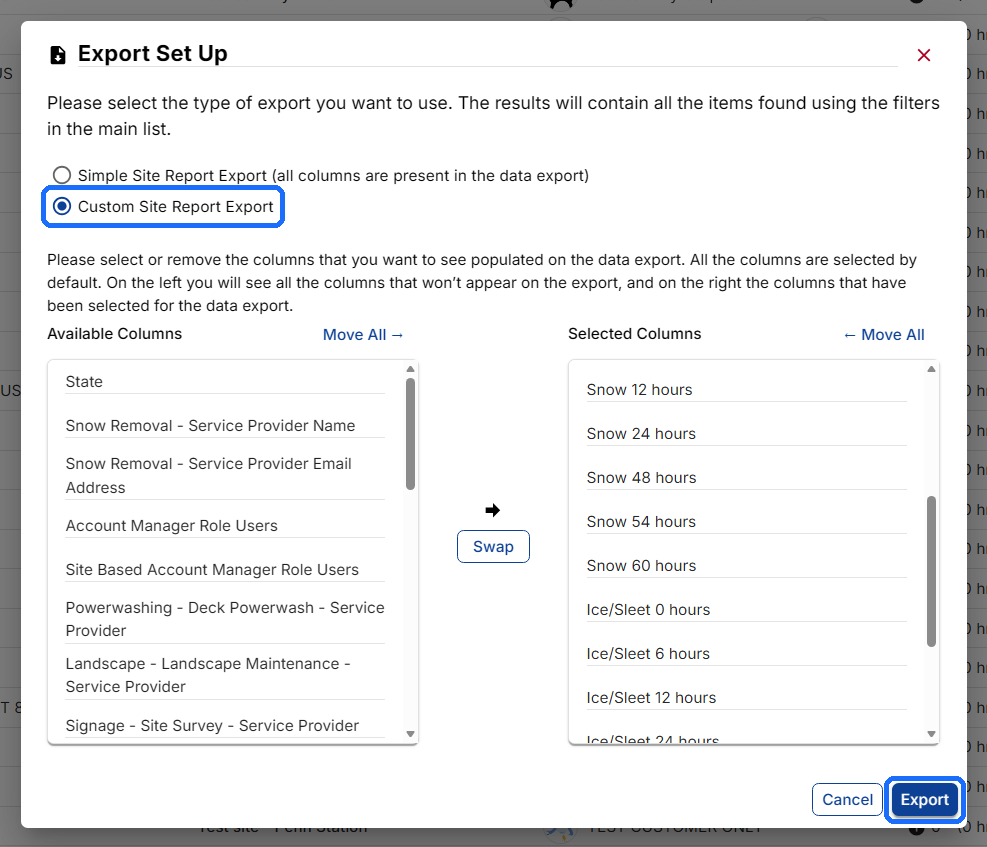
Simple Site Report Export includes every column.
Custom Site Report Export lets you choose. Every column starts under Selected Columns. Move the ones you do not need to Available Columns with Swap, or move a whole list with Move All.
Step 5: Click Export
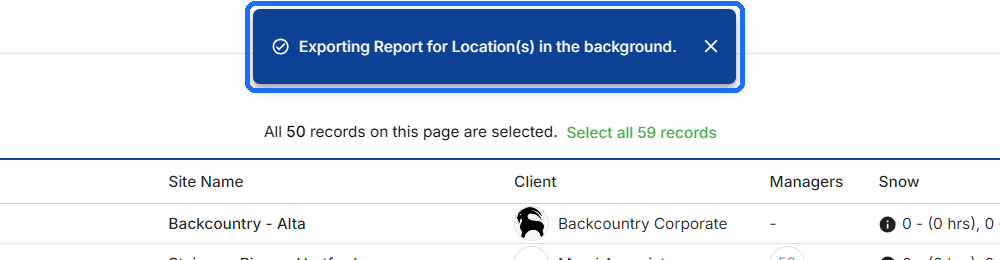
A banner confirms the report is exporting in the background. You can keep working.
Step 6: Download the report
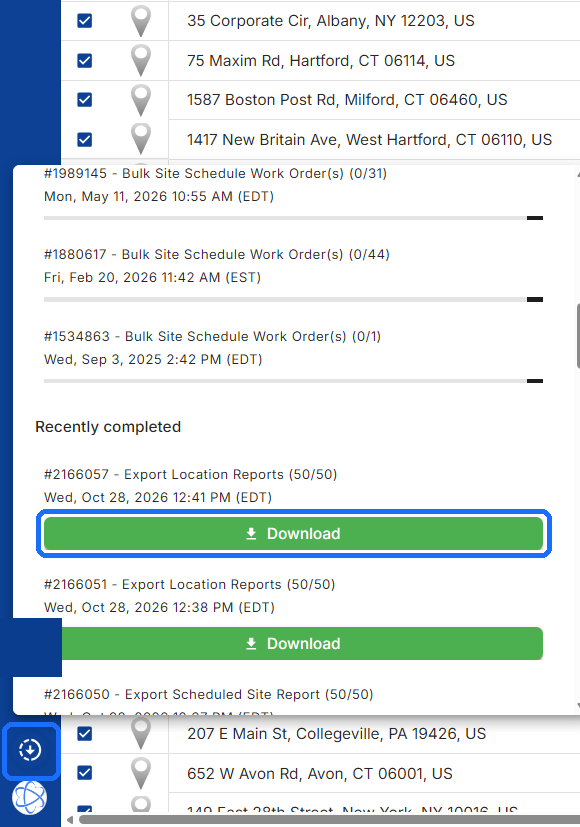
Click the background jobs icon at the bottom of the left bar, just above your profile picture. Under Recently completed, find Export Location Reports and click Download. The count beside the job, such as (50/50), shows how many Sites were included.
What the report can include
| Site | Location, Address, City, State, Zip Code, Client |
| Snow and ice | Snow and Ice/Sleet at 0, 6, 12, 24, 48, 54 and 60 hours |
| Vendors | Service Provider Name, Email Address and ID for each Service, for example Snow Removal |
| Managers | Account Manager Role Users, Site Based Account Manager Role Users |
Good to know. The report covers the Sites you selected, so check the count on the job before you download. Only the columns under Selected Columns appear in a Custom export.
Related articles
- How To Download Sites
- How To Assign And Remove A Vendor To/From A Site
- How To Bulk Schedule & Dispatch Work Orders For Multiple Sites
Questions? Contact your Customer Success team or email support@utilizecore.com.