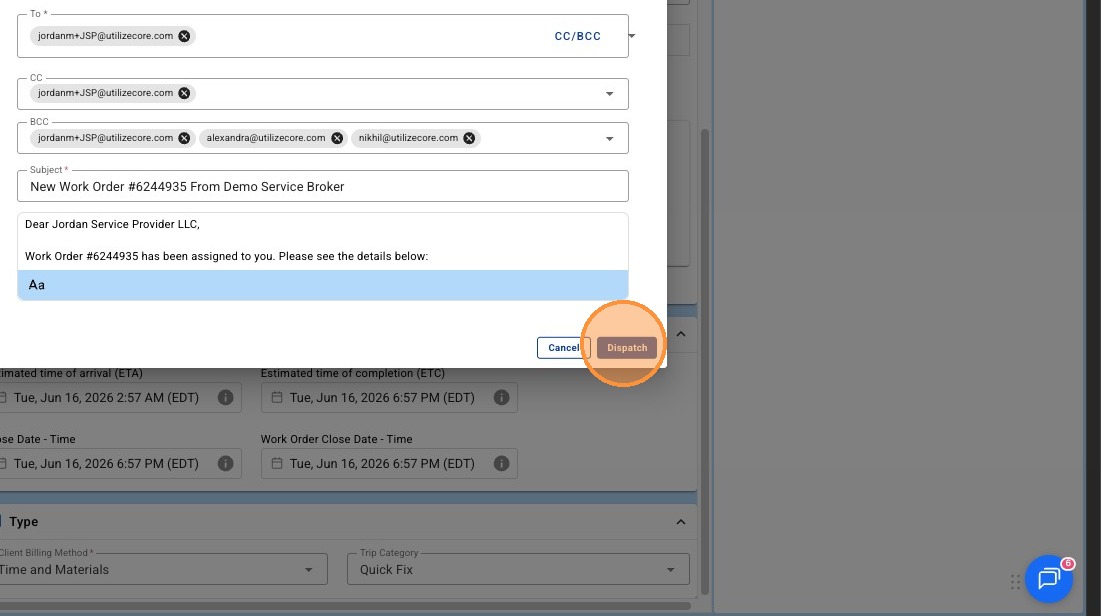
Before we get into the Step-by-step instructions, it's worth giving some background on where Trips originate... A Trip can be created one of many ways in UtilizeCore, including...
-
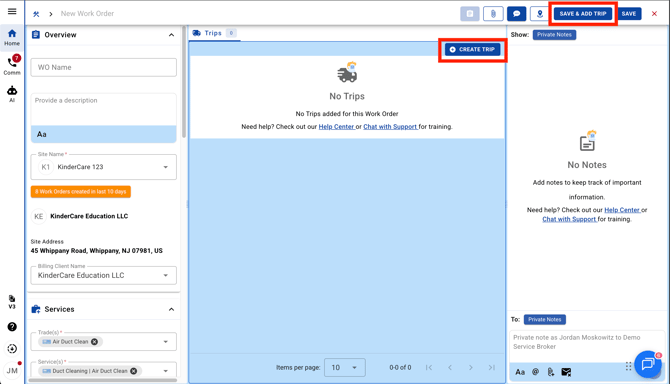
During Work Order Creation
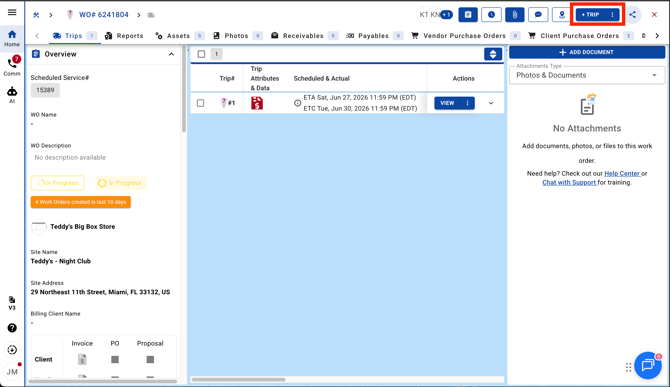
- From Work Order profile's Trip list CTA
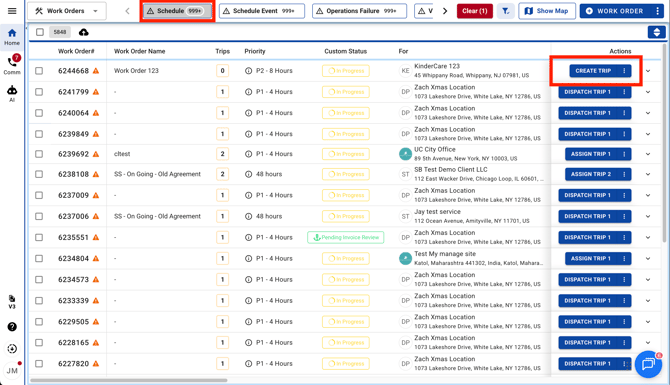
- From the Work Order list based on the Work Order's lifecycle and Action Filter
- and more.
Step-by-Step Instructions to Create a Trip
Creating and Dispatching a Trip
Made by Jordan Moskowitz with Scribe
Learn how to efficiently generate a new work order, configure vendor settings, and manage billing methods within the UtilizeCore platform. This guide covers the entire process from initial data entry to final dispatch and notification.
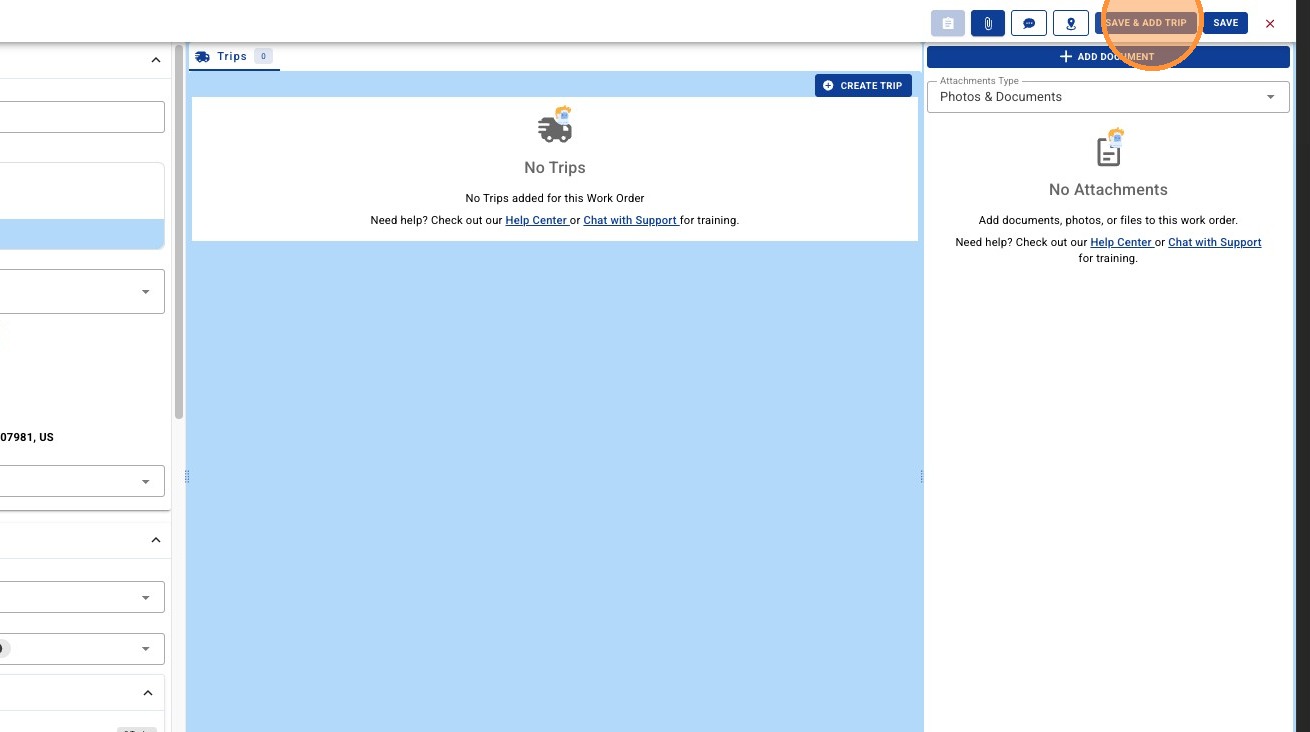
1. From Work Order creation select 'SAVE & ADD TRIP'.
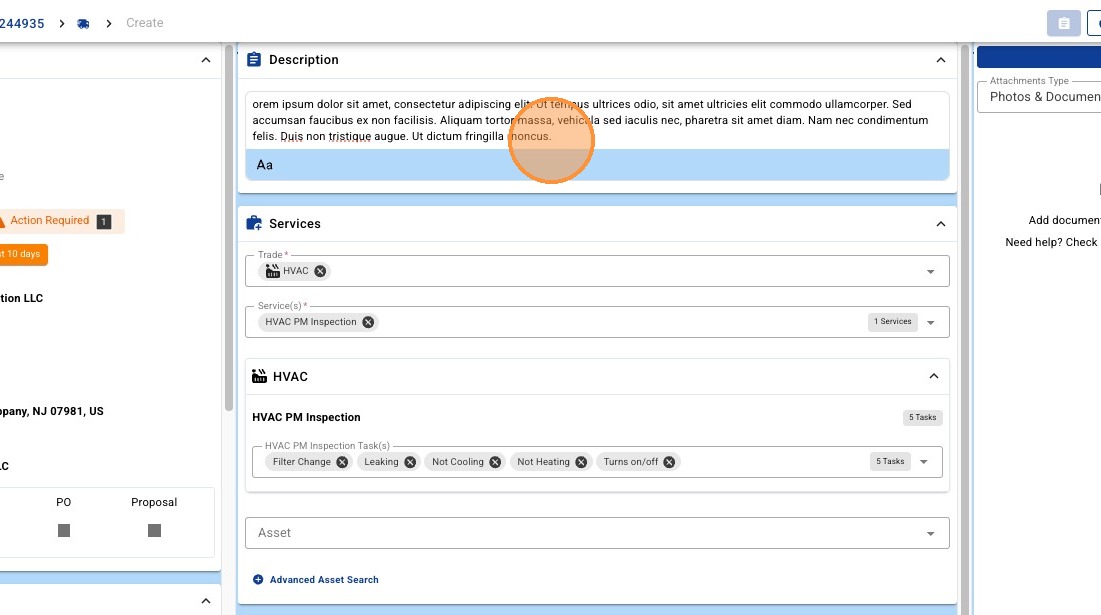
2. Enter a Trip description. Your Trip description will be populated initially from the Work Order description. The Trip description will be visible to your Vendors, but not your Clients. (Optional)
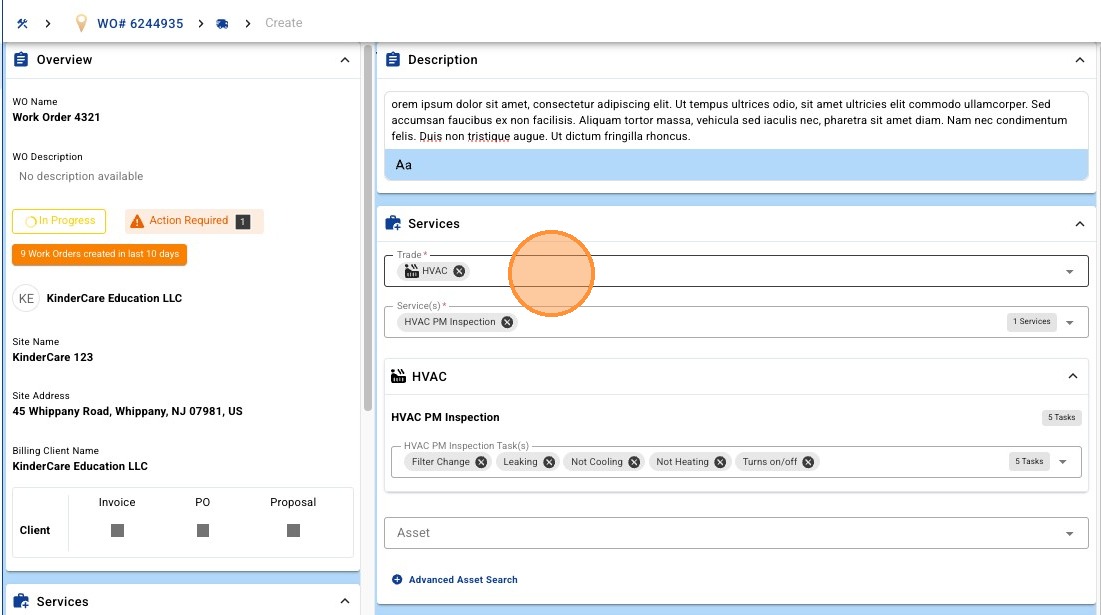
3. Select desired Trade(s) from the dropdown for this Trip.
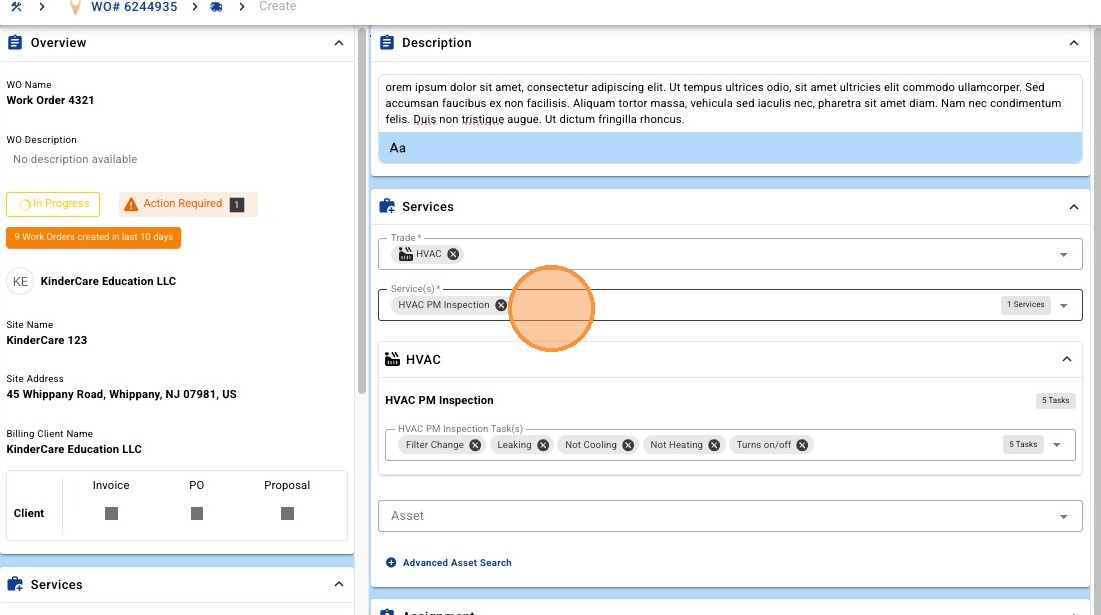
4. Select desired Service(s) from the dropdown for this Trip.
5. Select desired Task(s) from the dropdown for this Trip. (Optional)
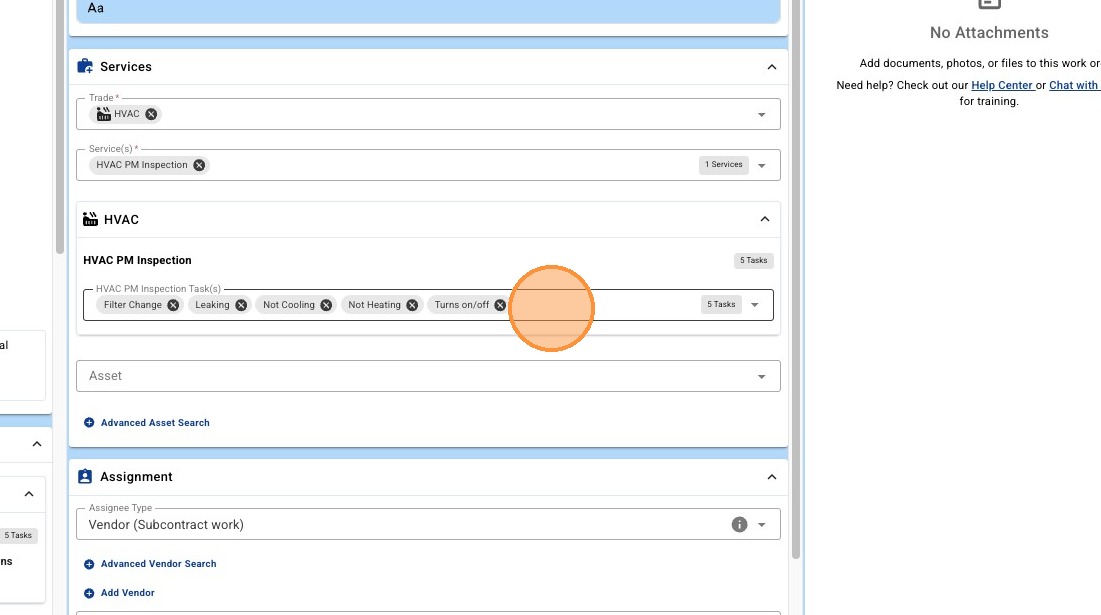
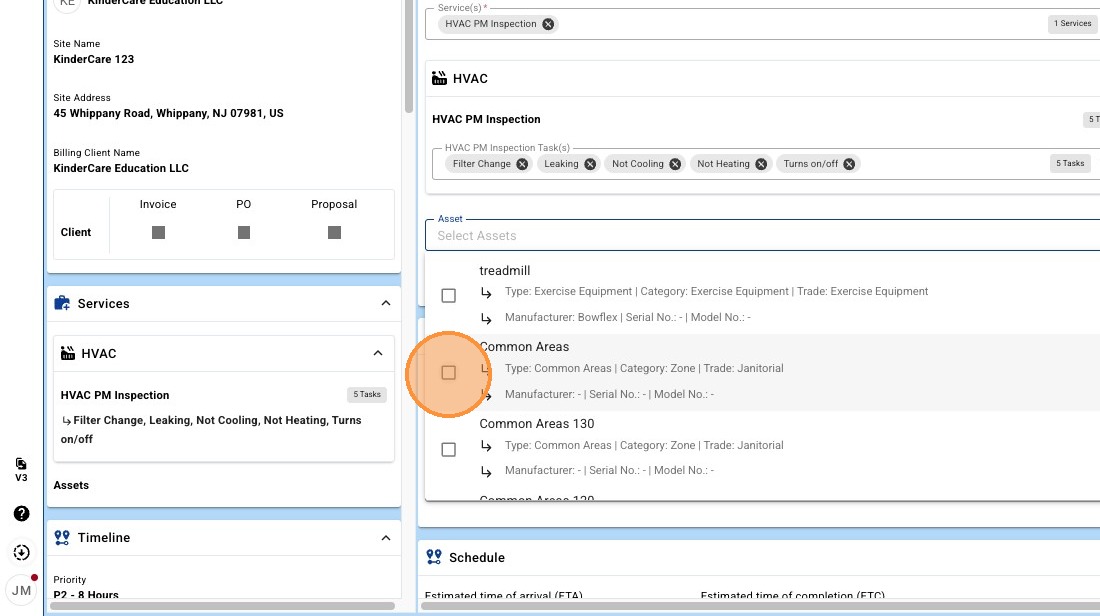
6. Select the desired Asset(s) from the dropdown. (Optional)
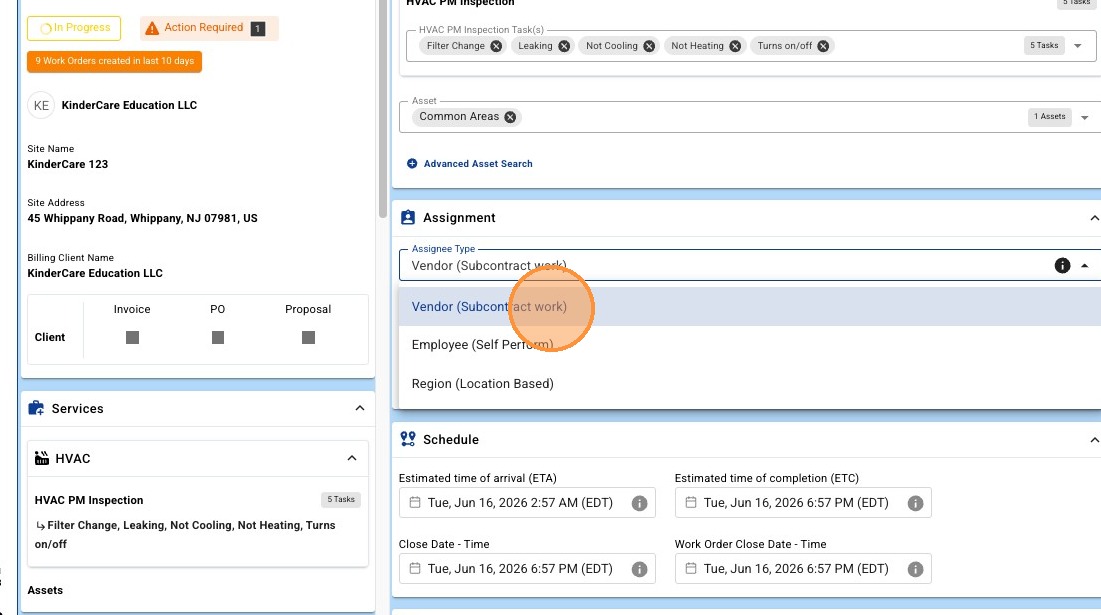
7. Select desired Assignee Type. Trips can be assigned to a Vendor, Employee, Crew, or Region.
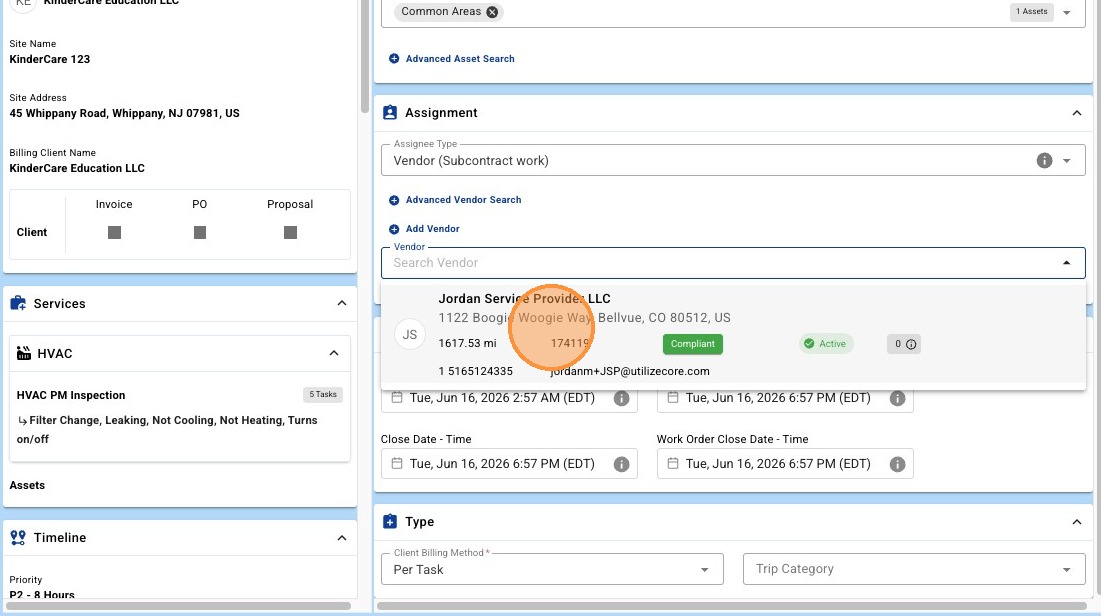
8. Select desired Assignee from the dropdown. You can type to search to filter by Vendor Name and Address.
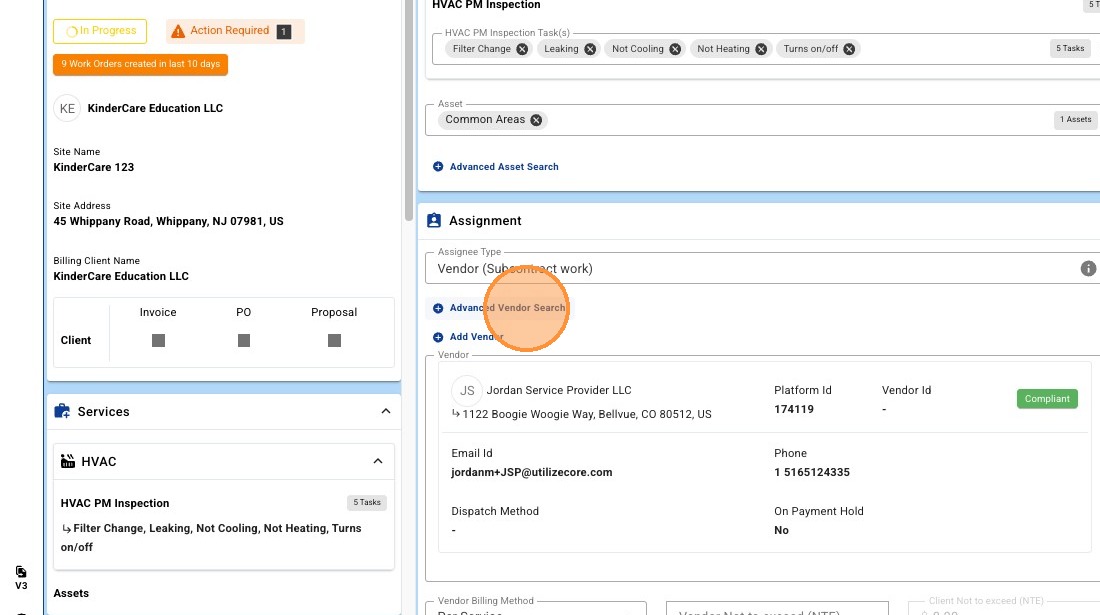
9. Vendors can also be filtered and evaluated in more detail by selecting the 'Advanced Vendor Search'. (Optional)
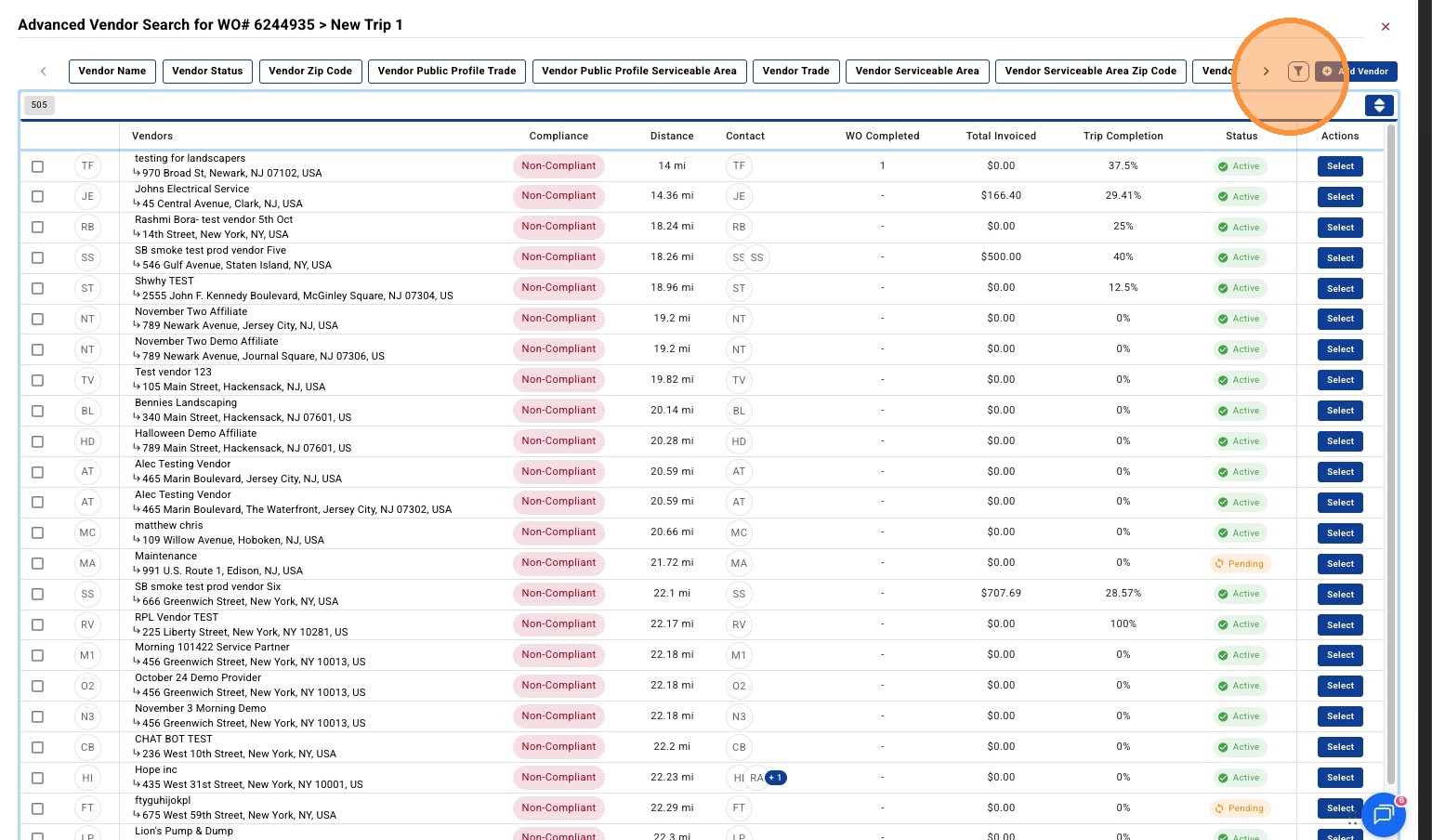
10. The Advanced Vendor Search can be filtered by selecting the filter icon.
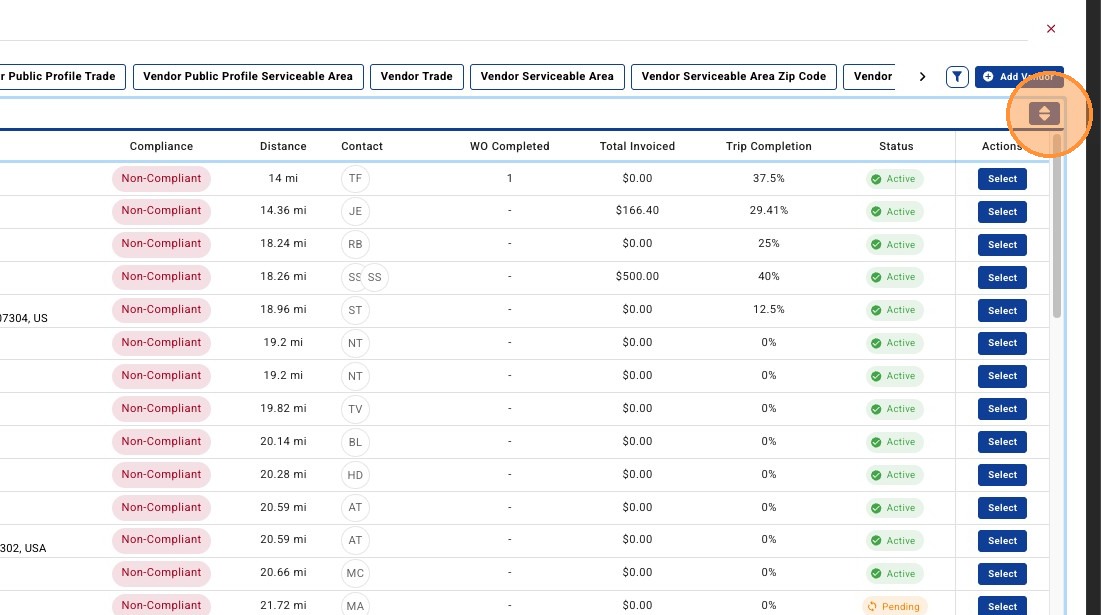
11. The Advanced Vendor Search can be sorted by selecting the sort icon.
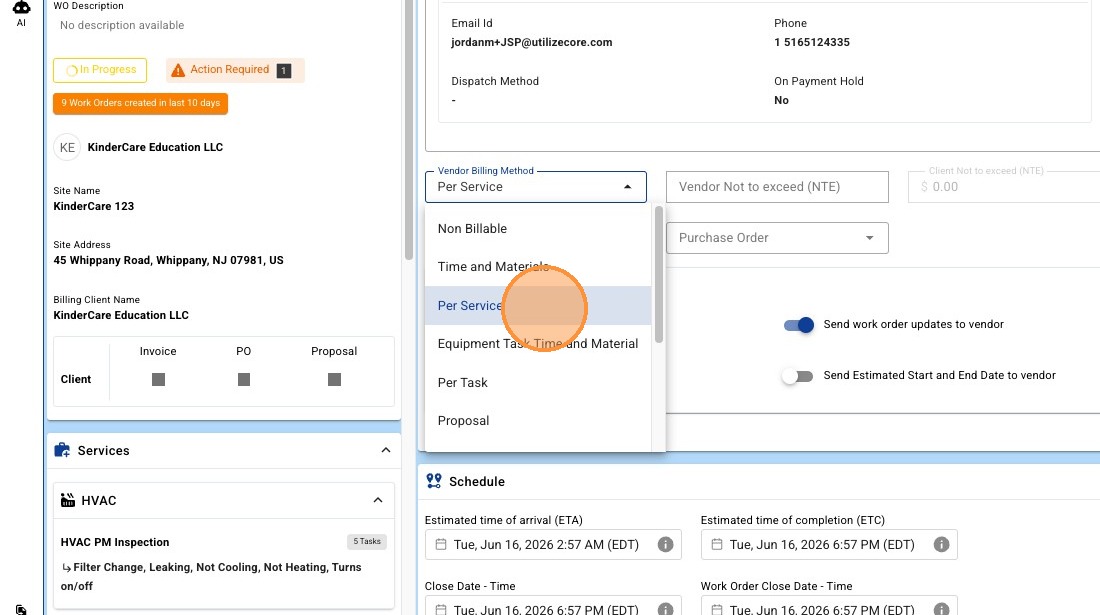
12. Select a 'Vendor Billing Method' for the Trip. The Trip's Vendor Billing Method will be used to determine line-items and rates when generating Payable(s) for this Trip.
13. Set a Vendor Not to Exceed (NTE) value in currency. The Client NTE is displayed to the right for your convenience, however keep in mind that the Client NTE is for the entire Work Order. (Optional)
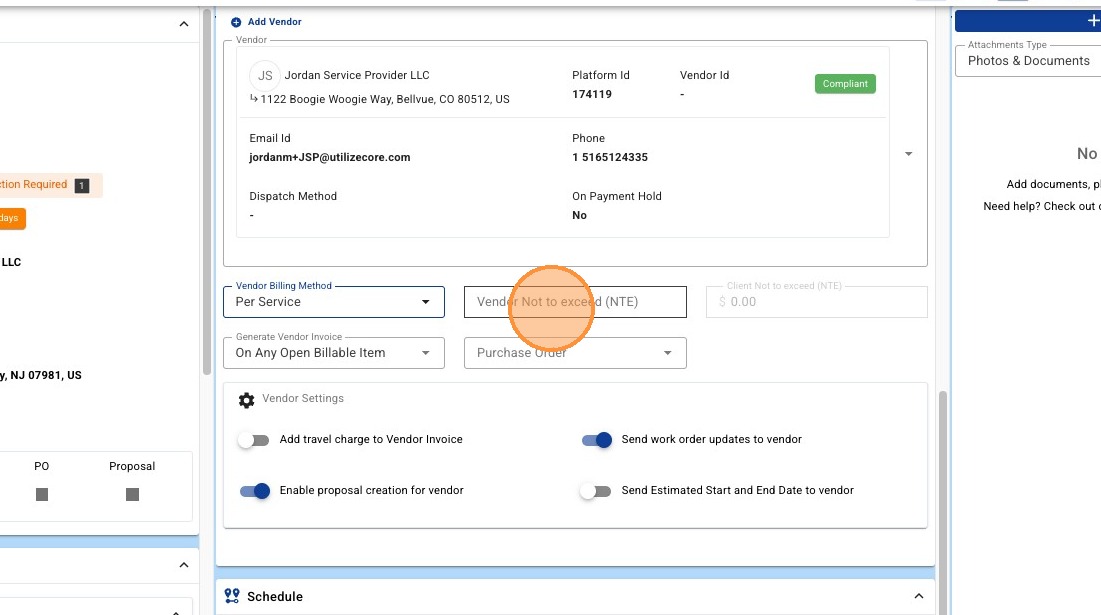
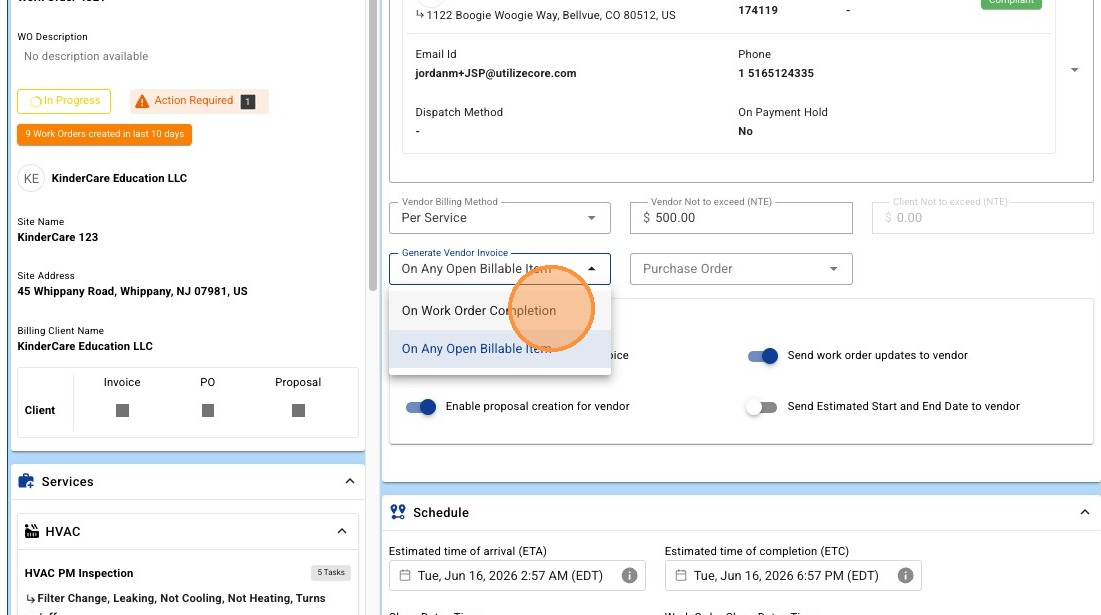
14. Set 'Vendor invoice generation' rule to allow/prevent payable invoice generation once the Trip is verified.
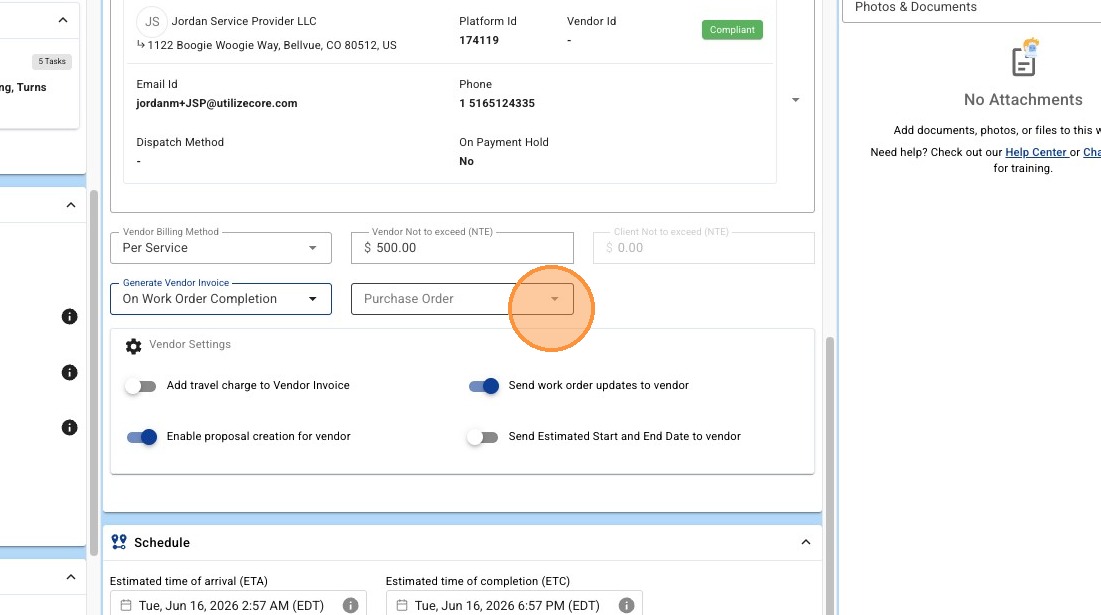
15. Select to create or associate a vendor purchase order. (Optional)
16. Use the Toggle to include a travel change on the Payable invoice. The charge can be set on the Vendor's Rates. (Optional)
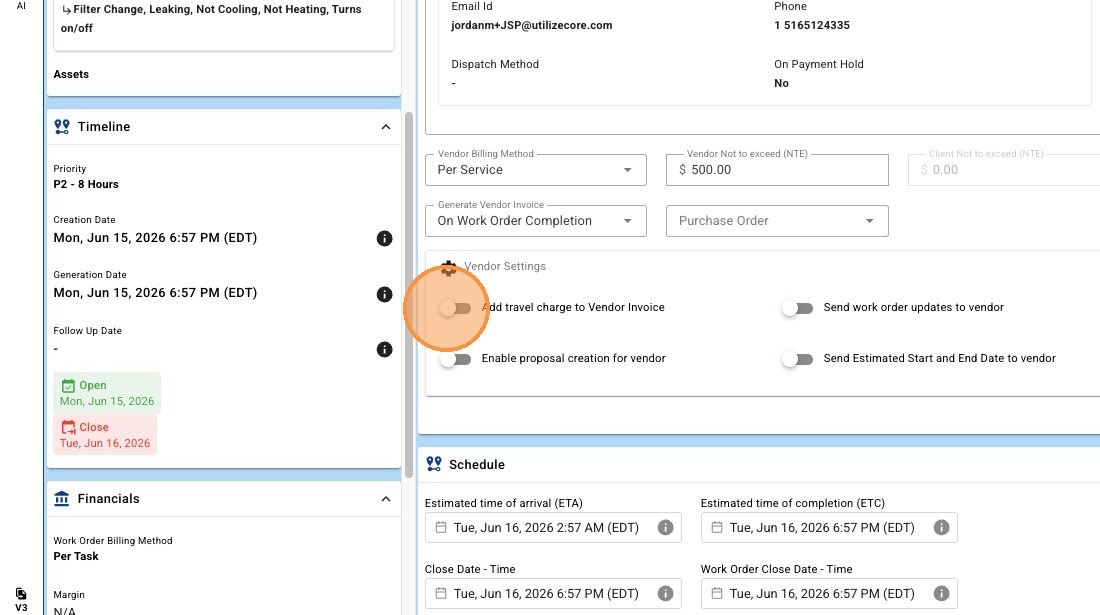
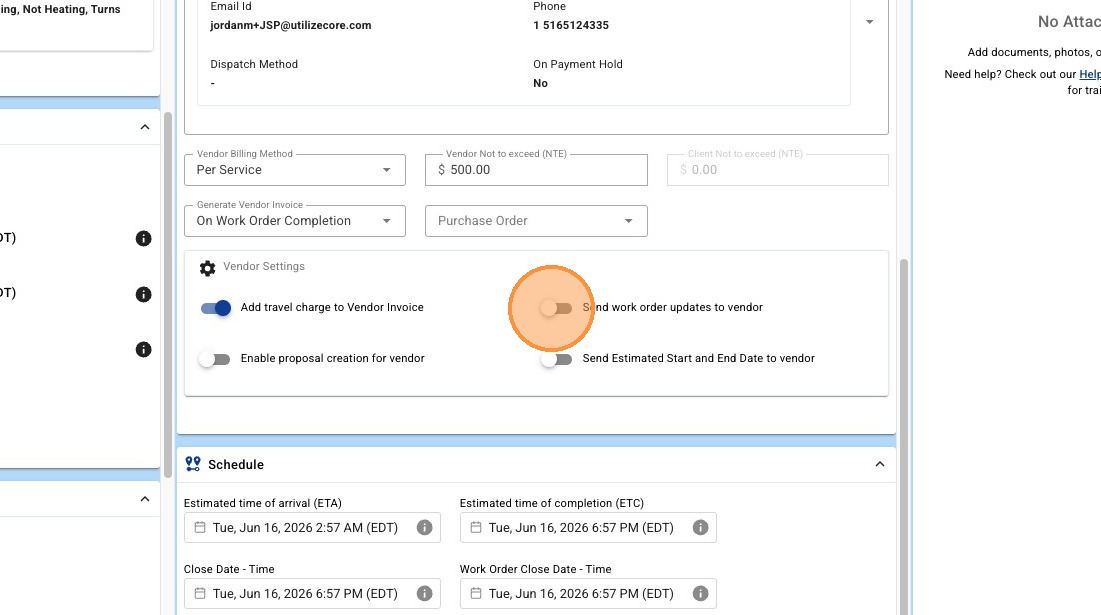
17. Use the Toggle to send work order updates to the vendor. This includes Dispatch, Notes, and Status change emails. We suggest you keep this setting On. (Optional)
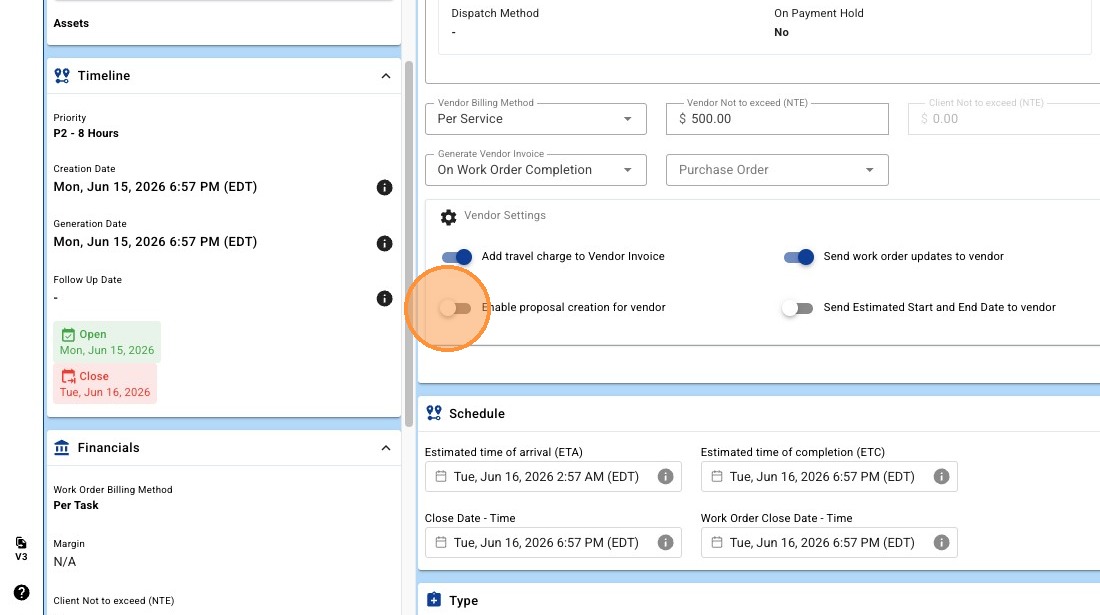
18. Use the Toggle to allow Vendors to create a Proposal for this Work Order. (Optional)
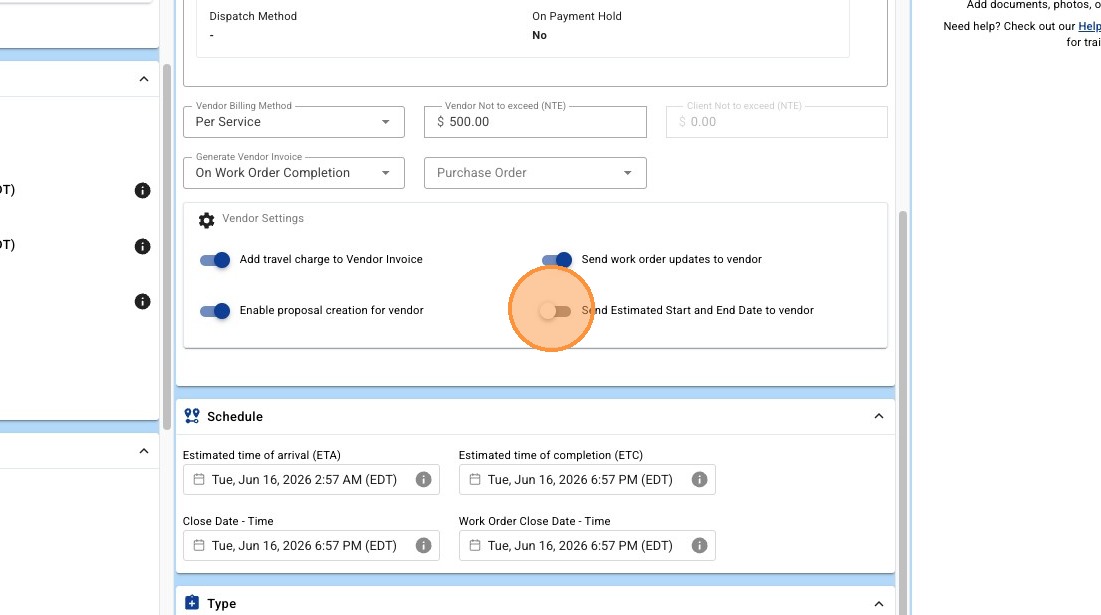
19. Use the Toggle to send Estimated Start and End Date details to your Vendor. (Optional)
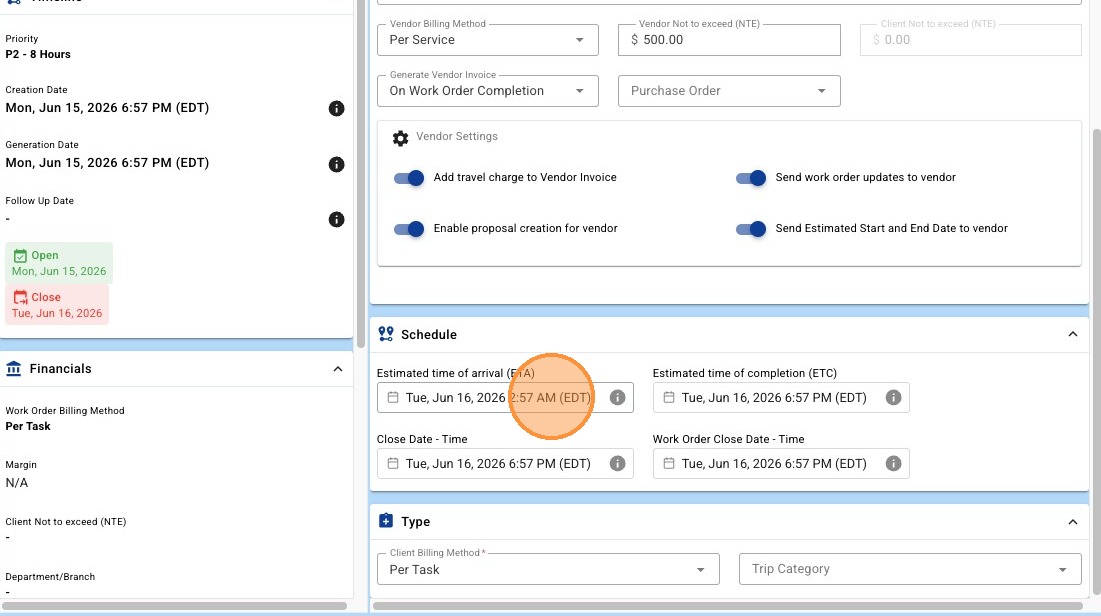
20. Set Trip Estimated Time of Arrival (ETA). When the ETA Date is hit the Trip will be available for use on your assignee's mobile app. The default value for the ETA will be set based on the Work Order Generation Date and the Work Order's Priority Start time.
21. Set Trip Estimated Time of Completion (ETC). When the ETC Date is hit, if the Trip has not been checked into, the assignee will be considered Late. The default value for the ETA will be set based on the Work Order Generation Date and the Work Order's Priority End time.
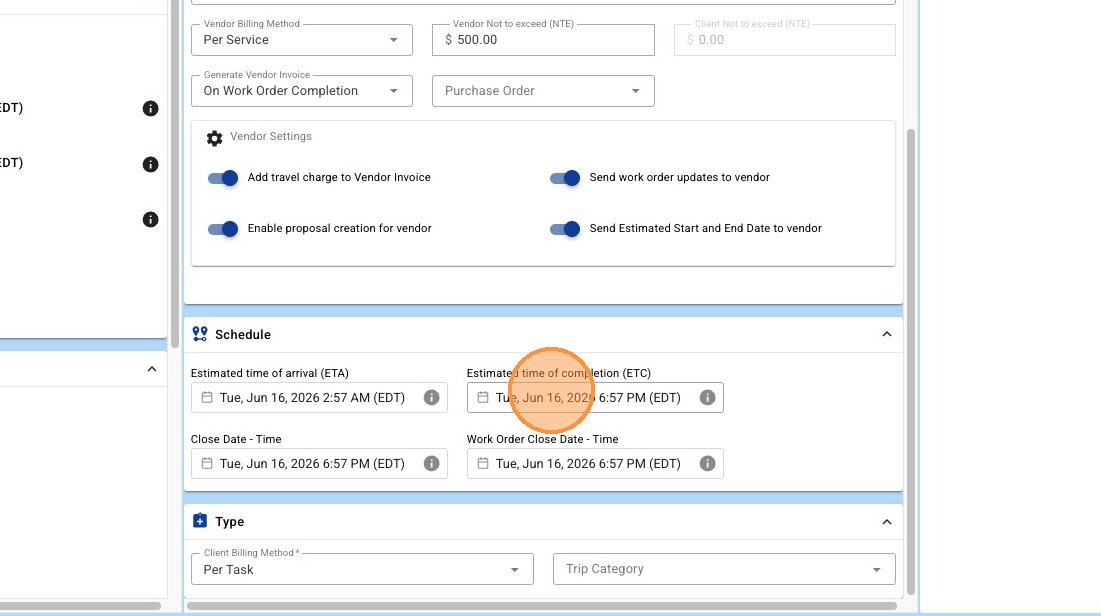
22. Set Trip Close Date - Time. When the Trip Close is hit, the Trip will no longer be available to be used on your assignee's mobile app.
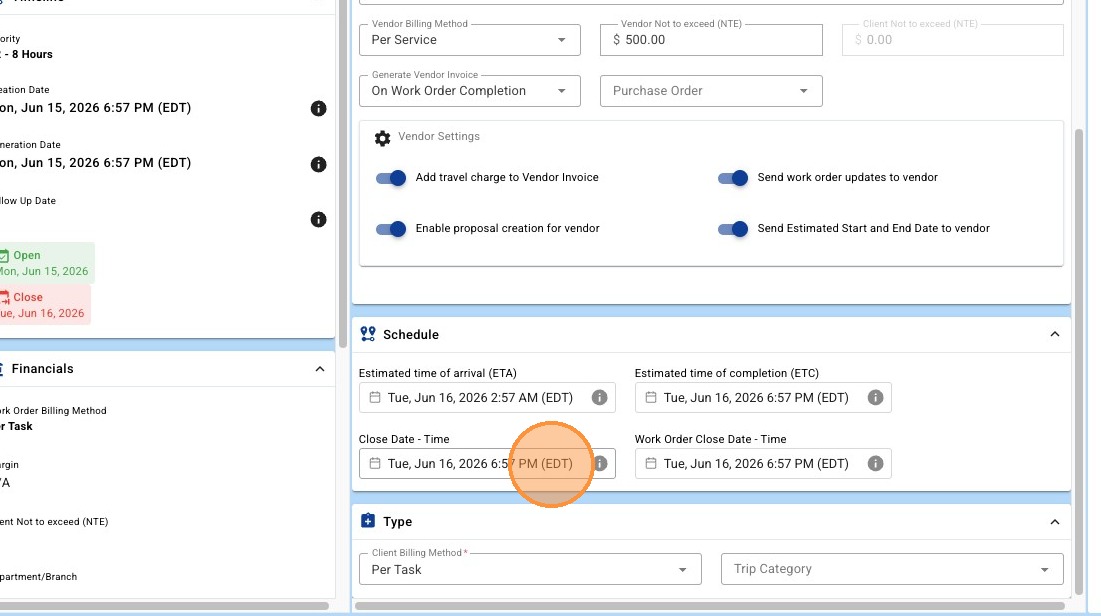
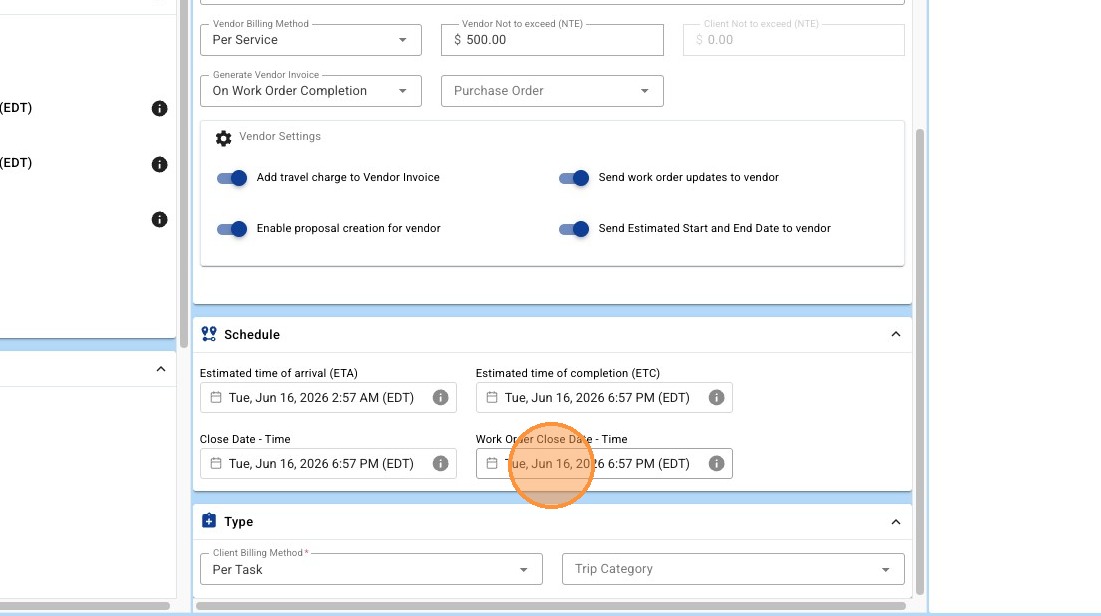
23. Set the Work Close Order Date - Time.
24. Select the Trip's 'Client Billing Method. Receivable invoices will be based this setting when generated for this Trip.
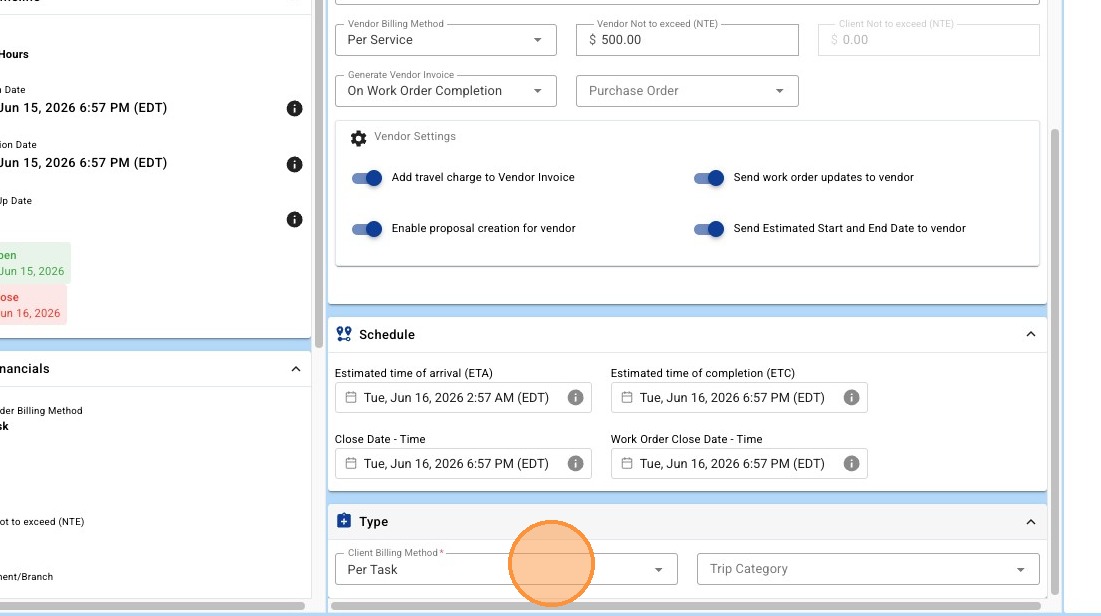
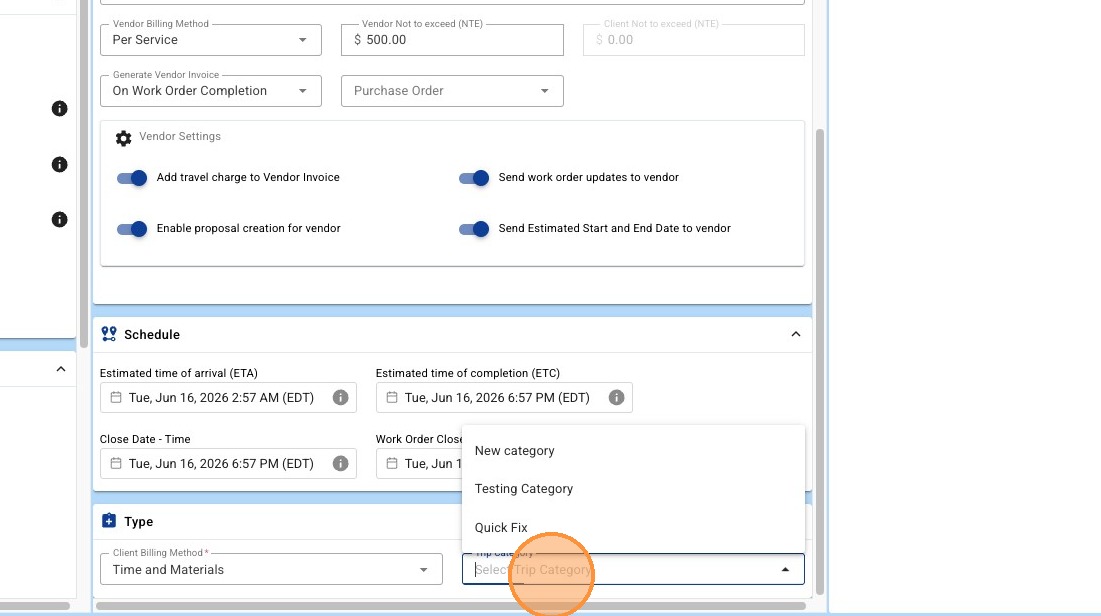
25. Set "Trip Category" for internal business rules and reporting purposes. (Optional)
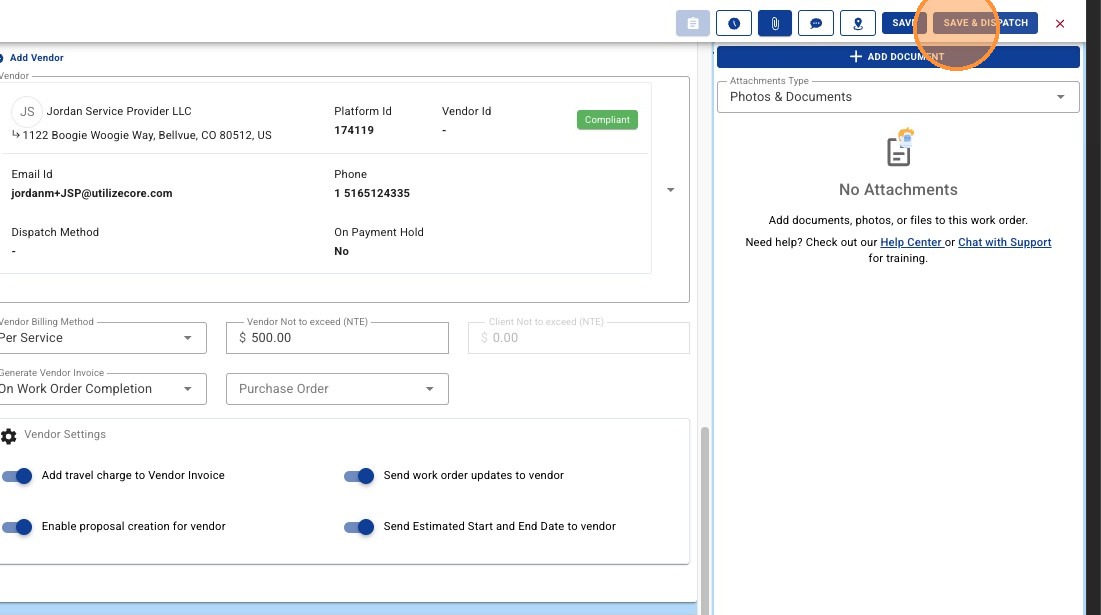
26. Once setup is complete, you can click to Save the Trip, or 'SAVE & DISPATCH'
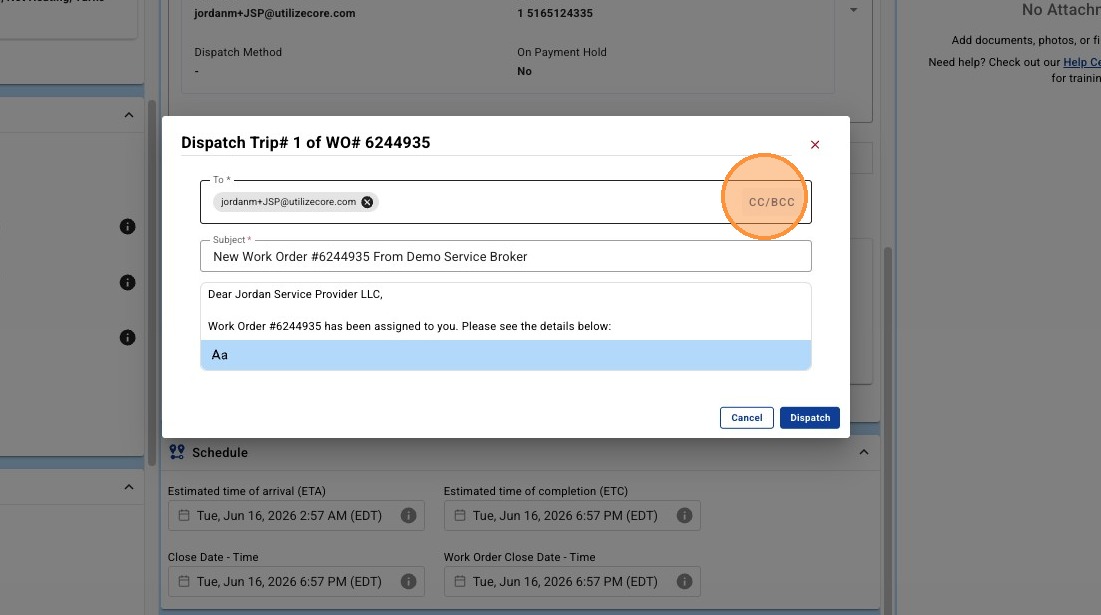
27. When dispatching a Trip, you can CC & BCC your Client, Vendor, and Team Members. (Optional)
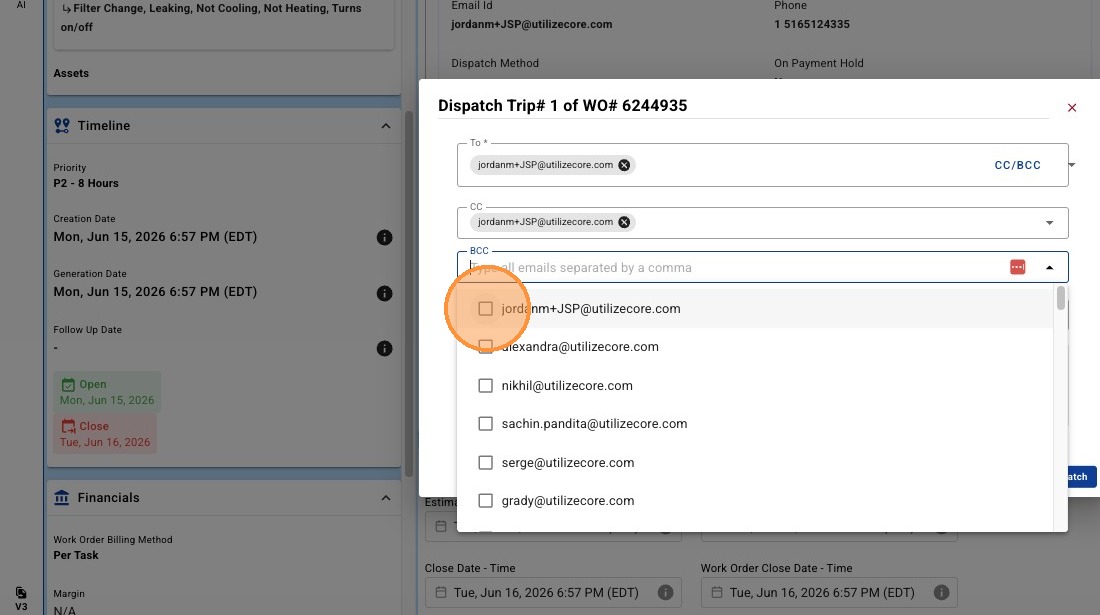
28. Select the checkbox to include a User on the Trip dispatch email. (Optional)
29. Select to update the email subject line and body copy. This will be used for the Dispatch email. (Optional)
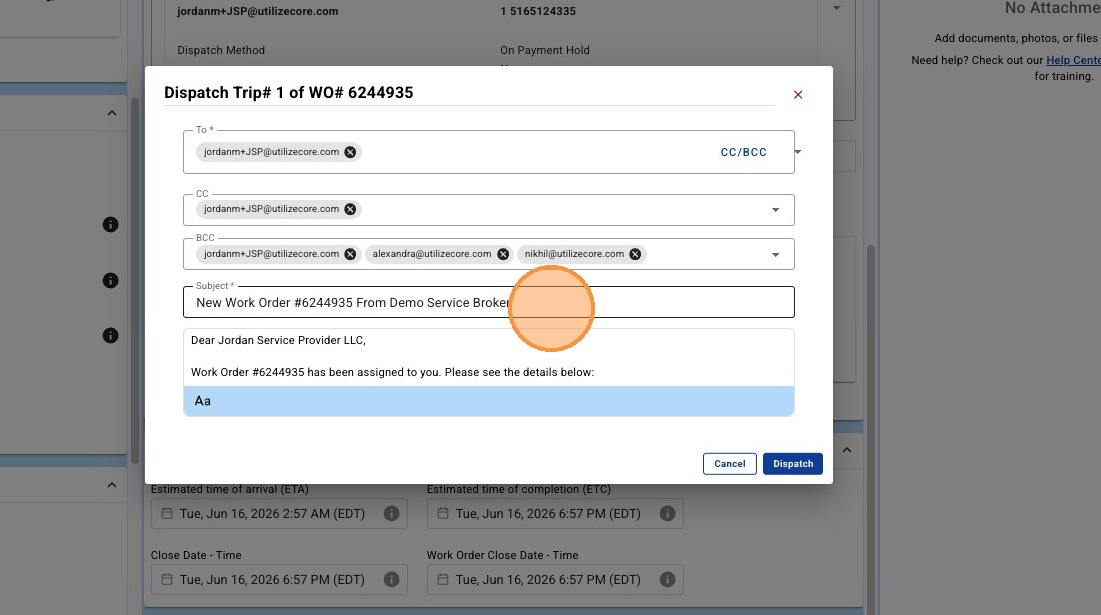
30. Select Dispatch to complete the Trip Dispatch process.