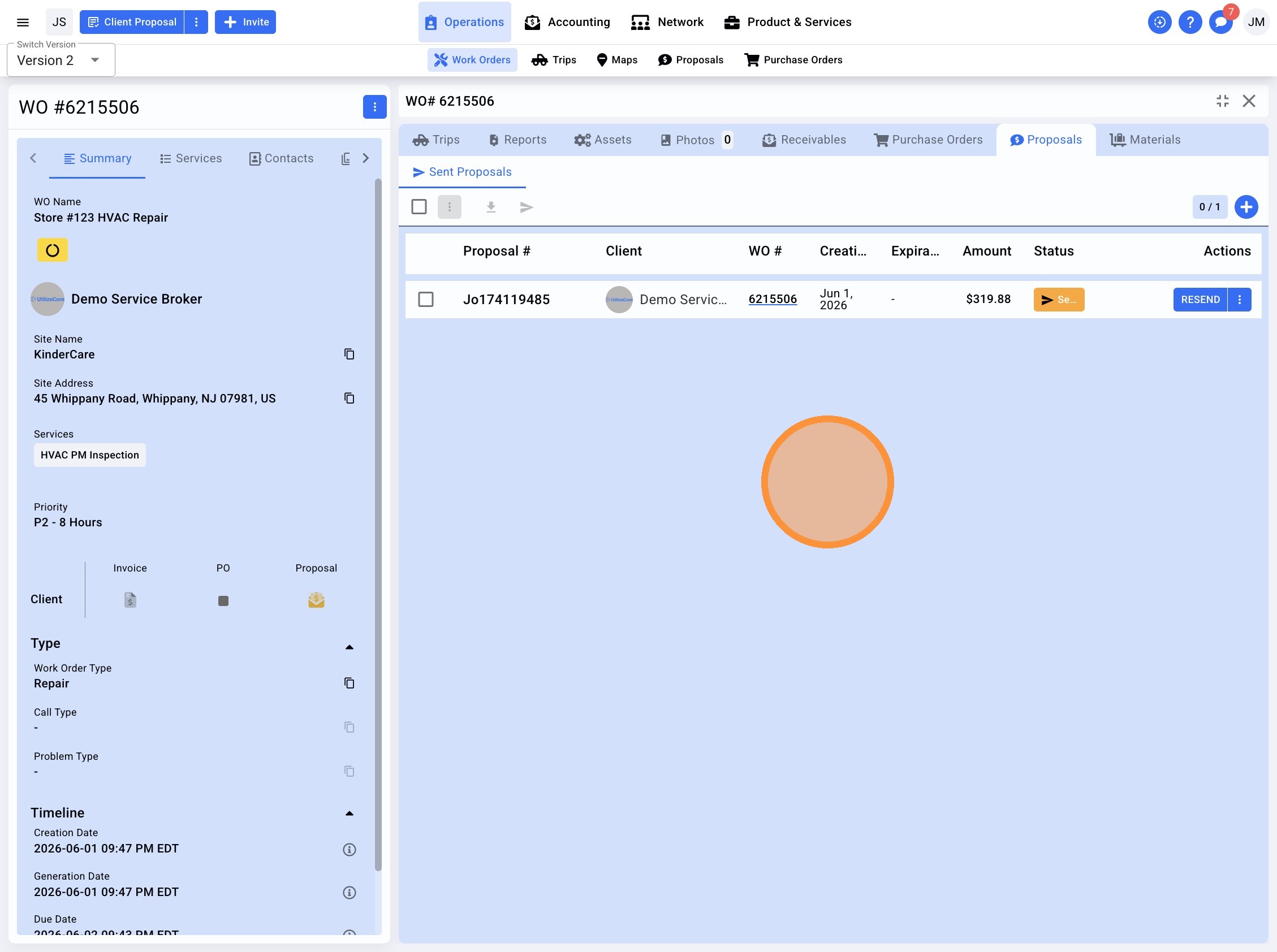
Learn how to efficiently generate, manage, and email professional proposals for your work orders. This guide provides a step-by-step walkthrough for adding line items and delivering final documents directly to clients.
1. Navigate to the Work Order list
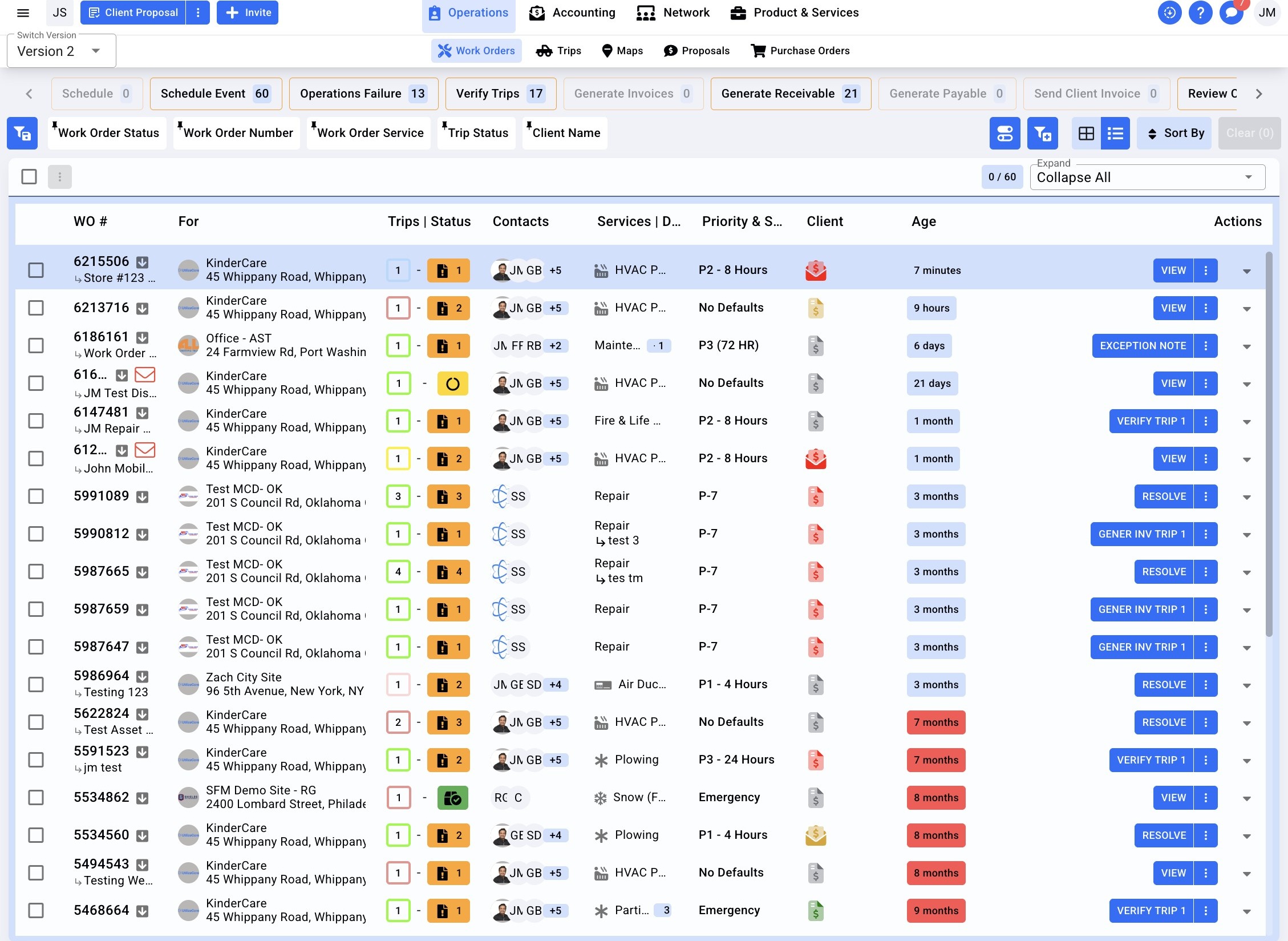
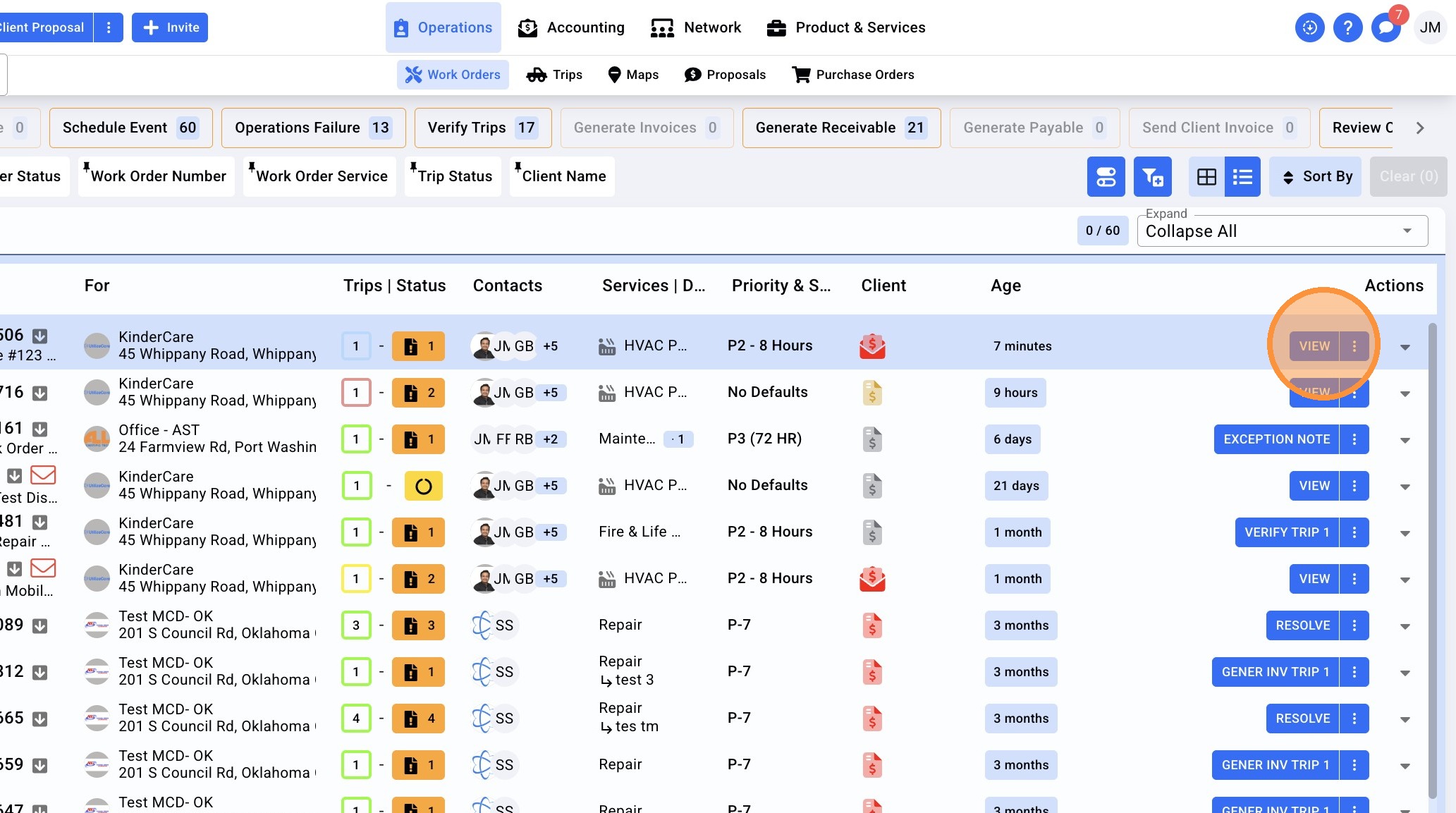
2. Click View
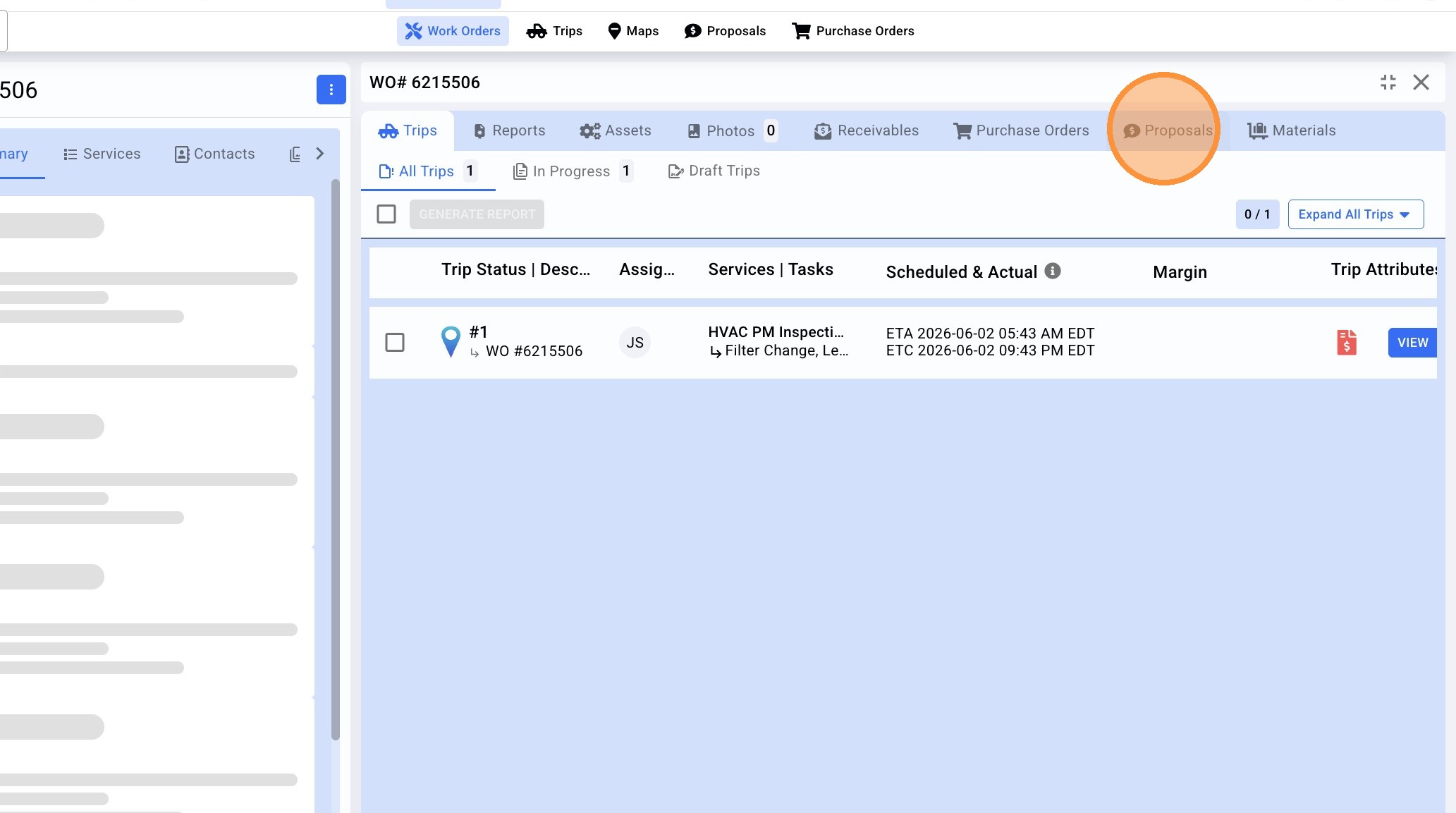
3. Click "Proposals"
4. Select + to Create a New Proposal
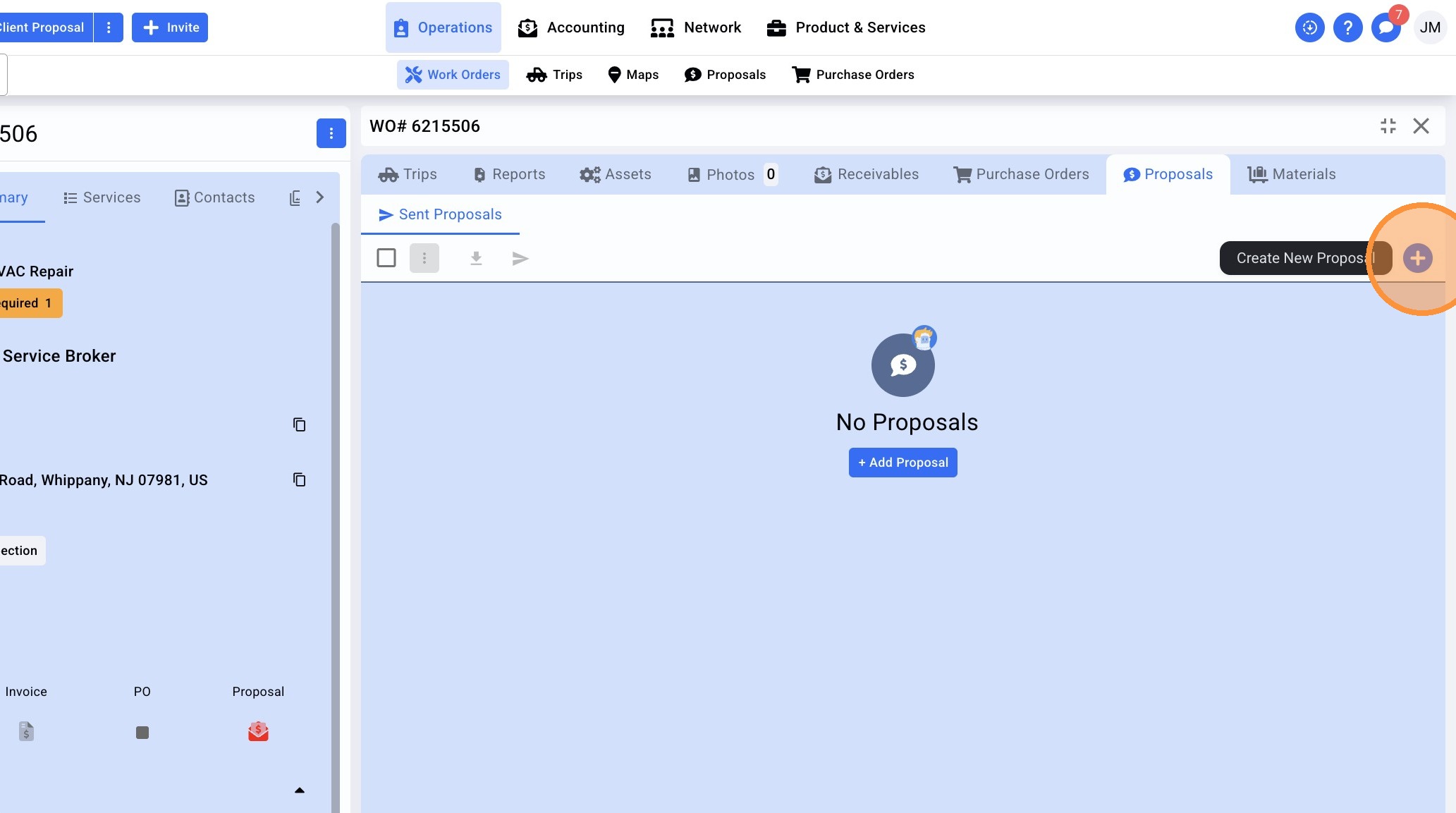
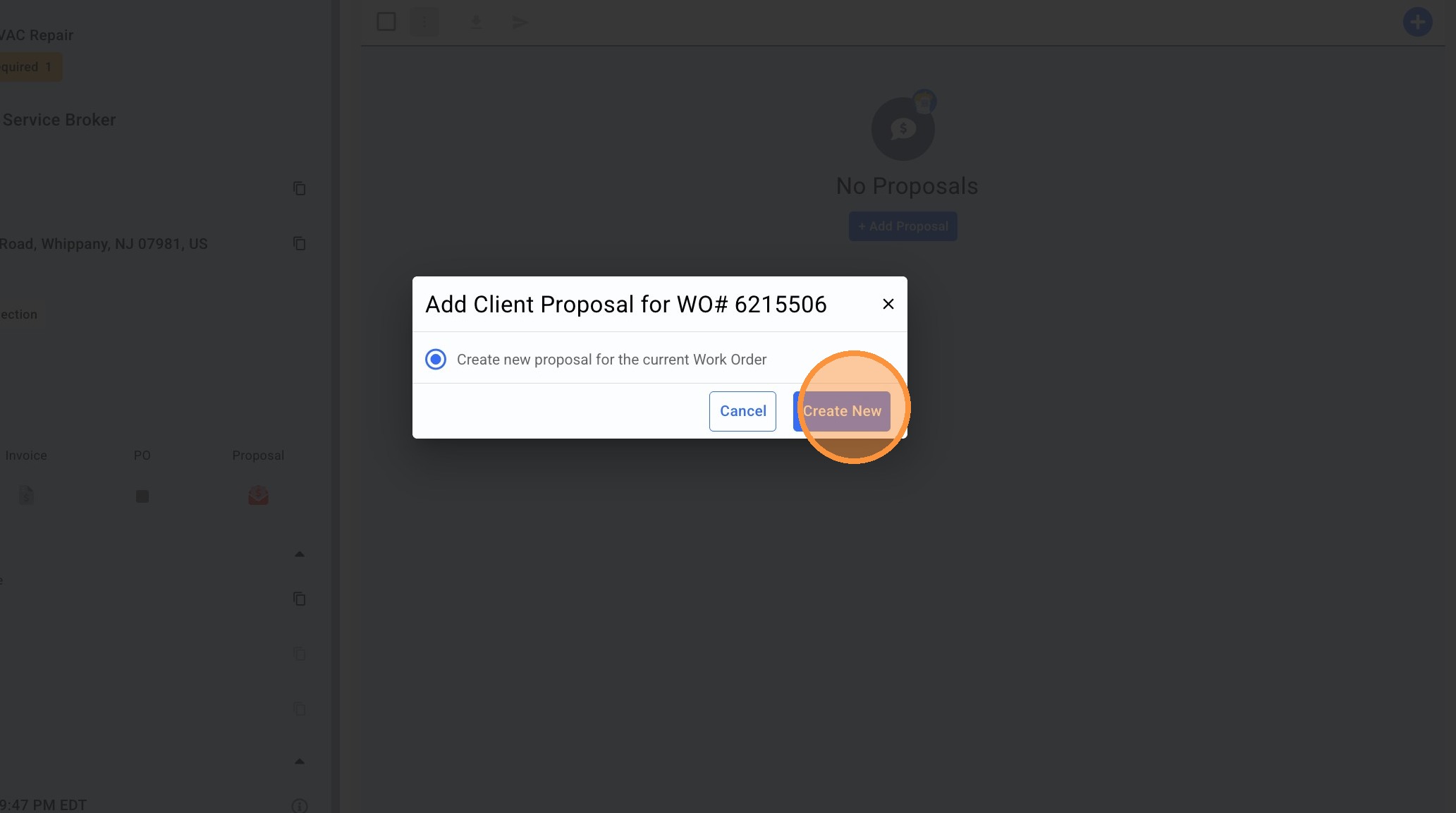
5. Click "Create New"
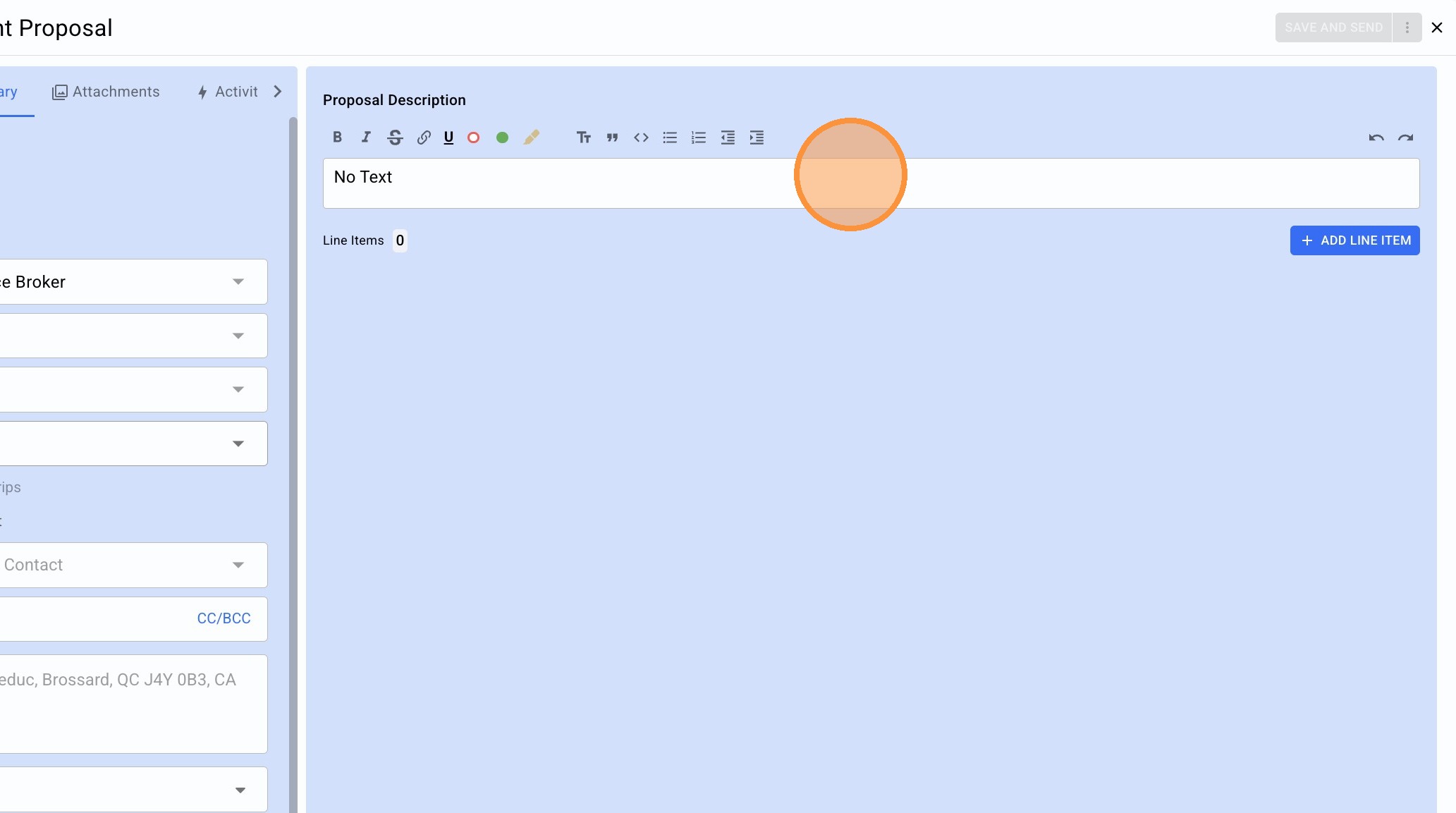
6. Enter important scope details into the proposal description field.
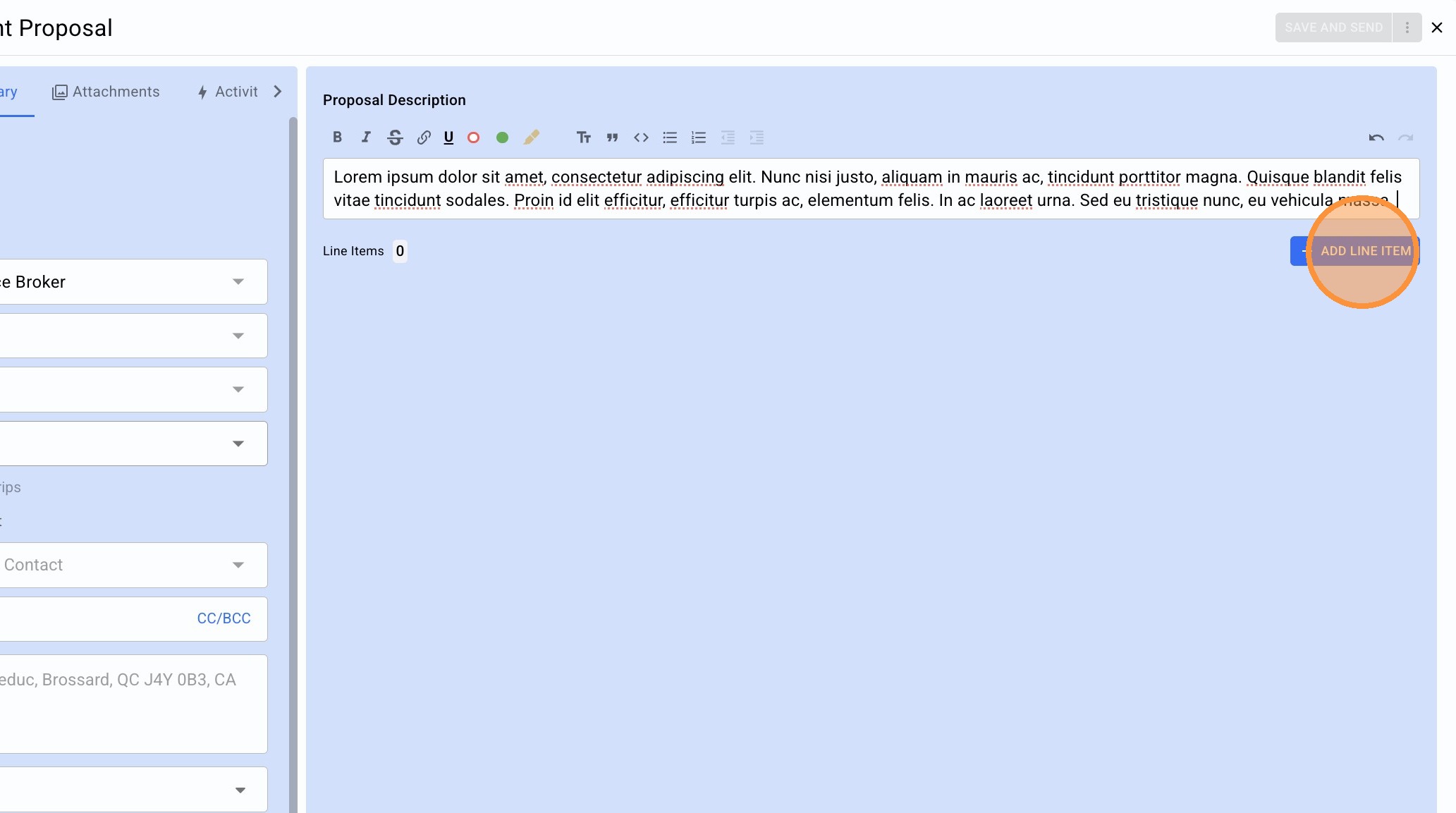
7. Click "ADD LINE ITEM"
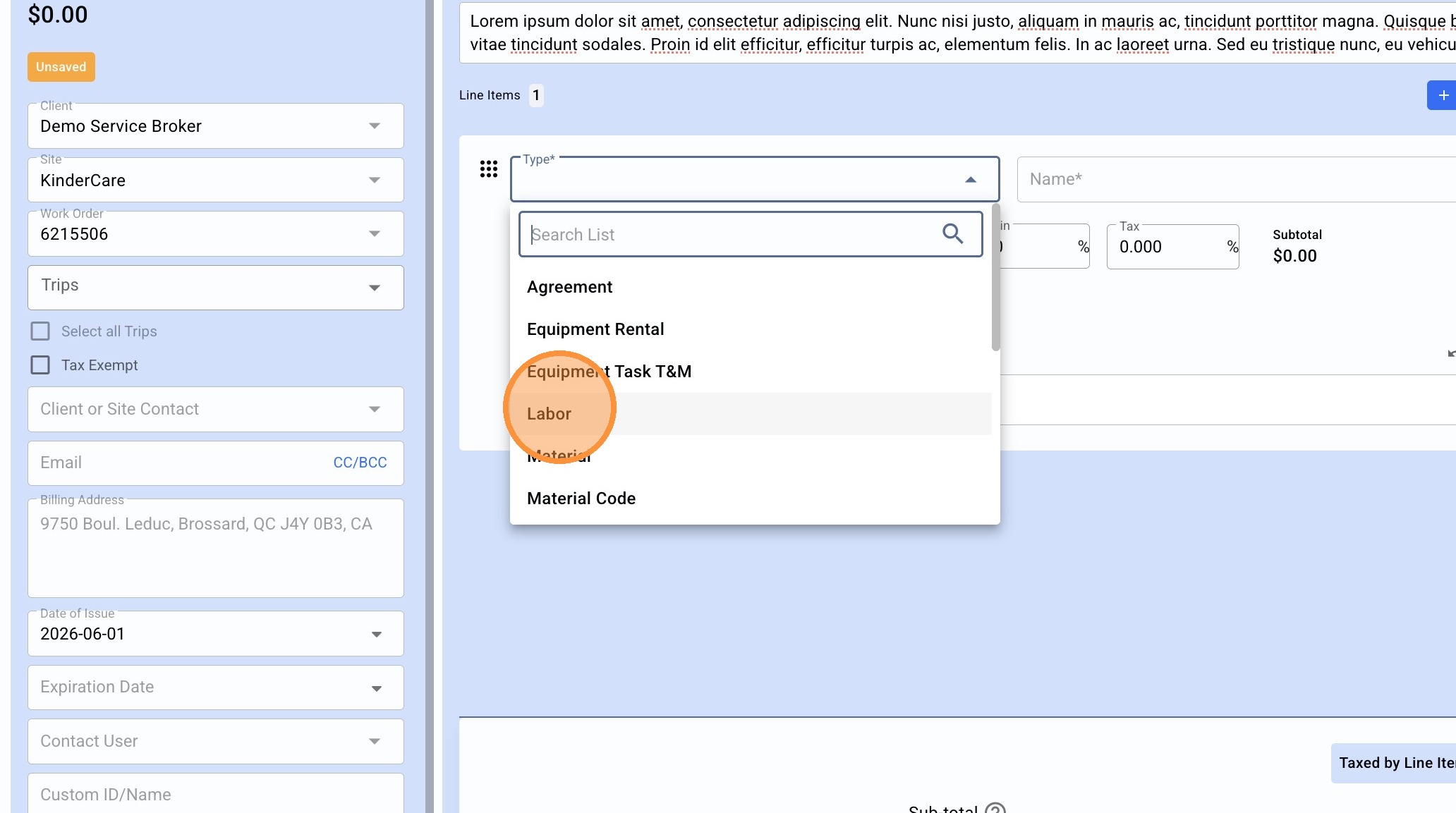
8. Click the "Type" field to select the appropriate type of Labor and Materials
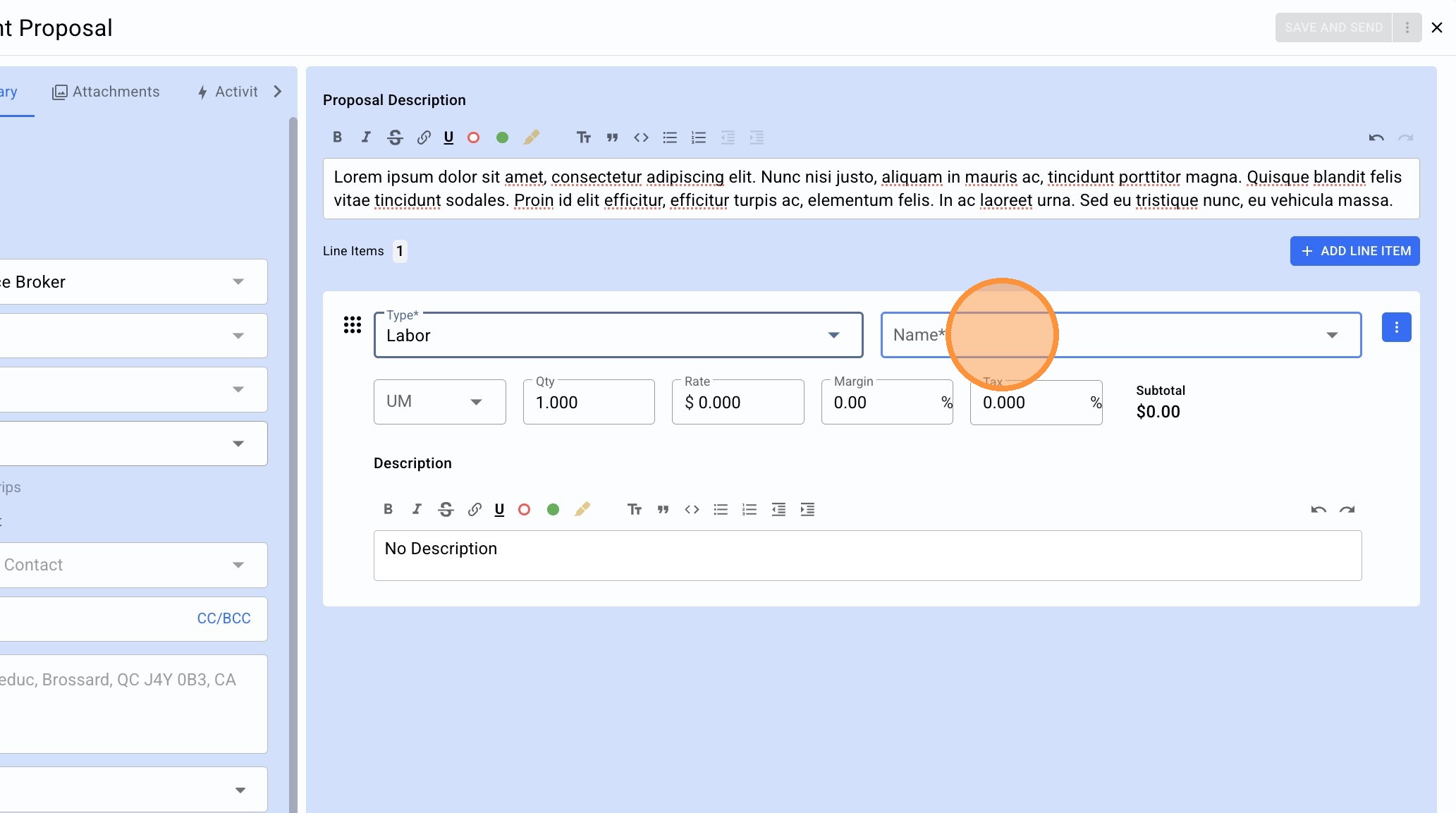
9. Click the "Name*" field and select options as made available from your Service partner.
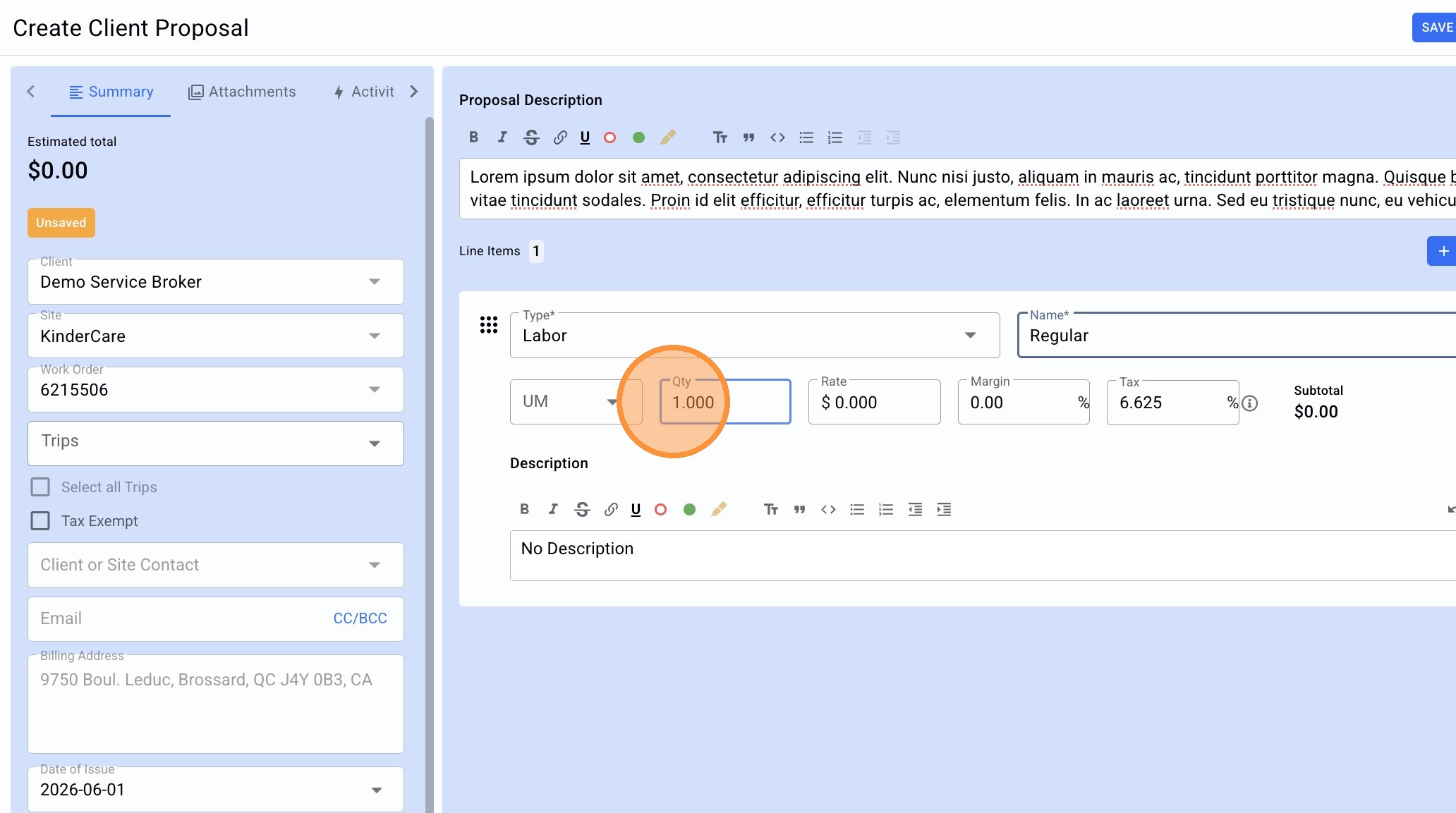
10. Enter Quantity
11. Enter Rate (if Rate is not already pre-negotiated)
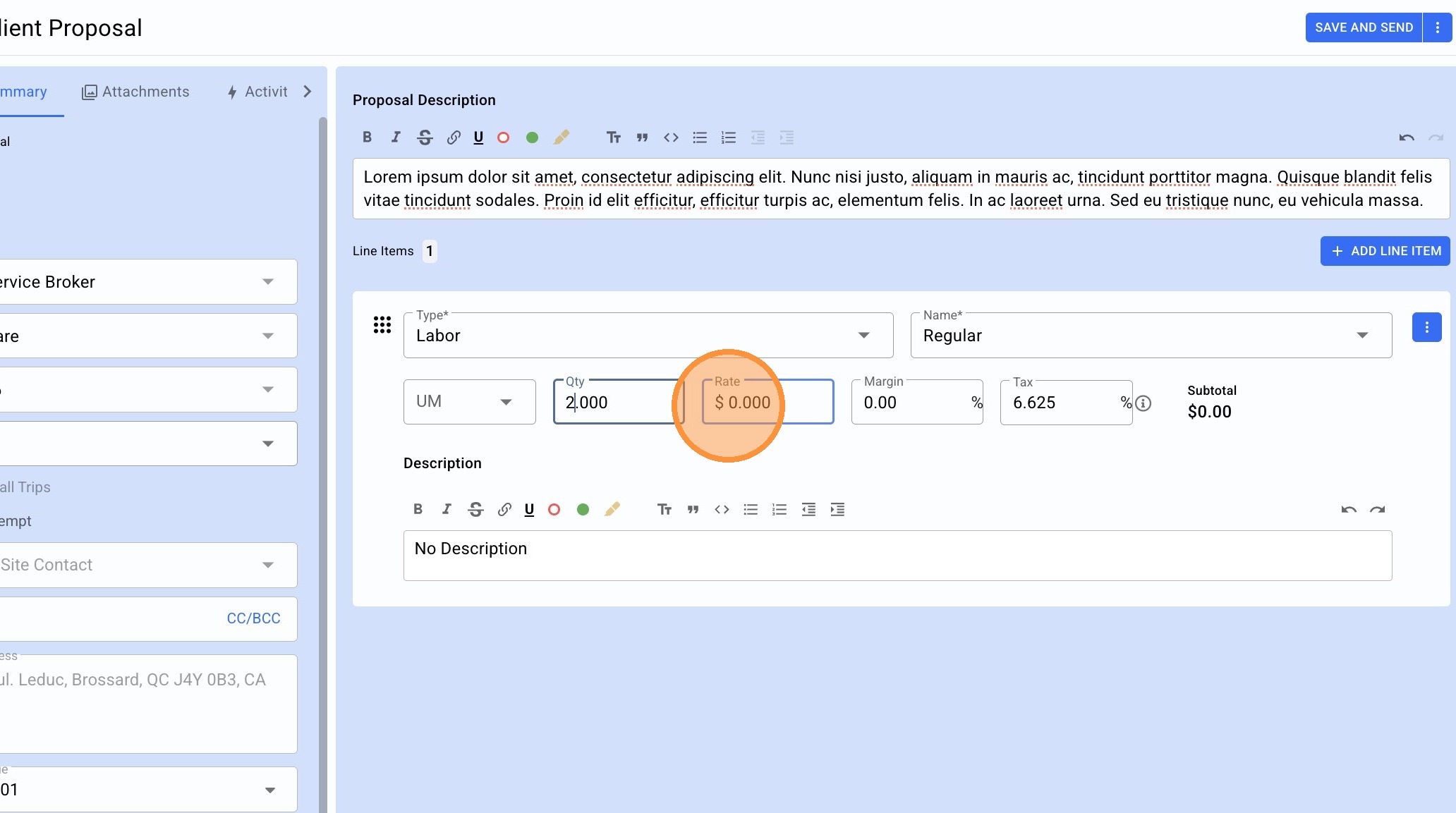
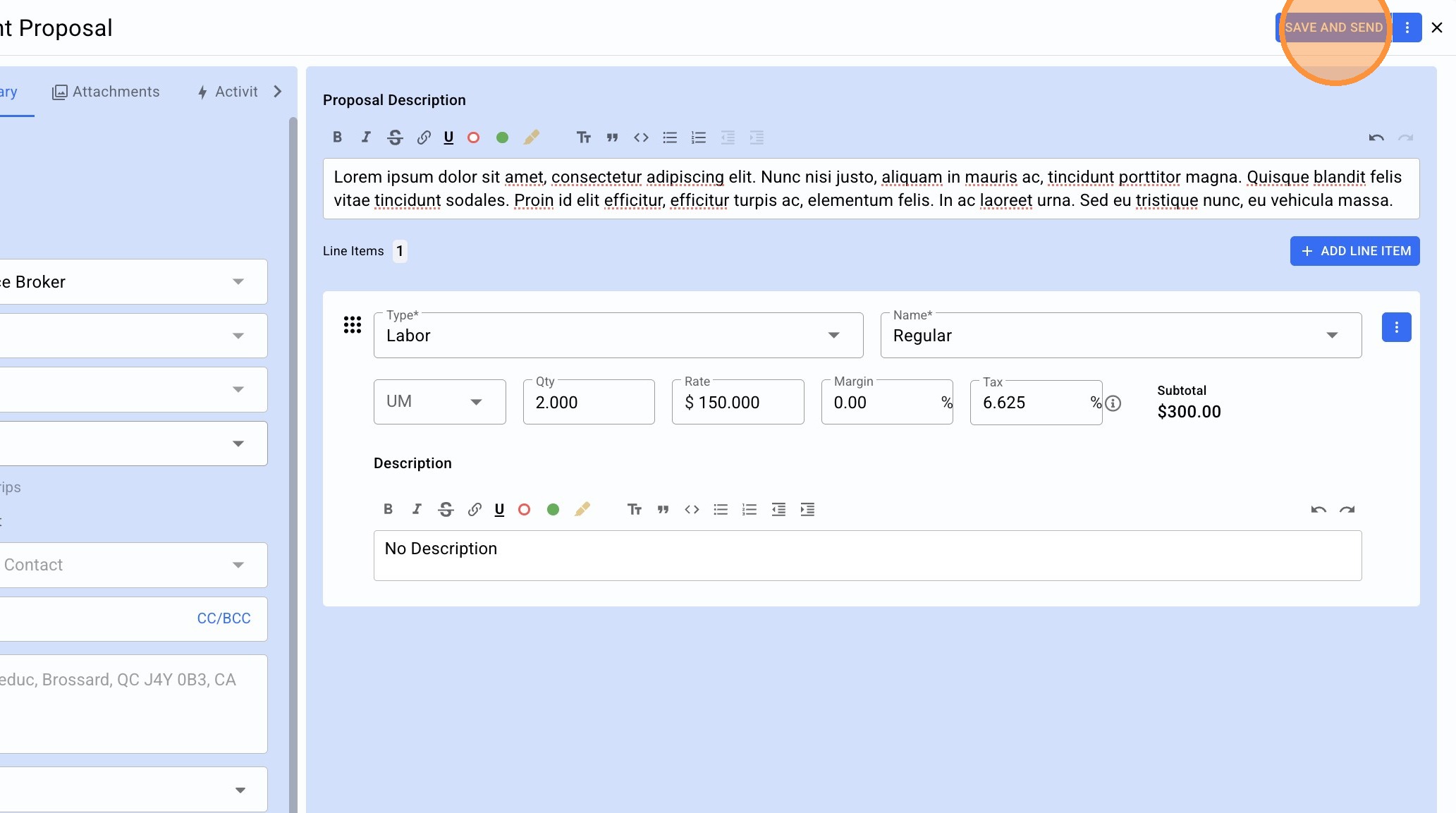
12. Once complete, Click "SAVE AND SEND"
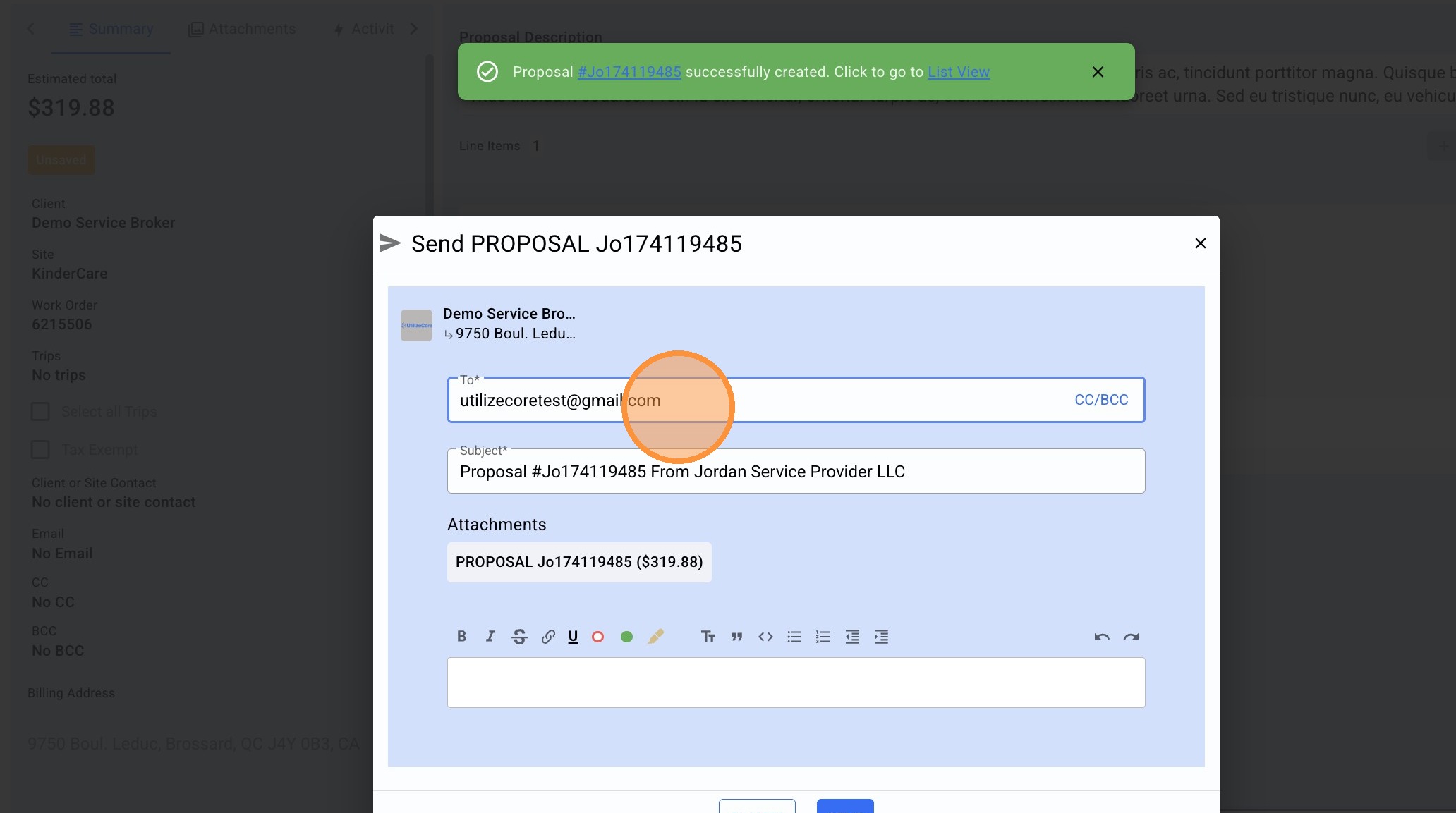
13. Verify recipient email address
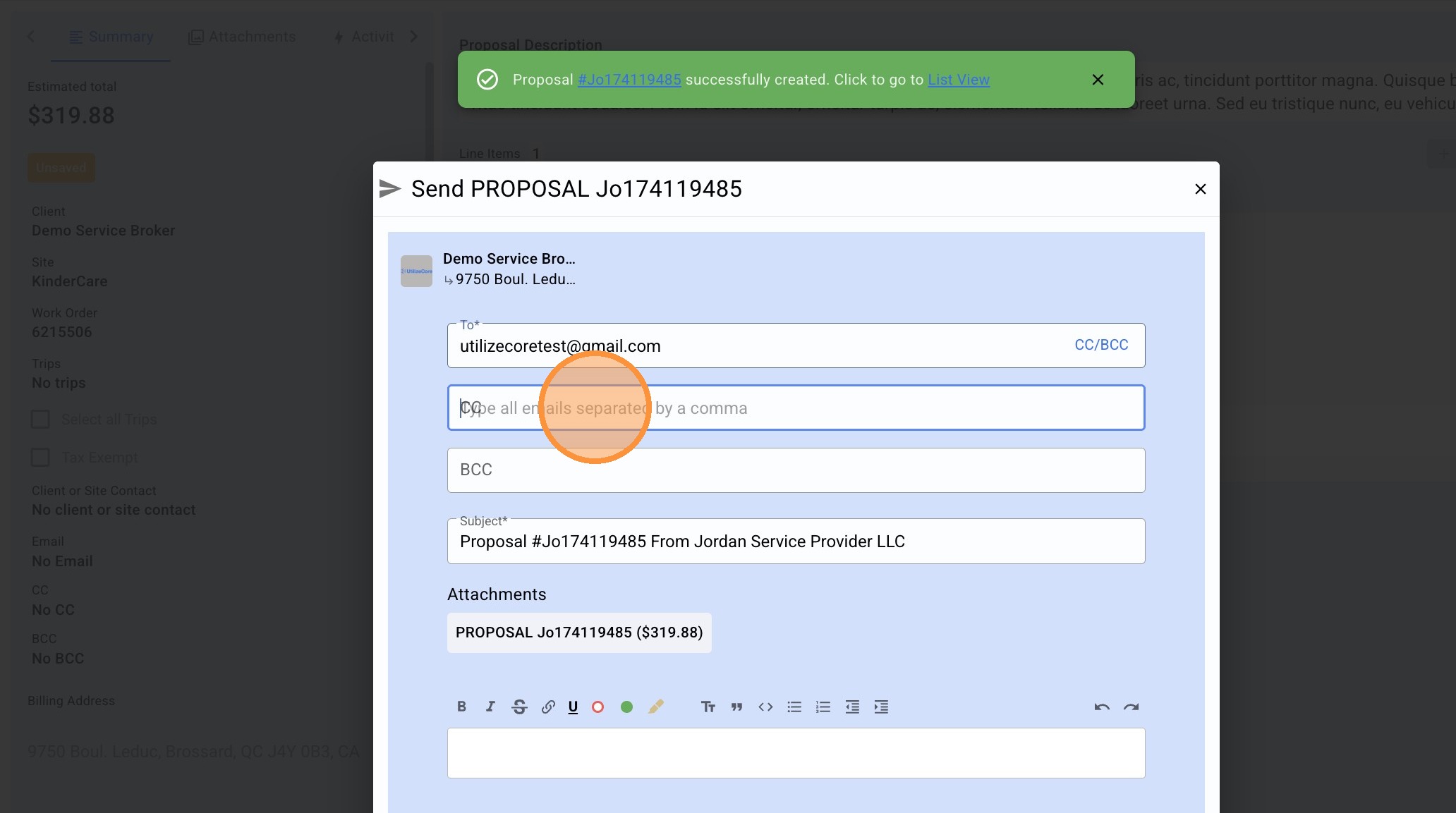
14. CC or BCC your team as needed
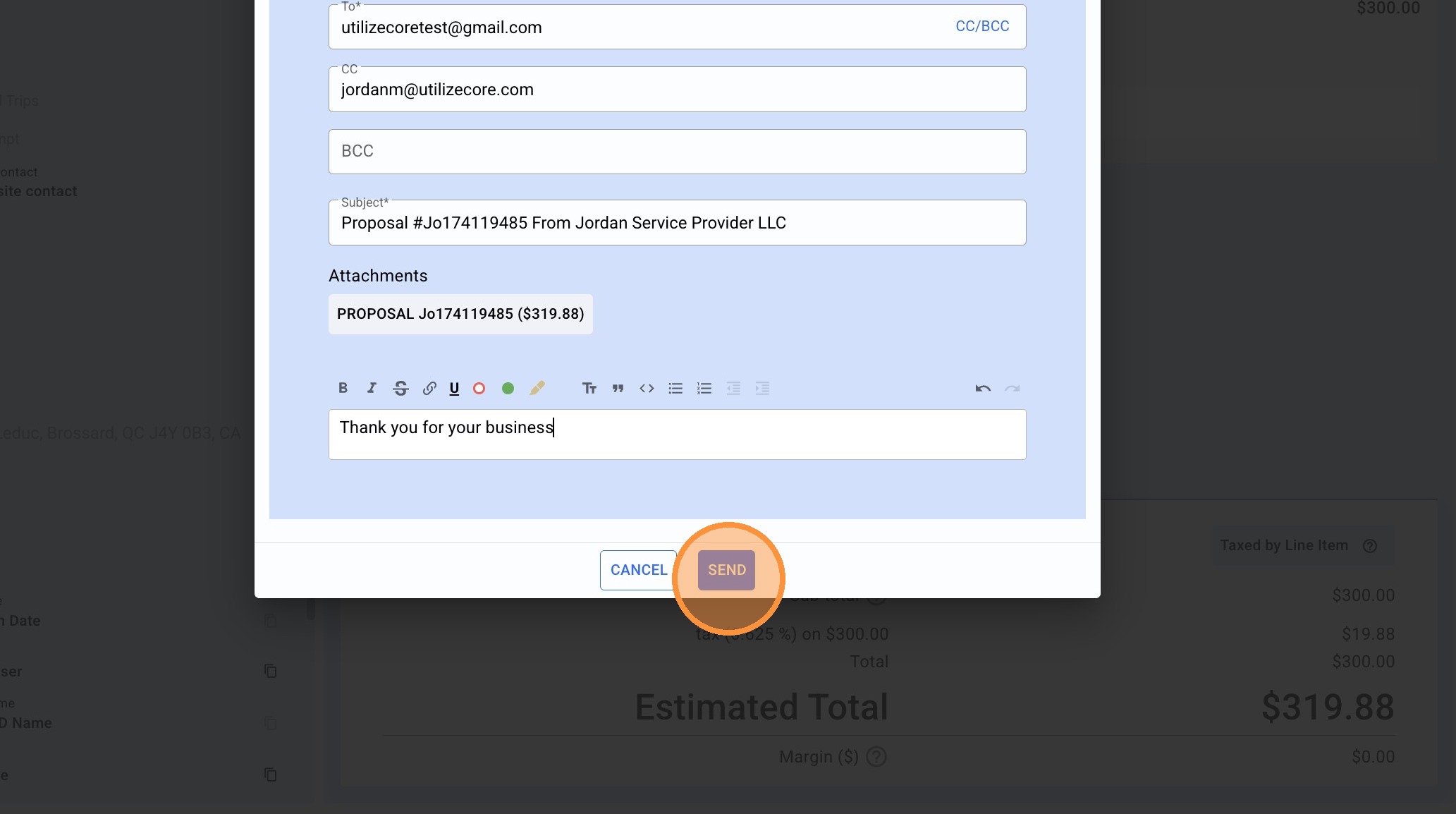
15. Enter any final details for the email sent to your service partner, and click "SEND"
16. All set!