
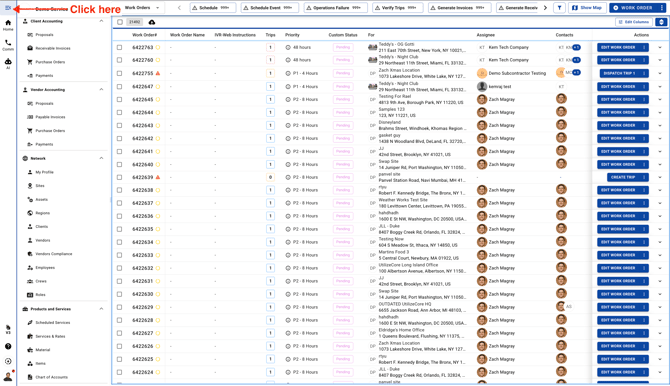
1. Click on the Menu icon on the top left corner
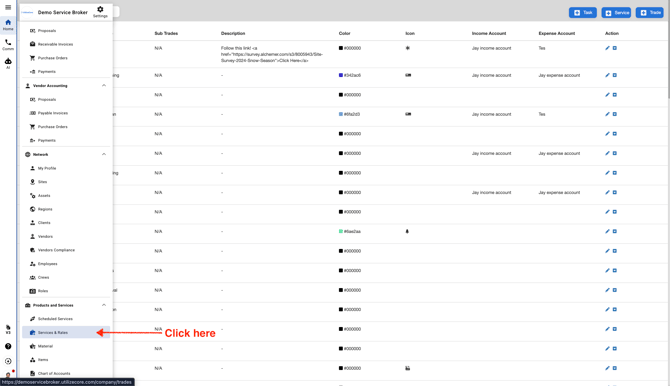
2. Click "Services & Rates"
3. To add a new Service, click on "+ Service" blue button
.jpeg?width=670&height=304&name=user_cropped_screenshot%20(4).jpeg)
4. Select an existing Trade from the dropdown list
.jpeg?width=670&height=322&name=user_cropped_screenshot%20(5).jpeg)
5. Enter a new "Service" name
Note: All the following fields with an "*" are mandatory

6. Select a Cell Color Code

7. Select a Text Color Code

8. Select a "TaxJar Tax Code (Search by code, category or description)", this is used to calculate Tax on the Trade & Service as per industry standards

9. Select an Income and Expense Account

10. Enter a Description

11. Select a Default Priority

12. Click on the field "Generate client invoice (default)" and select any one option

13. Select a Default Client and Vendor Billing Method.
Note: This billing method will be automatically assigned to the Work Order and if the Billing Method has a Rate Type, it'll be automatically applied to the Invoice

14. Click Save

15. You should see a success modal pop-up. You can close it by clicking on the "x" icon
.jpeg?width=670&height=322&name=user_cropped_screenshot%20(6).jpeg)
16. You should be able to see your newly added Service under the Trade. To view it, click on the Trade row and you should see a dropdown with all the Services under the Trade
.jpeg?width=670&height=337&name=user_cropped_screenshot%20(7).jpeg)