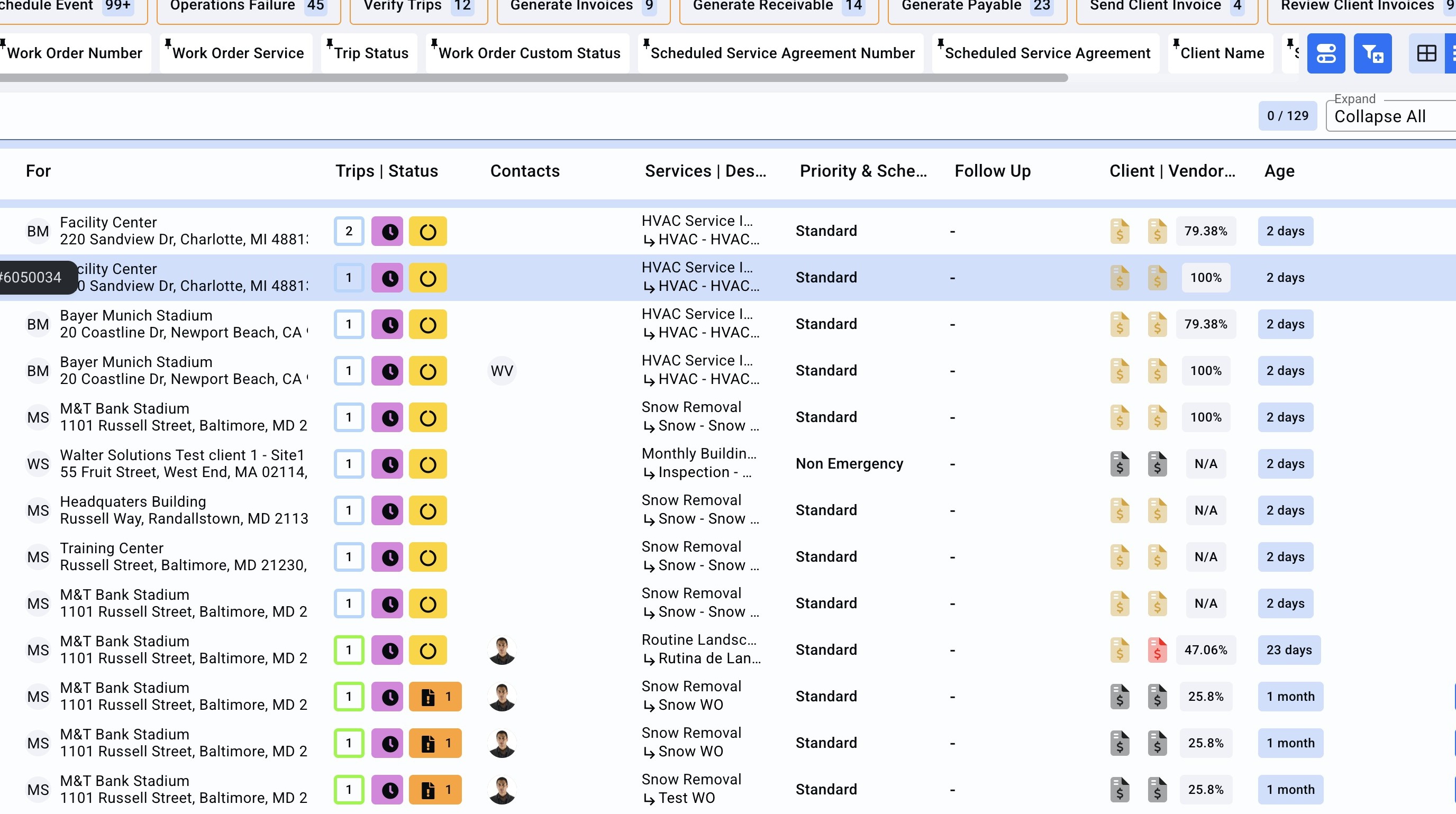
1. On the Work Order page search for the Trip which the second trip is required to be copied.
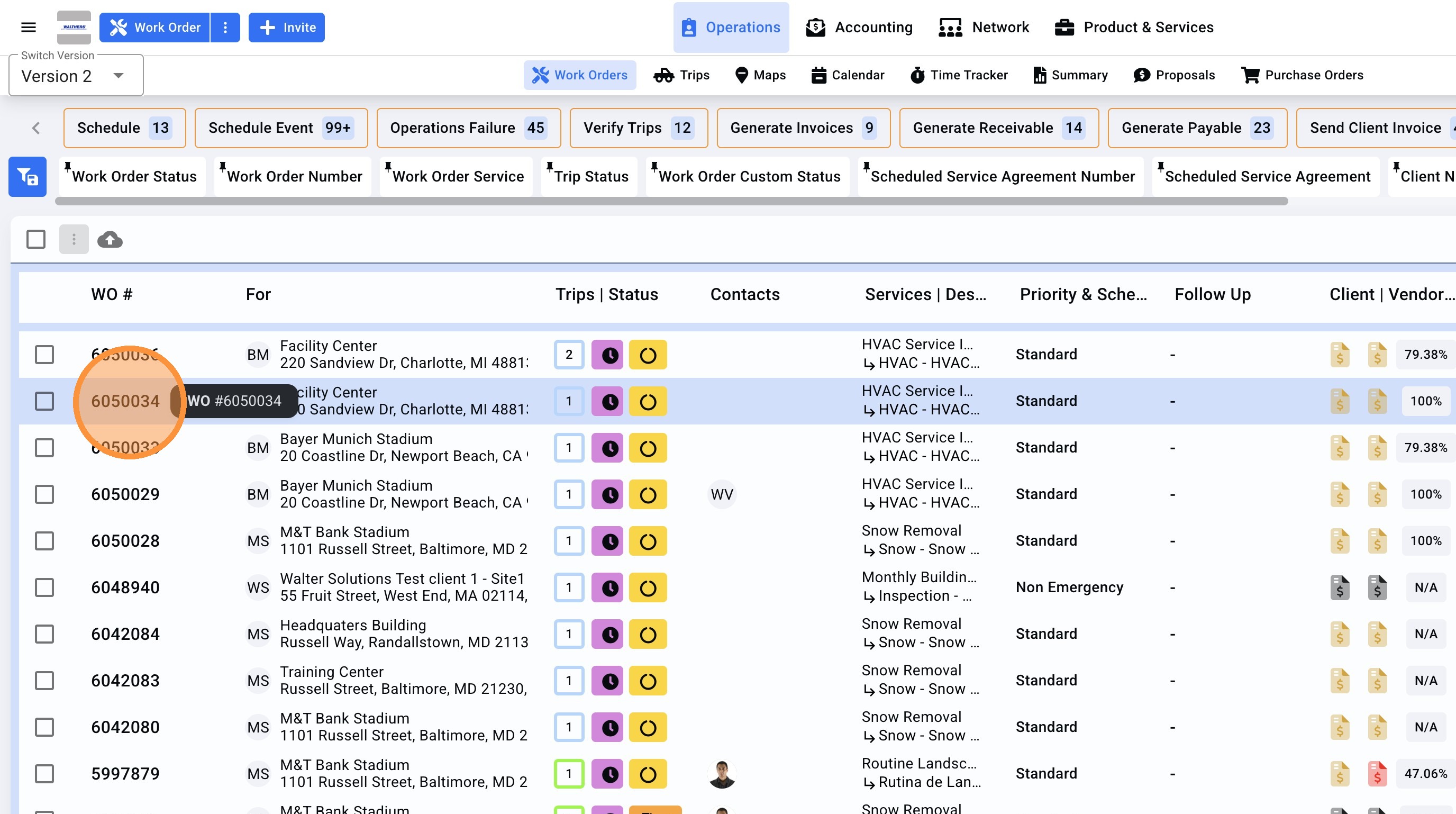
2. Open the Work Order by clicking it.
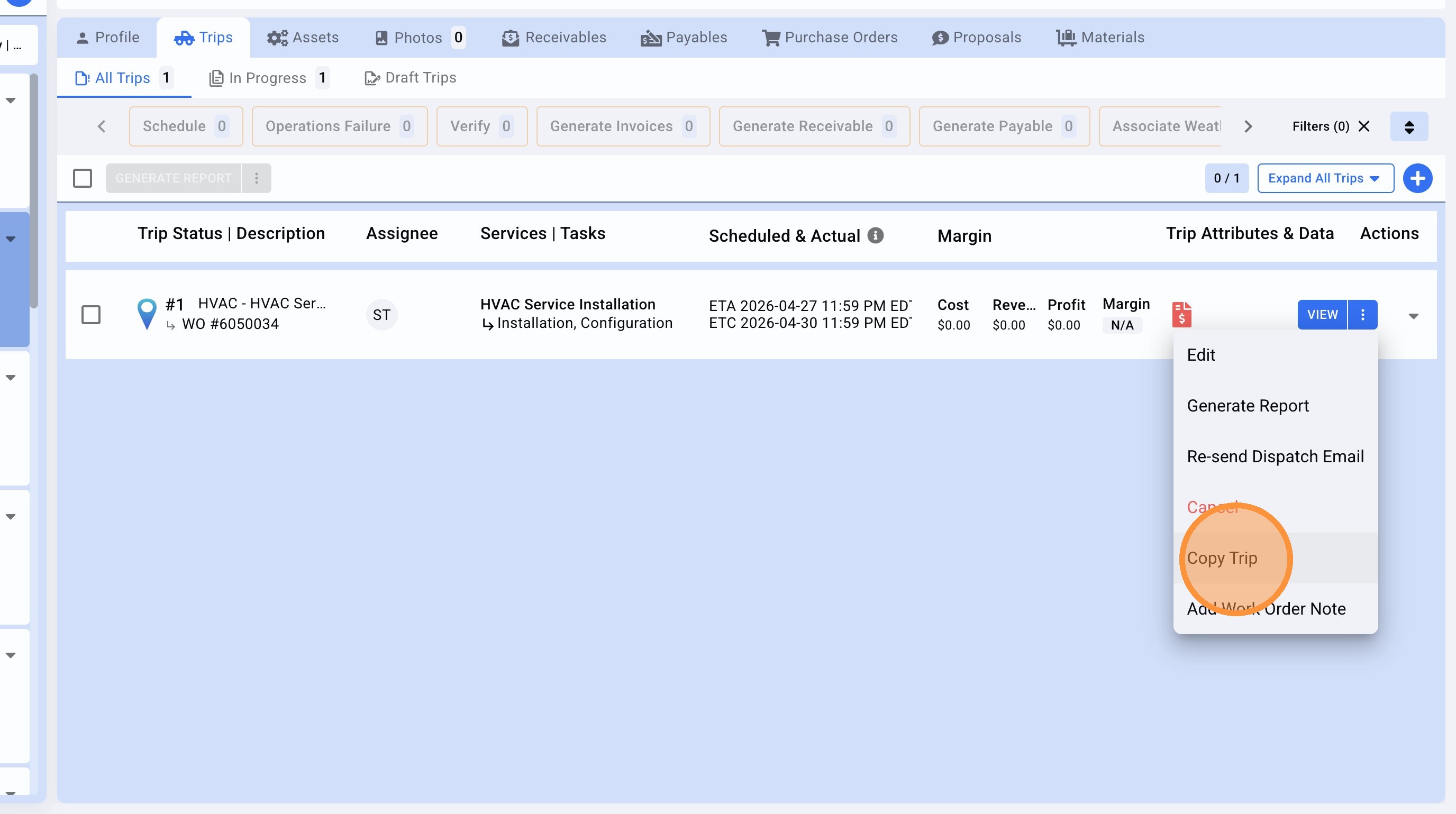
3. Click on the Trip menu icon.
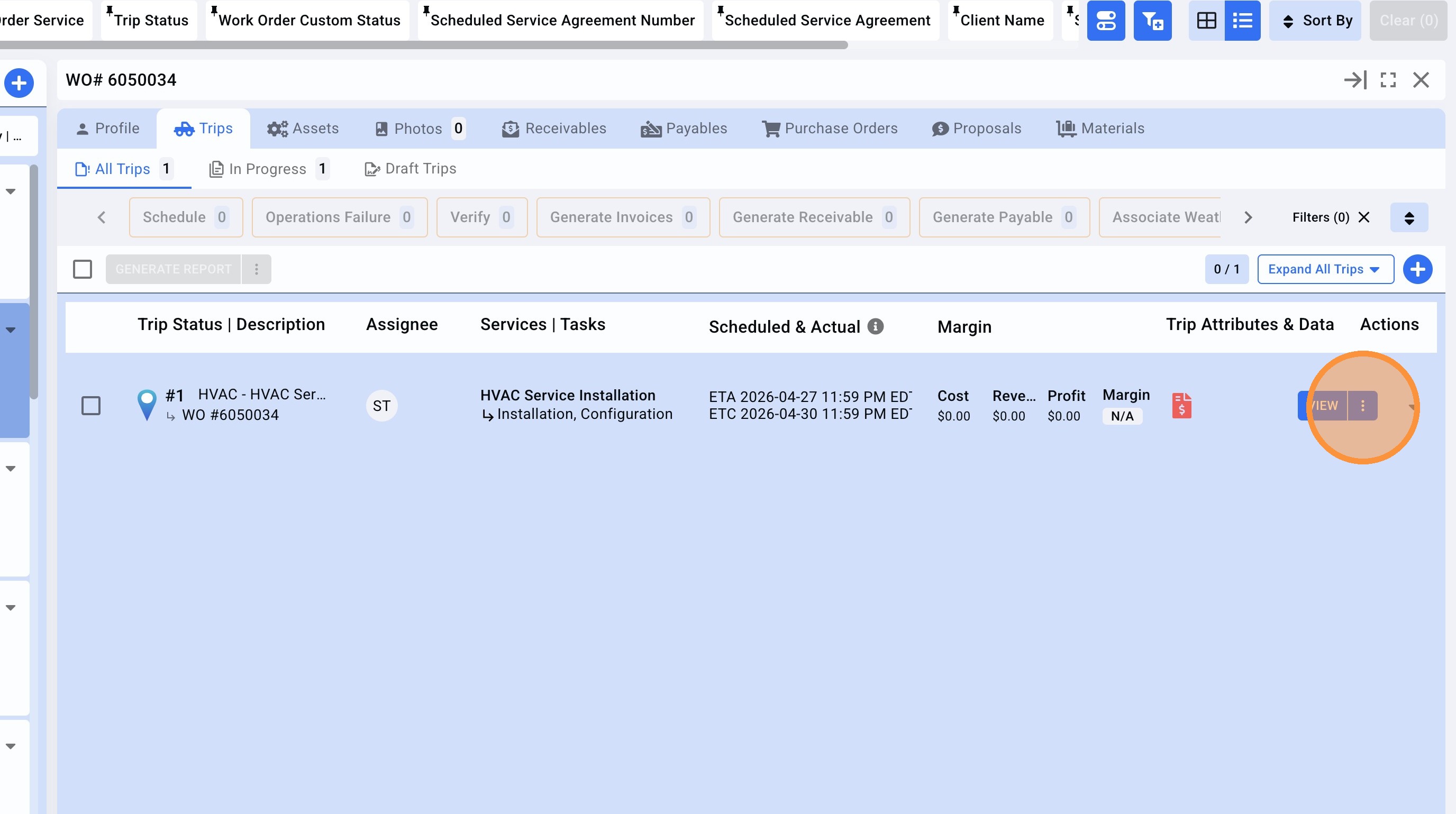
4. Click "Copy Trip"
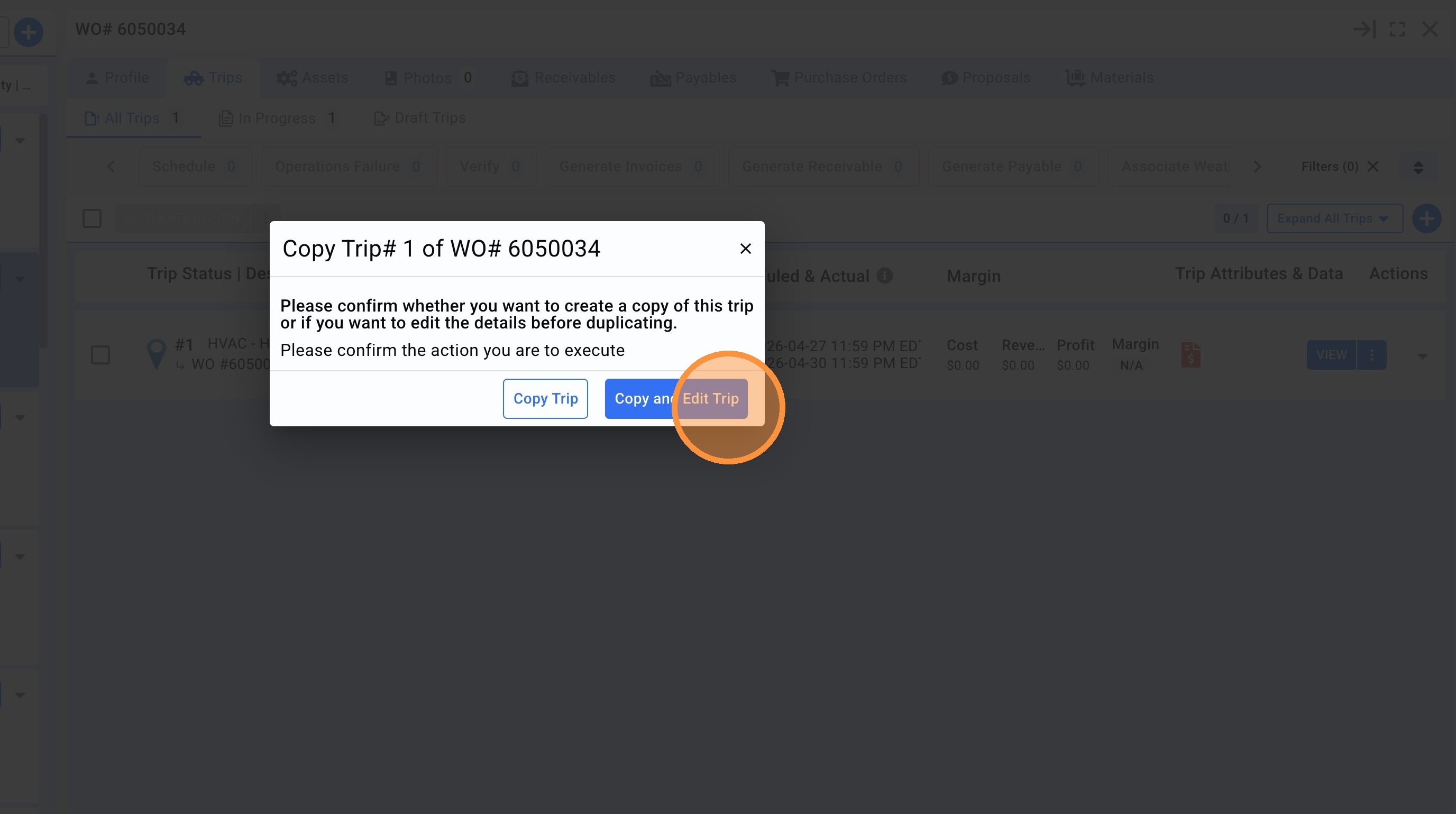
5. Click "Copy and Edit Trip" to open the Trip interface and make the appropriate changes. If changes are not required and it is required to duplicate the trip just click on Copy Trip and generate the second trip with the same data as the Trip 1.
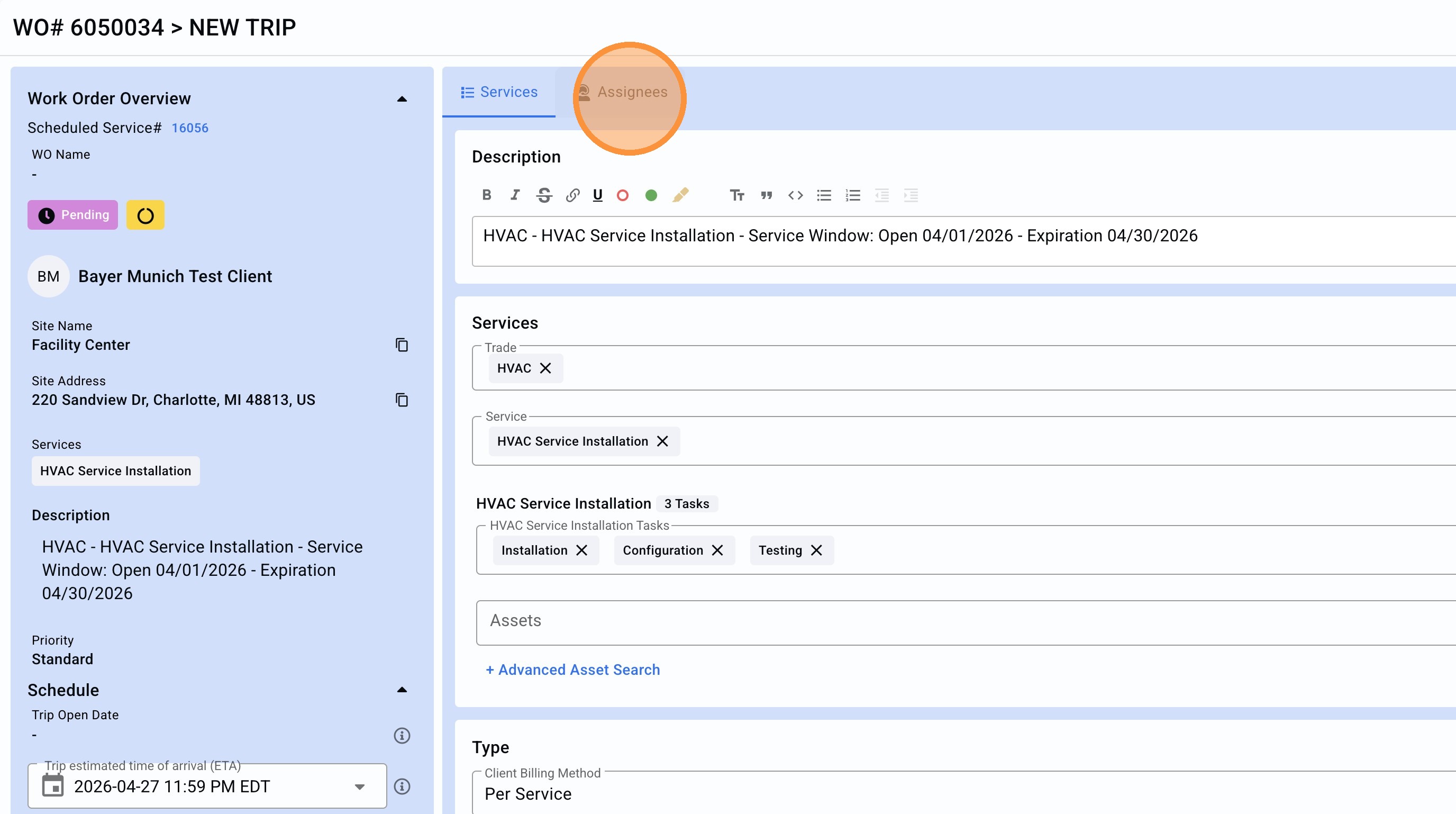
6. Click "Assignees" in case the vendor or team member for this second trip is required to be edited.
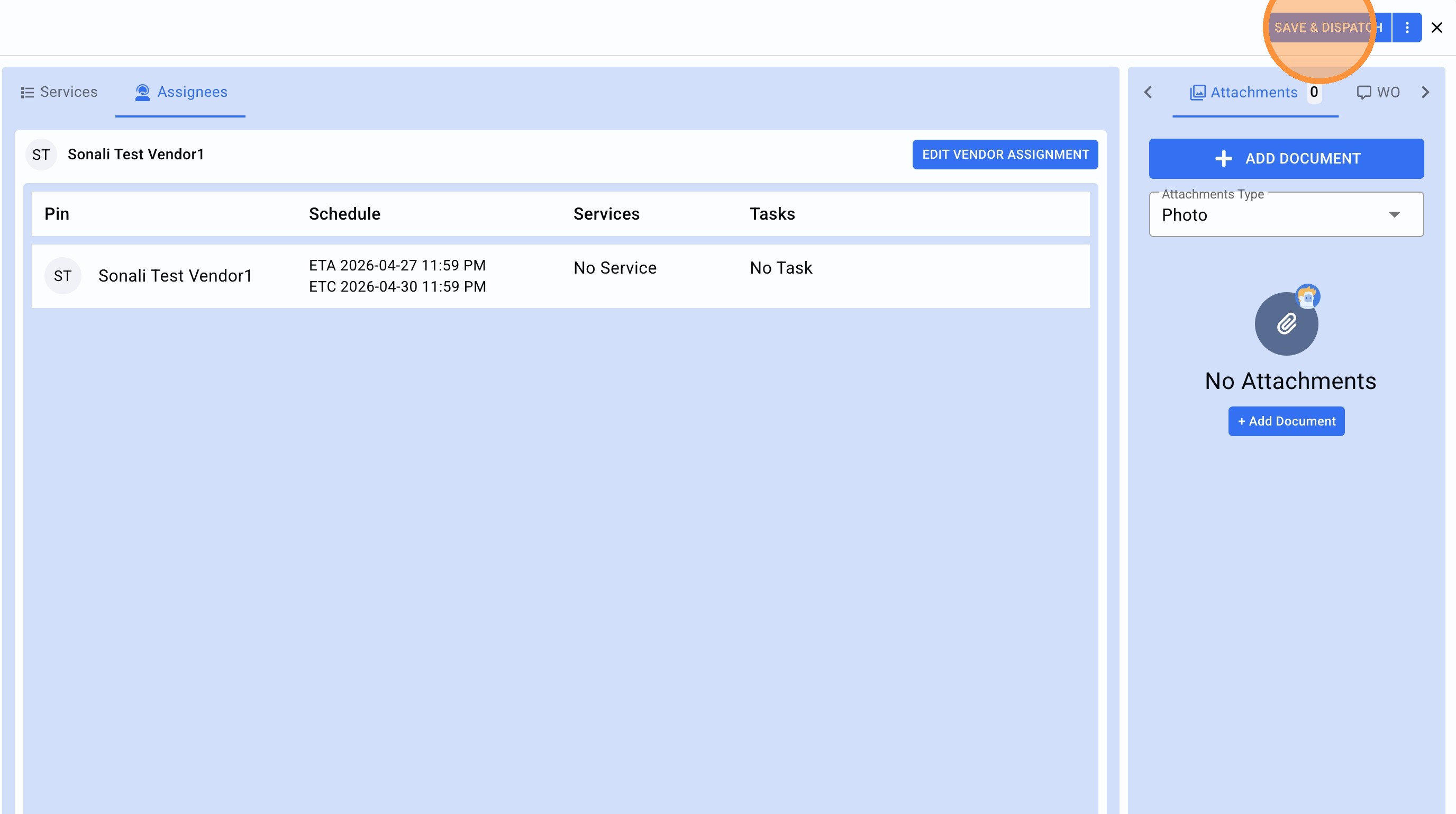
7. Click "SAVE & DISPATCH"
8. Once the Trip has been generated, close it.
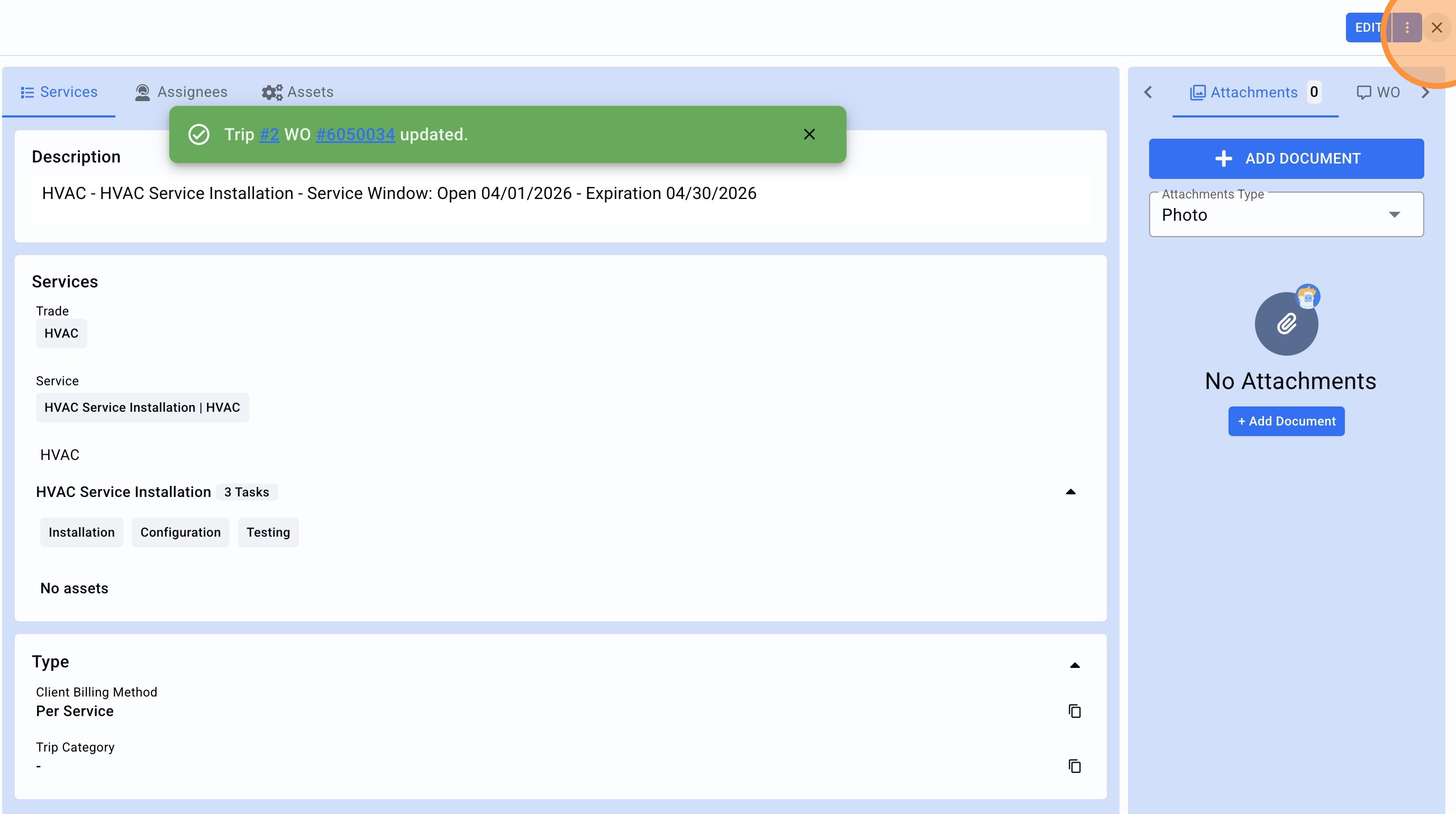
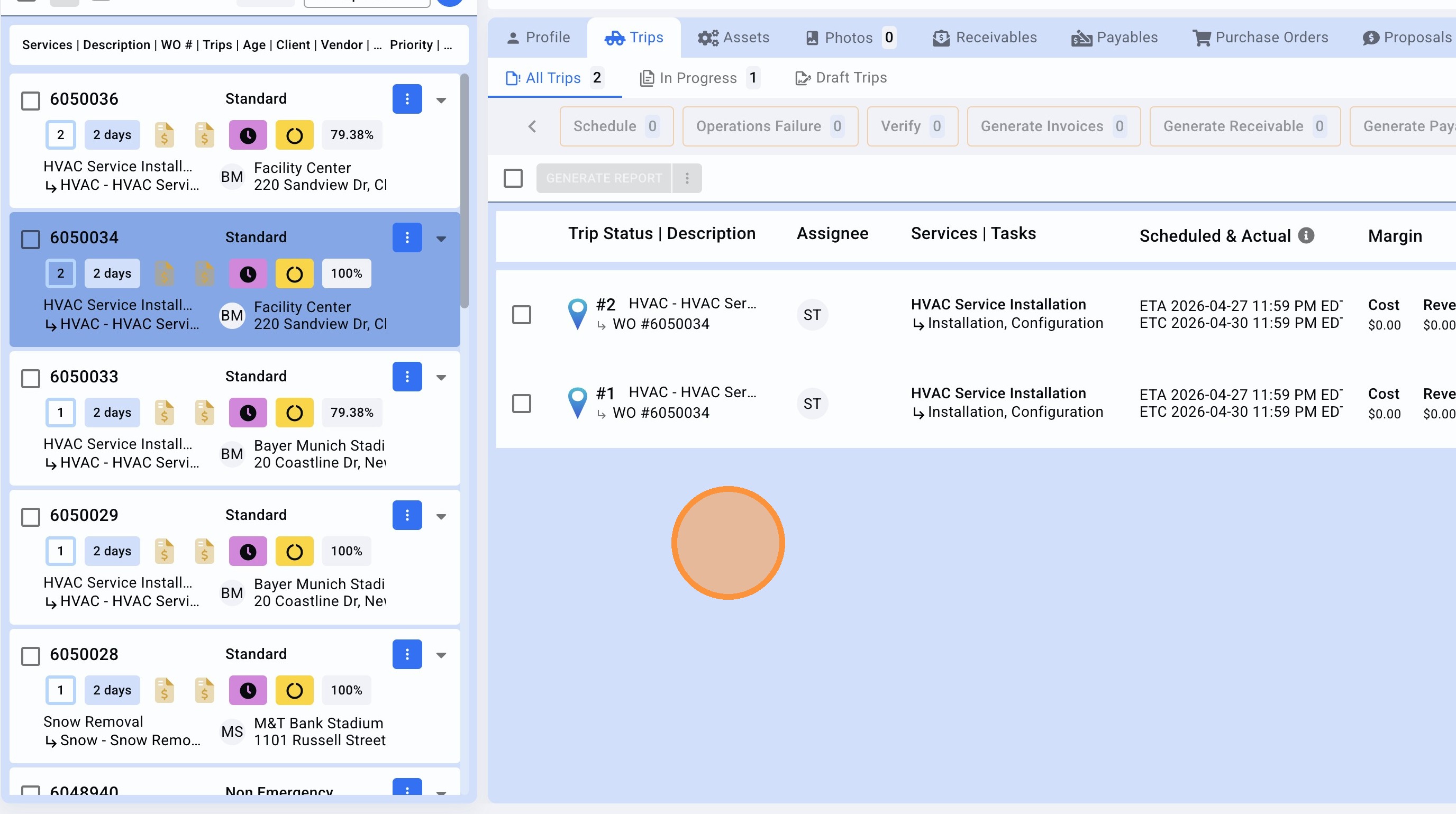
9.The second trip was successfully created.