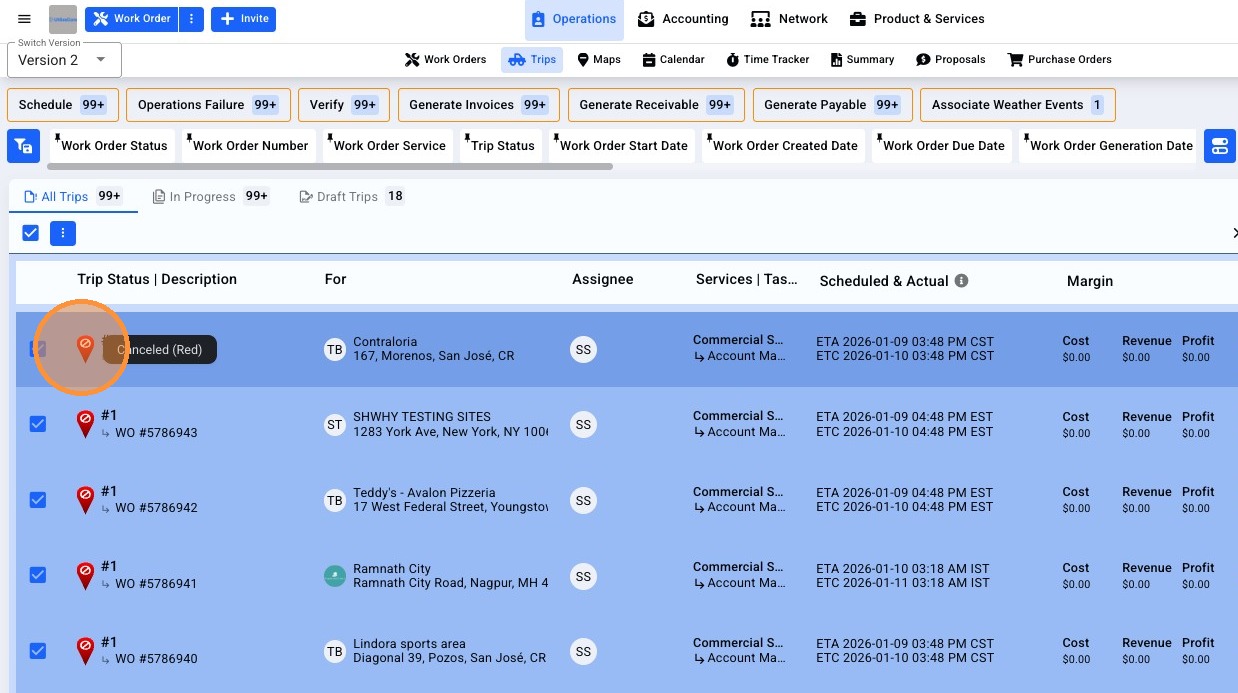
You have the ability to cancel trips in bulk from the Trip list. A common workflow in which this bulk cancel trip function is useful is for monthly work orders; to cancel all trips still open at the end of the month in order to begin your billing cycle.
Validations
There are some validations to consider as well. Trips in with the following conditions cannot be cancelled in bulk:
-
Trip is on Work Order generated from an 'Agreement'
-
Trip has 'Check In' and/or 'Check Out' time Present'
-
Trip is associated to a 'Weather Works Event'
-
Trip is referenced in 'Paid' or 'Partially Paid' Payable Invoice
-
Trip is referenced in 'Paid' or 'Partially Paid' Receivable Invoice
-
Trip is referenced in an Invoice associated to a Purchase Order
- Trip is on an already 'Cancelled Work Order'
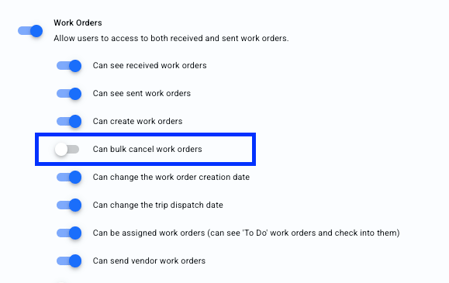
User Permissions
The ability to cancel in bulk will be based on your User Permissions.
A step-by-step guide to cancel trips in bulk in UtilizeCore
1. Navigate to the Trips list.
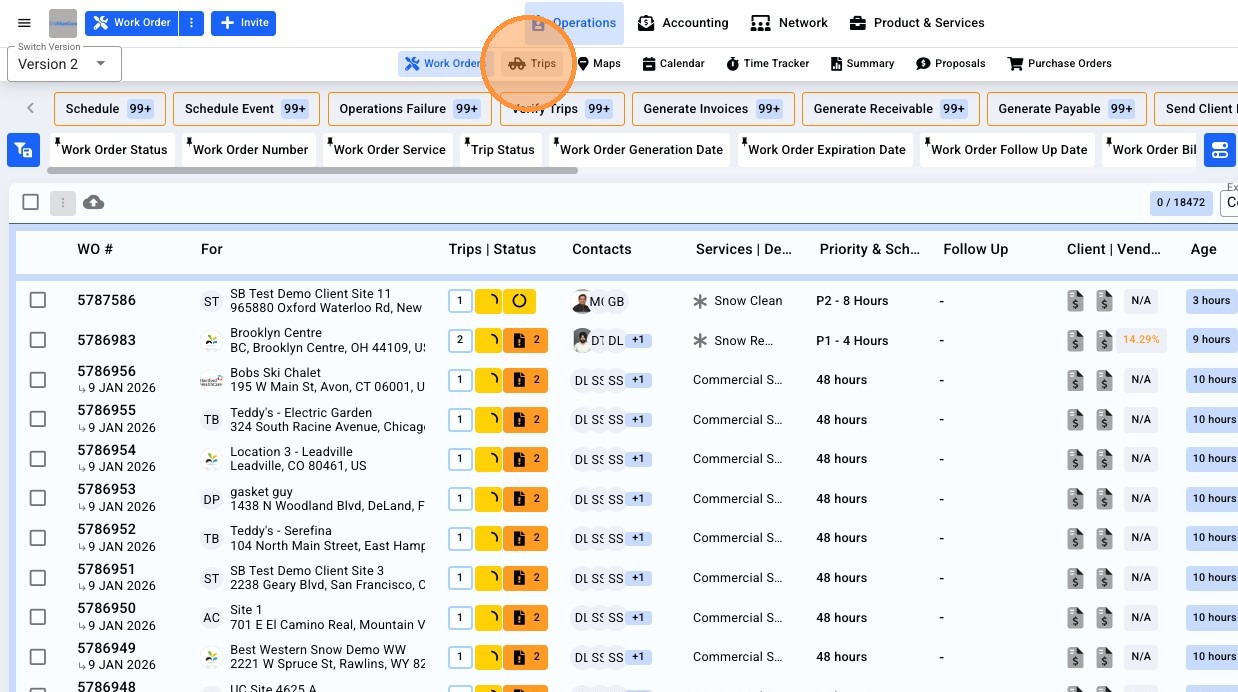
2. Filter the Trips list to isolate the appropriate Trips you'd like to cancel, then click the 'Select' checkbox from the Trips list header.
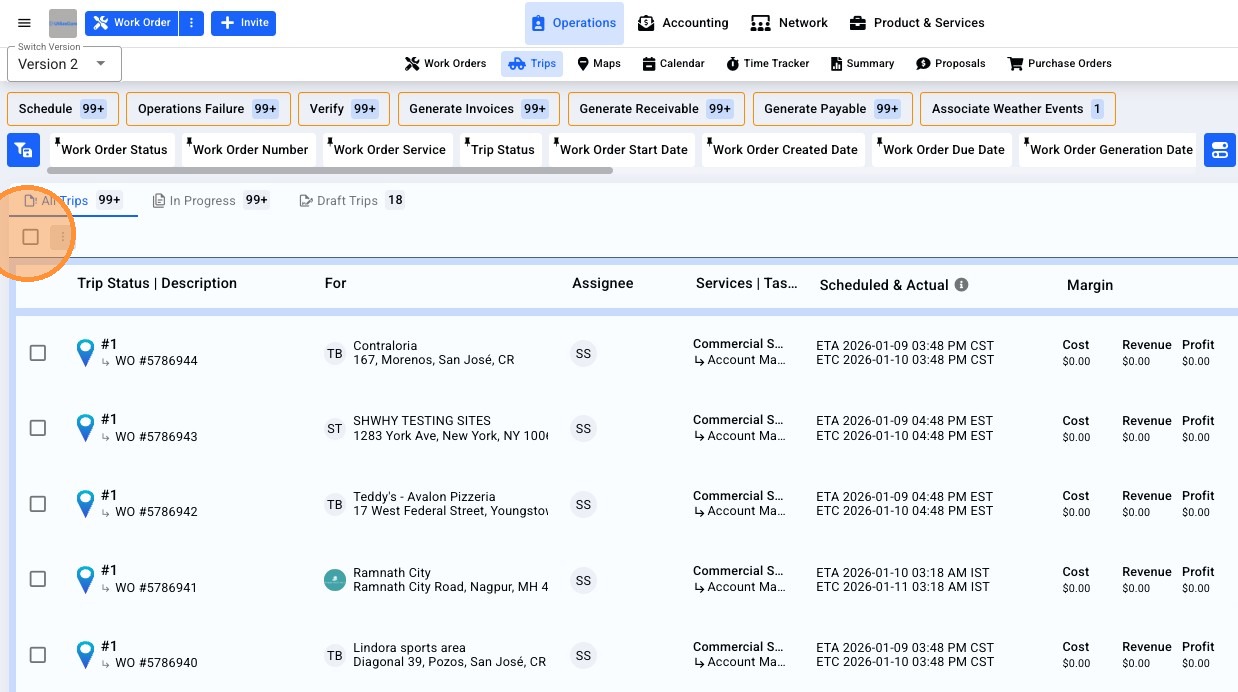
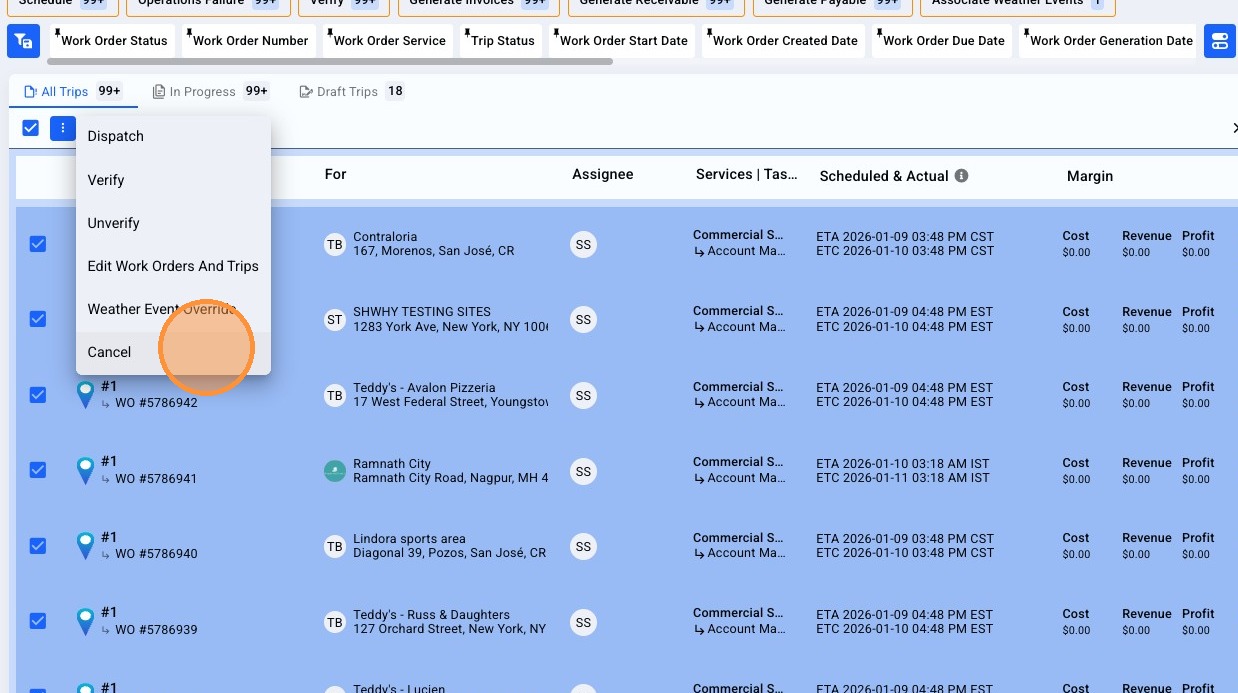
3. Click the 3-dot menu, and select 'Cancel'
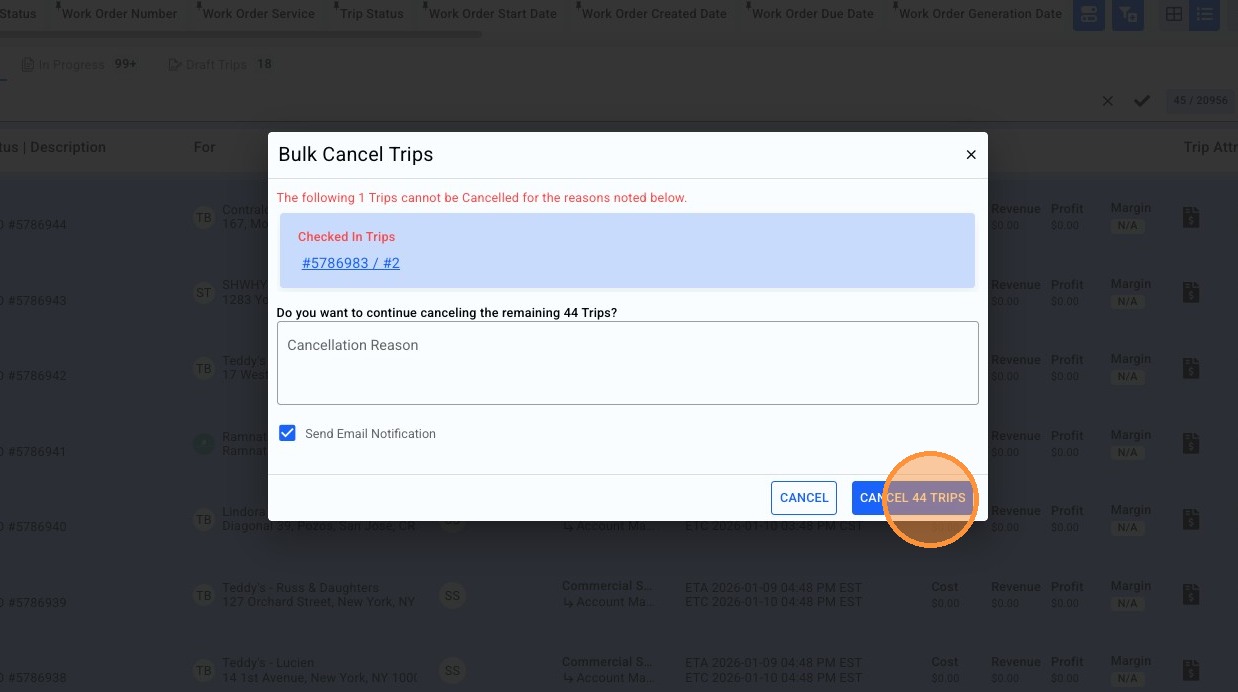
4. The system will display any Trips unable to be canceled due to validation rules. You can also include a 'Cancellation Reason' and send a notice of cancellation to the Trip assignee.
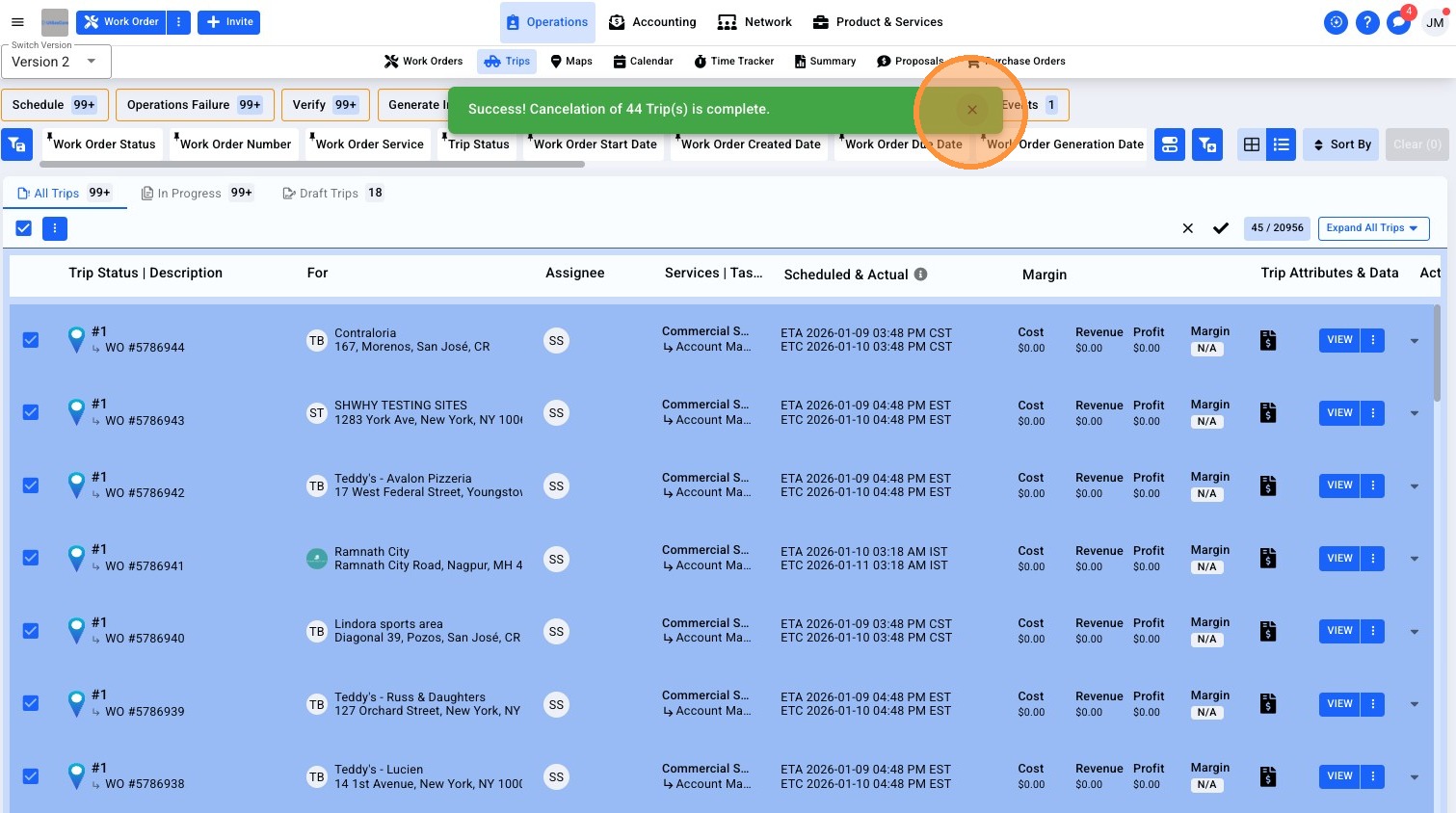
5. You will receive a toast notification that your cancellation has begun.
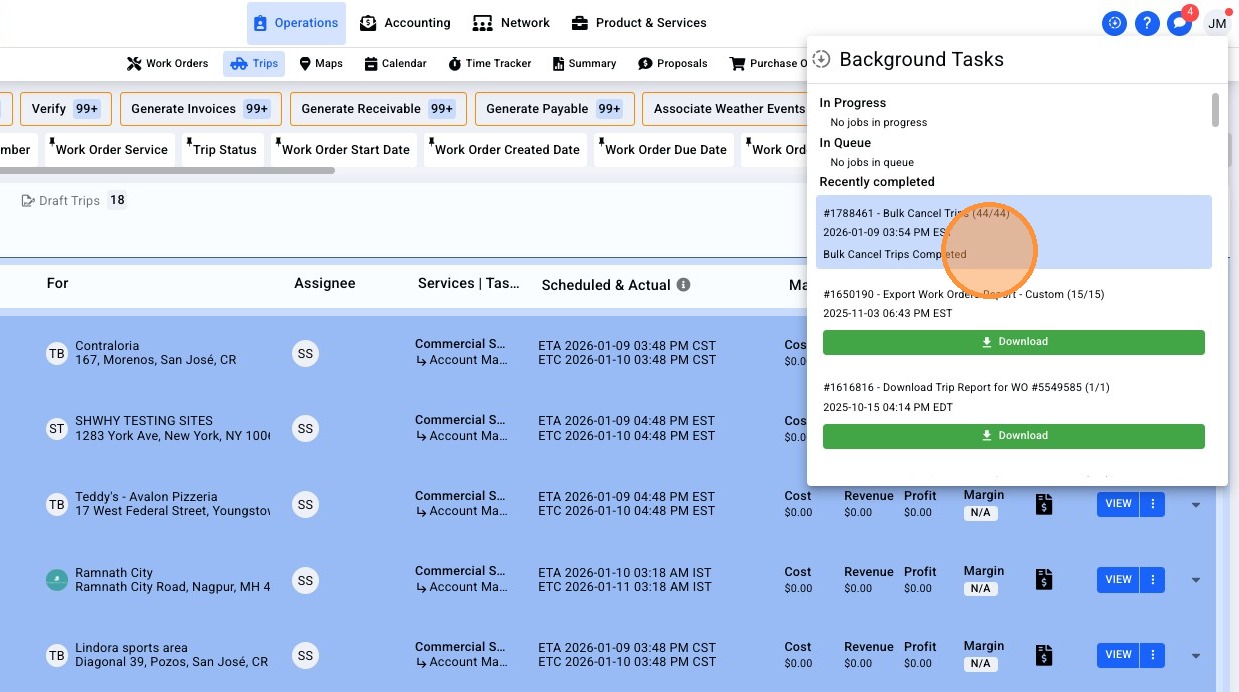
6. Like all bulk actions, your bulk Cancellation can be monitored from within your 'Background Tasks'.
7. As your Trips are Cancelled, you will see the pins update on your Trip list in real-time.