
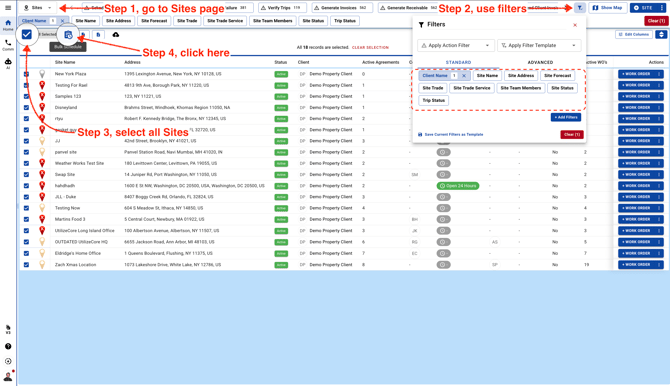
- Go to Sites page and click on the Bulk Schedule icon
-
Select a Trade

-
Select a Service

-
Select an EAT, ETC, Trip Close and Work Order Generation Date

-
Select a Priority

-
Click the "Send work order updates to vendor" field to send all Work Orders via email to your Vendor

-
Click this checkbox to uncheck and this will dispatch the Work Orders and make them available to Vendors on mobile application

-
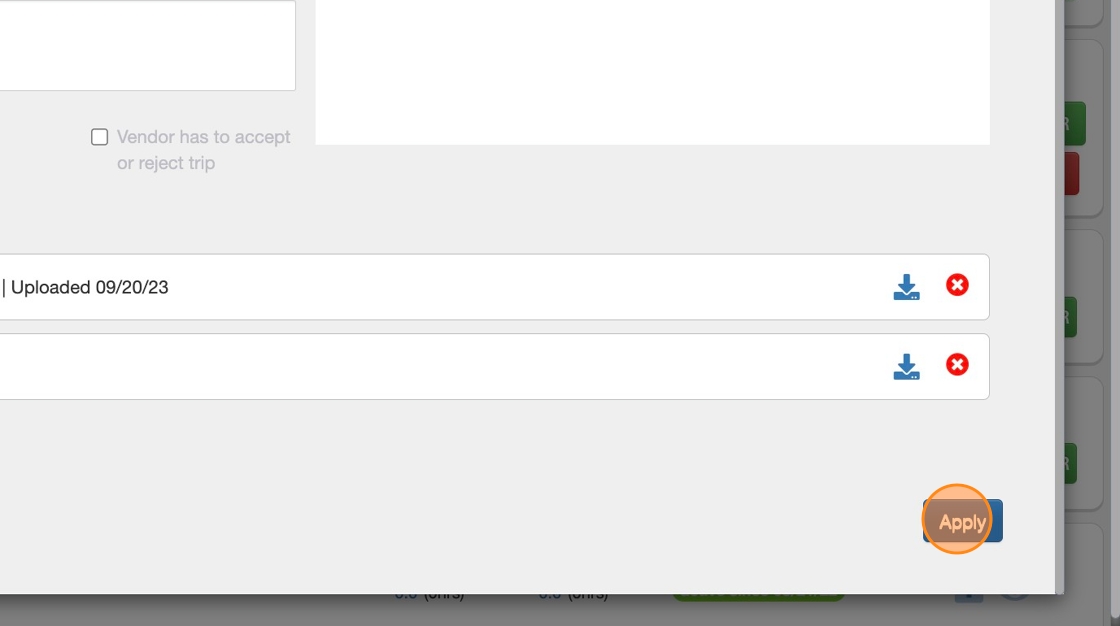
Click the button "Apply"
-
Select an Assignee Type

-
If you've selected Assignee Type as a Vendor in your previous step, you should be able to see a list of all Vendors in this list. Select any one Vendor to apply them to all Sites. This means all these Work Orders will be sent to the same Vendor.
Note: You can filter Sites and dispatch these Work Orders to different Vendors too

-
Click the blue button "Apply"

-
This will apply your Vendor to all Sites indicating Work Orders will be dispatched to the Vendor you've selected

-
Click "Schedule". You should be able to see a progress bar indicating Work Orders are being generated. In case there are any errors, the progress bar will allow you to view the errors at the end. If there are no errors, the progress bar will turn green
