
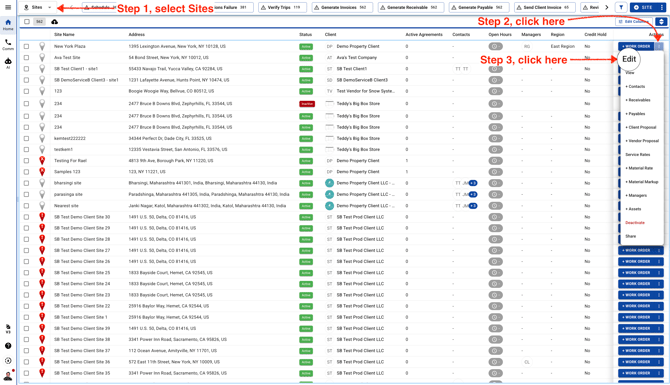
- Go to Sites page
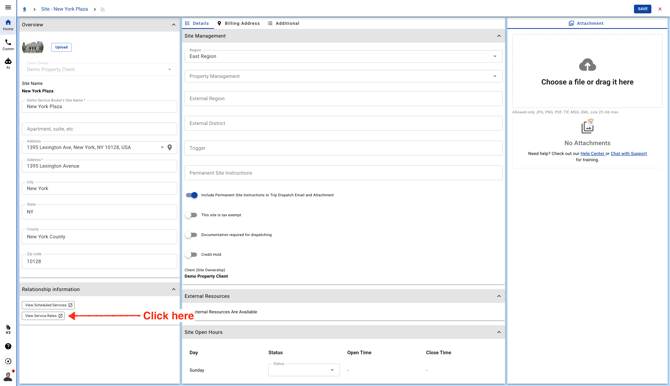
- Click on the Service Rates tab in the left panel and this will take you to the old Sites page in a new browser page
-
Expand the Service row to assign a Vendor or a Team Member

-
You should see a dropdown of Service(s) assigned to the Site. Expand the Service row by clicking on the dropdown arrow.
Note: You can manually assign a Service too.

-
Click on the "Plus" icon to the right to add a new Vendor
Note: You can assign multiple Vendors to the Site by clicking on the "Plus" icon

-
You should see a dropdown to assign a Vendor, Team Member or a Region Team Member. Select "Vendor" from the dropdown if you're looking to assign a Vendor

-
Select a Vendor name from the dropdown

-
Select a Priority

-
Click Save
Note: Click on the "Plus" icon to the right to add a new Vendor and click on the red cross icon to remove the existing Vendor

-
Scroll down and click "SAVE & CONTINUE"
