Learn how to accurately log visit times, document service tasks, and upload before-and-after photos for your work orders. This guide ensures your service records remain complete and professional for every client visit.
Work Order Navigation
1. Navigate to the Work Order list
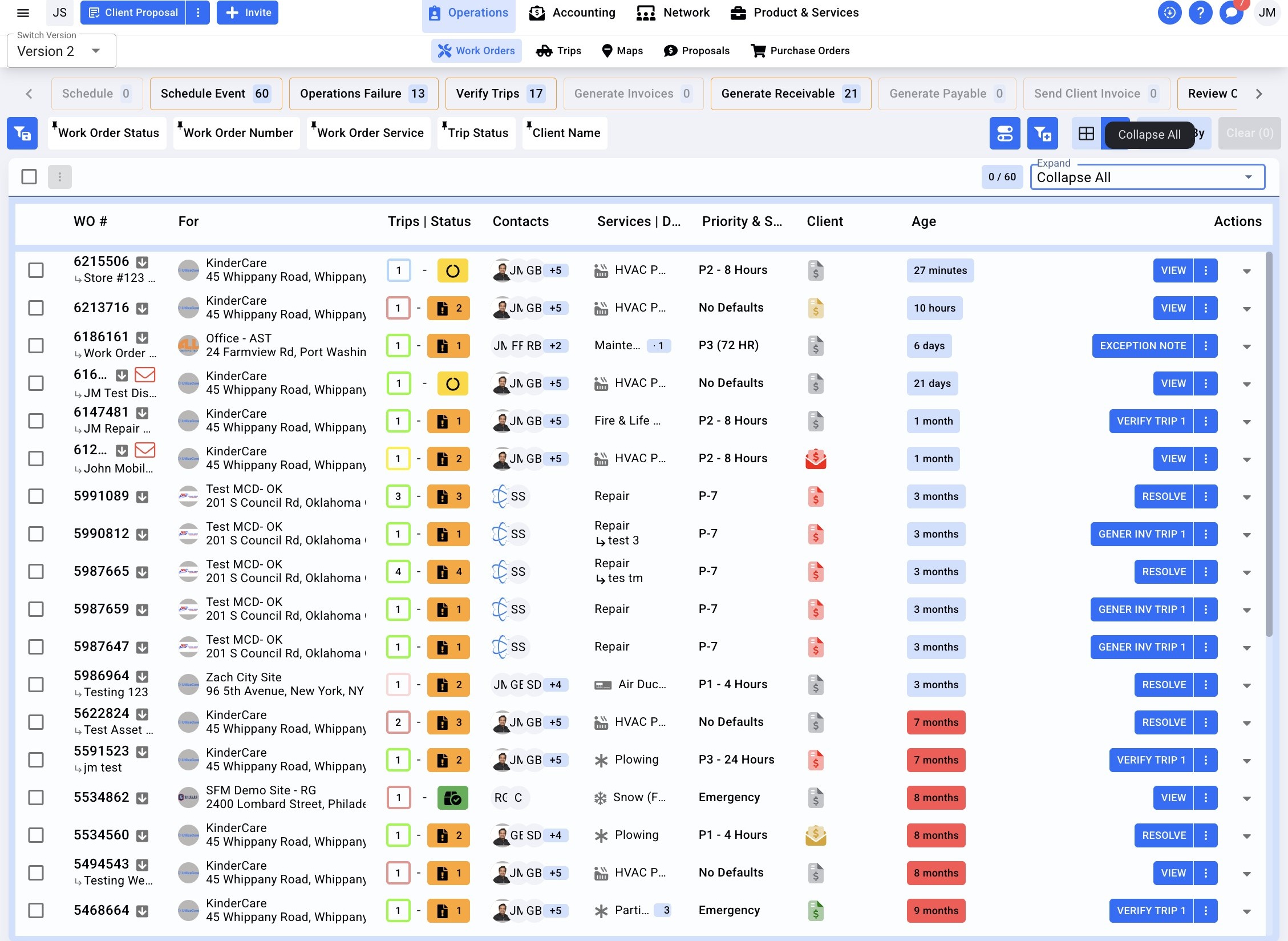
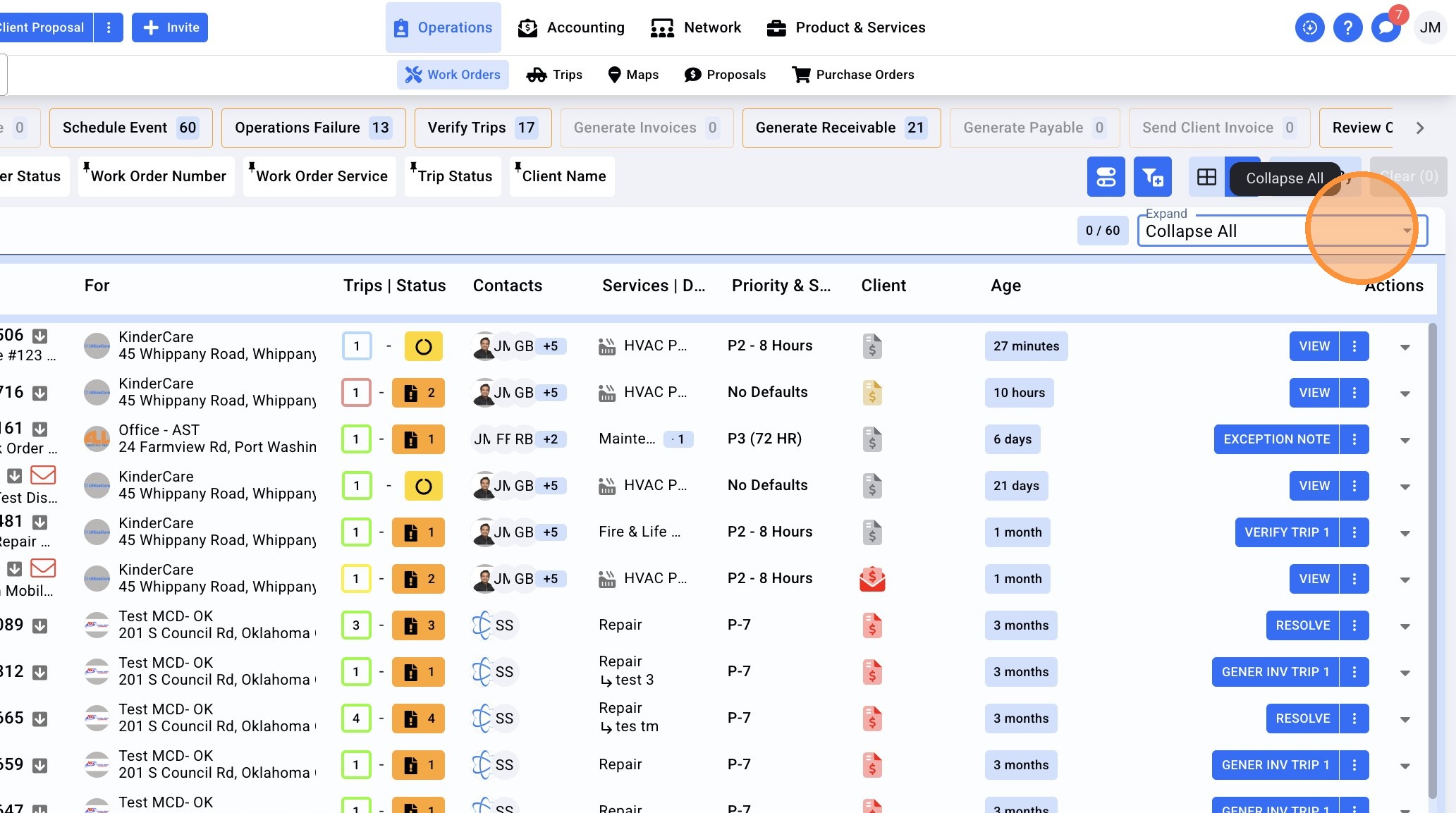
2. Click the Expand dropdown
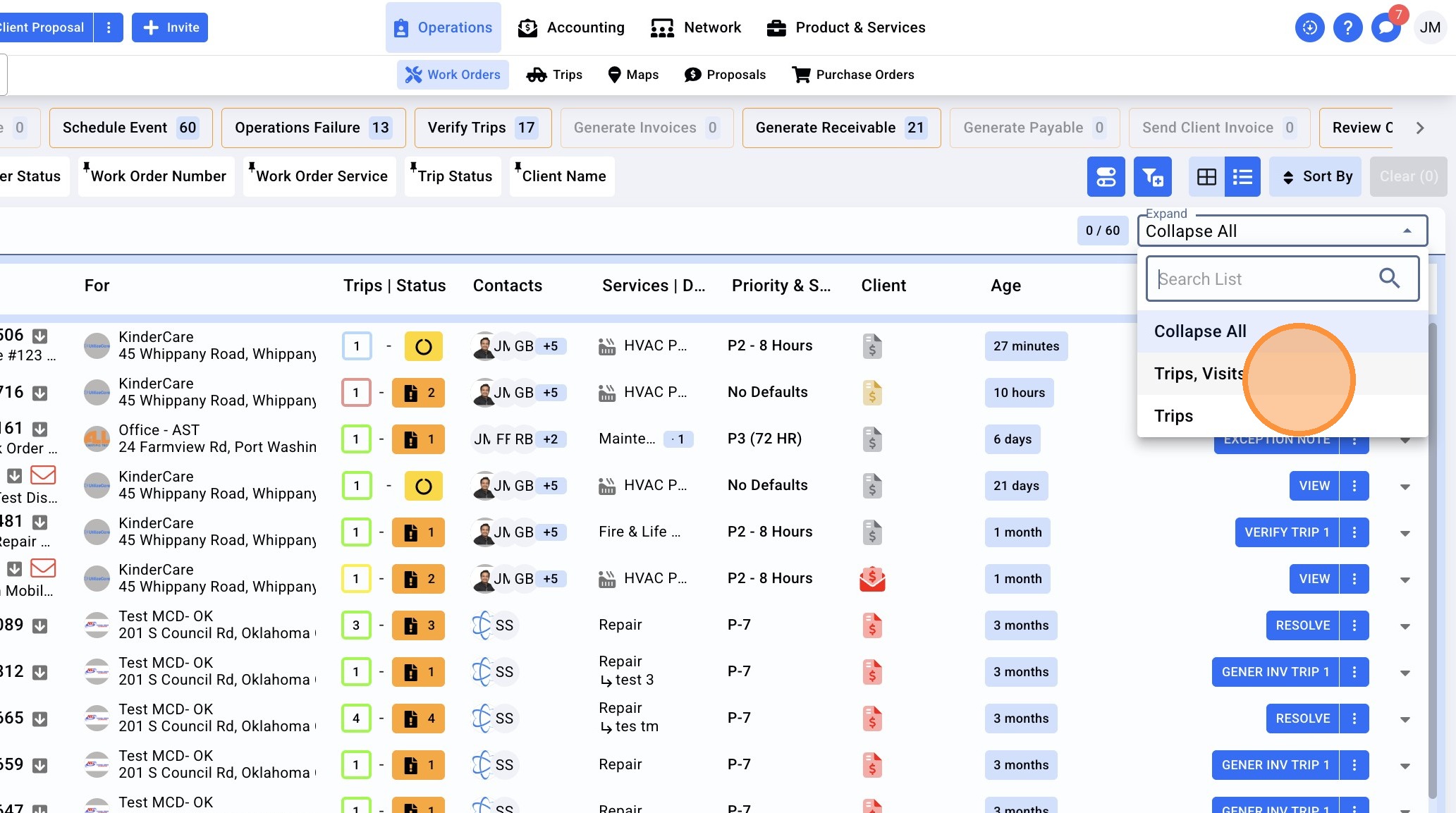
3. Click to show "Trips, Visits"
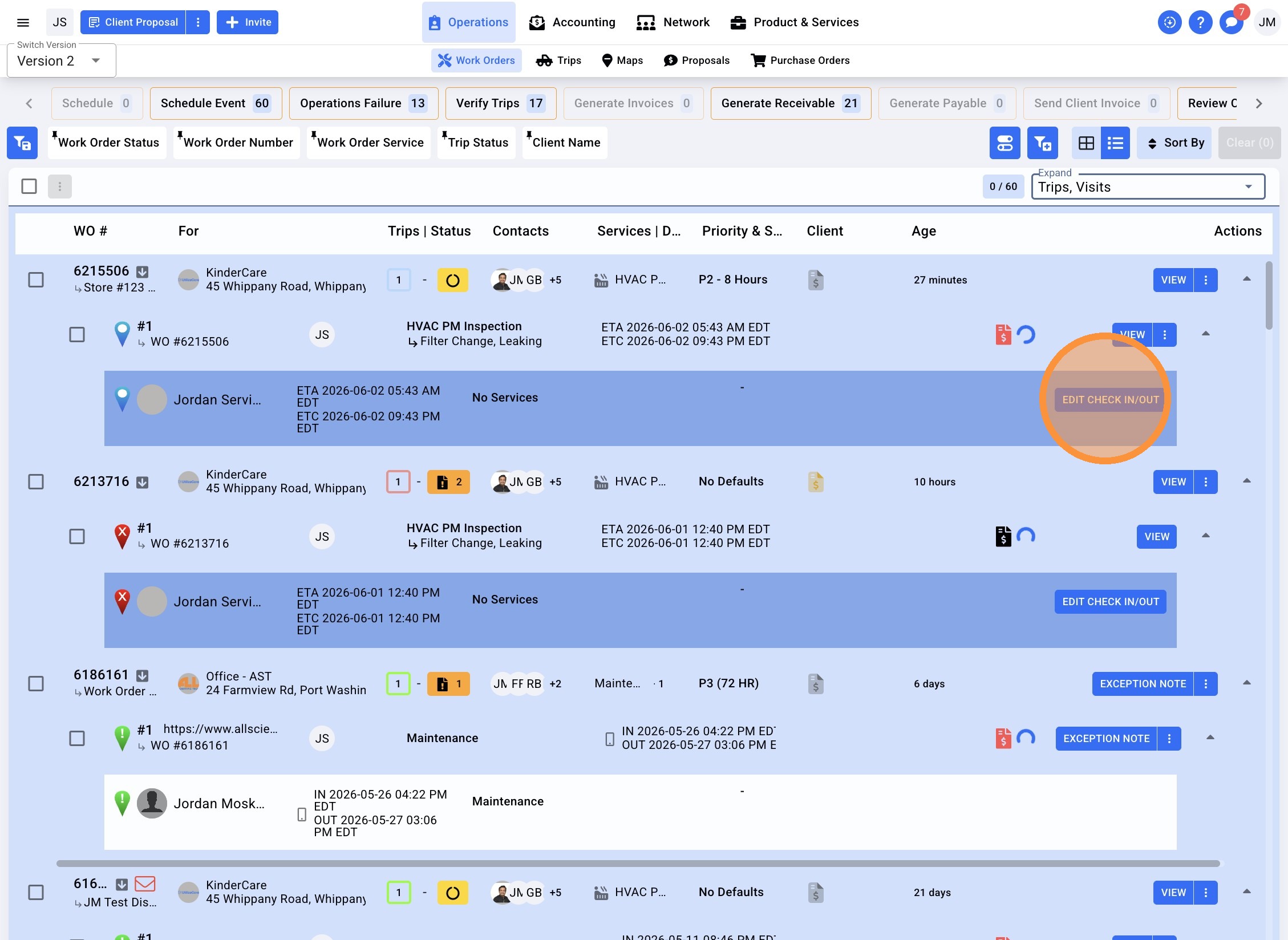
4. From the nested rows beneath the desired Work Order, select the "EDIT CHECK IN/OUT" button
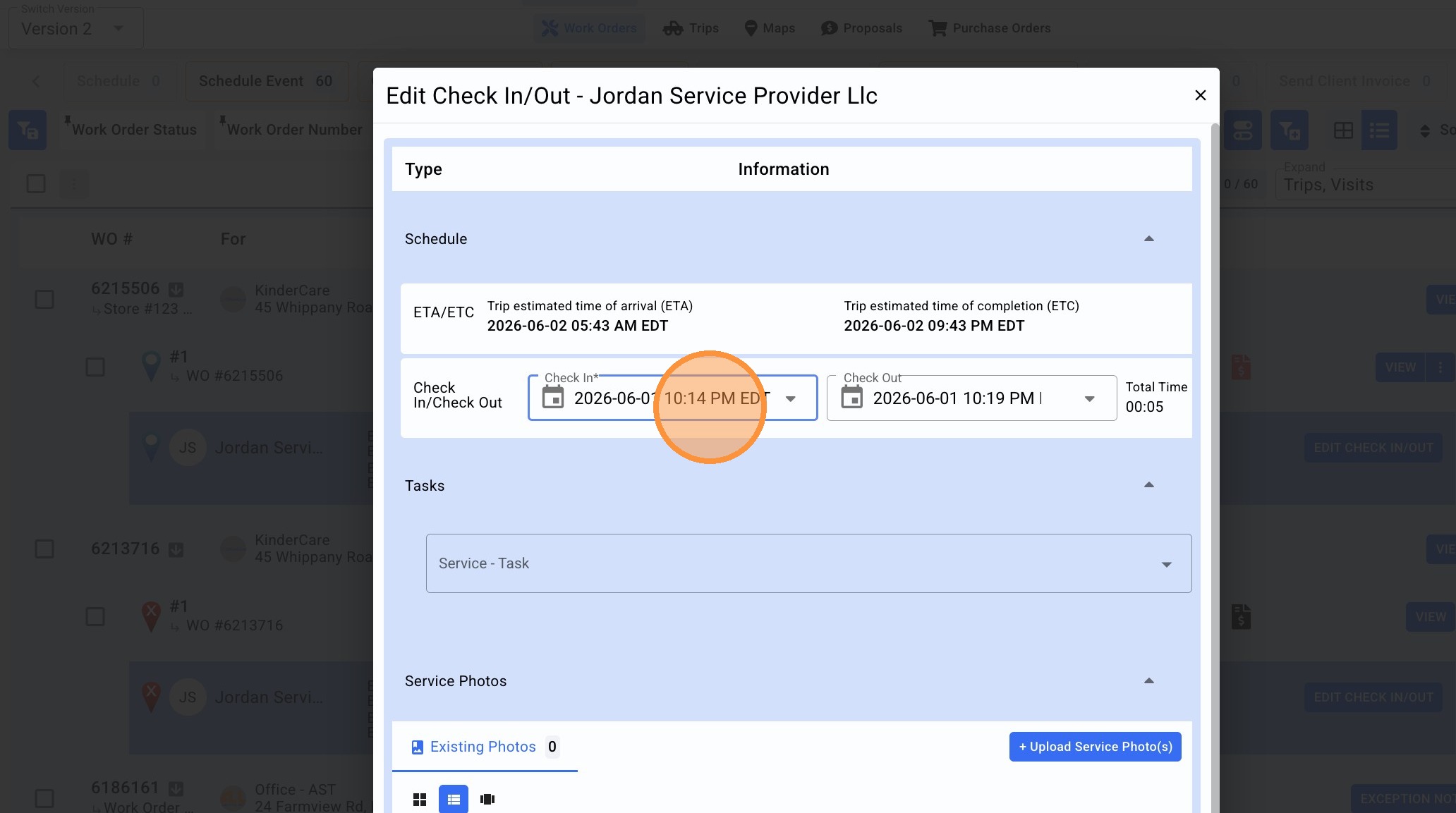
5. Click the "Check In" field
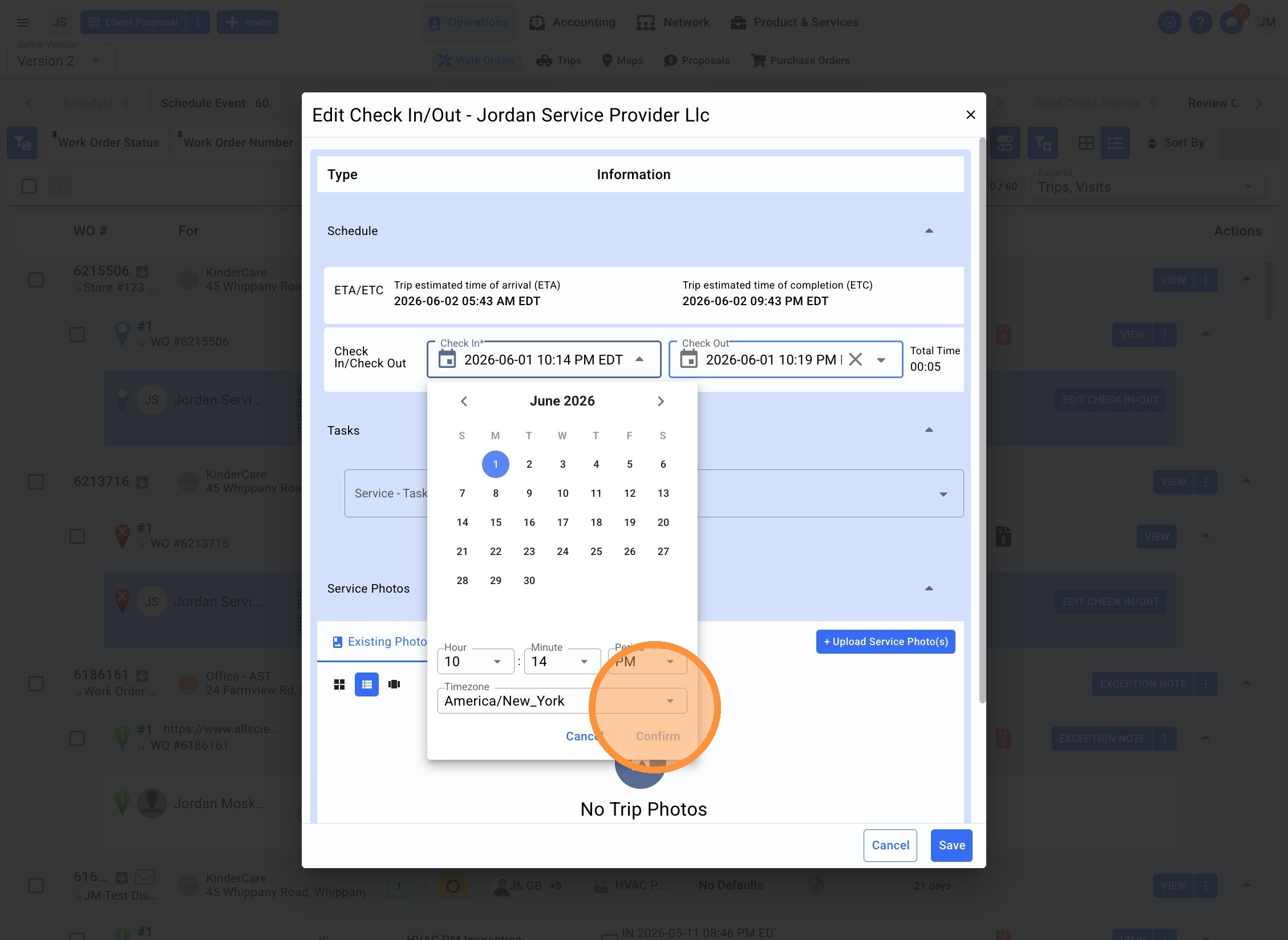
6. Adjust the desired Check In date and time and select "Confirm"
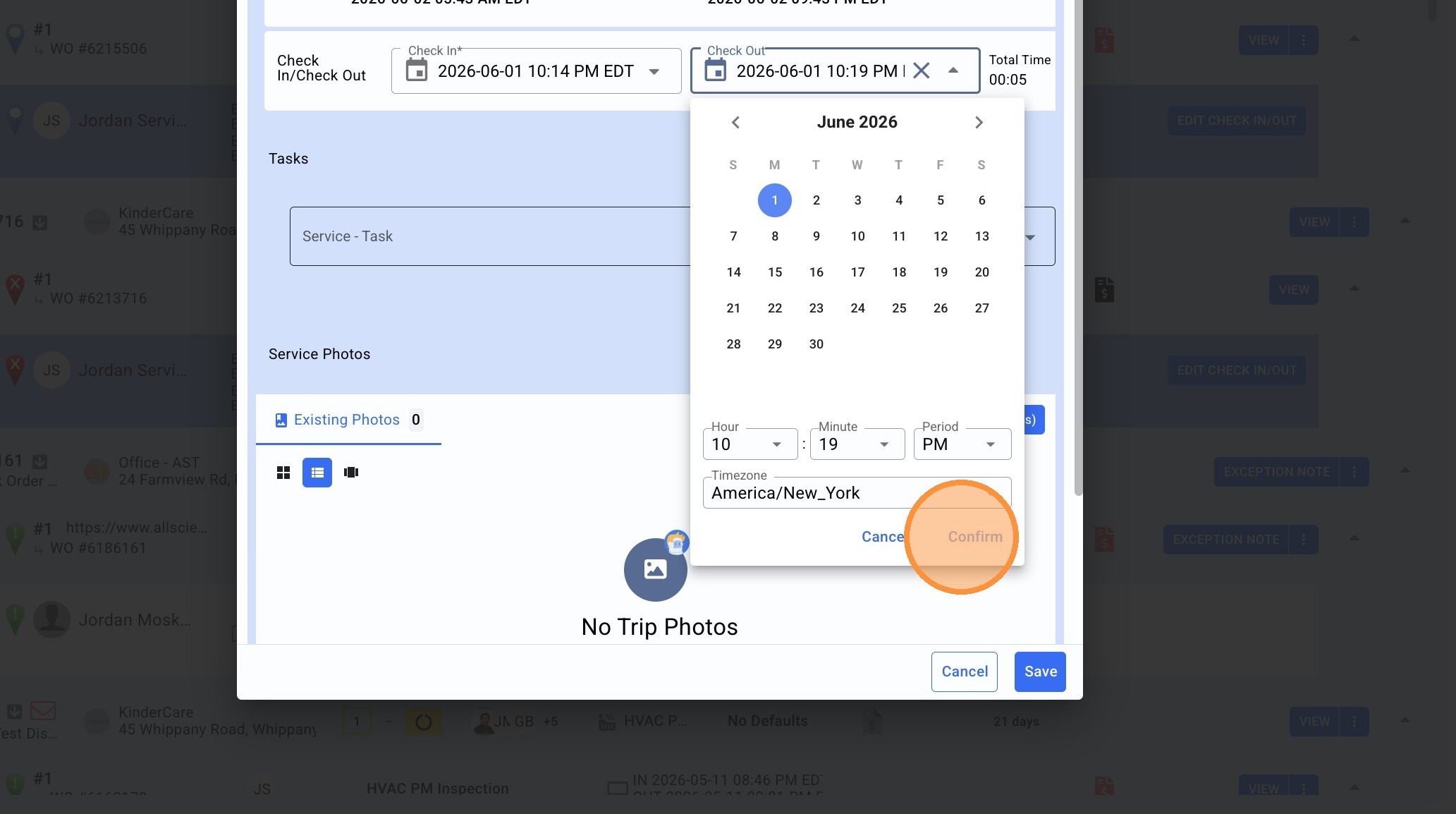
7. Click the "Check Out field and adjust the desired Check Out date and time. Select "Confirm"
8. Select Tasks and check off all Tasks complete
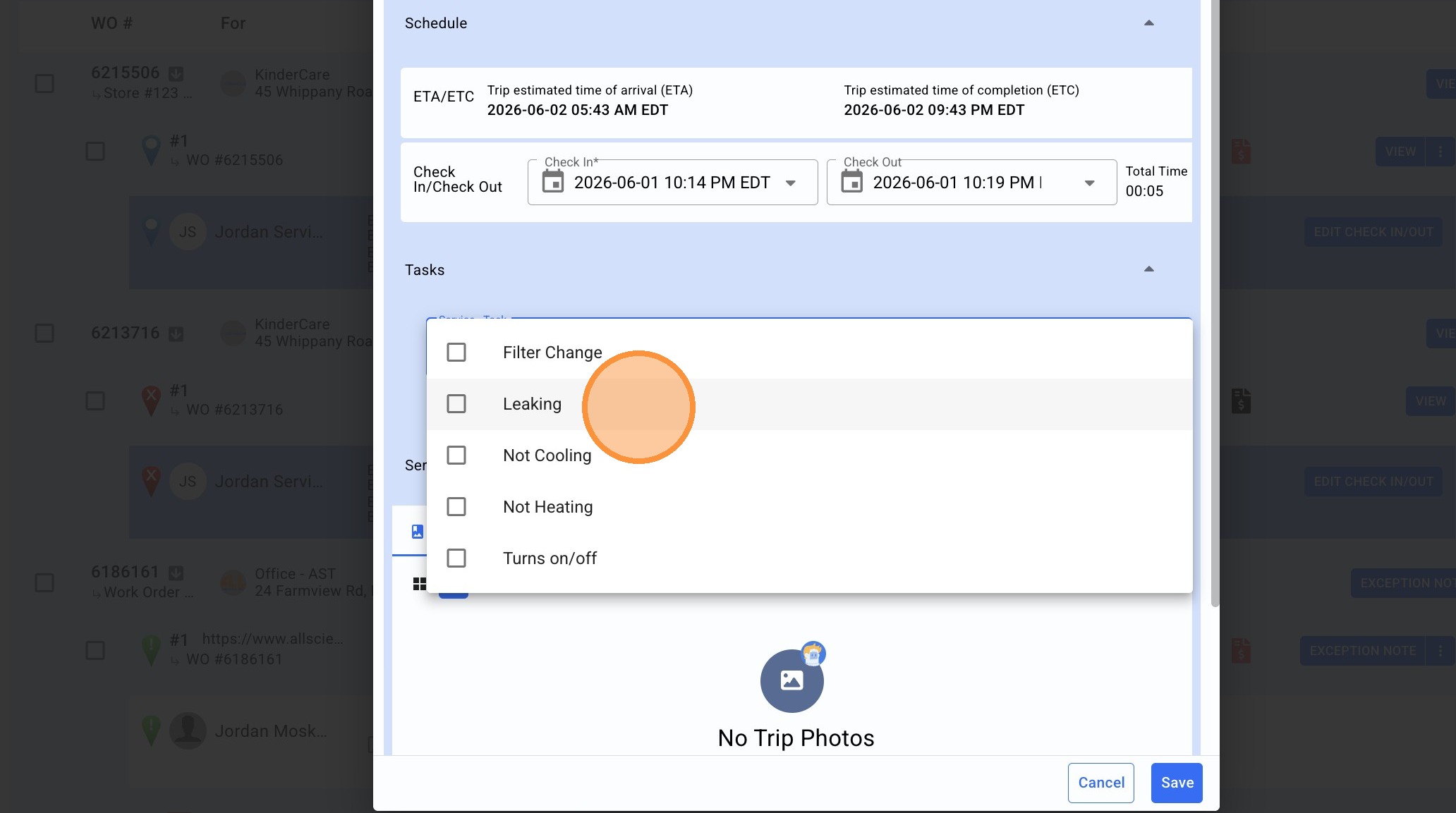
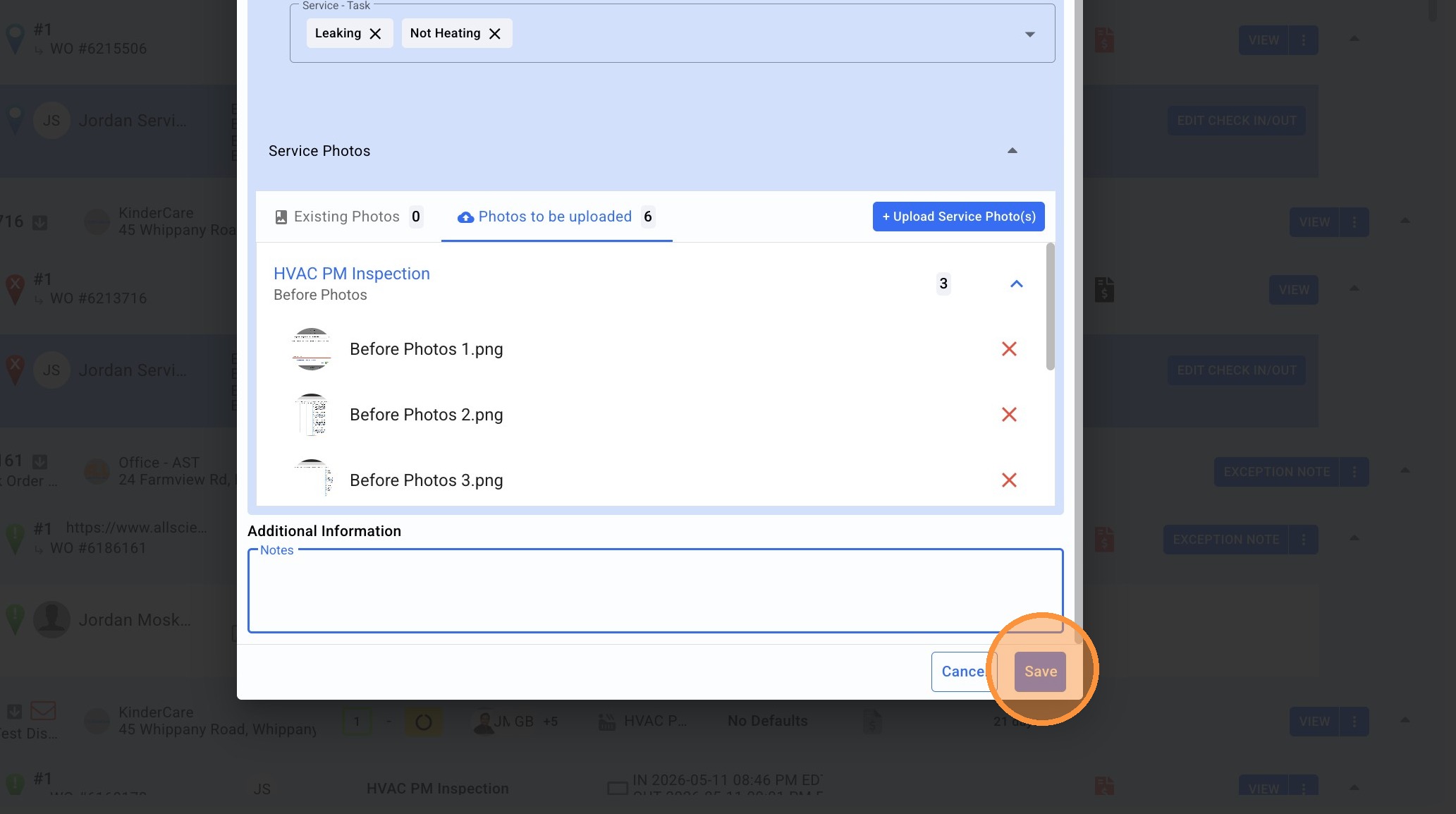
9. Click "+ Upload Service Photo(s)"
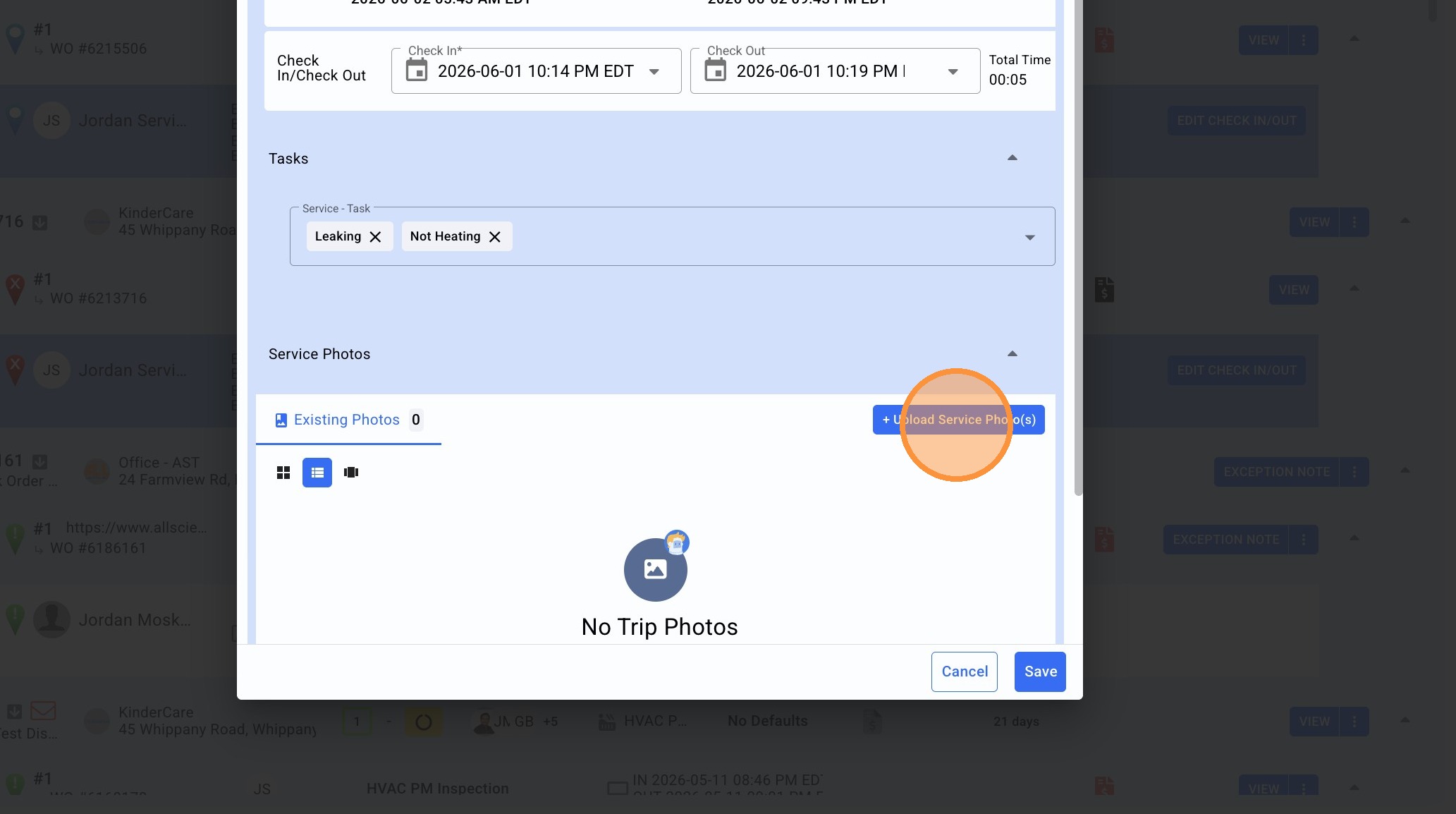

10. Select "Before Photos" category and upload your images.
11. Click "+ Upload Service Photo(s)" to begin uploading a new category.
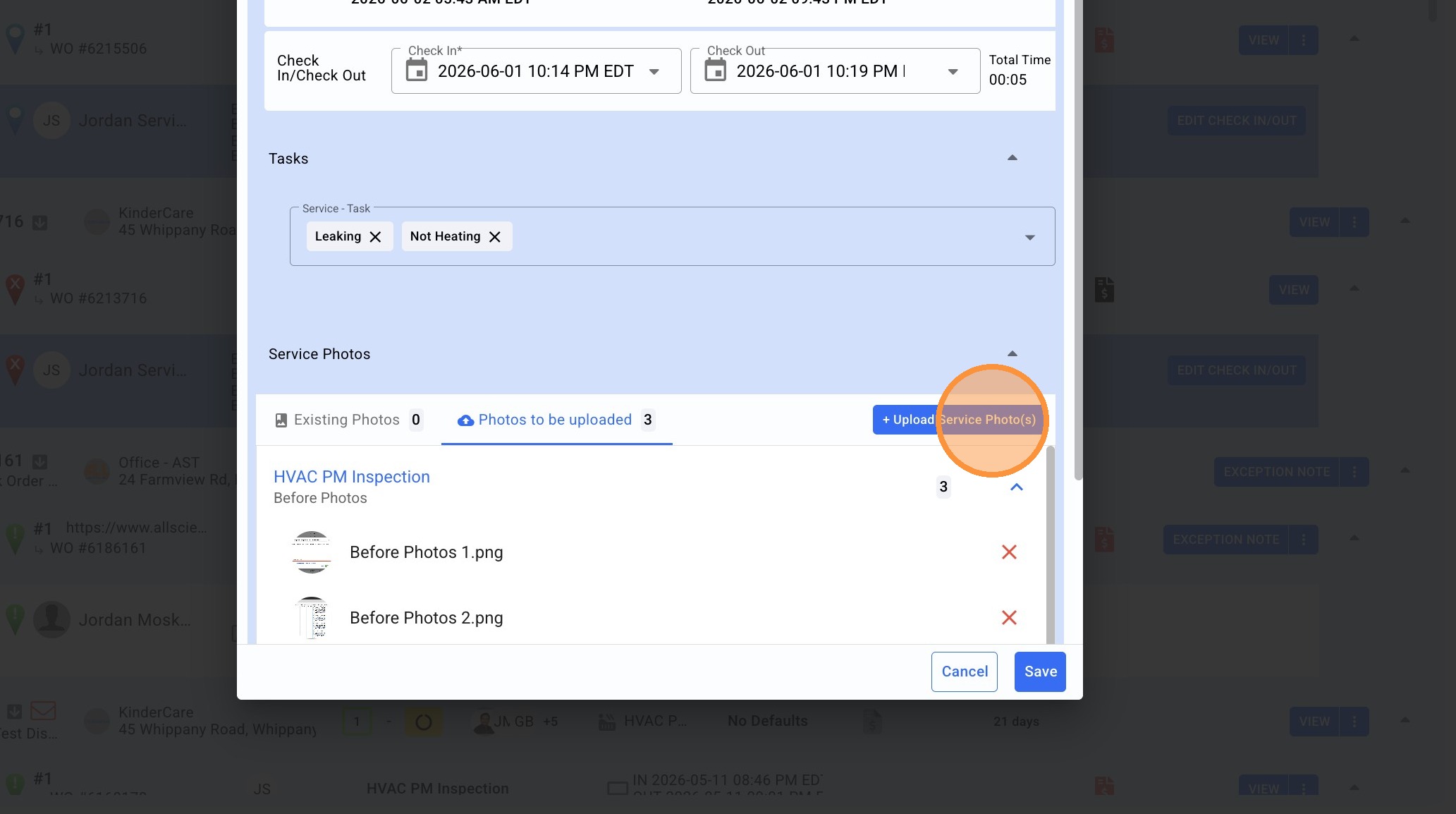
12. Select "After Photos" category and upload the remaining images.

Repeat for all photo sections.
13. Select "Notes" field to provide additional information if necessary.
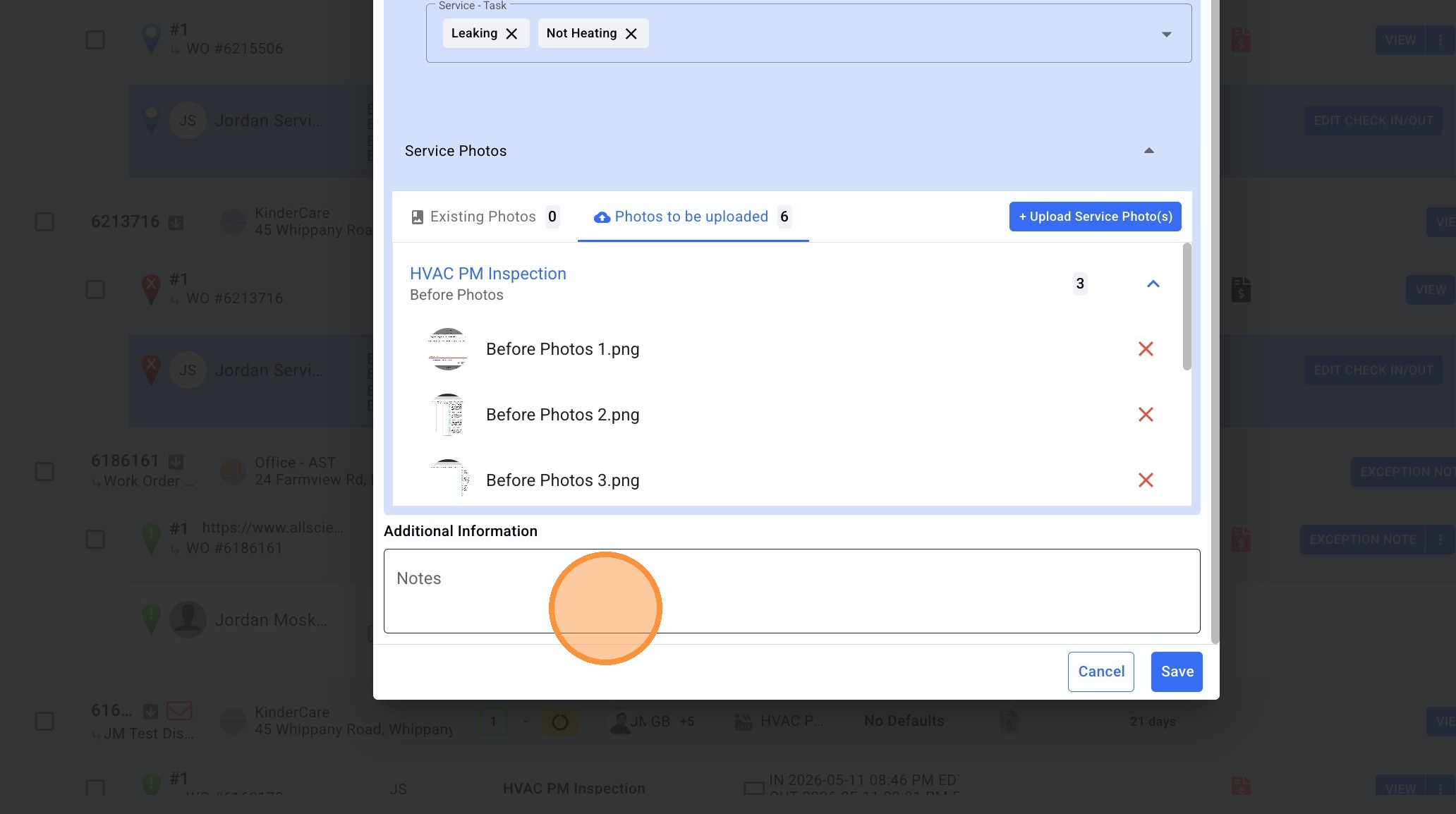
14. Click "Save" and you're all set!