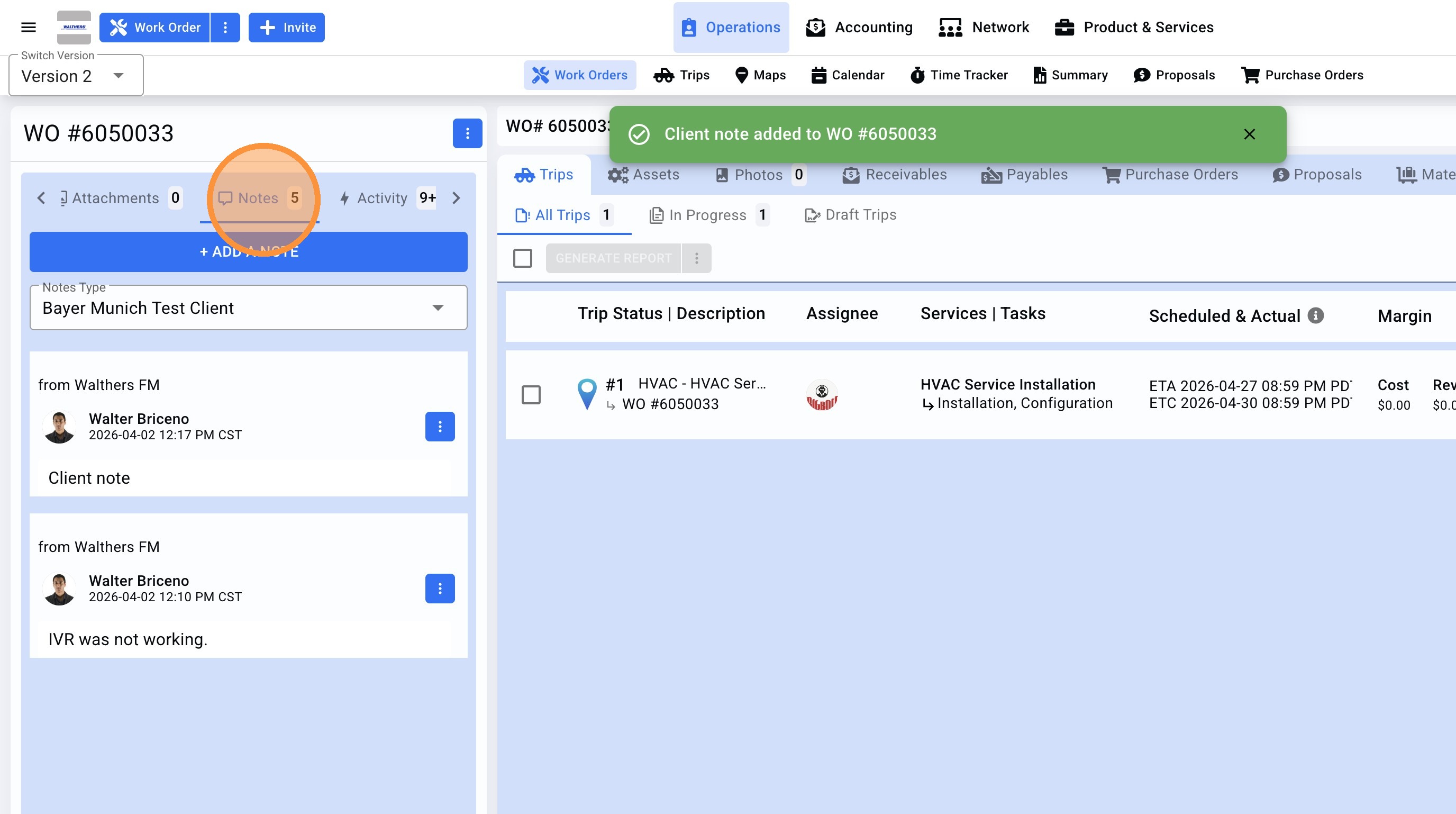
Please see the following flows, create a note and how to see the notes.
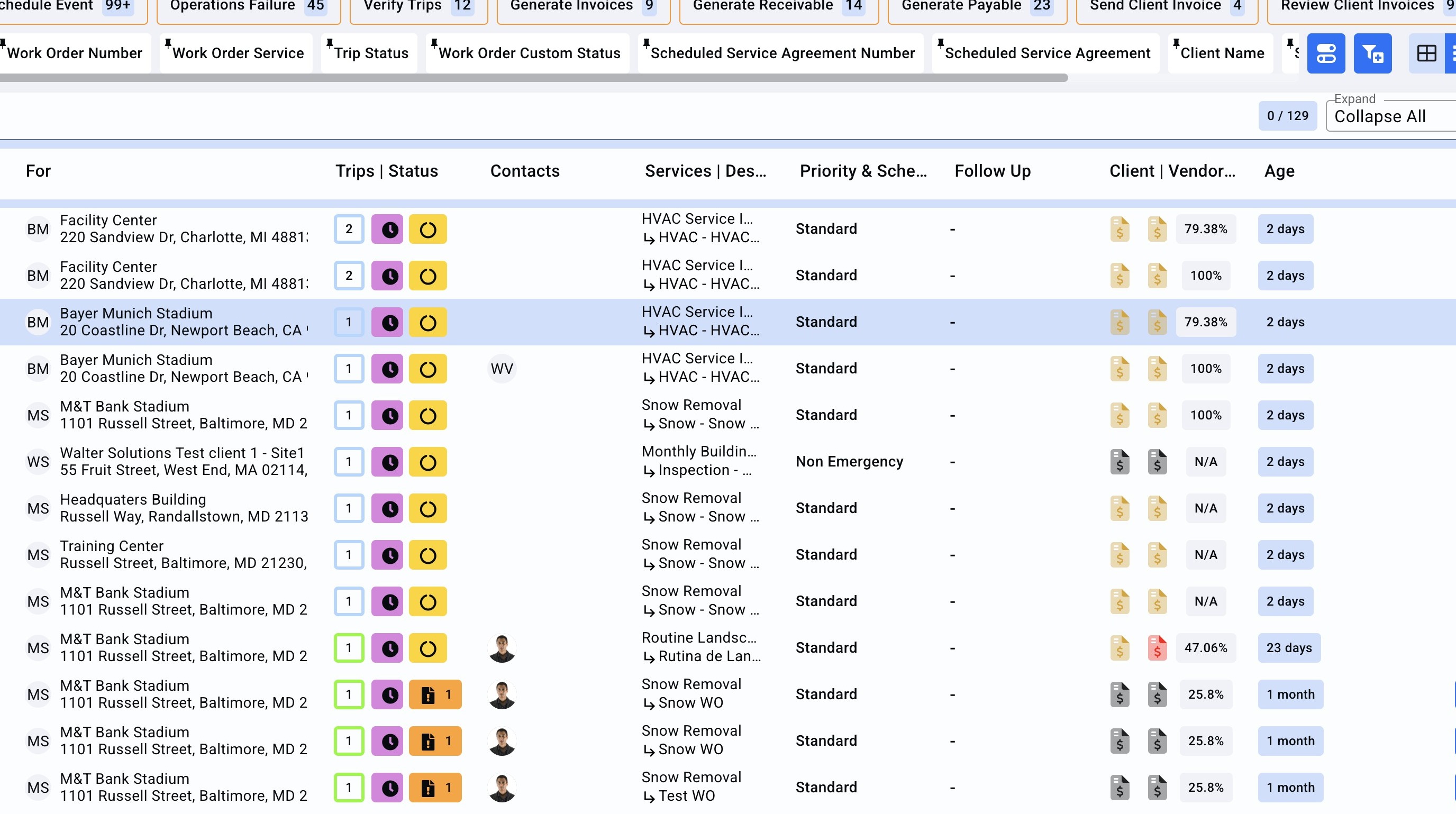
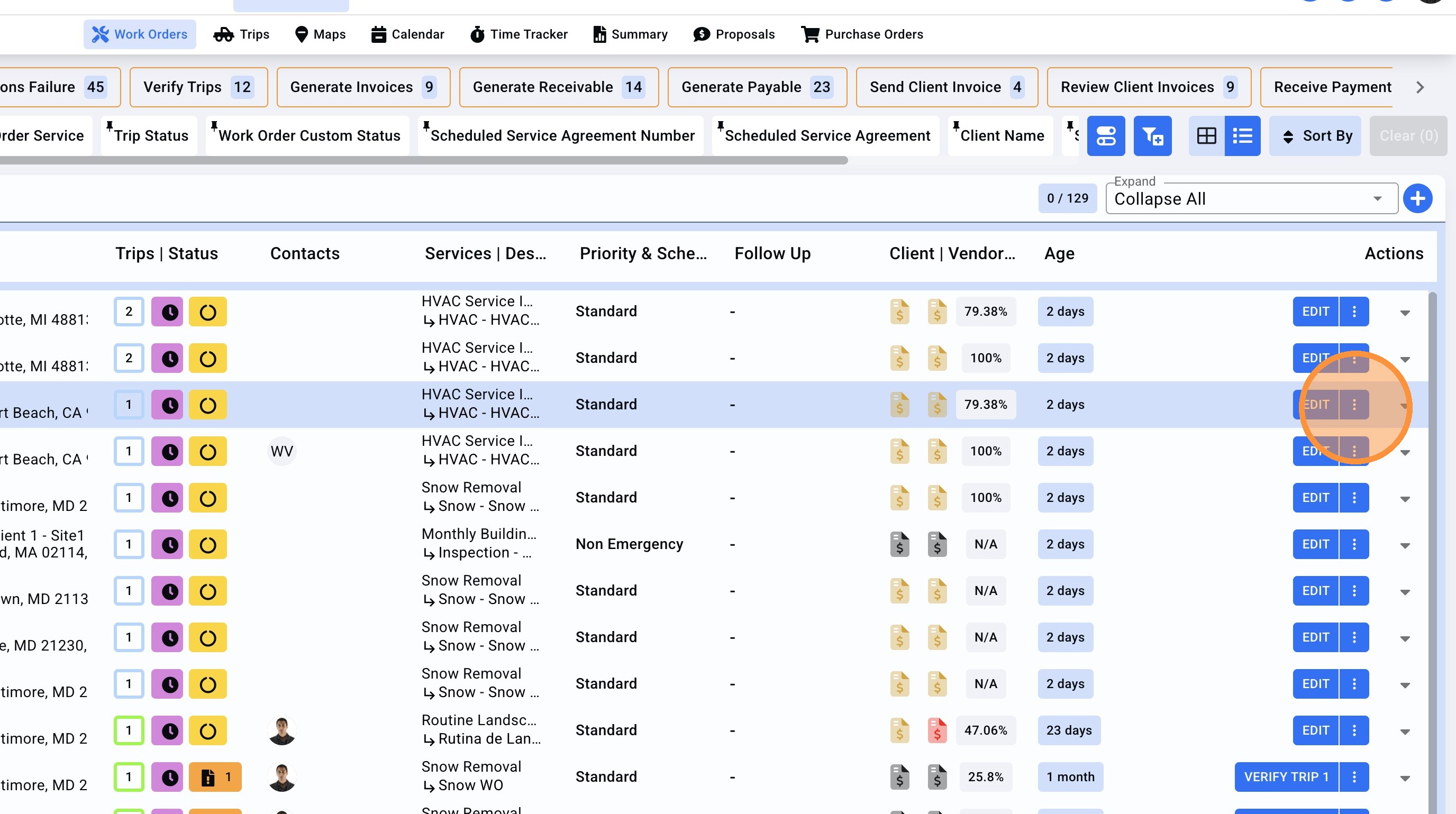
2. On the right side, click on the menu.
3. Click "+ Notes".
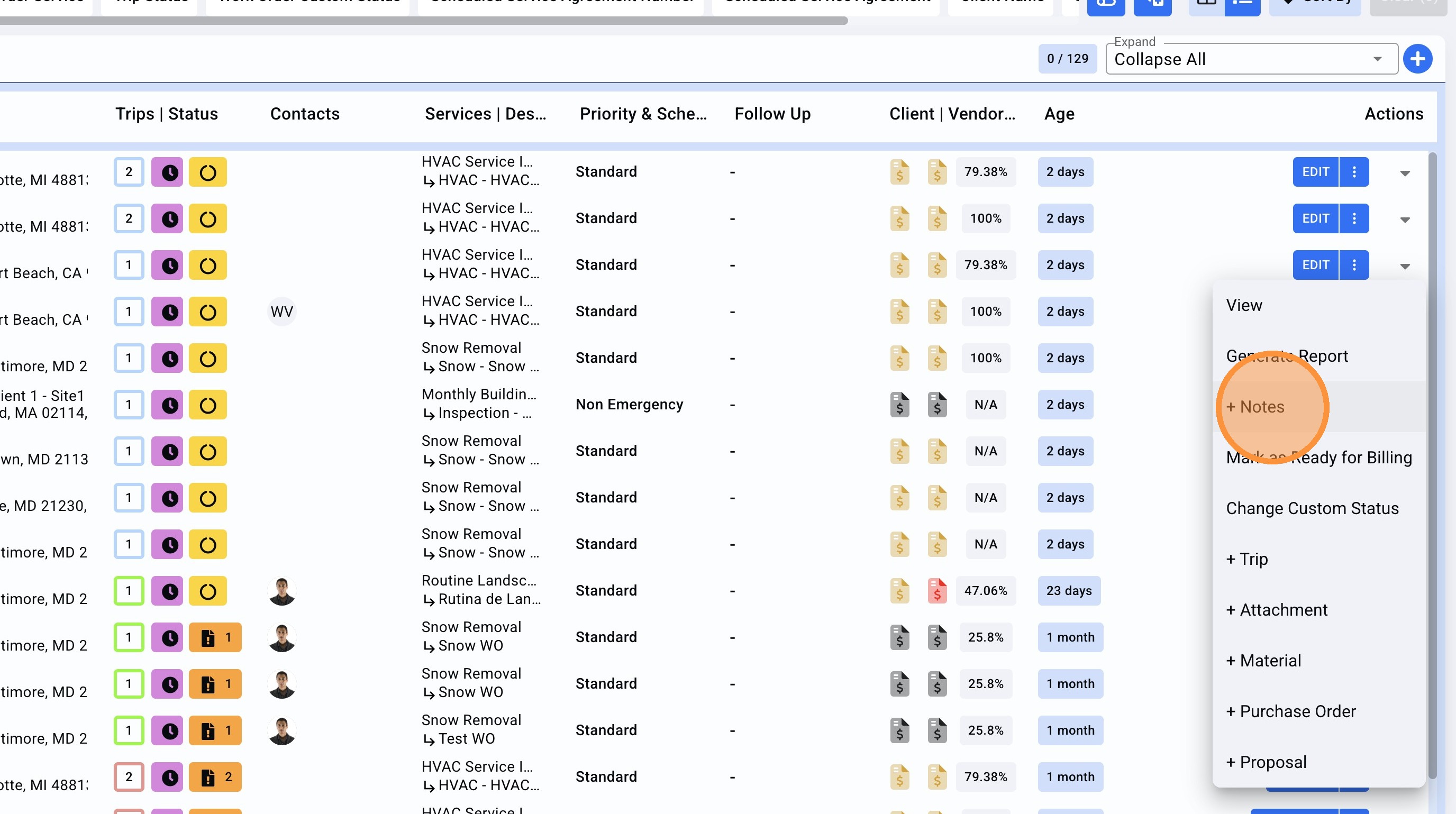
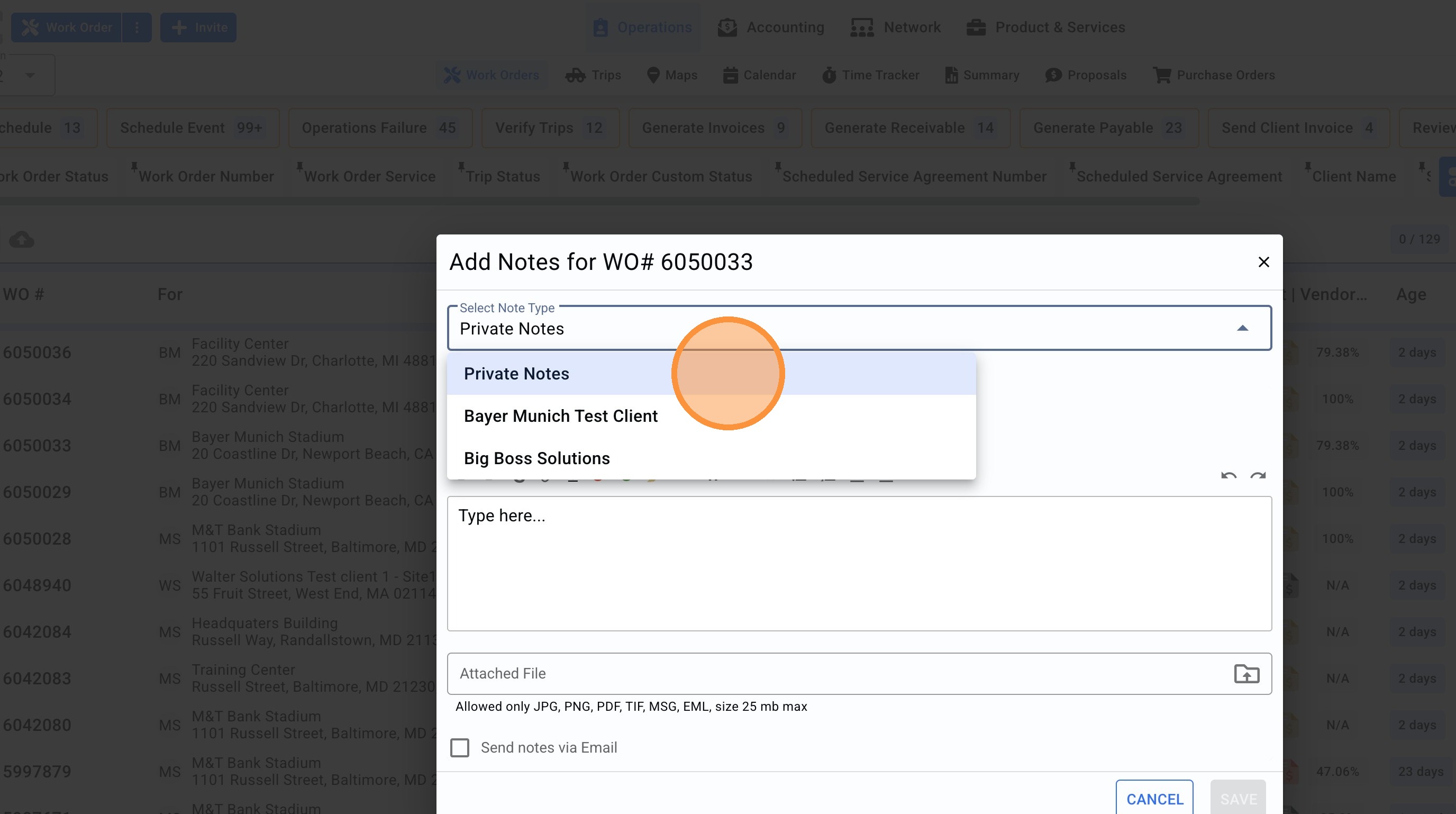
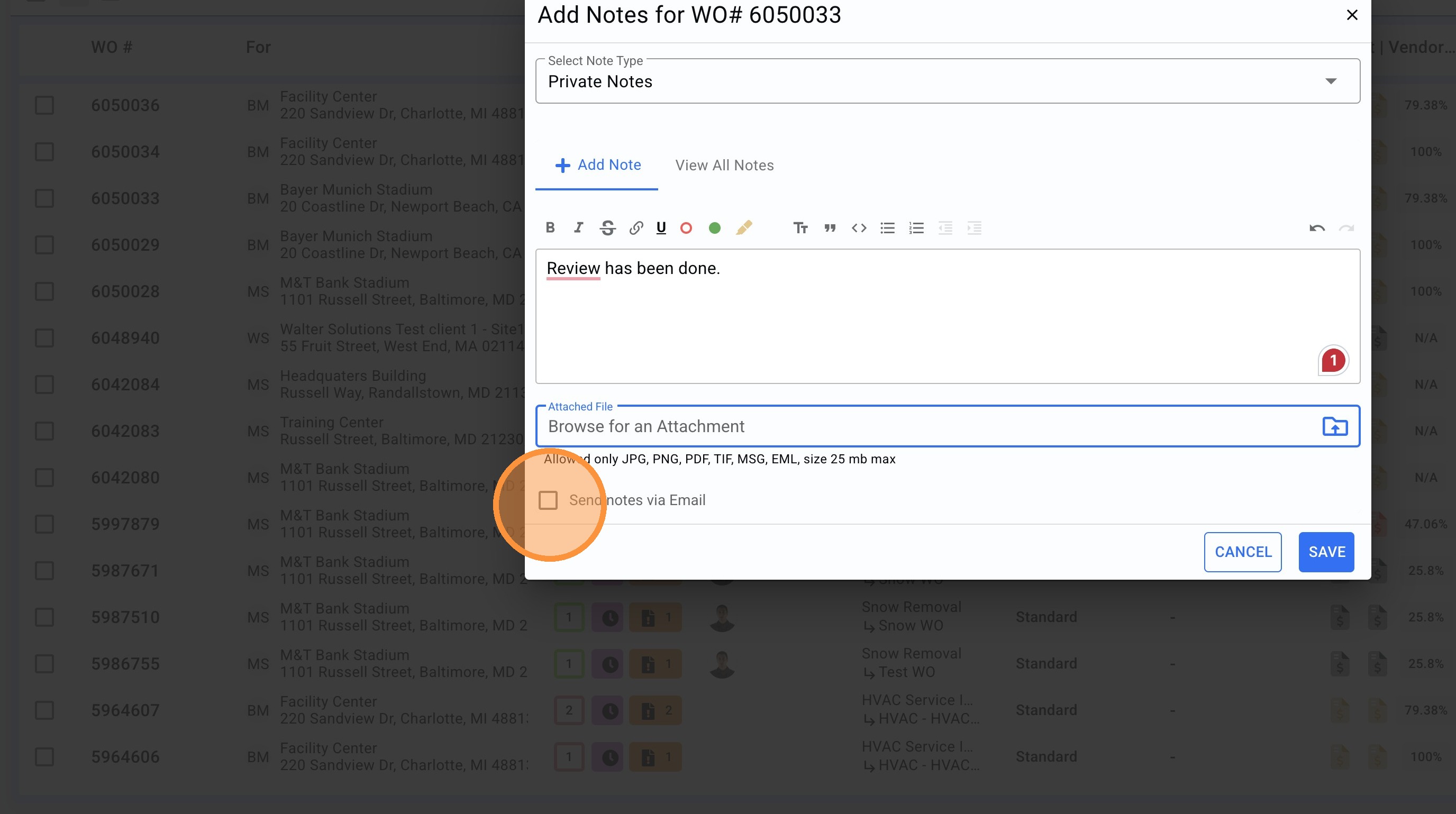
4.The drop-down will show 3 selections: Client, Vendor and Private notes. Make sure to choose the right selection to add a note.
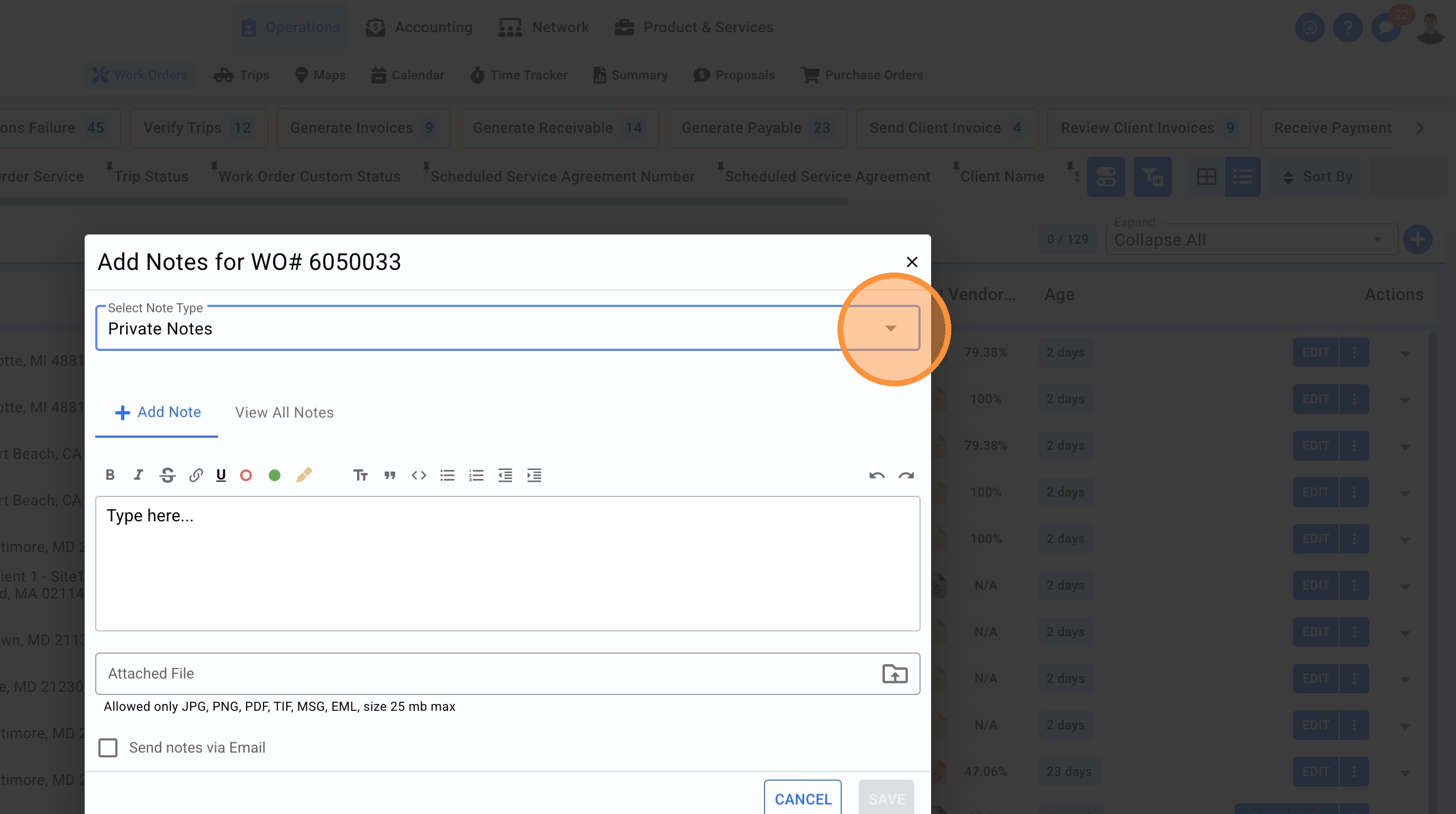
5. Click "Private Notes", for this example we will add a private note.
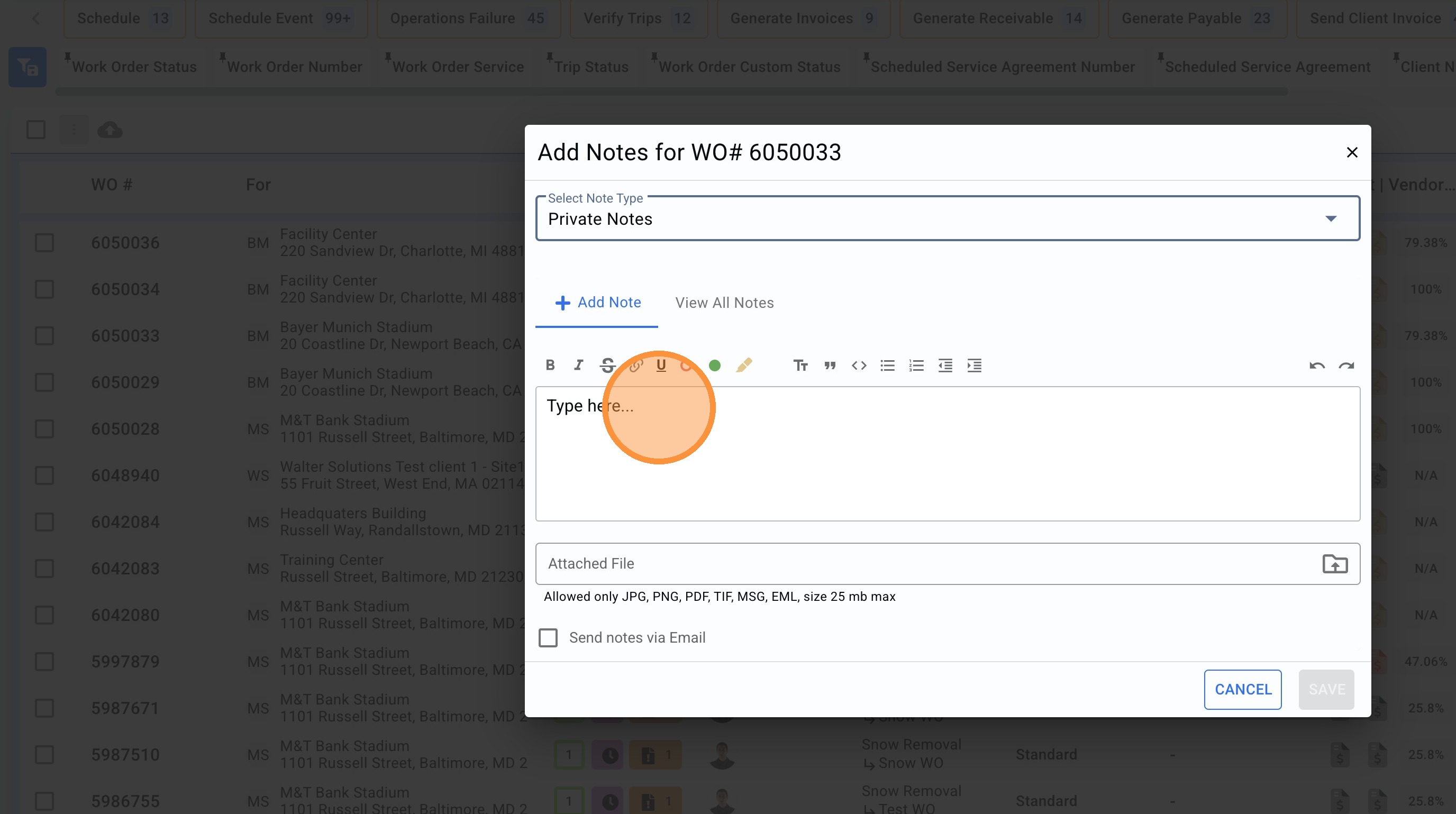
6.Write the note.
7.In case an attachment is required click on the file icon to upload from local storage.
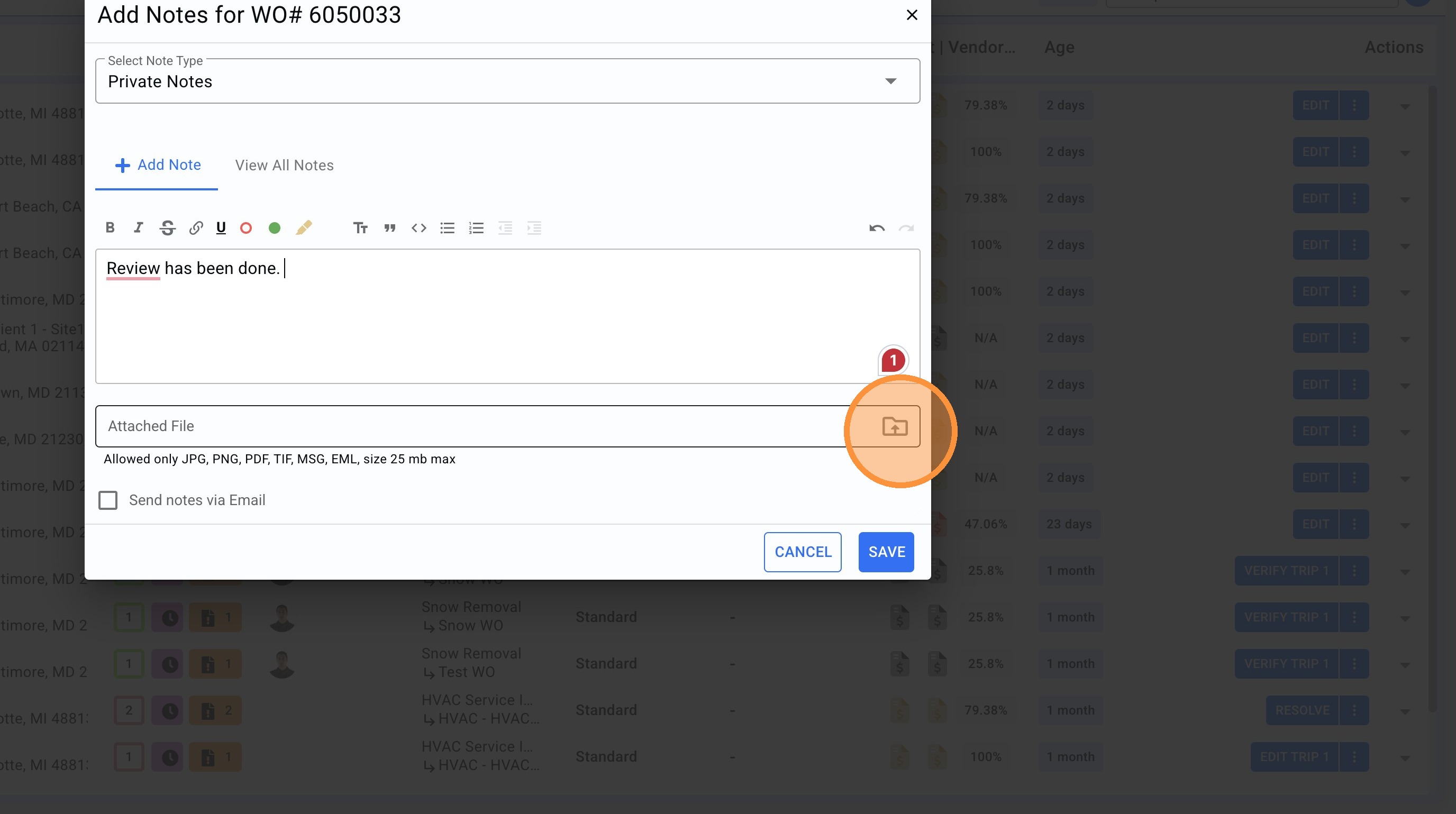
8. Click the "Send notes via Email" field if required to send also the note via email.
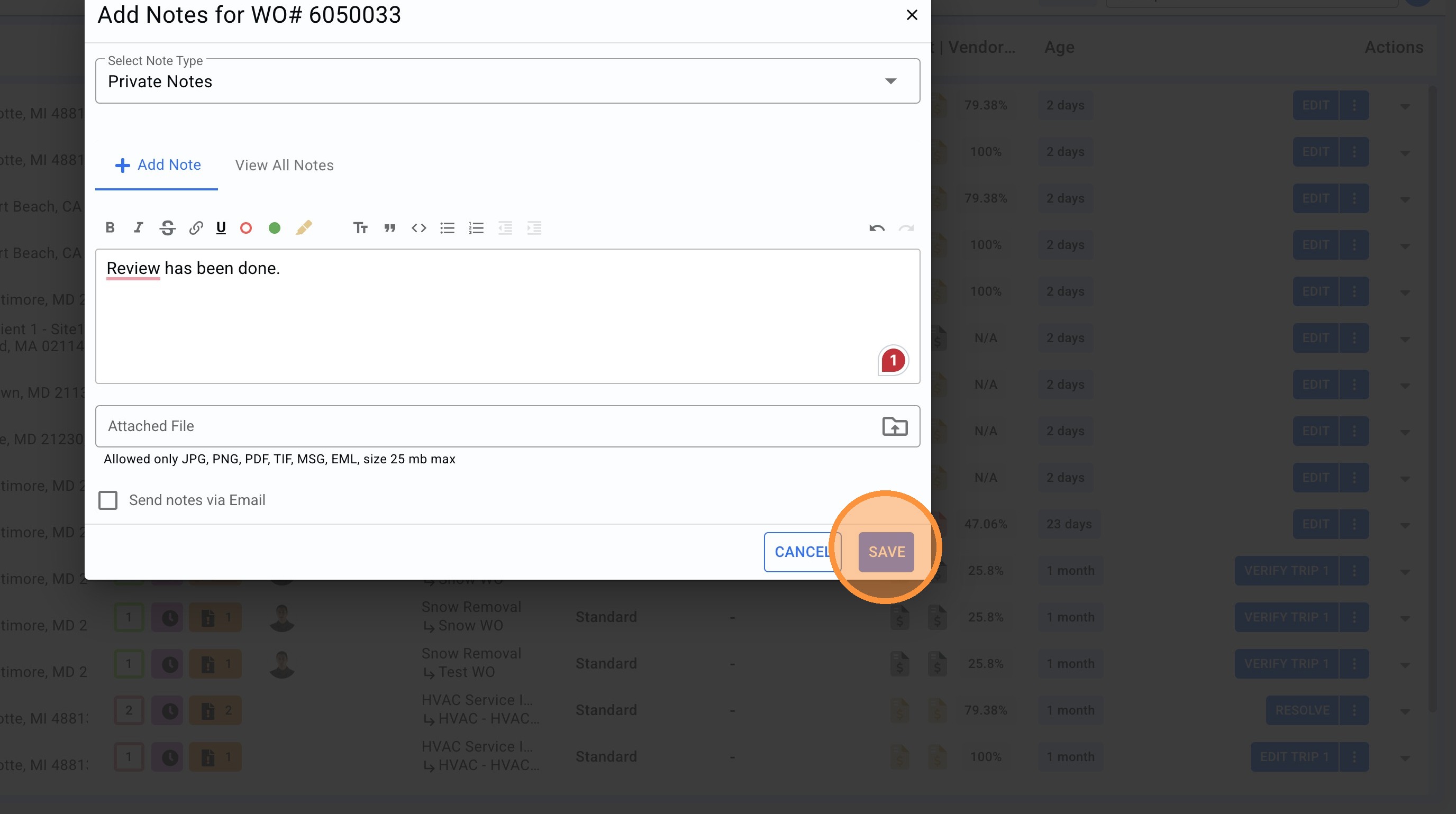
9. Click "SAVE"
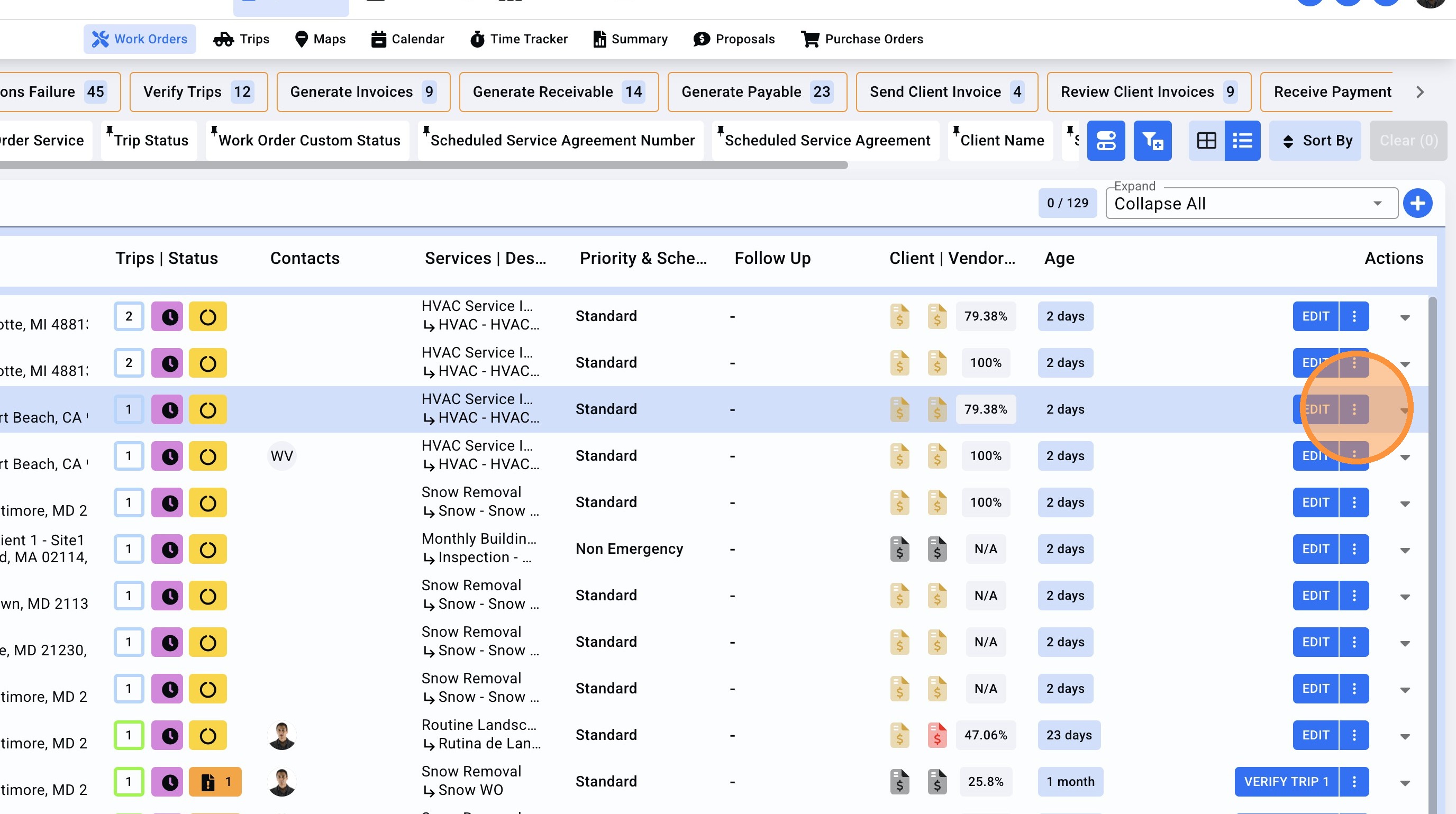
10. To see all the different notes, on the menu icon click on it.
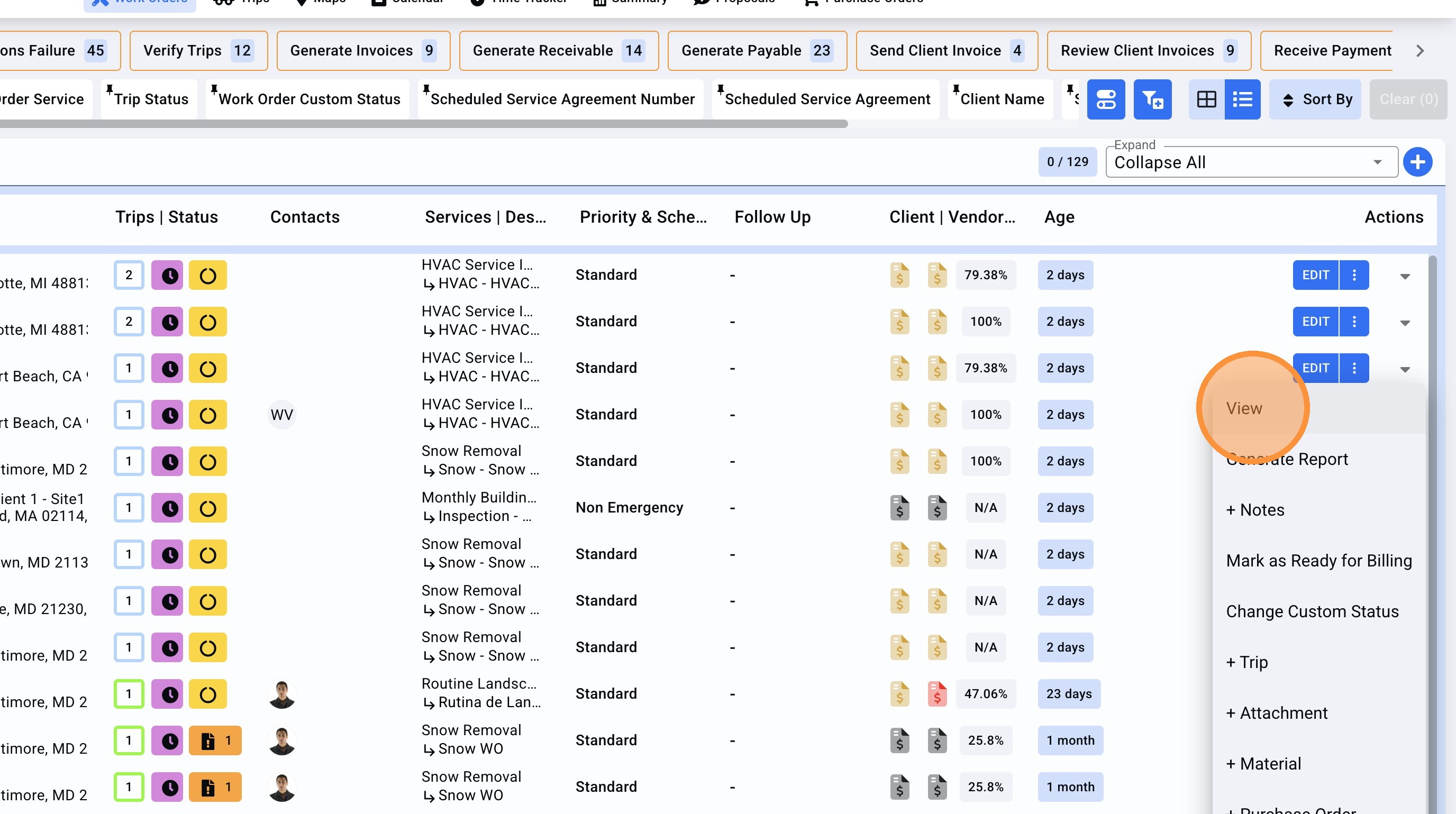
11. Click "View"
12. On the top of the Work Order side panel, click on the right arrow to find the Notes section.
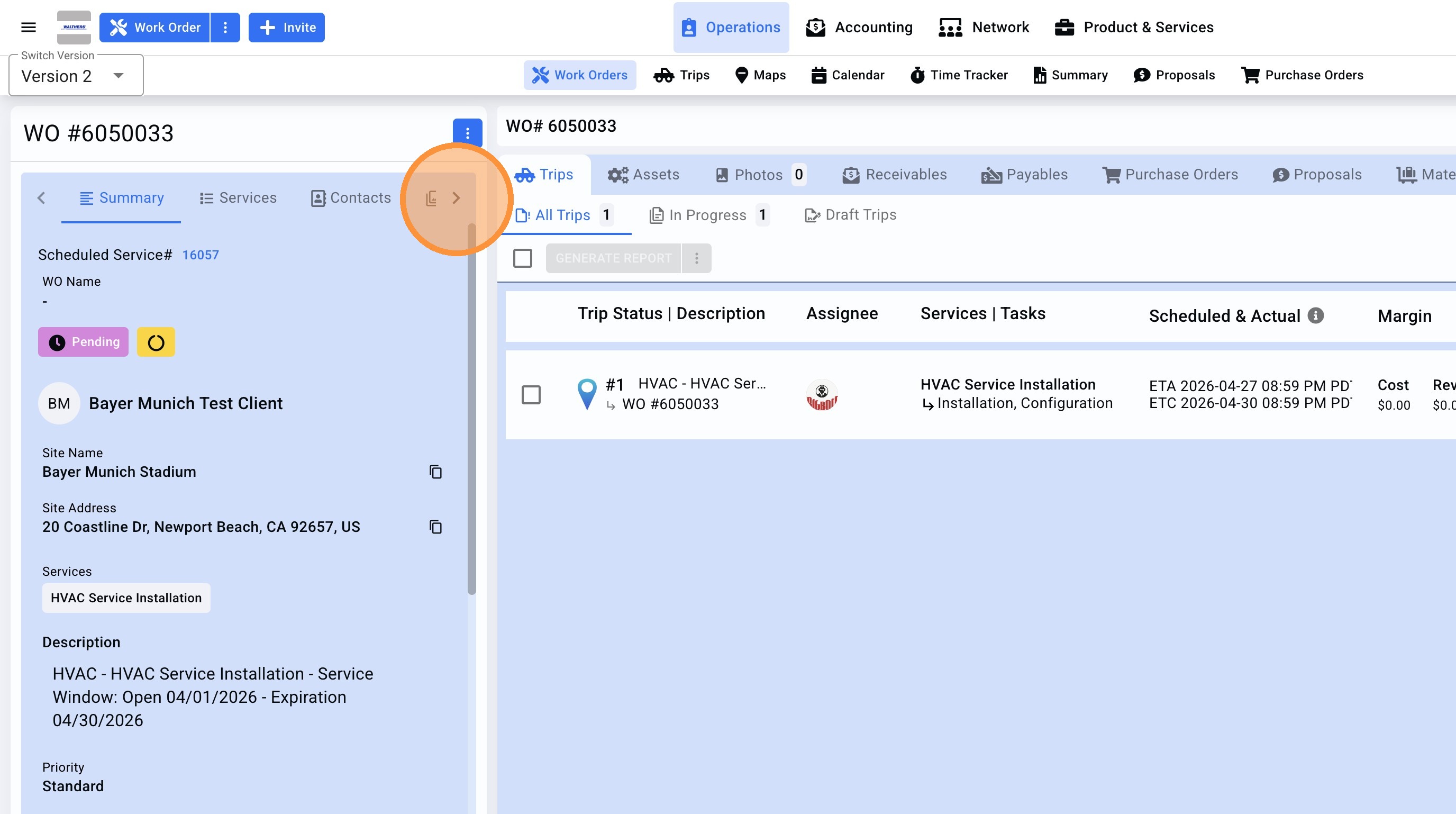
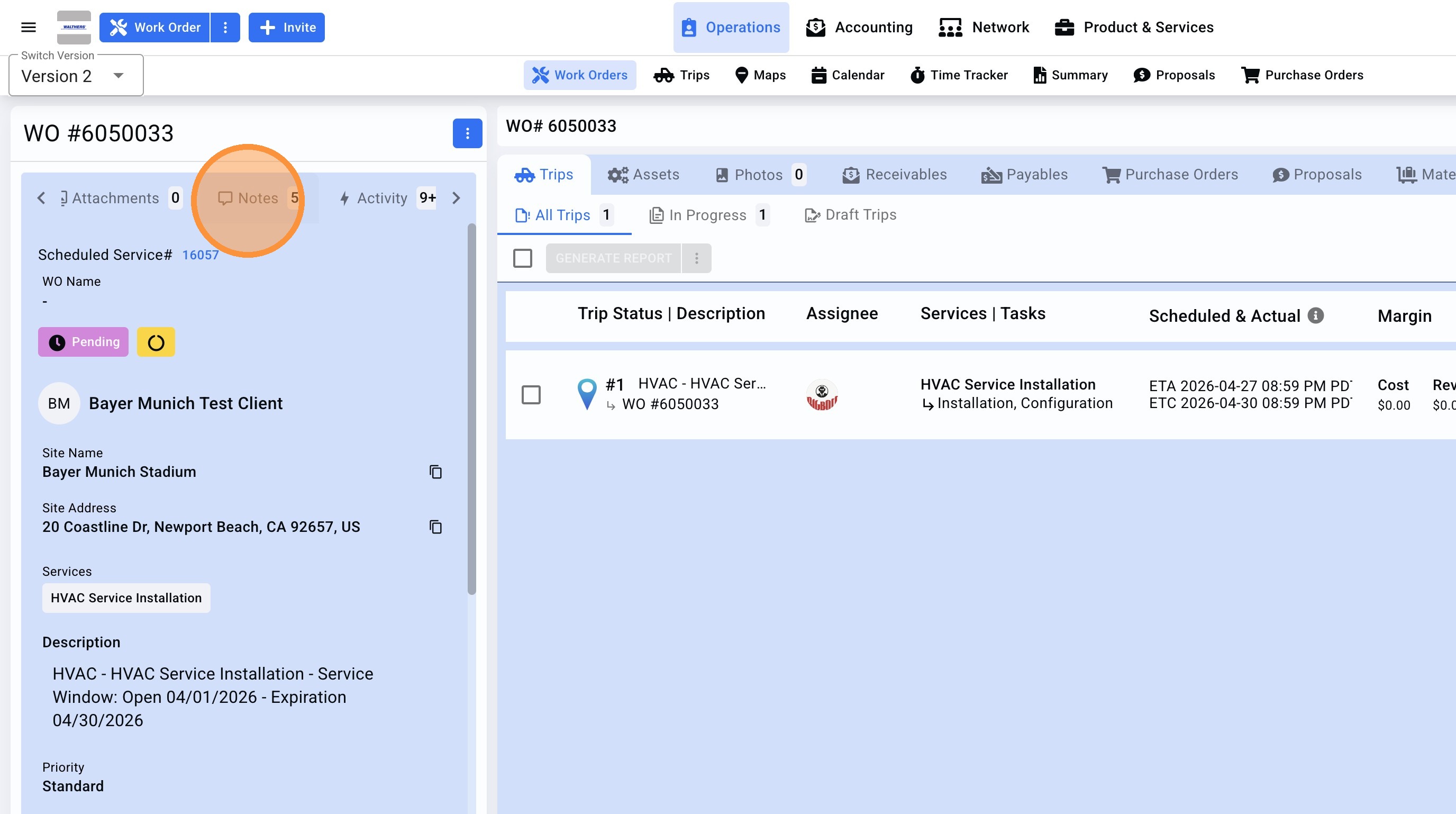
13. Click "Notes" a count indicator will show the number of notes been added.
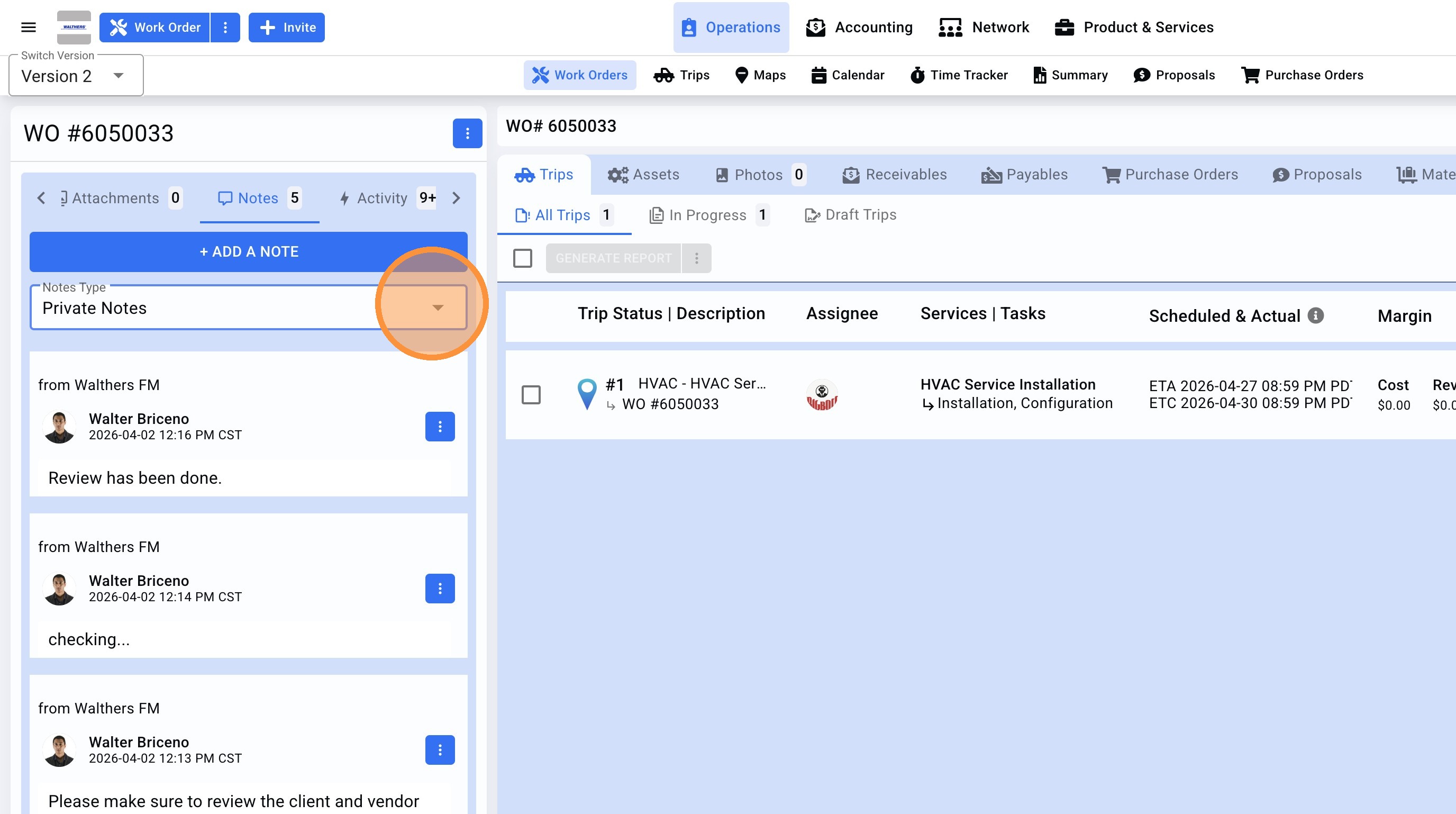
14. The Notes Type drop-down will show the different notes available (client, vendor and private).
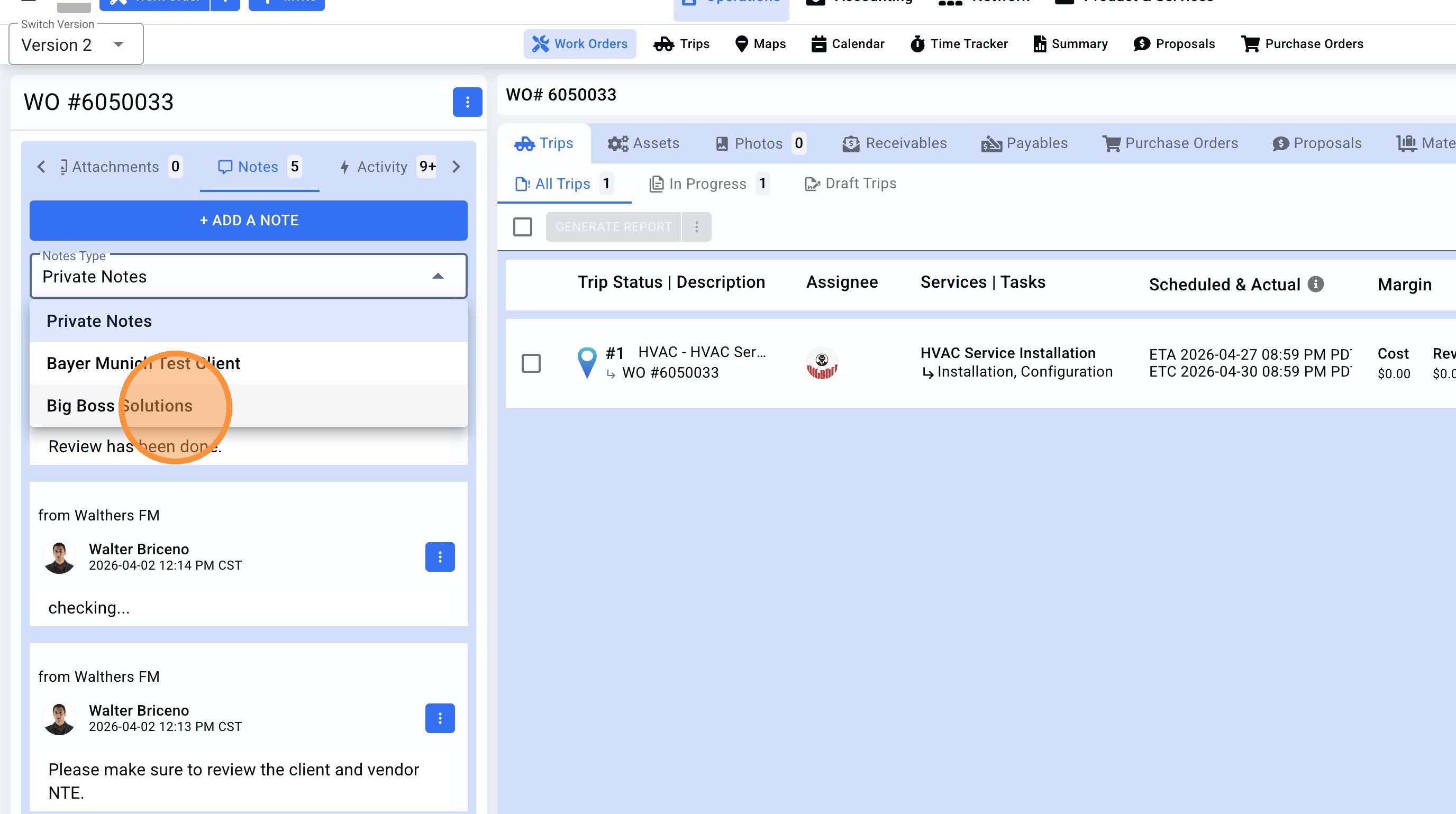
15. For this example we will select the vendor name "Big Boss Solutions" (vendor notes).
16. From here also notes can be added, Click "+ ADD A NOTE"
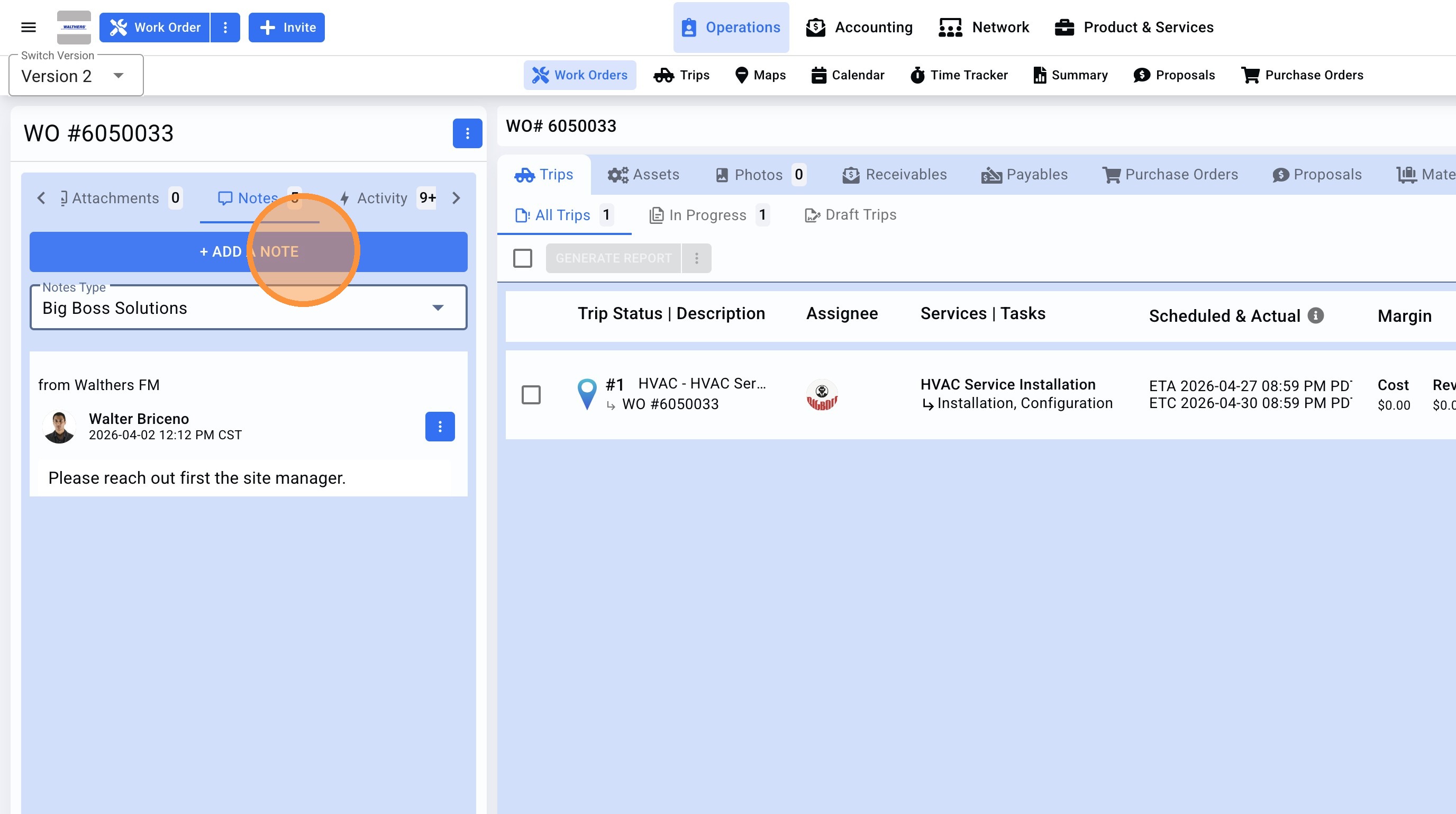
17.Write the note.
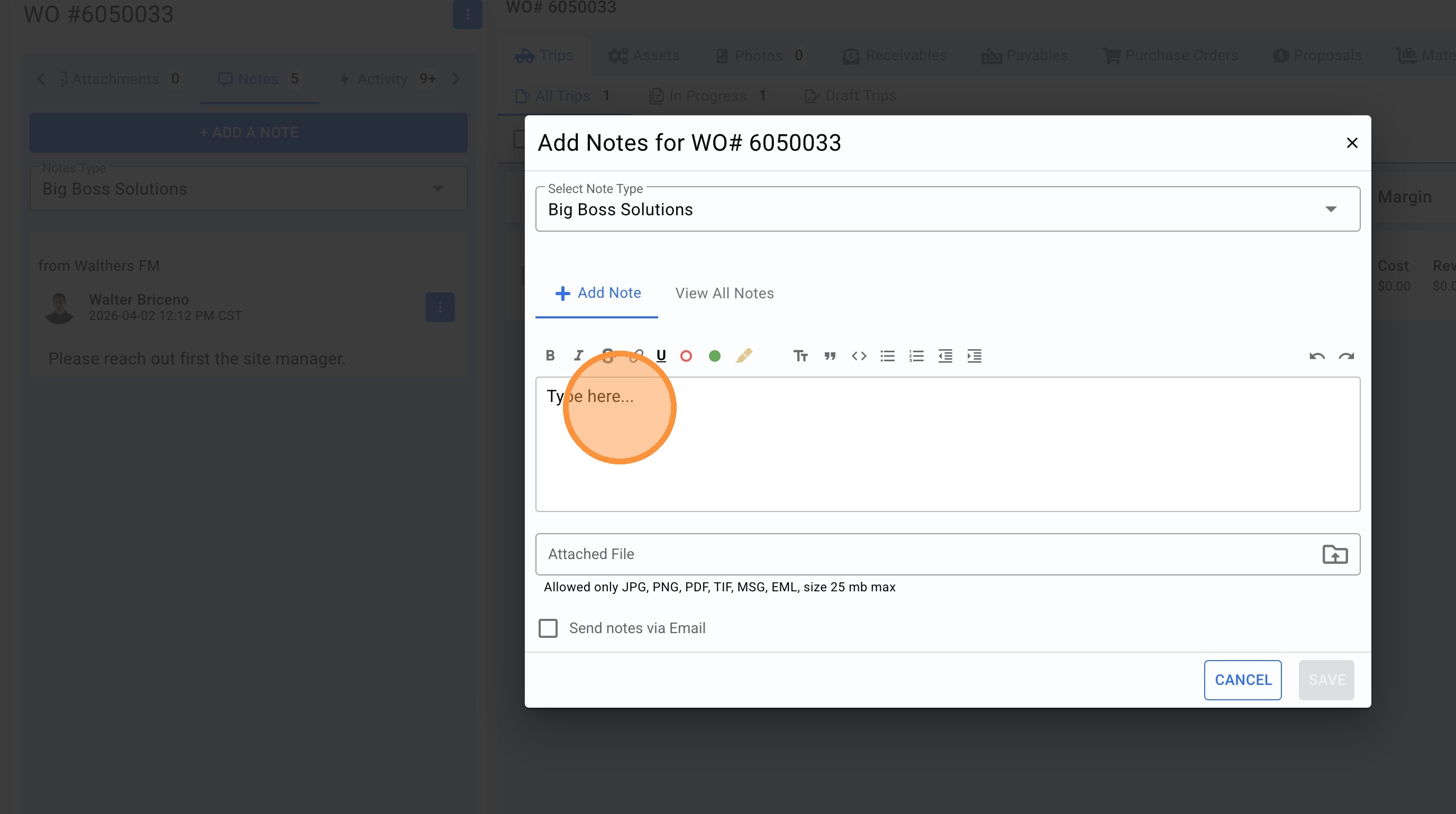
18. Click "SAVE"
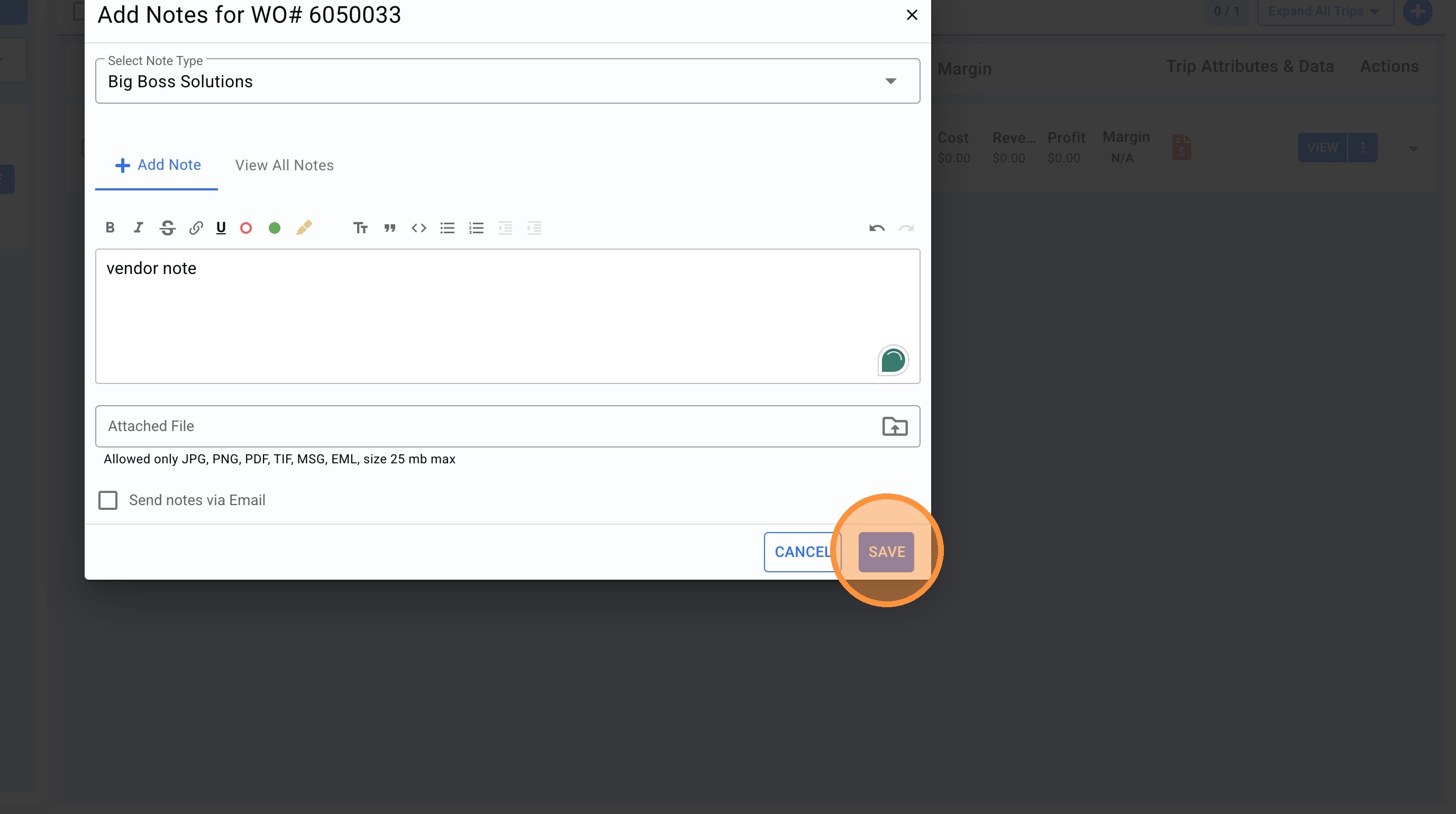
19. Lets add a Client Note. On this example we select the client name.
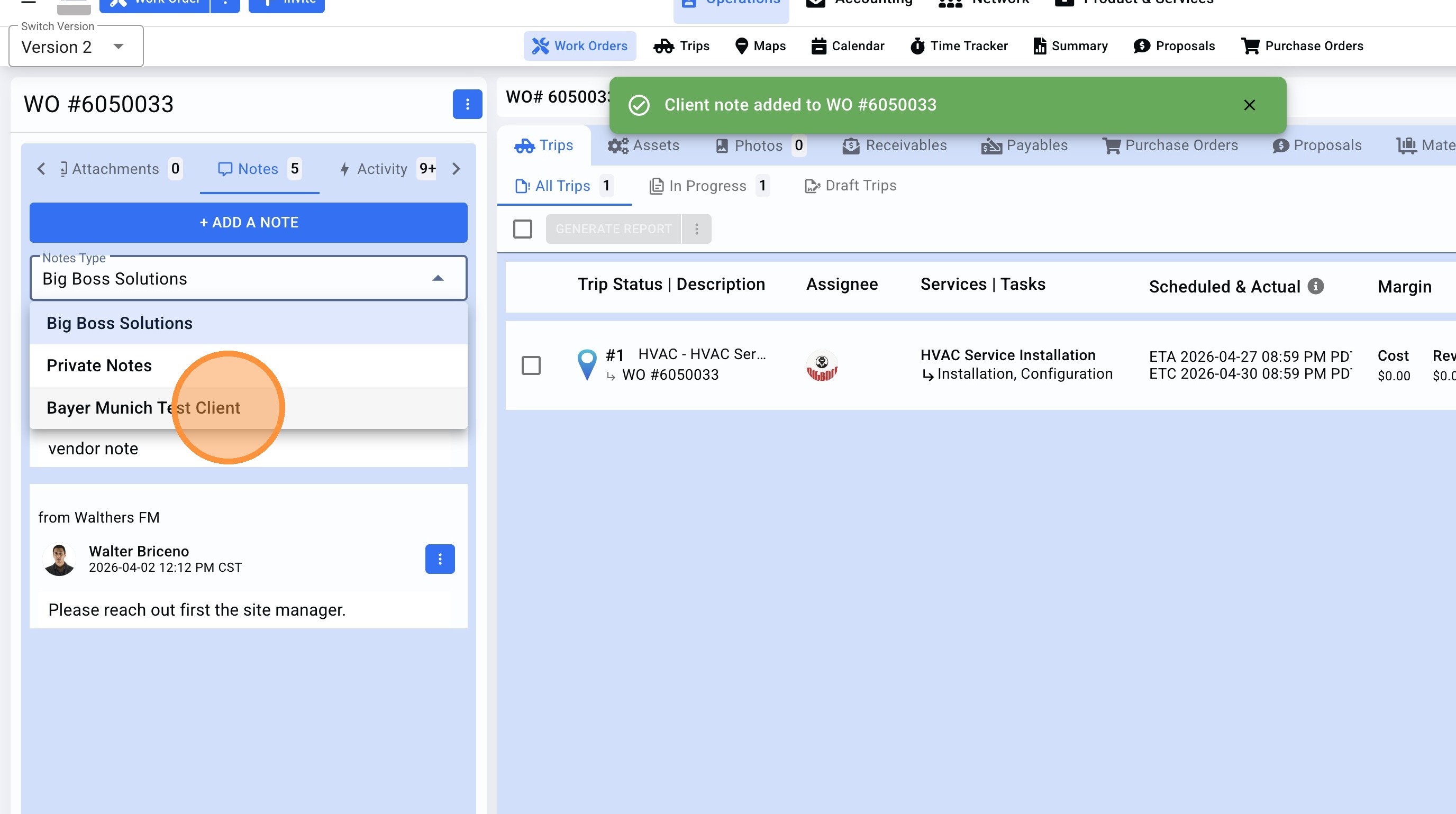
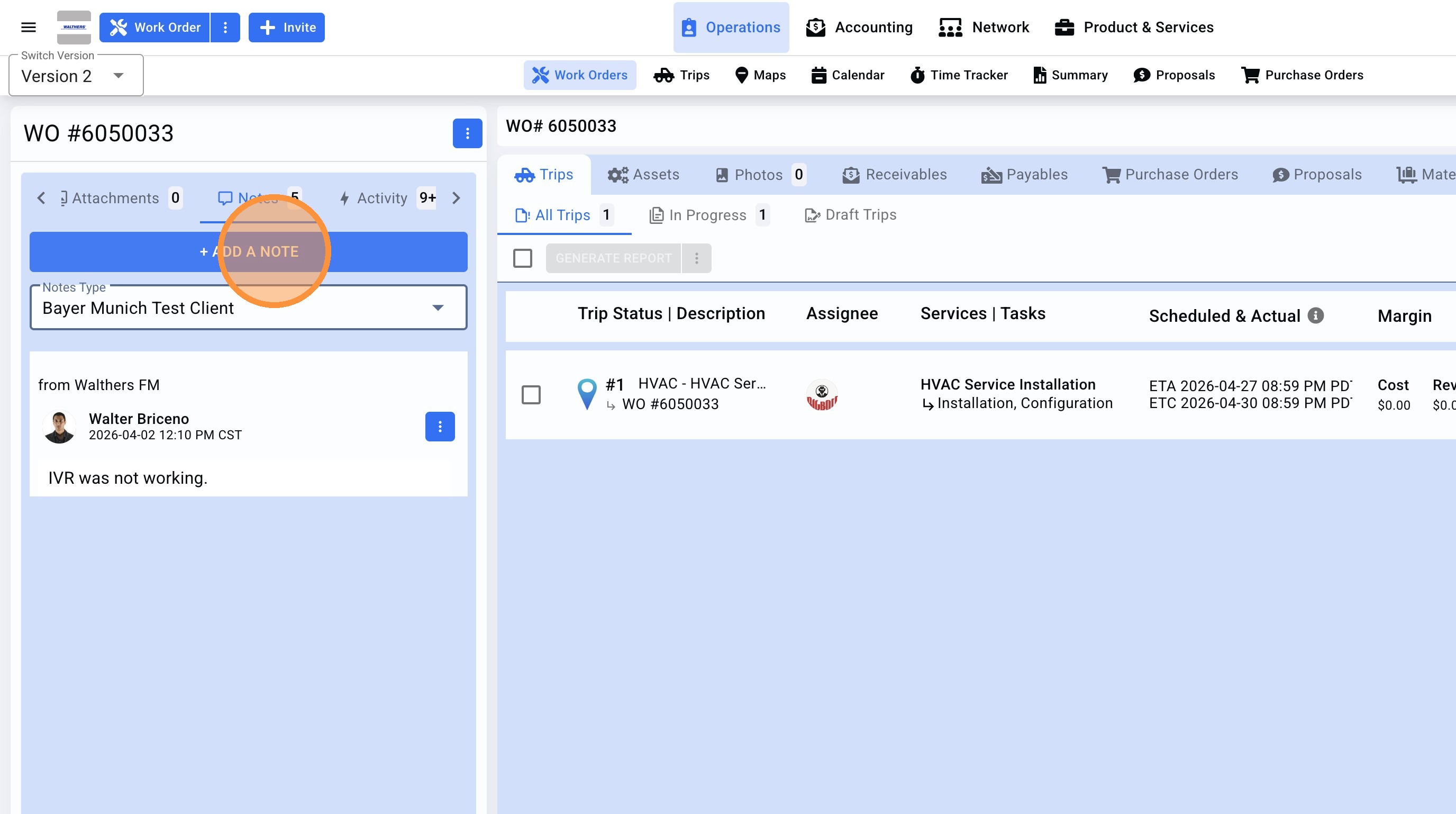
20. Click "+ ADD A NOTE"
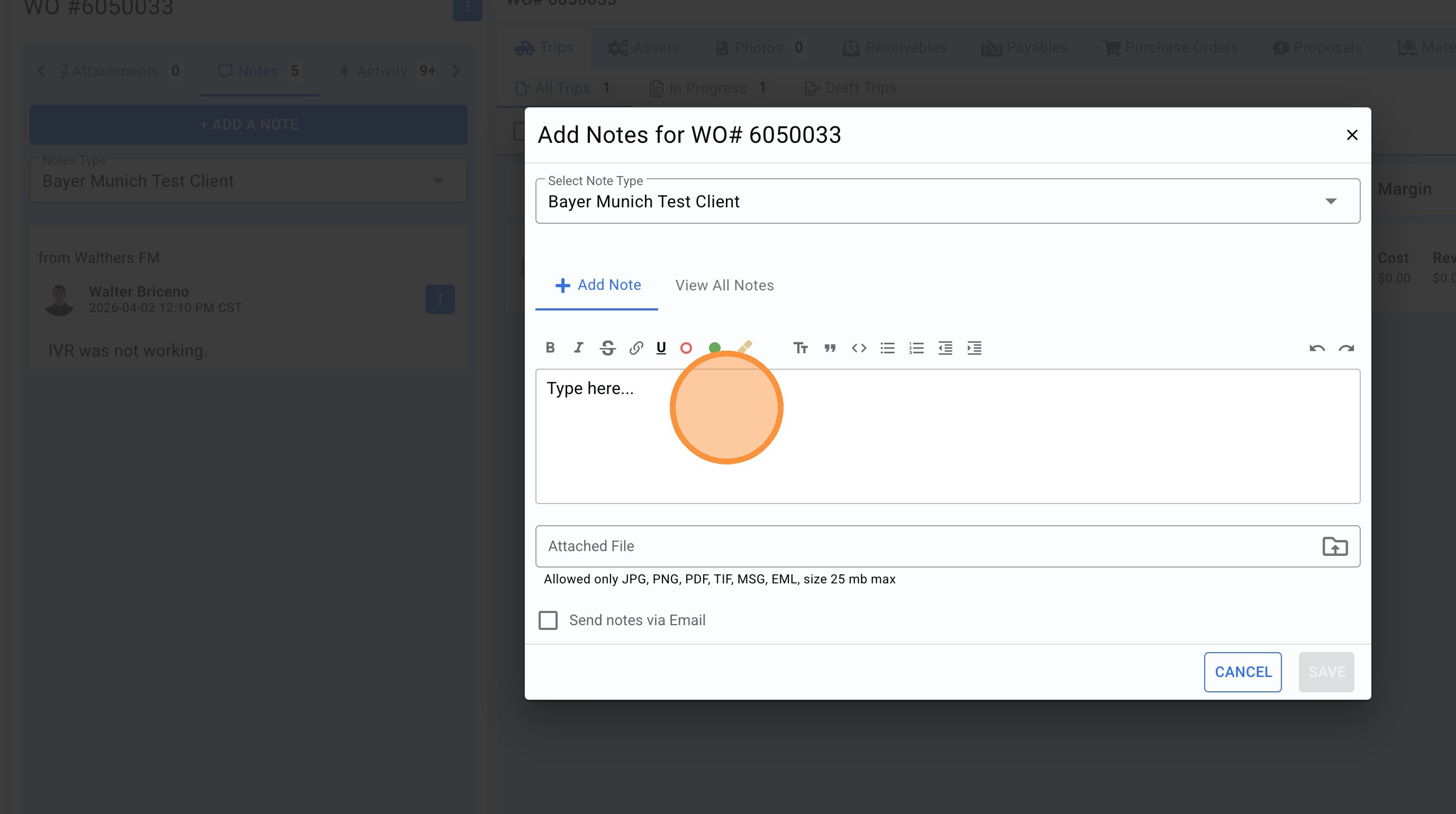
21.Write the note.
22. Click "SAVE"
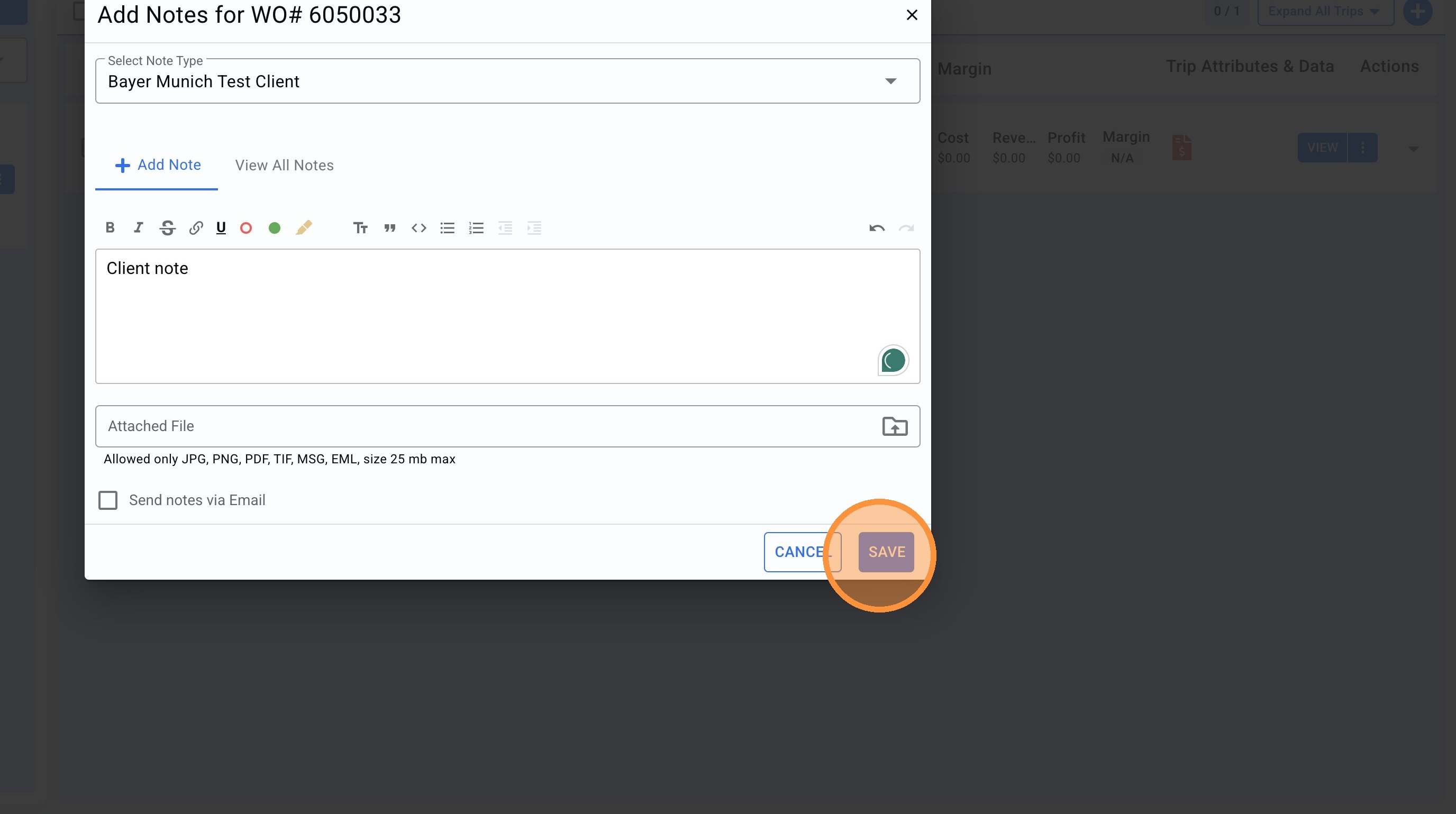
23.All notes are saved.