
- From the Work Orders list view, click on the Work Order number.
From Bottom Preview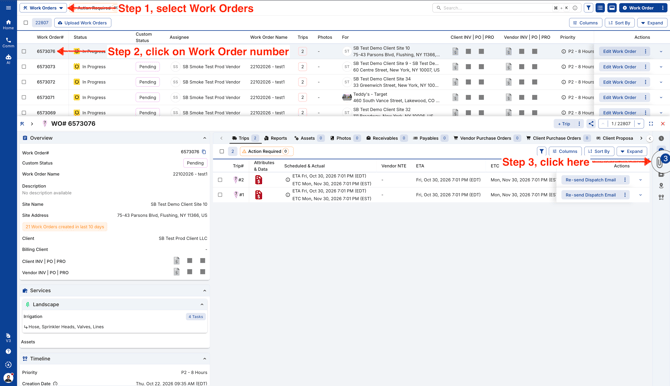
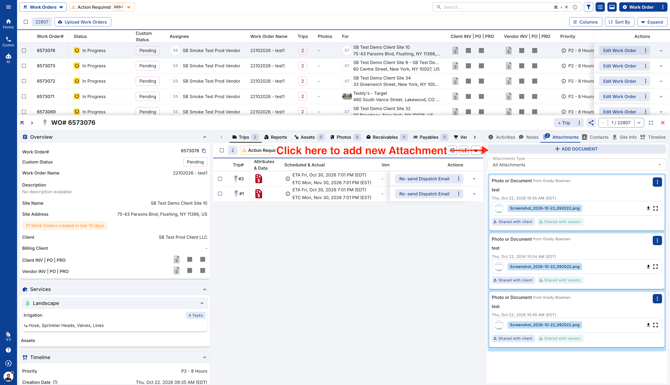
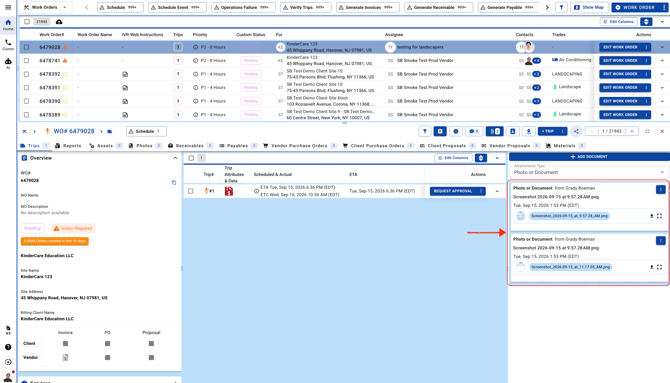
From Wide Right Preview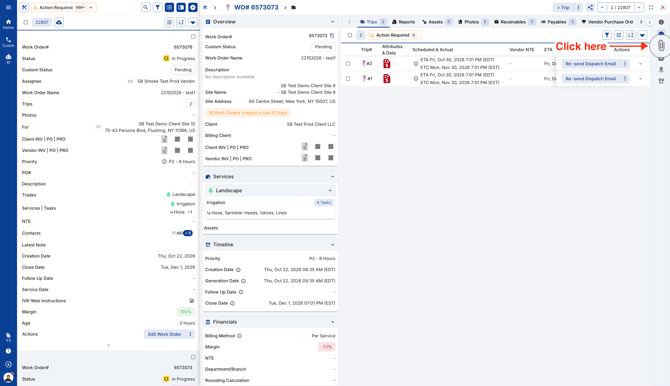
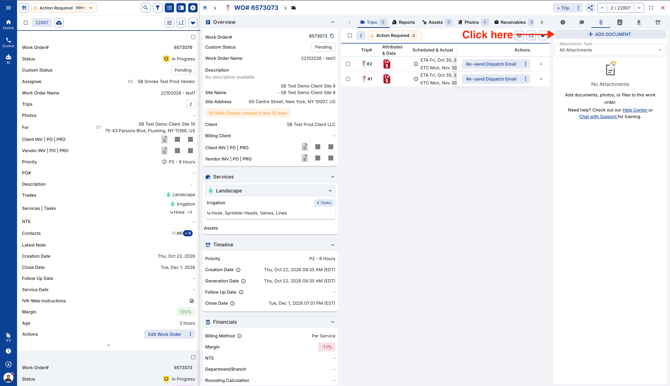
From Right Preview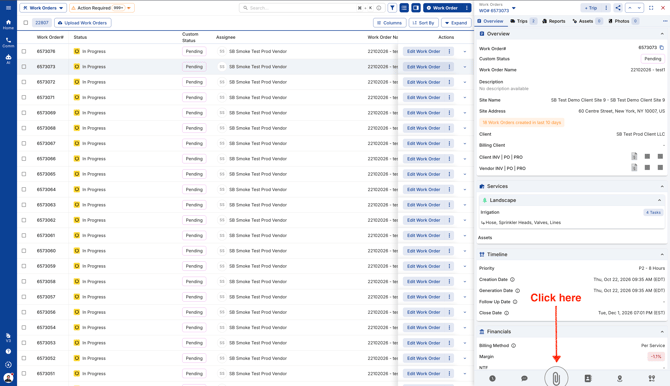
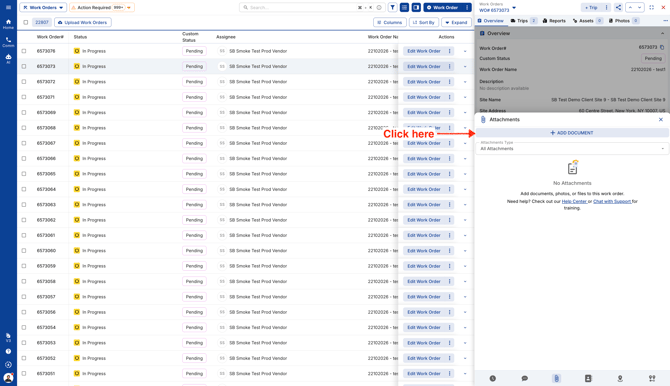
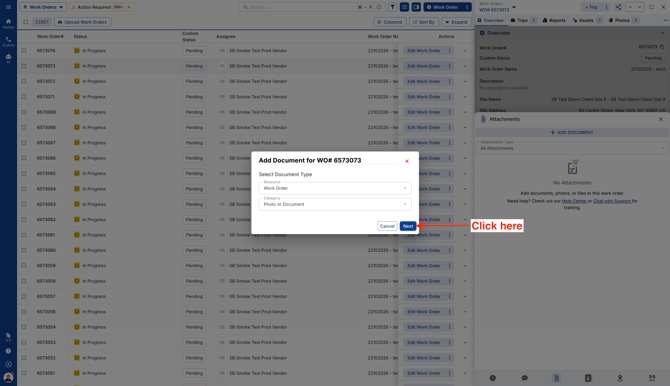
- Choose Photo or Document as the attachment category, then continue.
- You can upload multiple files and give each one a name. You can also choose whether the attachments are visible to your clients and vendors.
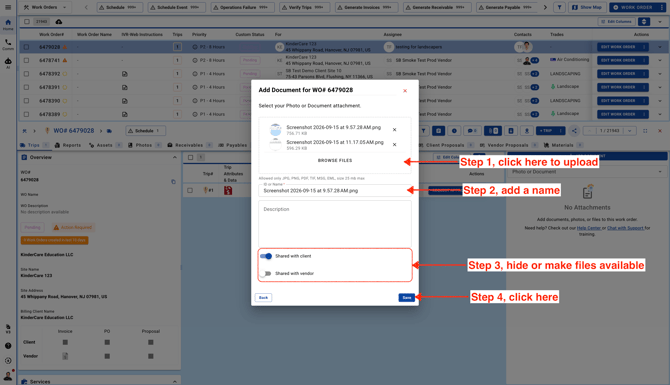
- The new attachments will be available in the Work Order.
Video