
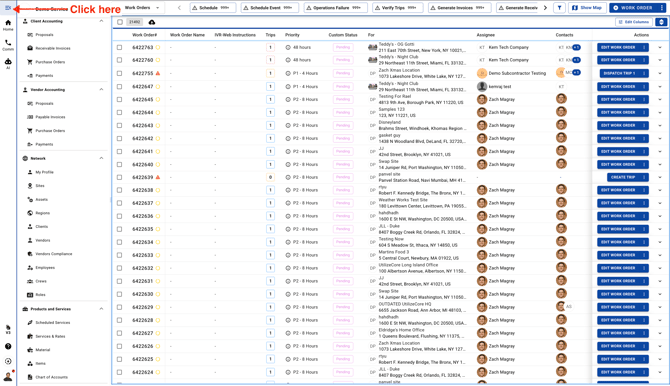
1. Click on the Menu icon on the top left corner
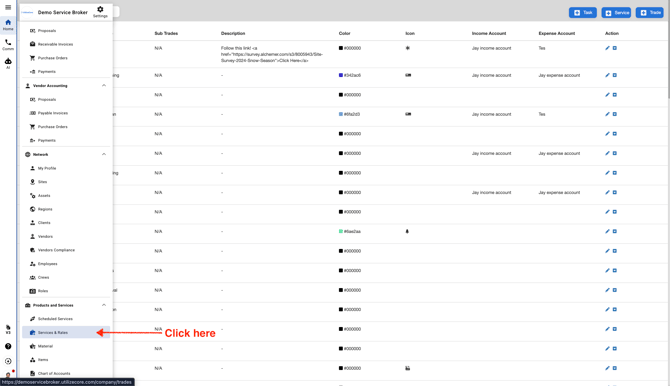
2. Click "Services & Rates"
3. Click "Rates & Assignees"
.jpeg?width=670&height=304&name=ascreenshot%20(17).jpeg)
4. Click "Per Task"
.jpeg?width=670&height=304&name=ascreenshot%20(18).jpeg)
5. Click on the blue button "+ Rates" on the top right corner
.jpeg?width=670&height=304&name=ascreenshot%20(19).jpeg)
6. Select a Service
.jpeg?width=670&height=320&name=ascreenshot%20(20).jpeg)
7.

8. Select a Task

9.

10. This is a generic rate type. You can also make this Rate Type for a Client, Site or a Vendor

11. Click this radio button.

12. To assign this Rate Type to a particular Client, Site or a Vendor select a Resource Type. If you select Site under the Resource Type you should see a field to select the Site Name. After selecting a Site Name, you should select a Assignee Type. If you select Vendor under Assignee Type you should also select a Vendor Name and select a Priority

13. To assign this Rate Type to a particular Client, Site or a Vendor select a Resource Type. If you select Client under the Resource Type you should see a field to select a Client Name. After selecting a Client Name, you should select a Assignee Type. If you select Vendor under Assignee Type you should also select a Vendor Name and select a Priority

14. Under Preventive Maintenance Rate make sure to select an Item Name, add a Client Per PM Task Rate and a Vendor Per PM Task Rate

15. Under On Demand Rate make sure to select an Item Name, add a Client Per PM Task Rate and a Vendor Per PM Task Rate

16. Scroll down and click Save

17. Your newly added Per Task Rate Type should be visible on top of the list
.jpeg?width=670&height=345&name=user_cropped_screenshot%20(10).jpeg)