
This guide is valuable for anyone looking to customize and manage Per Service rates for different services in an efficient manner.
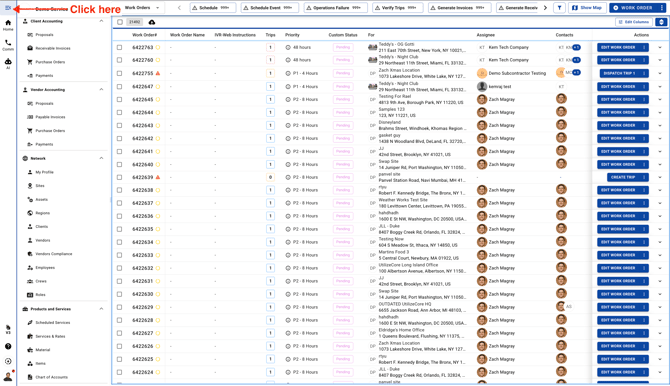
1. Click on the menu icon on the top left corner
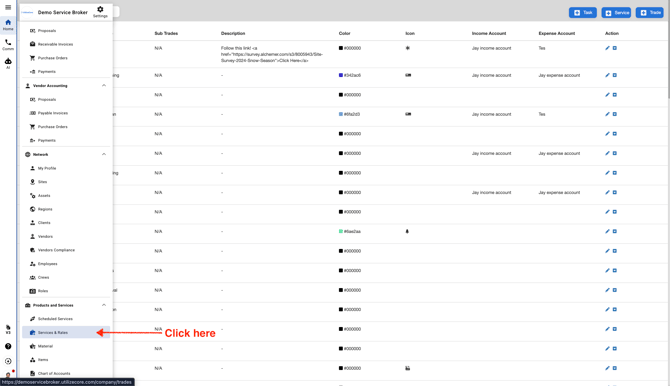
2. Click "Services & Rates"
3. Click "Rates & Assignees"
.jpeg?width=670&height=305&name=ascreenshot%20(6).jpeg)
4. Click "Per Service"
.jpeg?width=670&height=305&name=ascreenshot%20(14).jpeg)
5. Click on the blue button "+ Rates" on the top right corner
.jpeg?width=670&height=304&name=ascreenshot%20(15).jpeg)
6. Select a Service Name
.jpeg?width=670&height=329&name=ascreenshot%20(16).jpeg)
7. Select a Service

8. You can keep this as a generic rate or select it for a specific Client, Site or a Vendor

9. To assign this Rate Type to a particular Client, Site or a Vendor select a Resource Type. If you select Site under the Resource Type you should see a field to select the Site Name. After selecting a Site Name, you should select a Assignee Type. If you select Vendor under Assignee Type you should also select a Vendor Name and select a Priority

10. To assign this Rate Type to a particular Client, Site or a Vendor select a Resource Type. If you select Client under the Resource Type you should see a field to select a Client Name. After selecting a Client Name, you should select a Assignee Type. If you select Vendor under Assignee Type you should also select a Vendor Name and select a Priority
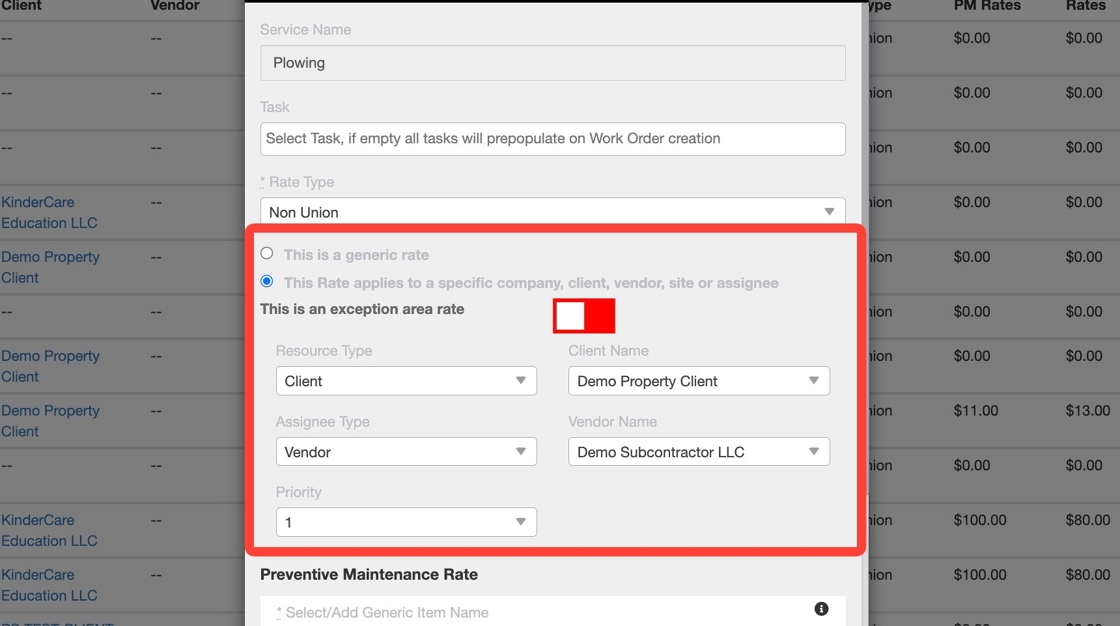
11. You can switch back to adding a Generic Rate anytime in the middle of your process

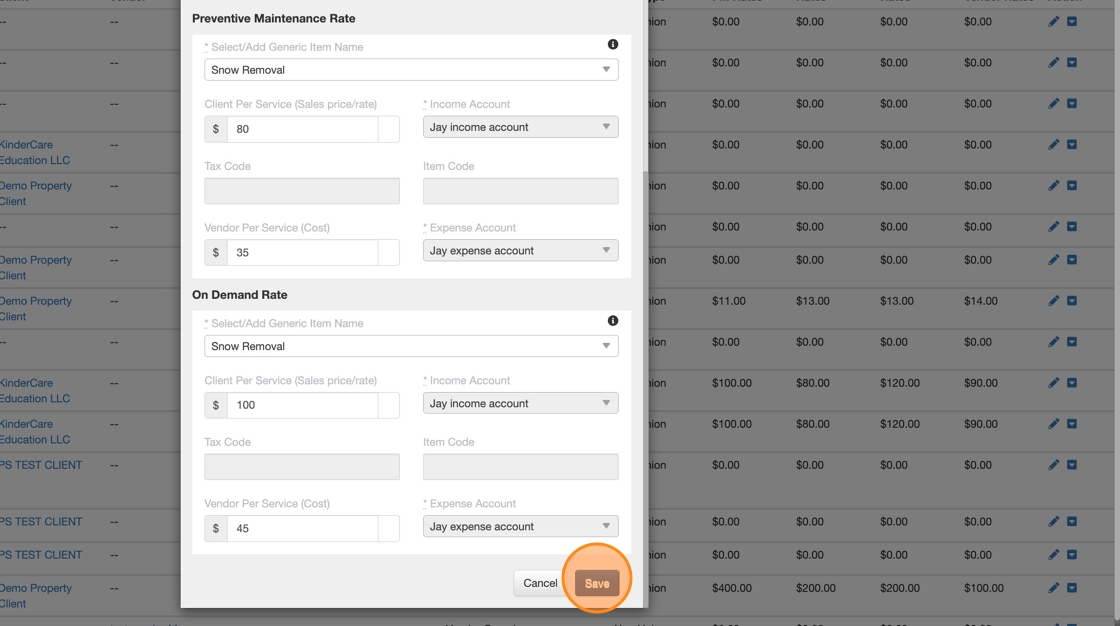
12. Under Preventive Maintenance Rate make sure to select an Item Name, add a Client Per Service Rate and a Vendor Per Service Rate

13. Under On Demand Rate make sure to select an Item Name, add a Client Per Service Rate and a Vendor Per Service Rate

14. Scroll down and click Save
15. Your newly added Per Service Rate Type should be visible on top of the list
.jpeg?width=670&height=346&name=user_cropped_screenshot%20(9).jpeg)