
How to customize the rate type, assign it to specific clients or vendors, and even assign it to particular regions.
1. Click "Services & Rates"
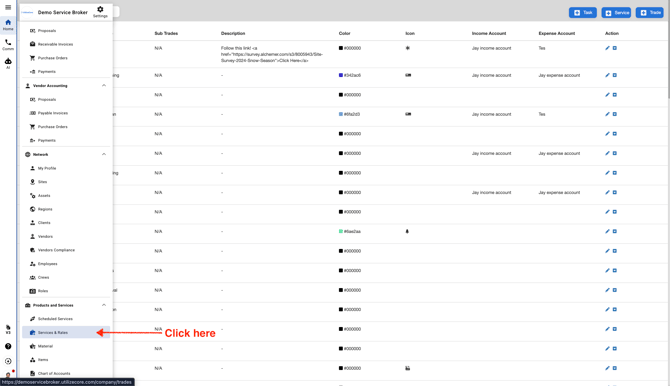
2. Click "Rates & Assignees"
.jpeg?width=670&height=305&name=ascreenshot%20(6).jpeg)
3. Click the blue button "+ Rates" on the top right corner
.jpeg?width=670&height=332&name=ascreenshot%20(13).jpeg)
4. You should see a pop-up. Select a Trade, Service, Union Status and a Labor Type
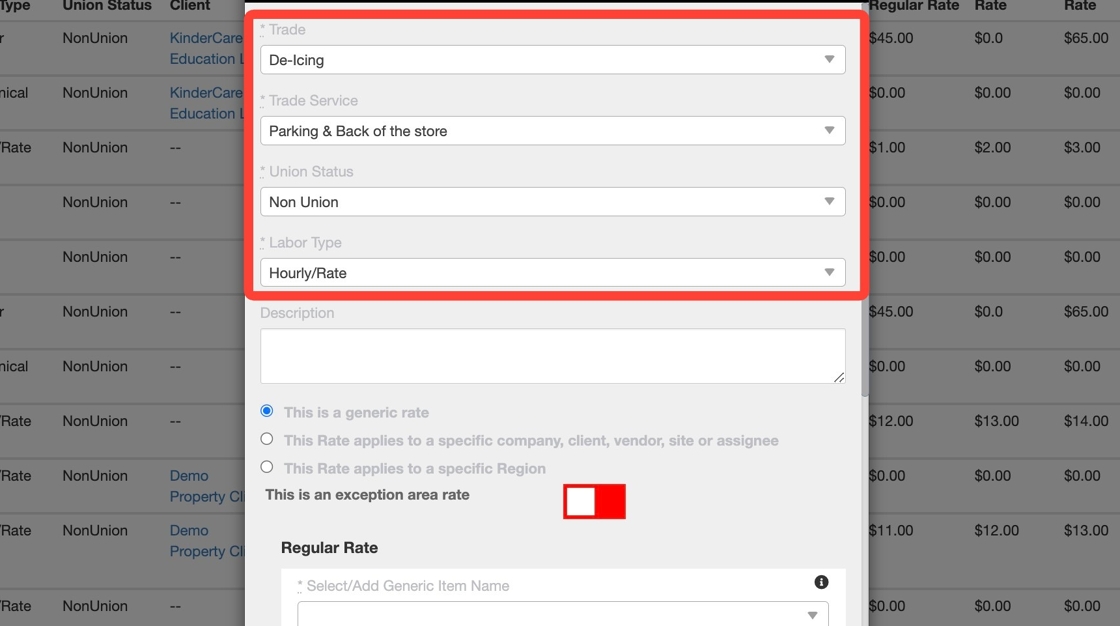
5. You can customize your Per hour Rate Type. The first option available is Generic Rate.

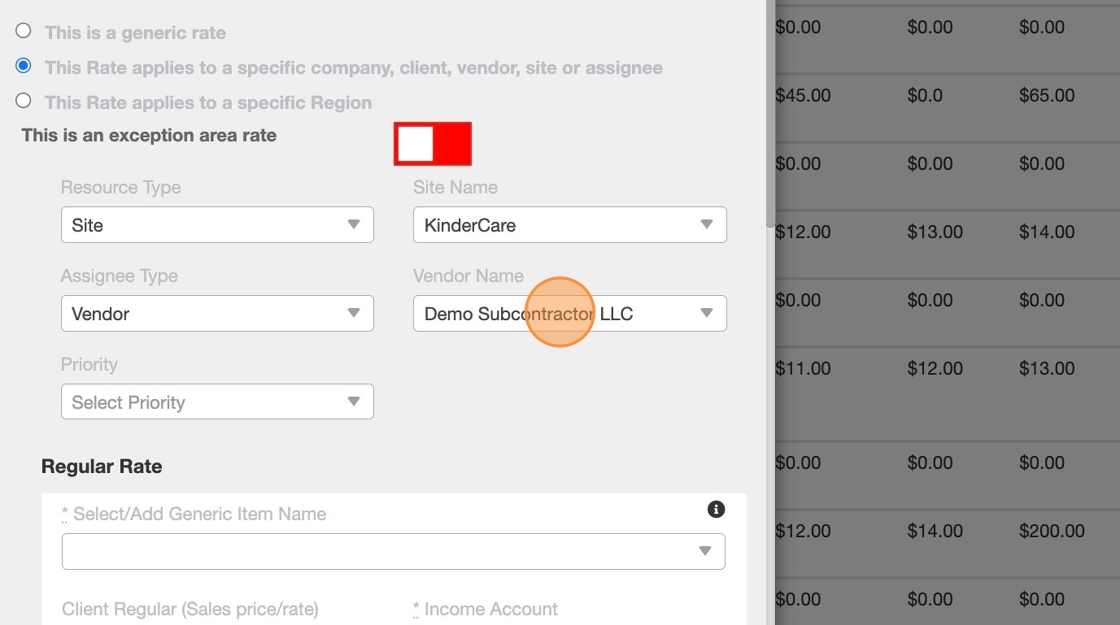
6. The second available option is the "This Rate applies to a specific company, client, vendor, site, or assignee". This means you can assign this Rate Type to a particular Site, Client or a Vendor

7. Under this option you can select any one Resource Type: Site, Client, or a Vendor

8. As soon as you select a Resource Type you should see another field available next to it. If you've selected Site under your Resource Type, select a Site Name

9. Choose an Assignee Type by clicking on the "Select Assignee Type" field

10. You can choose from a Vendor or a Team Member under the Assignee Type

11. After you select Vendor under the Assignee Type, select a Vendor
12.

13. You can also change the Resource Type from a Site to a Client

14. Click "Client"

15. Select a Client Name

16. You should see a dropdown of all current Active Clients

17.

18. You can assign this Rate Type to a particular Region

19. Turn the switch on to select a State or a County

20. You can select a State, a separate County, just one State, just one County or inclusive of all

21. Select Items under Regular Rate, enter a Client Regular Rate and a Vendor Regular Rate

22. Select Items under Overtime Rate, enter a Client Overtime Rate and a Vendor Overtime Rate

23. Select Items under Double Rate, enter a Client Double Rate and a Vendor Double Rate

24. scroll down and click Save

25. Your newly added "Per Hour" Rate Type should be visible on the top of your list
.jpeg?width=670&height=346&name=user_cropped_screenshot%20(8).jpeg)