
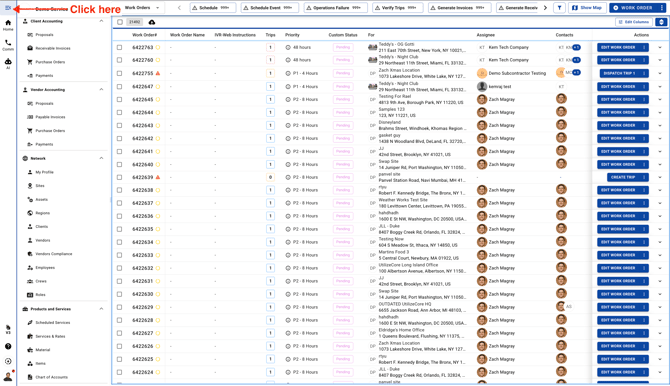
1. Click on the menu icon on the top left corner
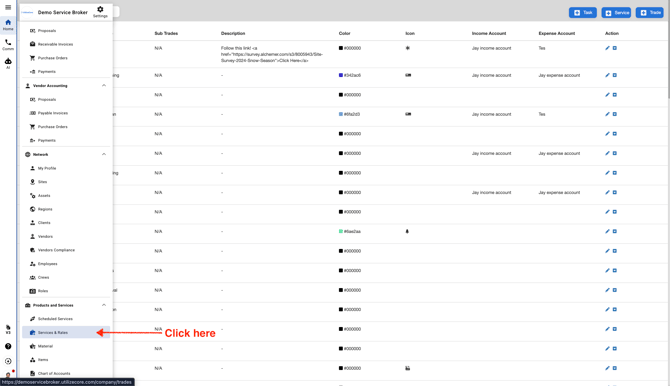
2. Click "Services & Rates"
3. Click "+ Trade" to add a new Trade
.jpeg?width=670&height=305&name=user_cropped_screenshot%20(1).jpeg)
4. You should see a pop-up. Type a Trade name and press "Enter"
.jpeg?width=670&height=303&name=user_cropped_screenshot%20(2).jpeg)
5. Select a color of your choice. This is not a mandatory field
.jpeg?width=670&height=339&name=user_cropped_screenshot%20(3).jpeg)
6. Select an icon. This is not a mandatory step
Note: You can select colors and icons to customize Work Order view. These UI elements allow you to view Work Orders visually instead of a static UI

7. Click Save

8. Your newly added Trade should be visible at the end of all Trades. You should be able to see it when you scroll down to the end
