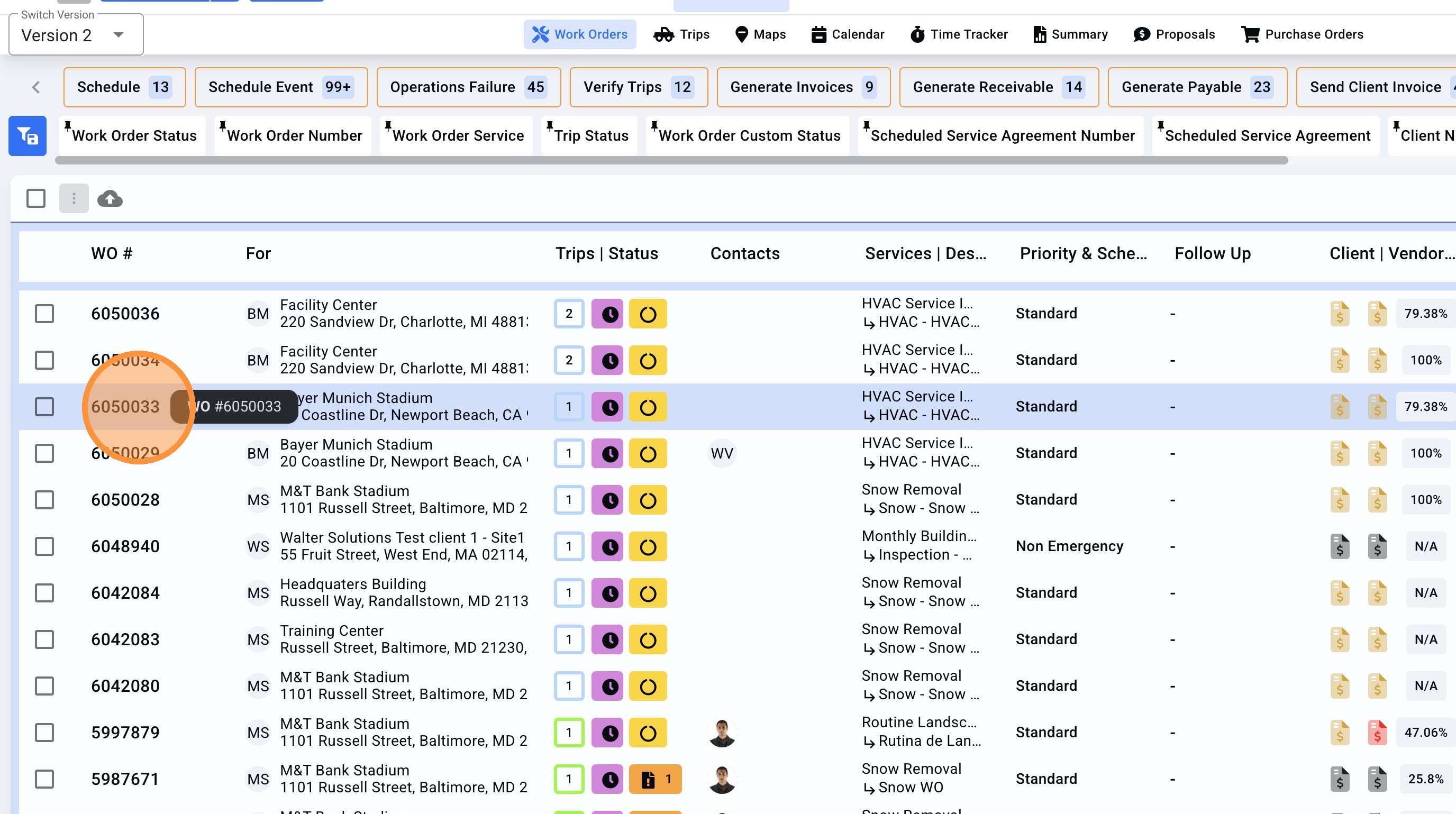
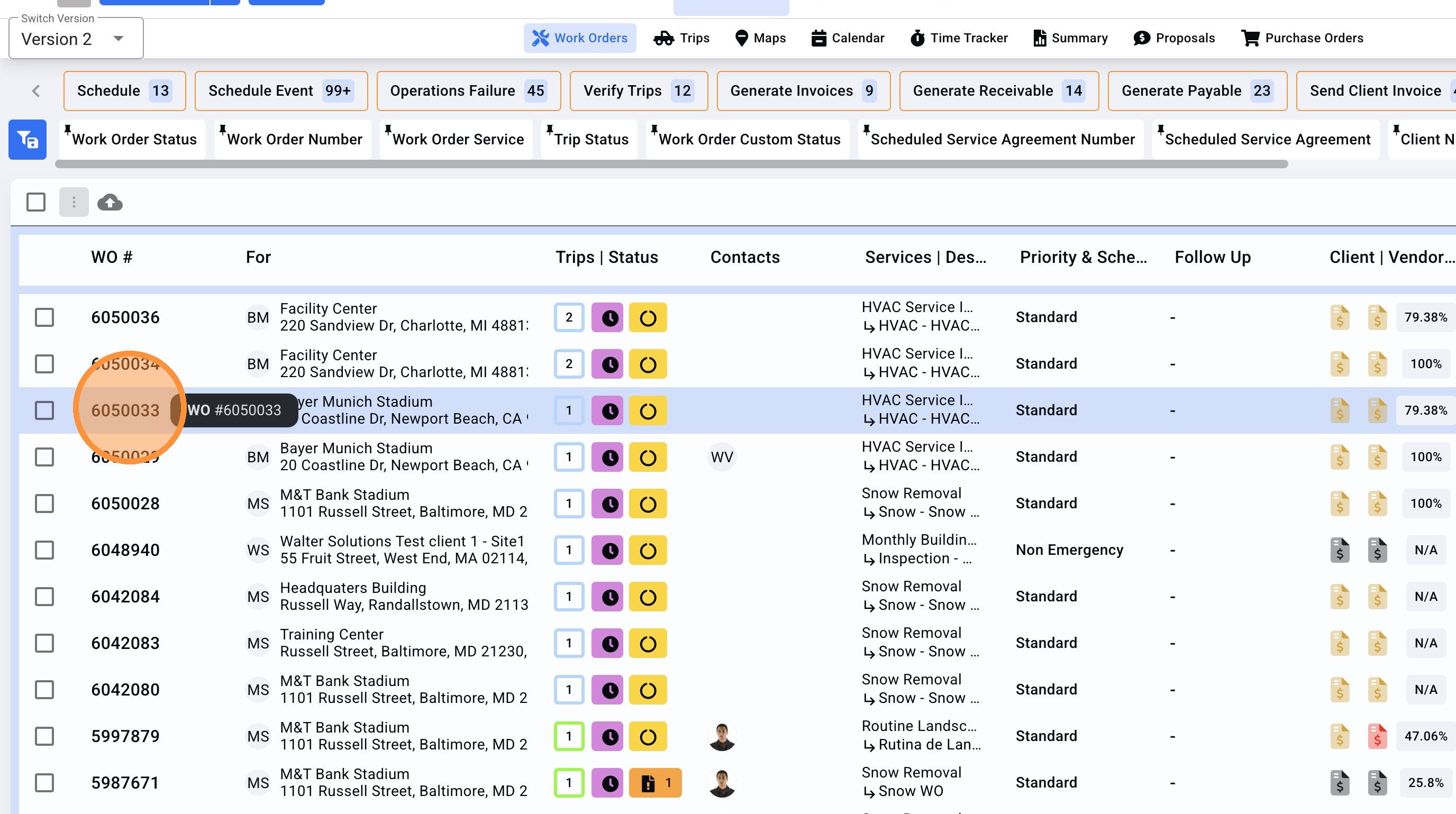
1. On the Work Order page search for the WO required to edit the client or vendor rate.
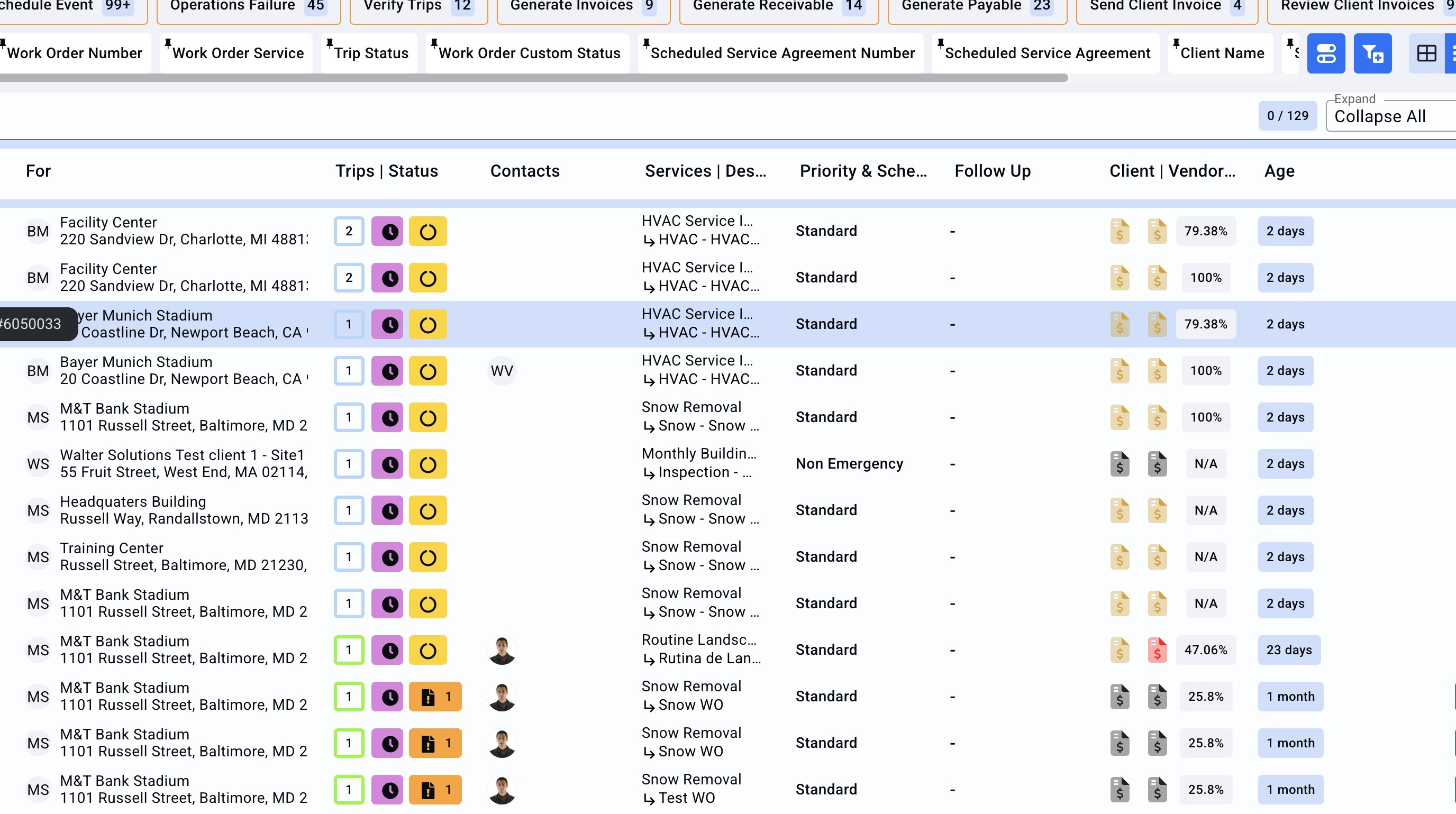
2. Open the Work Order.
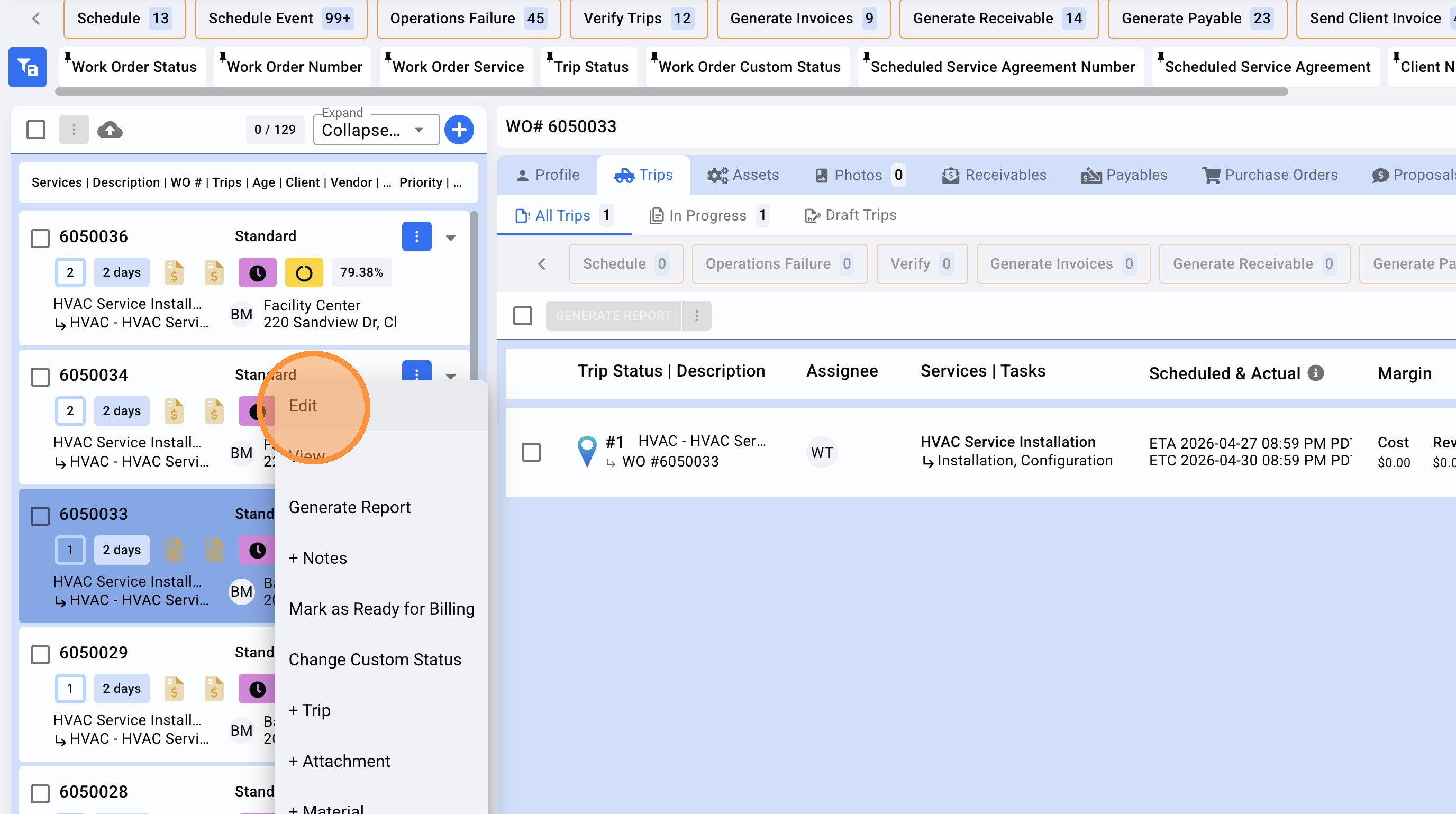
3.The Client NTE (WO rate) is set at Work Order level, click on the menu icon.
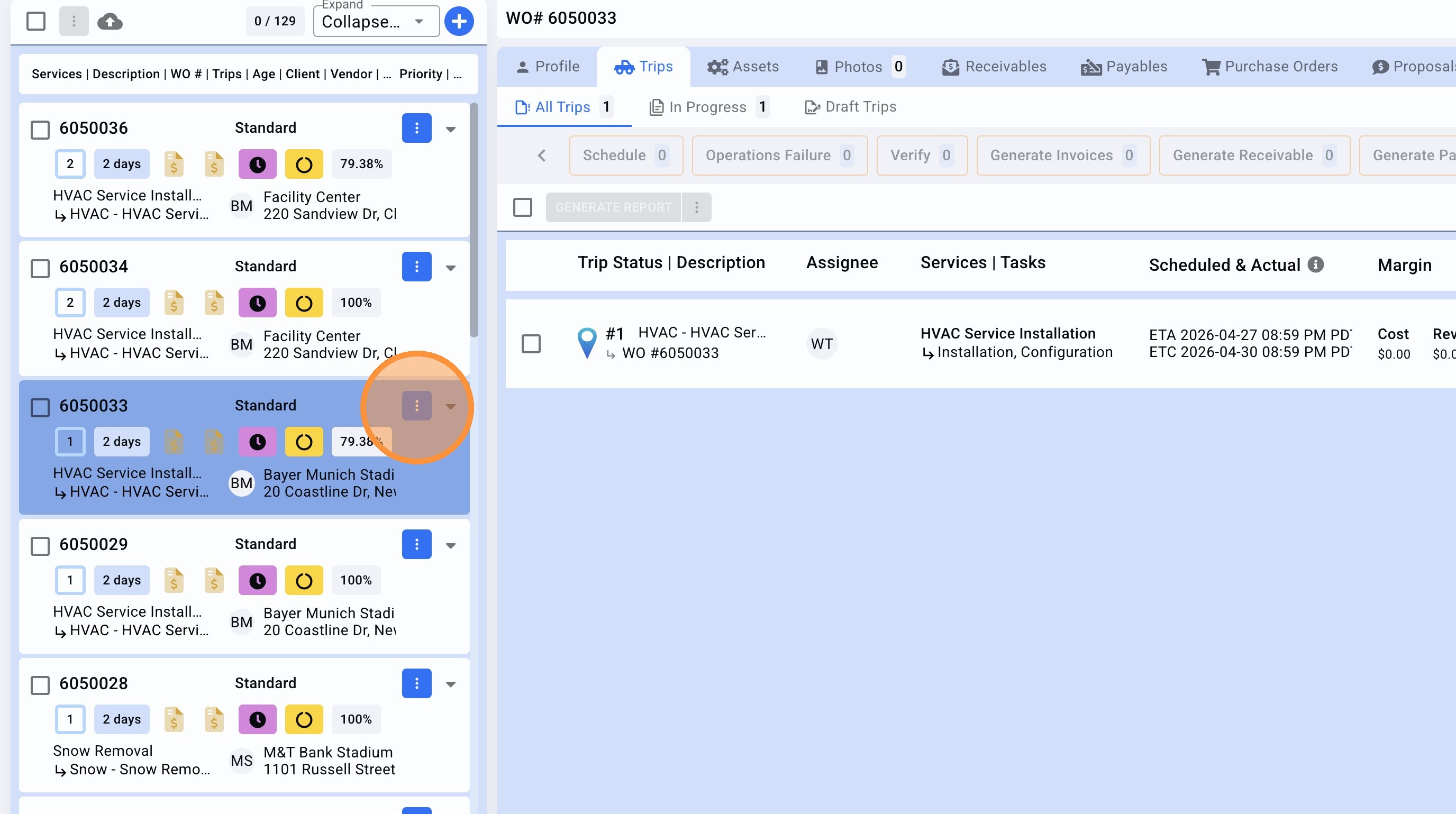
4. Click "Edit"
5. Click the "Client Not to exceed (NTE)" field and edit the amount desired.
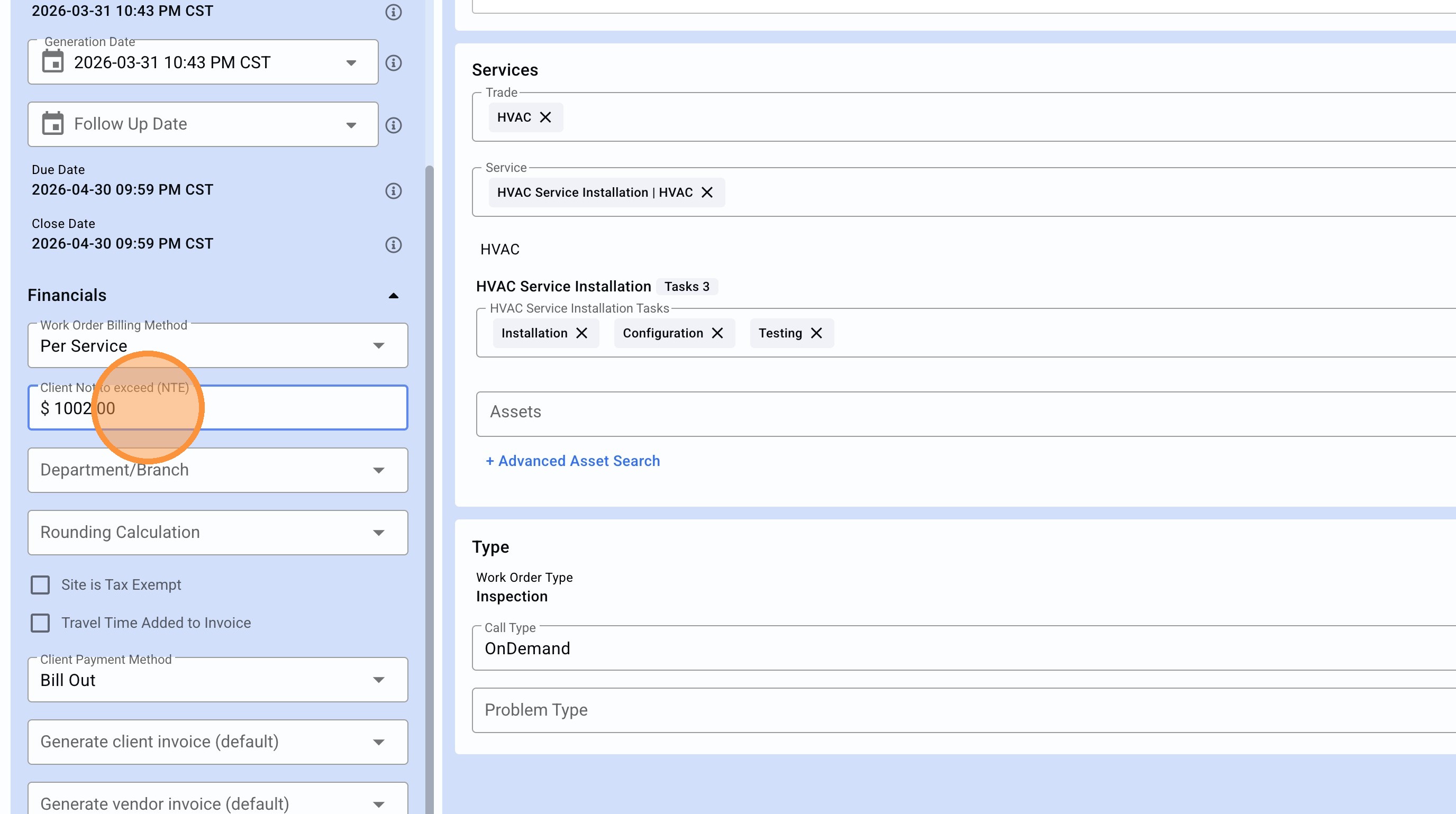
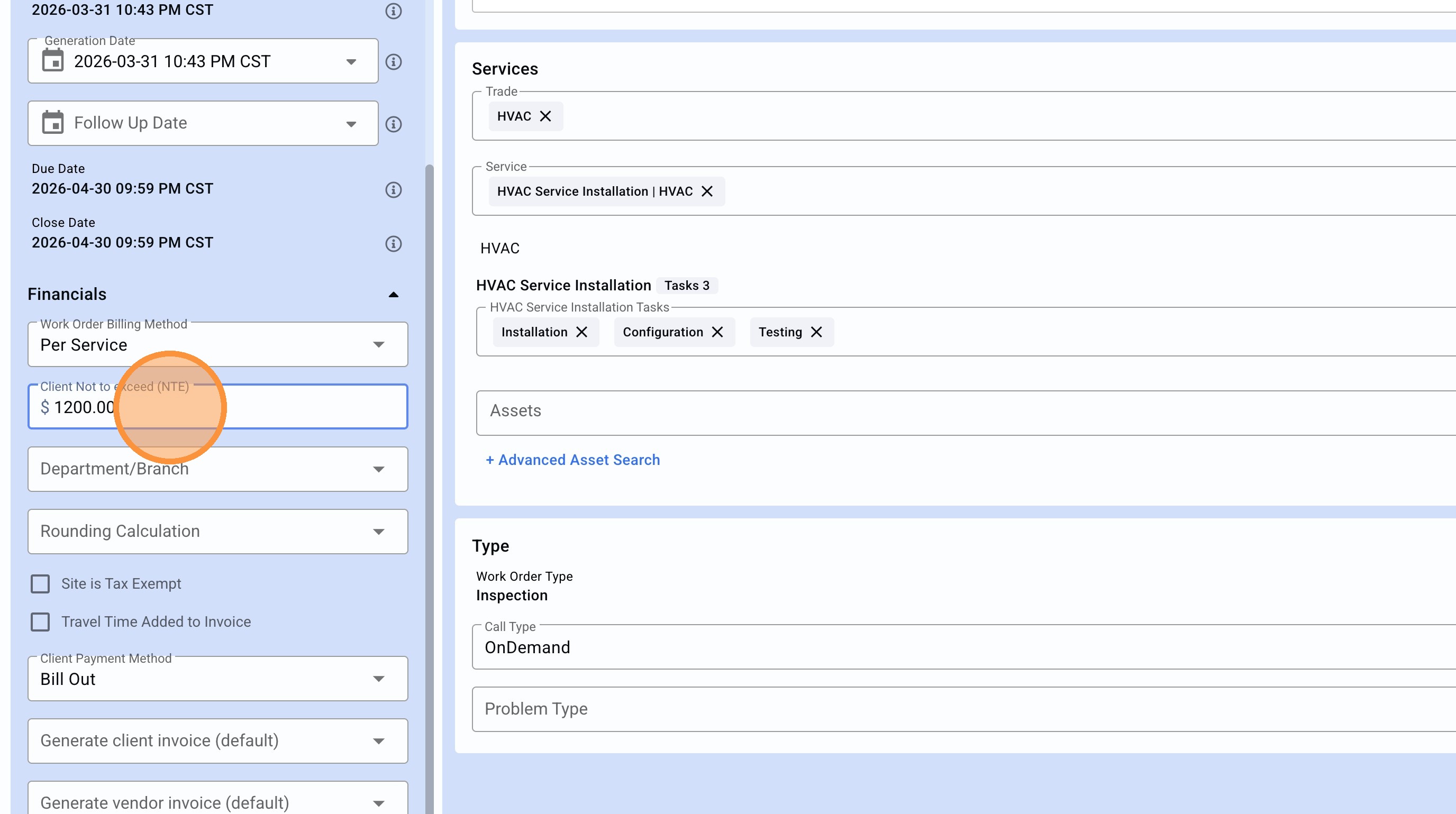
6. Make sure the amount is correct.
7. Click "SAVE"
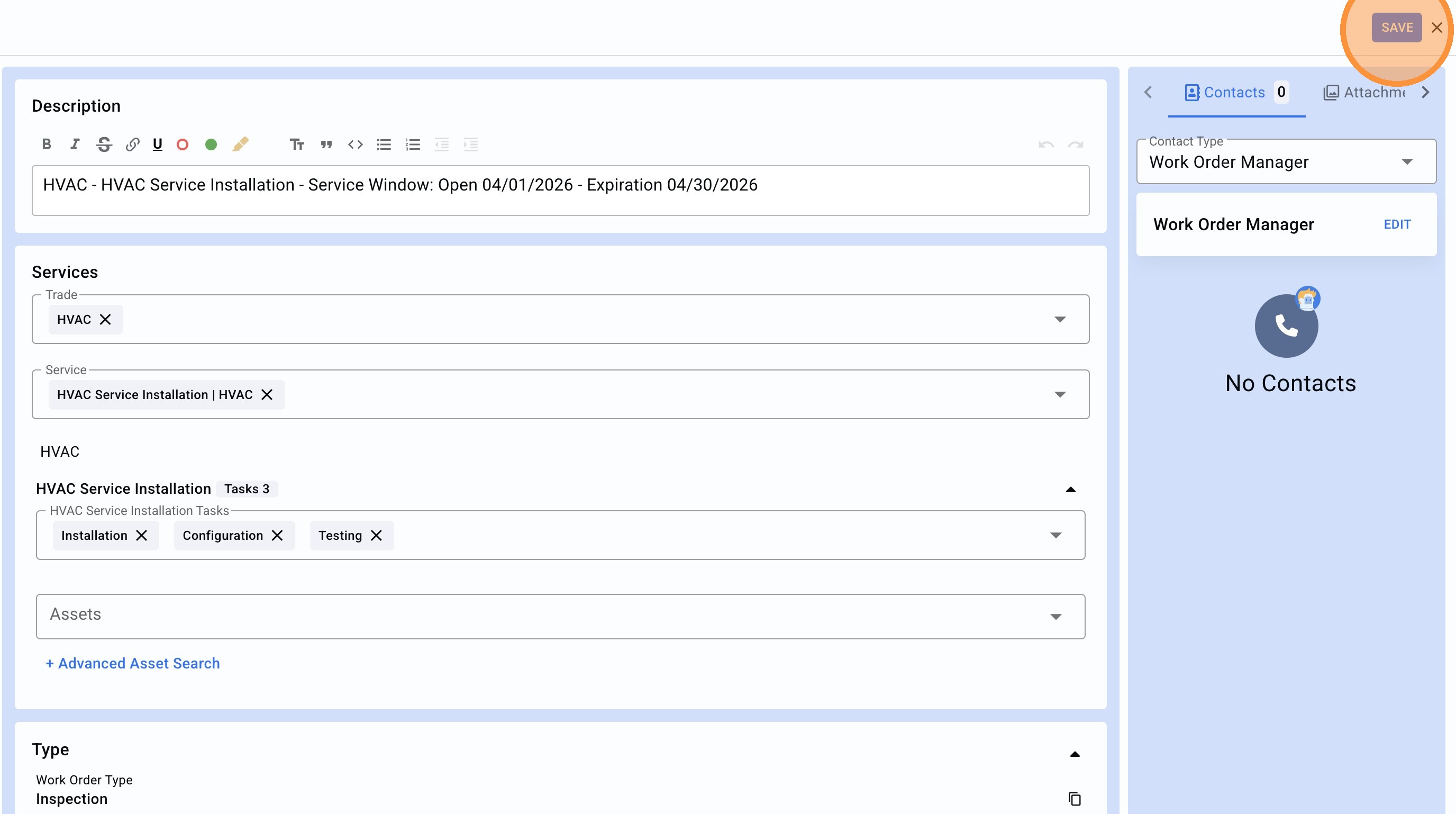
8. The Client WO NTE has been edited.
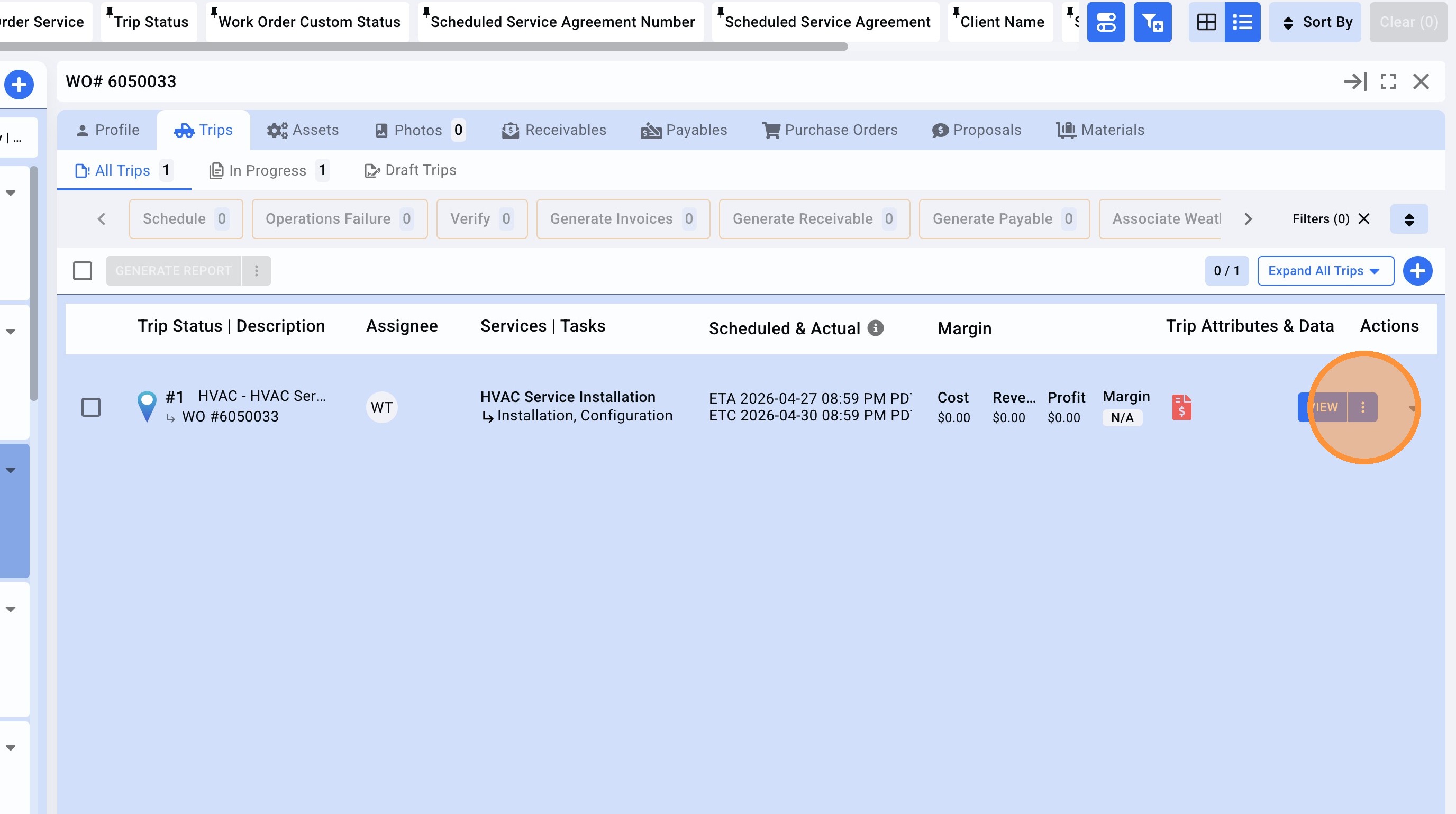
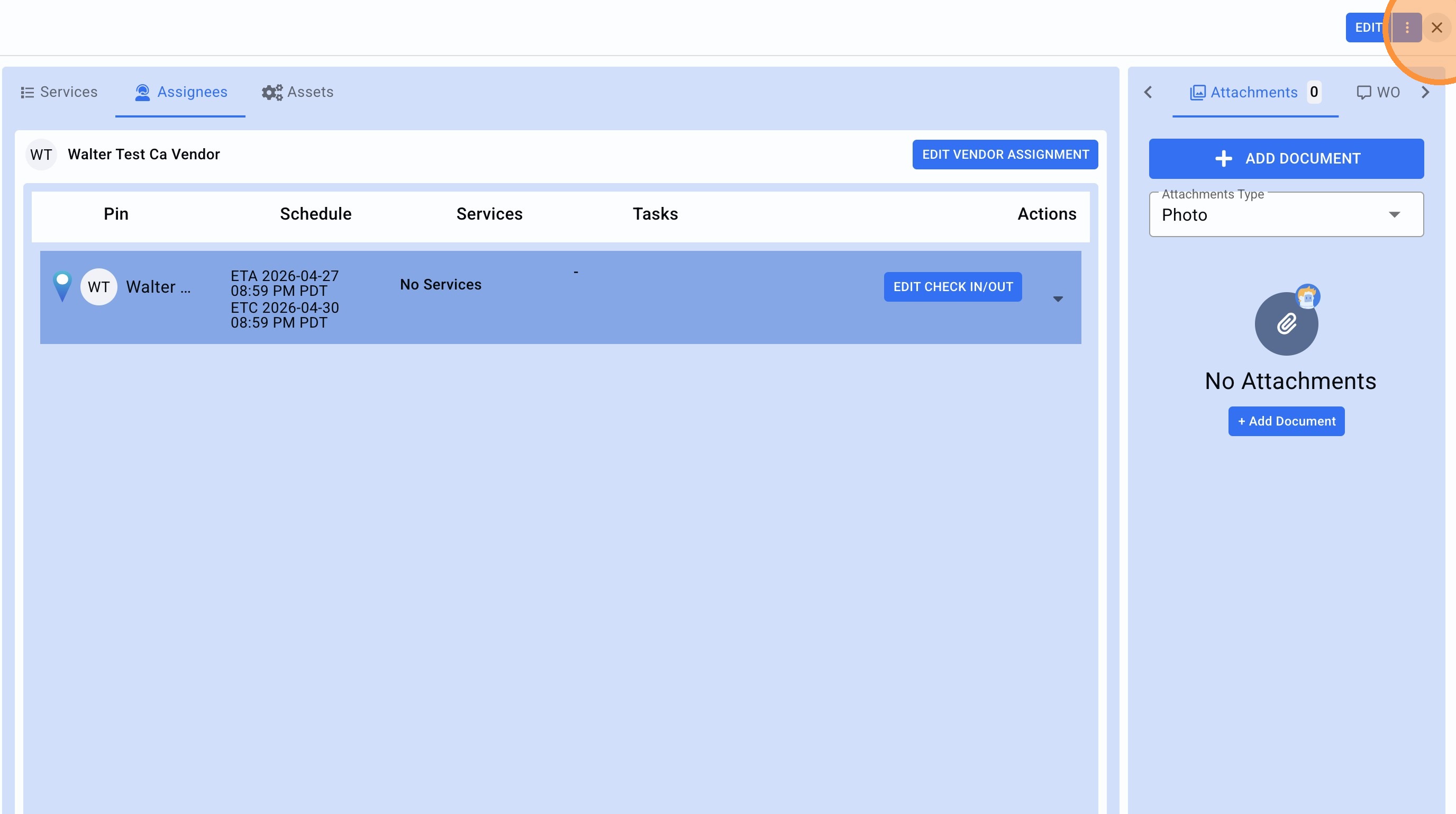
9.The Vendor NTE (WO rate) is set at Trip level, click on the menu icon.
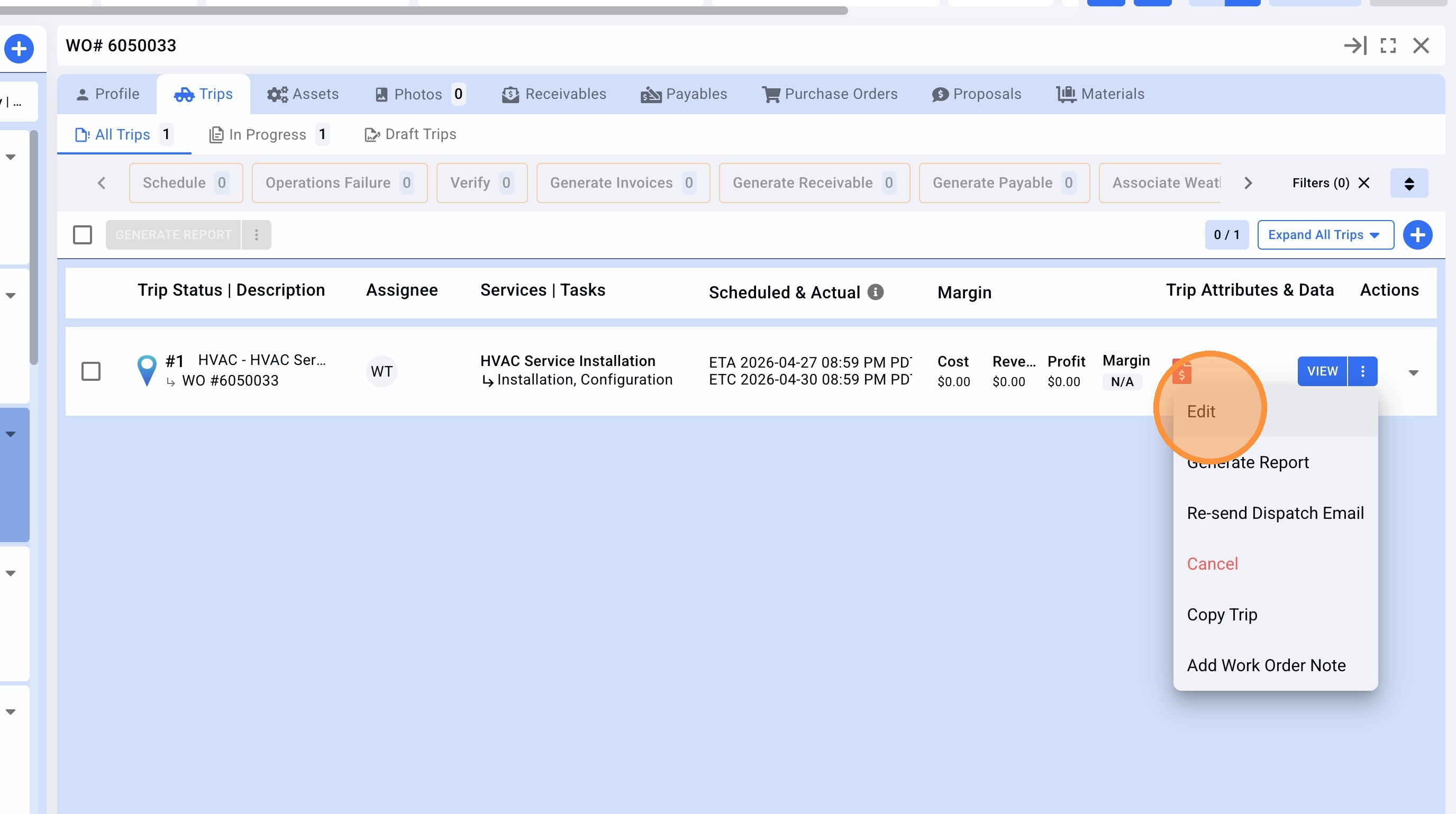
10. Click "Edit"
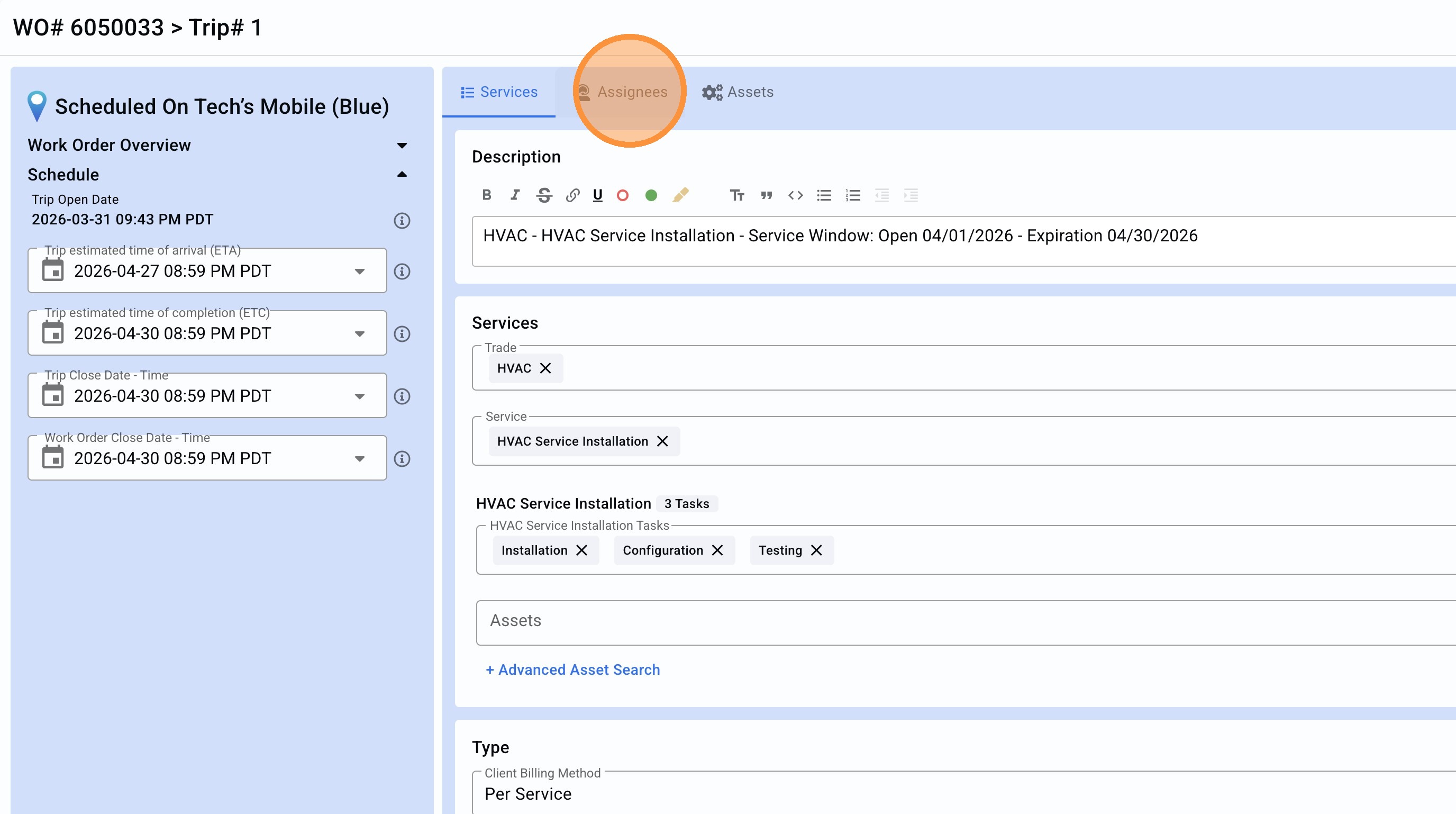
11. Click "Assignees" to get the Vendor NTE field.
12. Click "EDIT VENDOR ASSIGNMENT"
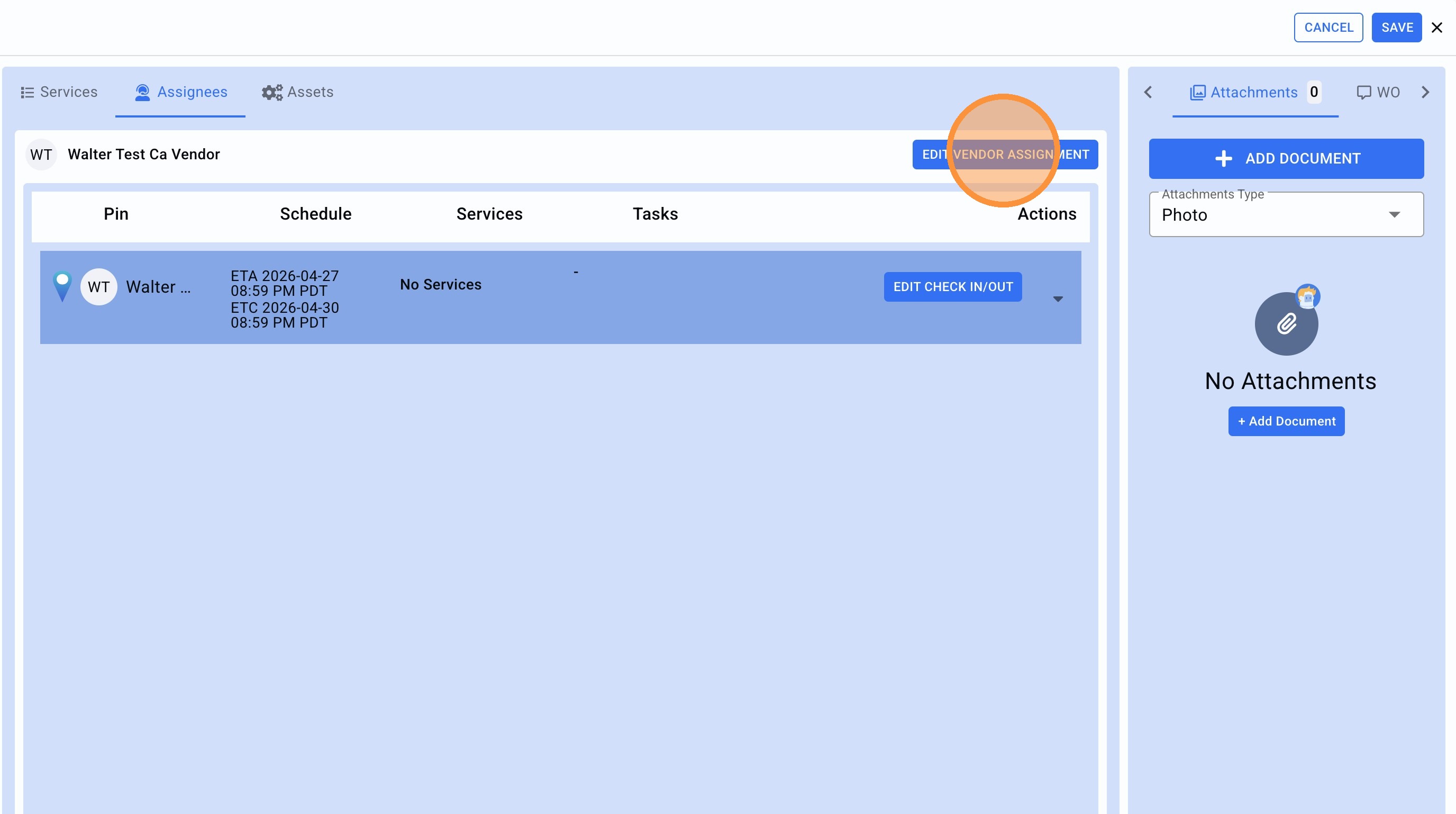
13. Click the "Vendor Not to exceed (NTE)" field.
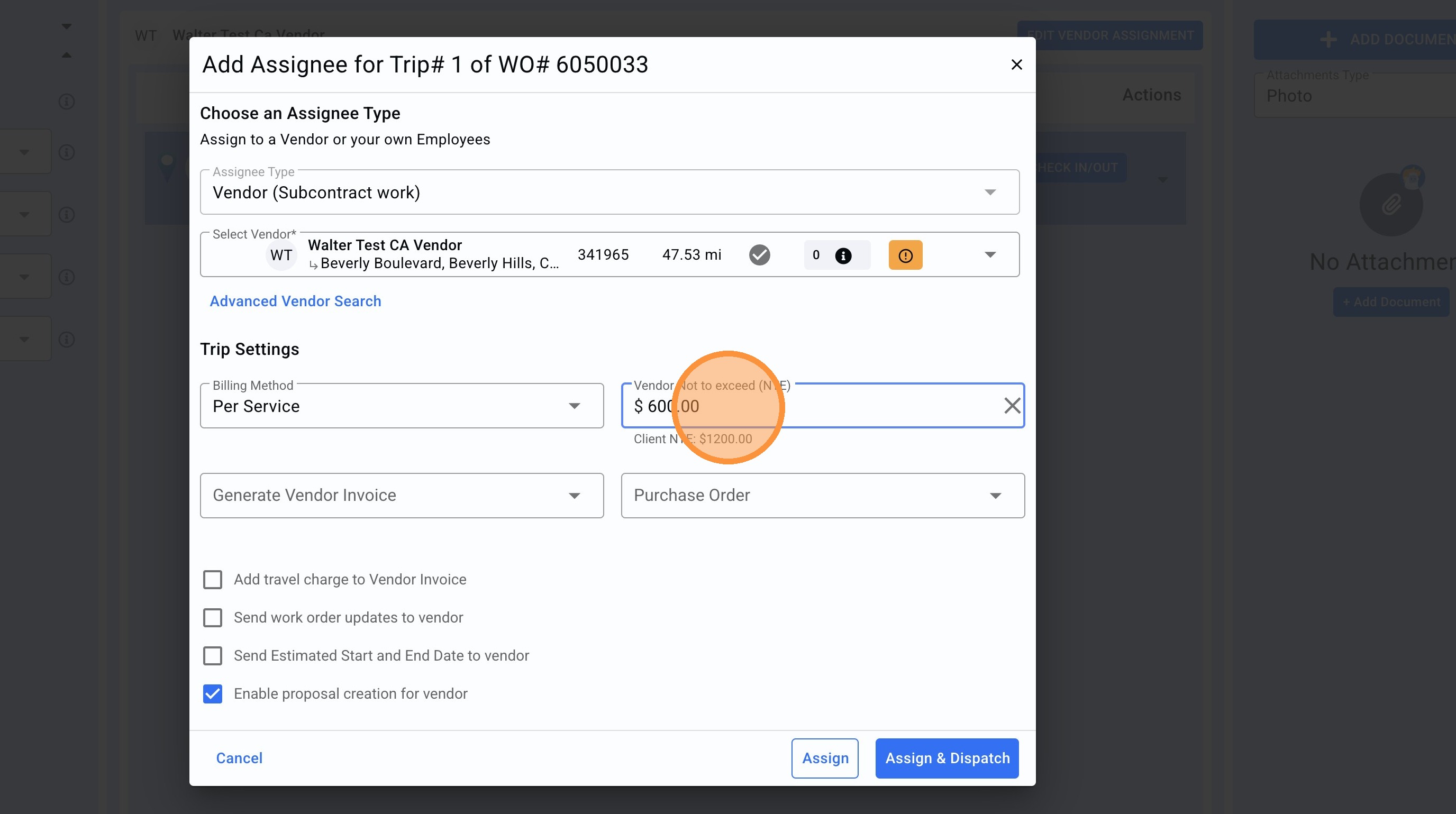
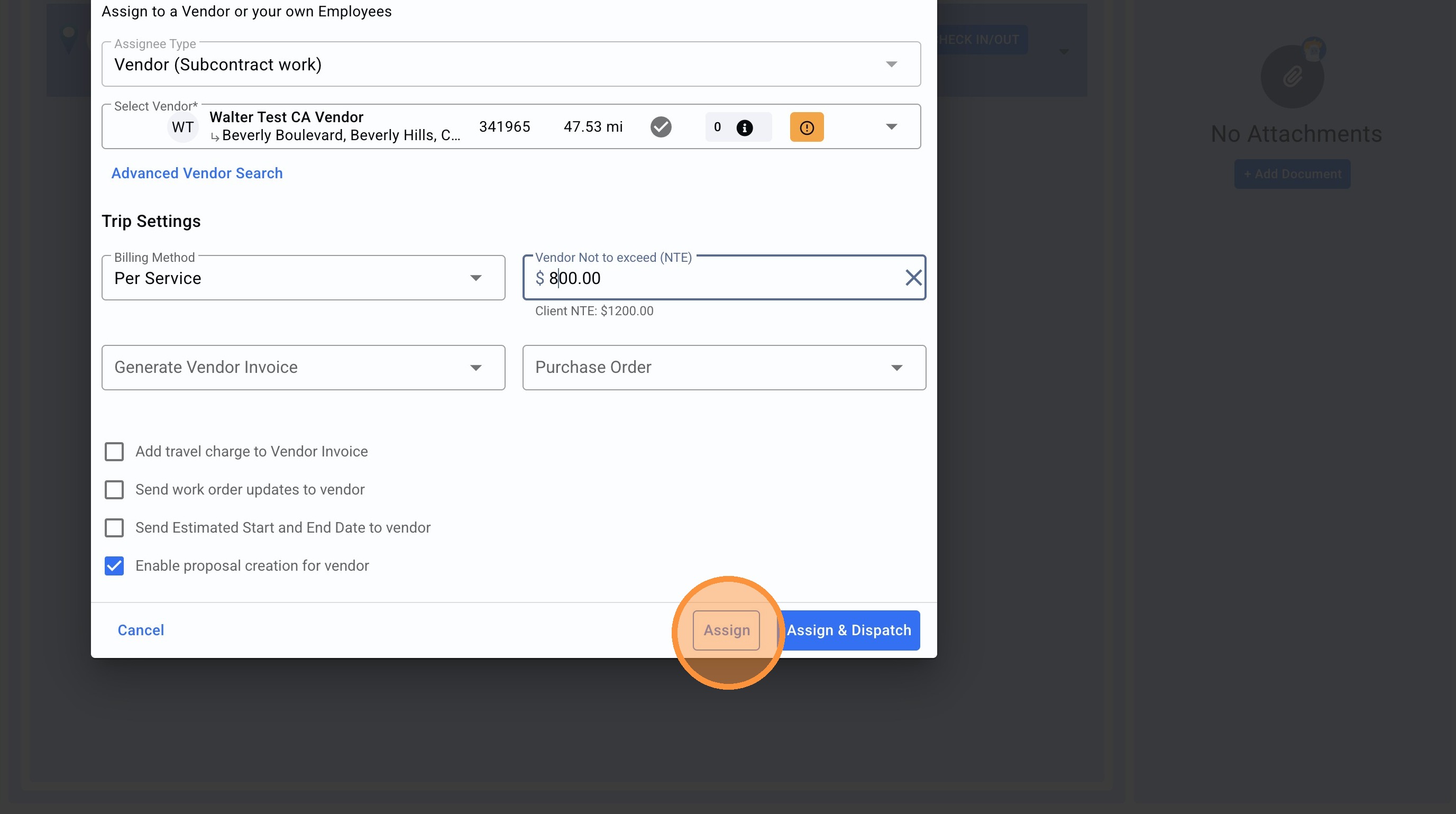
14. Click the "Vendor Not to exceed (NTE)" field and edit the amount desired.
Click "Assign"
15. Click "SAVE"
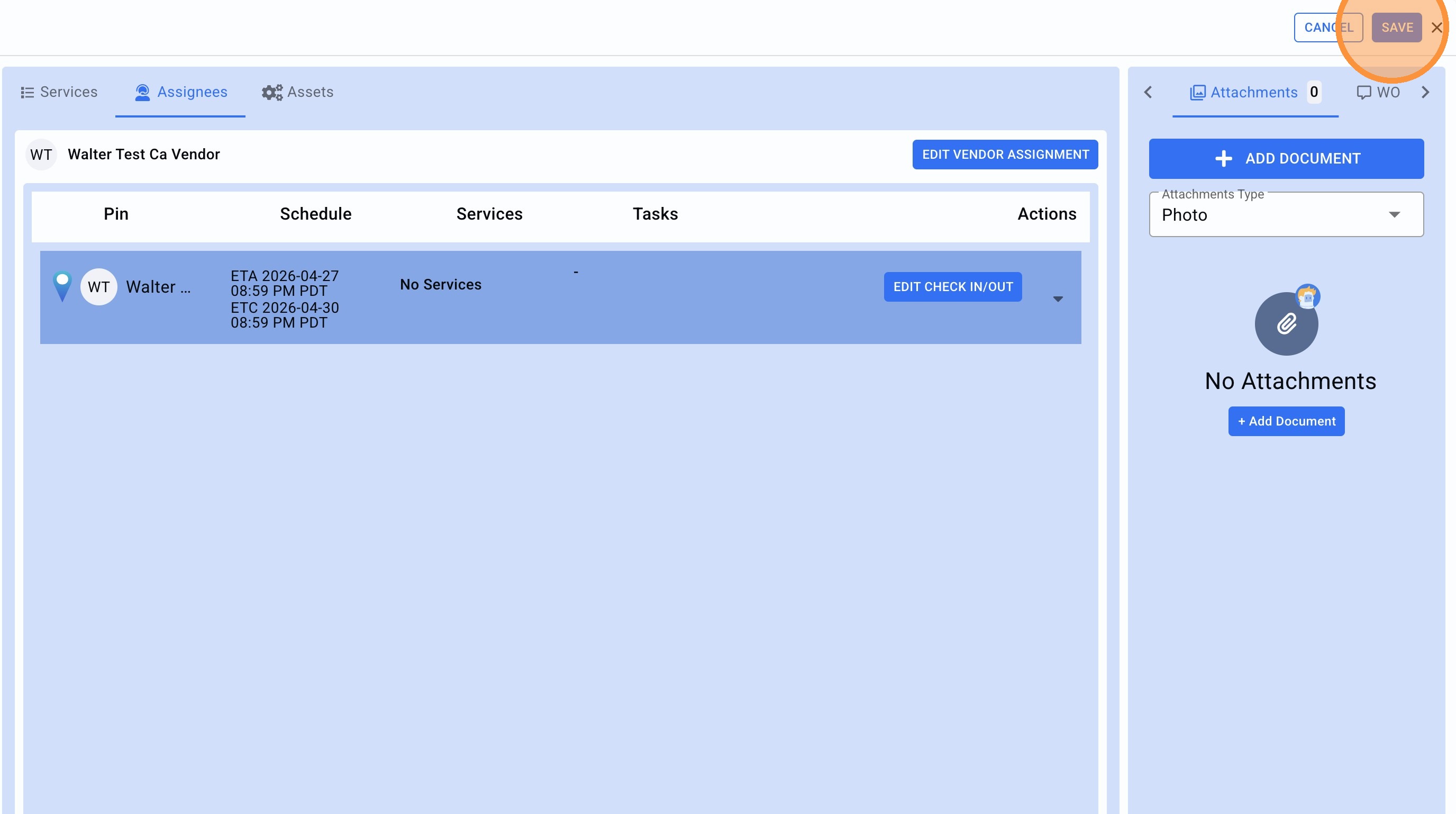
16. Close the Trip.
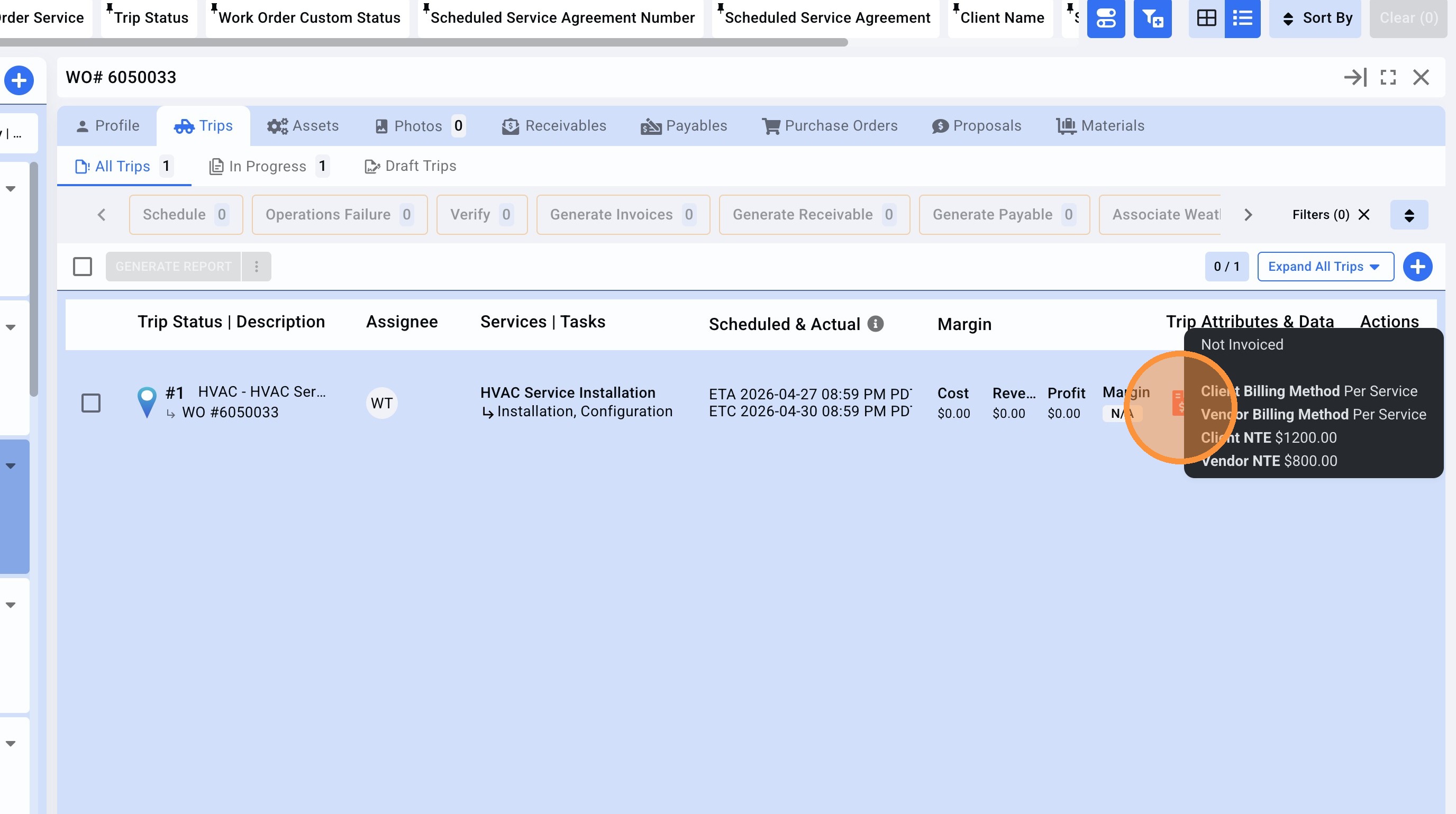
17.Hover over the billing icon and it will shown the new rates been edited.