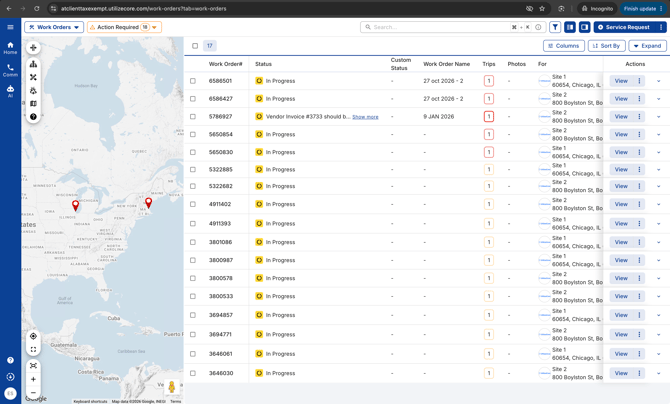
Pre requisites for your Vendor (UtilizeCore Client) to follow before sending invitation
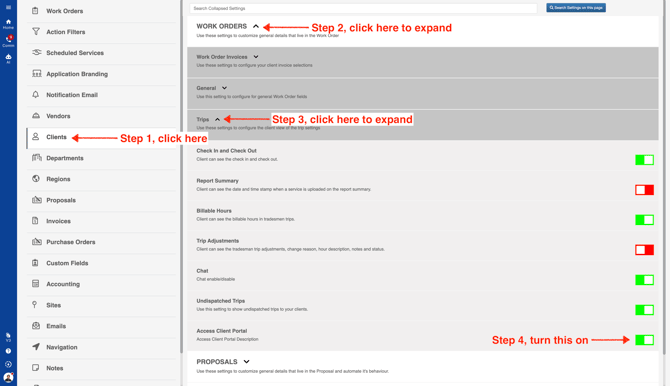
- Go to company settings and turn on Client Portal switch under Trips.
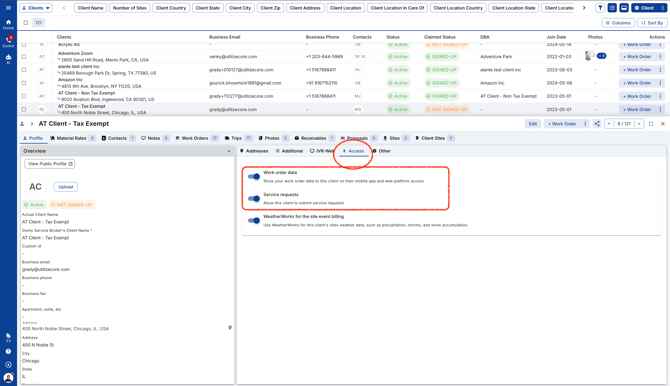
- Go to the Client portal and turn on Work Orders and Service Requests switch.
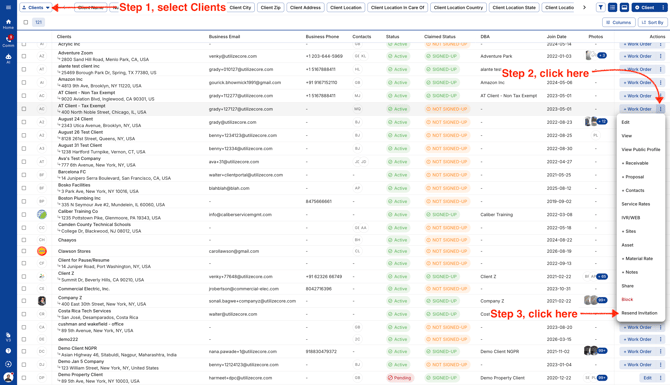
- Send a new invitation to your Client.
Sign up process
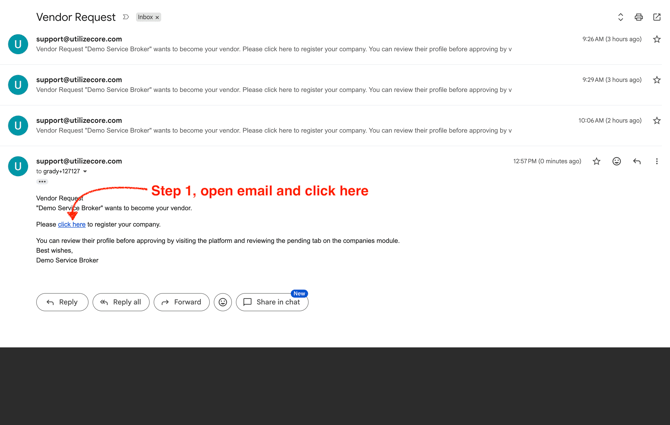
- Go to your email and click on the link "click here."
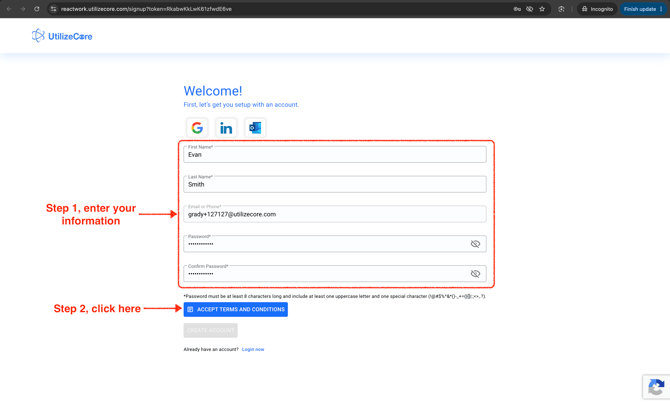
- Enter first name, last name, enter new password 2 times and click on the blue button to read Terms & Conditions.
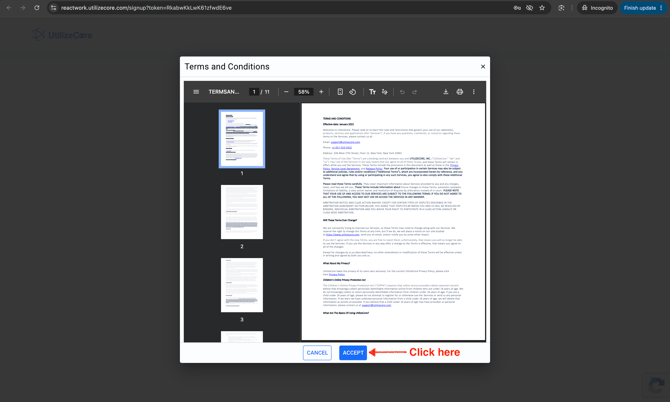
- Read the Terms & Conditions and click Accept.
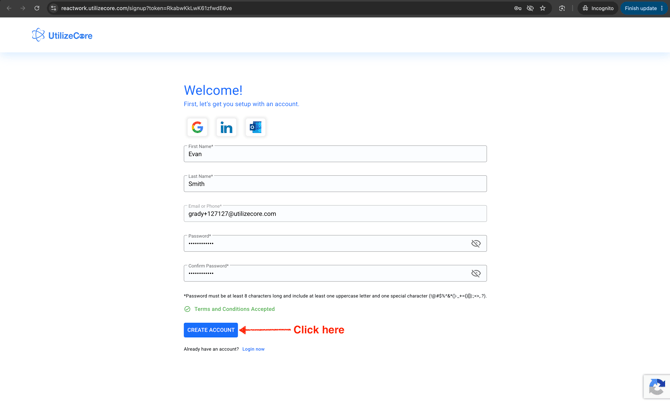
- Click on Create Account button.
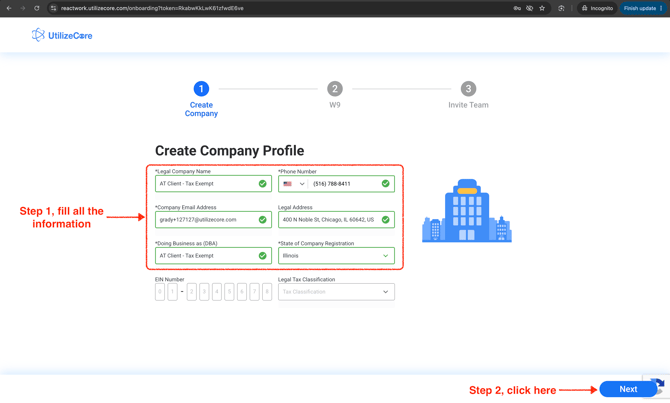
- Enter all the fields with an asterisk "*" and you can leave the remaining fields empty. Click Next in the bottom right corner.
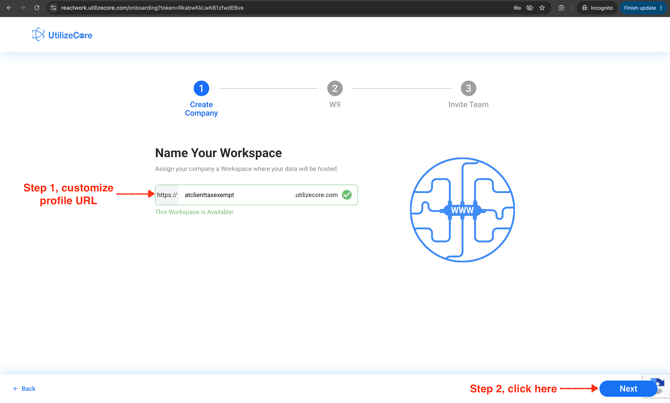
- You can customize your profile URL as per your requirement or leave the default URL. Click Next.
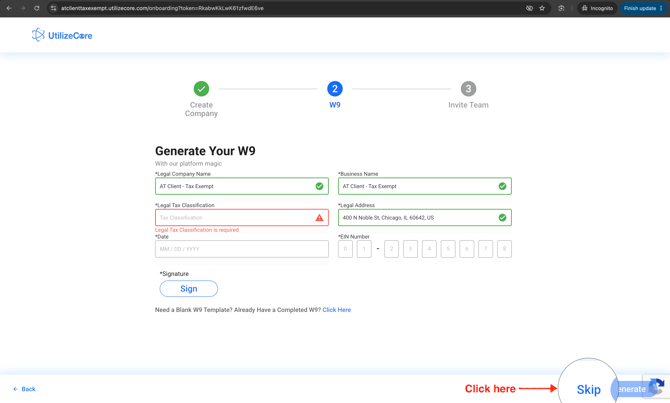
- Click Skip.
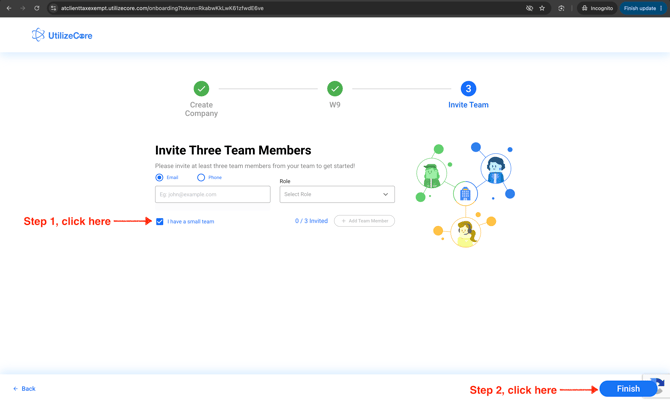
- Select the checkbox "I have a small team." You can add new Team Members after the portal is created as well. Click Finish.
This will take you to the Work Orders page.