
Overview
When you open the app you land on My Work Orders: your list of Trips, sorted nearest first. This article explains every part of the screen.
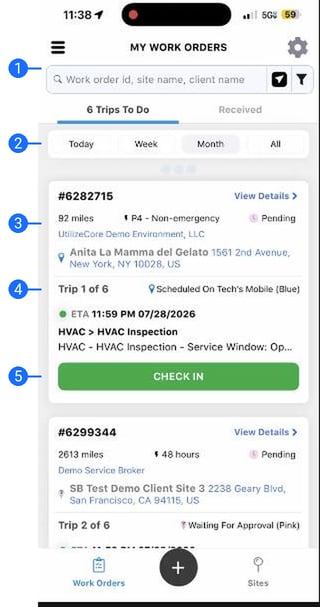
Every part of the screen
- Search and filters. Find a Trip by work order id, site name, or client name. The funnel narrows the list further.
- Your timeframe. Today, Week, Month, or All sets how much of your schedule shows.
- Distance. How far each Trip is from you. Trips sort by closest proximity, nearest first.
- Which Trip. Each card shows its place on the Work Order (for example, Trip 1 of 6).
- Check In. Starts the Trip once you are on site.
Tabs and bottom bar
Trips To Do are your Trips. Received holds new Trips to accept.
The bottom bar switches between Work Orders and Sites. The plus button reports new work from a Site.
Related articles
- Set Up the Mobile App: Login, Location, and Settings
- Check In to a Trip (Solo or with a Crew)
- Create a Work Order from the Field (CIWO)
Need help?
Reach out to your Technical Account Manager or contact support@utilizecore.com.