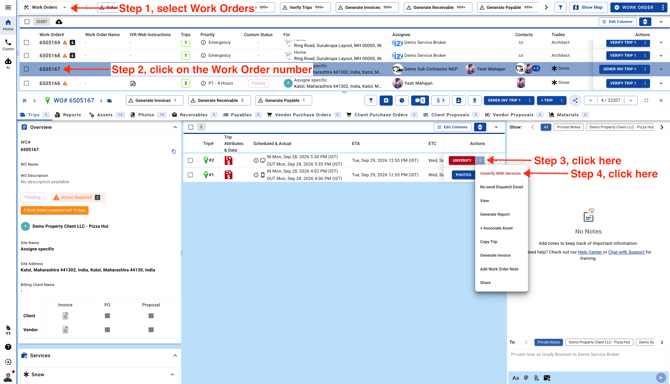
Un Verify Trip
- Head to the Work Orders page and click the work order number to open it. Then, unverify the trip.
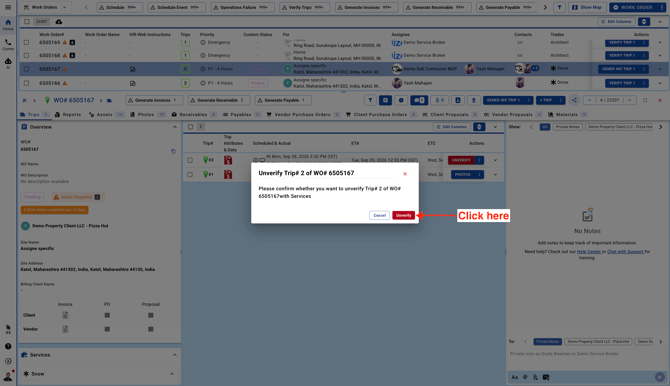
- Confirm unverification.
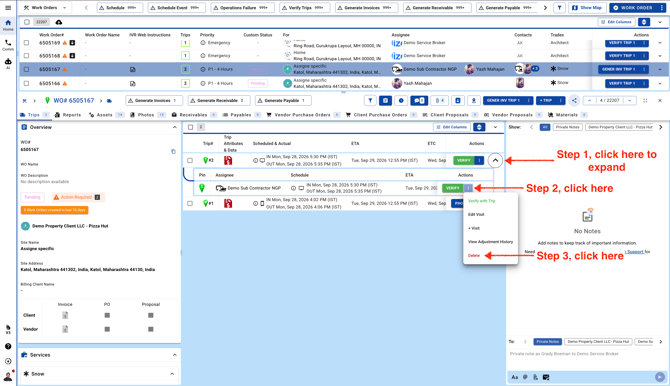
Delete Services (check in/out)
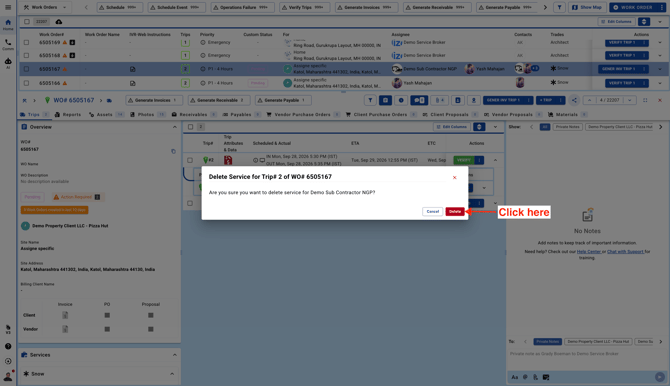
- Open the trip details, then delete the check-in and check-out information.
- When prompted, confirm that you want to delete the check-in and check-out information.
Delete Work Order
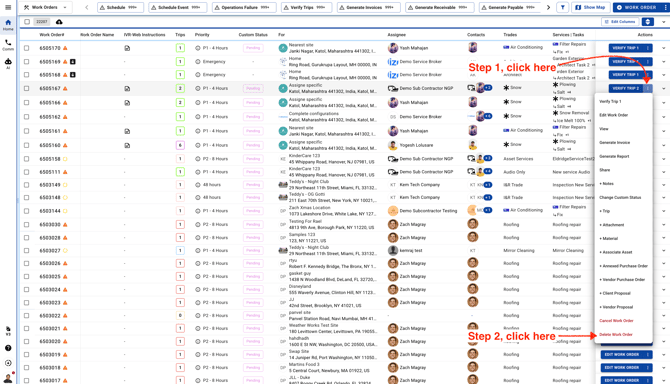
- Once you’ve completed the steps above, click the three dots and select “Delete Work Order.” If you don’t see that option, double-check that you’ve unverified the trip and deleted its check-in and check-out information.
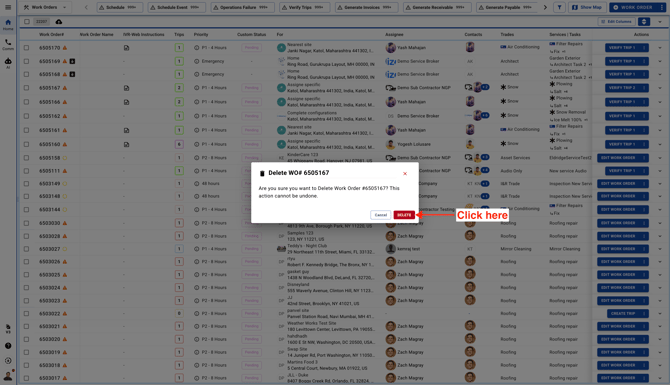
- Confirm Deletion.
Bulk Delete Work Orders
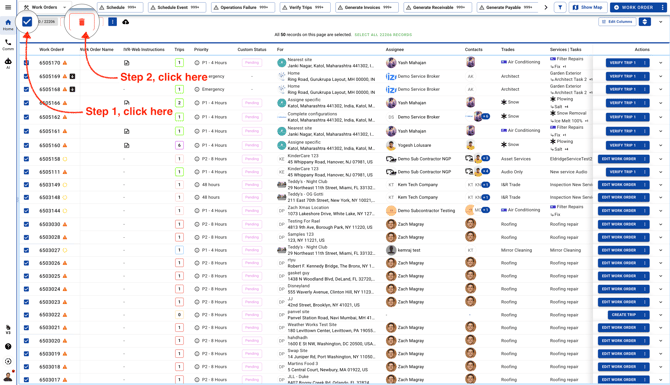
Select the work orders you’d like to delete, then click the delete icon.