
Overview
Choose your own columns on the Work Orders screen. Check or uncheck columns, drag to reorder, and your layout follows your login without changing the view for anyone else. Admins can also set the default columns each role sees.
Customize your viewOpen the Work Orders screen and click Edit Columns in the top right. The Customize Columns panel opens on the side. Make your changes, hit Apply, and you are done.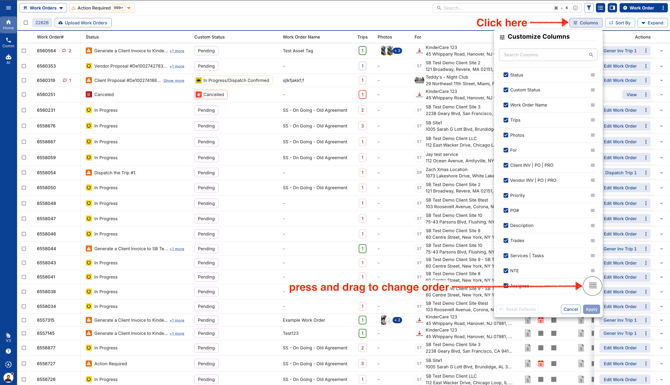
- Add or remove columns. Check or uncheck any column to show only the fields you use.
- Reorder by drag. Grab the handle next to any column and drag it into the order you want.
- Saved per user. Your layout is saved to your login and sticks across sessions. It does not change the view for anyone else on the account.
- Search columns. Type to find a column fast instead of scrolling the full list.
- Reset to defaults. One click returns your role's default columns, so experimenting carries no risk.
Set the default columns each role sees, so a new dispatcher, accountant, or manager lands on a Work Orders view built for their job from day one.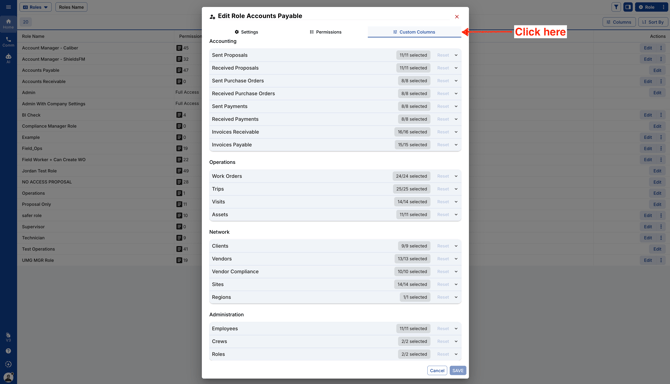
- Go to Settings > Roles and click Edit on the role you want to configure.
- Open the Custom Columns tab and pick the columns each module should show for that role.
- Save. Everyone in that role gets the new default the next time they open the list.
- The role sets the starting view for everyone assigned to it.
- Any user can override their own view, and that preference sticks to their login.
- Reset Defaults returns a user to their role's layout, not a generic one.
Reach out to your Customer Success Manager or contact support@utilizecore.com.