
Overview
This article shows how to check in and what each control on the Trip screen does. A Trip is your visit to one Site. It lives inside a Work Order, the record of what is being done and who for. The screen is headed by the Work Order number, but everything you do in the field happens on the Trip.
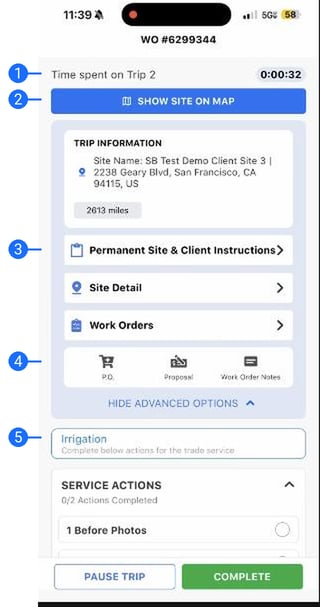
- Time on Trip. A live timer runs from the moment you check in.
- Show Site on Map. Opens directions to the exact site address.
- Instructions. Permanent Site and Client Instructions carry standing notes for the Site. The Site and Client Instructions tabs hold this Trip's details.
- P.O. / Proposal / Work Order Notes. The advanced options: open the purchase order, start a Proposal, or leave notes with an attachment.
- The trade service. The service (for example, Irrigation) holds the actions and tasks you complete for the Trip.
Check-in is tied to the Site. With geofencing on, the app shows Start Travel instead of Check In until you arrive. Check-in confirms your location by GPS. The app uses location only while it is open.
Check in a crewTap Check In, then Select Team Members. Choose everyone on the Trip (they highlight light green) and confirm. The whole crew's time is tracked together.
Related articles- Complete Required Photos, Tasks, and Inspections on a Trip
- Check Out, Pause a Trip, or Mark It Must Return
Reach out to your Technical Account Manager or contact support@utilizecore.com.